Advanced LibraryPower-user Library hub for Azure Pipelines: inline editing of variable groups, matrix views to compare environments, change preview before saving, and per-project change history. |

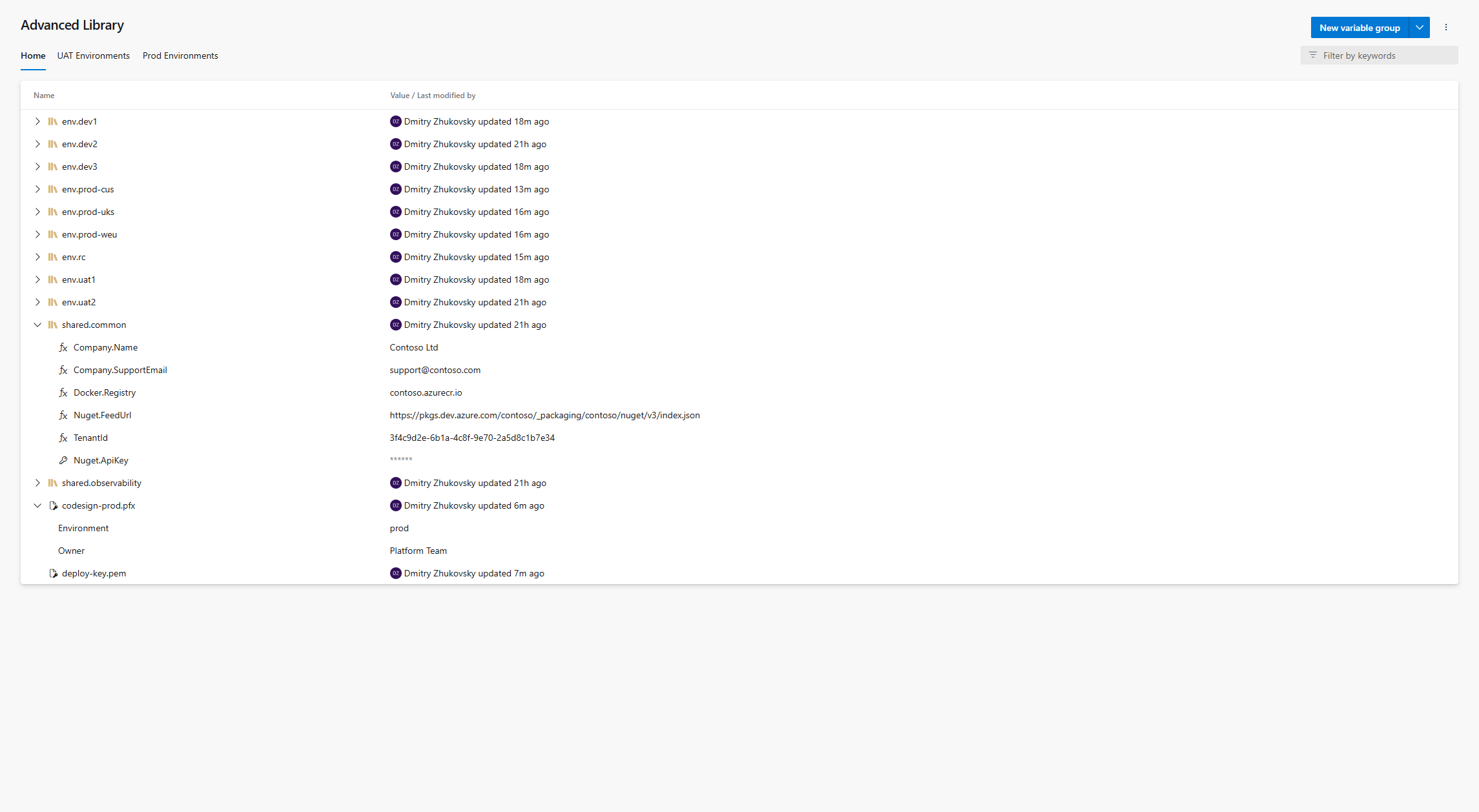
Advanced LibraryEdit all your variable groups on one screen. Advanced Library adds a power-user hub to Azure Pipelines: inline spreadsheet-style editing across variable groups, side-by-side matrix views for comparing environments, a change preview before anything is saved, and a per-project history of who changed what.
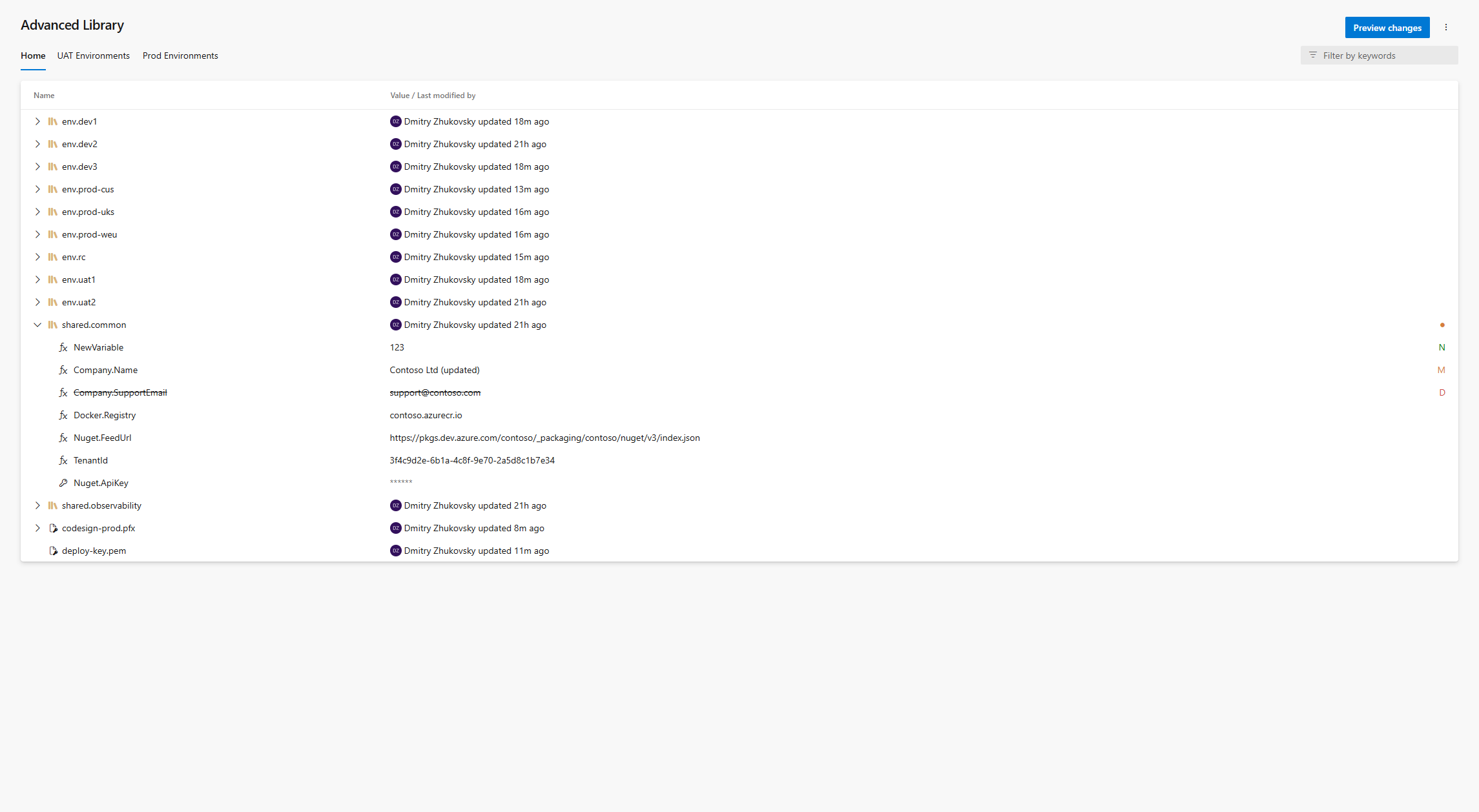
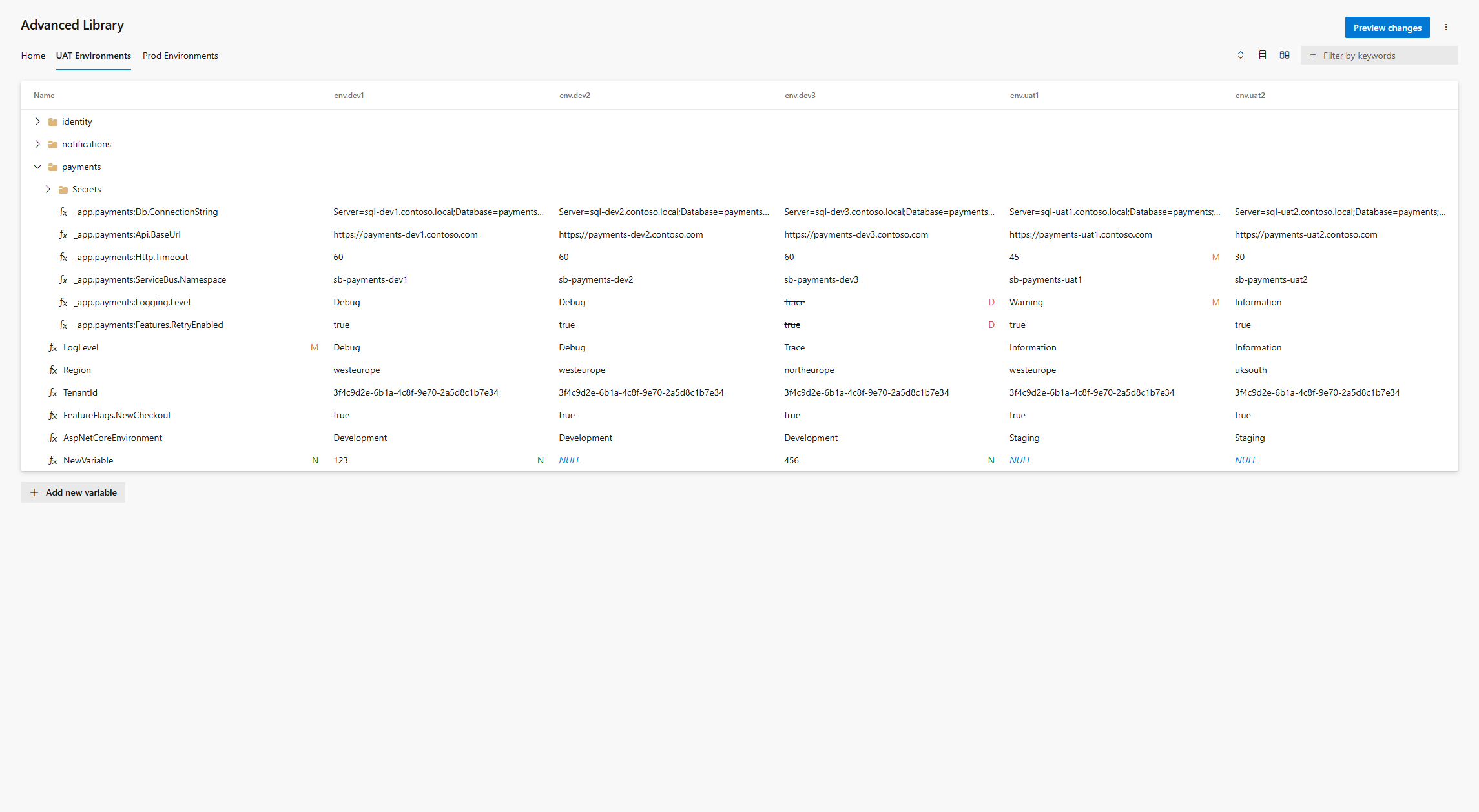
WhyThe built-in Library hub edits one variable group at a time, saves every change the moment you make it, and keeps no meaningful record of who changed what. That gets painful as soon as the same set of variables lives in Dev / Test / Prod groups: checking whether one value drifted between environments means opening three groups in three tabs and comparing them by eye. Advanced Library puts them on one screen. Custom tabs lay any set of groups out as a matrix — one row per variable, one column per environment — so drift is visible at a glance and can be corrected right there in the row. Edits are staged locally until you review the whole change set and save it deliberately, and every save is recorded per project. FeaturesInline editingEdit variable names and values directly in the grid — no per-group drill-down, no modal per variable.
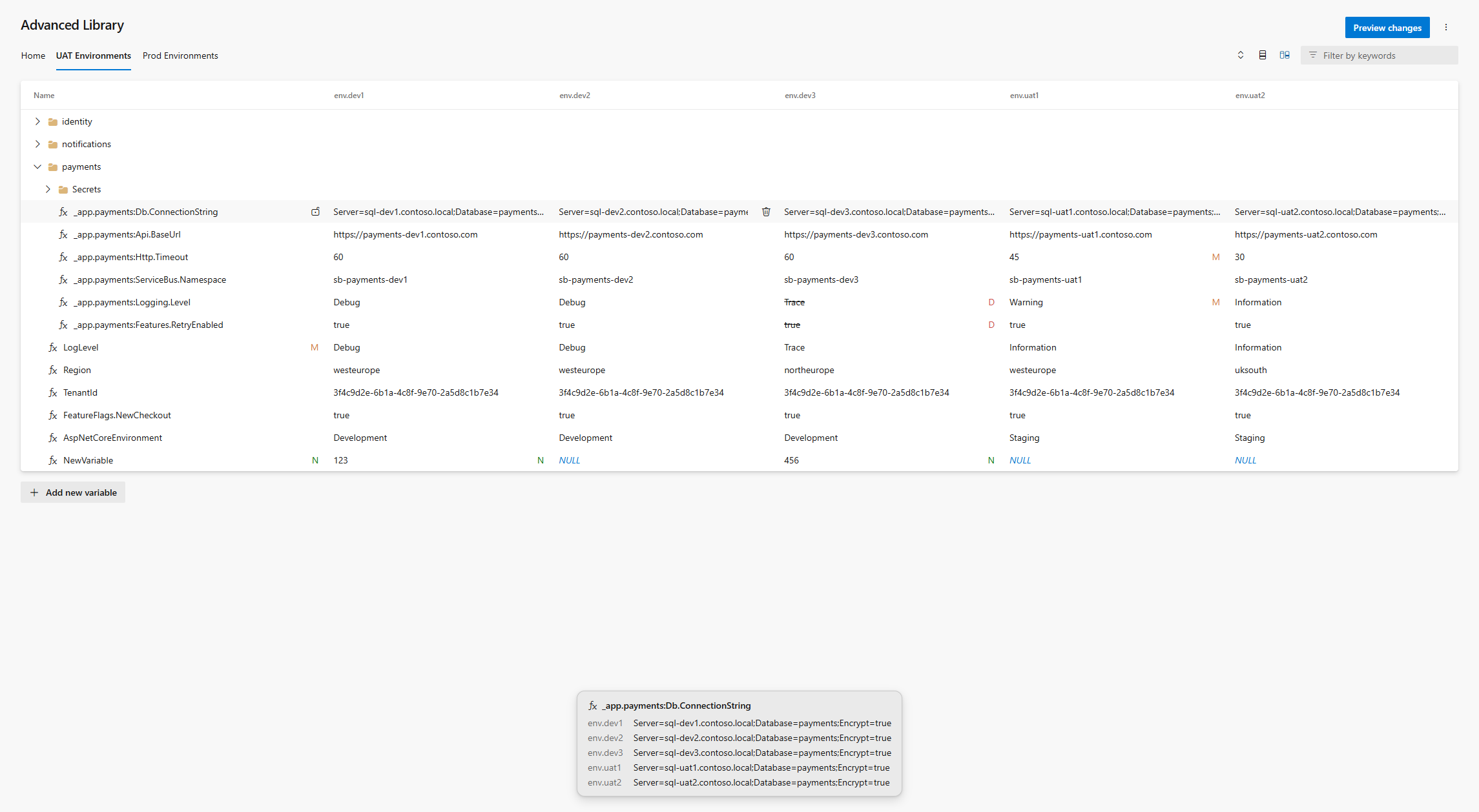
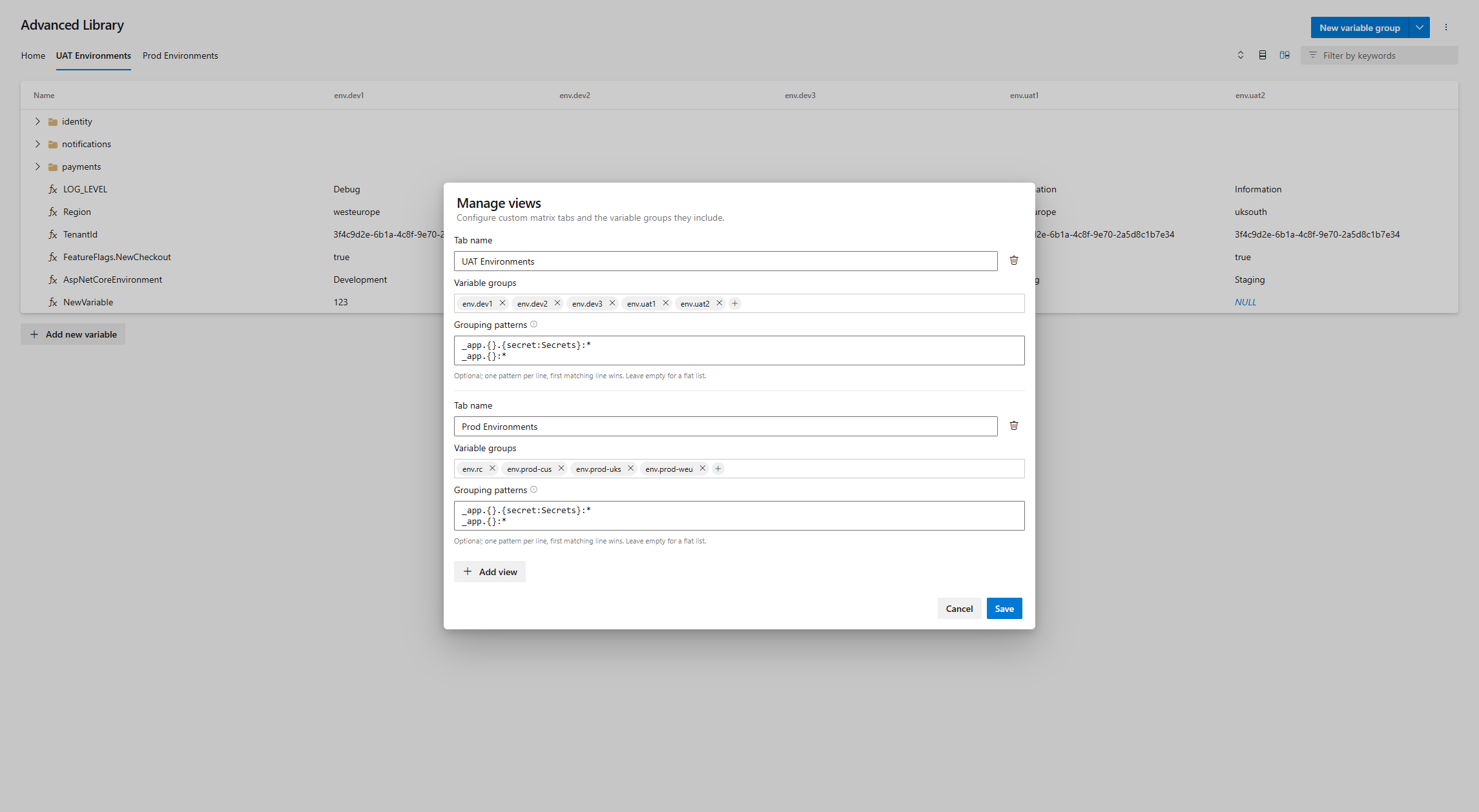
Matrix viewsBuild custom tabs that show a variable-by-group matrix: one row per variable name, one column per variable group. Perfect for keeping environment groups in sync.
A view is defined once — which groups the tab covers, how variable names collapse into folders — and stored with the project, so the whole team opens the same tabs.
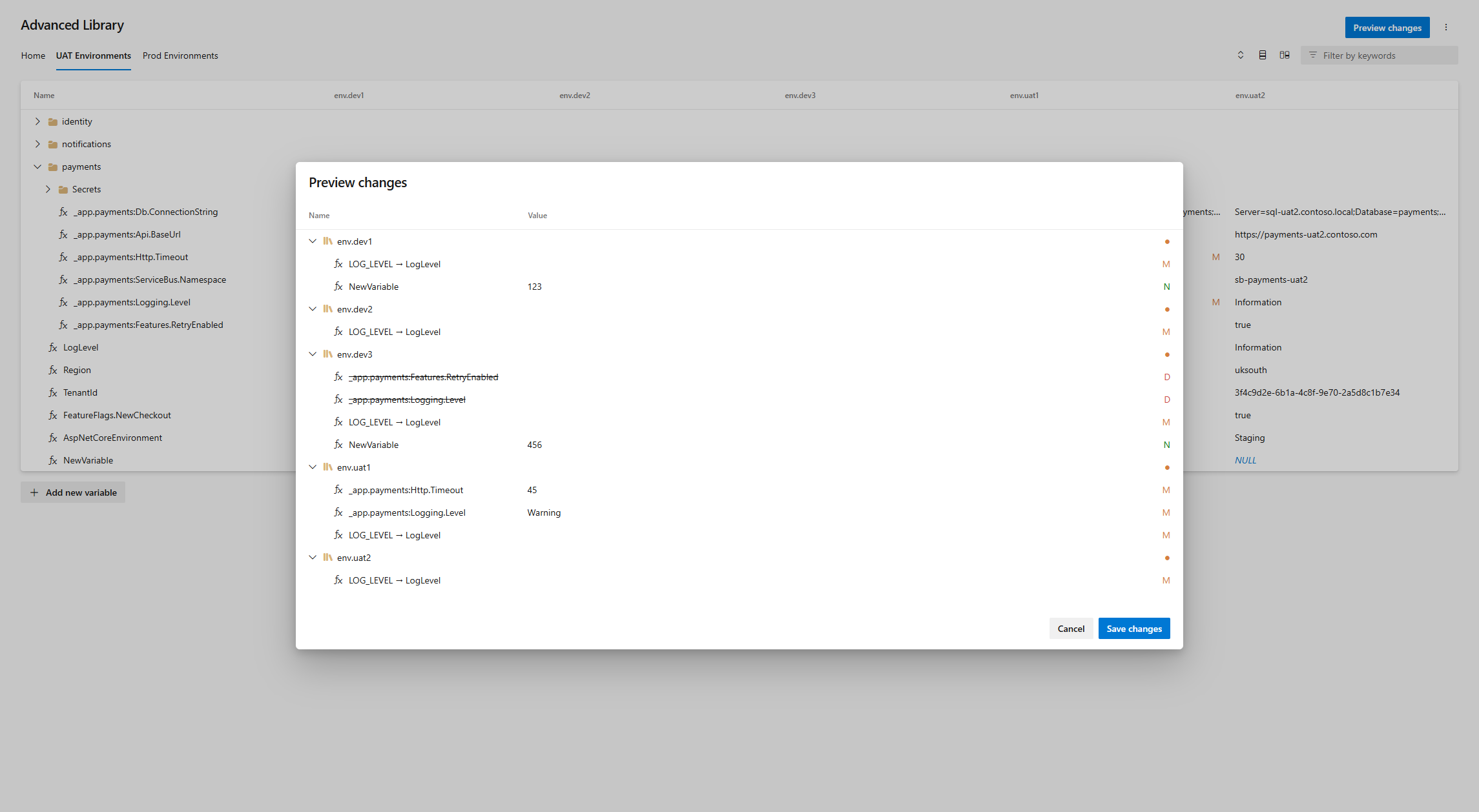
Preview changes before savingNothing is written until you say so. The Preview changes dialog shows the complete staged change set — added, modified, deleted and renamed items per group, a rename spelled out as
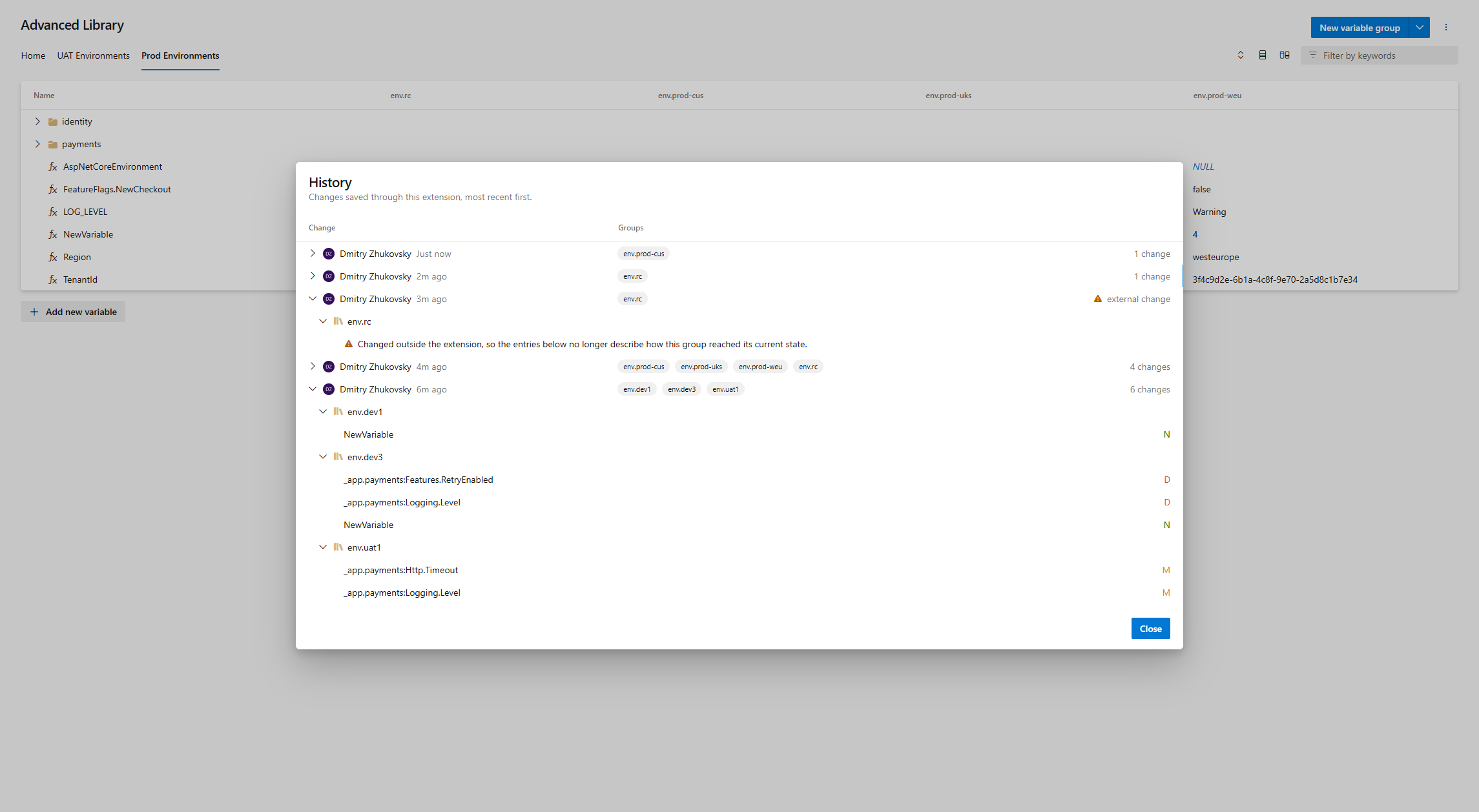
Change historyEvery save made through the extension is recorded per project: who saved, when, which groups, and which variables were added, modified, renamed or deleted. Variable values are never stored — only names and change types.
ExportDownload any variable group as JSON or YAML from its context menu. Dot-separated variable names ( Secure filesSecure files and their properties are listed alongside variable groups, read-only, so the Home tab gives a complete picture of your project's library. Uploading a new one — like creating a variable group from scratch — still belongs to the native Library, and the New button takes you straight there. Getting started
Data, privacy and permissions
Feedback and supportFound a bug or have an idea? Open an issue on GitHub. The extension is open source under the MIT license. |