ADO TimeTracker — Time Tracking Built Into Azure DevOps
Track time, manage approvals, and report on hours — without leaving Azure DevOps.
ADO TimeTracker by de facto infotech is a SaaS-based, full-featured time tracking extension that integrates natively with Azure DevOps. Log time directly on work items, review your week in a spreadsheet-style timesheet, submit for manager approval, and generate detailed reports — all inside ADO.
Running project accounting in Dynamics 365 Finance & Operations? An optional add-on pushes approved weeks into F&O as timesheets — see the Add-on: Dynamics 365 Finance & Operations Sync section below.
✅ No external tools. No context switching. Just Azure DevOps.
🎓 Learn it in 13 minutes
New to ADO TimeTracker, or rolling it out to a team? The free video course walks through every screen in eight short narrated lessons — logging time, the weekly timesheet, submitting and approving, reporting, administrator settings, and the Dynamics 365 F&O add-on.
▶ Watch the video course · 📖 Read the user guide
Key Features
📋 Log Time on Any Work Item
A dedicated ADO TimeTracker tab appears on every work item form. Log time with a single click — no need to open another app or switch tabs.
Log time directly on any work item
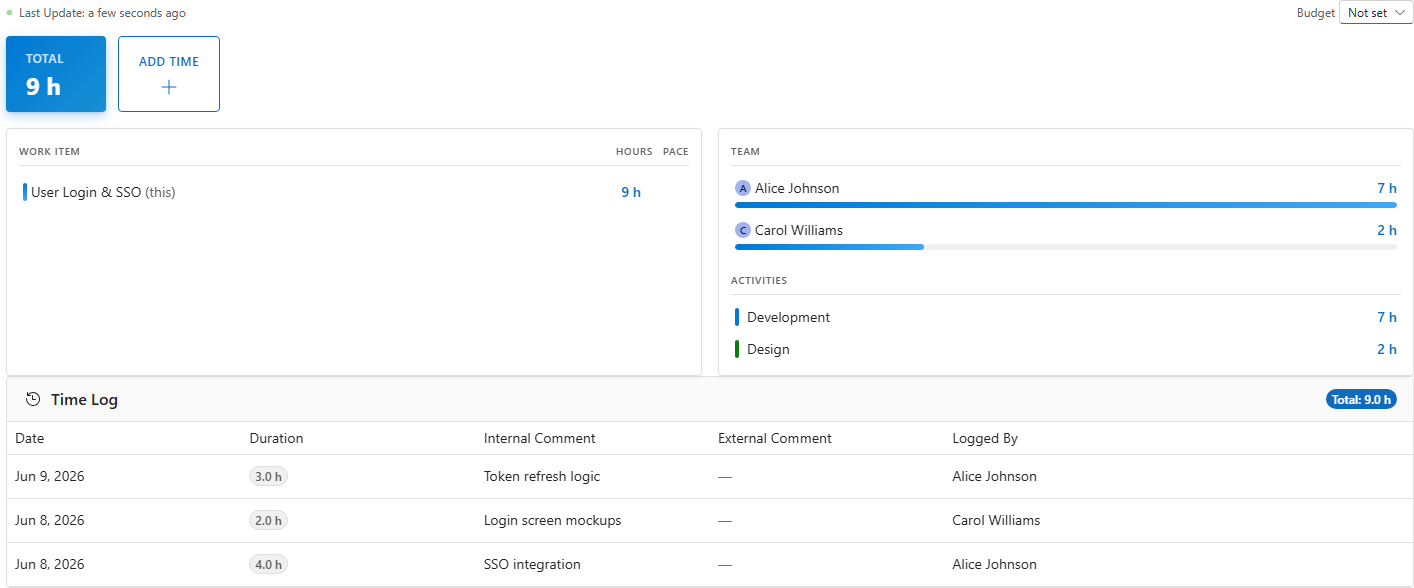
What you see on the tab:
| Section |
Description |
| Total Hours |
Sum of all time logged against this work item |
| Work Item Breakdown |
Hours per work item in the hierarchy |
| Team Breakdown |
Hours per team member with a progress bar |
| Activities Breakdown |
Hours split by activity type |
| Time Log List |
Every individual entry — date, duration, comments, who logged it |
Adding an entry:
- Click Add Time to open the side panel
- Fill in Duration (type
HH:MM or use quick-add buttons: 0.5 h, 1 h, 2 h, 4 h)
- Set Date (defaults to today), optional Start / End time with auto-calculated duration
- Choose Activity Type: Development, Design, Testing, Review, Deployment, Documentation, Meeting, Other
- Set Line Property: Billable / Non-Billable (or Productive / Non-Productive depending on project type)
- Add Internal Comment (team-visible) and/or External Comment (client-facing)
- Click Save
Entries in a Submitted or Approved week are locked and cannot be edited or deleted.
Click the pencil icon to edit or trash icon to delete your own entries in unlocked weeks.
📊 Weekly Timesheet
The Timesheet page is the primary weekly grid for viewing and editing time across all your work items at once.
View and edit time across all work items in a weekly grid
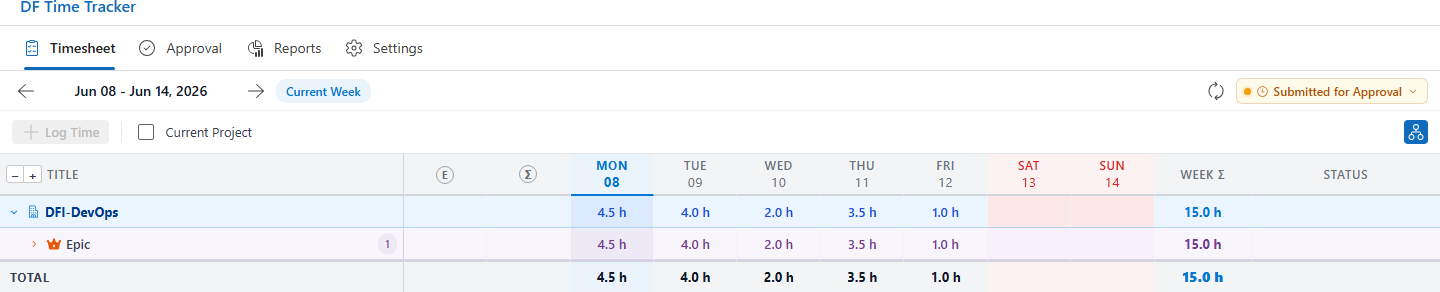
- Rows: work items organised in a Project → Work Item Type → Work Item hierarchy
- Columns: one per day of the selected week, plus a weekly total
- Click any cell to open the Quick Entry dialog — pre-loads all existing entries for that day and work item so you can edit them in one place
- Use ← / → buttons to navigate weeks, or click Current Week to jump back
- Filters: Current Project (show only work items in your ADO project) · Flat view (hide hierarchy, show only items with logged time)
- + / − toolbar buttons to expand or collapse all hierarchy levels at once
Approval status badges on each row:
| Badge |
Meaning |
| Draft |
Not yet submitted |
| In Review |
Submitted, awaiting approval |
| Approved |
Approved by a manager |
| Rejected |
Rejected — reason shown in tooltip; resubmit directly from the badge |
✅ Approval Workflow
A structured approval flow that keeps managers informed and timesheets accountable.
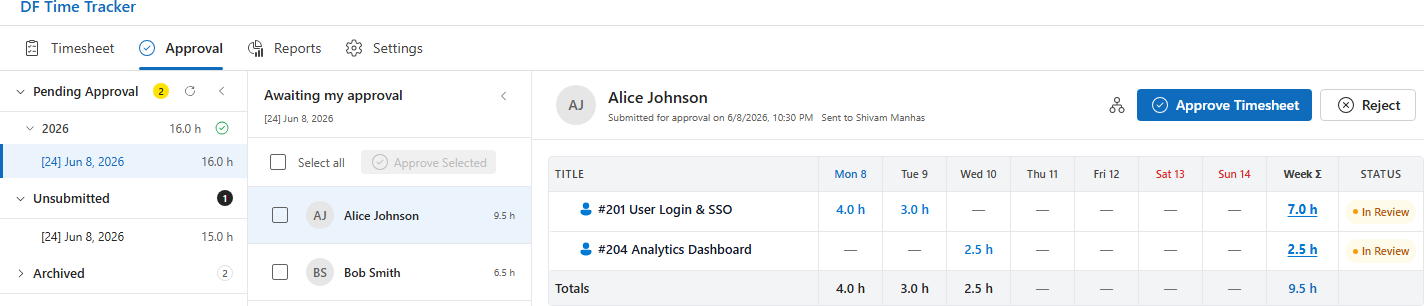
Review, approve, or reject team submissions in one place
For team members — submitting a week:
- Open the Timesheet for the week you want to submit
- Click the Week Status badge and select Submit for Approval
- Choose an Approval Manager from the list and confirm — the week is now locked
- To undo, click the badge and choose Recall Submission
- Click View Approval History for a full timeline of submit, approve, and reject events
For managers — Approval page (three-panel layout):
| Panel |
Description |
| Left |
List of pending, unsubmitted, and archived weeks |
| Middle |
All submissions for the selected week — one row per team member |
| Right |
Hierarchical timesheet detail for the selected submission |
- Approve or Reject the entire submission or individual work items within it
- Add a rejection reason — surfaced directly to the team member as tooltip text on their badge
- After rejection the team member can correct entries and Resubmit directly from the Timesheet
- Bulk approve multiple submissions at once using checkboxes
- Every action is recorded with a timestamp and actor name — full audit trail
📈 Reporting
Filter, group, and export your team's hours for client billing, payroll, or project accounting.
Filter, chart, and export team hours for billing and payroll
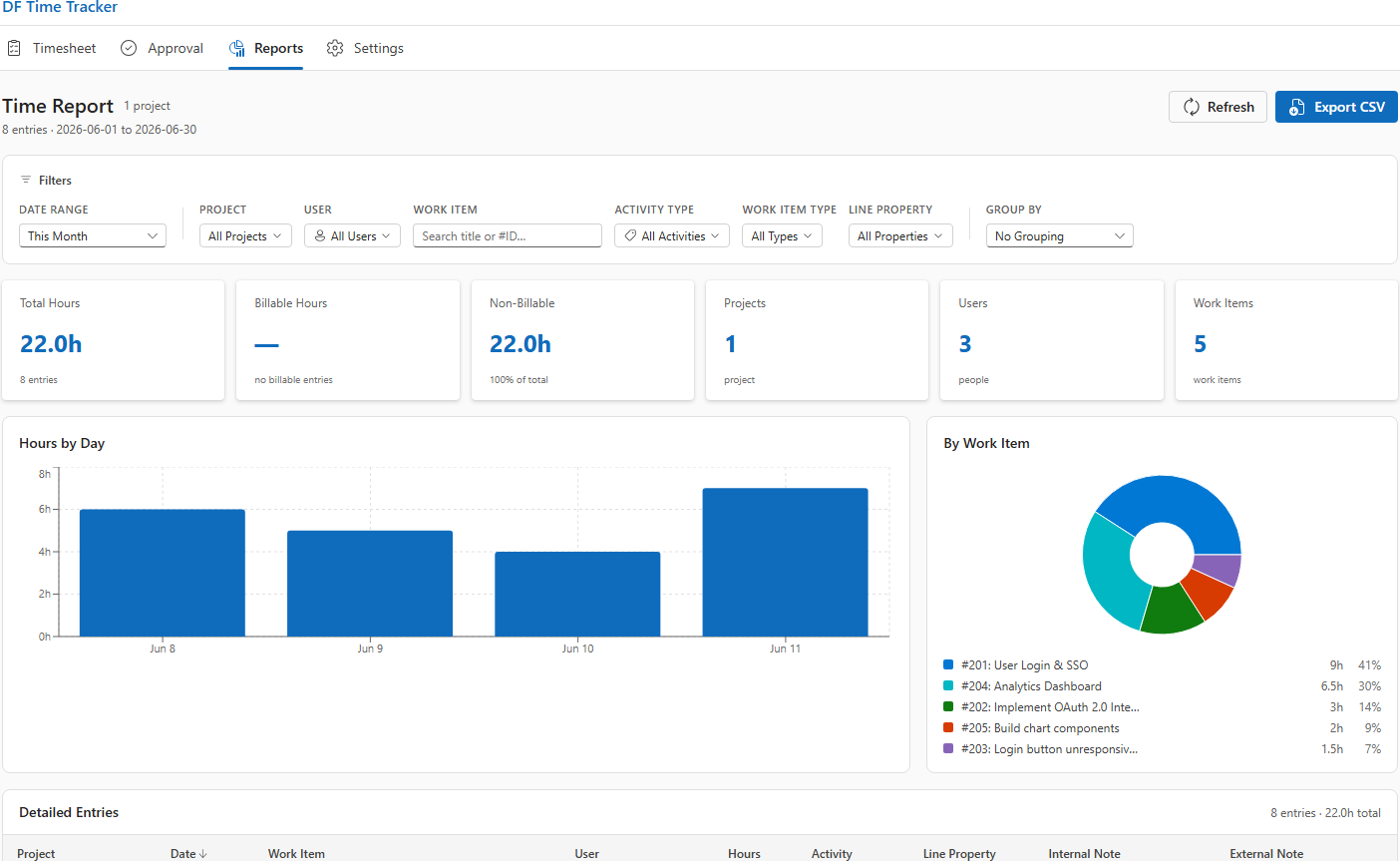
Filters:
| Filter |
Description |
| Date range |
Preset options (Today, This Week, Last Week, This Month, etc.) or custom range |
| Projects |
One or more ADO projects |
| Users |
One or more team members |
| Work Items |
Search by title or #ID |
| Activity Types |
Development, Testing, Meeting, etc. |
| Line Property |
Billable, Non-Billable, Productive, Non-Productive |
| Work Item Types |
Epic, Feature, Story, Task, Bug, etc. |
Filters cascade — selecting a project updates the available user list automatically.
Summary cards: Total Hours · Billable Hours · Non-Billable Hours · Projects · Users · Work Items
Charts: Hours by Day (bar chart) · Breakdown by selected category (pie + grouped bar)
Detail table: sortable columns · Group by Date / Week / Project / User / Work Item / Work Item Type / Activity · expandable grouped rows
Export CSV — download the current filtered and grouped data in one click.
⚙️ Settings
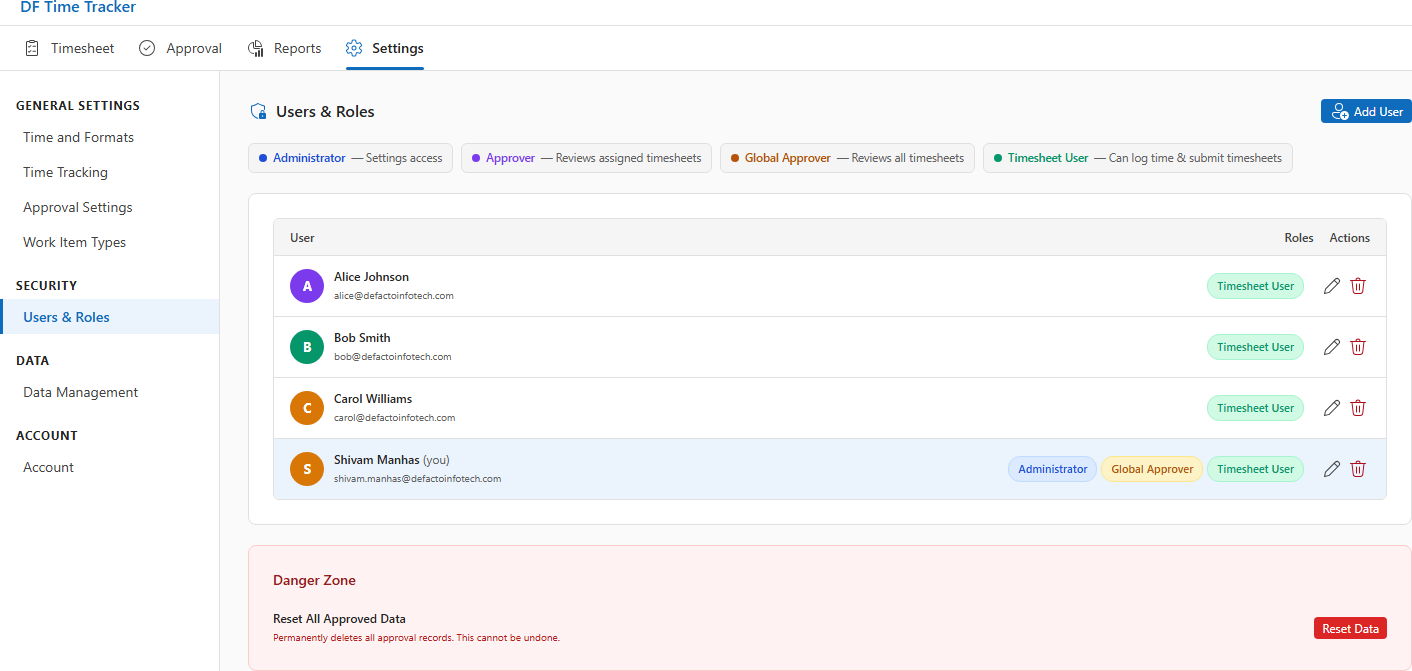
Settings are shared across the whole project. Only users with the Admin role can make changes.
Configure time formats, approval rules, roles, and data management
| Section |
What you configure |
| Time Formats |
Display format (HH:MM or decimal) · First day of week (Monday or Sunday) |
| Time Tracking |
Working hours per day (slider 1–24 h) · Weekly hour cap · Working days |
| Work Item Types |
Toggle which ADO types allow time entries |
| Approval Settings |
Auto-lock weeks · Submission advance days |
| Users & Roles |
Add / edit / remove users; assign Admin, Global Approver, Approver, or Timesheet User roles |
| Approval Managers |
Add / remove managers; set Global Approver flag |
| Data Management |
Export all data (JSON) · Factory Reset (type RESET to confirm) |
| Integrations |
Connect the optional Dynamics 365 F&O sync add-on: environment, field mappings, sync diagnostics |
🔗 Add-on: Dynamics 365 Finance & Operations Sync
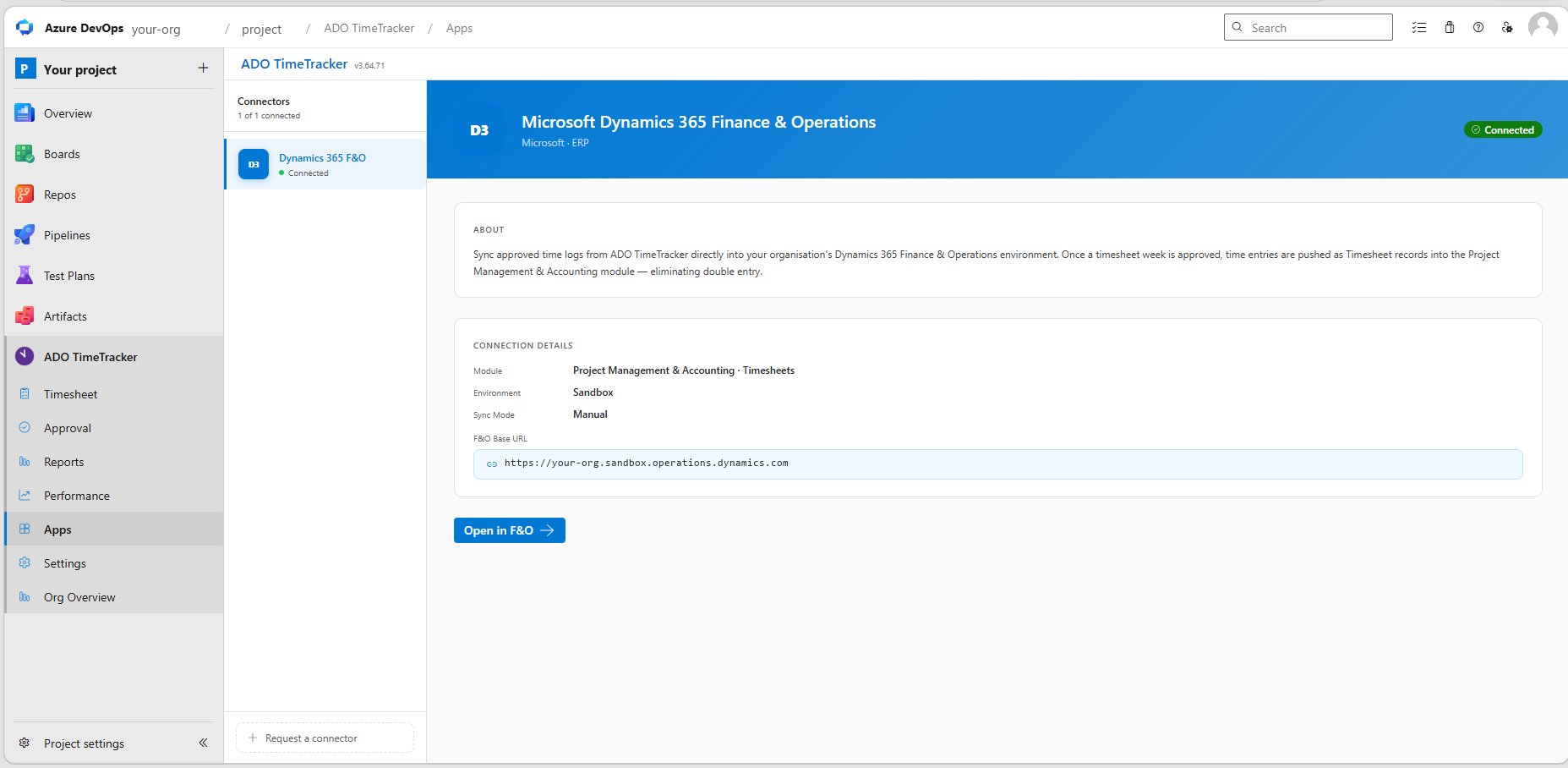
Optional paid add-on for organisations that run project accounting in Dynamics 365 Finance & Operations. The core extension does not require it.
Push approved time straight into F&O — no re-keying of timesheets by the finance team.
Turn approved weeks into D365 F&O timesheets
| Capability |
Description |
| Approved weeks become F&O timesheets |
Each approved week is created in F&O as a timesheet header with lines and hour transactions in Project Management & Accounting |
| Weekly or daily sync |
Send each approved week as one timesheet, or let each person sync their own day with Sync day → F&O |
| Activity per entry |
Every time entry form lists the F&O activities of the work item's project. The one matching your work item is pre-selected, you can change it, and the sync books the line to it |
| Submitted timesheets are protected |
Re-syncing a day only replaces a timesheet that is still a draft in F&O. One that is in review or approved is never changed |
| Validated before sync |
Project categories, activities and line properties are read from your F&O project setup, so every entry is valid before it is sent |
| Reason codes |
A reason code is captured on every entry when the add-on is enabled, as F&O requires |
| Connection & diagnostics |
Connect your F&O environment, review mappings, and run sync diagnostics from Settings → Integrations and the Apps hub |
Interested? Contact sales@defactoinfotech.com to enable the add-on for your organisation.
Roles & Permissions
| Role |
What they can do |
| Admin |
Full access: Settings, Users, Data Management |
| Global Approver |
Approve / reject any team member's timesheet |
| Approver |
Approve / reject timesheets for assigned team members |
| Timesheet User |
Log, edit, and submit their own time entries |
Bootstrap mode: If no Admins have been configured yet, every user can access Settings. Once the first Admin is saved, access is restricted automatically.
Permissions: this version requests the Code (read) permission so upcoming features can read commit and pull-request activity from Azure Repos. An organization administrator may be asked to re-authorize the extension after upgrading.
Process Template Support
Works out of the box with all standard Azure DevOps process templates:
| Template |
Supported Work Item Types |
| Agile |
Epic, Feature, User Story, Task, Bug, Test Case, Test Plan, Test Suite |
| Scrum |
Epic, Feature, Product Backlog Item, Task, Bug, Impediment |
| CMMI |
Epic, Feature, Requirement, Task, Bug, Change Request, Issue, Review, Risk |
Administrators can enable or disable any work item type from the Settings page.
Data & Security
- All time log data is stored in the Azure DevOps Extension Data Service, scoped to your ADO organisation and project
- No data is sent to or stored on external servers
- Approval records, settings, and role assignments are all stored in ADO project-scoped storage
- The extension makes no outbound calls to services outside Azure DevOps
- With the optional Dynamics 365 F&O sync add-on enabled, approved time entries are sent only to your own F&O environment, using the connection you configure
Getting Started
- Install the extension from the Marketplace
- Open any Work Item in Azure DevOps — click the ADO TimeTracker tab to log time
- Open the ADO TimeTracker hub from the project sidebar for the full Timesheet, Approval, Reporting, and Settings dashboard
- Use the ? menu in the hub or on the tab for the video course, user guide and support
ADO TimeTracker is developed and maintained by de facto infotech.

