Plan each Azure DevOps sprint in the story points your team estimates in. Everyone's capacity is filled in from their last sprints, days off come from the Capacity tab, and you see who is over as you plan.
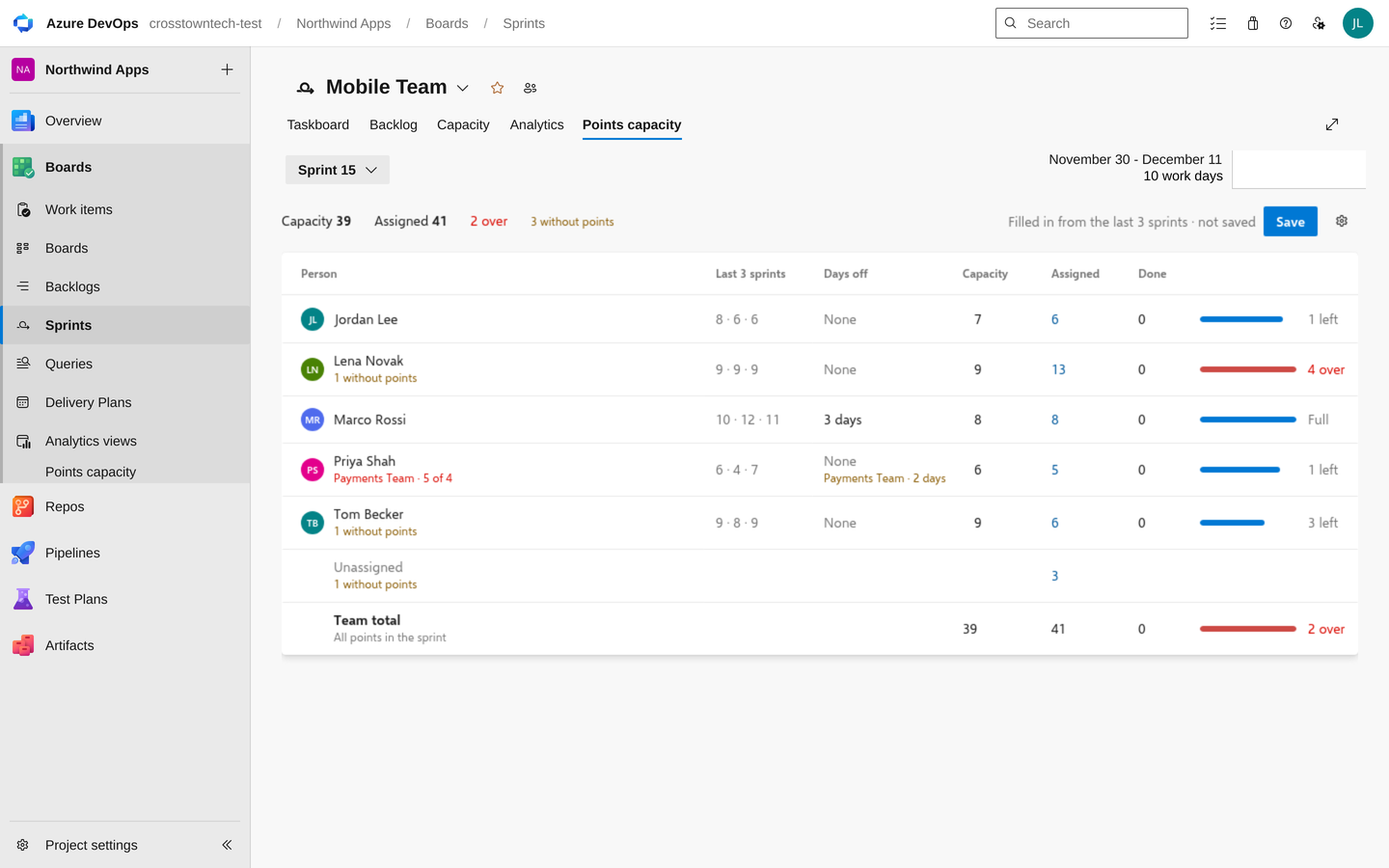
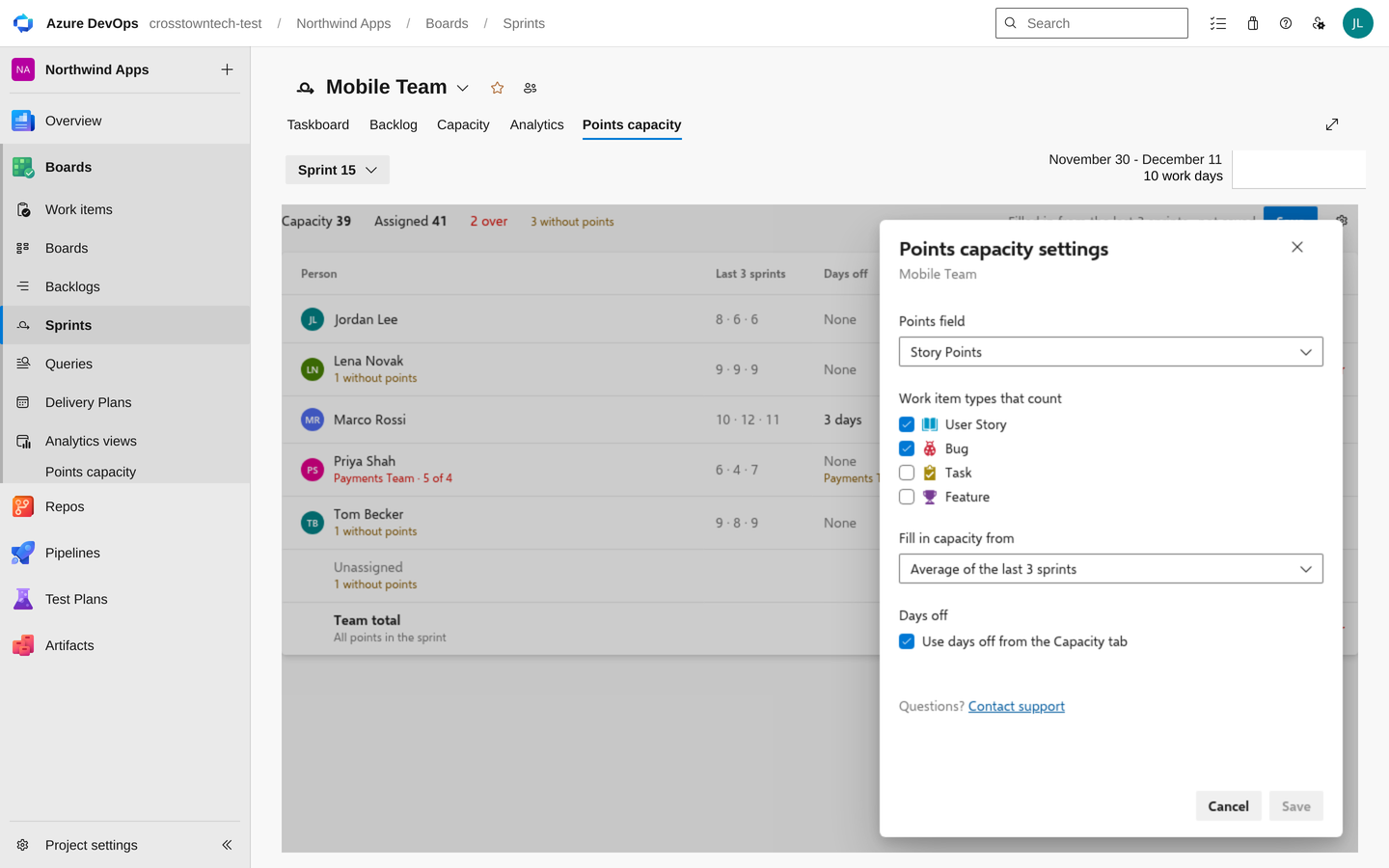
A Points capacity tab on every sprint. One row per person: their last sprints, days off, capacity, assigned points and a bar that turns red when they are over. Save, and the team sees the same plan.
Filled in for you. Capacity starts from the points each person finished in their last sprints on the team (3 by default), scaled for the days off already on the Capacity tab. Change any number you know better.
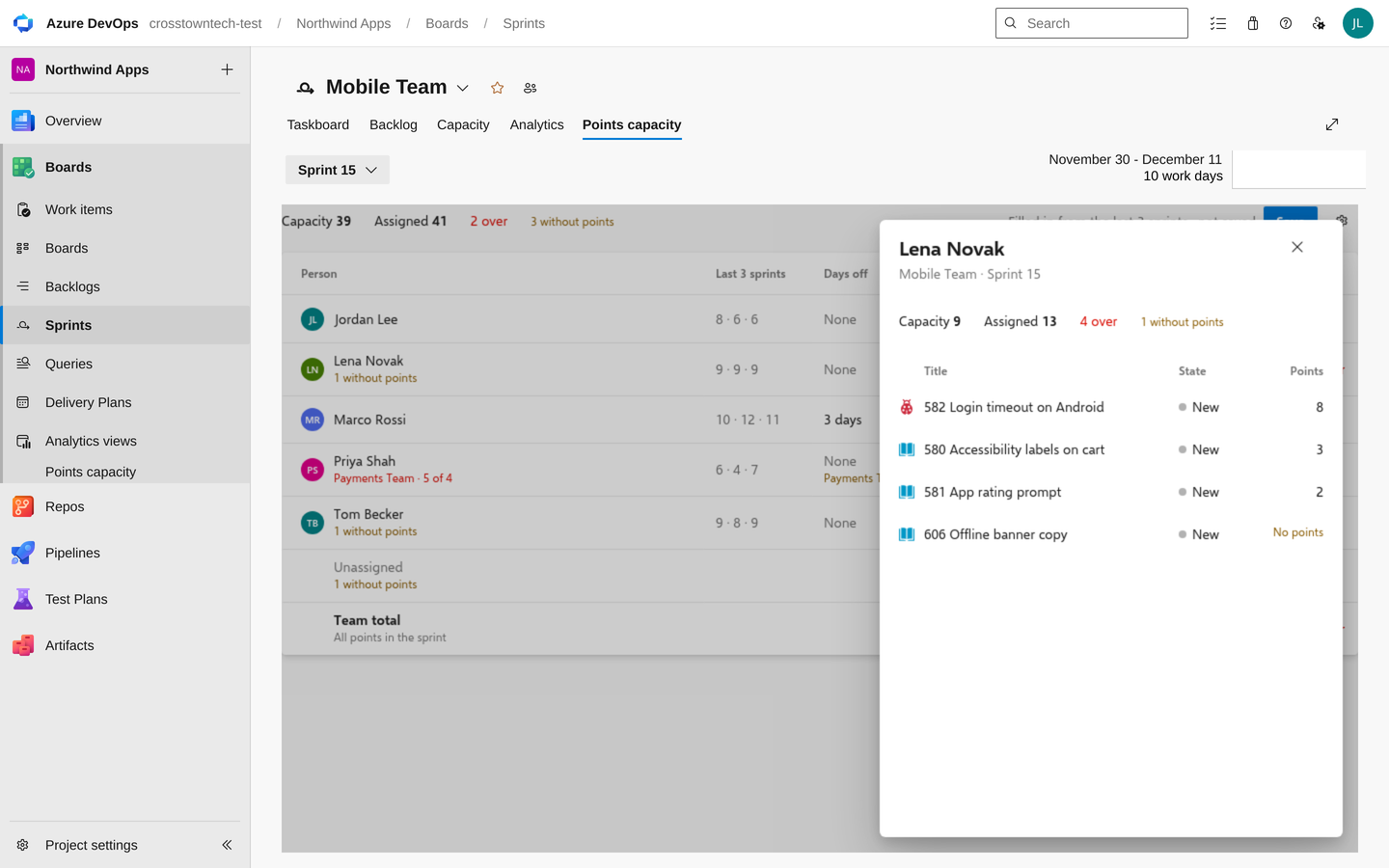
Nothing hidden. Items without points count as 0, so the app says how many there are, under the person and in the totals. The Team total row counts every point in the sprint, unassigned work included.
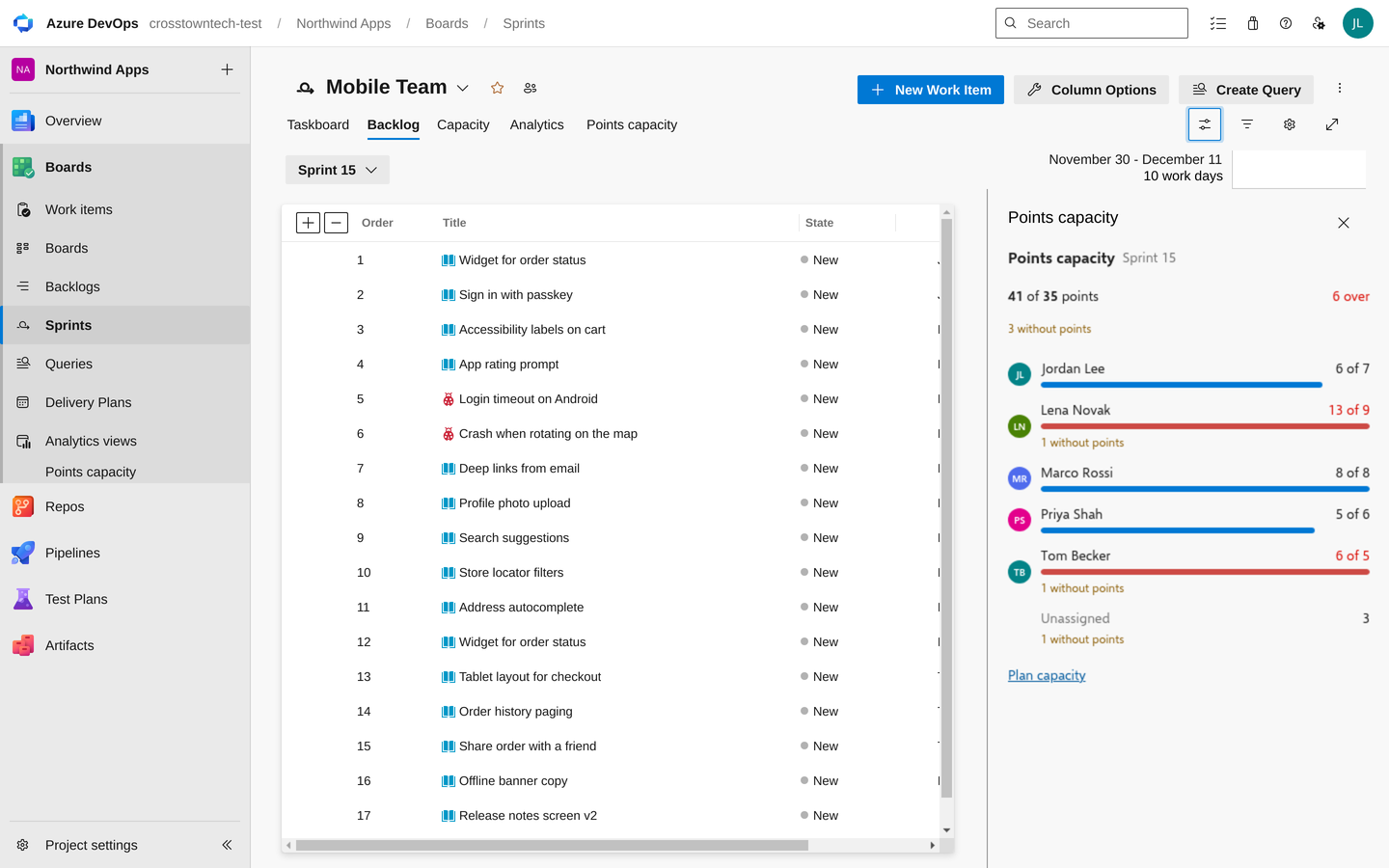
Beside the backlog. Turn on Points capacity in the sprint backlog's side pane to see who has room while you drag work in.
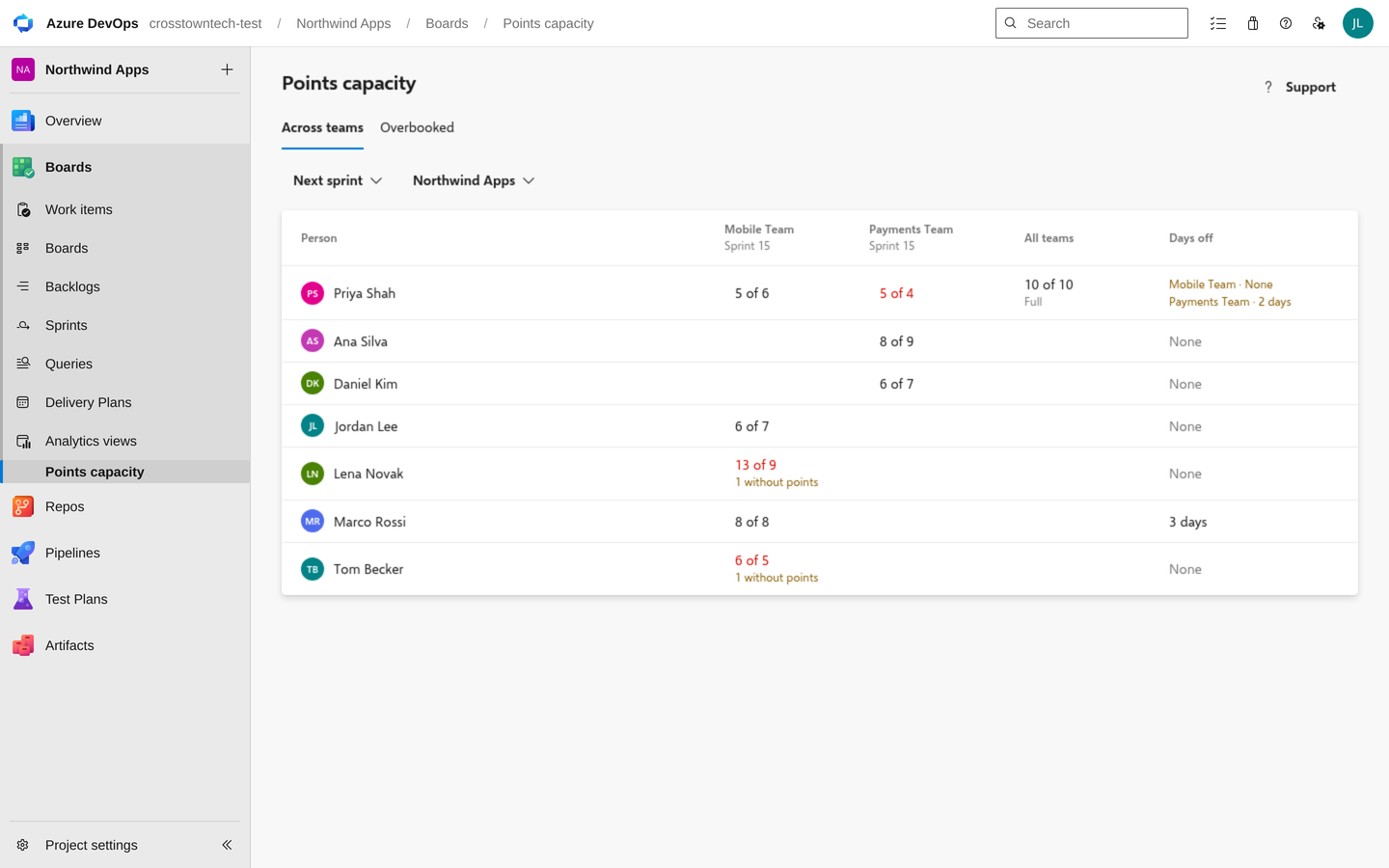
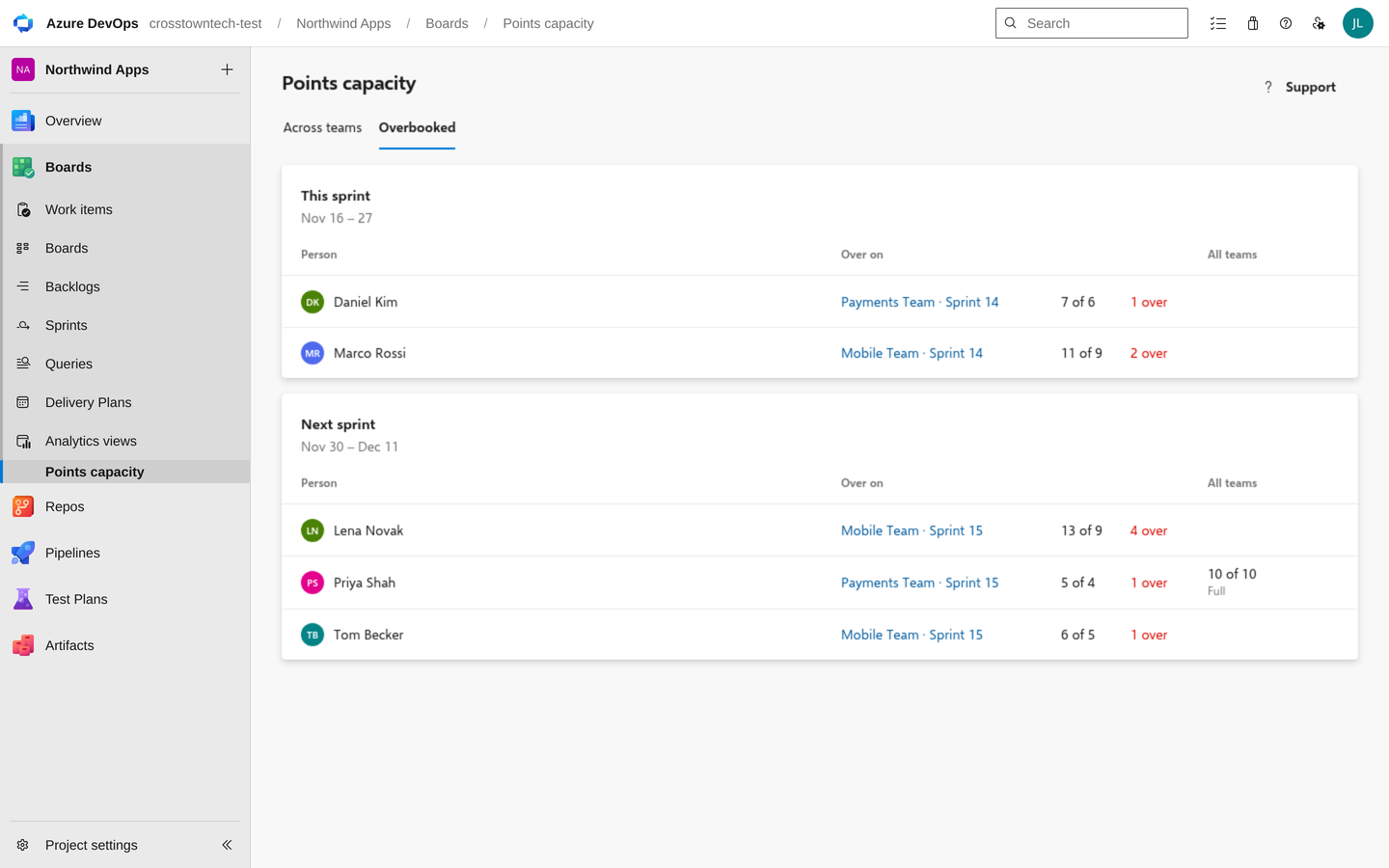
Across teams.Boards → Points capacity shows each person's load on every team they are on, for this sprint and the next, and lists everyone who is overbooked.
Settings per team. Pick the points field (Story Points, Effort, Size or your own), the work item types that count, how many past sprints to average, and whether days off lower capacity.
Getting started
Install the extension in your organization.
Open Boards → Sprints, pick a team and a sprint, and choose the Points capacity tab.
Check the filled-in numbers, change what you know better, and select Save.
Capacity numbers are stored in your organization's own extension data. Works with Azure DevOps Services organizations. Free trial.