Classroom Live
English | 한국어
Classroom Live puts the code an instructor is viewing in Visual Studio directly on student devices in the same classroom. Instead of copying code from a projector, students can read it on their own screens and choose from the files the instructor has shared.
No Internet connection is involved. Everything stays on the same Wi-Fi network.
Screenshots
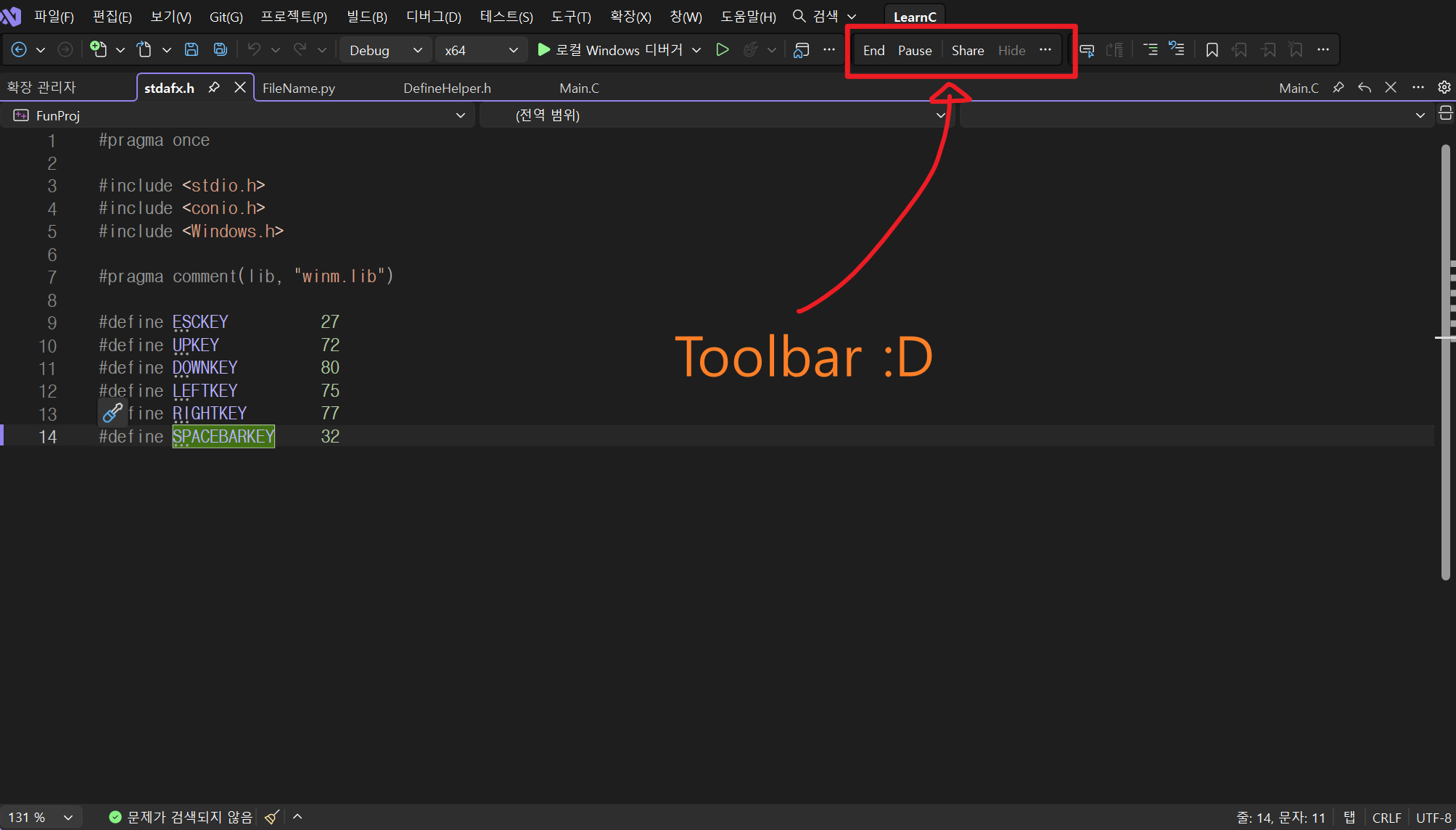
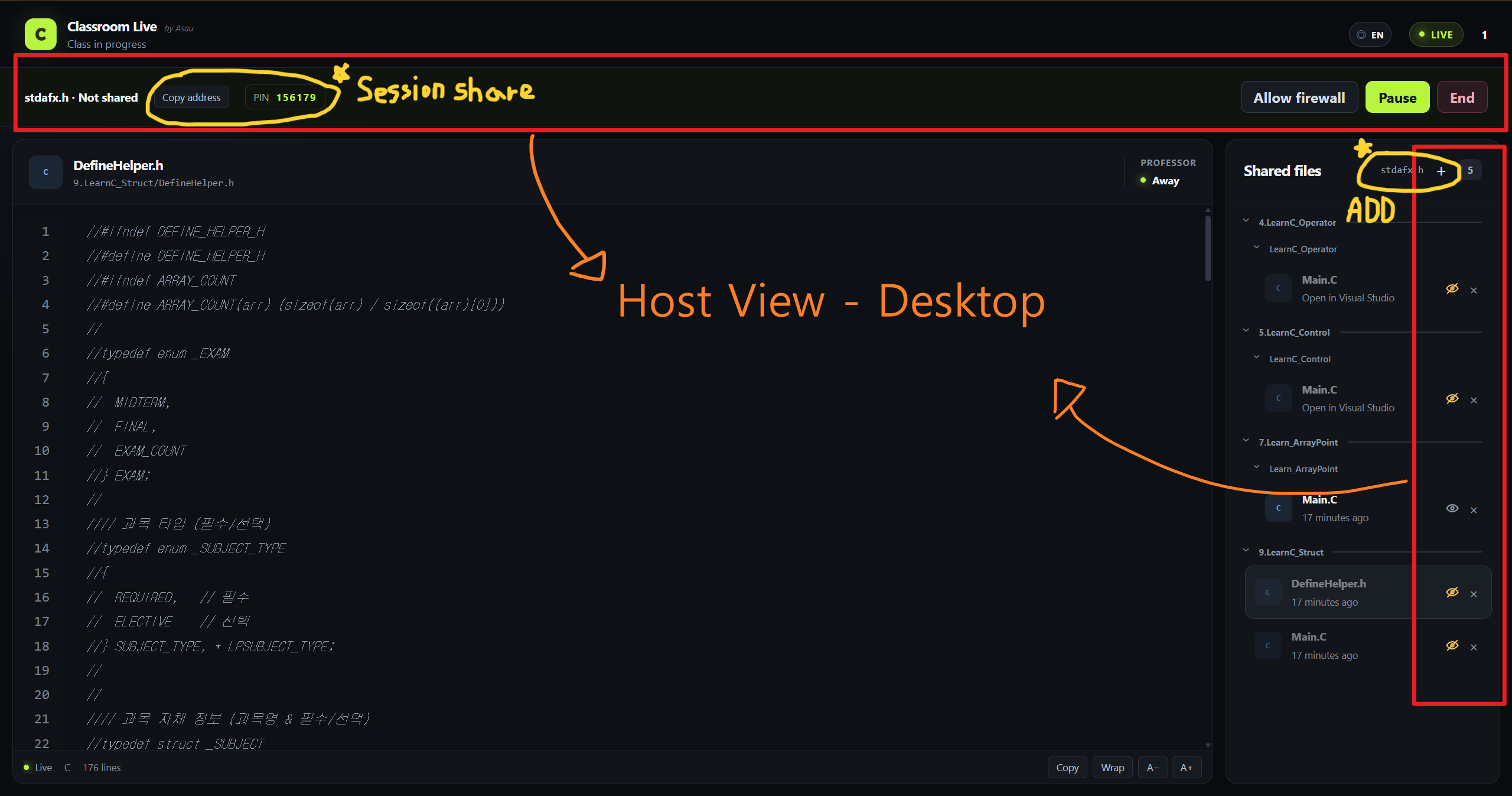
Instructor view
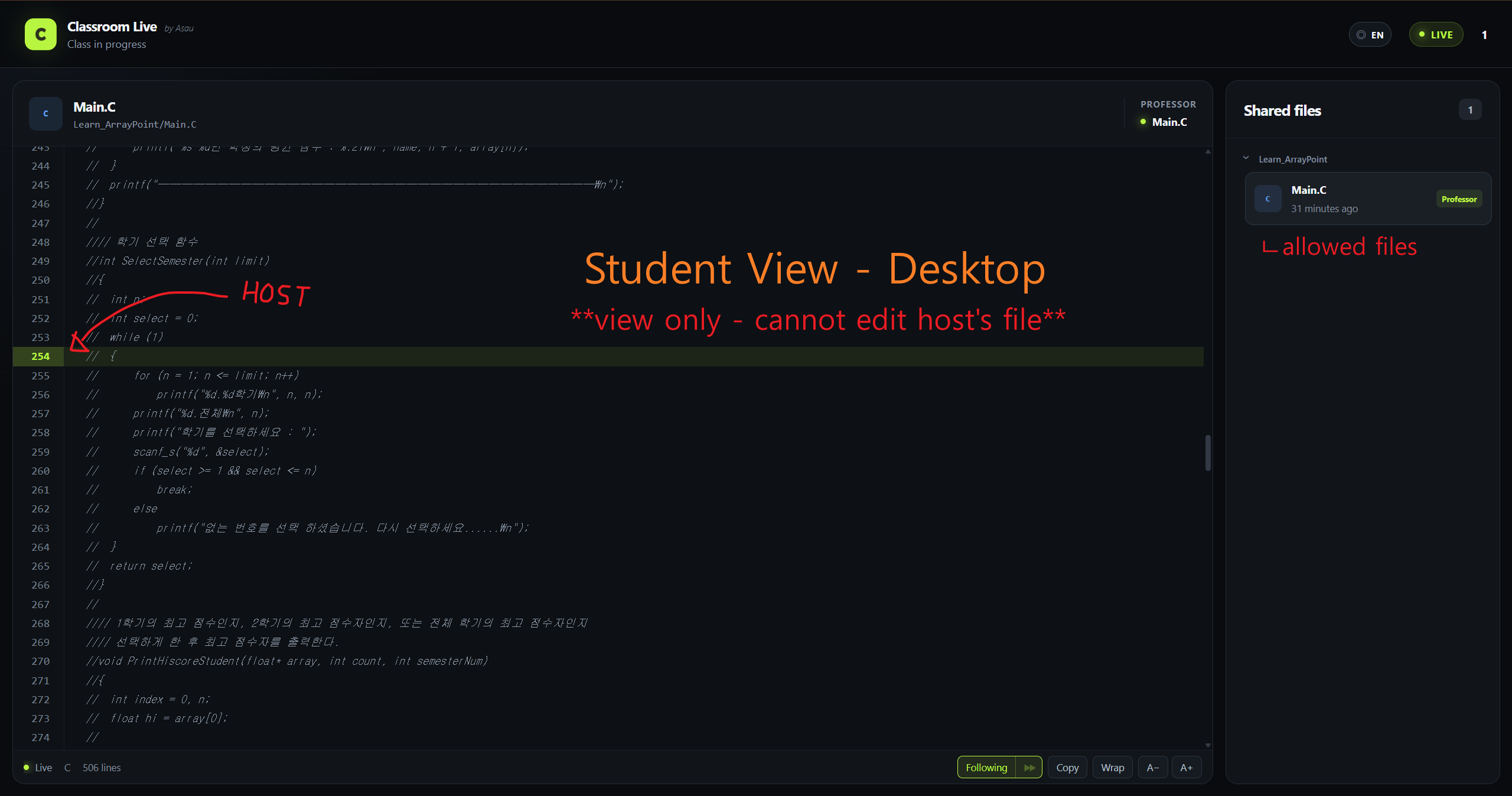
Student view
Supported environments
- Windows 11 x64 and desktop Visual Studio 2019, 2022, and 2026 are supported.
- Windows 10 x64 may work, but support is best effort because consumer Windows 10 and .NET 10 are no longer officially supported there.
- macOS, Linux, Windows ARM64, and Visual Studio Code are not supported.
- The release VSIX includes the Windows x64 host runtime, so the instructor does not need to install .NET separately.
Architecture
| Location |
Purpose |
host/ClassroomLive.Host |
ASP.NET Core server on the instructor's PC. Stores session state and serves the browser UI |
host/ClassroomLive.Host/wwwroot |
Dependency-free static HTML, CSS, and JavaScript for the instructor and student views |
extension/ClassroomLive.Extension |
Visual Studio extension (VSIX). Sends the active editor file to the host |
Data flow:
Visual Studio ──(extension)──▶ 127.0.0.1:5050 ──▶ ClassroomLive.exe ──▶ student browsers on the same Wi-Fi
      ▲                        X-Extension-Token      in-memory state                 PIN required
      └──────────────────────────────────────────┘
             share/unshare commands returned
             in the host response
The extension pushes state to the host. The host returns commands and the current session state in the same response. This lets the instructor share or unshare files from the browser view while allowing the Visual Studio menu to update its labels and enabled state without separate polling.
Selecting Run in Visual Studio launches Host\ClassroomLive.exe directly from the VSIX. No ZIP extraction, executable selection, or separate .NET runtime installation is required.
The extension and host exchange the active port and token through %LOCALAPPDATA%\ClassroomLive\host.json. The file exists only while the host is running and is deleted on shutdown. If a crash leaves it behind, the extension checks both the process and server response before discarding stale information.
Build
Building the release VSIX requires Visual Studio with the Visual Studio extension development workload. The extension cannot be built with dotnet build alone.
msbuild extension\ClassroomLive.Extension\ClassroomLive.Extension.csproj /p:Configuration=Release
Output: extension\ClassroomLive.Extension\bin\Release\ClassroomLive.Extension.vsix
The build publishes the host as a self-contained Windows x64 application and includes it under Host/ in the VSIX. The instructor only needs the resulting VSIX file.
To develop or test only the host, run it separately with the .NET 10 SDK:
dotnet run --project host/ClassroomLive.Host
ClassroomLive.slnx contains only the host because adding the extension would make solution-level dotnet build fail.
Running Classroom Live
Instructor instructions are also available in host/ClassroomLive.Host/README.txt. That file is included with the packaged host.
The host is built as a WinExe. Double-clicking it opens only the instructor view in a browser without showing a console window. The three jobs previously handled by the console have dedicated replacements:
| Console responsibility |
Replacement |
| Display the address |
Open the browser automatically, or show the address in a dialog if that fails |
| Report startup failures |
Error dialog (HostConsole.Error) |
| Stop with Ctrl+C |
End button in the instructor view |
When started from a terminal, the host uses AttachConsole and keeps its normal console output. The behavior of --self-test and CI runs is unchanged.
If the instructor view is closed and no students remain connected, the host shuts down automatically after 30 minutes.
Environment variables:
| Name |
Default |
Description |
CLASSROOM_LIVE_PORT |
5050 |
Listening port. The extension discovers it through the handshake file |
CLASSROOM_LIVE_NO_BROWSER |
– |
Set to 1 to prevent the browser from opening at startup |
When Windows first asks for network access, allow both private and public networks. A blocking rule created by clearing either option takes precedence over an allow rule. If the wrong option was selected or students cannot connect, use Allow firewall in the instructor view to remove related blocking rules and recreate a private-IP-only TCP allow rule for ClassroomLive.exe.
Windows Firewall changes cannot bypass AP isolation or client isolation configured on the school Wi-Fi network.
Classroom Live also lists private IPv4 addresses on gateway-free lab switches and IPv4 link-local
169.254.x.x addresses used by direct Ethernet connections. IPv6-only networks are not supported.
When a physical Wi-Fi or Ethernet address is available, virtual adapter addresses such as VMware or VPN are hidden.
When multiple physical addresses remain, the picker shows both the adapter name and IP address.
Two instructor control surfaces
The instructor browser view and the Visual Studio commands provide the same controls. Changes made in either surface appear in the other within 0.6 seconds.
Visual Studio exposes the commands in both the Classroom Live toolbar (View > Toolbars > Classroom Live) and the Tools > Classroom Live menu.
[ Run/End ] [ Start/Pause/Resume ] │ [ Share ] [ Hide ]
| Task |
Instructor view |
Visual Studio |
| Run |
– (the server must already be running) |
Run |
| End |
End |
End |
| Start / pause / resume |
Start · Pause · Resume |
Start · Pause · Resume |
| Share / unshare the active file |
Share OO.cs |
Share |
| Hide / show the active file |
Hide |
Hide |
| Hide or unshare any file |
Hide and × in the file list |
– (active file only) |
Button labels change with the session state, and unavailable commands are disabled. The package can load without an open solution, so Run remains available immediately after starting Visual Studio.
Unsharing and hiding are different. Unsharing (×) removes a file from the list and requires sharing it again. Hiding keeps it in the list but removes it from the student view until it is shown again.
If a file cannot be shared because it is outside the solution, matches a sensitive-file rule, or exceeds one million characters, both control surfaces explain why.
Keyboard shortcuts
There are no default shortcuts. Assign them under Tools > Options > Environment > Keyboard if needed.
| Command |
Name |
| Start / pause / resume |
ClassroomLive.TogglePause |
| Share / unshare active file |
ClassroomLive.ToggleShare |
| Hide / show active file |
ClassroomLive.ToggleHide |
Run and End cannot be assigned shortcuts because activating them accidentally would interrupt the class.
Student view features
- Students choose any shared file. Their selected file stays open when the instructor switches to another file.
- Turning on Follow also opens the instructor's current file. Follow turns off only when the instructor's line leaves the viewport; switching files manually keeps it on, and
▶▶ returns to the instructor's file.
- Click or drag line numbers to select whole lines. Shift-click extends the selection.
- On touch screens, line-number dragging scrolls automatically near the code-panel edges. Put one finger in the gutter and one in the code area—in either order—to extend the range across repeated swipes with the second finger; edge scrolling continues automatically. Long-pressing the code area before dragging to an edge also extends the line range automatically.
- Copy places the entire current file on the clipboard.
- Code can scroll horizontally inside the code panel.
- Wrap switches between wrapping long lines and horizontal scrolling.
- A− / A+ changes the font size and remembers the setting for the next visit.
Languages
Version 1.4.4 includes Korean, English, Japanese, Simplified Chinese, Traditional Chinese, Spanish, French, German, Brazilian Portuguese, Russian, Hindi, Arabic, Indonesian, Vietnamese, Turkish, and Thai.
On first launch, the instructor language defaults to the Visual Studio language and can later be changed from the instructor view. That selection is also applied to the Visual Studio commands. Students begin with the instructor's default language but can change it independently in their browsers.
To add a translation, copy locales/en.json and translate only the values. Keep keys and placeholders such as {count} unchanged. The Node.js tests include catalog validation.
Tests
dotnet run --project host/ClassroomLive.Host -- --self-test   # host
node --test                                                    # syntax highlighting and locale catalogs
The host self-test covers sharing security rules, update suspension while paused, PIN attempt limiting, and 409 responses for removed files. node --test verifies that syntax highlighting never loses a character from the source. Only Node.js is required; there are no additional packages to install.
Safeguards
- Any file Visual Studio can open as text can be shared. There is no extension allowlist. Files such as
.go, .rs, Makefile, and .gitignore work without being added to a list. Visual Studio already decides whether a file is text, and the extension cannot send files that the editor cannot open as text.
- Only files that should never be exposed are blocked:
- Files outside the solution directory, including path traversal and symbolic link or junction bypasses
.git, .vs, bin, obj, node_modules, packages, target, .venv, .aws, .azure, .kube, .ssh, and similar directories.env*, appsettings*, secrets.json, .npmrc, .netrc, id_rsa*, nuget.config, launchSettings.json, web.config, gradle.properties, *.tfvars, *.user, *.pubxml, and certificate or key files such as .pem, .key, .pfx, .p12, and .crt- Content containing NUL characters or an unusual number of control characters is treated as binary and blocked
- If ordinary source code appears to contain a private key, password, or API token, Visual Studio shows a warning instead of blocking it automatically. The instructor must explicitly approve that file for the current session.
- When a file is blocked, the instructor view and Visual Studio both display the reason.
- Each file is limited to one million characters, and each session is limited to 40 files.
- Students have read-only access. There are no edit or upload endpoints.
- Pause stops updates while leaving the last student view visible. Use Hide to remove a file temporarily or Unshare to remove it from the list.
- Student access requires a six-digit PIN. Repeated failures block that network address for one minute.
- The instructor view and management API are available only from the instructor's own PC.
- Extension-to-host requests require both loopback access and a valid token.
- Request bodies are limited to 8 MB, and unauthenticated extension requests are rejected before their bodies are read.
- Browser responses include headers that prevent caching, framing, and content-type sniffing.
Network limitation
Communication uses plaintext HTTP. Anyone capable of inspecting traffic on the same Wi-Fi network may be able to read the shared code. Do not share passwords, API keys, or other confidential code.
Privacy and networking
Classroom Live does not collect telemetry or send code or usage information to external servers. Communication occurs only between the local server on the instructor's PC and student browsers on the same network.
UI preferences such as language, font size, and line wrapping are stored in the relevant browser. The recent-sharing list and Visual Studio settings are stored on the instructor's PC.
License
Classroom Live is distributed under the MIT License.

