Variable Matrix
View and manage Azure Pipelines Library variable groups across all your environments in a single matrix.
Variable Matrix adds a hub under Pipelines that lines up your Library variable groups side‑by‑side — shared, dev, qa, uat, staging, production — so you can read, compare, and edit configuration across environments without clicking through each group one at a time.
Highlights
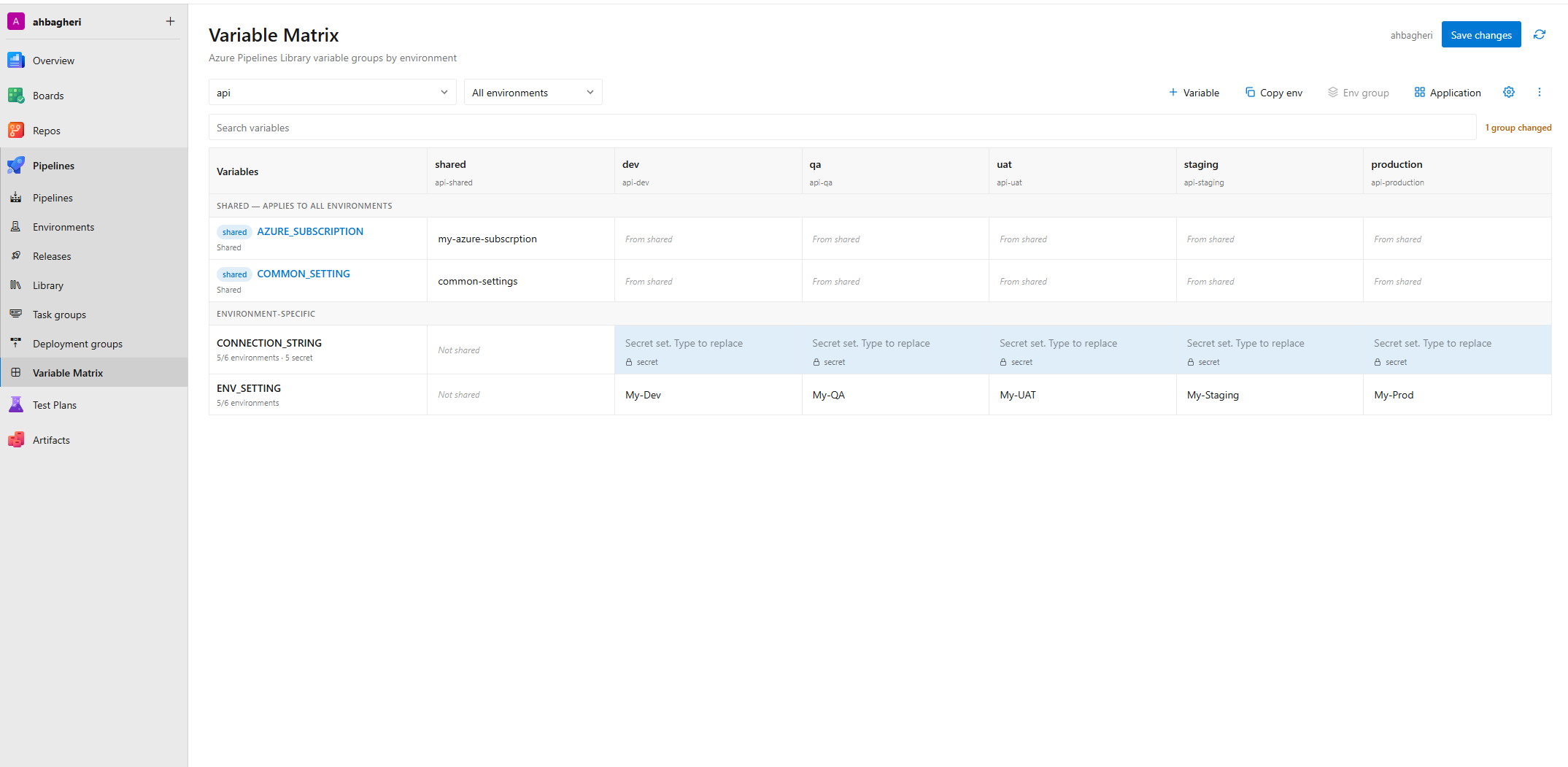
- Environment matrix — one row per variable, one column per environment, for the selected application.
- Smart grouping — variable groups are matched to environments by name suffix with configurable aliases (e.g.
dev, develop, development all map to dev), case‑insensitive.
- Shared variables — a
shared group is treated as common to all environments; shared variables are edited once and shown as read‑only in the other columns.
- Standalone libraries — groups with no environment suffix appear on their own.
- Inline editing — edit values directly in the grid; add or remove a variable in one environment or across all at once.
- Secrets, handled safely — existing secret values are never revealed; you only ever set a replacement.
- Copy between environments — copy non‑secret values from one environment to another, or into a brand‑new environment.
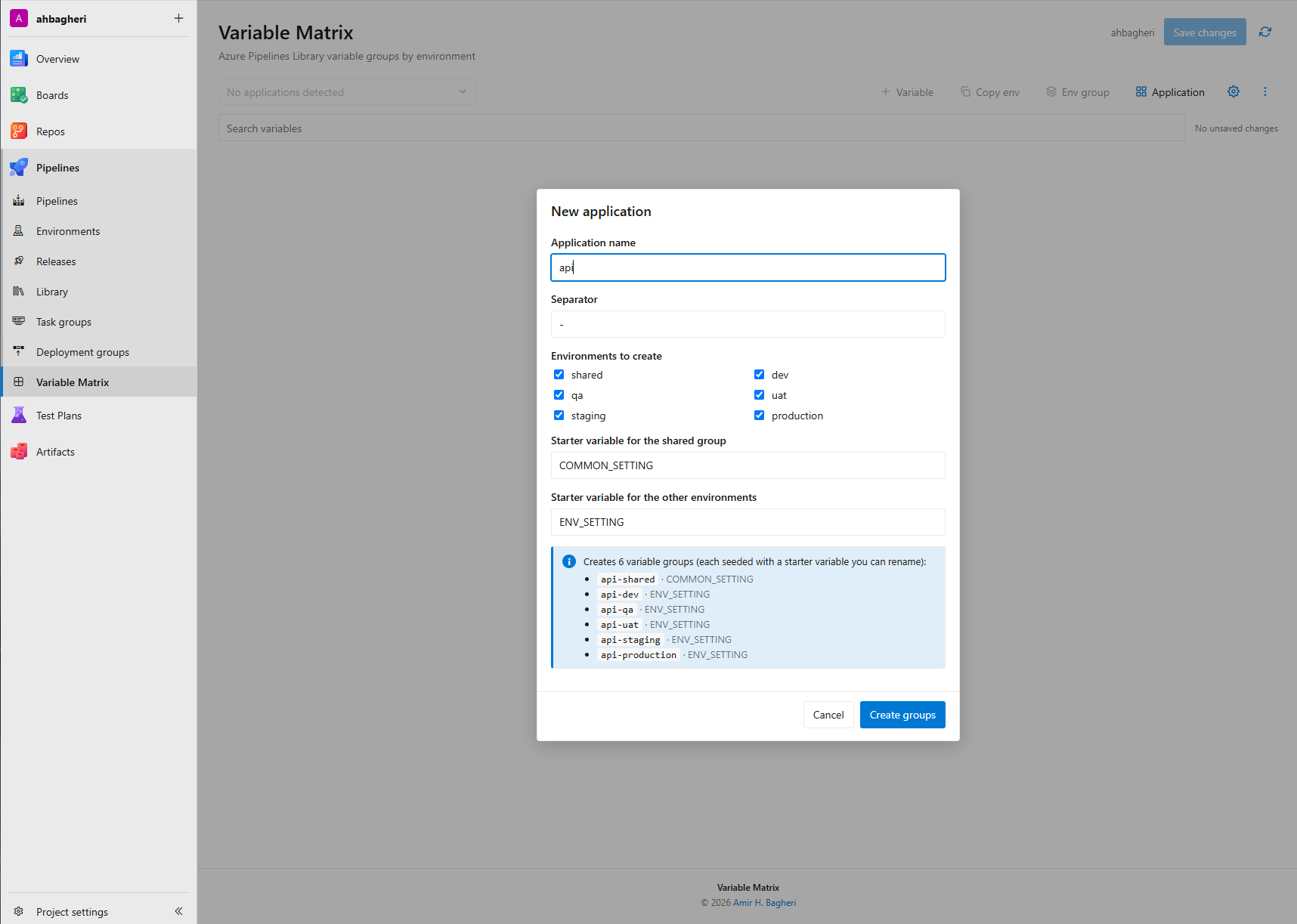
- Create groups & applications — add a missing environment group, or scaffold a whole new application (
MyApp-shared, MyApp-dev, …).
- Column filter — show/hide the shared and/or environment columns.
- Project‑wide settings — environment/alias configuration is stored per project on Microsoft‑hosted extension storage (falls back to your browser when you lack permission).
- Themed — follows the Azure DevOps light/dark theme.
Screenshots
The environment matrix — every variable across every environment for the selected application.
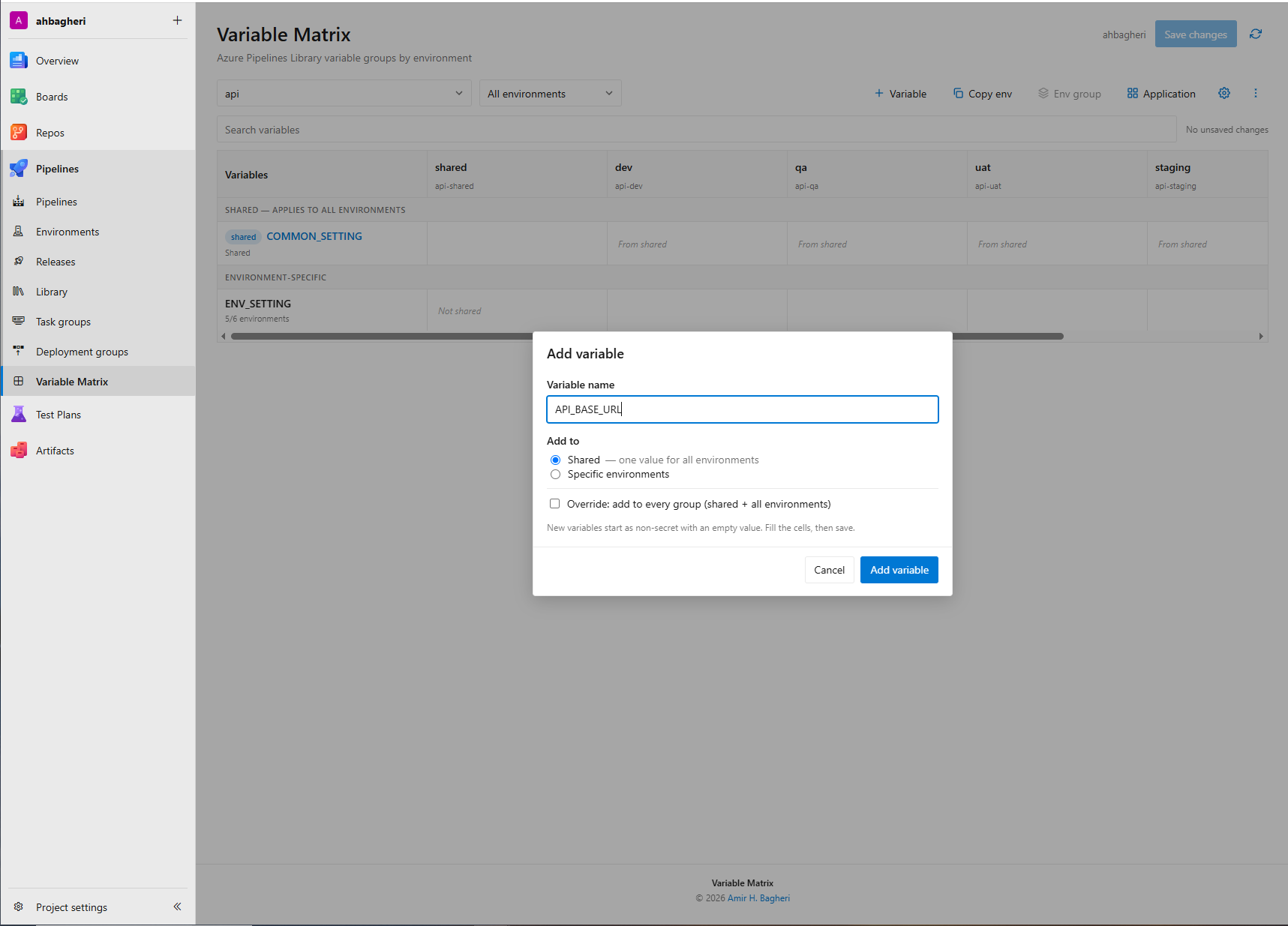
Add a variable to the shared group or to specific environments.
Scaffold a whole new application across environments in one step.
Requirements
- Azure DevOps Services (
dev.azure.com). On‑premises Azure DevOps Server is not currently supported.
- The signed‑in user needs permission to read (and, to edit, manage) Library variable groups in the project.
Getting started
- Install the extension into your organization.
- Open a project → Pipelines → Variable Matrix.
- Pick an application from the dropdown. Applications are detected from your variable‑group names, e.g.
checkin-webapp-dev, checkin-webapp-qa → application checkin-webapp.
- Edit values inline and click Save changes.
If nothing shows up, open Settings (gear icon) and adjust the environment keys/aliases to match your naming convention.
Naming convention
A variable group name is split into application + separator + environment alias:
checkin-webapp-dev        → app "checkin-webapp", env "dev"
ApiGateway-Common         → app "ApiGateway",     env "shared"  (alias of shared)
PaymentsApi-Prod          → app "PaymentsApi",    env "production" (alias of production)
Detected separators: -, _, ., and space. Environments and their aliases are configured in Settings.
Security
- The extension requests the
vso.variablegroups_manage scope and uses the Azure DevOps Extension SDK token to call the official Variable Groups REST API.
- Existing secret values are returned as
null by Azure DevOps and are never displayed. An untouched secret is re‑sent as { isSecret: true, value: null }, preserving it. If you type a replacement, the new value is sent.
- Do not switch an existing secret to non‑secret unless you intend to replace its value — the old secret cannot be recovered through the API.
Frequently asked questions
Where does Variable Matrix appear?
Under Pipelines → Variable Matrix in any project. It reads your existing Library variable groups — nothing is created until you ask for it.
Why don't my groups show up as an application?
Applications are detected from group names shaped as app + separator + environment (e.g. checkin-webapp-dev). Groups with no recognized environment suffix appear as standalone groups. Open Settings (gear icon) to adjust environment keys and aliases to match your naming.
What counts as a "shared" variable?
A group whose environment resolves to shared (aliases: shared, common, …). Its variables are edited once and shown read‑only in the other environment columns.
Can I see or copy a secret value?
No. Azure DevOps never returns secret values, so they can't be displayed or copied. You can only set a replacement value. Untouched secrets are preserved on save.
Why is "Copy env" or "Env group" disabled?
Those actions only apply to environment‑based applications. They're disabled for standalone groups (a group with no environment suffix).
Where are my environment/alias settings stored?
Per project, on Microsoft‑hosted extension storage, so your whole team shares them. If you lack permission to write project settings, they fall back to your browser's local storage.
What permissions do I need?
The extension uses the vso.variablegroups_manage scope. To edit or delete, the signed‑in user must have permission to manage Library variable groups in the project.
Does it work on Azure DevOps Server (on‑prem)?
Not currently — Azure DevOps Services (dev.azure.com) only.
Support & feedback
© 2026 Amir H. Bagheri — Variable Matrix.

