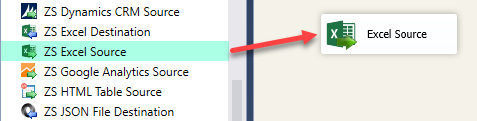
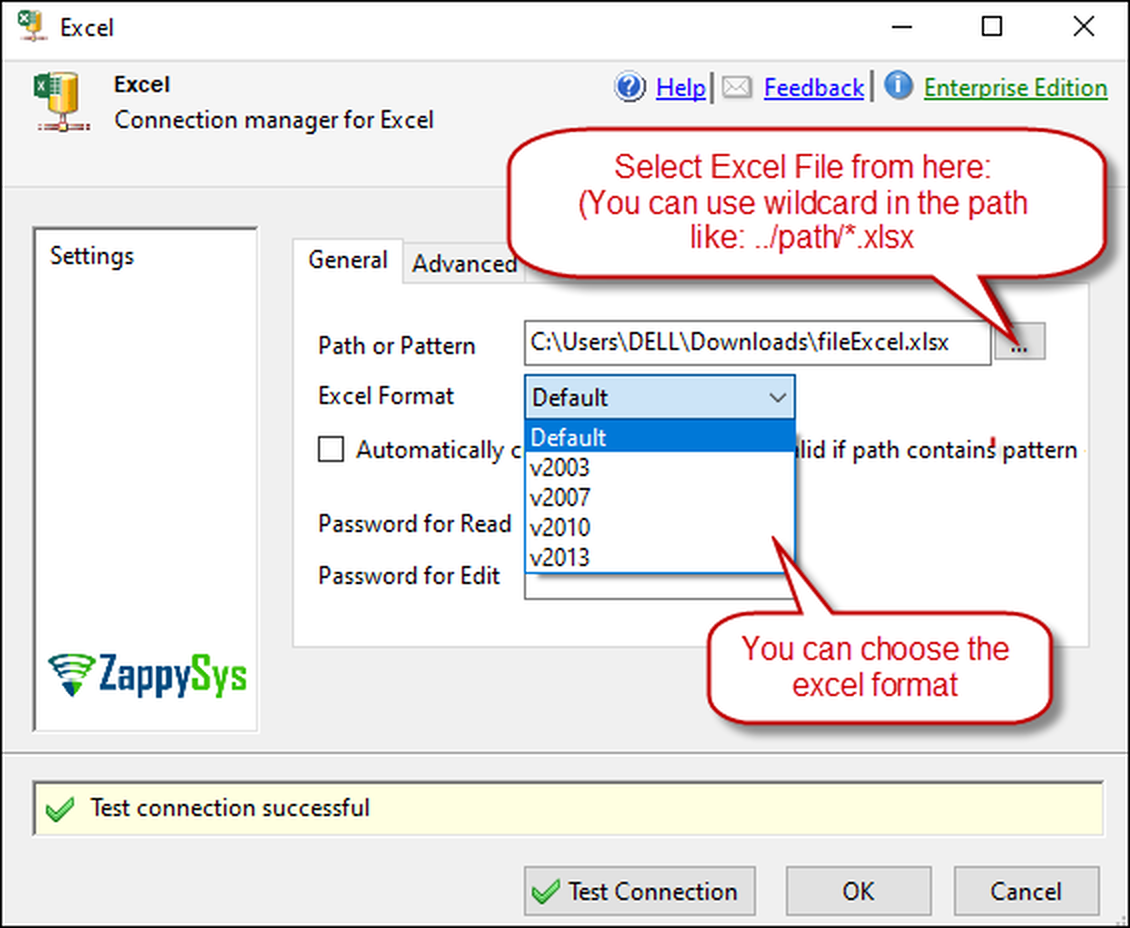
Read Excel workbooks (XLSX/XLS) into SSIS pipelines without installing Office drivers.
Extract rows using table mode or SQL query mode, control typed vs formatted output, and handle large modern Excel files in both 32-bit and 64-bit SSIS runtimes.
Part of ZappySys SSIS PowerPack.
Pro Tip: Use SQL query mode with SSIS variables for sheet name and filters when workbook structures vary between files but your package must stay generic.
Compatibility: SQL Server 2012–2025+ (32/64-bit) | Azure Data Factory / Azure-SSIS IR Ready
⚡ Key Benefits
Driver-free ingestion — Read Excel without separate Microsoft Office providers
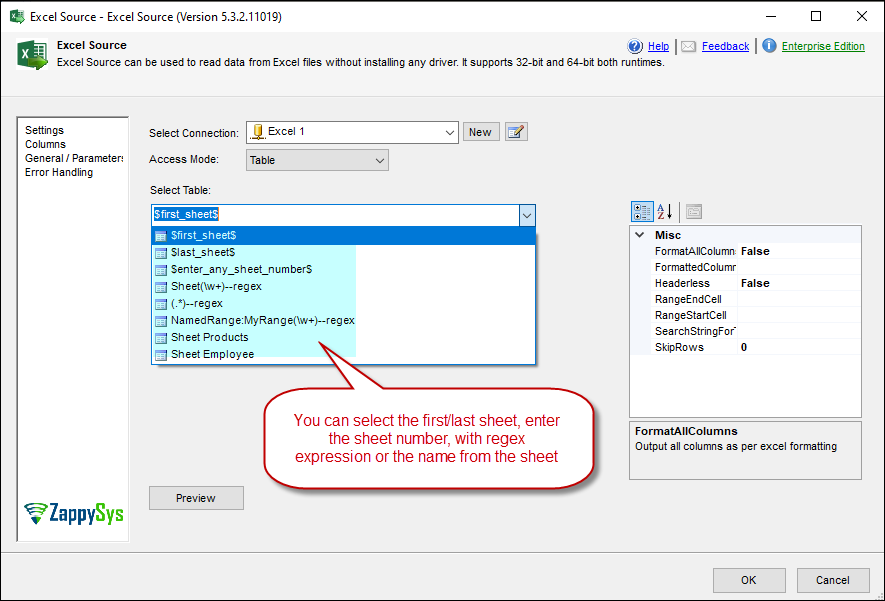
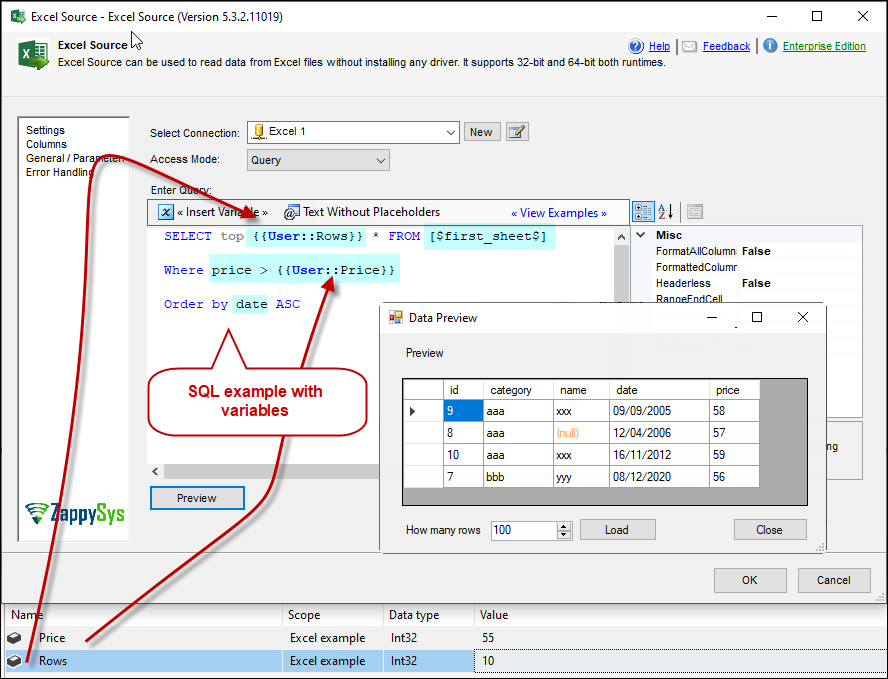
Two access modes — Table mode for simple reads or SQL command mode for advanced selection
Large workbook support — Read XLSX beyond old row limits in native SSIS Excel components
Metadata flexibility — Tuning options for more accurate datatype detection
Secure workbook support — Handle password-protected Excel files in ETL workflows
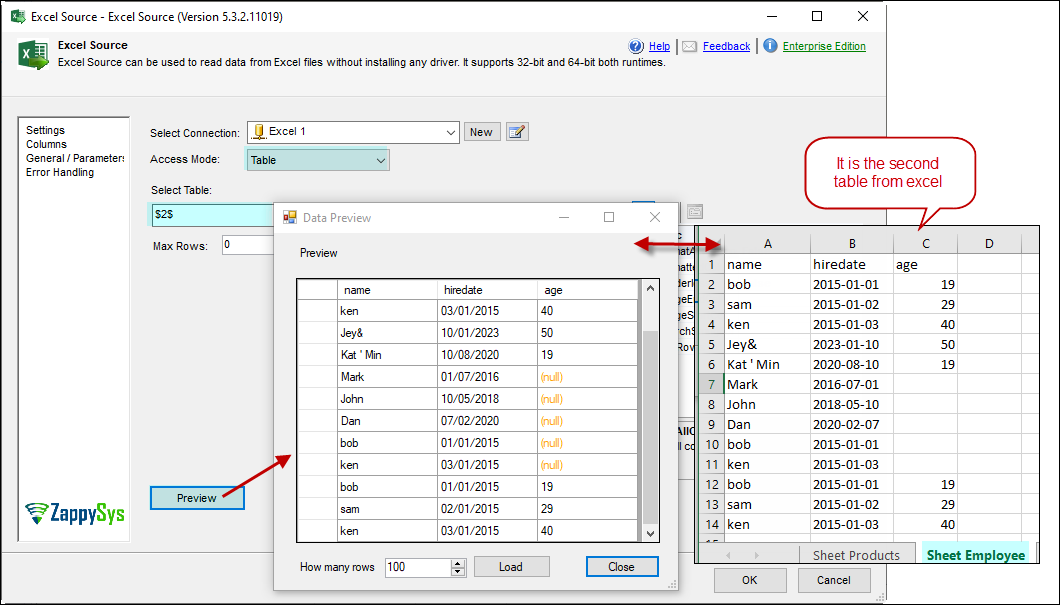
Table mode and query mode — Read sheets directly or via SQL command logic
Raw vs formatted values — Choose output style based on downstream requirements
Metadata detection options — Improve datatype accuracy for mixed-column scenarios
Password workbook support — Ingest protected Excel files in automated jobs
64-bit friendly — Works without Office drivers unlike native Excel source components
XLSX scale support — Handle larger modern Excel datasets in ETL pipelines
💡 Common Use Cases
Business-upload ingestion: Load analyst-maintained workbooks into staging tables.
Parameterized imports: Use SQL query mode with variables for date/sheet-driven extracts.
Migration feeds: Read Excel data and push to SQL Server, PostgreSQL, or APIs.
Driverless server execution: Run packages on headless servers without Office installation.
🎯 Summary
SSIS Excel File Source provides a practical, production-safe way to ingest spreadsheet data by combining driverless connectivity, flexible read modes, and metadata controls that reduce rework in real-world ETL packages.
Trusted by Developers & IT Teams Worldwide
Built for SSIS Workflows: Purpose-built for high-performance ETL and complex integration scenarios.
Expert Technical Support: Direct access to engineers via email and remote screen-share sessions.
Proven Enterprise Scale: Trusted by 3000+ teams across 90+ countries, including Fortune 500.