Read and write Zendesk Support in SSIS with API Source and API Destination — tickets, users, and organizations with minimal coding.
The SSIS Zendesk Connector is built on the ZappySys API Connector framework: install or download the Zendesk connector, point the base URL at https://[$Domain$].zendesk.com/api/v2 (replace with your subdomain), choose Token Authentication [Http], OAuth Authentication [OAuth], or UserID/Password Authentication (2FA must be OFF) [Http], preview endpoints in the API Source, and map writes in the API Destination.
Part of ZappySys SSIS PowerPack (100+ connectors & tasks).
Recommended starting point
Pro Tip: The Visual Studio download installs a lightweight extension. Use the guide above to install and run the full SSIS PowerPack (all connectors & UI) on your designer machine.
Compatibility: SQL Server 2012–2025+ (32/64-bit) | Azure Data Factory / Azure-SSIS IR Ready
⚡ Key Benefits
- Bidirectional Zendesk ETL — Pair API Source extracts with API Destination updates for tickets, users, and organizations in one workflow
- Flexible Zendesk auth — API tokens, OAuth apps, or userid/password flows configured per the Admin Console steps on the hub page
- Connector acquisition — Start from the Popular Connector list or Search Online when Zendesk is not embedded locally
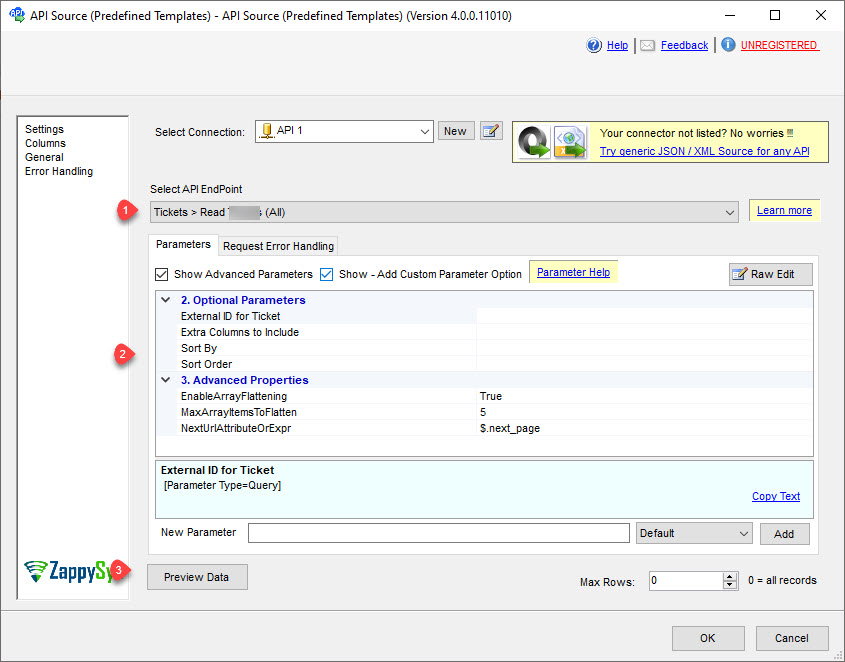
- Endpoint previews — Select Zendesk Support API endpoints and preview rows before executing the data flow
- Throttle-aware retries — Tune RetryMode, HTTP status lists (examples include
429), counts, and multiply-wait options shown in the UI
📸 Visual Overview & Setup
|
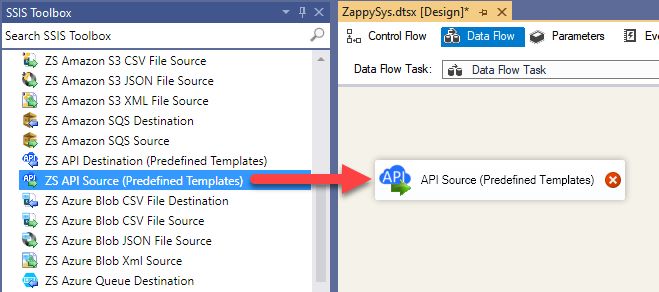
1. Drag API Source onto Data Flow
|
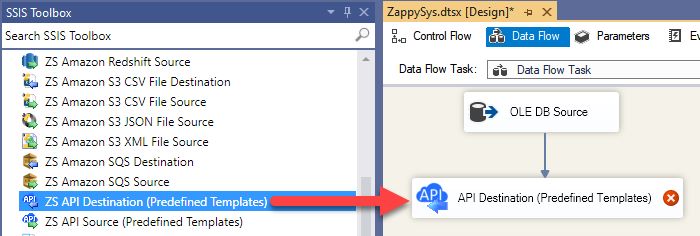
2. Drag API Destination onto Data Flow
|
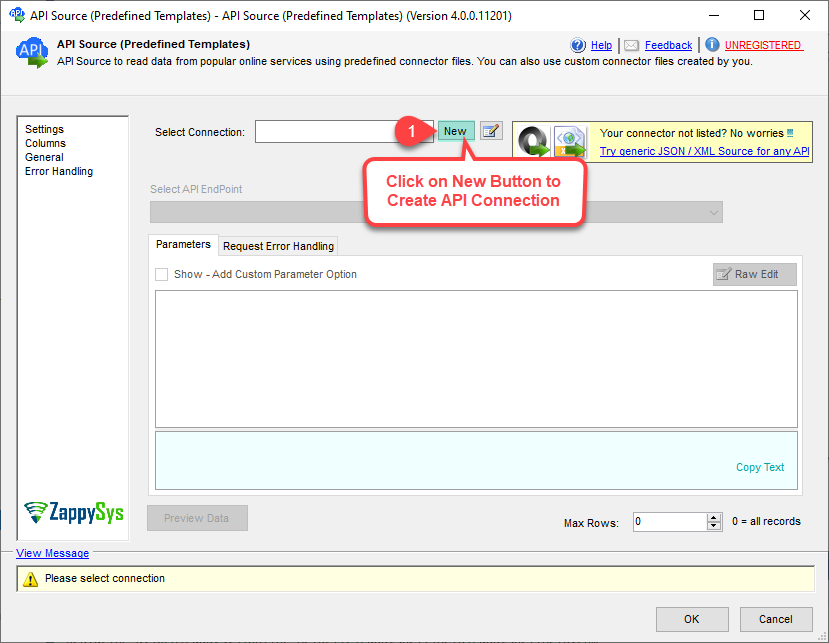
3. Pick & Download Zendesk Connector
|
|
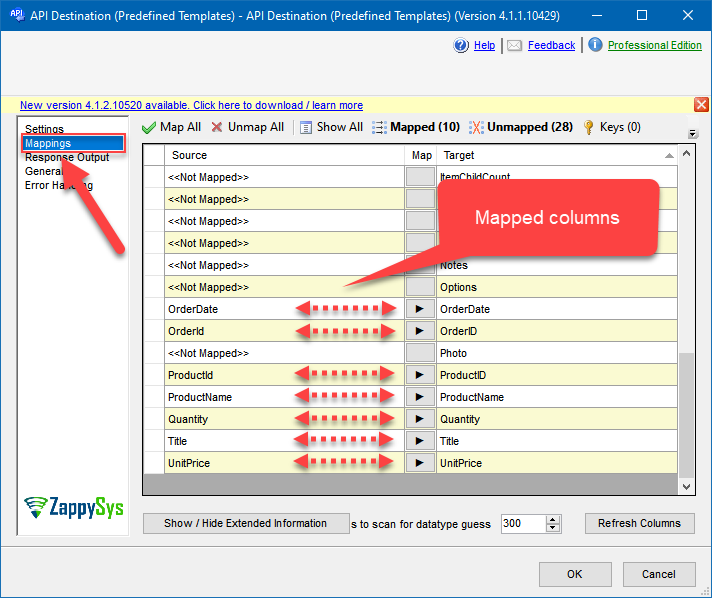
4. Map the Columns
|
Select Endpoint and Preview data
|
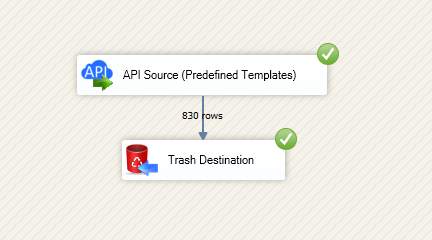
Destination Mapping & Execute
|
🔧 Key Features
Source — Read Zendesk Support
- Extract tickets, users, organizations, and related resources using API Source templates from the connector hub
- Target your instance with the
https://[$Domain$].zendesk.com/api/v2 base URL pattern illustrated in the article
- Preview Zendesk JSON in the component before you execute the package
Destination — Write Zendesk
- Use the API Destination section of the hub guide to create or update Zendesk records supported by the connector
- Map pipeline columns to Zendesk fields using the destination mapping grid
- Combine with other sources when the walkthrough recommends staging or transforming data first
Authentication
- Token Authentication [Http] — API tokens from Admin Console > Channel > API > Settings with Token Access enabled, as described on the hub page
- OAuth Authentication [OAuth] — OAuth clients created under Admin Console > Channel > API > OAuth clients
- UserID/Password Authentication (2FA must be OFF) [Http] — Password access only when enabled in the same API settings area and two-factor auth is turned off for that account
Reliability
- Configure retry mode, HTTP status lists (including
429), retry counts, and multiply-wait behavior using the UI examples from the setup article
💡 Common Use Cases
Typical support-ops and analytics scenarios for the Zendesk connector components:
-
Ticket warehouse loads: Pull open and solved tickets into SQL Server for SLA reporting.
Example: Hourly incremental load keyed on ticket update time.
-
User and organization sync: Align CRM accounts with Zendesk users and orgs.
Example: Merge Salesforce account IDs with Zendesk organization tags.
-
Closed-loop updates: Push scoring or routing results from SSIS back to Zendesk.
Example: API Destination batch that sets custom fields after ML classification.
-
Backup and audit extracts: Materialize ticket JSON for compliance archives.
Example: Nightly full export to blob storage via SSIS.
-
Multi-brand deployments: Parameterize subdomain or credentials per brand connection manager.
Example: One package template, many Zendesk instances.
-
Azure-SSIS IR: Run the same packages on Azure Data Factory integration runtimes.
Example: Cloud-hosted refreshes without redesigning API flows.
🎯 Summary
Automate Zendesk Support API workloads inside SSIS using shared API Source and API Destination patterns.
Authenticate with the option your admins approve, preview calls, and keep read/write paths inside one PowerPack installation.
Trusted by Developers & IT Teams Worldwide
- Built for SSIS Workflows: Purpose-built for high-performance ETL and complex integration scenarios.
- Expert Technical Support: Direct access to engineers via email and remote screen-share sessions.
- Proven Enterprise Scale: Trusted by 3000+ teams across 90+ countries, including Fortune 500.
|
SSIS PowerPack
Includes SSIS Zendesk Connector

Read reviews on Capterra →
|
Start Moving Zendesk Data with SSIS PowerPack
Includes the SSIS Zendesk Connector plus 100+ connectors & tasks for APIs, databases & cloud apps. Build production ETL workflows without custom scripting.
Full functionality is FREE for development within Visual Studio
| |


