Read and write Microsoft Power BI in SSIS with API Source and API Destination — no scripting.
Connect to the Power BI REST API from a visual connector UI: list and manage datasets, trigger refresh, work with push datasets, and align reports and dashboards with your ETL. Configure OAuth User Credentials from the connection manager using the standard Power BI authorization and token endpoints for your app registration.
Part of ZappySys SSIS PowerPack (100+ connectors & tasks).
Recommended starting point
Pro Tip: The Visual Studio download installs a lightweight extension. Use the guide above to install and run the full SSIS PowerPack (all connectors & UI) on your designer machine.
Compatibility: SQL Server 2012–2025+ (32/64-bit) | Azure Data Factory / Azure-SSIS IR Ready
⚡ Key Benefits
- Bidirectional Power BI ETL — API Source and API Destination for reads and writes in the same SSIS solution
- REST API coverage — Predefined endpoints for datasets, refresh, push datasets, reports, and related operations documented on the hub page
- OAuth built in — User Credentials flow with app registration values and Power BI resource scopes in the UI
- Low-code configuration — Pick endpoints, set parameters, preview data, then map columns without custom scripts
- Operational refresh — Trigger dataset refresh and manage push-dataset rows from SSIS after upstream loads complete
📸 Visual Overview & Setup
|
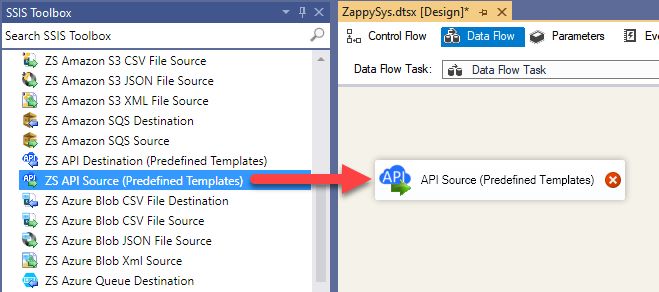
1. Drag API Source onto Data Flow
|
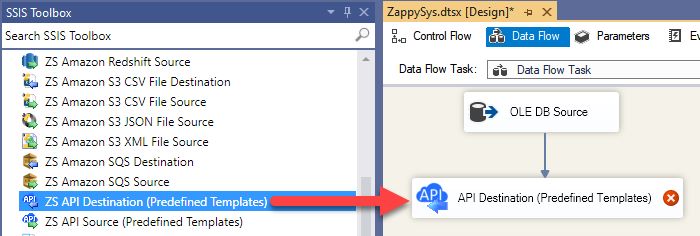
2. Drag API Destination onto Data Flow
|
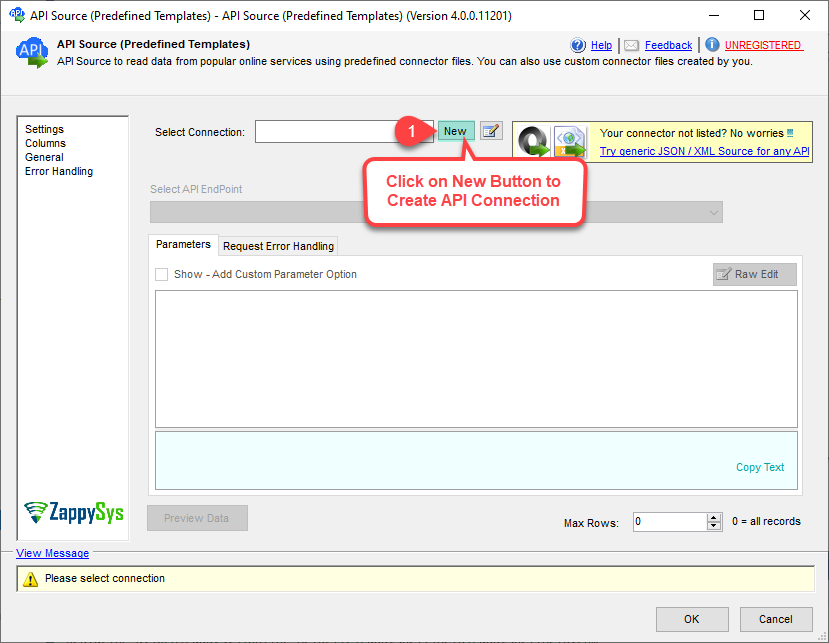
3. Pick Power BI Connector
|
|
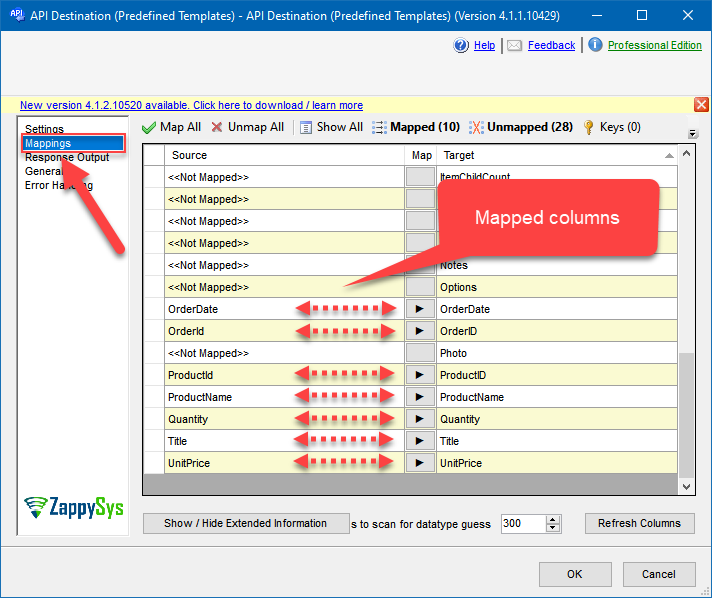
4. Map the Columns
|
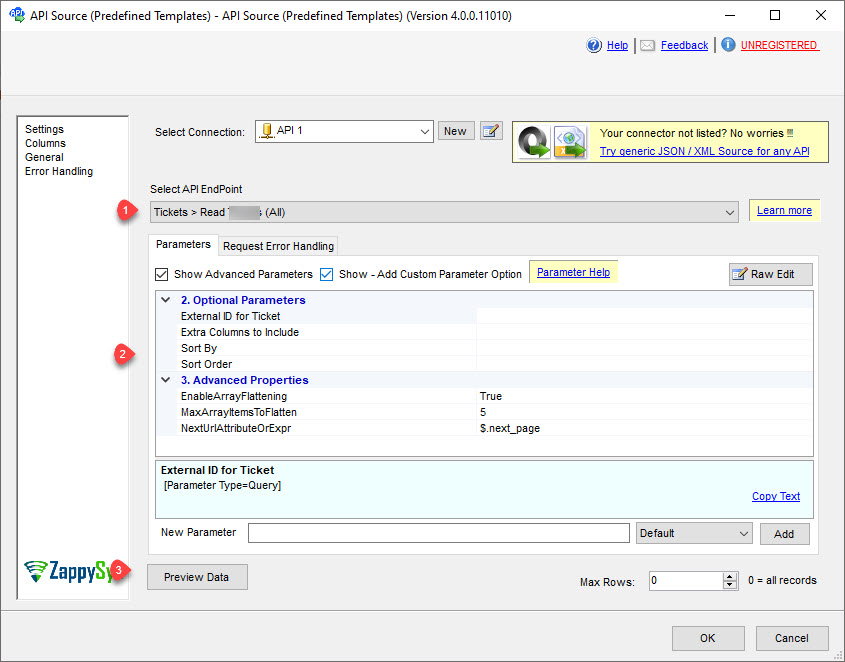
5. Select Endpoint and Preview data
|
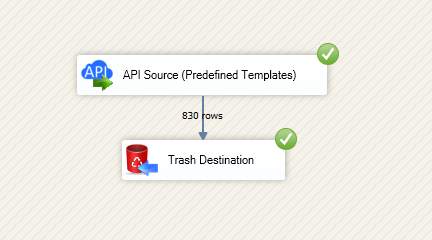
6. Destination Mapping & Execute
|
🔧 Key Features
Source — Read Power BI
- Export metadata and data using predefined Power BI REST endpoints with parameter-driven requests
- Read datasets, reports, dashboards, and related entities exposed on the Integration Hub action list
- Preview JSON in the API Source UI before you wire the data flow downstream
- Combine with SQL Server staging for inventory, lineage, or governance workloads
Destination — Write Power BI
- Create, update, refresh, or load push-dataset rows through the API Destination with column mapping
- Follow the documented write workflow: choose authentication, base URL, required parameters, then map on the Mappings tab
- Use the same connector packaging model as other API Integration Hub components in SSIS PowerPack
Authentication & security
- User Credentials [OAuth] for delegated access aligned to signed-in analyst or automation accounts
- Microsoft Entra (Azure AD) app registration values such as authorization URL, token URL, client ID, and secret in the connection UI
- Power BI resource and scope configuration (for example
https://analysis.windows.net/powerbi/api scopes) as documented for this connector
Operations catalog
- How-to actions listed on the connector page for datasets, refresh, push datasets, reports, and dashboards
- Pair Source reads with SQL Server or other ZappySys destinations in one control flow
💡 Common Use Cases
Typical SSIS scenarios for Microsoft Power BI:
-
Post-ETL refresh: Trigger dataset refresh after a warehouse load finishes.
Example: Nightly SSIS job refreshes a published dataset once facts are loaded.
-
Push dataset feeds: Stream aggregated rows into a push dataset for near-real-time dashboards.
Example: Operational metrics land in a push dataset table from a memory-optimized staging step.
-
Inventory & governance: Extract workspace, dataset, and report metadata into SQL for auditing.
Example: Catalog sync that compares Power BI assets to an internal data dictionary.
-
Lifecycle automation: Create or remove datasets and related resources via documented REST actions.
Example: Provision test datasets from a template workspace during release validation.
-
Hybrid analytics: Join Power BI API reads with other SSIS PowerPack connectors.
Example: Correlate refresh status with Azure SQL or Fabric pipeline telemetry in one batch.
-
Report distribution prep: Pull report or dashboard identifiers to drive subscription or export workflows.
Example: Build a driver table for downstream PDF or email automation.
🎯 Summary
Give your SSIS team a repeatable, UI-first path to Microsoft Power BI data and operations.
Read and write Power BI with the same API Source and API Destination pattern used across ZappySys API connectors — less custom code, clearer handoffs to operations.
Trusted by Developers & IT Teams Worldwide
- Built for SSIS Workflows: Purpose-built for high-performance ETL and complex integration scenarios.
- Expert Technical Support: Direct access to engineers via email and remote screen-share sessions.
- Proven Enterprise Scale: Trusted by 3000+ teams across 90+ countries, including Fortune 500.
|
SSIS PowerPack
Includes SSIS Power BI Connector

Read reviews on Capterra →
|
Start Automating Workflows with SSIS PowerPack
Includes connectors for APIs, databases & cloud apps. Build robust ETL workflows without custom scripting.
Full functionality is FREE for development within Visual Studio
| |


