Skip to content
| Marketplace
Sign in
Visual Studio>Controls>SSIS Export Excel File Task
SSIS Export Excel File Task

SSIS Export Excel File Task

ZappySys

|
2,471 clicks
| (0) | Free Trial
SSIS Export Excel File Task generates Excel from SQL tables or queries without Excel drivers: multi-table export, optional template layouts, start cell & clear range, splits by size/rows/column (file or worksheet), password, compression. Part of ZappySys SSIS PowerPack.
Get Started

Build Excel workbooks and reports from relational data in SSIS—no Excel drivers required.

Export one or many tables/views or SQL queries into .xls/.xlsx with optional formatted templates, precise write locations, password protection, and split rules across files or worksheets.
Part of ZappySys SSIS PowerPack.

Recommended starting point
View Setup Guide & Get Started →
See features, UI & examples →
Pro Tip: Use split-by-column with the worksheet option when one workbook should contain one tab per region or customer instead of many separate files.
Compatibility: SQL Server 2012–2025+ (32/64-bit) | Azure Data Factory / Azure-SSIS IR Ready

⚡ Key Benefits

  • Driver-free Excel output — Avoid native SSIS Excel metadata and 32-bit-only friction
  • Dynamic exports — Multi-table patterns (for example Sales% or SalesJan|SalesFeb) from control flow
  • Formatted reporting — Optional template engine for branded, styled workbooks
  • Flexible splits — Chunk by file size, row count, or column value; target new files or new sheets
  • Production operations — Passwords, range clear before write, append mode, and compression support

📸 Visual Overview & Setup

1. Drag Task to Control Flow
Drag SSIS Export Excel File Task from toolbox
🔍 View Full Size
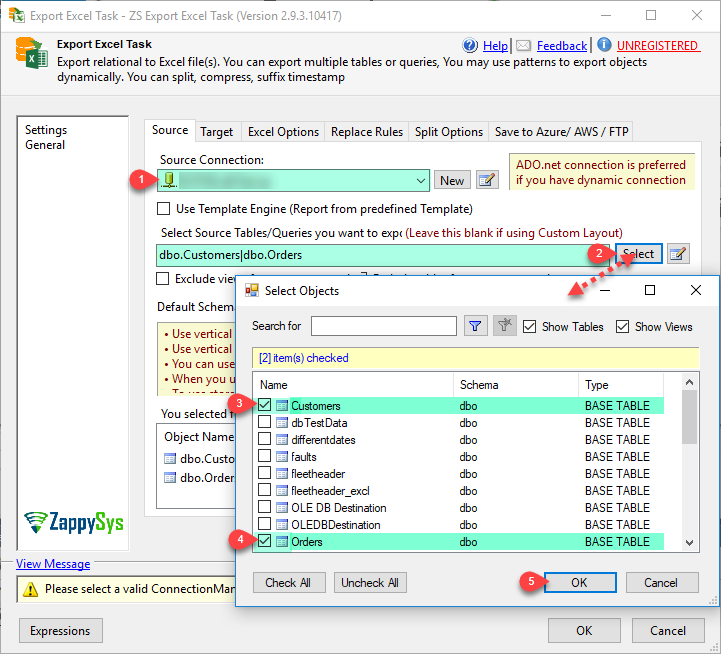
2. Select Source Tables/Query
Choose tables or views for Excel export
🔍 View Full Size
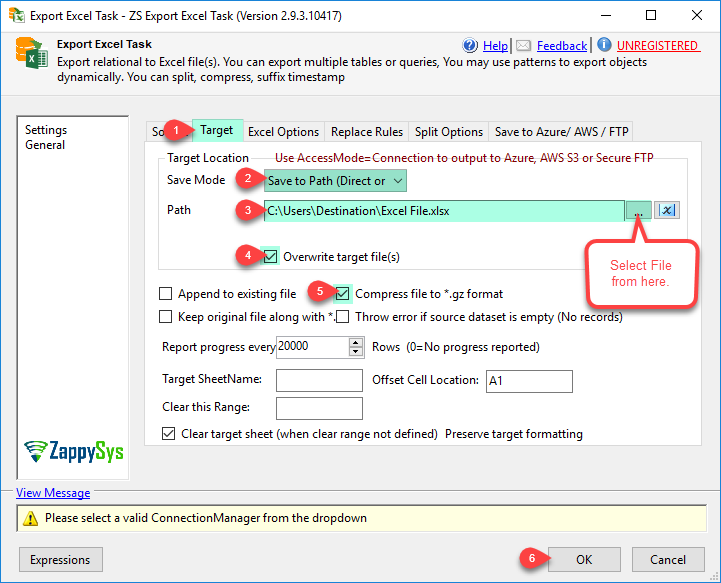
3. Target Path & Options
Configure Excel output path and target options
🔍 View Full Size
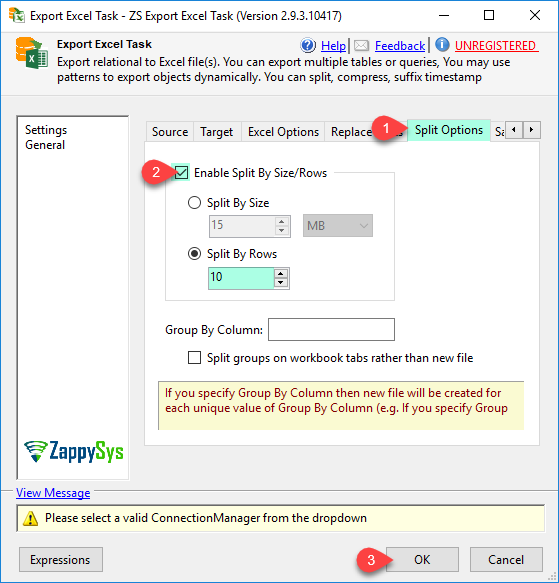
4. Split into Multiple Files
Split exported Excel into multiple files
🔍 View Full Size
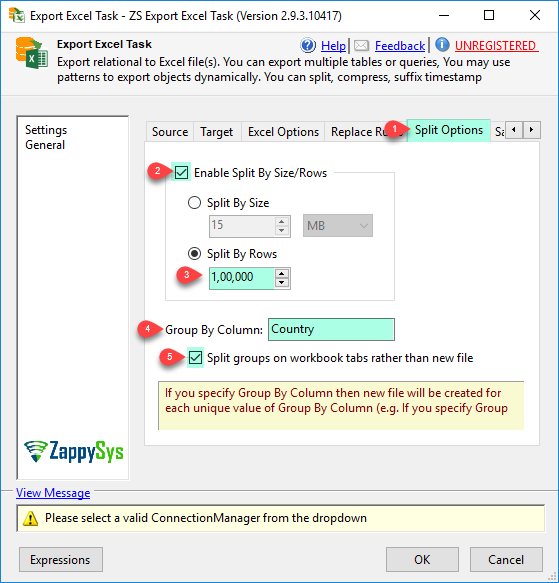
5. Split into Worksheets
Split Excel export across multiple worksheets
🔍 View Full Size
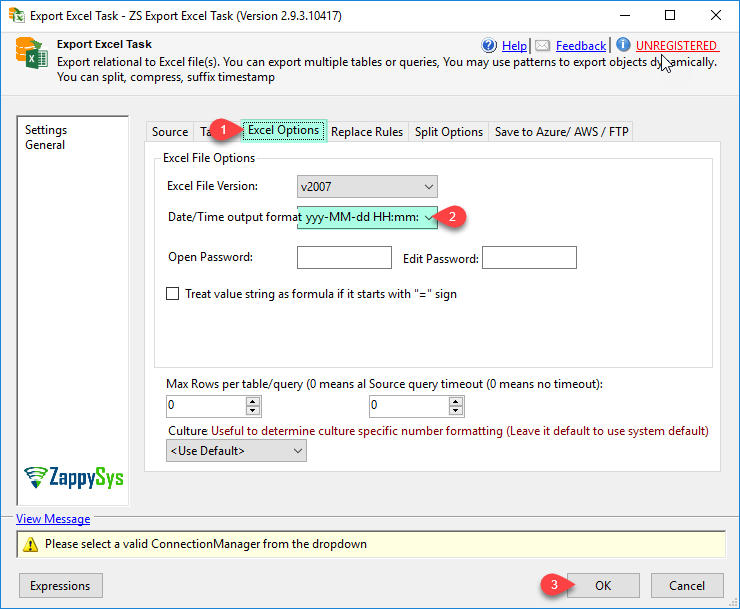
6. Format & Encoding
Excel date formatting and encoding options
🔍 View Full Size

🔧 Key Features

  • Bulk table export — Wildcards and pipe-separated lists for many sources in one task
  • SQL query datasets — Drive workbook content from parameterized queries
  • Template-driven layout — Apply branded Excel designs via the template/report engine
  • Workbook controls — Start cell placement, protected workbooks, clear ranges before overwrite
  • Split strategies — By size, record count, or column—with output to new files or new sheets
  • Managed 32/64-bit — Same package behavior on x86 and x64 SSIS runtimes

💡 Common Use Cases

  • Recurring business reports: Refresh standardized Excel packs after the warehouse load finishes.
  • Multi-entity drops: Fan out finance or sales extracts into per-region workbooks or worksheets.
  • Ops handoff files: Produce password-protected workbooks for vendors with controlled layouts.
  • Large exports: Split outputs to stay under email or upload size limits.

🎯 Summary

SSIS Export Excel File Task closes the gap between database data and stakeholder-ready spreadsheets, pairing flexible extraction rules with formatting, splitting, and workbook protections—all without fighting native Excel destination limitations.

Trusted by Developers & IT Teams Worldwide

  • Built for SSIS Workflows: Purpose-built for high-performance ETL and complex integration scenarios.
  • Expert Technical Support: Direct access to engineers via email and remote screen-share sessions.
  • Proven Enterprise Scale: Trusted by 3000+ teams across 90+ countries, including Fortune 500.

SSIS PowerPack
Includes SSIS Export Excel File Task
Capterra Rating
Read reviews on Capterra →

Start Automating Workflows with SSIS PowerPack

Includes connectors for APIs, databases & cloud apps. Build robust ETL workflows without custom scripting.

Download SSIS PowerPack (Free Trial)

Full functionality is FREE for development within Visual Studio

  • Contact us
  • Jobs
  • Privacy
  • Manage cookies
  • Terms of use
  • Trademarks
© 2026 Microsoft