Skip to content
| Marketplace
Sign in
Visual Studio>Controls>SSIS Trash Destination (Dummy Destination) - Free
SSIS Trash Destination (Dummy Destination) - Free

SSIS Trash Destination (Dummy Destination) - Free

ZappySys

|
326 clicks
| (0) | Free
Silently discard SSIS data flow rows during development and testing — on the fly. Attach a Data Viewer to inspect live data and optionally log selected columns to a CSV file. Part of ZappySys SSIS PowerPack.
Get Started

Terminate your SSIS data flow pipeline during testing — no destination configuration needed.

Drop incoming rows silently without any I/O overhead. Attach a Data Viewer to inspect live data in-flight, or enable optional CSV logging to capture selected columns for quick validation — all from a simple drag-and-drop component.
Part of ZappySys SSIS PowerPack (100+ connectors & tasks).

Recommended starting point
View Setup Guide & Get Started →
See features, UI & examples →
Pro Tip: The Visual Studio download installs a basic extension. Use the guide above to install and run the full SSIS PowerPack (all connectors & UI).
Compatibility: SQL Server 2012–2025+ (32/64-bit) | Azure Data Factory / Azure-SSIS IR Ready

⚡ Key Benefits

  • No-Op Termination — Discard all data flow rows silently with zero I/O overhead
  • Data Viewer Compatible — Attach a Data Viewer to inspect live rows flowing through the pipeline
  • Optional CSV Logging — Capture selected input columns to a flat file with configurable delimiters and encoding
  • Column Selection — Choose exactly which columns to log via the Advanced Editor Input Columns tab
  • Configurable Output Format — Control row/column separators, Unicode support, and column header row

📸 Visual Overview & Setup

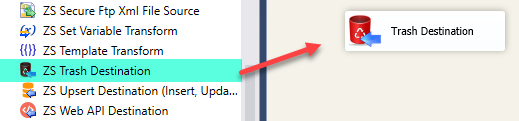
1. Drag & Drop from Toolbox
SSIS Trash Destination - Drag and Drop from Toolbox
🔍 View Full Size
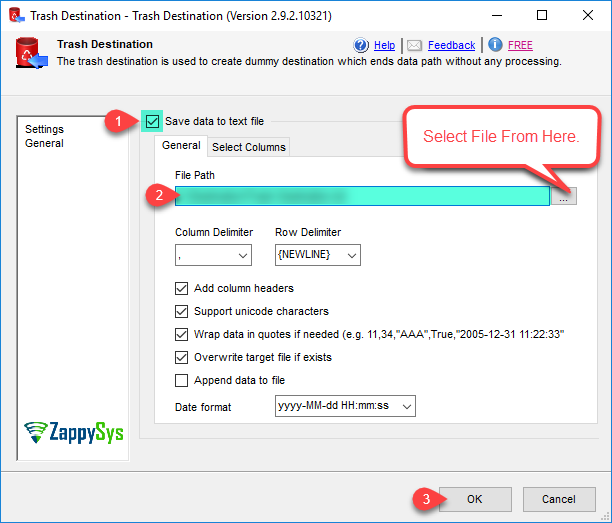
2. Configure Trash Destination
SSIS Trash Destination - Configure Settings
🔍 View Full Size
3. Execute & Inspect Data
SSIS Trash Destination - Execute and Inspect Data
🔍 View Full Size
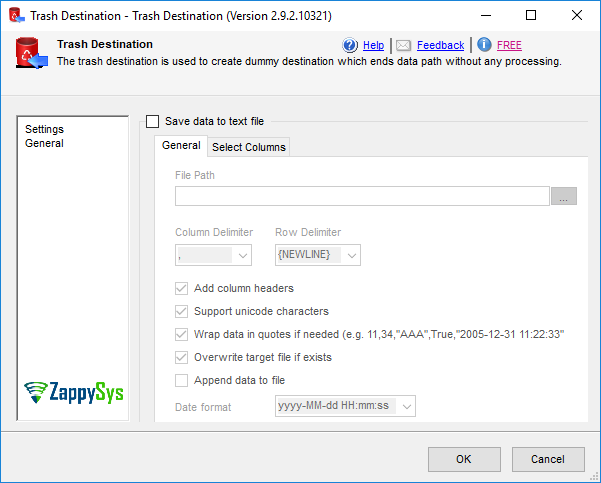
4. Settings UI — General Tab
SSIS Trash Destination - Settings UI General Tab
🔍 View Full Size
5. Settings UI — File Output Tab
SSIS Trash Destination - Settings UI File Output Tab
🔍 View Full Size
📖 View Full Documentation →

🔧 Key Features

Core Behavior

  • Silently discard all incoming data rows with no I/O processing
  • Terminate data flow pipelines without configuring a real destination
  • Full Data Viewer compatibility for in-flight row inspection

Optional File Logging

  • Save selected input columns to a flat file when SaveDataToFile = True
  • Configurable column separator (default: comma) and row separator (default: CRLF)
  • Optional column names in first row
  • Unicode (UTF-16) or ANSI encoding output
  • Quote text/datetime values when column separator appears in data

Column Selection

  • Choose specific columns to log via Advanced Editor > Input Columns tab
  • By default all input columns are captured when file logging is enabled

Diagnostics & Logging

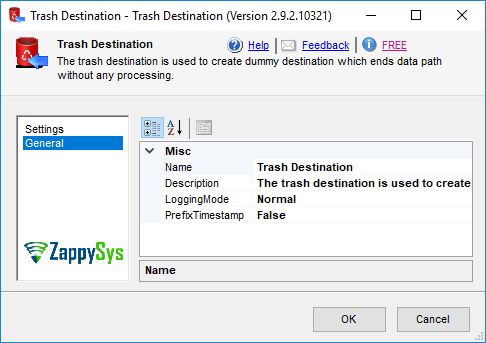
  • Configurable logging detail level: Normal, Medium, Detailed, Debugging

💡 Common Use Cases

Common real-world scenarios where this component simplifies SSIS development and testing:

  • Isolated Source Testing: Test source components without setting up a real destination.
    Example: Validate row counts and data types from a new REST API source.
  • Transform Debugging: Verify transform output without loading any data.
    Example: Inspect rows after a Derived Column or Lookup transform.
  • Pipeline Profiling with Data Viewer: Attach a Data Viewer to monitor rows in-flight.
    Example: Watch exactly which rows pass through between two transforms.
  • Development Staging: Build and test the full pipeline before wiring a production destination.
    Example: Confirm all transforms produce correct output before going live.
  • Selective Column Auditing: Log specific columns to CSV for quick offline validation.
    Example: Capture key columns to a file to compare expected vs actual values.

🎯 Summary

Use Trash Destination as a lightweight aid during SSIS package development.
Inspect live data, validate transforms, and log output to file — all without configuring a real target destination.

Trusted by Developers & IT Teams Worldwide

  • Built for SSIS Workflows: Purpose-built for high-performance ETL and complex integration scenarios.
  • Expert Technical Support: Direct access to engineers via email and remote screen-share sessions.
  • Proven Enterprise Scale: Trusted by 3000+ teams across 90+ countries, including Fortune 500.

SSIS PowerPack
Includes SSIS Trash Destination
Capterra Rating
Read reviews on Capterra →

Start Automating Workflows with SSIS PowerPack

Includes connectors for APIs, databases & cloud apps. Build robust ETL workflows without custom scripting.

Download SSIS PowerPack (Free Trial)

Full functionality is FREE for development within Visual Studio

  • Contact us
  • Jobs
  • Privacy
  • Manage cookies
  • Terms of use
  • Trademarks
© 2026 Microsoft