Solution Identifier
Make your solutions more recognisable with coloured icons and a custom name on the menu bar.
Solutions can look very similar when you have multiple open at once, or work across many solutions regularly. With this extension you can assign a coloured icon and write your own title for each solution, or leave the extension to choose a selection for you and show the solution's path.
This screenshot shows three copies of one solution, each with a different identifier:
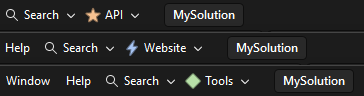
Set an identifier
Click the identifier on the menu bar, or open its drop-down and choose Change identifier....
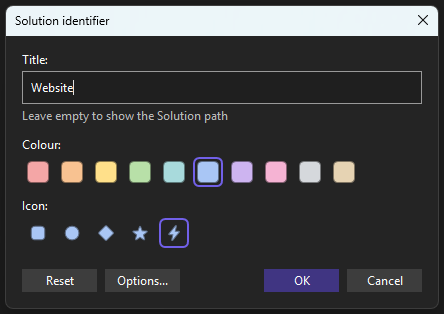
- Title: the text to show. Leave it empty to show the solution file's path.
- Colour: one of 10 colours.
- Icon: a square, circle, diamond, star or lightning bolt.
- Reset: removes this solution's saved identifier. The menu bar goes back to the solution's path, with a colour and icon chosen automatically.
- Options...: opens the Solution Identifier options.
Each solution saves its identifier to %LOCALAPPDATA%\SolutionIdentifier. Visual Studio 2022 and Visual Studio 2026 share the same identifier for a single solution.
Without a title
The menu bar shows the end of the solution file's path, for example ...\LocalRepo\Dev\MySolution.slnx. The colour and icon are picked from the path, so different copies of a solution usually start with different ones.
Options
Tools > Options > Solution Identifier > General
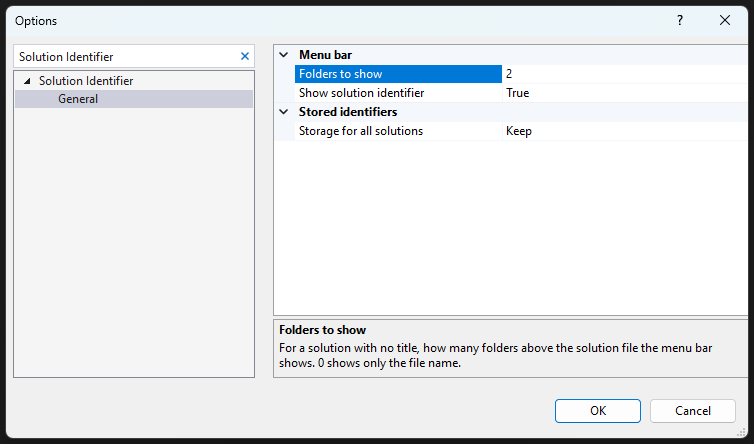
- Folders to show: for a solution with no title, how many folders above the solution file to show (0 shows only the file name).
- Show solution identifier: turn the identifier off completely.
- Storage for all solutions: choose Clear and click OK to delete every solution's saved identifier.
Good to know
- Works with Visual Studio 2022 and Visual Studio 2026.
- Nothing is shown when no solution is open, when opening a folder instead of a solution, or for a new solution that hasn't been saved yet.
- Moving or renaming the solution file or its folder will reset its identifier.
Licence
MIT

