Raaghu Spec Kit
Raaghu Spec Kit brings specification-driven development into Azure DevOps. PMs, BAs, and QAs can generate, review, and manage structured specs, delivery plans, task breakdowns, and quality checklists — then create and refine Azure Boards work items — all from a guided AI workspace inside your project.
Works with Azure DevOps Services and Azure DevOps Server (on-premises).
Documentation
Full setup guides, tutorials, troubleshooting, and release notes:
Raaghu Spec Kit documentation
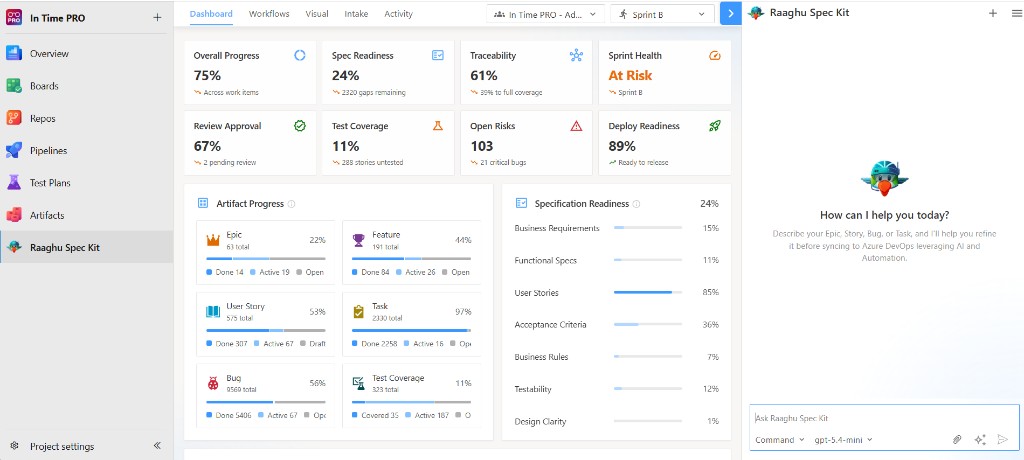
Secure Sign-In
Sign in with your Microsoft account to get started. Raaghu Spec Kit uses Microsoft authentication to securely connect with your Azure DevOps organization or collection.
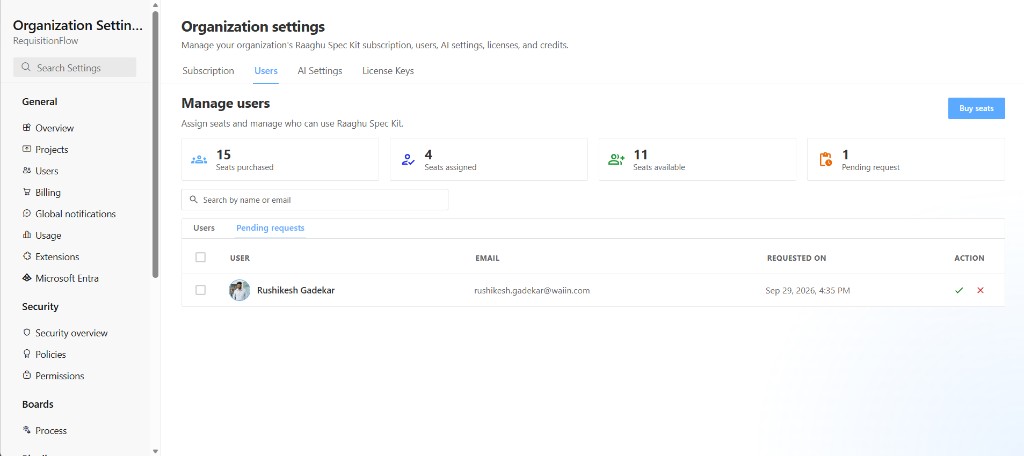
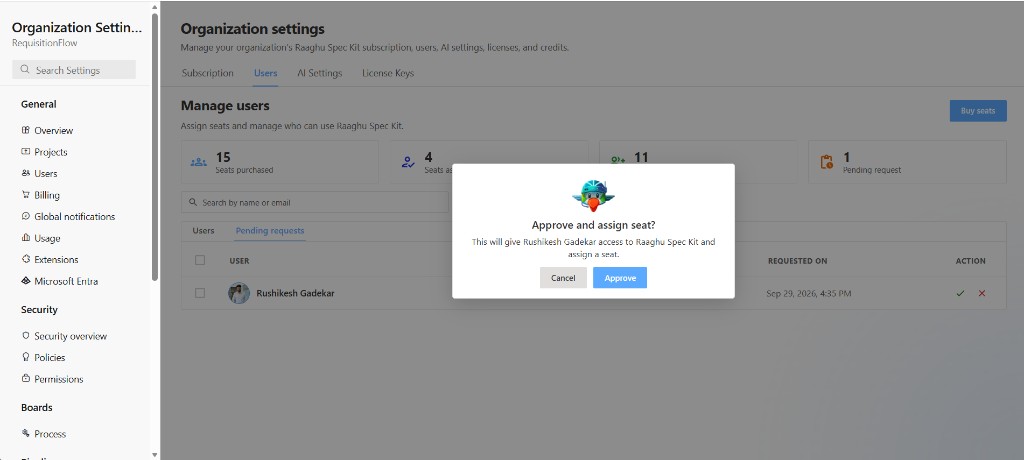
If your organization requires approval, you may see "Request submitted. Retry authorization after admin approval". An organization admin approves you under Organization Settings → Extensions → Raaghu Spec Kit → Users → Pending requests (Approve and assign seat?), then you click Authorize Now again. Approving a request also assigns a seat in the same step.
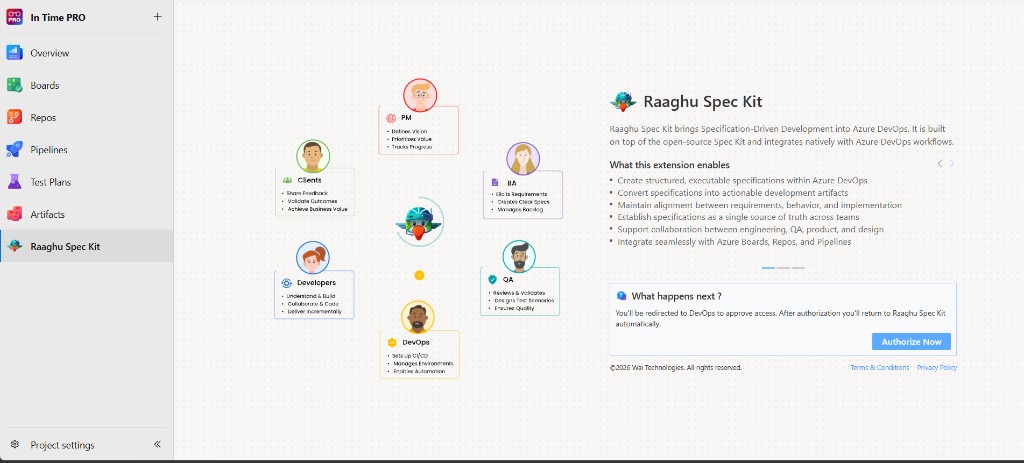
Workspace — Five Tabs, One Flow
The left workspace is organized into five tabs so teams can move from intelligence → action → backlog → documents → audit:
| Tab |
Purpose |
| Dashboard |
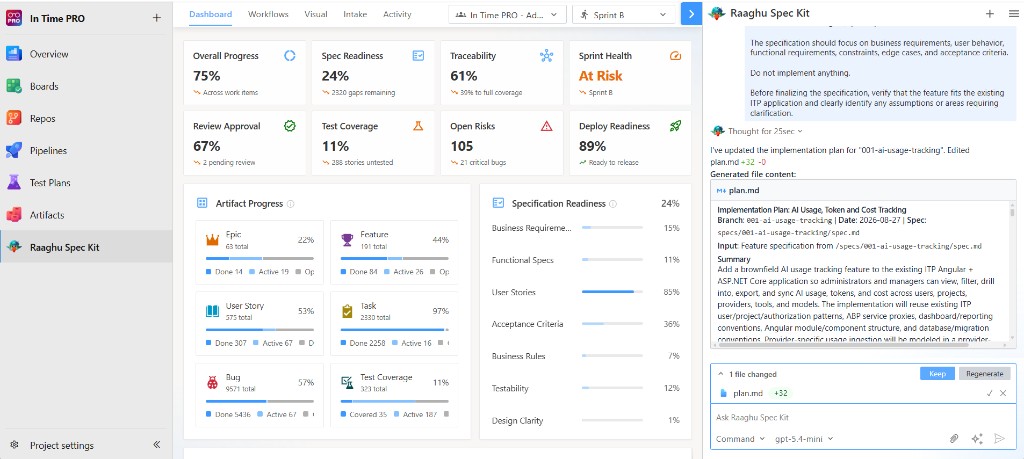
Project intelligence — progress, specification readiness, traceability, sprint health, risks, and deployment readiness |
| Workflows |
Idea Assessment (evaluate ideas before specify) plus curated AI actions by delivery phase |
| Visuals |
Interactive Epic → Feature → User Story → Task hierarchy with Sync (find + auto-link), pan, and zoom |
| Intake |
Analyze BRD/PRD docs or import spreadsheets; extract requirements and create Boards work items |
| Activity |
Audit trail of Spec Kit work-item creates, updates, and deletes by day, week, or month |
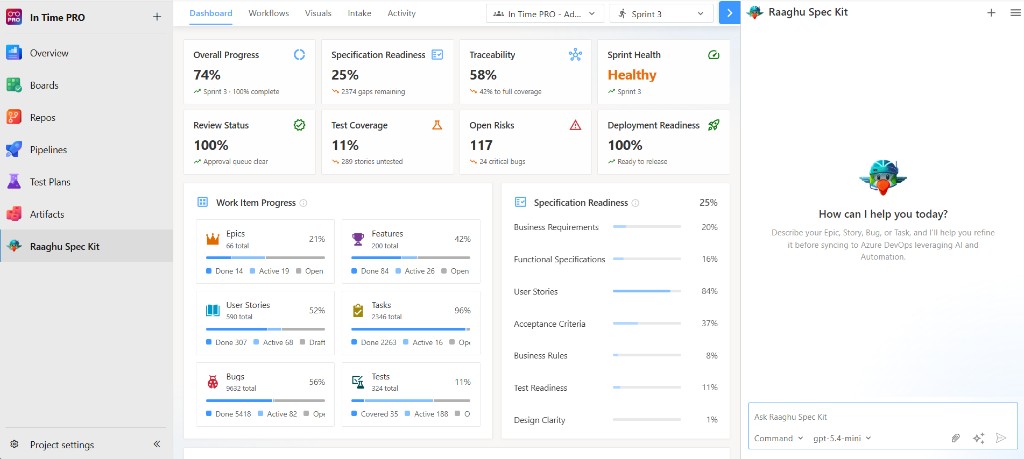
Dashboard — Project Intelligence
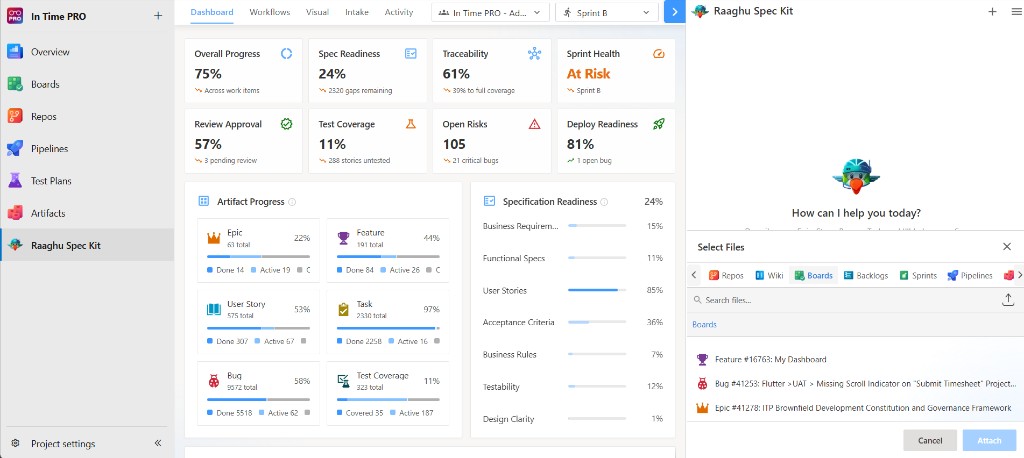
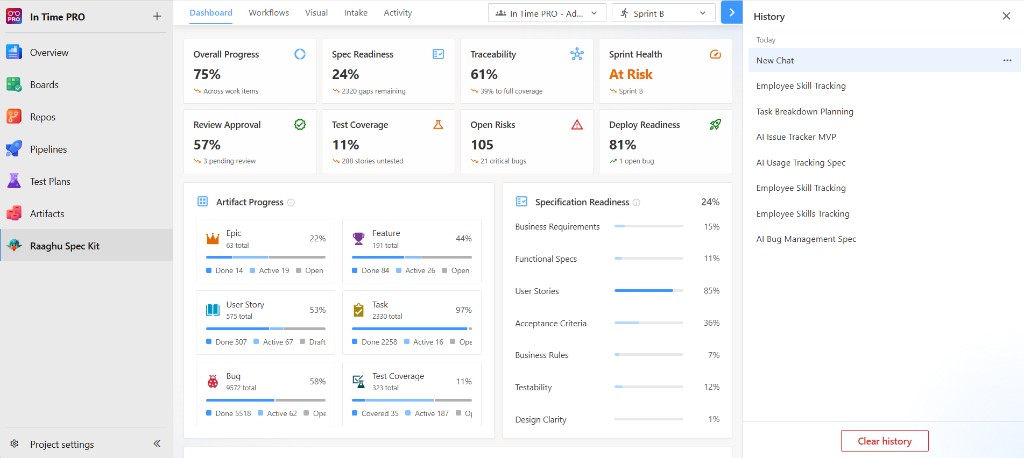
The Dashboard gives PMs a live view of delivery health grounded in Azure Boards and Spec Kit artifacts:
- Overall Progress — completion across stories and tasks
- Specification Readiness — how complete specs are for implementation (gaps across readiness dimensions)
- Traceability — how well work items stay linked through the hierarchy
- Sprint Health — Healthy / Watch / At Risk for the current iteration
- Review Status — pull-request review health (Healthy / Watch / At Risk)
- Test Coverage, Open Risks, and Deployment Readiness
- Work Item Progress and Specification Readiness panels with drill-down into Boards items
- Lifecycle Progress across the Spec Kit delivery pipeline
Use the Iteration and team filters plus KPI drill-downs to jump from a metric to the items that need attention. From a drill-down you can search, filter, sort, open an item in Boards (or a pull request for Review Status), or Export as CSV. Work Item Progress and Test Coverage drill-downs also offer Needs attention and All tabs.
Workflows — Guided AI Actions
The Workflows tab starts with Idea Assessment, then AI-powered actions by delivery phase. Open Idea Assessment to evaluate an idea on cards before you specify, or pick a delivery phase and click a capability to start a guided chat.
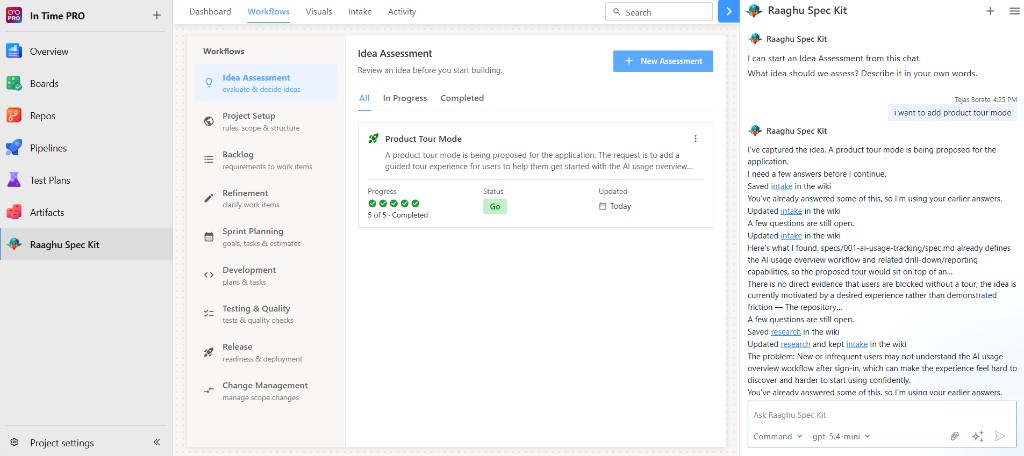
| Phase |
What You Can Do |
| Idea Assessment |
Evaluate an idea through Intake → Research → Define → Shape → Decide. Verdicts: Go, Needs Clarification, or Kill. Track progress and status on each card; continue in chat with Continue / Confirm |
| Project Setup & Governance |
Create project foundation from constitution, update constitution from linked artifacts, publish scope boundaries to Wiki, generate delivery checklist (DoR / DoD), generate compliance & security guardrails, generate audit traceability report |
| Backlog Creation |
Generate epics from linked artifacts, split epics into features, generate stories from selected feature, generate stories from linked artifacts, generate intake summary from BRD/PRD, link artifacts to selected work item |
| Backlog Refinement |
Refine selected stories, standardize acceptance criteria, detect missing requirements, attach NFRs to stories, detect duplicates or overlaps, highlight unclear or risky stories |
| Sprint Planning & Breakdown |
Generate sprint goal from selected items, generate dev tasks from selected stories, estimate tasks from plan, identify cross-team dependencies, run readiness check (DoR validation) |
| Execution Support |
Generate technical plan for selected feature, refine tasks into implementation steps, generate test cases from selected stories, convert bug to linked dev task, track work items status from implementation progress |
| Quality & Validation |
Generate test strategy for selected epic, generate negative / edge test cases, generate test data matrix, validate acceptance criteria completeness, generate UAT checklist |
| Release & DevOps |
Generate CI pipeline checklist from constitution, generate release gates from compliance rules, generate runbooks (deploy / rollback), generate release notes from completed work items, publish release notes to Wiki |
| Change Management |
Detect scope drift from latest artifacts, highlight changes since last PRD version, draft change request with impact analysis, mark items requiring approval, generate stakeholder approval checklist |
Visuals — Work Item Hierarchy
The Visuals tab shows your Azure Boards hierarchy as an interactive chart — Epics, Features, User Stories, and Tasks — with drag-to-pan navigation, zoom, Sync, and one-click child generation from Spec Kit artifacts.
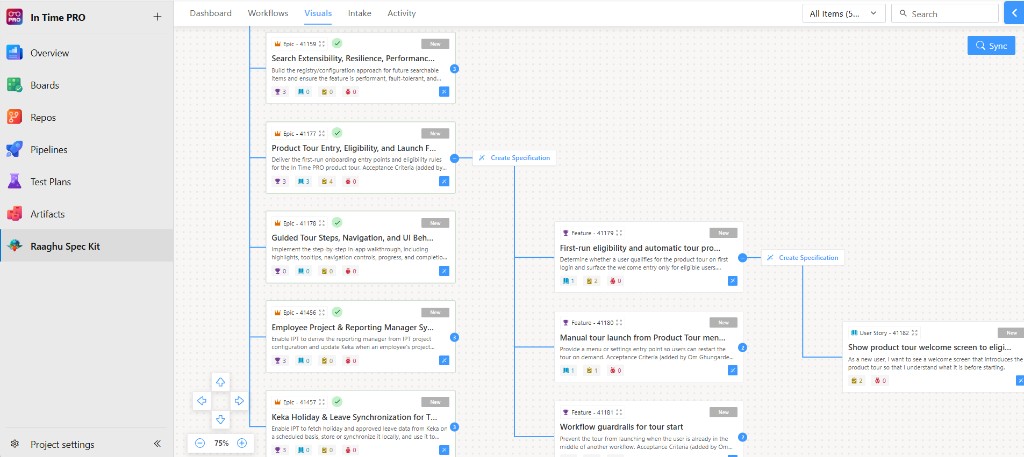
- Tree visualization — connected cards with Azure DevOps icons and status badges
- Sync (chart) — finds work items outside the Spec Kit tree, then auto-links matching Epics to the constitution (Features / Stories / Tasks under a matched Epic come from Boards). Requires Spec Kit initialized and AI configured. Linked cards can show a connection check; Spec Kit stamps the
raaghuspeckit-autolinked tag
- Sync (card menu) — generate child items from wiki specs, one level at a time (e.g. Epic → Features). Sync-ready cues appear when wiki Features are not yet on Boards under an Epic
- Spec gaps — amber warning when a linked item’s description is behind the wiki; use the wand → Refine to update from the constitution / feature
spec / tasks wiki pages
- Refine — improve a work item with AI from the card menu
- Filter & search — filter by type and search by title
- Pan & zoom — navigate large backlogs comfortably
- Process templates — Agile, Scrum, CMMI, and Basic
Intake — Documents to Backlog
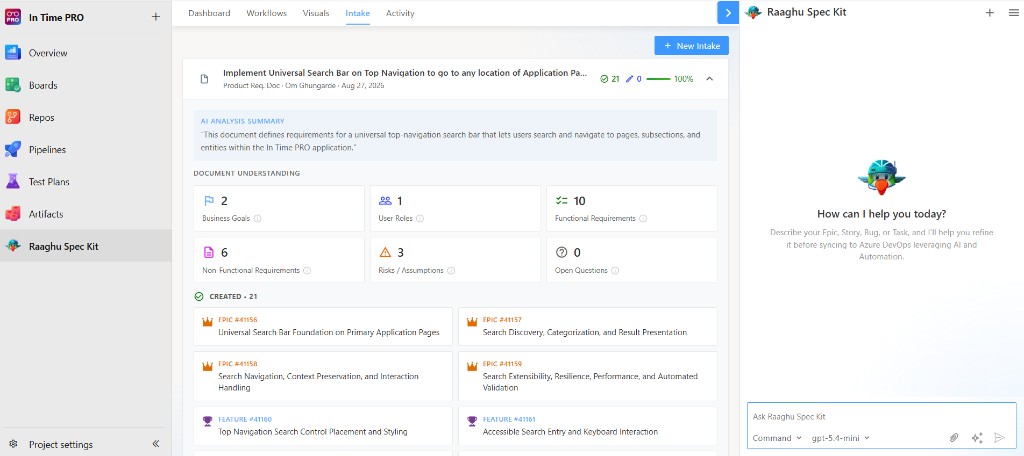
The Intake tab turns BRDs, PRDs, related docs, and spreadsheets into Azure Boards work items:
- Click + New Intake to add files from Repos, Wiki, Boards, Backlogs, or Upload from computer (up to 4 files at a time)
- Spec Kit saves a copy under
Raaghu Spec Kit/intake/ in the wiki (or Speckit/intake/ on older projects) and analyzes each document for scope, requirements, risks, assumptions, and open questions
- Spreadsheets (
.xlsx, .xls, .csv) import as work-item rows — create them one by one or with Create all; upload spreadsheets separately from requirement documents
- Large documents are analyzed in overlapping sections and merged; if analysis is only partial, the result notes that
- Use Stop generating to cancel an in-progress analysis, then Retry to run it again without re-selecting the same files
- Review the analysis, then create or skip suggested Boards items from chat. After Skip, use Show skipped and Undo skip to restore a suggestion for Create
- Clarification questions appear one at a time (Back / Next / Submit Answer)
- Track remaining open questions and risks until they are resolved
Ideal for onboarding existing product docs before /speckit.specify and backlog creation.
Activity Feed
The Activity tab is a real-time audit trail of what Raaghu Spec Kit has done in your project. Browse by Day, Week, Work Week, or Month, and search across all activity.
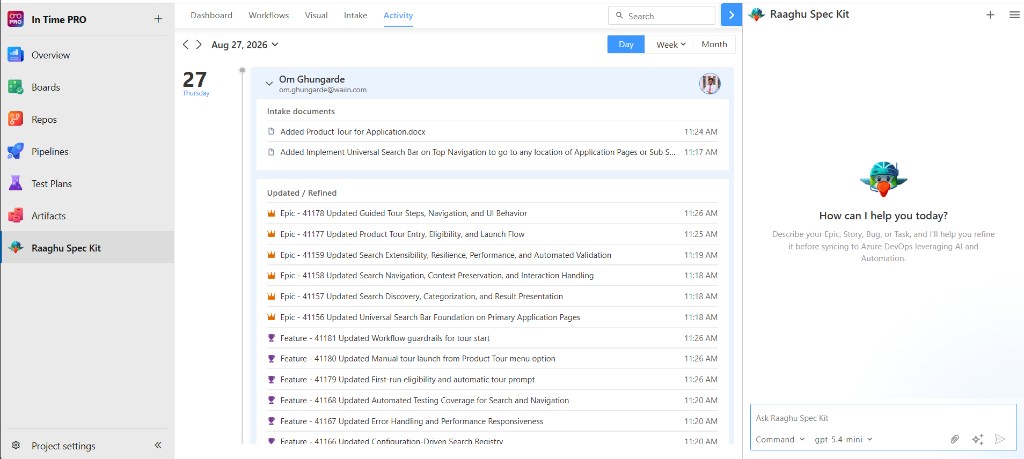
- Date navigation — step forward or backward by day, week, or month
- Per-user grouping — see who generated or updated what
- Work item audit trail — Epics, Features, User Stories, and Tasks with ID, title, and timestamp
- Change labels — Created, Updated / Refined, and Deleted (including soft-deletes from the Azure DevOps Recycle Bin)
- Search — filter by keyword
Key Features
Conversational AI Chat
Natural-language interface for context-aware specification engineering. Ask questions, run /speckit.* commands, and generate structured deliverables — all within Azure DevOps. Use Stop generating to cancel a reply in progress, then Retry to run the last prompt again.
When chat is about to create, update, change state, or link Azure Boards work items, Spec Kit shows a preview first. Review it, then click Continue — nothing is written to Boards until you confirm.
Repository-Aware Context
Automatically scans your wiki file tree and repository sources to give the AI project context — README, existing specs, constitution, and structure.
Wiki-Based Storage
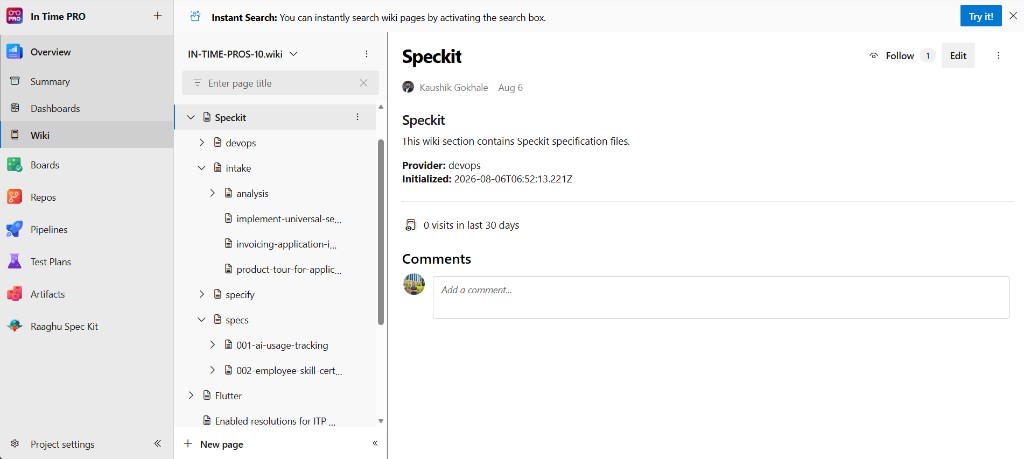
Built on GitHub Spec Kit. Spec Kit artifacts (constitution, spec, plan, tasks, checklists, and related files) are saved to your Azure DevOps Wiki under Raaghu Spec Kit/ (projects initialized earlier may still use Speckit/) with full version history — no Git commits required for Spec Kit content.
Flexible AI — bring your own LLM key or use Raaghu AI
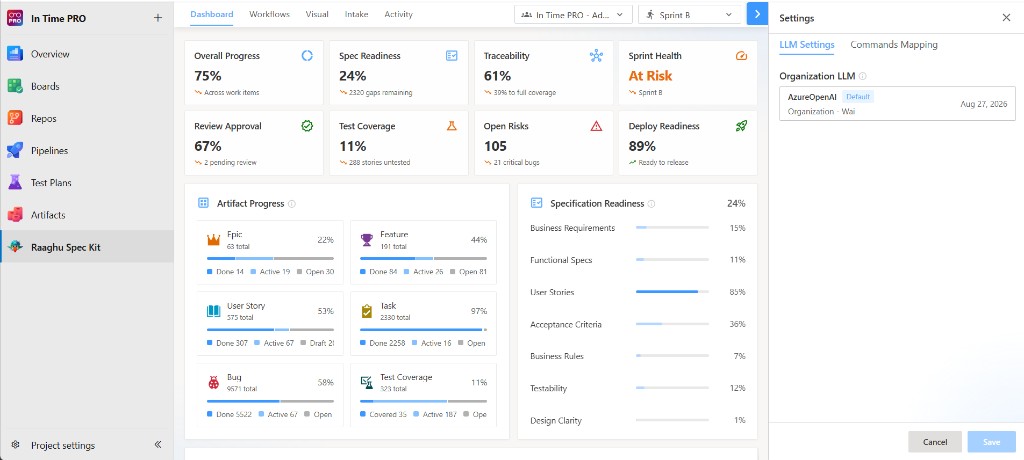
Use your own AI provider, Raaghu AI, or both when your organization admin allows it for the project.
| Option |
How it works |
| Bring your own LLM key |
Add Azure OpenAI, OpenAI, or Anthropic Claude under Settings → LLM Settings (Project LLM), or use organization connections assigned under Organization Settings → AI Settings. Requests go from the browser to your provider. |
| Raaghu AI |
Enable Raaghu AI on the LLM Settings tab (when allowed for the project). Spec Kit uses Raaghu’s models and deducts from your credit balance. |
In-Extension Settings
Open Settings from the Spec Kit project hub (hamburger menu). Organization admins and Project Administrators can open this dialog for the current project. Regular members do not see Settings.
| Tab |
What you configure |
| LLM Settings |
Project LLM On/Off and project bring-your-own-LLM-key setups (provider, API key, model, endpoint, expiration — 7 / 30 / 60 / 90 days, a custom date, or no expiration). Choose a catalog model or enter a custom model name. Raaghu AI toggle, model, credit balance, and top up credits. |
| Commands Mapping |
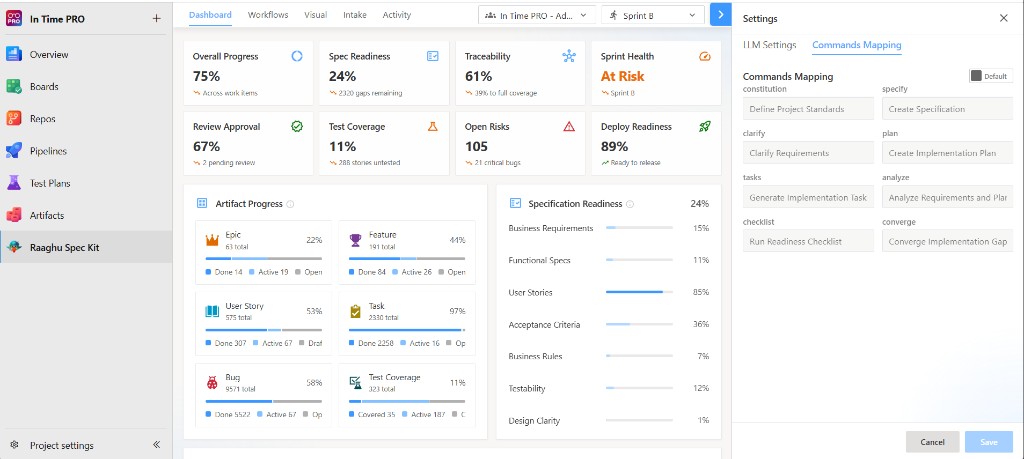
Switch command labels between Spec Kit (speckit.* IDs) and Default (friendly names). Labels are read-only. |
Organization-wide AI connections, billing, seats, credits, and license keys stay in Organization Settings → Extensions → Raaghu Spec Kit (organization-admin only).
My AI usage
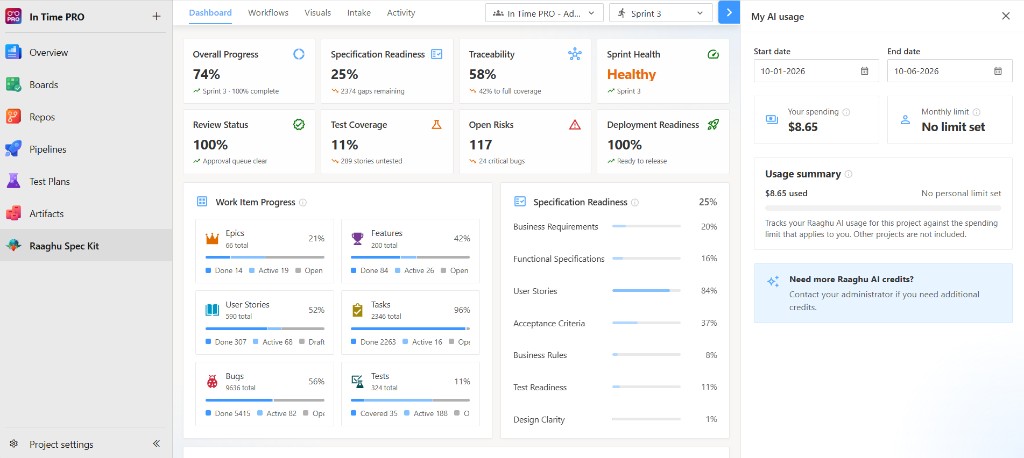
Track your personal Raaghu AI spend from the hamburger menu → My AI usage:
- Spend for a selected date range (Start date / End date)
- Your spending and Monthly limit (set by an organization admin, or no limit)
- Clear guidance when you need more Raaghu AI credits
From Azure Boards or Queries, open a work item’s context menu → Raaghu to run AI actions without leaving the board.
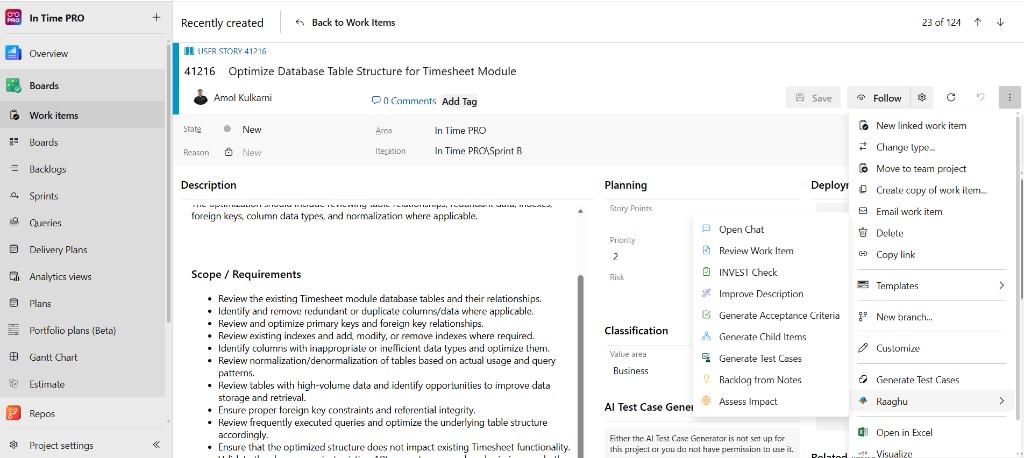
| Action |
What it does |
| Open Chat |
Ask questions about the work item |
| Review Work Item |
Readiness report with gaps, risks, and next steps |
| INVEST Check |
Type-aware INVEST scoring |
| Improve Description |
Reviewable rewrite that preserves meaning |
| Generate Acceptance Criteria |
Draft testable criteria, then Save changes to Azure DevOps |
| Generate Child Items |
Suggest next-level children for your process template |
| Generate Test Cases |
Suggest Gherkin or step-based test cases to create in Azure DevOps |
| Backlog from Notes |
Paste or upload notes (.txt / .md) and generate child work items to review and create |
| Assess Impact |
Describe a change and get an impact report across linked items (links are context only) |
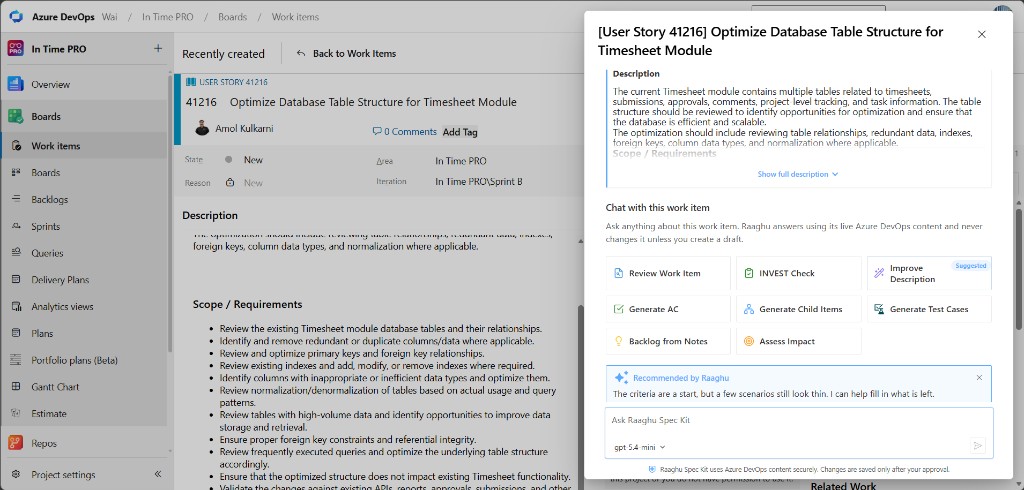
The side panel shows the work item context and quick actions. Recommended by Raaghu appears only when there are concrete gaps (for example a thin description or missing/thin acceptance criteria). When the work item looks ready, no recommendation cards are shown. Completed actions stay excluded until you start a New conversation. A quick-action chip can show a Suggested badge when gaps remain. Refine flows use Preview / Edit / Diff — nothing is written to Azure DevOps until you confirm. Multi-select supports Review Work Item, INVEST Check, and Generate Acceptance Criteria.
Organization Settings Hub
Organization admins manage seats, access requests, billing, AI credits, AI connections, and usage from:
Azure DevOps → Organization Settings → Extensions → Raaghu Spec Kit
(On Azure DevOps Server, open the same hub from Collection Settings.)
| Tab |
Purpose |
| Subscription |
Plan, seats, billing, and credit top-ups |
| Users |
Approve requests (assigns a seat), assign or unassign seats |
| AI Settings |
Org-wide AI provider connections, per-project permissions, and Raaghu AI credits |
| License Keys |
Activate a standalone license key |
AI Settings
Manage organization-wide AI provider connections, assign them to projects, and manage Raaghu AI credits.
Sub-tabs: Organization, Project, and Raaghu AI Credits.
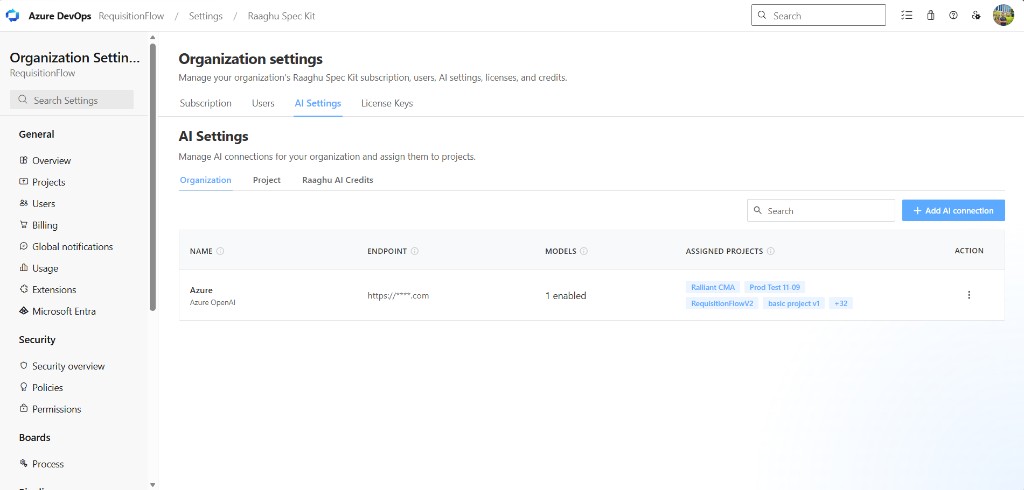
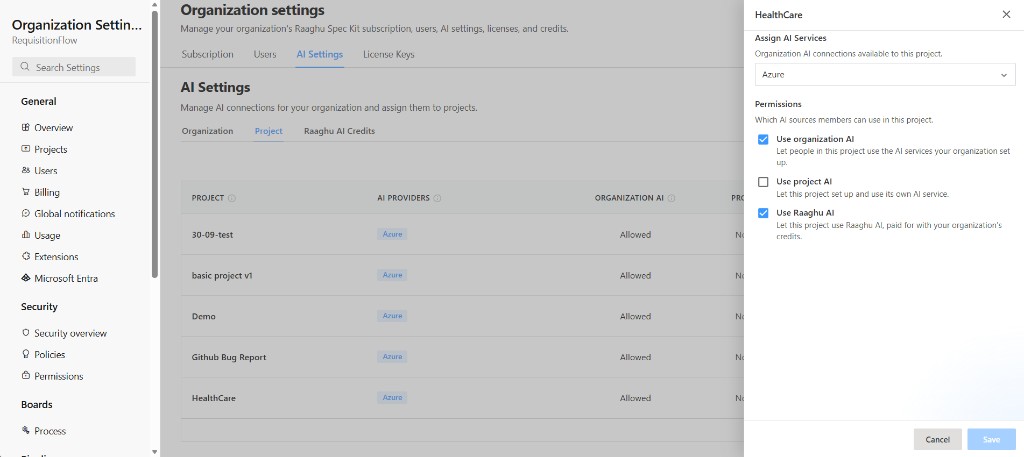
Organization sub-tab — create shared connections (+ Add AI connection) and review Name, Endpoint, Models, and Assigned projects.
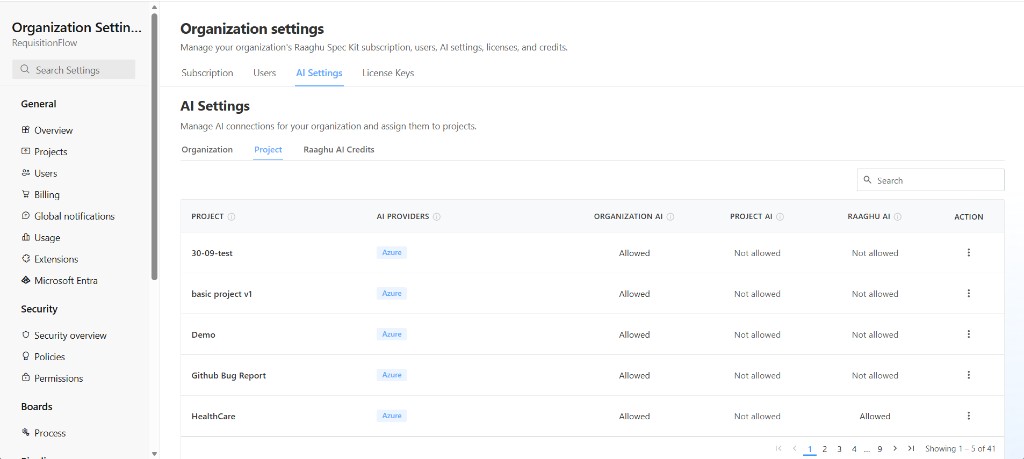
Project sub-tab — for each Azure DevOps project, review AI providers and permission status. Open a project (⋯) to assign organization connections and set permissions in the side panel.
| Column |
Description |
| AI providers |
Org AI connections for the project (for example, Azure) |
| Organization AI |
Whether organization-level AI is Allowed / Not allowed |
| Project AI |
Whether project-level bring-your-own-LLM-key setups are allowed |
| Raaghu AI |
Whether Raaghu AI is allowed |
In the side panel, use Assign AI Services and turn on or off Use organization AI, Use project AI, and Use Raaghu AI, then Save.
Subscription
Subscribe at $9 USD / seat / month, then manage seats and billing in one place.
Getting started (eligible new organizations)
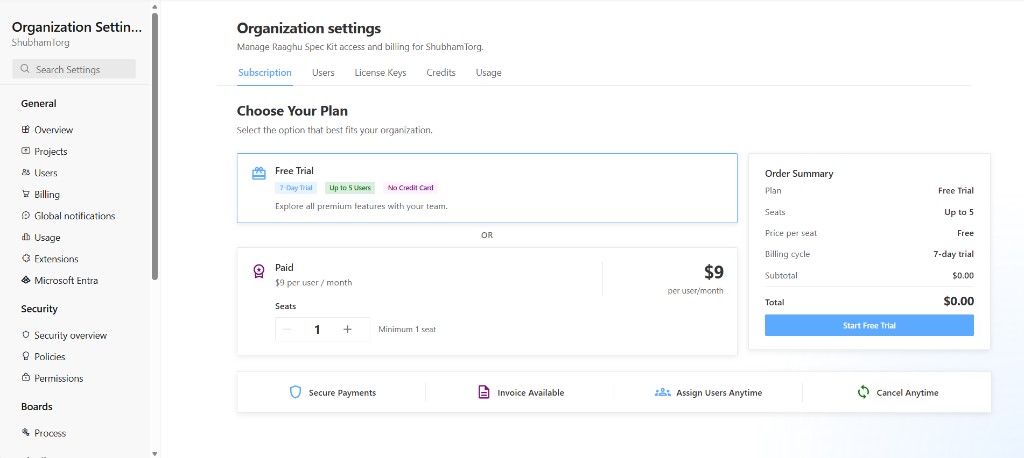
Tenant admins see Choose Your Plan when the organization is trial-eligible. Start the trial inside Raaghu Spec Kit. Microsoft Marketplace does not take payment for this extension — you buy your license from Raaghu.
- Select Free Trial or Paid
- For Free Trial — click Start Free Trial (up to 5 seats, no credit card required)
- For Paid — set seats with − / +, then click Subscribe Now and pay by card. When paying by card, you can enter a promotion code if you have one.
- Assign seats to team members on the Users tab
If the organization is not trial-eligible, use the paid-only path (Subscribe for $…/month) or activate a key on License Keys.
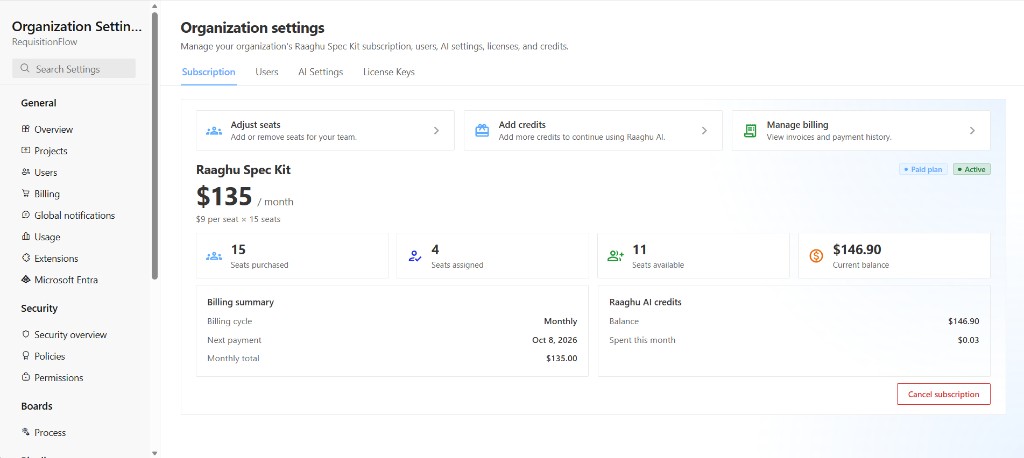
After you subscribe (paid, trial, or license key), you can:
| Action |
Description |
| Adjust seats |
Add or remove seats when you pay by card. Seat reductions take effect at the end of the billing period and can be undone. During a free trial, seat count is fixed at 5 and cannot be changed here (contact support@raaghu.ai if needed). With a license key, seat count is fixed by the key. |
| Add credits |
Buy Raaghu AI credits (preset or custom amount between $5 and $10,000). Credits do not expire. |
| Manage billing |
When you pay by card, open the billing portal for invoices, payment methods, and payment history. During a free trial or when using a license key, this action becomes Users (assign seats). After the trial ends, subscribe again on Subscription (or enter a key on License Keys). |
| Cancel subscription |
When you pay by card, cancel at the end of the current billing period. Use Undo cancellation before that date to keep the subscription. Not shown during a free trial. |
You also see seats purchased / assigned / available and AI credit balance vs spend.
- Paid (pay by card): Billing summary shows billing cycle, next payment date, and monthly total. Plan badge: Paid plan.
- Free trial: Plan badge shows Free Trial. Subscription details shows plan, Trial ends on, and seats (not next payment / monthly total).
- License key: Plan badge shows license key. Subscription details shows expiration and licensed seats.
Users
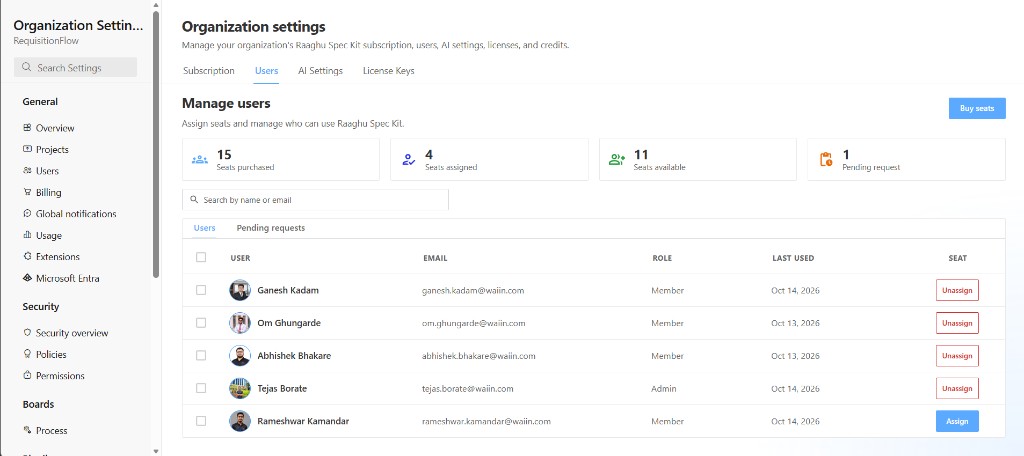
Approve first-time access requests and manage seats from Manage users.
| Capability |
Description |
| Seat summary |
Purchased, assigned, available, and pending-request counts at a glance |
| Search |
Find people by name or email |
| Users |
Org members with User, Email, Role, and Last Used. Assign or Unassign seats per row, or use bulk Assign selected / Unassign selected |
| Pending requests |
First-time users waiting for approval — Approve, Reject, or Approve selected |
| Roles |
See whether each person is an Admin or Member |
Sub-tabs: Users and Pending requests. Approving a request also assigns a seat (Approve and assign seat?). Use Buy seats when you need more capacity (disabled during a free trial).
Important: Members need an assigned seat to use Spec Kit — even when the organization is subscribed, on trial, or using a license key.
License Keys
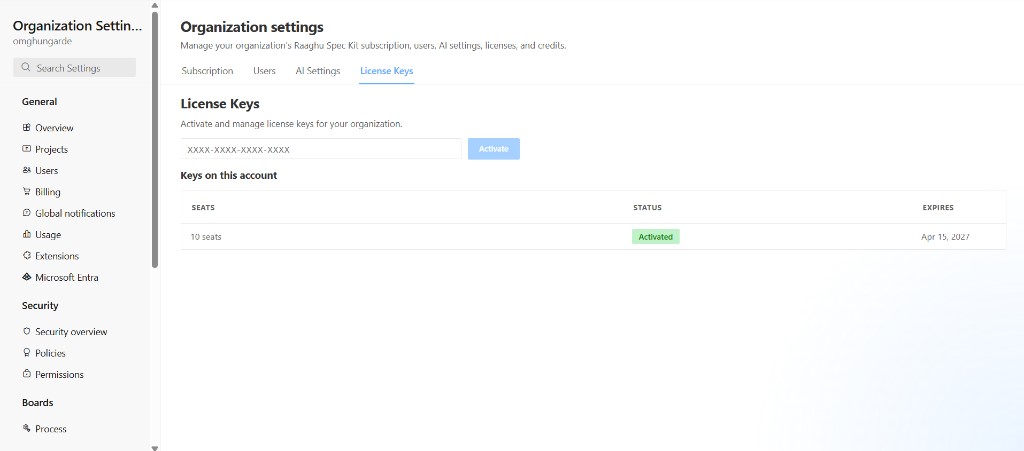
Activate and manage license keys for your organization — no Stripe checkout required.
Activate a key
- Open License Keys
- Enter the key (format
RAAGHU-XXXX-XXXX-XXXX)
- Click Activation Key — Spec Kit validates first and shows a preview (plan, type, validity)
- Click Confirm & activate to redeem, or Cancel to go back without activating
Keys on this account lists active entitlements with:
| Column |
Description |
| Plan |
Plan tier and seat count (e.g. SpecKit · 1 seats) |
| Status |
Active, Expiring (≤30 days left), or Expired |
| Expires |
Relative expiry (e.g. in 30 days) or the end date |
Empty state: "No license keys have been activated for this account."
After activation, billing method becomes License key. On Subscription, the plan badge shows License key, and Billing summary shows only Expires on.
Raaghu AI Credits (under AI Settings)
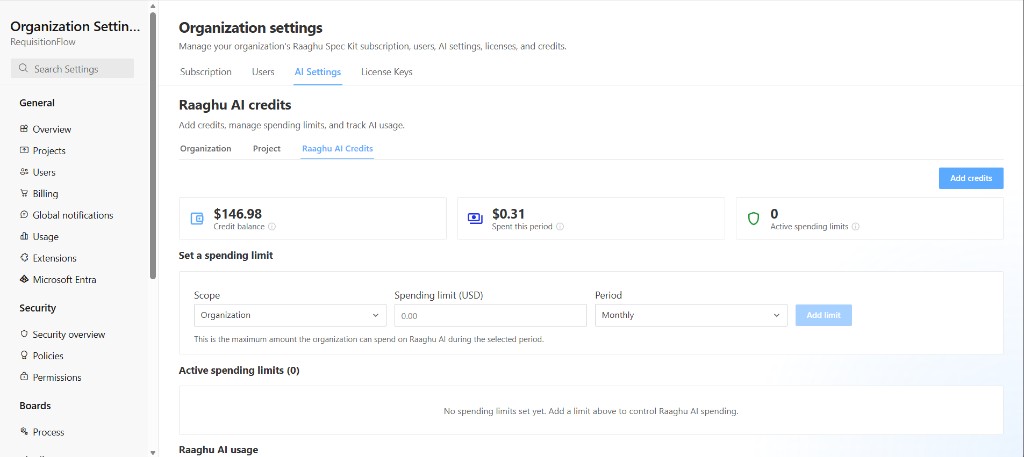
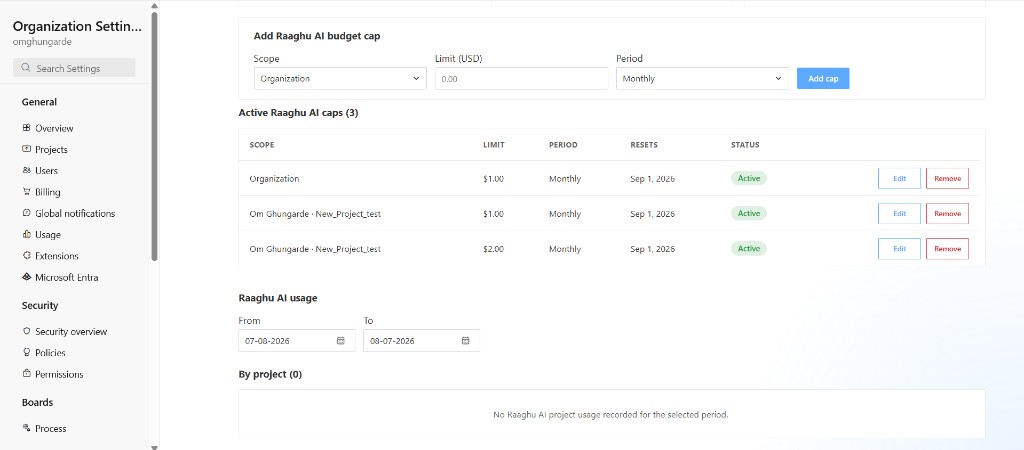
On the AI Settings → Raaghu AI Credits sub-tab, top up and set spending limits for Raaghu AI only. You can also top up from Subscription → Top up Raaghu AI credits.
| Metric |
Meaning |
| Credit balance |
Credits available for Raaghu AI |
| Spent this period |
How much has been used |
| Active spending limits |
How many spending limits are in place |
Set a spending limit
| Field |
Options |
| Scope |
Organization · Project · User in a project |
| Spending limit (USD) |
Spending ceiling in USD |
| Period |
Monthly or Lifetime |
Click Add limit. Review Active spending limits (scope, limit, period, resets, status) and edit or delete anytime.
Raaghu AI usage (on the same sub-tab) shows where credits are going:
| Feature |
Description |
| Date range |
Filter analytics with From / To dates |
| By project |
Expand a project to see each member’s spend and credit limit |
Admins see organization-wide project and member spend. Other members see their own spend under My AI usage in the extension.
Spec Kit Workflow
Raaghu Spec Kit follows a structured specification workflow using slash commands:
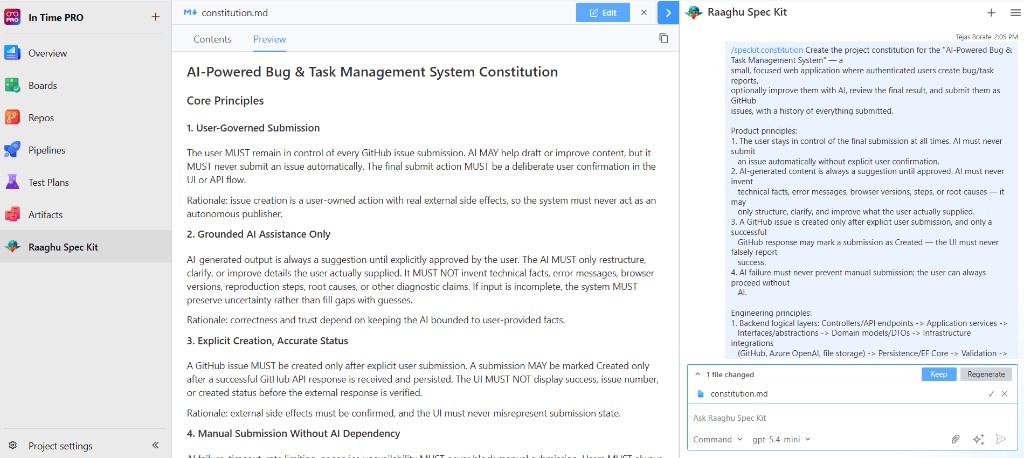
Define Project Standards (/speckit.constitution)
Establish constitutional principles. The AI generates a constitution that guides later specs and keeps the project consistent.
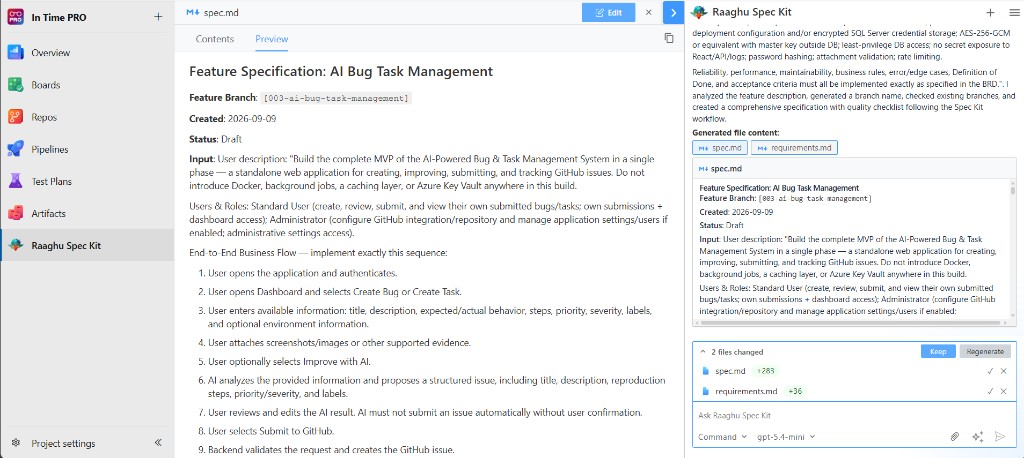
Create Specification (/speckit.specify)
Create the next numbered feature specification by default — structured sections, acceptance criteria, and a quality checklist. Updates an existing spec only when you explicitly ask. Later commands stay on that feature until you switch.
Clarify Requirements (/speckit.clarify)
Identify gaps and ambiguities, ask clarification questions one at a time (Back / Next / Submit Answer), and fold answers back into the specification.
Create Implementation Plan (/speckit.plan)
Generate delivery and technical plans — including research, data model, quickstart, and API contract artifacts where applicable.
Generate Implementation Tasks (/speckit.tasks)
Produce phase-based task breakdowns with task IDs, parallel markers, and user-story links — ready to sync with Azure Boards.
Analyze Requirements and Plan (/speckit.analyze)
Cross-check specs, plans, and tasks for duplication, ambiguity, underspecification, and coverage gaps. Findings are severity-rated (Critical, High, Medium, Low) with remediation guidance.
Run Readiness Checklist (/speckit.checklist)
Generate domain-specific quality checklists (UX, API, Security, and more) — “unit tests for requirements.”
Converge Implementation (/speckit.converge)
After developers push code, assess the selected repository branch against the feature’s wiki artifacts (spec, plan, tasks, constitution). Remaining work is appended to the feature tasks wiki page. Converge does not generate or commit application code.
File Management
- Generate files — AI creates structured Spec Kit artifacts (
spec, plan, tasks, and related pages)
- Contents / Preview / Diff — review generated Spec Kit files; Diff shows what changed with clear +N / −N counts
- Keep — save generated content to the wiki
- Attach context — attach wiki pages, repo files, or work items to the conversation (up to 4 files)
Chat History
Persistent, project-scoped chat sessions let you resume any conversation:
- Browse sessions — all past conversations for the current project
- Resume anytime — reopen with full message context
- Rename sessions — descriptive names for easy navigation
- Delete sessions — remove one session or clear history
- New chat — start fresh without losing prior sessions
Pricing & Trial
| Item |
Details |
| Price |
$9 USD per seat / month (you buy your license from Raaghu — pay by card or license key; Microsoft does not charge for the extension) |
| Trial |
7 days free for eligible new orgs — start in-product: Choose Your Plan → Start Free Trial (up to 5 seats, fixed during trial; no card required) |
| Manage |
Organization Settings → Extensions → Raaghu Spec Kit |
After the trial: subscribe on Subscription (pay by card), approve pending users and assign seats on Users, configure AI Settings as needed, then manage credits and spend on AI Settings → Raaghu AI Credits. Organizations can also enter a key on License Keys instead of paying by card.
See the Pricing tab on this Marketplace listing for full details.
Created using Raaghu Design System leveraging Spec Kit.
©2026 Wai Technologies. All rights reserved.

