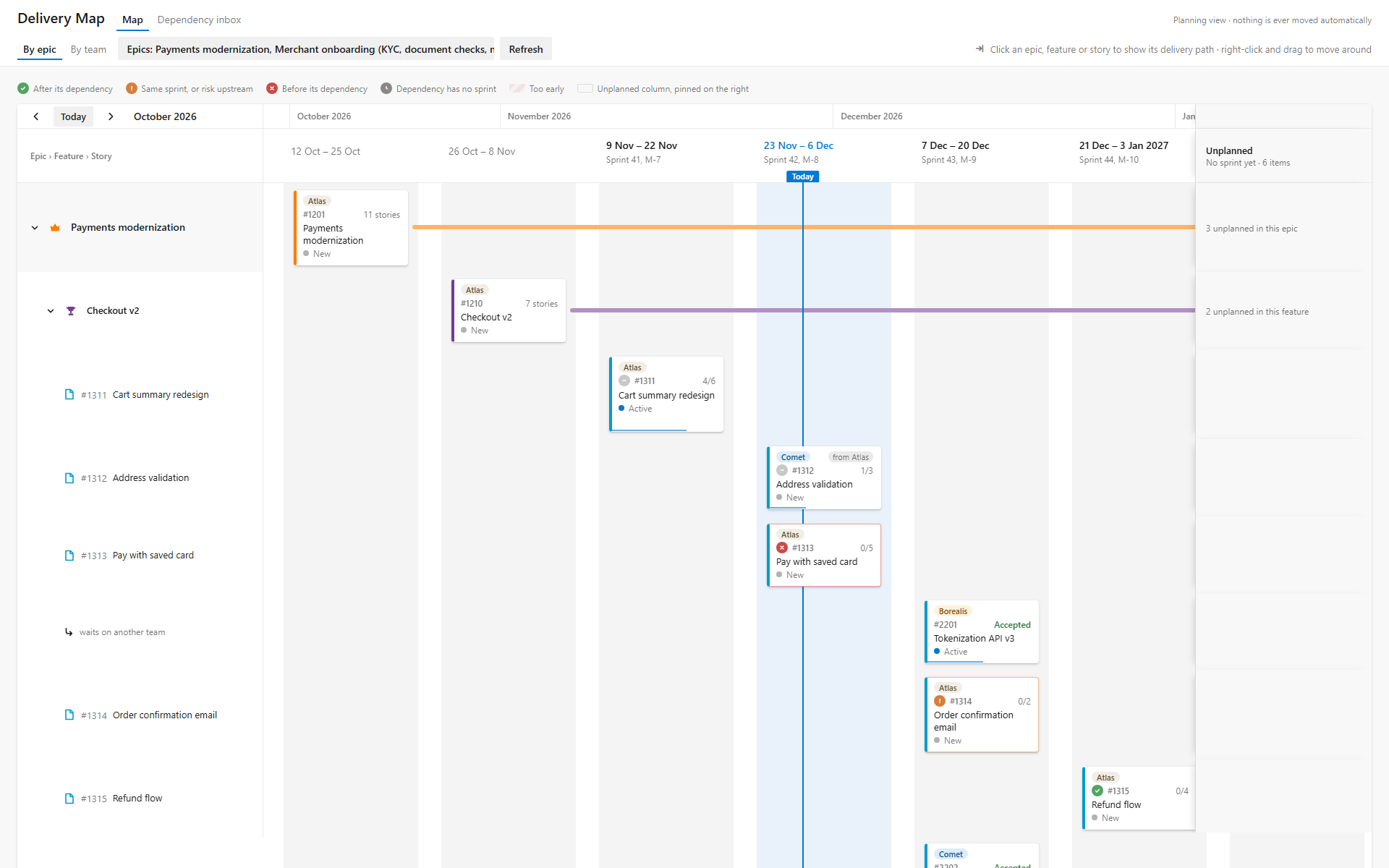
Delivery MapPlan delivery across teams: epics, features and stories per sprint, cross-team dependencies, agreements and handovers. |

Delivery MapSee how the work of several teams fits together over the coming sprints, and agree on cross-team dependencies.
Delivery Map (Boards → Delivery Map)
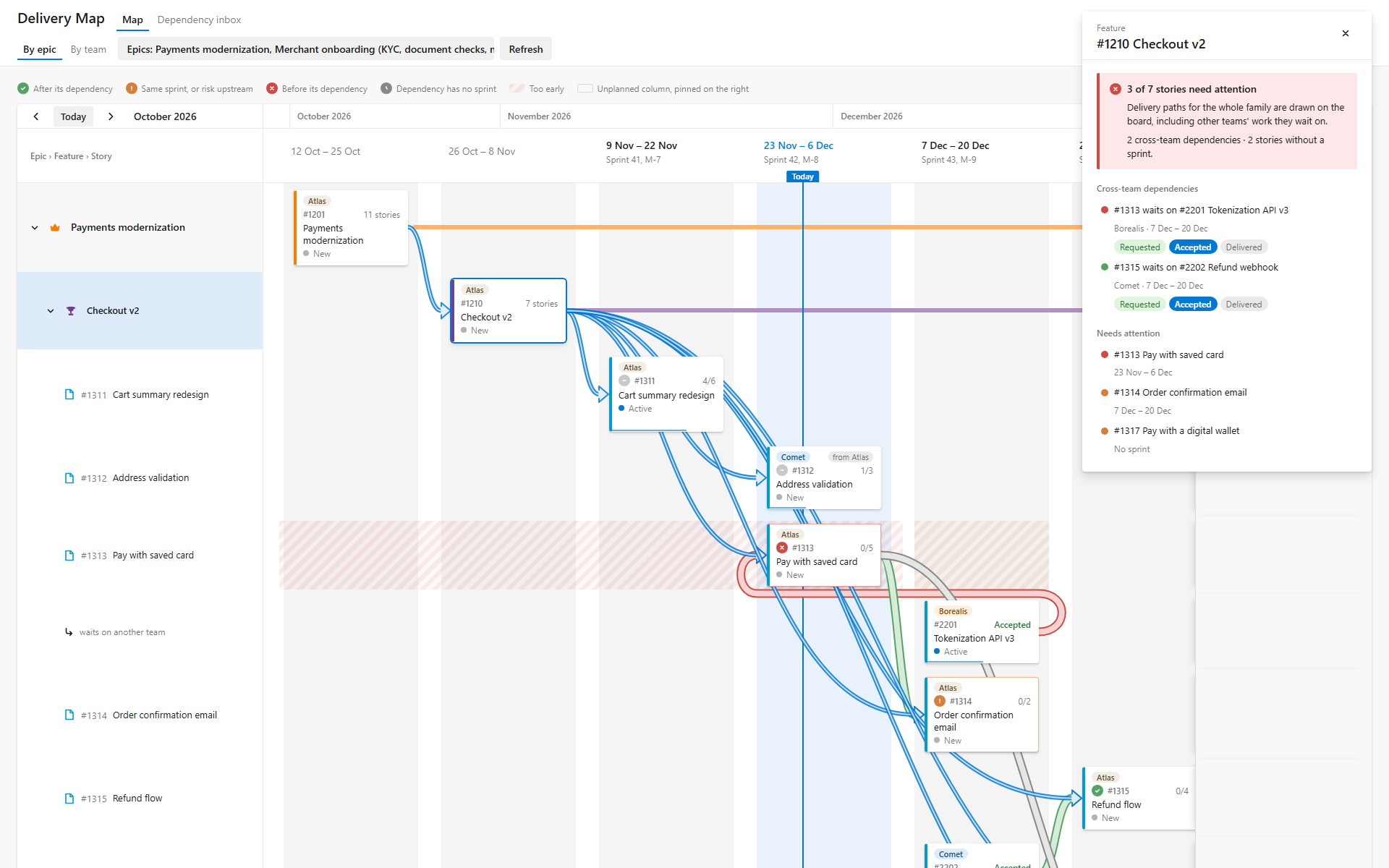
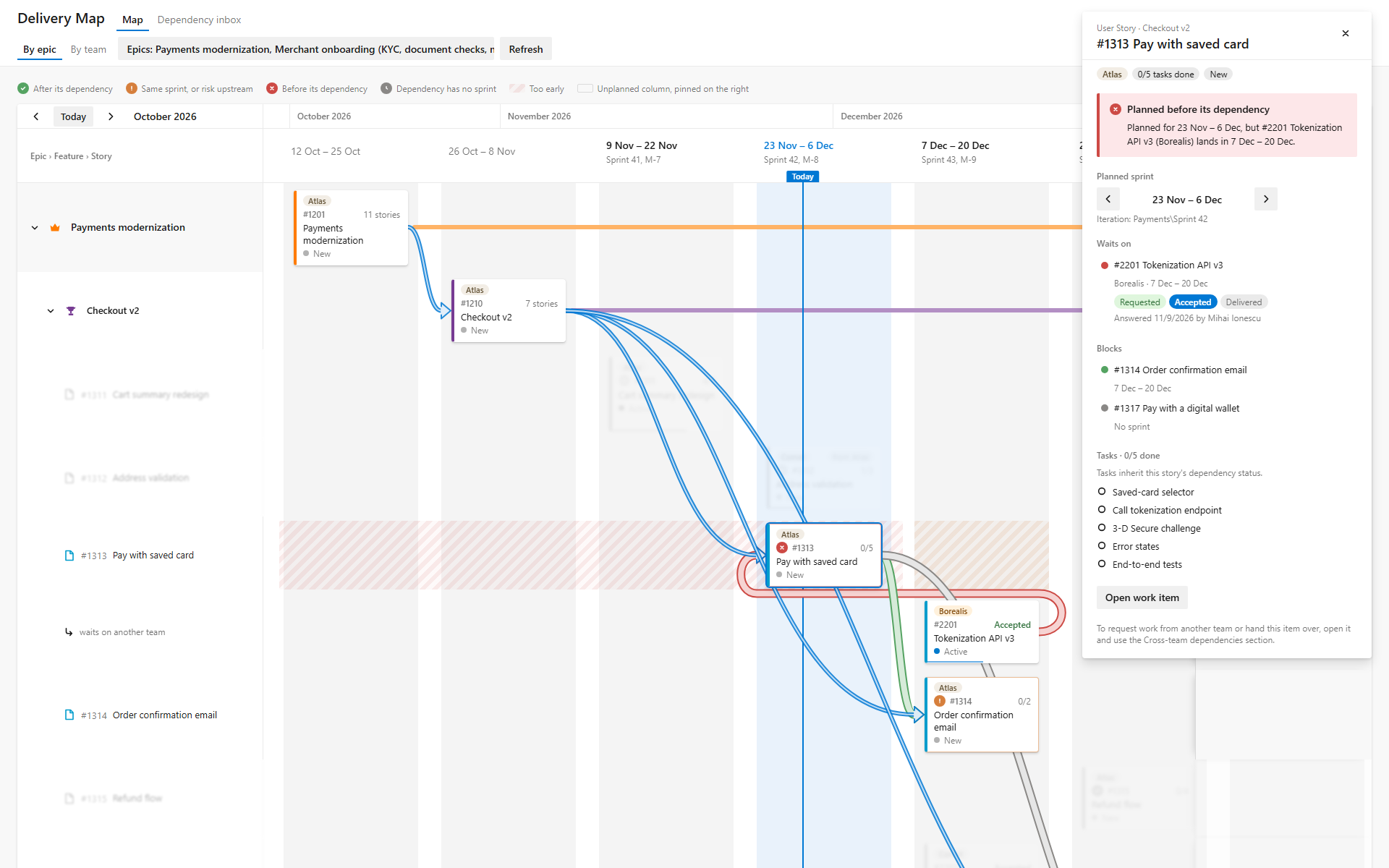
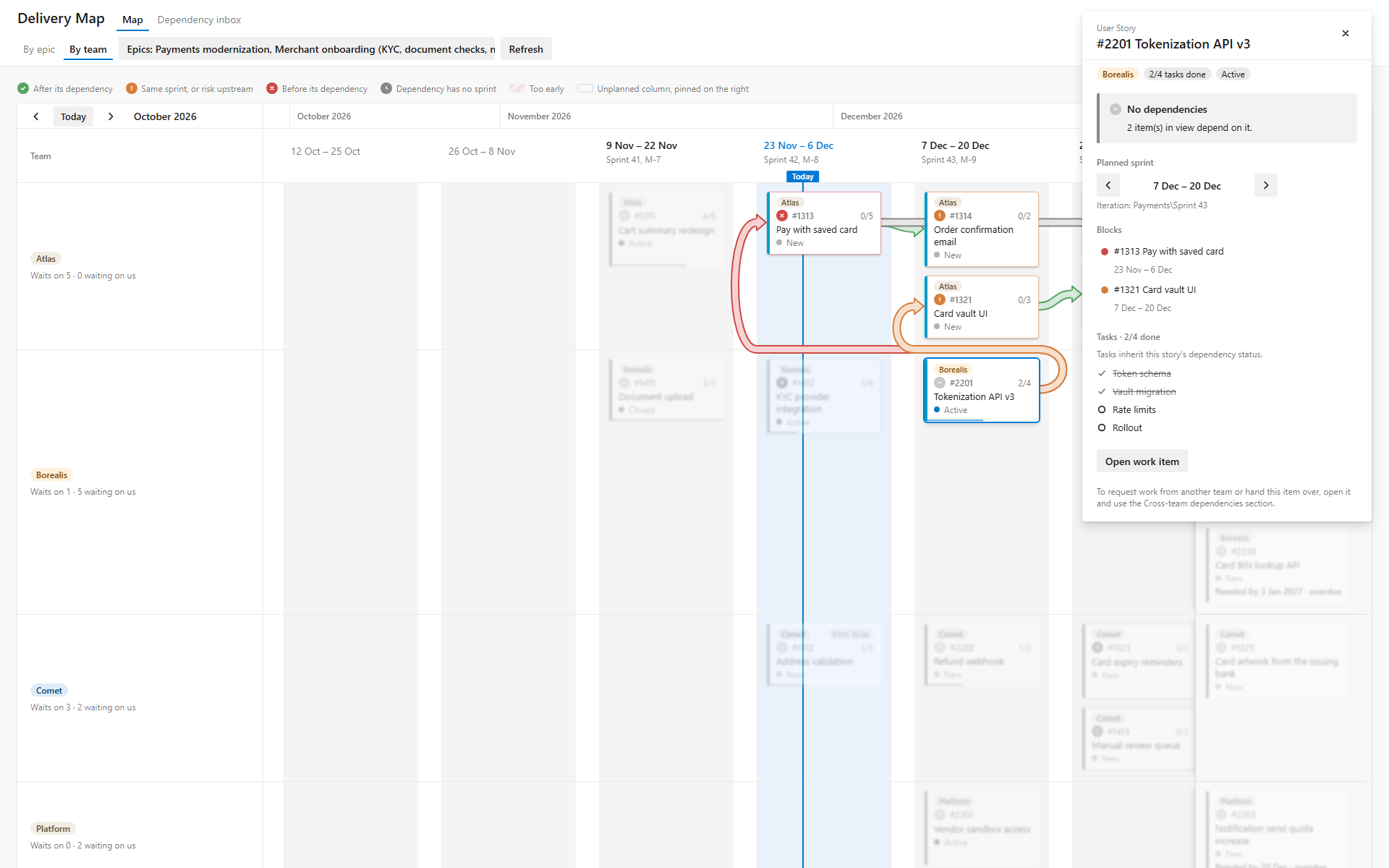
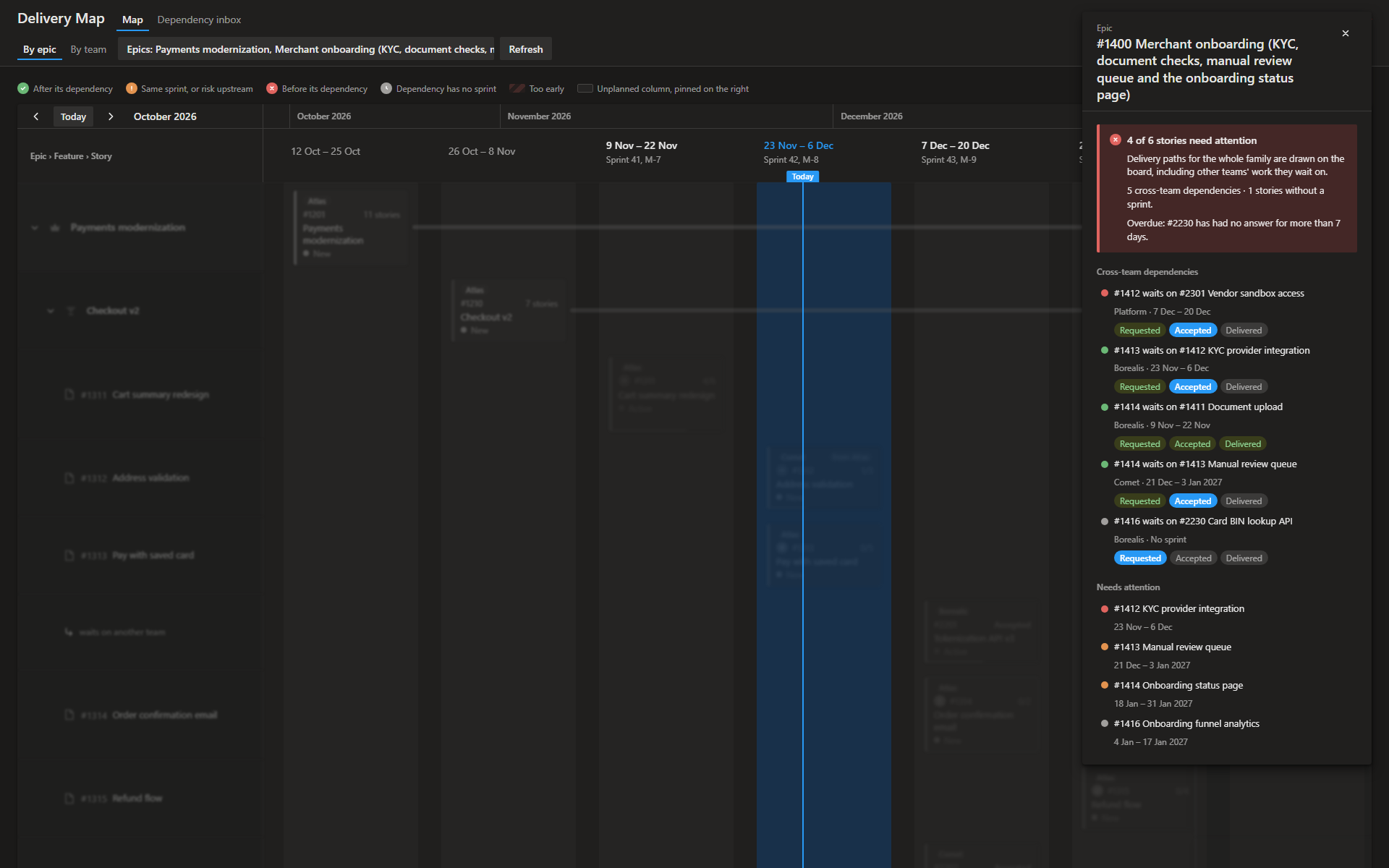
See the delivery pathClick a card, or its name in the left column, to show the delivery path of its whole family; everything else fades. A name also takes you to its card. An epic's or feature's path includes arrows to the features and stories that come out of it. Click the card again, click empty space or press Esc to see everything again. While something is selected, the Unplanned column only shows if some of its family has no sprint. Tick Only sprints with the selected work to hide every sprint without any of that family's work; ticking or unticking it takes you back to the selected item. Tick Hide titles for shorter cards and a denser map that makes dependencies easier to follow. The toolbar, legend, months and sprint names stay at the top while you scroll the board. Arrows leave a card on the right and enter the next one on the left, including cards in the Unplanned column.
Hover over a card and click the eye in its corner to also open its details window. It floats over the board, wherever you have scrolled, and can be dragged aside. It explains why a story has its colour, what it waits on and what it blocks, and shows its tasks. From there you can open the work item, request work from another team, or hand the item over to another team.
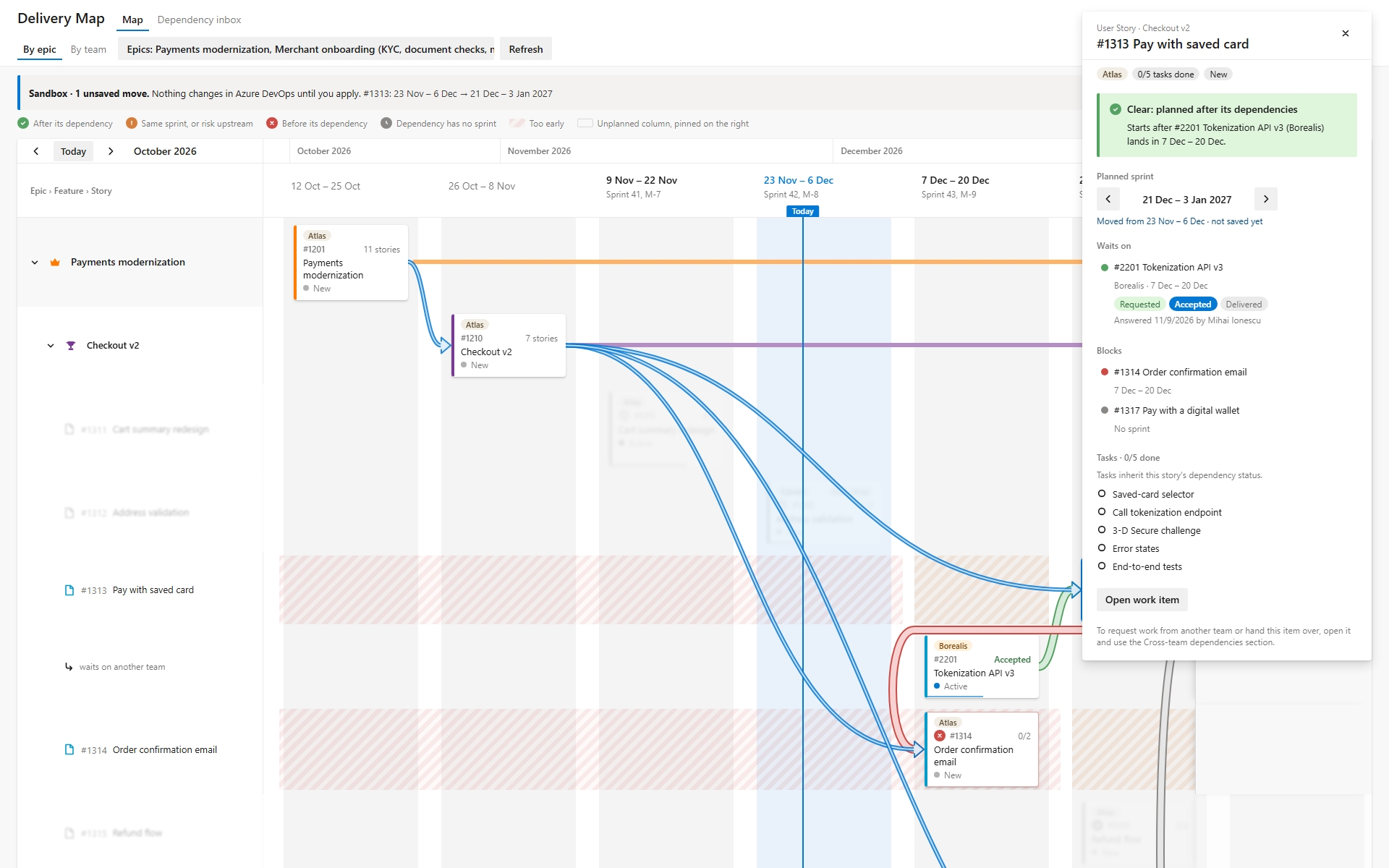
Try moves before you make themMove stories between sprints in a sandbox and watch the colours change across the family. Nothing changes in Azure DevOps until you press Apply.
By teamOne lane per team, with what each team waits on and how many others wait on it.
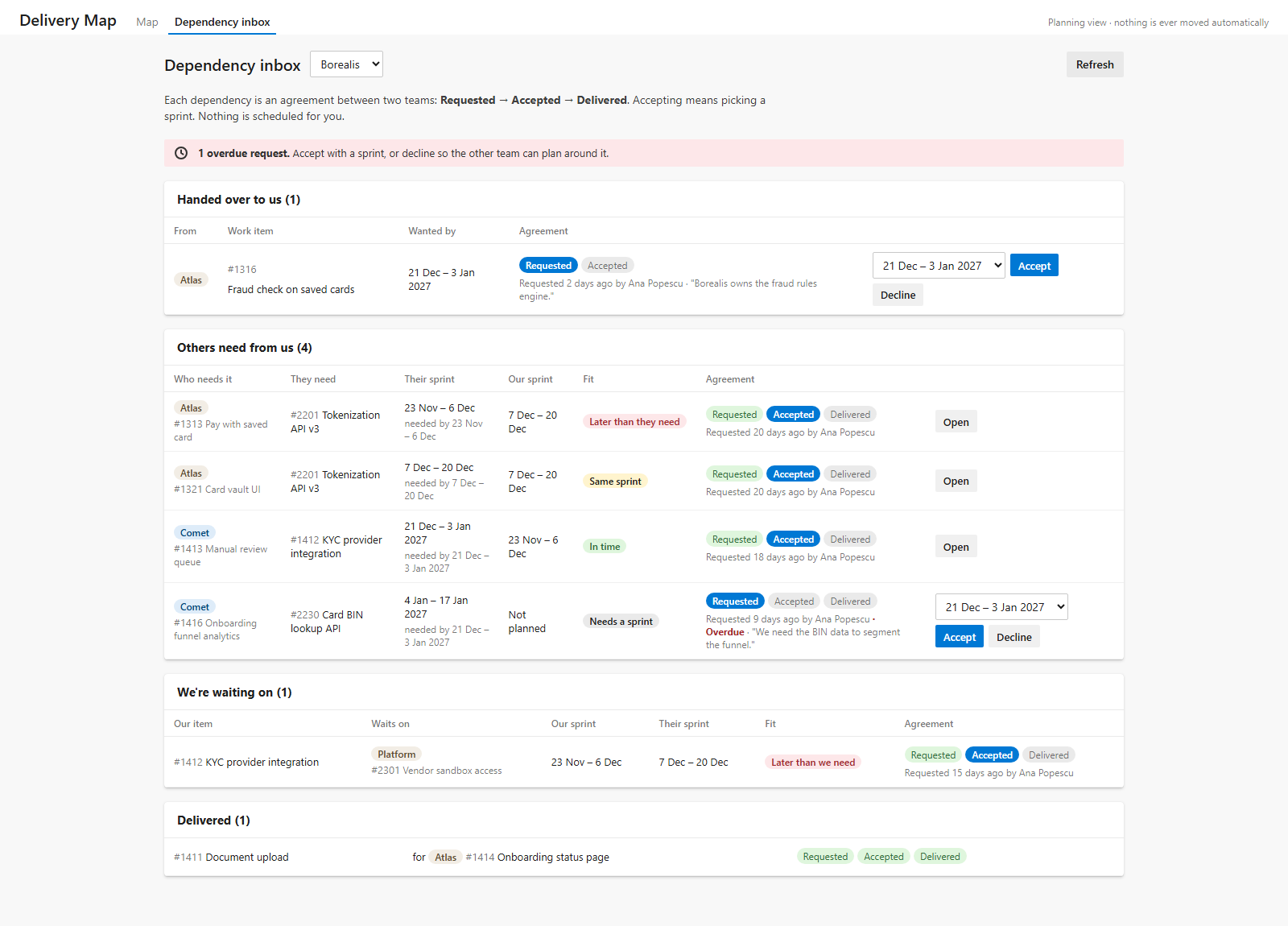
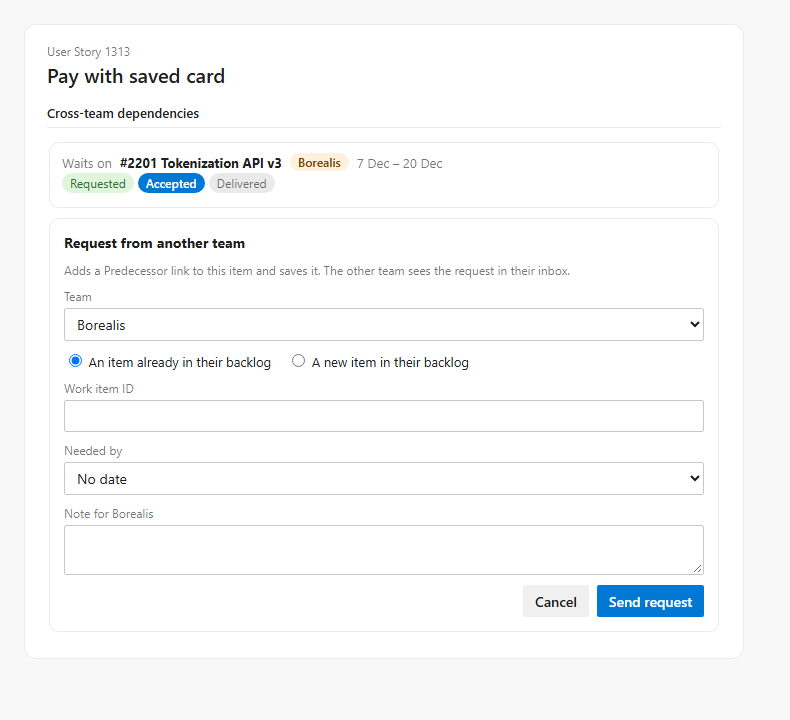
Dependency inboxOther teams ask your team to take work items here. Accept one by picking a sprint, and it moves onto your board in that sprint; or decline it. Requests without an answer for more than 7 days are flagged as overdue. Request another teamEvery unplanned story has a small Propose chip under its card. Drag it onto a sprint and the Request another team pop-up opens with that sprint selected: pick the team, choose who to notify, and leave a note. Request from another team in the details window opens the same pop-up. The team finds the request in its inbox and accepts it in the requested sprint or another one; the item then moves onto their board. Until then the chip shows "Requested from ". Draw and move dependenciesHover over a story without dependencies and drag the bubble on its left side onto the card it waits on, or the bubble on its right side onto the card that waits on it. Click an arrow to select it, then drag either end onto another card to move the dependency. Changes are saved to Azure DevOps straight away, with Undo. NotificationsTick Notify me about requests for a team in its inbox to hear about new requests for that team. Only actions taken in the Delivery Map notify anyone, and only the people concerned: the team's subscribers and the people chosen in Notify; the requester when the request is declined, accepted in another sprint, or the item is later moved to another sprint. Each notification is a comment on the work item that @mentions those people, so Azure DevOps emails them and the item keeps a record.
On the work itemThe Cross-team dependencies section on the work item form lets a team
Light and dark themeDelivery Map follows your Azure DevOps theme.
Your dataDelivery Map runs entirely inside Azure DevOps. It reads and updates work items through the Azure DevOps APIs, using the signed-in user's permissions. It stores request states and team subscriptions in the extension's data storage in your organization, and reads your organization's user list for the people search. Nothing is sent anywhere else. Requirements
Screenshots show sample data. |