Time TrackerA powerful extension to seamlessly track and manage time logs within your work items. |

Time Tracker — Log Hours Without Leaving Azure DevOpsTrack time directly on your Azure Boards work items. Start a timer, stop it when you're done, and let the extension handle the rest — no spreadsheets, no external tools, no context switching.
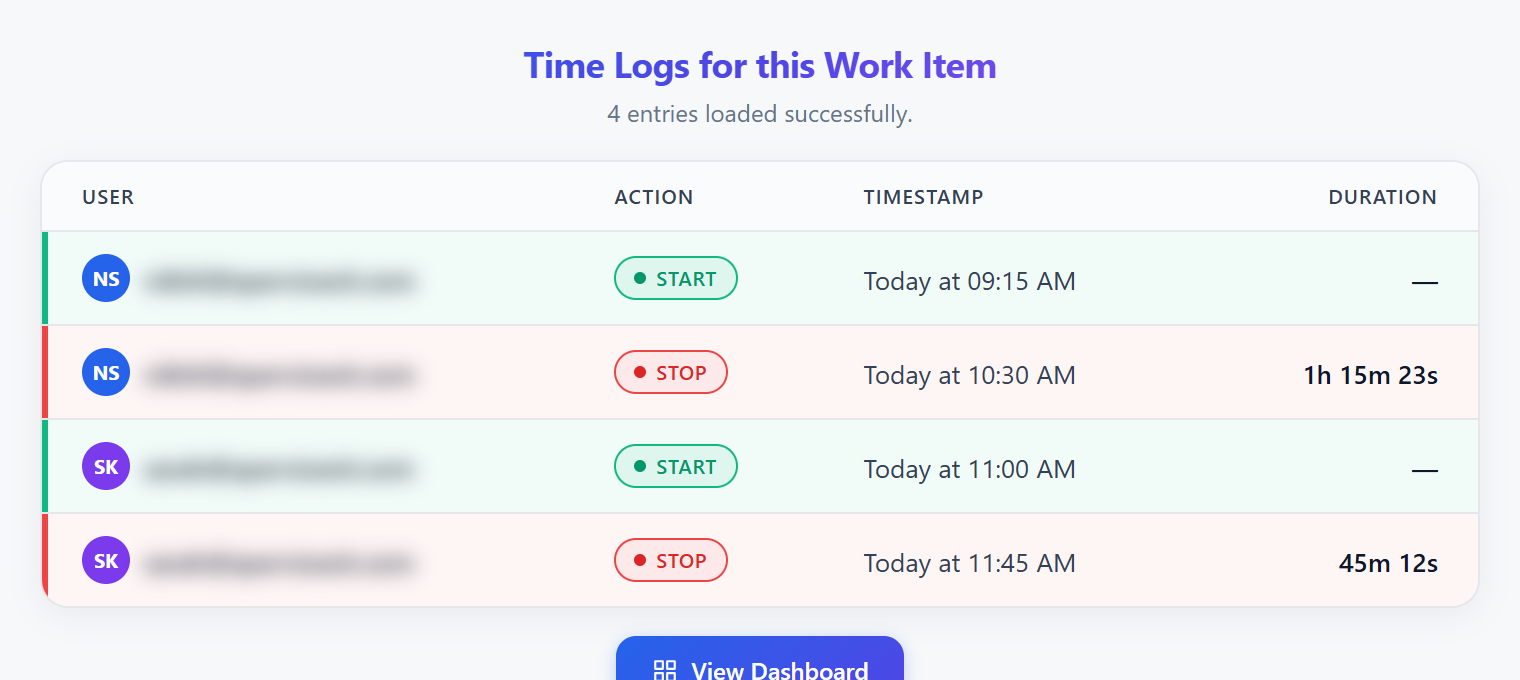
See It in Action▶ Click to watch the full walkthrough on YouTube Why Teams Use Time TrackerMost time tracking tools live outside Azure DevOps. That means your team has to remember to log hours in a second system, long after the work is done. Time Tracker is built into the work item itself — the timer is right there while the developer is actually doing the work. 234 teams already tracking time inside Azure DevOps. Key Features⏱ One-Click Timer on Every Work ItemA Start/Stop timer lives inside the Azure DevOps work item form. No new tabs, no copy-pasting IDs. Open the item, hit Start, hit Stop when done. The elapsed time is written directly back to the work item. 🔒 Assignee-Only EnforcementOnly the person assigned to a work item can start its timer. This prevents teammates from accidentally logging time against each other's tasks. If the wrong person tries to start a timer, they see a clear message with no action taken. 🚦 One Active Timer Per UserThe extension enforces one running timer per user across the entire organisation. If a developer opens a second work item and tries to start a timer, they see a direct link to the item already running — so they can stop it first. No duplicate time logs, ever. 📋 Full Audit Log TabEvery work item has a dedicated Time Logs tab showing the complete history of Start and Stop events — who, when, and for how long. Colour-coded rows (green for start, red for stop) make it easy to scan at a glance.
📊 Team DashboardBeyond individual work items, your whole team's time data is visible at timetrack.qservicesit.net. PMs and team leads can view hours by person, project, and date range without touching Azure DevOps at all. 🌗 Dark Mode SupportThe Time Logs tab automatically adapts to your system's dark mode setting — no configuration needed. 🔑 Azure Entra ID AuthenticationNo separate login. The extension uses your existing Azure DevOps session and Azure Active Directory identity. Your data never leaves your organisation's infrastructure. How It WorksStep 1 — Install Install from the Marketplace. The extension adds two components to every Azure Boards work item form: a timer widget and a Time Logs tab. Step 2 — Open any work item Navigate to any work item in Azure Boards that's assigned to you. The Time Tracker widget appears in the form automatically. Step 3 — Start the timer Click Start. The timer begins counting. You'll see it tick up in real time while you work. Step 4 — Stop when done Click Stop. The elapsed time is added to the work item's total hours and an entry is written to the audit log. Step 5 — View your team's time Open the Time Logs tab on any work item to see the full history. Or head to the Time Tracker Dashboard for organisation-wide reports. What's Tracked
All data is tied to your Azure DevOps organisation. Nothing is shared with third parties. Requirements
Setup GuideStep 1 — Install the extensionInstall Time Tracker from the Marketplace and confirm access for your Azure DevOps organisation. Step 2 — Add the custom fieldsTime Tracker writes hours back to two custom fields on your work items. You need to create these fields once in your organisation's process settings:
Step 3 — Start trackingOpen any assigned work item. The Time Tracker widget appears automatically in the form. Click Start. Frequently Asked QuestionsQ: Can multiple people log time on the same work item? A: Yes — each team member logs their own sessions. The Time Logs tab shows a separate entry for each person's start/stop event. Q: What happens if I forget to stop the timer? A: The timer keeps running until you stop it. The dashboard shows all active timers so you or a team lead can identify runaway sessions. Q: Is my time data visible to other team members? A: The Time Logs tab is visible to anyone with access to the work item. Organisation-wide reports are available in the dashboard. Q: Can I log time retroactively? A: Currently the extension only supports real-time timer-based logging. Retroactive entry is on our roadmap. Q: Does this work with Azure DevOps Server (on-premises)? A: Yes. The extension targets Azure DevOps Services 7.0+ and is compatible with recent versions of Azure DevOps Server. Q: Where is my data stored? A: Timer state is held in a backend hosted by QServices. Hours are written directly to your Azure DevOps work item fields via the Azure DevOps REST API. Your Azure AD identity is used for authentication — no separate account is created. SupportEmail: support@qservicesit.com Publisher: QServices Inc — marketplace.visualstudio.com/publishers/TimeTracker For bugs and feature requests, email us with your organisation name, the work item ID you were working on, and a description of what happened. We aim to respond within one business day. |