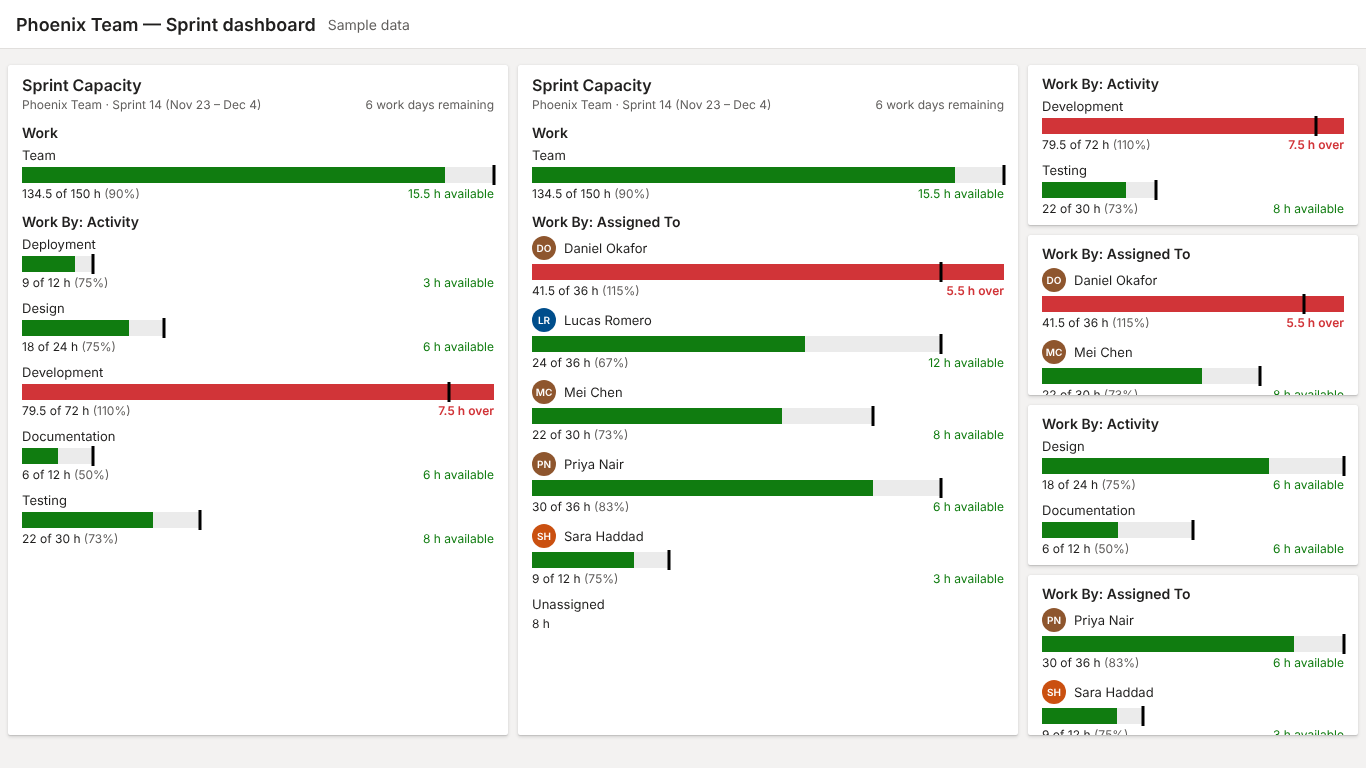
Sprint capacity on your dashboard: green/red bars of remaining work vs capacity by Activity or Assigned To, like the Sprints Work details panel, for any team and sprint.
See your team's sprint capacity on any dashboard. The Sprint Capacity widget shows the same data as the Work details panel on the Sprints page: remaining work against available capacity, as green and red bars, by Activity or by Assigned To.
Features
Two views: Work by Activity, or Work by Assigned To.
Green and red bars: green when remaining work fits in the capacity left, red when it doesn't. A black marker shows where capacity ends, with values such as 41.5 of 36 h (115%).
Team total: an optional team bar plus the sprint name, dates and work days remaining.
Any team, any sprint: each widget can show its own team, and either the current sprint (it moves on automatically) or a fixed sprint.
Filters: show all activities or developers, or pick a subset. The developer list is the people on that sprint's Capacity page.
Separate settings per widget: add several widgets with different teams, views and filters.
Sizes from 2×1 to 4×4. In small sizes the content scrolls.
Set up
Set capacity for your team on Boards › Sprints › Capacity, if you haven't already.
Open a dashboard, choose Edit › Add a widget, and search for Sprint Capacity.
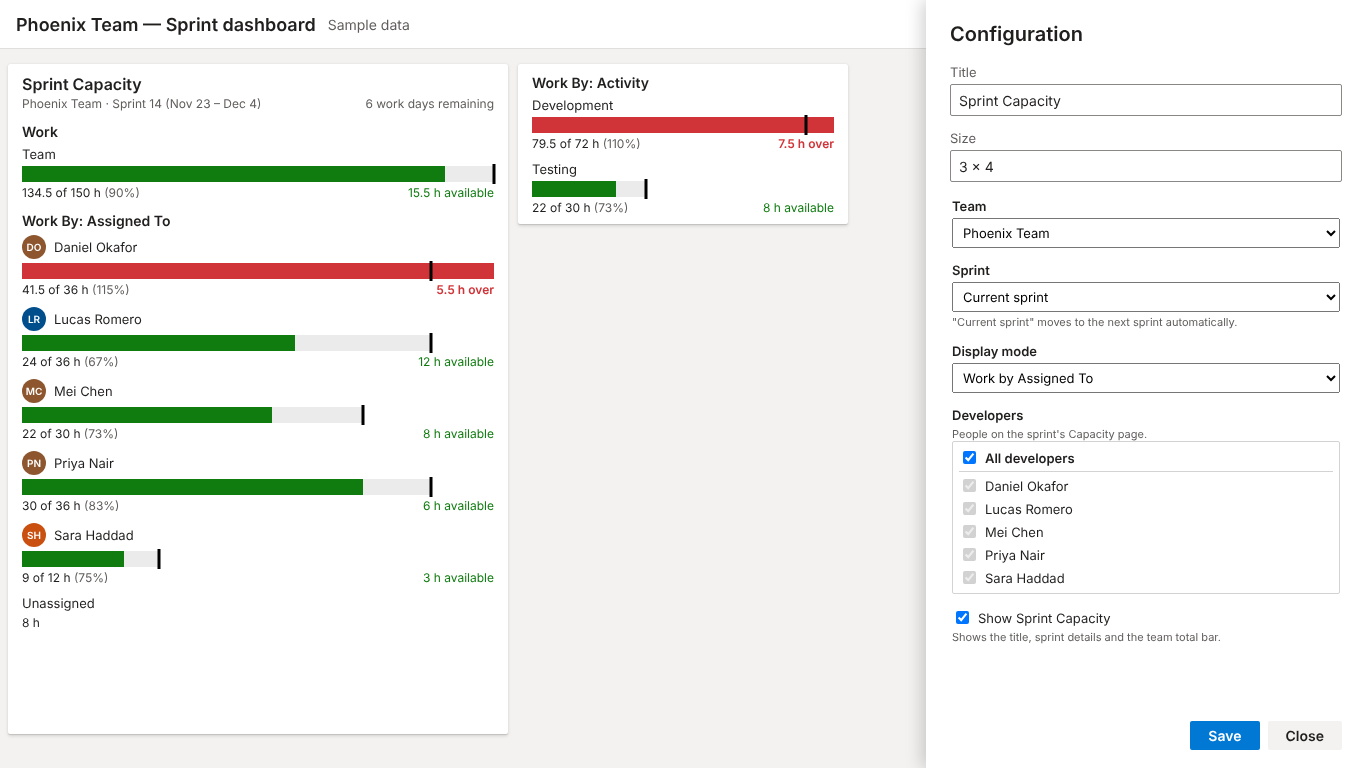
Open the widget's settings and choose:
Team, which defaults to the dashboard's team.
Sprint: Current sprint or a specific sprint.
Display mode: Work by Activity or Work by Assigned To.
Activities or Developers: All, or the ones you want.
Show Sprint Capacity: shows the title, sprint details and team total bar. Turn it off for a compact widget.
How the numbers are calculated
The widget follows the native Work details panel:
Days remaining
The team's working days from today (or the sprint start, if later) to the sprint end, minus team days off.
Capacity
Capacity per day × days remaining, minus each person's own days off. Activity capacity adds up each person's capacity for that activity.
Remaining work
The sum of Remaining Work on task-level items in the sprint, for the team's area paths. Bugs count when the team tracks bugs as tasks. Items in a Removed state are excluded.
No Activity
A task with no Activity counts toward the assignee's activity when that person has exactly one activity. Otherwise it shows as Unassigned.
No capacity
People or activities with no capacity set show their hours without a bar.
The Activity and Remaining Work fields are read from your process configuration, so Agile, Scrum, CMMI and inherited processes work too.
Permissions and privacy
The widget reads data with the signed-in user's permissions (scopes: Work items (read), Project and team (read)). Viewers need permission to read the team's sprints and work items. Stakeholder access can't view capacity.
It doesn't use a personal access token and doesn't send data anywhere outside your Azure DevOps organization.
Support
Ask questions or report issues in the Q & A tab of this listing.