Skip to content
| Marketplace
Sign in
Azure DevOps>Azure Boards>Focus-Mode
Focus-Mode

Focus-Mode

TRKSSoftware

| (0) | Preview
Distraction-free productivity hub with time tracking, standup generator, and Git branch scaffolder.
Get it free

Focus-Mode for Azure DevOps

The distraction-free productivity hub for Azure DevOps engineers.

Stop context-switching between boards, queries, and backlogs. Focus-Mode gives you a clean, minimal workspace with only your assigned work items — plus built-in time tracking, standup generation, and one-click Git branch creation.


✨ Features

🎯 Zen To-Do List

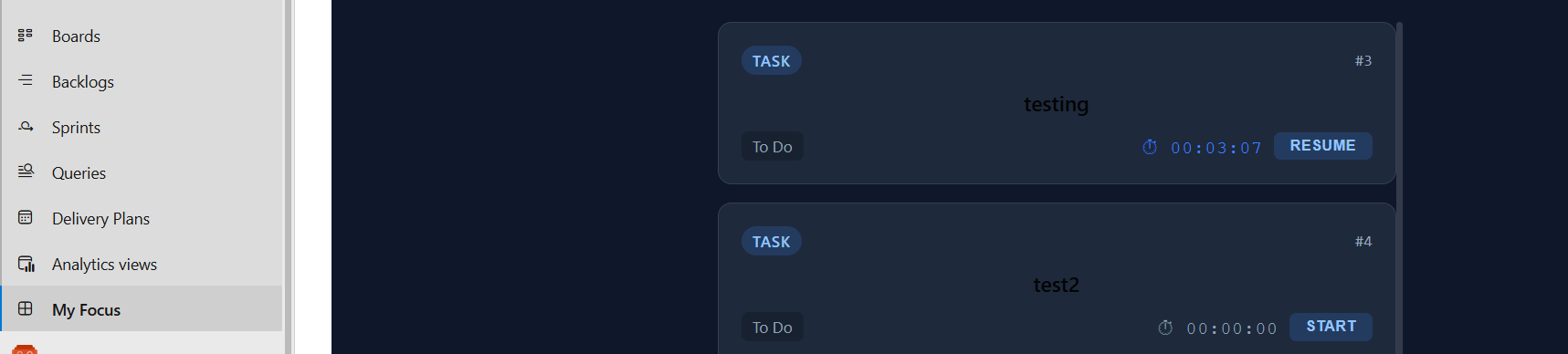
See only what matters — your assigned work items in a clean, distraction-free interface. No clutter, no noise. Just your tickets, your timer, and your focus.

⏱ Built-in Time Tracking

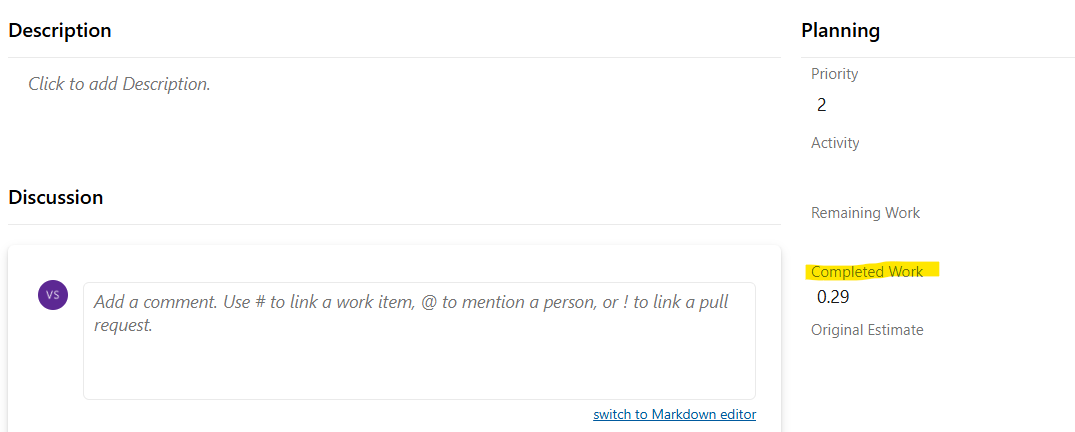
Start and stop a timer on any work item. Time is automatically logged to the Completed Work field in Azure DevOps. Works across browsers and devices

  • Timer accumulates time across multiple sessions
  • Logged hours appear directly on the work item in Azure DevOps
  • Supports Azure DevOps Services and Azure DevOps Server

📋 Standup Generator

One click generates your daily standup summary:

  • What I worked on — tickets with logged time
  • What I'm focusing on today — active and upcoming items
  • Blockers — auto-detected

Copy to clipboard and paste into Teams, Slack, or your daily standup meeting.

💡 Ticket Explainer

Click any work item to get a plain-English breakdown:

  • What the ticket is about
  • Current status and time spent
  • Suggested approach based on work item type (Bug vs Task)

🌿 One-Click Git Branch Creation

Create a properly named Git branch directly from any work item:

  • Tasks → feature/123-implement-login-page
  • Bugs → bugfix/456-fix-auth-error
  • Choose which repository to create the branch in via dropdown selector

✅ Close Work Items

Mark work items as Done directly from Focus-Mode. Any running timer is automatically stopped and logged before closing.


🚀 Getting Started

  1. Install Focus-Mode from the Visual Studio Marketplace
  2. Open your Azure DevOps project
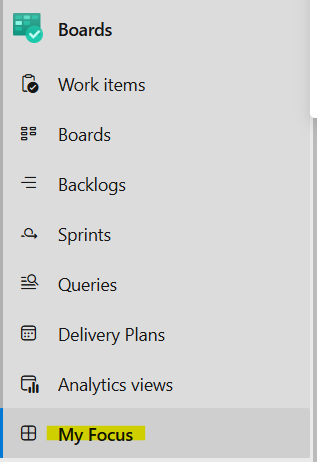
  3. Click "My Focus" in the Boards sidebar menu
  4. Your assigned work items appear automatically
  5. Start tracking time, generating standups, and creating branches!

📸 Screenshots

Zen ticket list with built-in timers

Time logged to Completed Work field

My Focus in the Azure DevOps sidebar


🔒 Privacy & Security

  • Focus-Mode runs entirely within the Azure DevOps iframe
  • No data is sent to external servers
  • Timer data is stored in Azure DevOps Extension Data Service (Microsoft's cloud)
  • Time logs are written directly to Azure DevOps work item fields
  • No AI API keys or third-party services required

📋 Requirements

  • Azure DevOps Services or Azure DevOps Server
  • Work items assigned to your account
  • Git repositories in the project (for branch creation)

💬 Support

For questions, feature requests, or bug reports, please contact us through the marketplace Q&A section.

  • Contact us
  • Jobs
  • Privacy
  • Manage cookies
  • Terms of use
  • Trademarks
© 2026 Microsoft