Dark Knight — Gotham Dark Theme for Visual Studio

A premium, cinematic Batman-inspired dark theme for Microsoft Visual Studio 2022.
Featuring a distinctive Batcave workstation aesthetic with elegant golden panel borders, professional C# and .NET syntax highlighting, and an optional non-intrusive editor background system.





Overview
Dark Knight transforms Visual Studio 2022 into a sophisticated Batcave workstation. Engineered for professional .NET developers, it replaces standard high-glare surfaces with a balanced near-black charcoal foundation (#101216), deep graphite tool windows (#171C25), muted antique gold panel borders (#69552B), bright gold active accents (#FFC94A), and electric Gotham blue highlights (#4D8DCC).
This is a genuine Microsoft Visual Studio Extension (VSIX) built with the official Visual Studio SDK, not a Visual Studio Code port. It delivers:
- Elegant Golden Panel Borders: Restrained 1-pixel antique gold borders around Solution Explorer, Properties, Git Changes, GitHub Copilot Chat, Error List, Output window, and Terminal panels.
- Full IDE Theme Coverage: 54 Visual Studio categories styled natively via compiled
.pkgdef and .vstheme resources with fallback inheritance.
- Professional C# & .NET Roslyn Highlighting: Accessible semantic colorization meeting WCAG 2.1 AA/AAA contrast ratios.
- Optional MEF Editor Background System: Subtle Batcave workstation watermarks rendered behind code via official WPF editor APIs (
IWpfTextViewCreationListener), with adjustable opacity and a dark tint shield.
- Interactive Settings Interface: Full configuration panel hosted under Tools > Options > Dark Knight Theme > Batcave Background and as a dedicated dockable Tool Window.
- Original UI Assets: Bespoke nocturnal vigilante branding, metallic gold emblem, status bar icon, tool window icon, surface texture, and HD concept art backgrounds.
Showcase
1. Code Editor & Professional C# Syntax with Gold Tab Accent
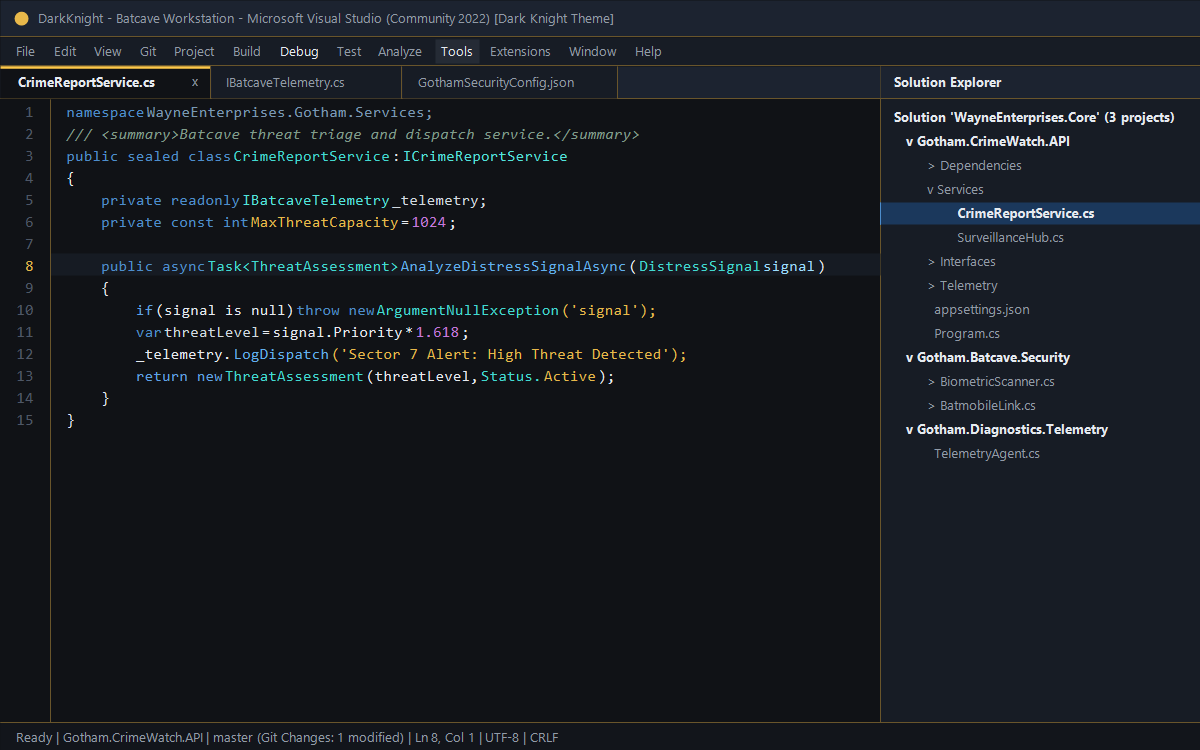 High-contrast C# 12 / .NET code editor: Active document tab with a bright gold accent bar (
#FFC94A), antique gold border framing (#69552B), keywords in Gotham blue (#4D8DCC), types in syntax cyan (#42D9D0), methods in soft blue (#61AFEF), and strings in muted gold (#E7B45A).
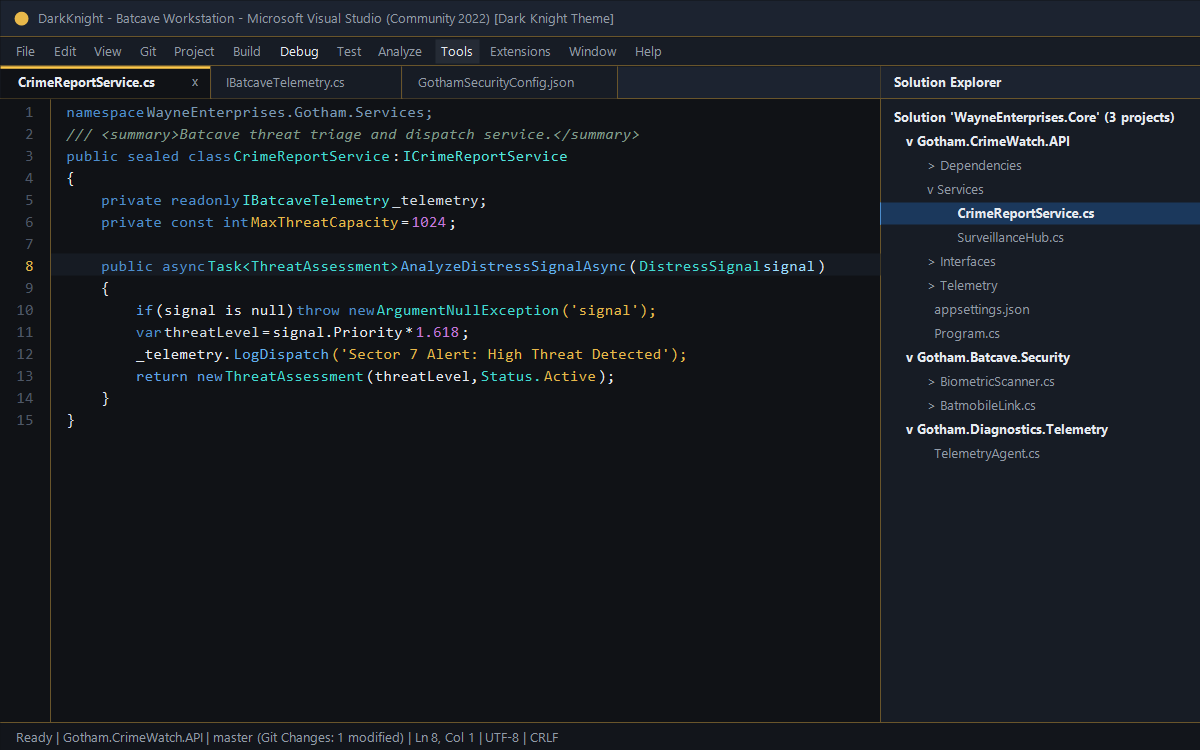 Unified dark framing: Thin antique gold borders (
#69552B) outlining Solution Explorer and tool windows, distinct selection states, and gold divider accents.
3. IntelliSense & Signature Help
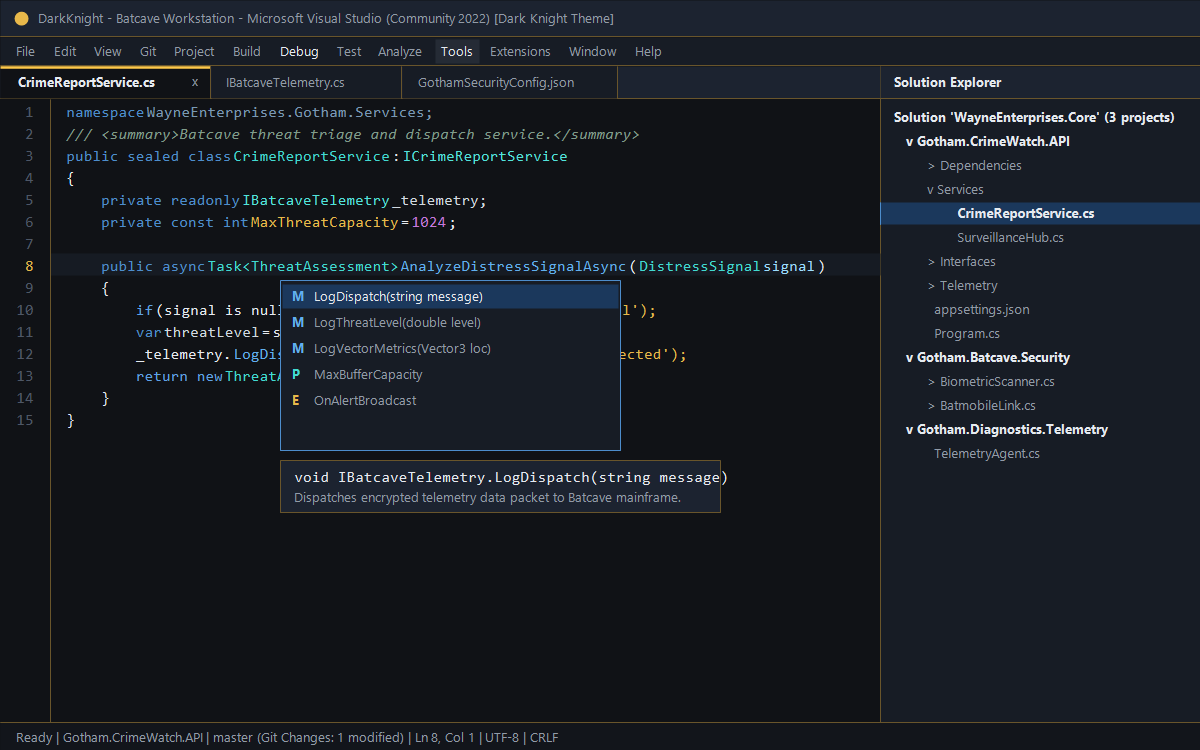 IntelliSense completion lists, Quick Info tooltips, and parameter info boxes rendered with crisp contrast.
4. Interactive Debugging & Breakpoints
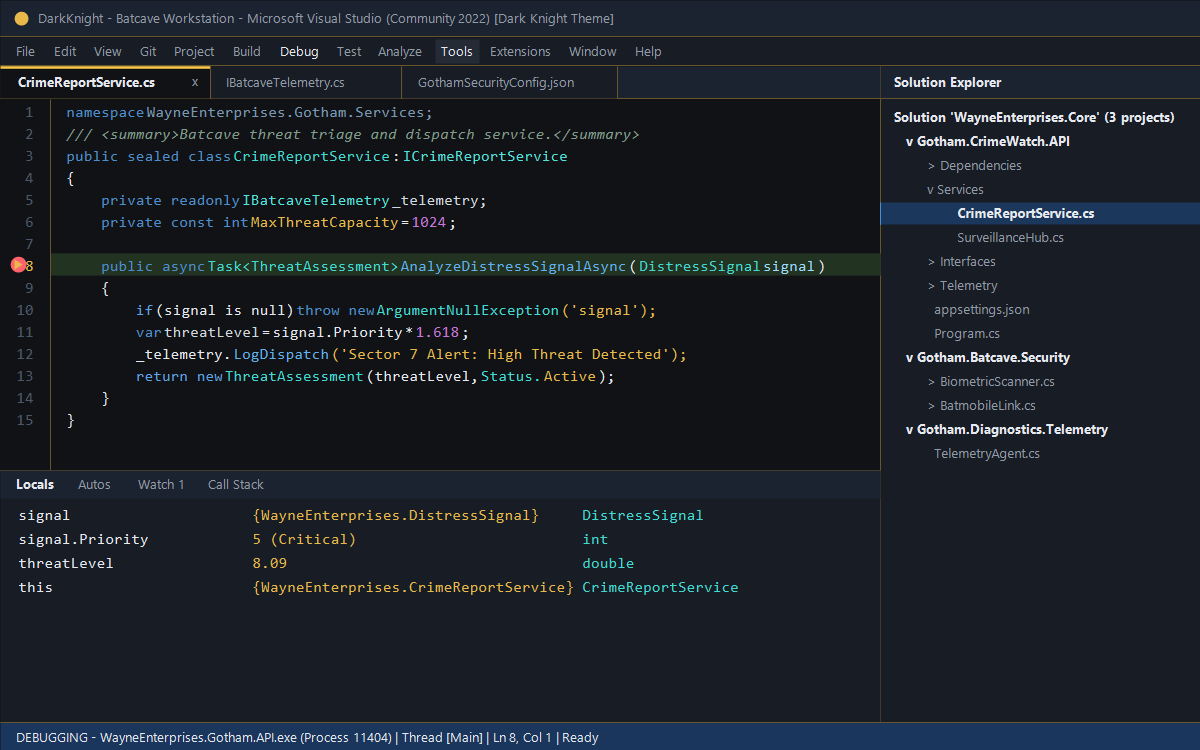 Active execution pointer in emerald green (
#55D6A0), breakpoint line highlight in deep burgundy (#3B1D22), Gotham blue status bar indicator, and Watch/Locals panels.
5. Error List & Diagnostic Waves
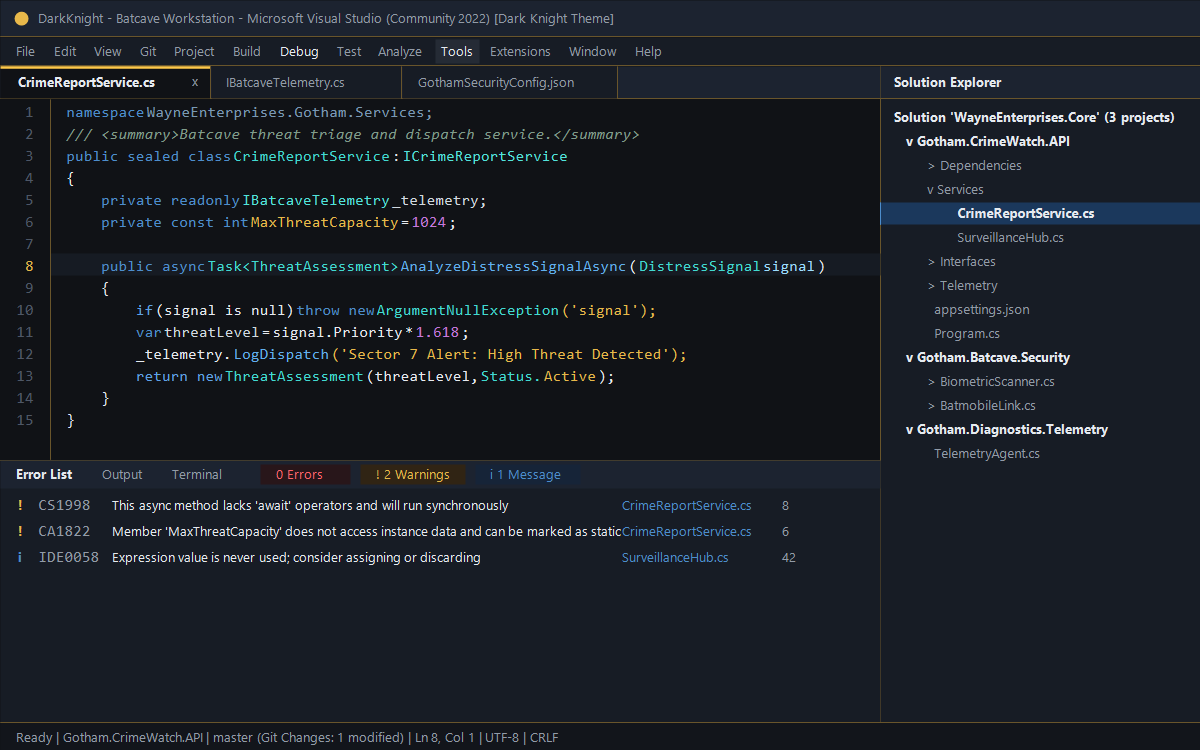 Accessible diagnostic colors: Clear red (
#FF626B) for compiler errors, warm amber (#E8B84A) for warnings, and Gotham blue for suggestions.
Golden Borders & Visual Hierarchy
The theme introduces a three-tier gold visual hierarchy designed to keep the workspace sleek and focused:
| Element / State |
Color Token |
Hex Code |
Visual Behavior |
| Inactive Panel Borders |
ToolWindowBorder, PanelBorder |
#69552B |
1-pixel antique gold perimeter framing docked panels |
| Panel & Editor Splitters |
HorizontalResizeGrip, VerticalResizeGrip* |
#69552B |
Subtle gold divider line between editor and docked windows |
| Active Document Tab |
FileTabSelectedBorder |
#FFC94A |
High-visibility bright gold top accent line on active tab |
| Inactive Document Tabs |
FileTabInactiveBorder |
#69552B |
Subtle dark borders that blend cleanly into the background |
| Active Tool Window Tab |
ToolWindowTabSelectedBorder |
#FFC94A |
Bright gold border for the selected tool window tab |
| Floating Window Frames |
ToolWindowFloatingFrame |
#E8B84A |
Primary gold border for floating/undocked windows |
| Keyboard Focus Visual |
FocusVisual, TextBoxBorderFocused |
#FFC94A |
Clearly visible gold keyboard navigation rectangle |
| Toolbar Separators |
CommandBarToolBarSeparator |
#69552B |
1-pixel gold divider ticks between command groups |
Color Palette & Design System
| Role |
Hex |
Purpose / IDE Element |
| Editor Canvas |
#101216 |
Main editor canvas, document well background, terminal background |
| Tool Window Background |
#171C25 |
Solution Explorer, Git Changes, Error List, Output window |
| Secondary Surface |
#1C2330 |
Title bar, tab well backdrop, menus, borders, dialog cards |
| Inactive Panel Border |
#69552B |
Subtle Antique Gold: 1px borders around tool windows and splitters |
| Active Panel Border |
#E8B84A |
Primary Gold: Floating tool window frames, menu hovers |
| Selected Tab / Focus |
#FFC94A |
Bright Gold: Active document tab top accent, focus visual |
| Primary Text |
#E6EAF0 |
Soft white: Plain text, local variables, operators, punctuation |
| Muted Text |
#929BA8 |
Cool gray: Inactive tab text, tool window labels, line numbers |
| Accent Blue |
#4D8DCC |
Gotham Blue: C# keywords, primary buttons, focus frames |
| Syntax Cyan |
#42D9D0 |
Classes, record structs, enums, interfaces, generic types |
| String Color |
#E7B45A |
Muted gold: String literals, verbatim strings, CSS values |
| Comment Color |
#7F9B8A |
Muted green-gray: Code comments and XML doc text |
| Error Color |
#FF626B |
Clear red: Compiler diagnostics, error waves, breakpoint glyphs |
| Success Color |
#55D6A0 |
Emerald green: Execution statement pointer, Git additions, build success |
| Active Selection |
#1B385C |
Deep Gotham navy: High-contrast selection background |
| Inactive Selection |
#162C46 |
Unfocused text selection background |
Activating the Theme
After installation, activate Dark Knight in Visual Studio:
- Click Tools in the top menu bar.
- Select Theme > Dark Knight.
Or via Options:
- Go to Tools > Options.
- Navigate to Environment > General.
- Under Color theme, select Dark Knight from the dropdown.
- Click OK to apply.
Optional Editor Background Settings
To customize or enable the Batcave background watermark:
- Go to Tools > Options > Dark Knight Theme > Batcave Background.
- Toggle Enable Batcave Background.
- Adjust opacity, tint shield, layout, or select your preferred concept art preset.
Links
| |

