Skip to content
| Marketplace
Sign in
Azure DevOps>Azure Pipelines>StrideAI
StrideAI

StrideAI

StrideAI

|
2 installs
| (0) | Free
AI assistant for Azure DevOps: chat with work items, sprints, code, pull requests, pipelines, and test plans. Live charts, reports, security alerts, and SAFe. Your own models, no telemetry.
Get it free

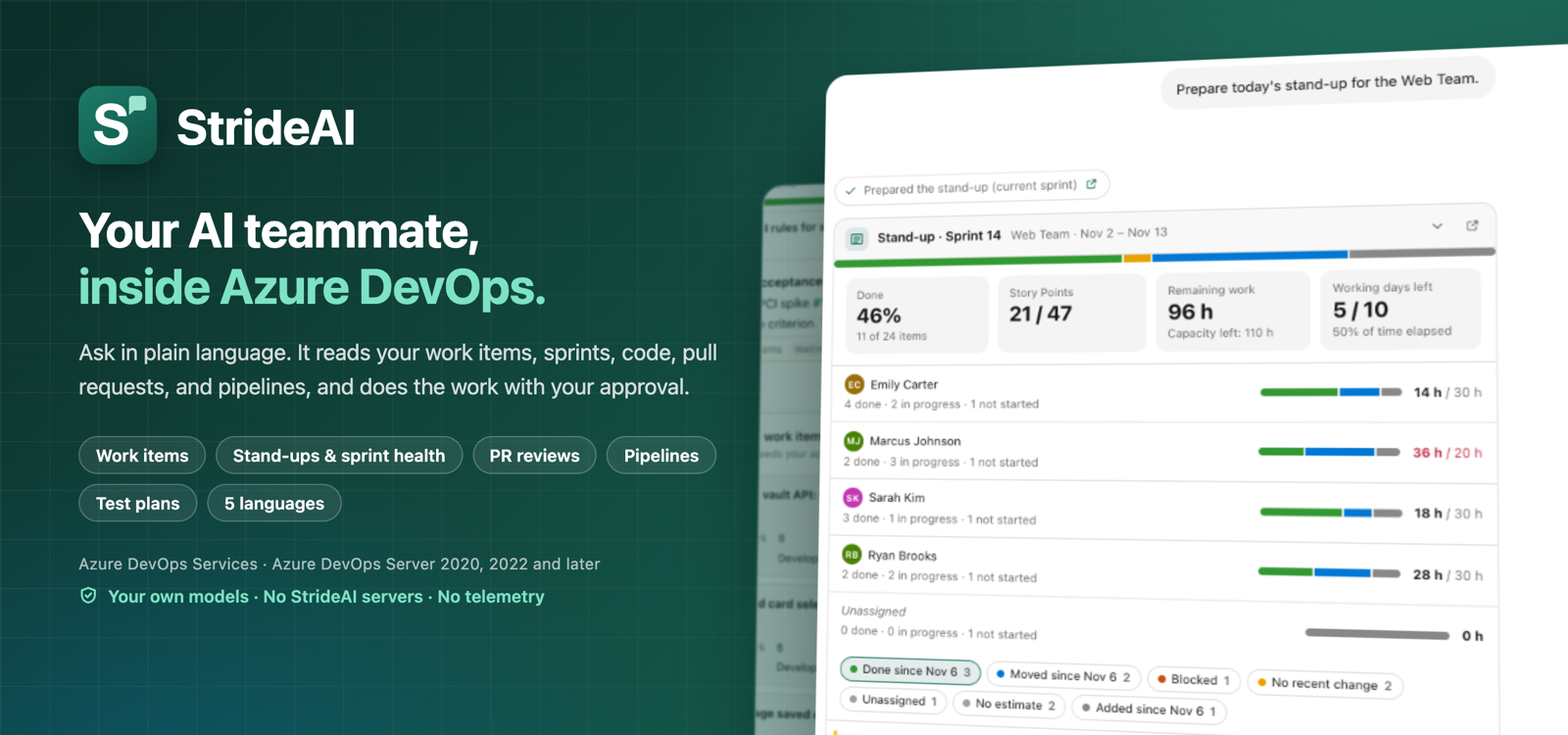
StrideAI: your AI teammate inside Azure DevOps

StrideAI: your AI teammate for Azure DevOps

Chat with your Azure DevOps project. StrideAI reads your work items, sprints, code, pull requests, pipelines, and test plans, answers in plain language, and does the work for you, such as creating tasks, reviewing code, or moving unfinished work to the next sprint. Nothing changes until you approve it.

It runs entirely in your browser with your own models: Azure OpenAI, Microsoft Foundry (including the model router and Claude), OpenAI, Anthropic Claude, or any OpenAI-compatible API. It uses your own Azure DevOps permissions, and there is no StrideAI server in between.

Built for the whole team: product owners, Scrum Masters, developers, testers, and release managers.

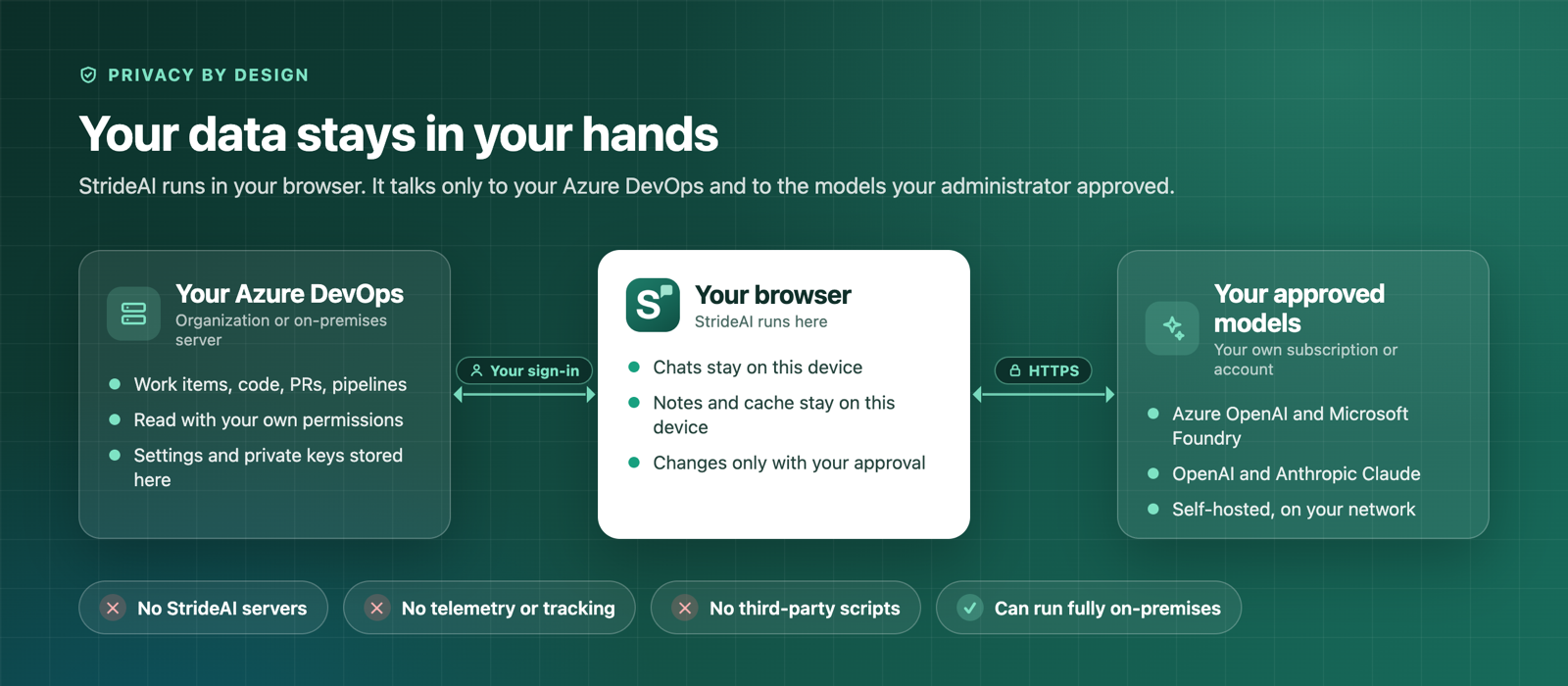
Your data stays in your hands

StrideAI talks only to your Azure DevOps and to the models your administrator approved. No StrideAI servers, no telemetry.

  • No StrideAI servers. StrideAI is a set of static files that Azure DevOps, or your own Azure DevOps Server, serves to your browser. There is no StrideAI backend, database, or account, and the publisher never receives your data.
  • Only two destinations. Your browser talks only to your Azure DevOps organization or server, and to the model endpoints your Project Administrator or StrideAI manager approved. Other people cannot add endpoints.
  • No telemetry or tracking. Nothing is sent to the publisher or any third party, and StrideAI loads no third-party scripts, fonts, or images. The only usage it counts is each person's answers and tokens per model and day, the hour of the week they used it, and how many changes they approved, stored in your own Azure DevOps project. Answers are shown as text, and links open only when you click them.
  • Your models, your terms. The model runs in your own Azure subscription or provider account, under your own agreement with that provider. For the strictest setups, use Azure OpenAI or Microsoft Foundry in your own region, or a self-hosted model on your network.
  • Your permissions, your approval. StrideAI sees only what the signed-in person can see, and nothing in Azure DevOps changes until that person approves it.
  • Check it yourself. Open your browser's developer tools on the Network tab while you use StrideAI. You will see requests only to your Azure DevOps and to your model endpoints.

The details are under Privacy and data below.

Why teams use it

  • Daily stand-ups in seconds. What each person finished, what is in progress, what is blocked, and who is over capacity.
  • Better work items with less typing. Break a story into estimated tasks, write test cases with steps, and fill your custom fields correctly.
  • Faster, consistent code reviews. Findings grouped by severity with file and line, checked against the linked work item's acceptance criteria.
  • Security at a glance. Open vulnerabilities, exposed secrets, and code scanning alerts across your repositories, what to fix first, and a security check of every pull request, with bugs filed for you after your approval.
  • Automatic in your pipelines. Every pull request reviewed and commented, release notes written for each release, and a scheduled security and backlog report, with pipeline tasks that use your own model.
  • Plan with confidence. Forecast delivery dates from your team's real pace, see burnups, the roadmap, and what a slip would cost, refine the backlog, and spot risky dependencies early. For SAFe trains, see whether the PI is on track, the program board, WSJF, objectives, and ROAM risks.
  • Estimate together. Planning poker with sealed votes and similar finished stories as a reference, and confidence votes on sprint plans, right in Azure DevOps.
  • Answers instead of searching. "Unfinished items from the previous sprint", "Why did last night's build fail?", "Who is reviewing my PRs?"
  • Click instead of typing. Browse everything StrideAI can do, each labeled with what you get back, and continue with one click on the options under each answer.
  • Works where you work. A full chat page in the project menu, plus a StrideAI tab on every work item and pull request.
  • The right model for each question. Connect several providers and let Auto send quick questions to a fast, low-cost model and reviews, planning, and bulk changes to your most capable one. People can switch to any approved model themselves.
  • Lean requests, lower cost. Each question sends the model only the tools and instructions it needs, such as the pipeline tools for a failed build, so a typical question uses about a quarter of the tokens it would otherwise need.
  • Cost and changes under control. People ask for more when they reach a limit and StrideAI managers approve it for the month, budget alerts warn before a team or the project runs over, and an activity log lists every change StrideAI made after approval.

See it in action

Daily stand-up and sprint health

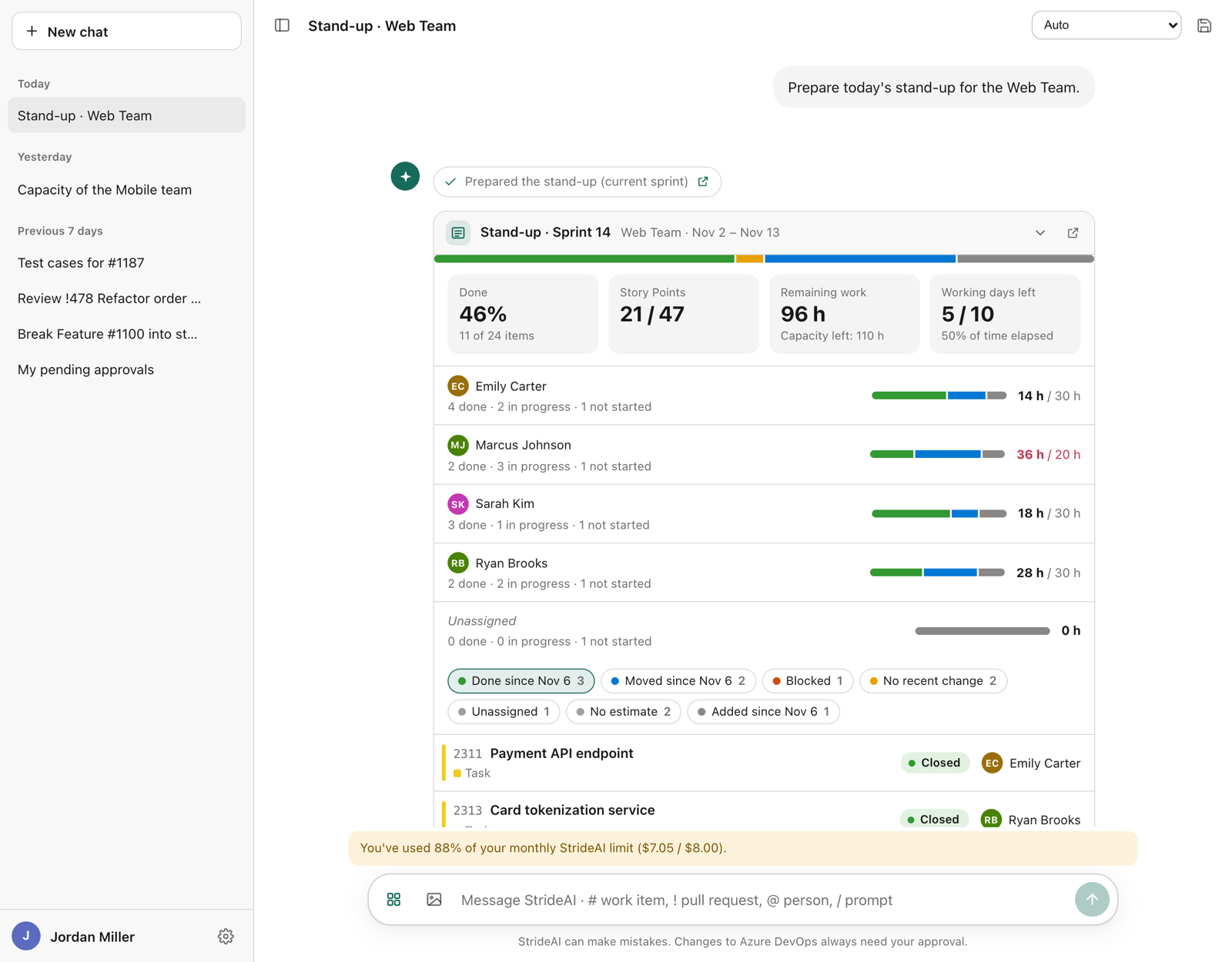
Ask "Prepare today's stand-up" or "How is the sprint going?". StrideAI shows progress, story points, remaining work against capacity for each person, and what needs attention: blocked, idle, unassigned, and unestimated items, plus everything done, moved, or added since the last working day.

Stand-up report with progress, capacity per person, and items that need attention

Quality & roles: visual dashboards for every role

Open Quality & roles in the project navigation or from the chat sidebar. Seven tabs build visual reports straight from your project's evidence, with no model needed; the AI explains them when you ask:

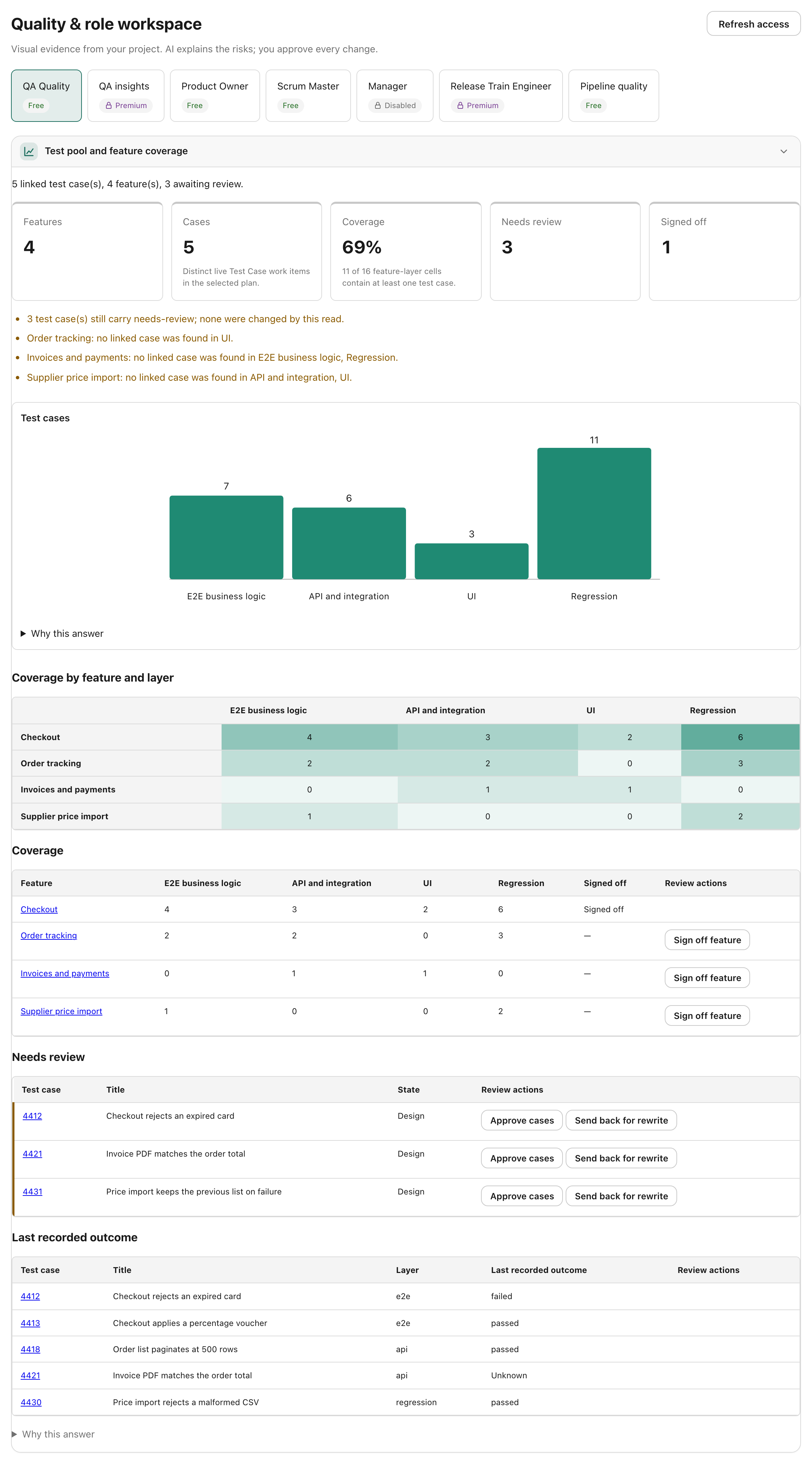
  • QA Quality: a feature-by-layer coverage matrix of linked test cases, the queue of cases waiting for review, the last recorded outcome per case, and a feature sign-off that writes a wiki audit before it tags the feature.
  • QA insights: failure clusters from your pipelines, flaky candidates that really passed and failed, bug triage, regression picks for a change, and exploratory test charters.
  • Product Owner: release readiness by feature and layer, each acceptance criterion against real tests and pull requests, optional outcome fields, and a demo digest.
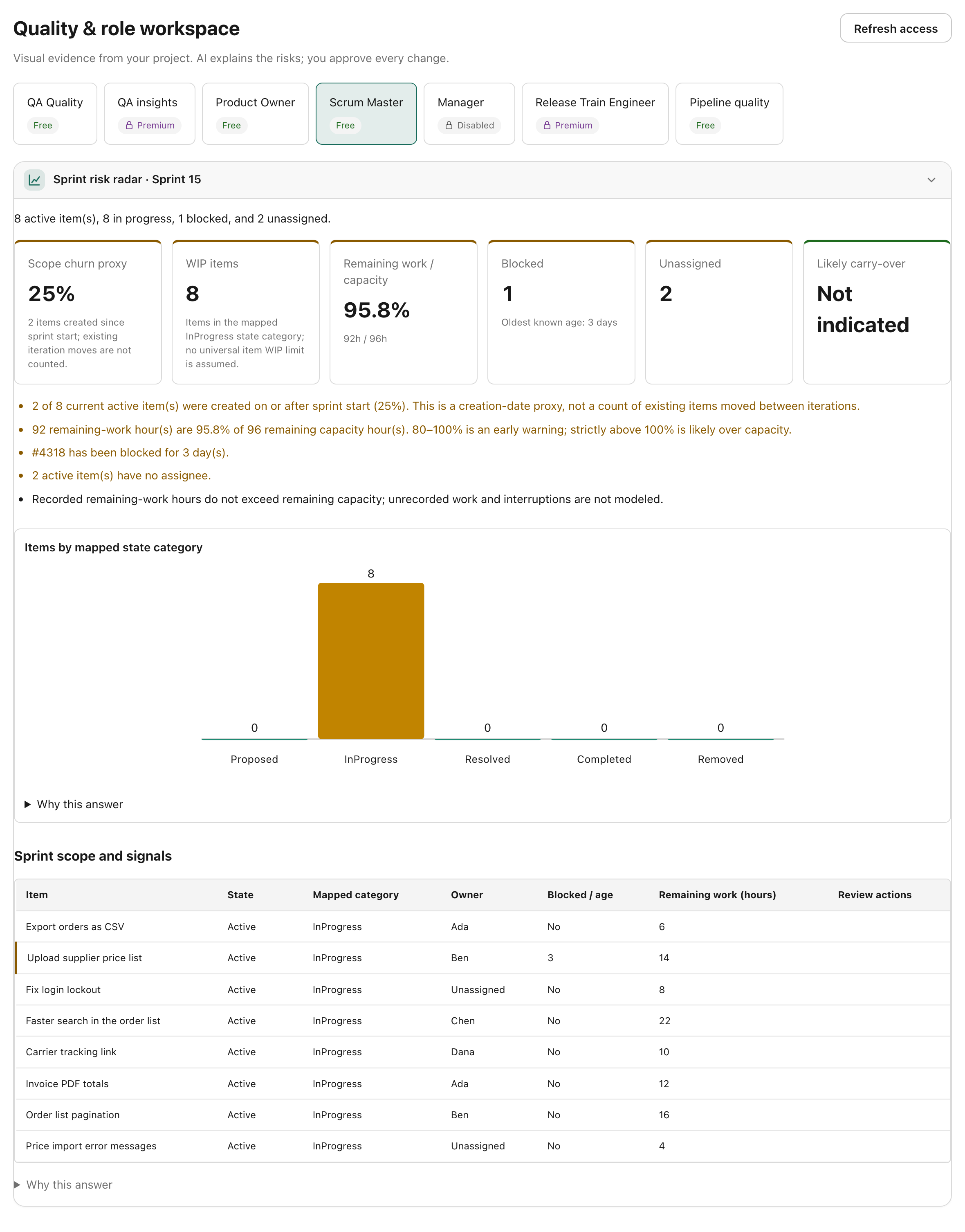
  • Scrum Master: scope, capacity, blocked age and unassigned work for the sprint, impediments, retrospective facts, and a stand-up brief.
  • Manager: epic forecast ranges from your observed pace, engineering measures for a deployment pipeline you choose, quality history, and backlog ageing.
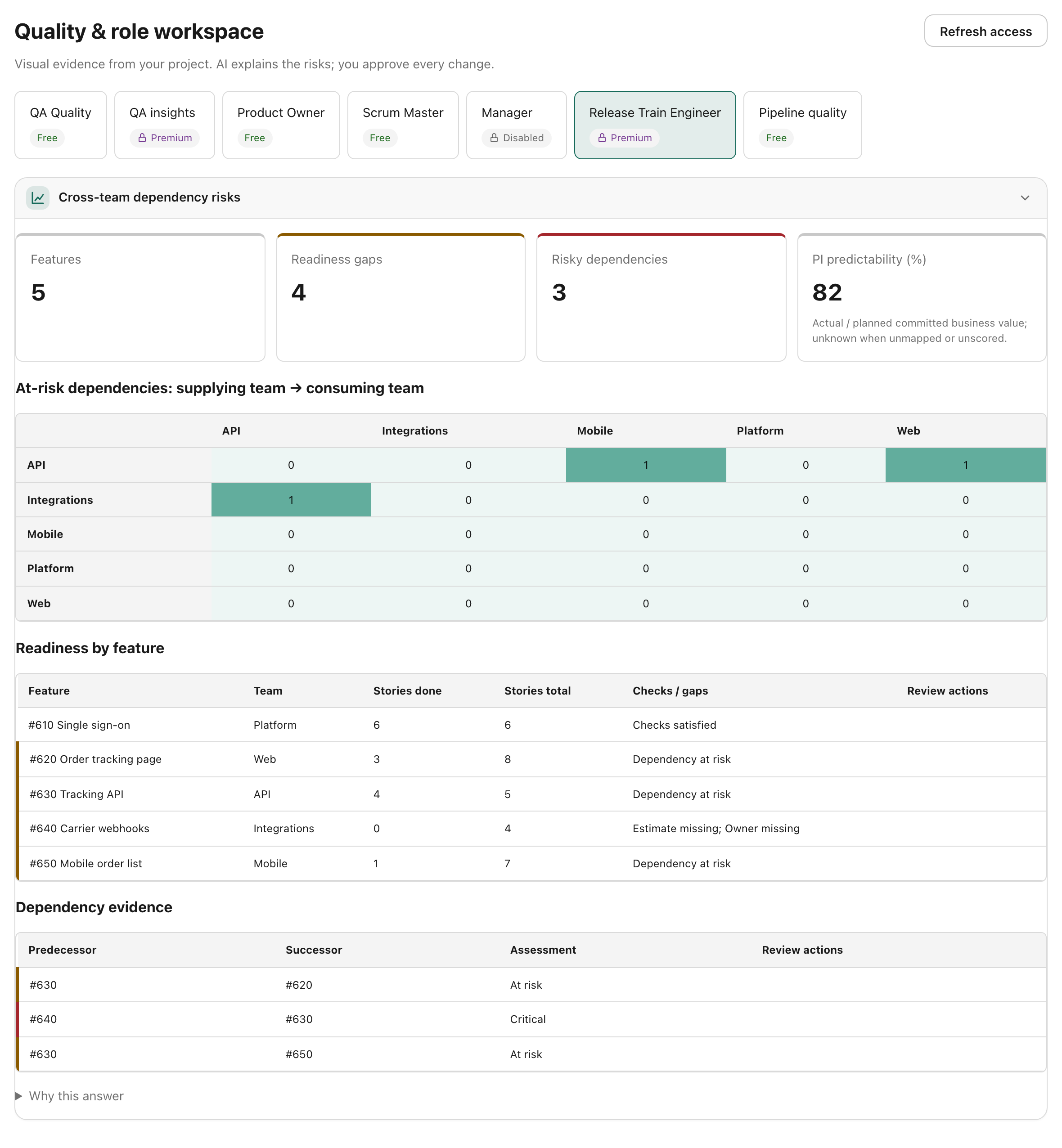
  • Release Train Engineer: next-PI readiness per feature, a cross-team dependency heatmap, mapped predictability, and system-demo evidence.
  • Pipeline quality: the test steward's history, published failures, review backlog, and regression evidence as a read-only quality gate.

Quality & roles workspace: seven role tabs; the QA Quality report with coverage metrics, a feature-by-layer coverage heatmap, a review queue with Approve and Send back buttons, and the last recorded outcome per test case

Missing evidence stays unknown instead of becoming a guess, and every write a pack proposes, such as approving test cases or signing off a feature, opens the usual approval card with undo. Every pack is free, and Settings > Features turns each one off per project.

Release Train Engineer tab: readiness gaps and risky dependency counts, a supplying-team to consuming-team dependency heatmap, readiness by feature with checks and gaps, and the dependency evidence behind each risk

Scrum Master tab: sprint risk radar for Sprint 15 with scope churn, WIP, remaining work against capacity, blocked and unassigned items, a chart of items by state category, and the sprint scope table

Studio: one click on the work item

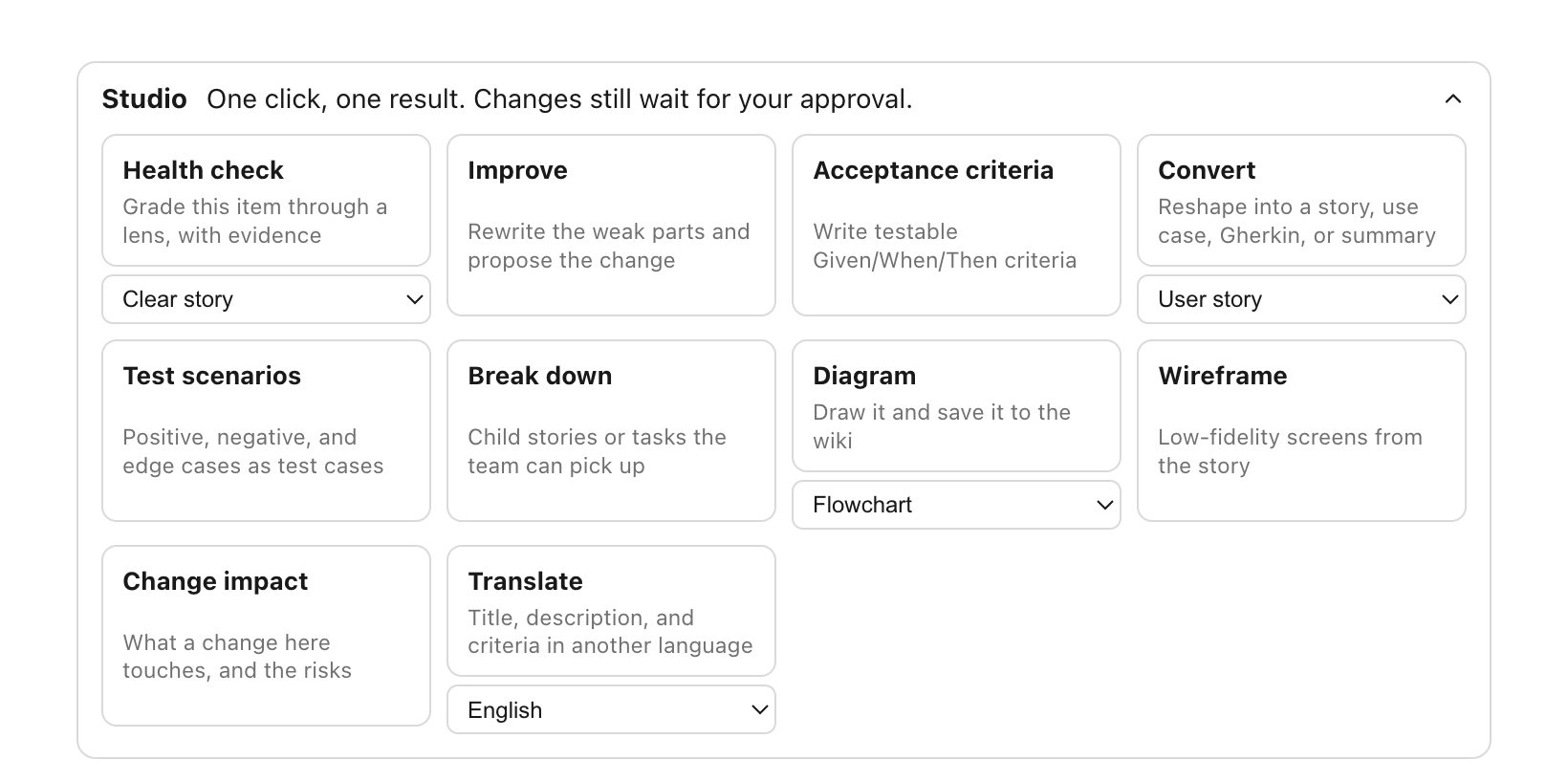
Open any work item and the StrideAI tab starts with Studio: tiles for the things people do most, one click each. Health check with the lens you pick, Improve, Acceptance criteria, Convert (user story, use case, Gherkin, stakeholder summary), Test scenarios, Break down, Diagram, Wireframe, Change impact, Translate. Each tile opens its own result with the same cards as the chat, and any change to the item still waits for your approval. No prompt to write, and the chat is right there when you want to refine.

Studio tiles above the message box of a work item: Health check with a lens picker, Improve, Acceptance criteria, Convert, Test scenarios, Break down, Diagram, Wireframe, Change impact, Translate

Right-click, done

You don't have to open StrideAI first. Select items on a backlog, a board, or in query results, right-click, and the StrideAI menu runs a health check, improves them, adds acceptance criteria, translates, writes a digest, or finds duplicates. A saved query has Open in StrideAI Workbench in its menu. The hub opens with the items picked and the result on its way; changes still wait for your approval.

Workbench: one action on a whole sprint

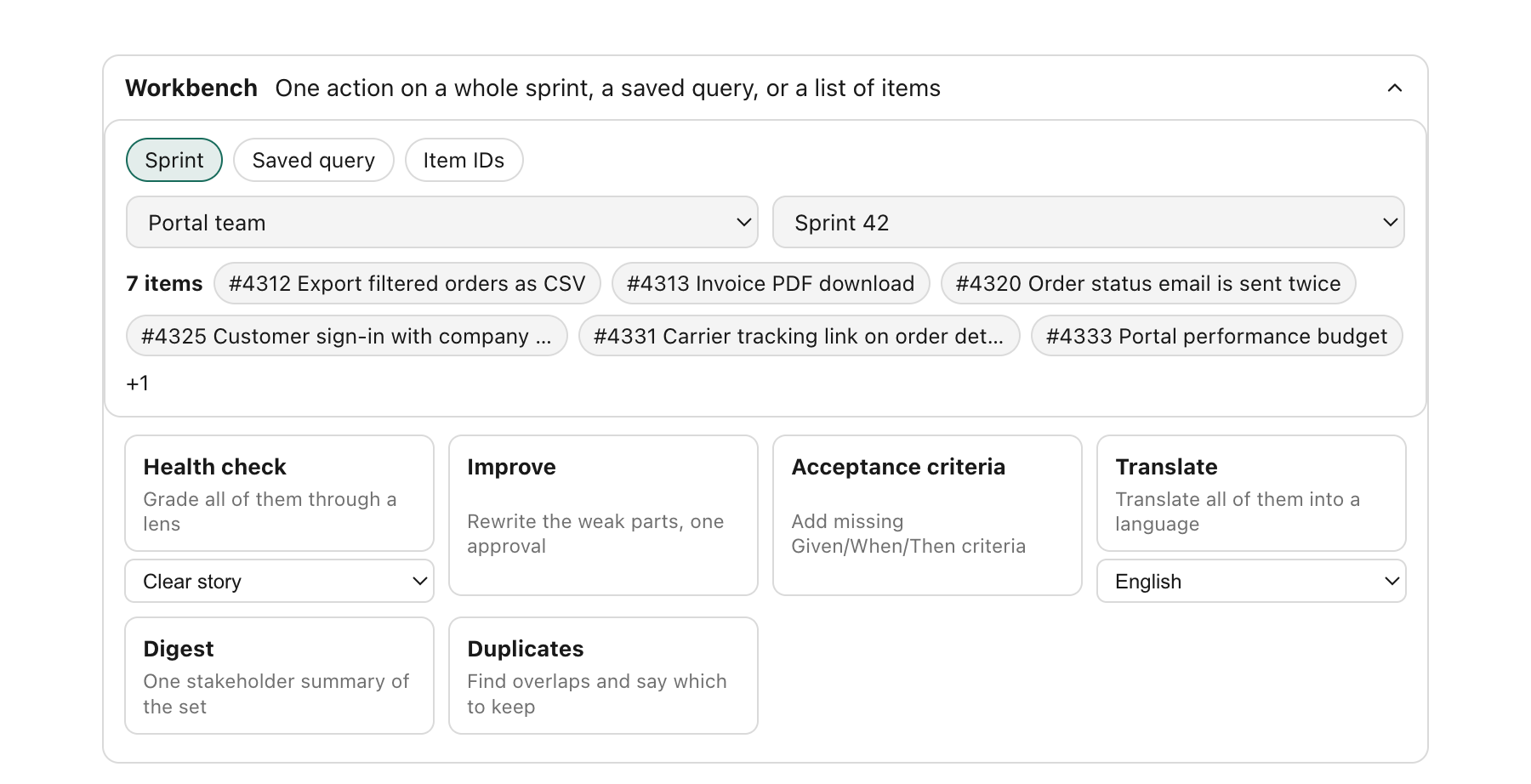
In the StrideAI hub, Workbench takes a sprint, a saved query, or a list of IDs and runs one action on all of them: a health check through a lens, improving the weak parts, adding missing acceptance criteria, translating, a stakeholder digest, or a duplicate sweep. Changes arrive as one bulk run you approve once.

Workbench strip in the hub: Sprint, Saved query, and Item IDs chips, team and sprint pickers, 7 items previewed, and tiles for Health check, Improve, Acceptance criteria, Translate, Digest, Duplicates

Why this answer

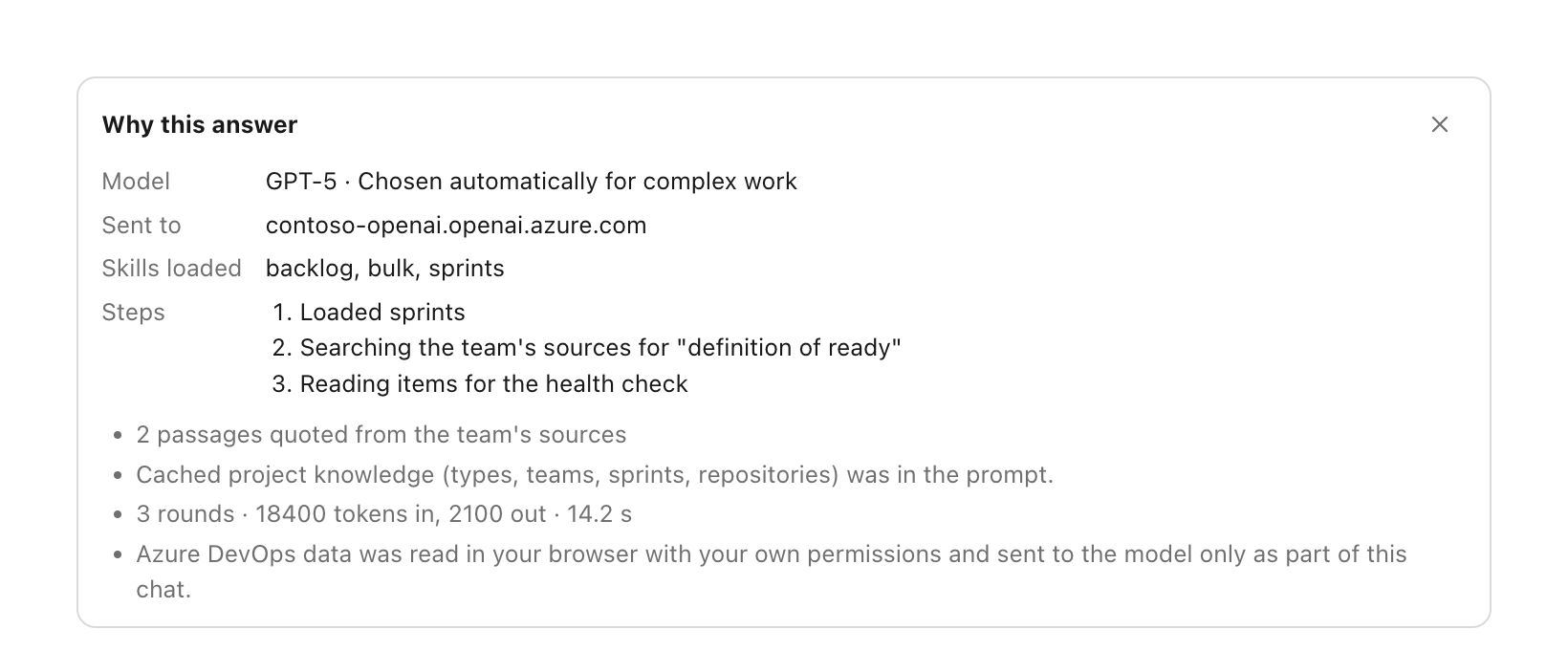
Every answer has a small Why this answer panel: which model answered and why it was chosen, where the request went, which skills were loaded, the steps StrideAI took, how many passages came from your sources, and what it cost in rounds, tokens, and seconds. Nothing in it leaves your browser.

Why this answer panel: Model GPT-5 chosen automatically for complex work, Sent to a host, Skills loaded, three Steps, passages quoted, project knowledge, rounds and tokens

Rewrite with the differences marked

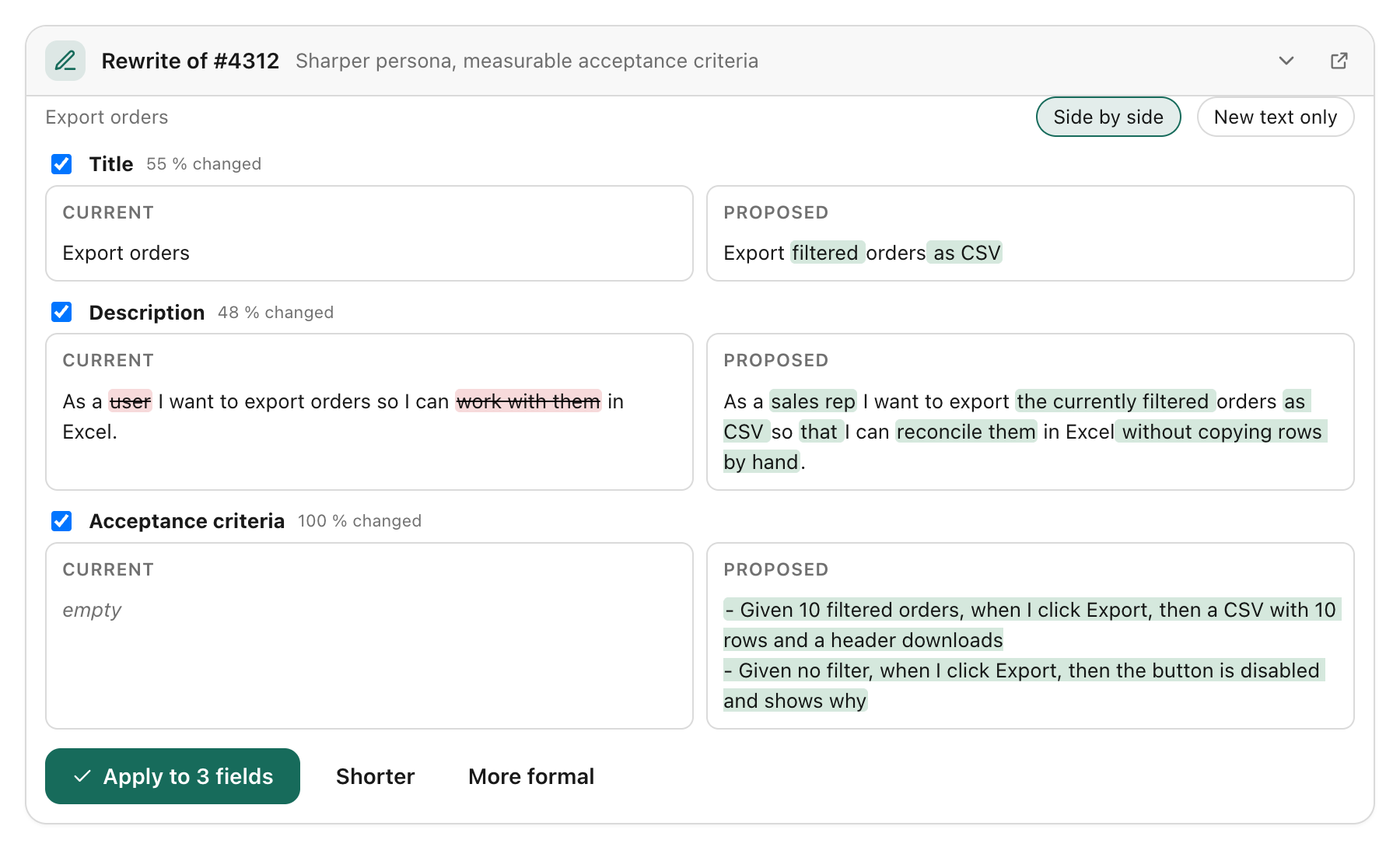
Improve, Convert, Translate, or "make this description sharper": StrideAI shows the current text and the proposed text side by side, field by field, with what it removed and added marked and a percentage of how much changed. Untick a field to keep it, ask for a shorter or more formal version, then Apply; the update still waits for your approval.

Rewrite card for a work item: Title, Description, and Acceptance criteria each with Current and Proposed text, removed words struck through and added words highlighted, Apply to 3 fields

Tests and code, ready to commit

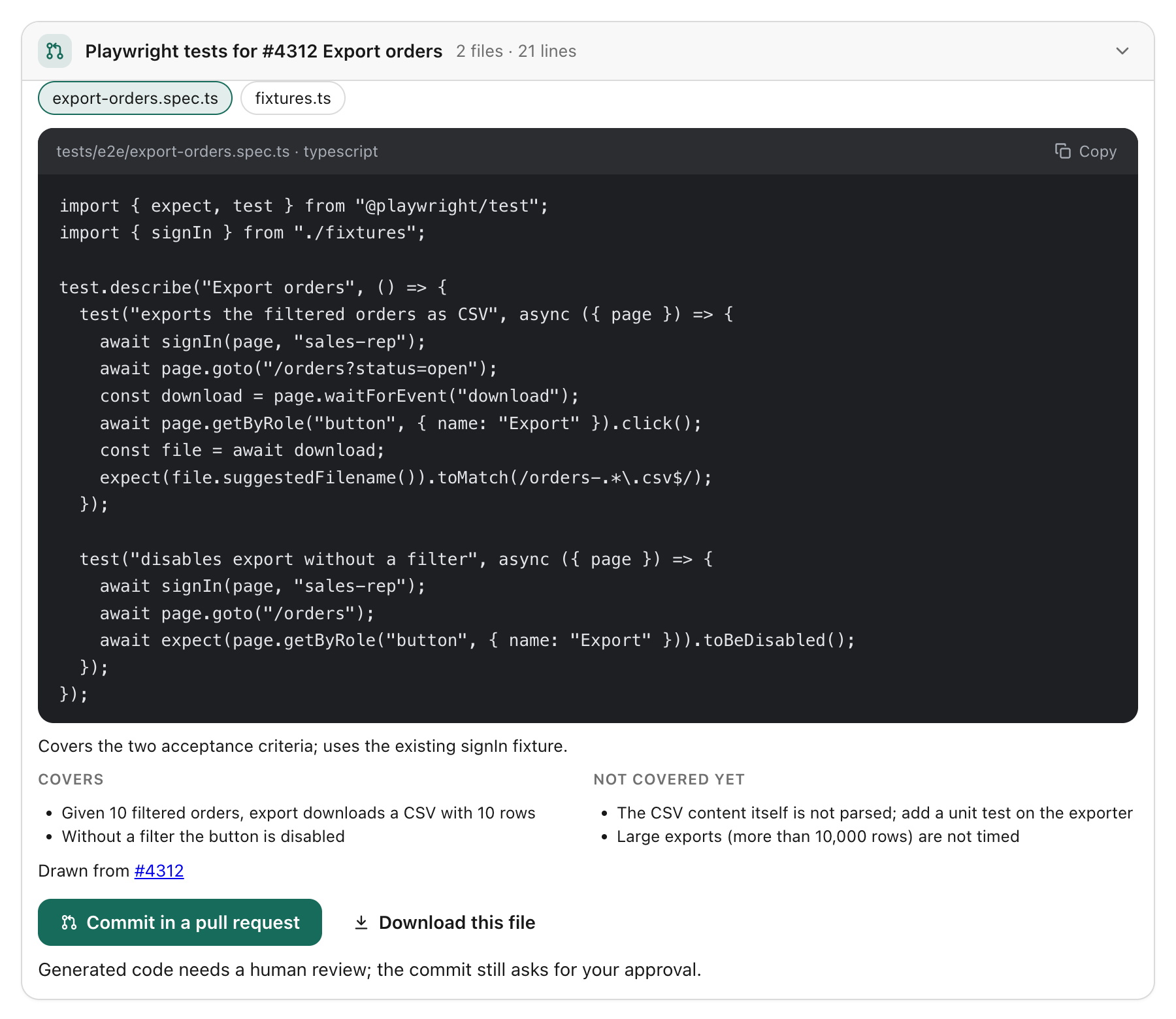
"Generate Playwright tests for #4312" or "scaffold the exporter module": StrideAI reads how your repository does it, writes complete files, and shows them with their paths, what they cover, and what they don't cover yet. Copy a file, download it, or commit all of them in a new branch with a pull request, after your approval.

Generated files card: a Playwright test file with its path and language, Covers and Not covered yet lists, Commit in a pull request and Download buttons

Plan the work right inside a work item

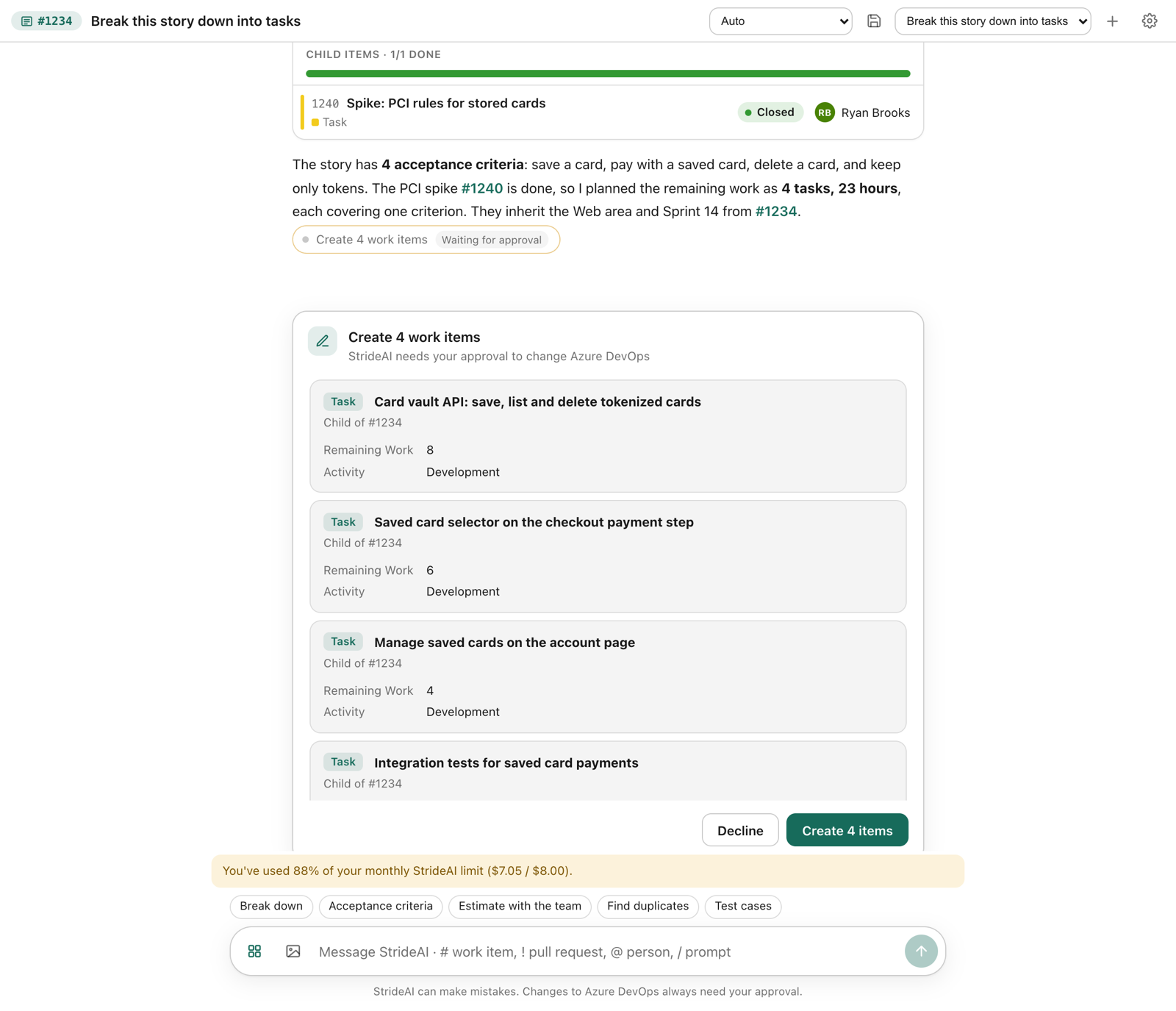
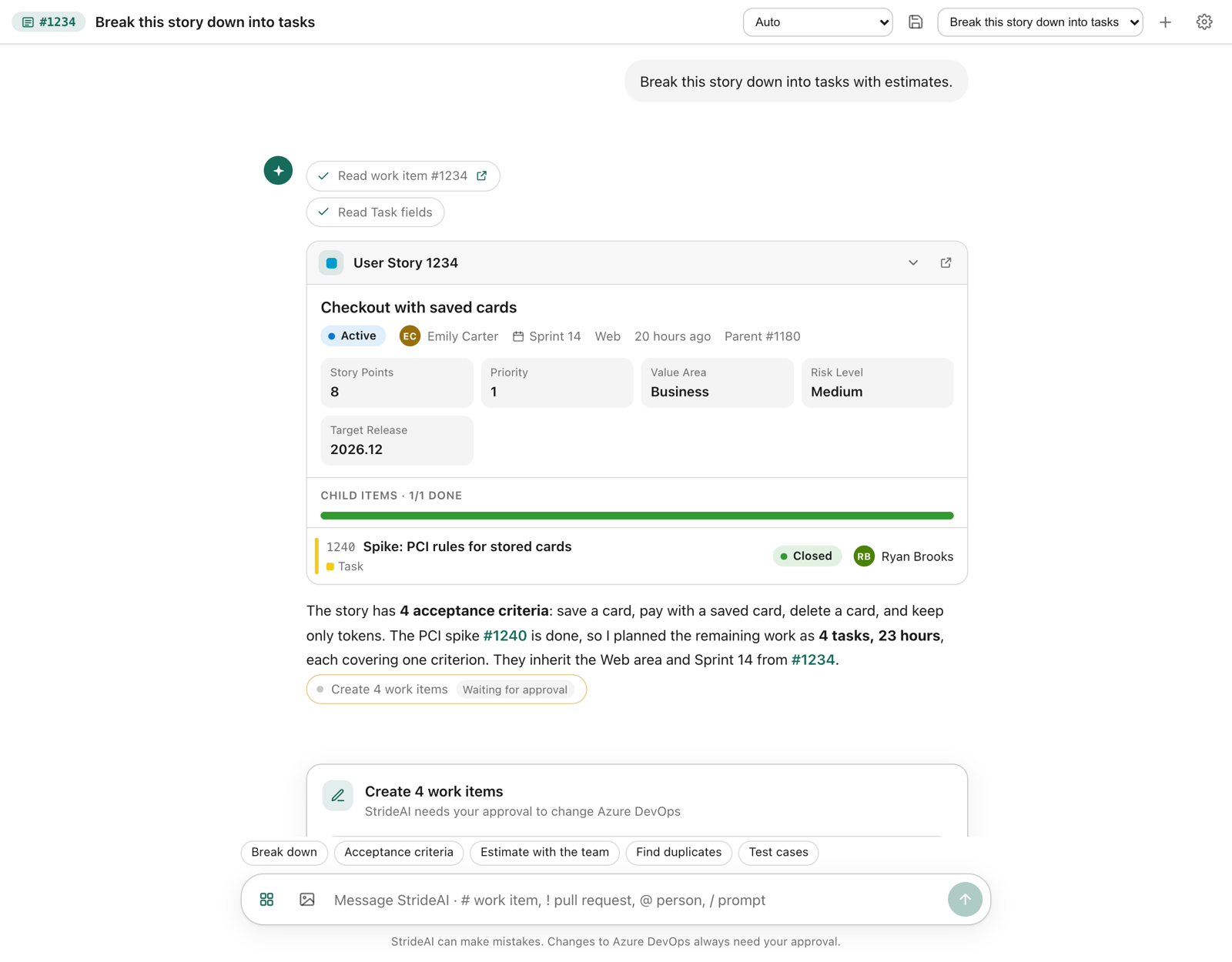
Open the StrideAI tab on any work item. Ask it to explain the item, break it down, write test cases, or plan the implementation in your code. Changes appear as an approval card. Nothing is created until you click Create.

Breaking a user story into estimated tasks from the work item form

One-click actions above the message box work on the open item: Break down, Acceptance criteria (testable Given/When/Then scenarios), Estimate with the team (starts planning poker for it), Find duplicates, and Test cases (linked to the item, with an offer to add them to its test suite).

One-click actions for the open work item above the message box

Review pull requests

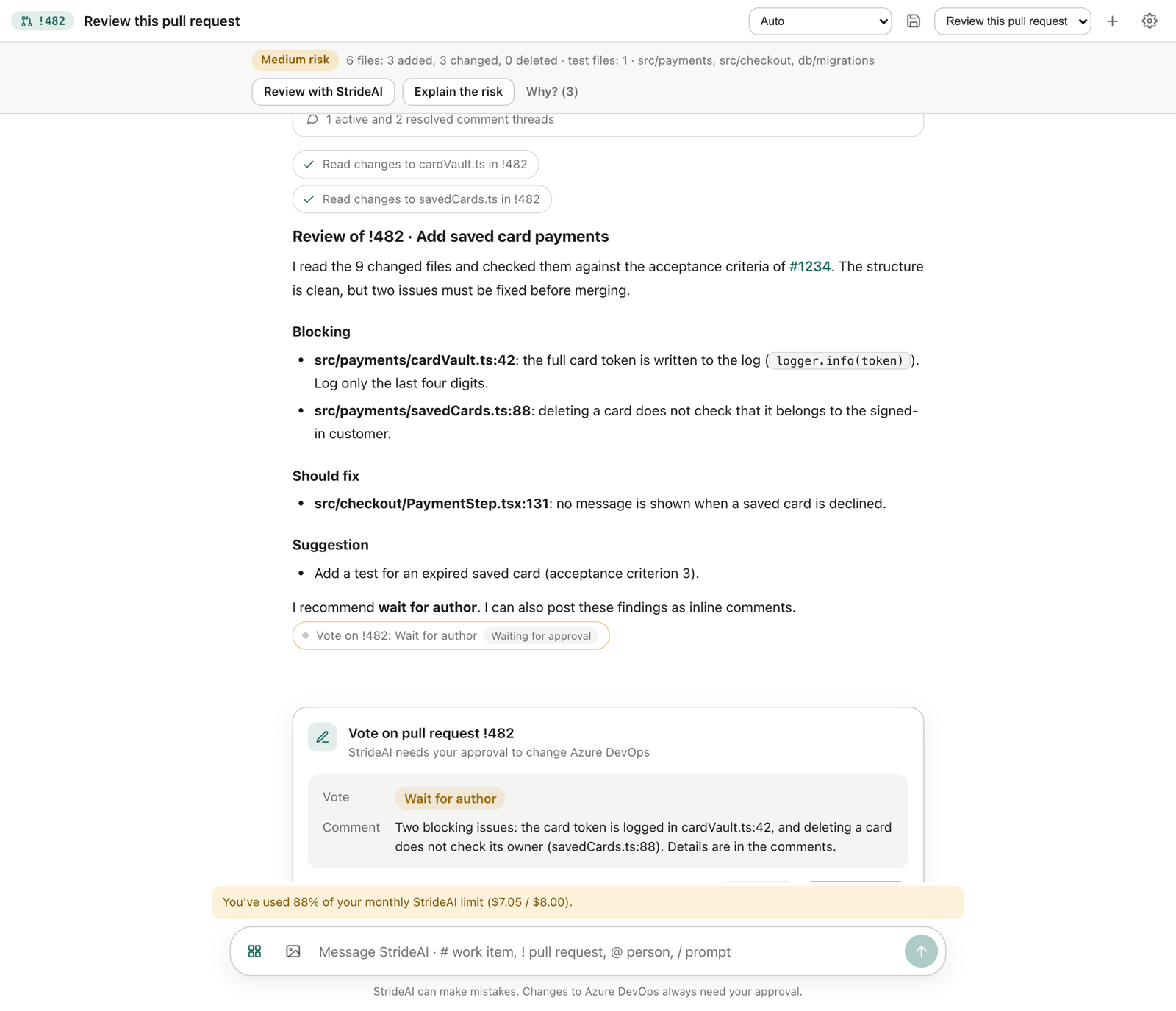
On the StrideAI tab of a pull request, ask for a review. It reads the diff, the policies, and the linked work items, then lists findings by severity. With your approval, it posts inline comments and votes.

Pull request review with blocking findings and a vote waiting for approval

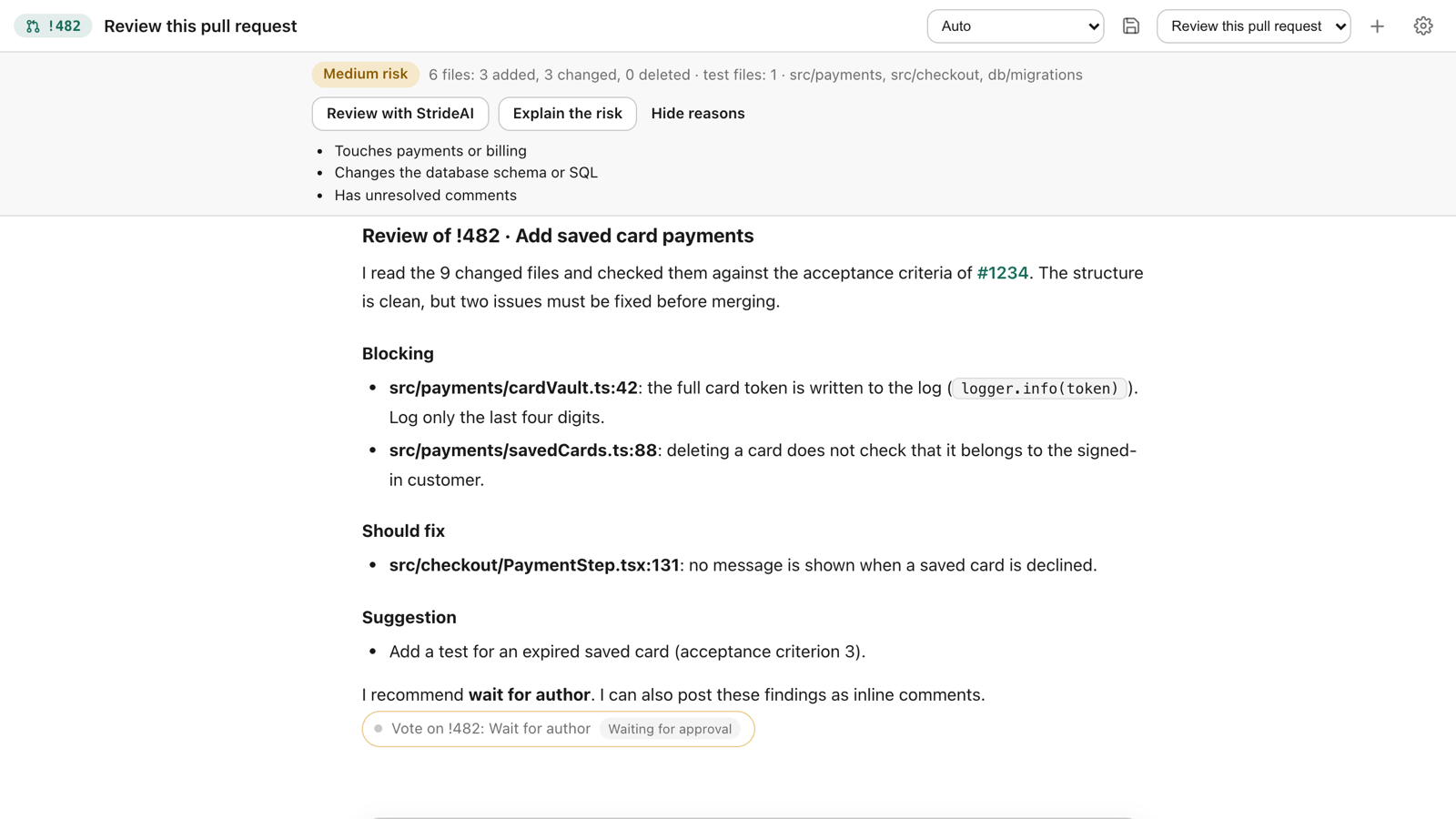
Every pull request also gets a risk level the moment you open the tab, at no AI cost: StrideAI looks at how many files changed, sensitive areas such as sign-in, payments, database migrations, pipelines, and dependencies, code changed without tests, linked work items, the description, failing checks, rejections, merge conflicts, and unresolved comments. Select Why? for the reasons, Explain the risk for what to test before merging, or Review with StrideAI for a full review.

A medium-risk pull request with its reasons and one-click review

Find out why a pipeline failed

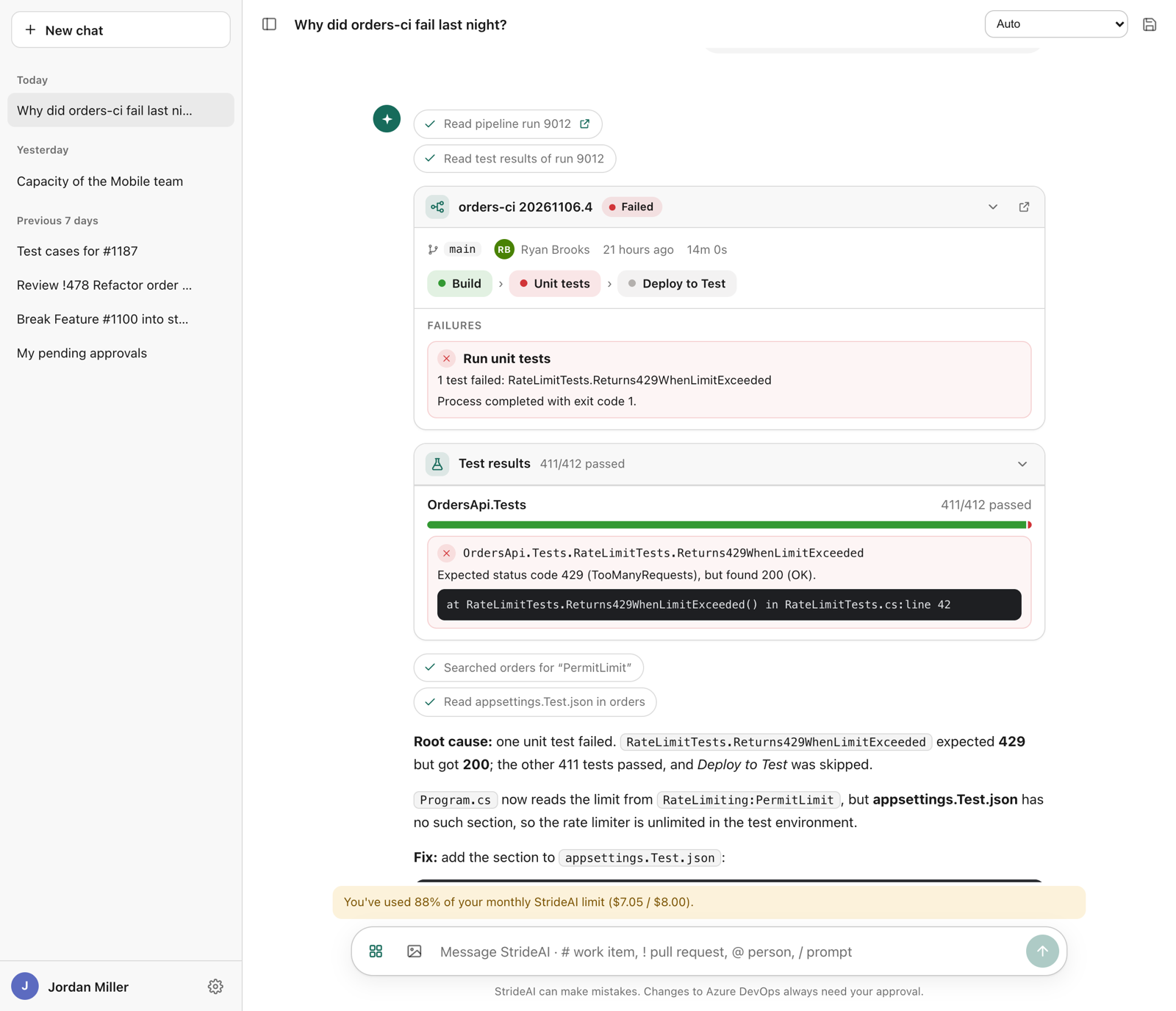
It reads the run timeline, failed tasks, logs, and test results, looks into your code, and explains the root cause with a concrete fix. It can also run, cancel, or retry pipelines and approve deployments when you ask.

Root cause of a failed pipeline run with the failing test and the fix

Queries and reports in your language

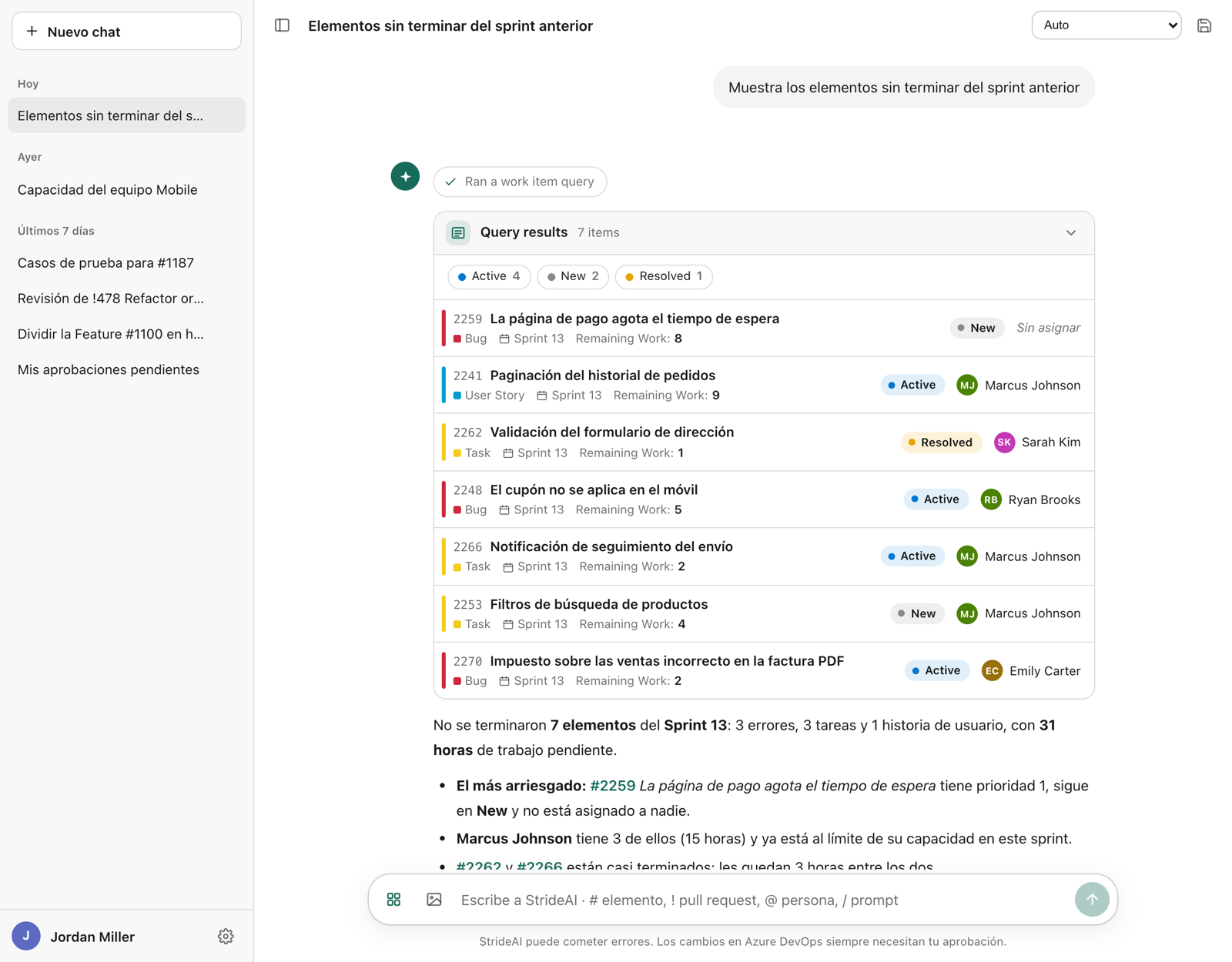
Ask for any list or report. StrideAI writes the work item query (WIQL), runs it, and summarizes the result. It can also save the query: under Shared Queries, so your team can open it and add it to a dashboard, or under My Queries for yourself. The interface is available in English and Turkish, with the chat basics also in German, French, and Spanish, and answers follow the language you write in.

Unfinished items from the previous sprint, asked and answered in Spanish

Forecast delivery with your team's real pace

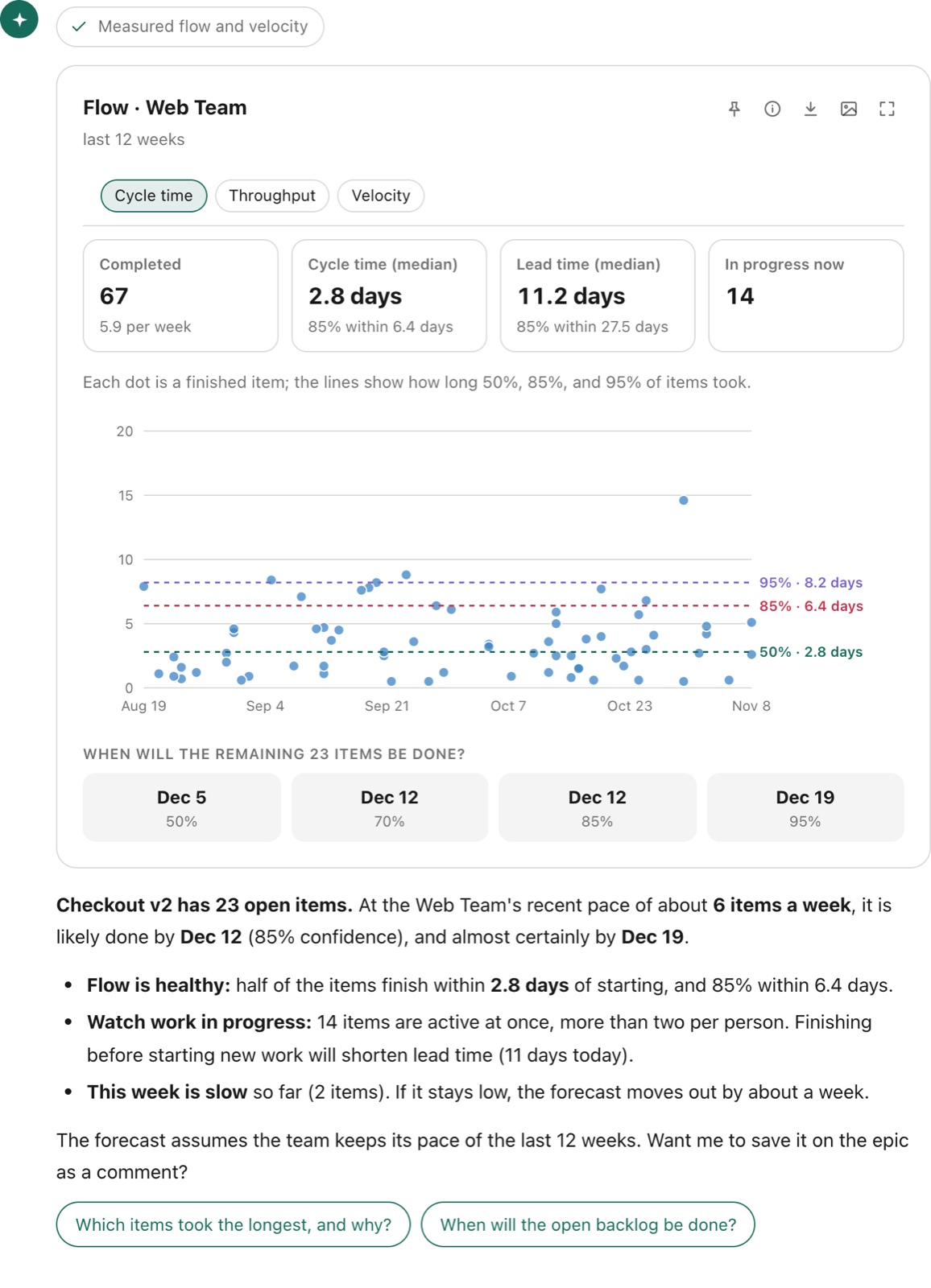
Ask "When will the Checkout epic be done?". StrideAI measures cycle time, lead time, throughput, and velocity from your completed work, then runs thousands of simulations to give a date range with confidence levels instead of a guess. Switch between a cycle time scatter with the 50%, 85%, and 95% lines, throughput per week, and velocity per sprint with its average and range. Each dot opens its work item.

Cycle time scatter with percentile lines, flow metrics, and a delivery forecast for an epic

Burnup and cumulative flow

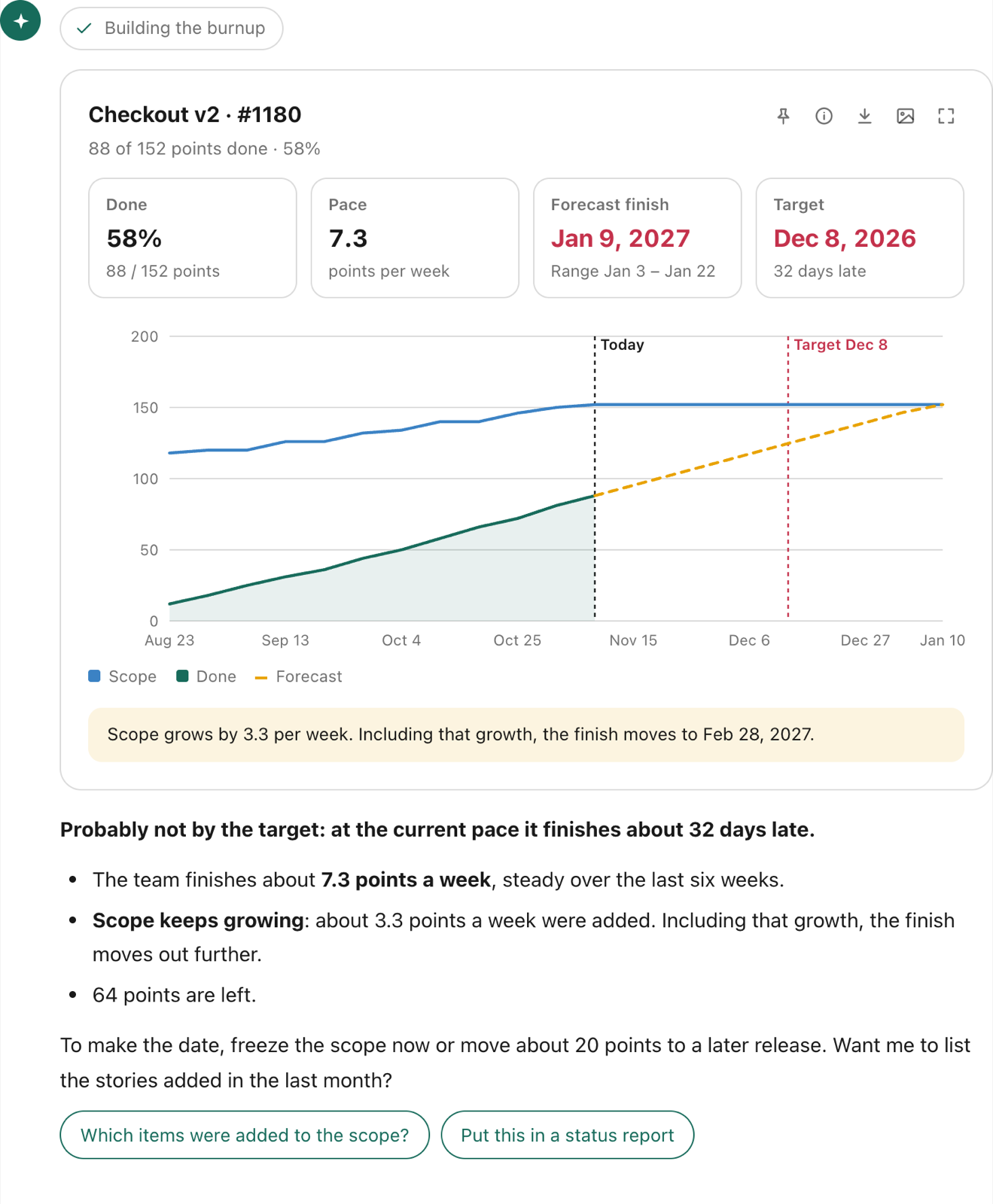
Ask "Will Checkout v2 make it by December 8? Show the burnup in story points.". StrideAI draws the scope and the finished work over time, continues the recent pace to a forecast finish with a range, and shows how far it lands from your target date. When the scope keeps growing, it tells you by how much and what that does to the date.

Burnup with scope, done, a forecast to the finish, and the target date

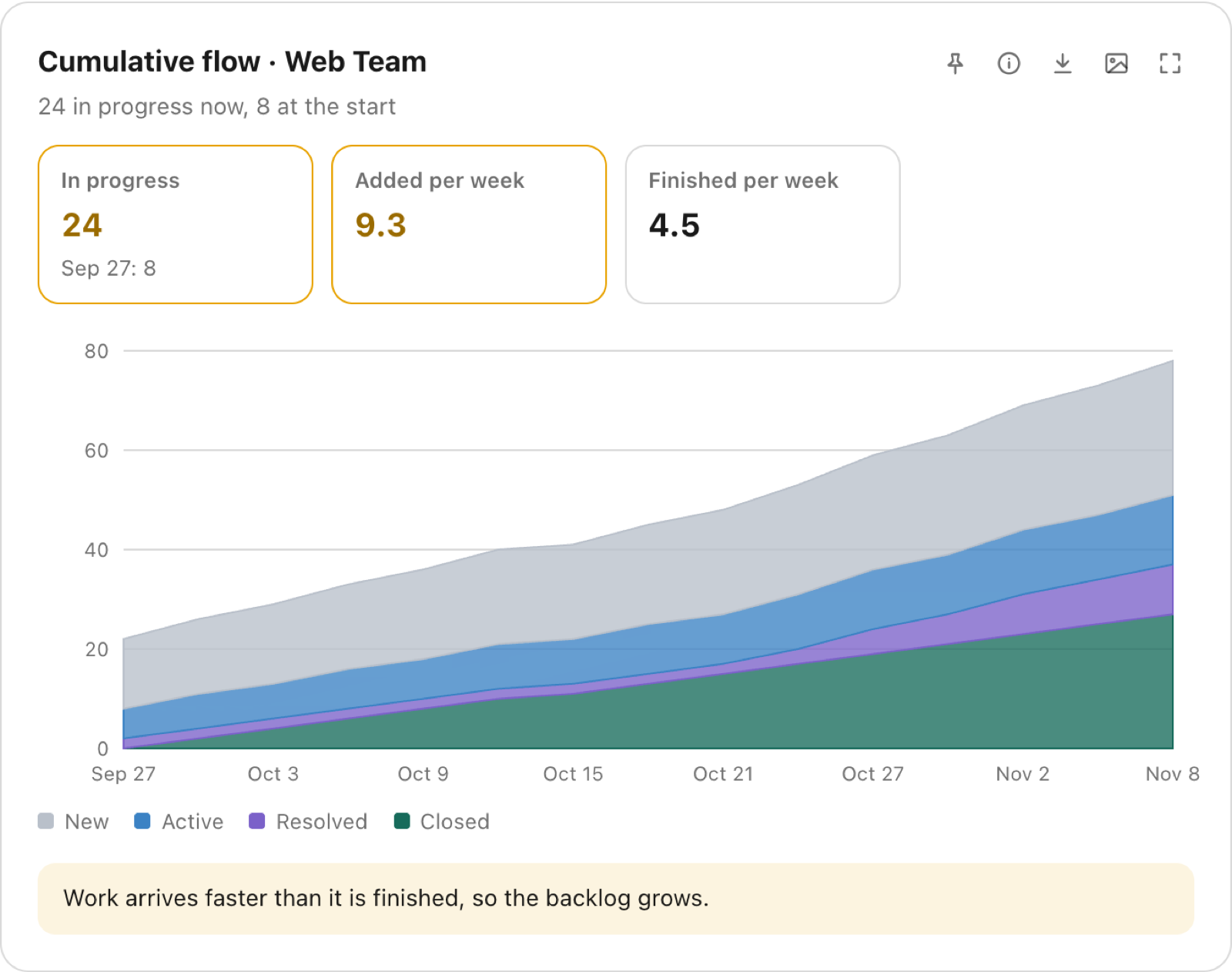
Ask "Show the cumulative flow for the Web Team. Where is work piling up?" to see how many items were in each state on each day, how work in progress changed, and whether work arrives faster than it is finished.

Cumulative flow per state with work in progress and items added and finished per week

Both charts are built from your work items' history, so they need no extra permissions or Analytics setup.

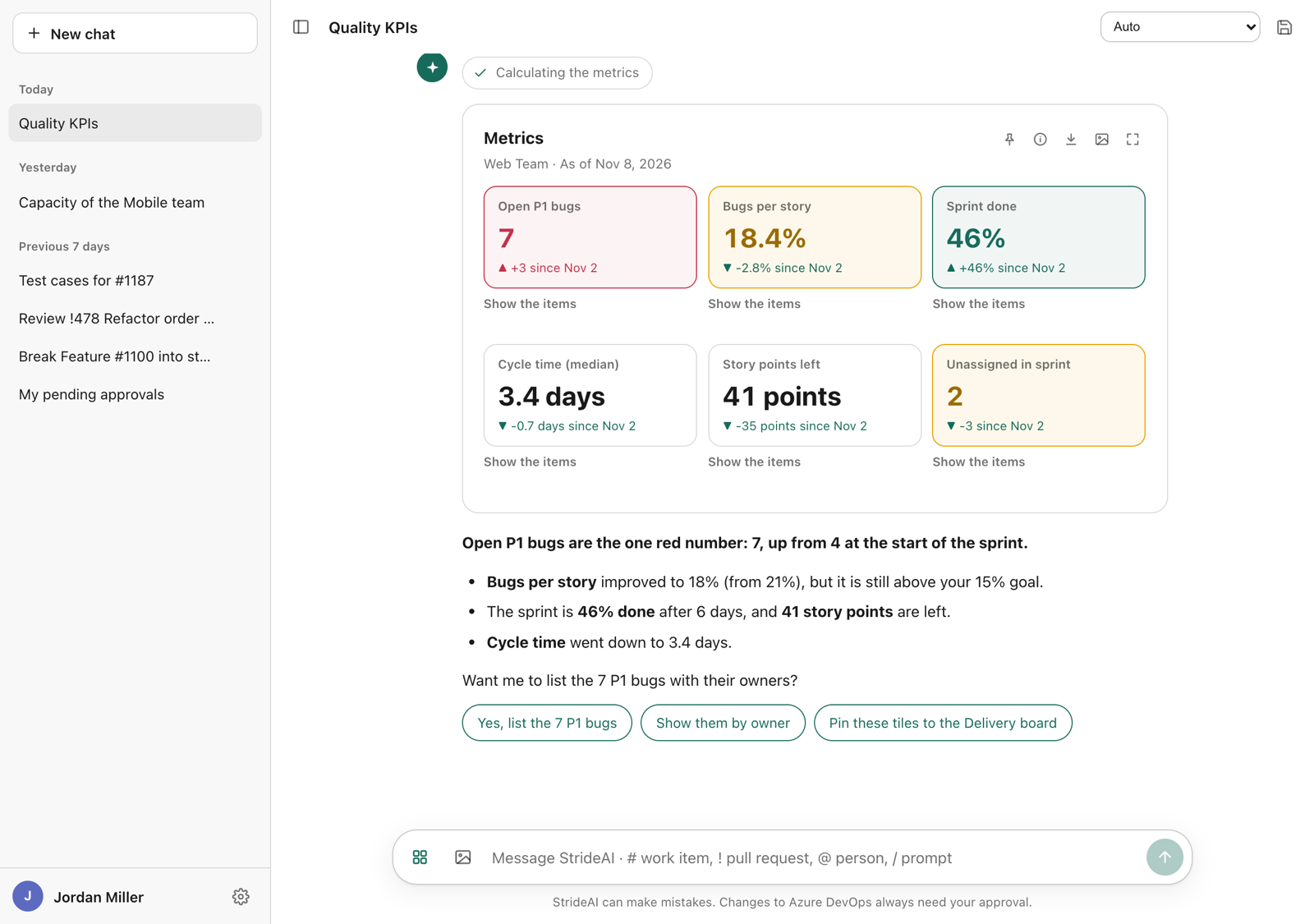
KPIs as tiles in one sentence

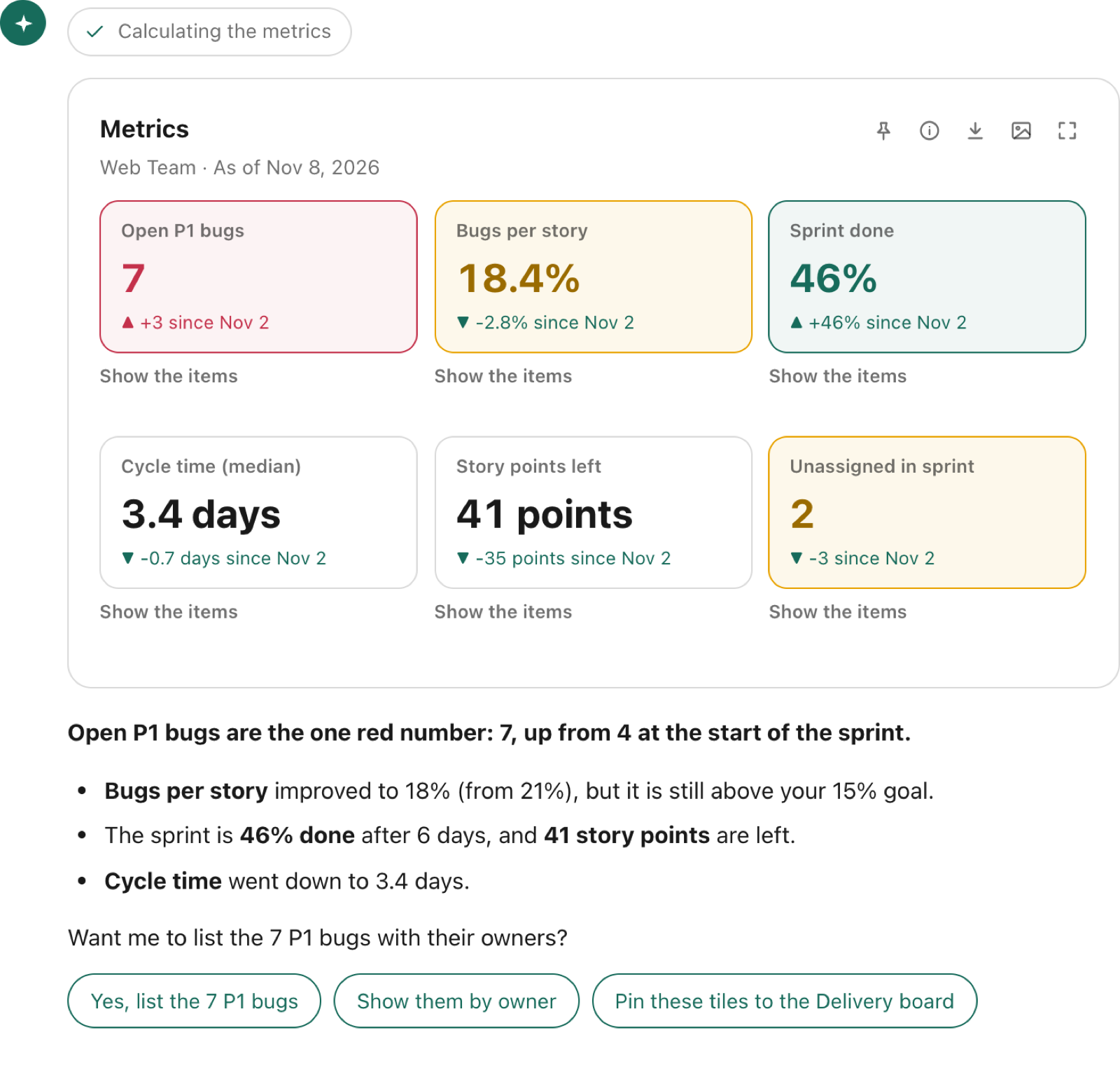
Ask "Show open P1 bugs (red above 5), bugs per story, and % of the sprint done as tiles, compared with the start of the sprint". StrideAI writes a query for each number, combines them with your formula, colors each tile by your rules, and shows the trend since last week, the start of the sprint, or last month. Point at a tile to see the formula and each query's result, or select Show the items to see what is behind it.

Metric tiles with colors, formulas across queries, and trends since the start of the sprint

Pin charts to Boards and dashboards

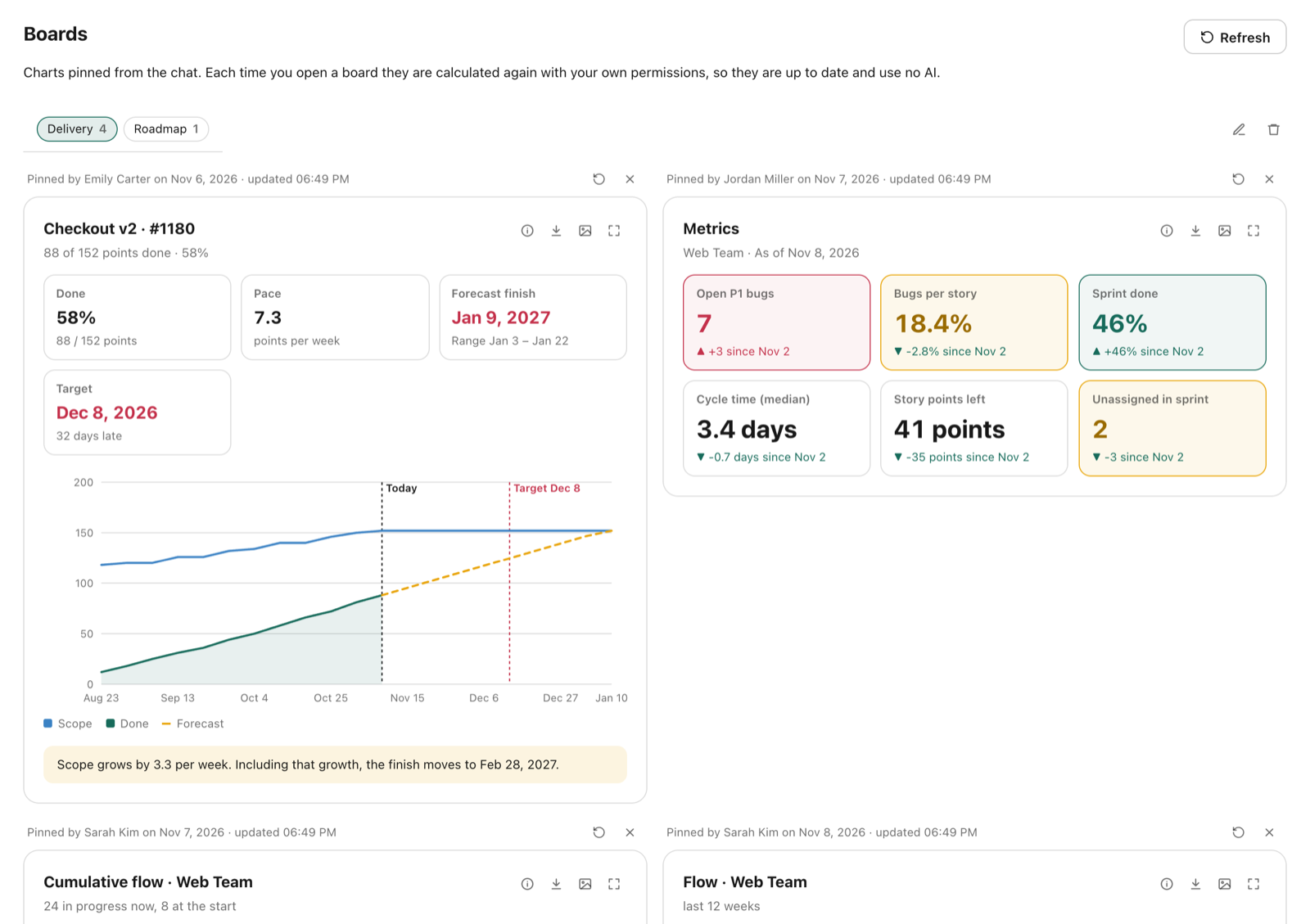
Select the pin icon on a timeline, burnup, cumulative flow, metric tiles, flow chart, or SAFe view such as the program board, and choose a board. StrideAI > Boards shows the project's boards to everyone. Each time someone opens a board, its charts are calculated again with that person's own permissions, so they are always current and use no AI.

Boards with a burnup, metric tiles, cumulative flow, and flow metrics pinned from the chat

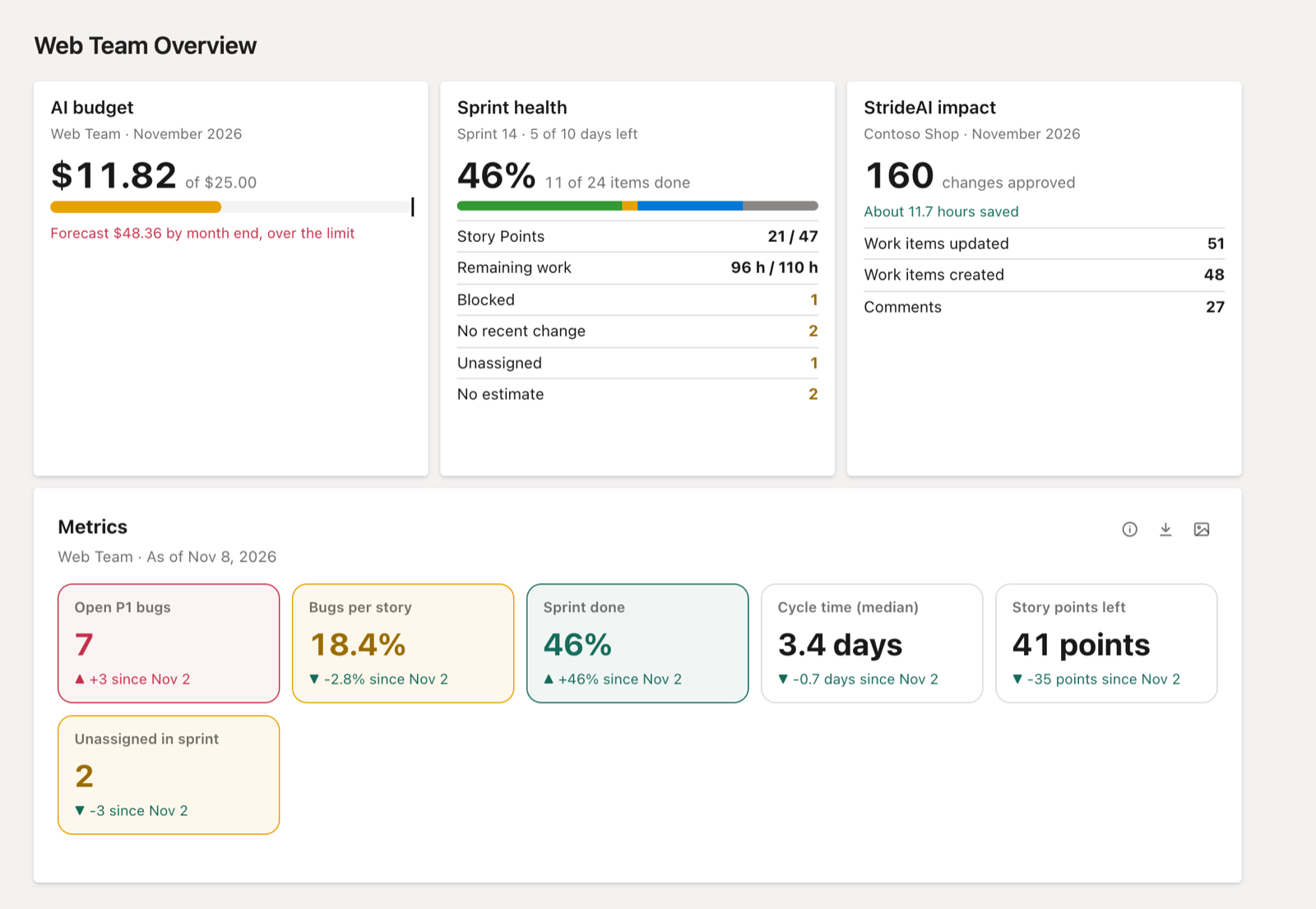
Add StrideAI widgets to your Azure DevOps dashboards:

  • StrideAI Visual shows any chart pinned to a board.
  • AI budget shows this month's StrideAI spend for the project or a team against its budget or limit, with a forecast to month end.
  • Sprint health shows the sprint's progress, remaining work against capacity, and what needs attention.
  • StrideAI impact shows the changes people approved with StrideAI this month and the hours saved.

A dashboard with the AI budget, Sprint health, StrideAI impact, and StrideAI Visual widgets

Reports and documents in your template

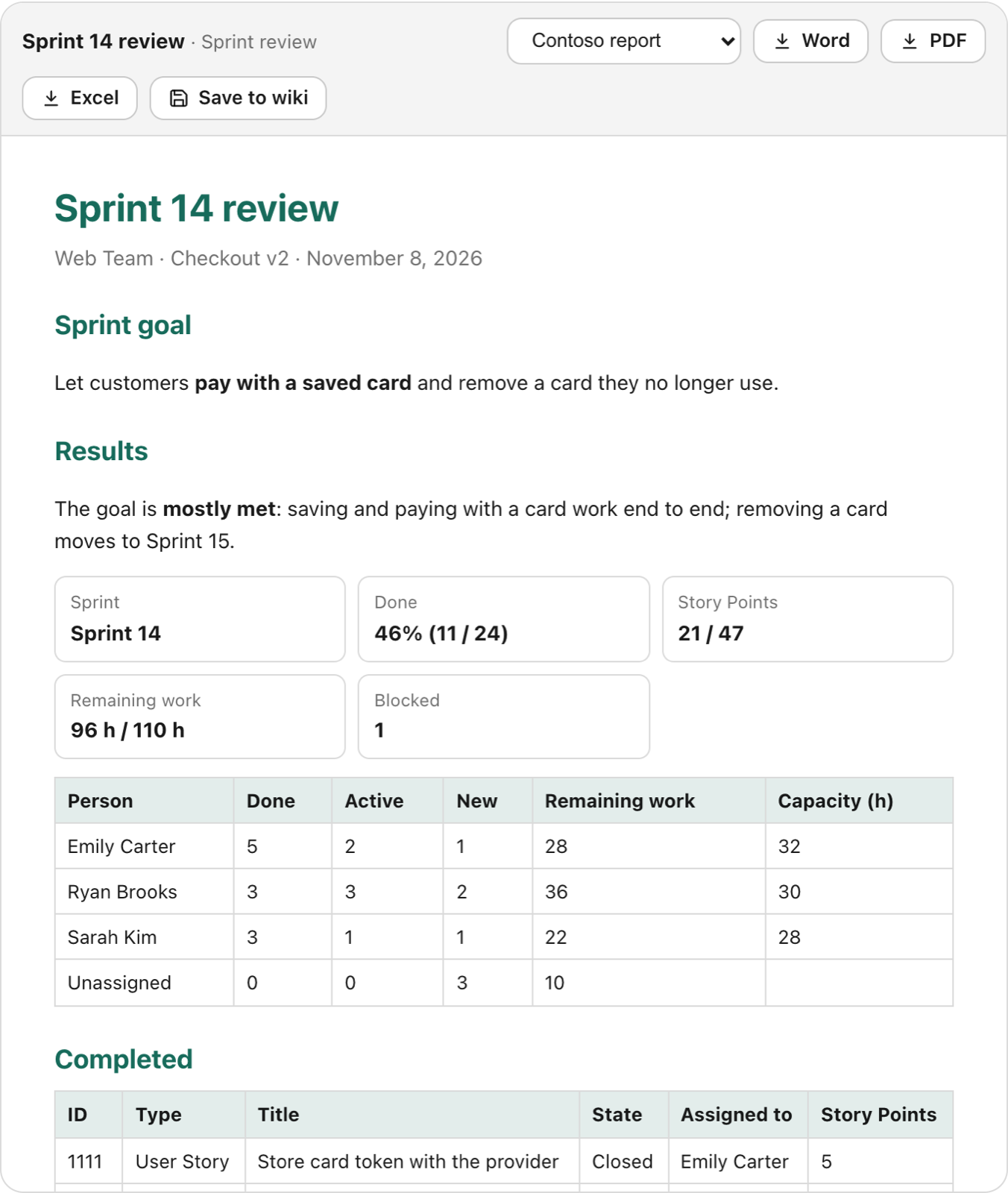
Ask "Prepare the Sprint 14 review as a document with the burnup" or "Write the monthly status report for the PMO". StrideAI writes the text, and the tables, key figures, and charts come straight from Azure DevOps: the sprint's results, any query, test results, a release's changes, or any chart from the chat. Preview the document in the chat, then:

  • Download Word in the StrideAI style or in your company's own Word template, with charts as images.
  • Download PDF through the print window, or Excel with one sheet per table.
  • Save to the wiki with the charts.

Built-in templates cover status reports, sprint reviews, retrospective summaries, release notes, requirements specifications, traceability, and test execution reports.

A sprint review document with key figures, tables, and Word, PDF, Excel, and wiki buttons

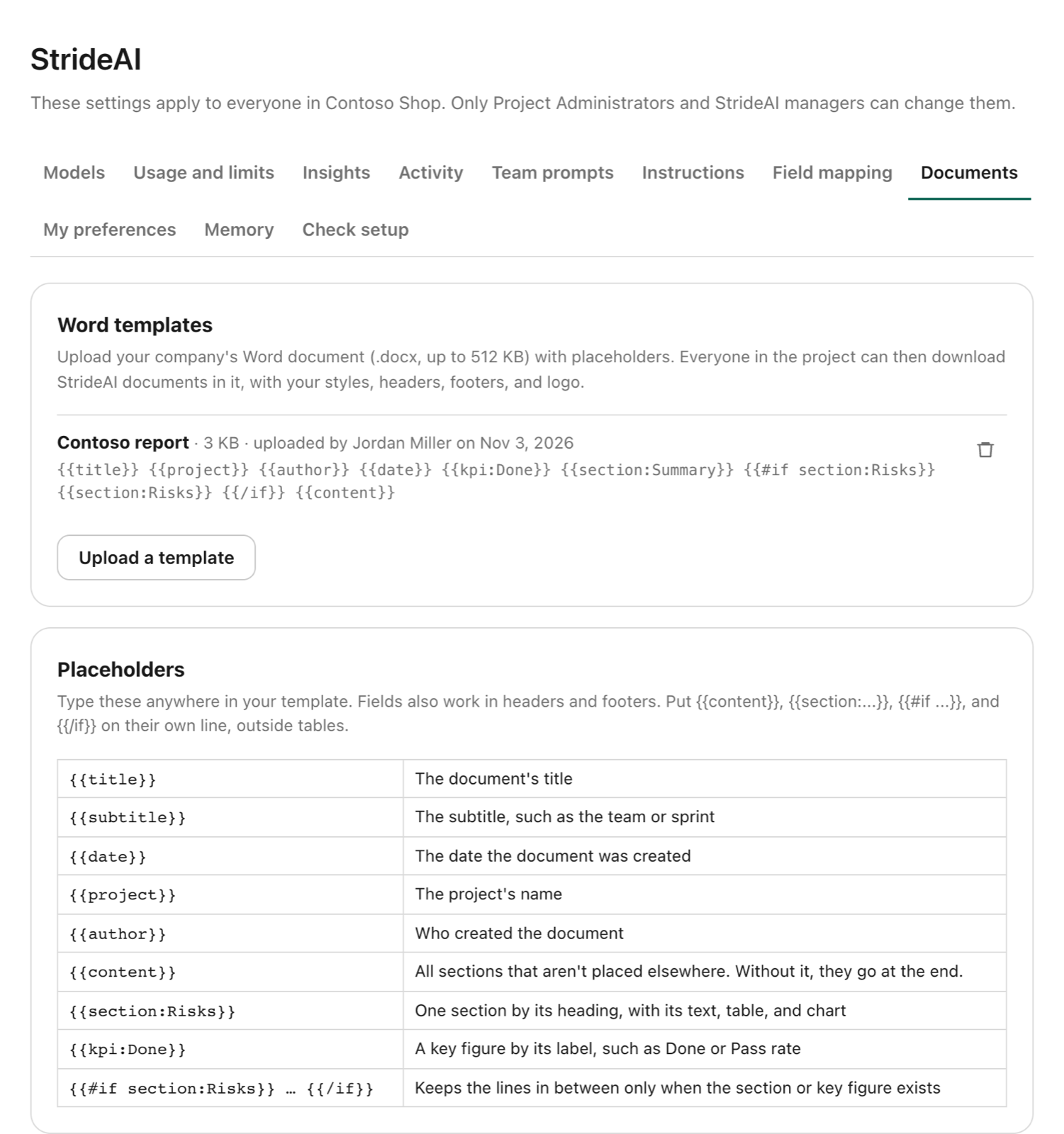
Administrators upload Word templates in Settings > Documents. Placeholders such as {{title}}, {{date}}, {{kpi:Done}}, {{section:Risks}}, and {{#if section:Risks}} put each part where your template wants it, and your styles, headers, footers, and logo stay as they are.

Word templates with their placeholders, and the placeholder reference

Timelines and roadmaps you can talk to

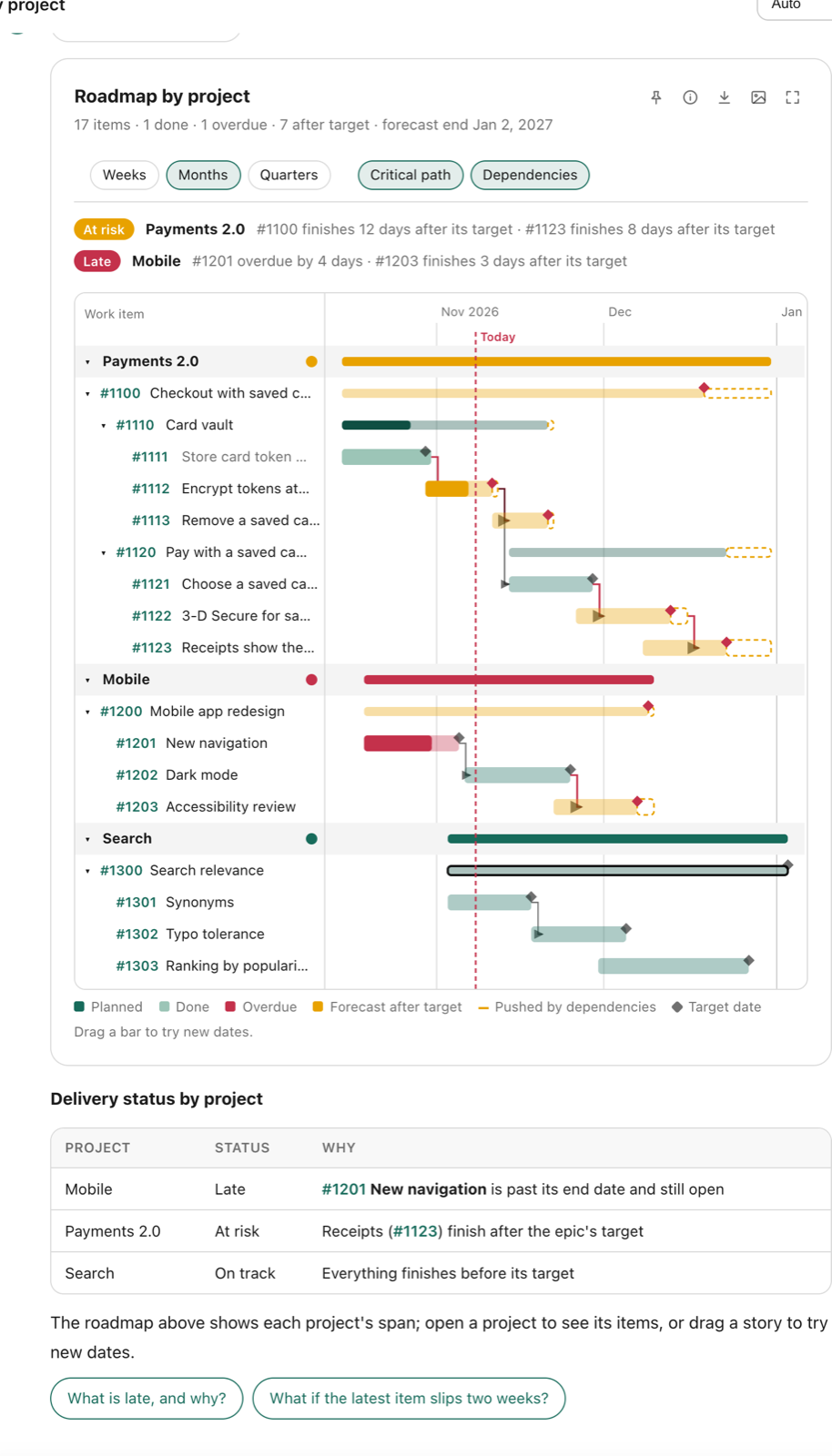
Ask "Show the timeline for the Checkout epic" or "Roadmap by project for this quarter". StrideAI draws a timeline (Gantt chart) of the items and their children, with dependencies, the critical path, progress, target dates, and today's date. Group it by project, area, sprint, person, type, or tag, and switch between weeks, months, and quarters.

It also forecasts: items that can't start until another one finishes are pushed out, and anything that will finish after its target date is marked. Each project or group gets a status, On track, At risk, or Late, with the reason.

Roadmap by project with status, reasons, dependencies, and forecast

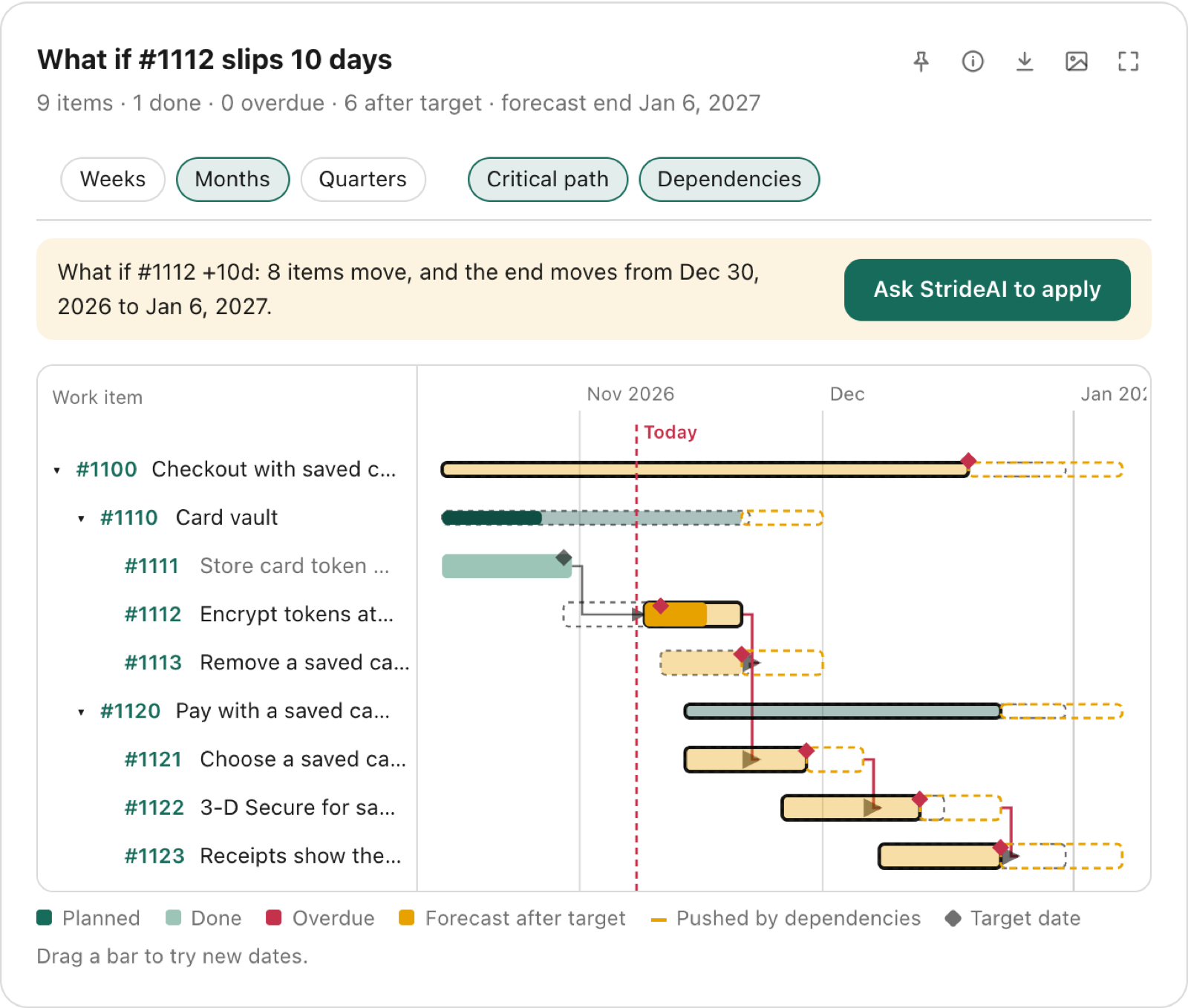
Ask "What if #1112 slips 10 days?" to see what moves and the new end date, with the old dates shown as outlines. You can also drag a bar to try new dates. Nothing changes until you select Ask StrideAI to apply and approve the new dates, and only the items you moved get new dates; epics and features keep the targets you set.

What-if: one item slips 10 days and the chart shows what moves

Timelines use the start and target date fields from Field mapping, then the item's sprint, then its children's dates. When only a start is known, StrideAI estimates the end from the remaining work. Every bar explains where its dates came from when you point at it.

Refine the backlog in minutes

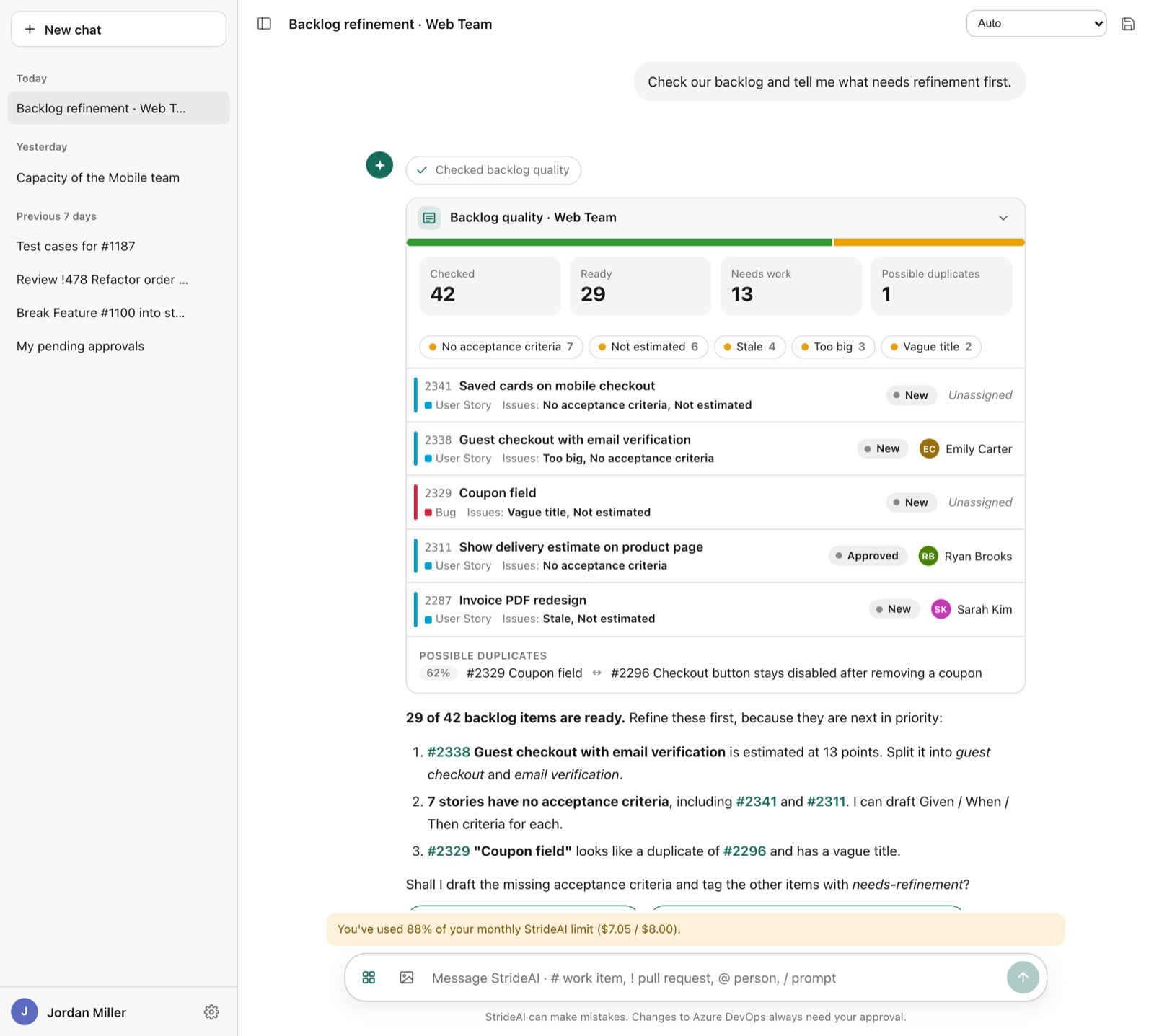
Ask "What needs refinement first?". StrideAI finds items without acceptance criteria or estimates, items that are too big or stale, and likely duplicates, then drafts the missing parts for you to approve.

Backlog quality check with issues per item and a likely duplicate

From notes to a backlog you reviewed

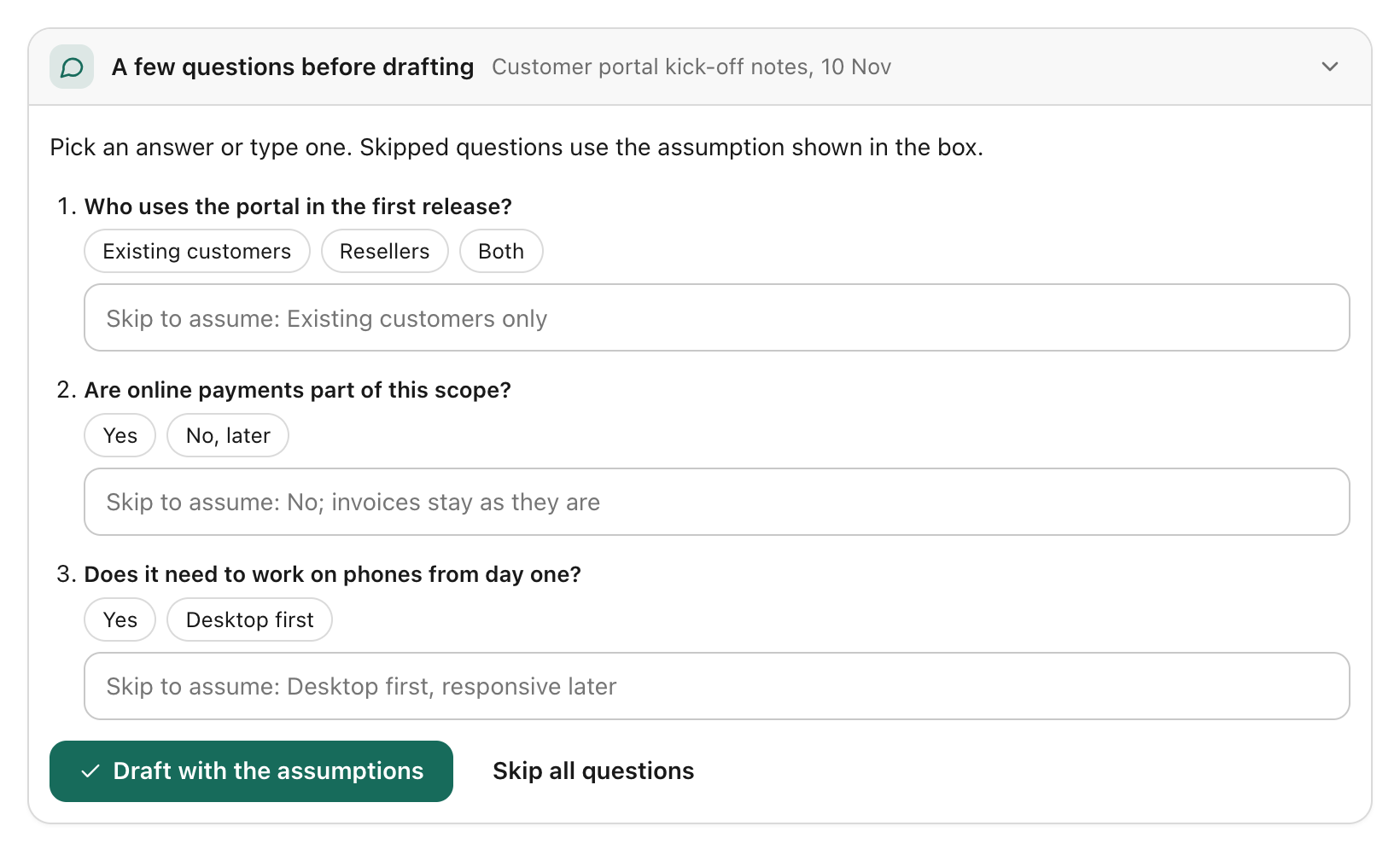
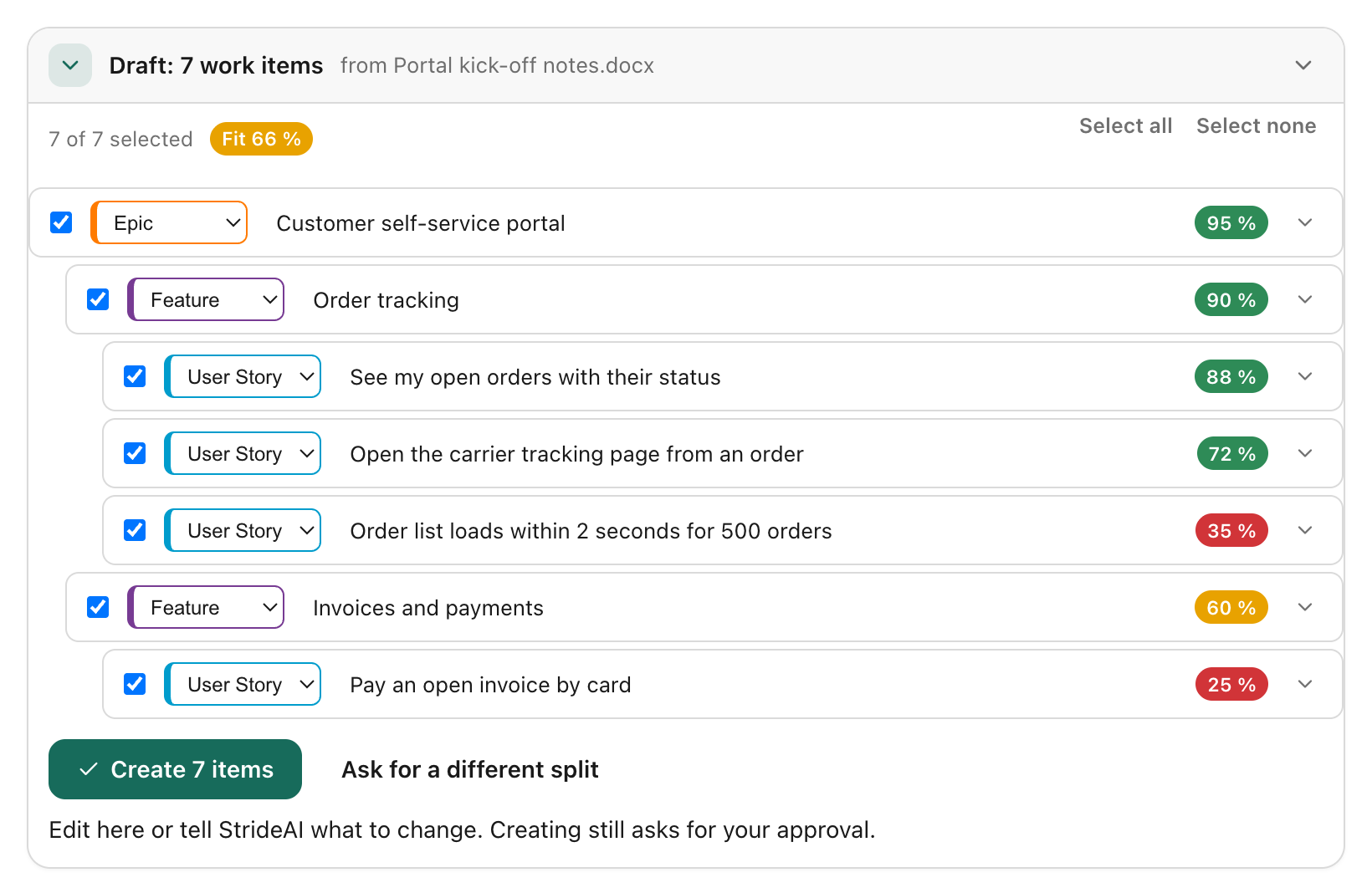
Paste meeting notes, attach a Word, PDF or Markdown document or a Teams meeting transcript (.vtt), or point at a wiki page and ask for work items. StrideAI reads everything, then asks first: up to six questions whose answers change the draft (which users, what to leave out, priorities), each with the assumption it will make if you skip it. Then it drafts a hierarchy, Epic or Feature down to stories, bugs, and tasks, and shows it as a draft board: every item with its type, a fit score for how directly the source supports it, and the sentence it came from. Change titles, types, and parents, edit descriptions and acceptance criteria, untick what you don't want, then create everything with one approval. Anything StrideAI inferred rather than read is marked with a low fit, so you see where to look twice.

Attached files are treated as untrusted data. Hidden and invisible text is removed before the model sees it, the file sits inside a boundary its own text can't fake, and passages that read like instructions to an AI are flagged on the attachment and on the draft board. While a file is in the conversation, the model can read and draft but can't change anything; every quoted source sentence is checked against the file, and items whose quote isn't there are marked and left unselected. Macros and embedded objects are never opened, and the text goes only to the model you configured.

Questions before drafting, each with answers to pick and the assumption used when skipped

The draft board: an Epic with Features and User Stories, a fit badge per item, and Create 7 items

Diagrams from your work items

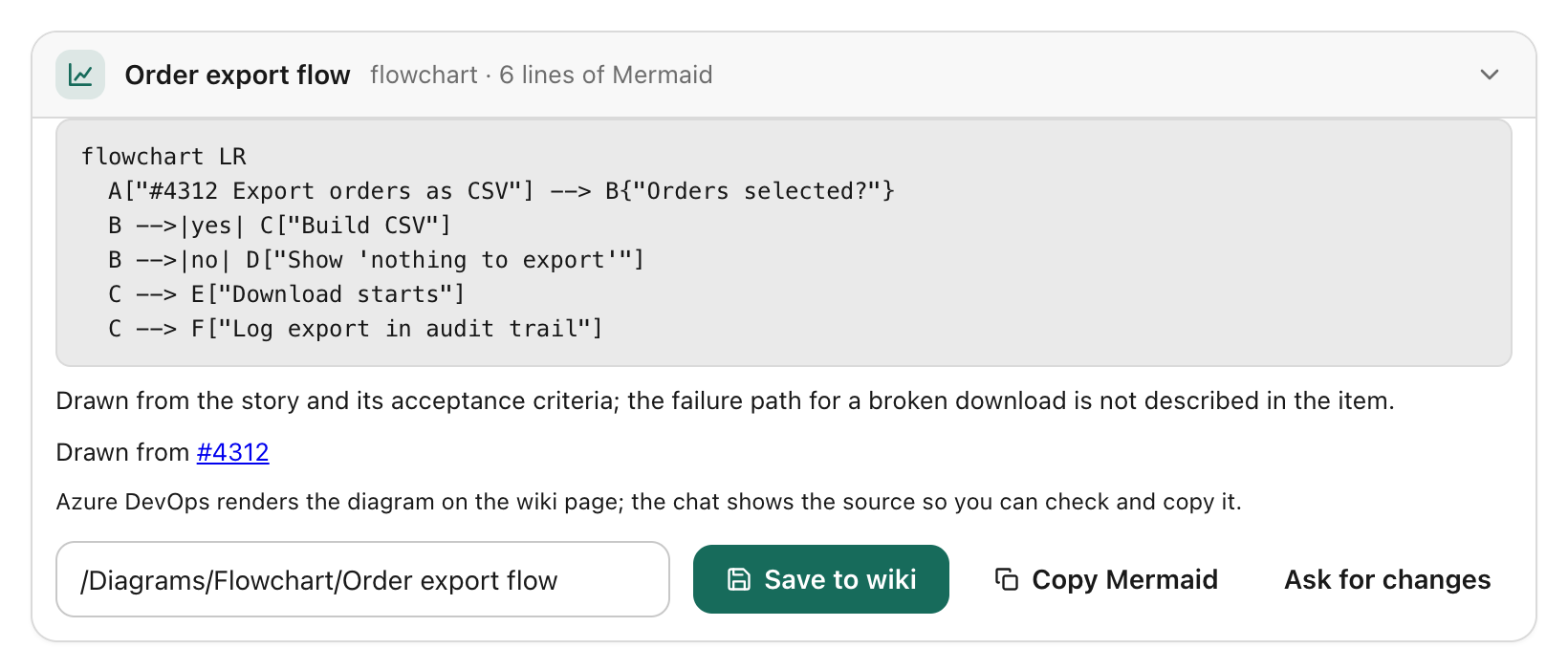
Ask "Draw the checkout flow from #4312" or "Sequence diagram of the payment integration". StrideAI reads the items, code, or wiki pages and draws a flowchart, sequence, state, class, ER, Gantt, journey, mind map, or timeline diagram as Mermaid. The card checks the source (no HTML, no links, a diagram type the wiki renders), shows it with the items it was drawn from, and saves it to a wiki page under Diagrams, where Azure DevOps renders it, with your approval. Ask for changes in plain words and StrideAI redraws it.

A diagram card with the Mermaid source, the work item it was drawn from, and Save to wiki

Wireframes from a story

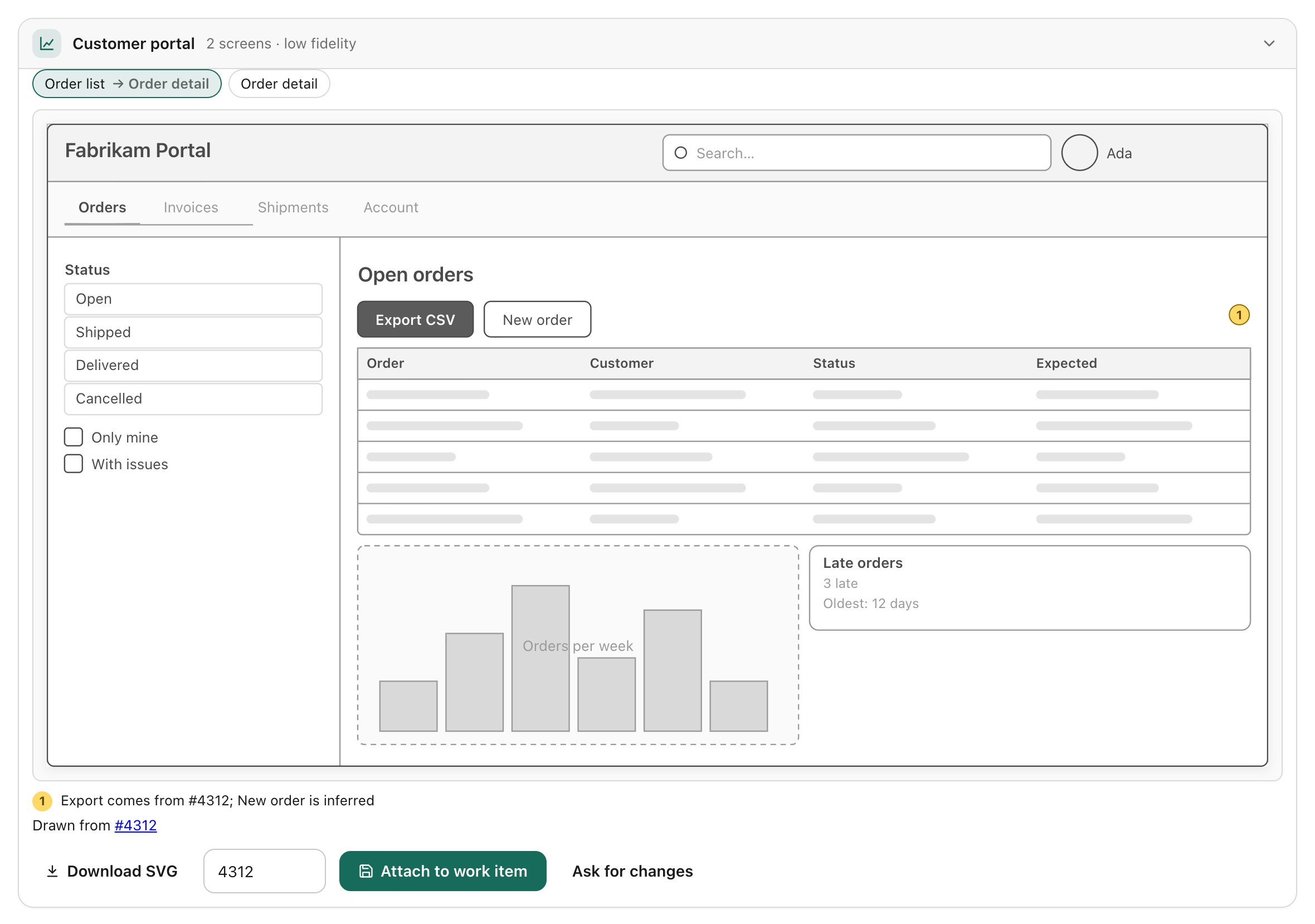
Ask "Sketch the order list screen for #4312". StrideAI reads the story and draws a low-fidelity wireframe, grey boxes with real labels and no visual design, so the conversation stays about what goes on the screen, not how it looks. Several screens become tabs with the flow between them; numbered callouts say where an element comes from and what StrideAI inferred. Download the SVG or attach a screen to the work item with one approval. No image model is involved: the drawing is computed from a screen description, so it is instant, costs no tokens to render, and is the same every time.

A wireframe card: a desktop order list with header, tabs, filters, table, chart, and a numbered callout, with Download SVG and Attach to work item

One instruction, many items, one approval

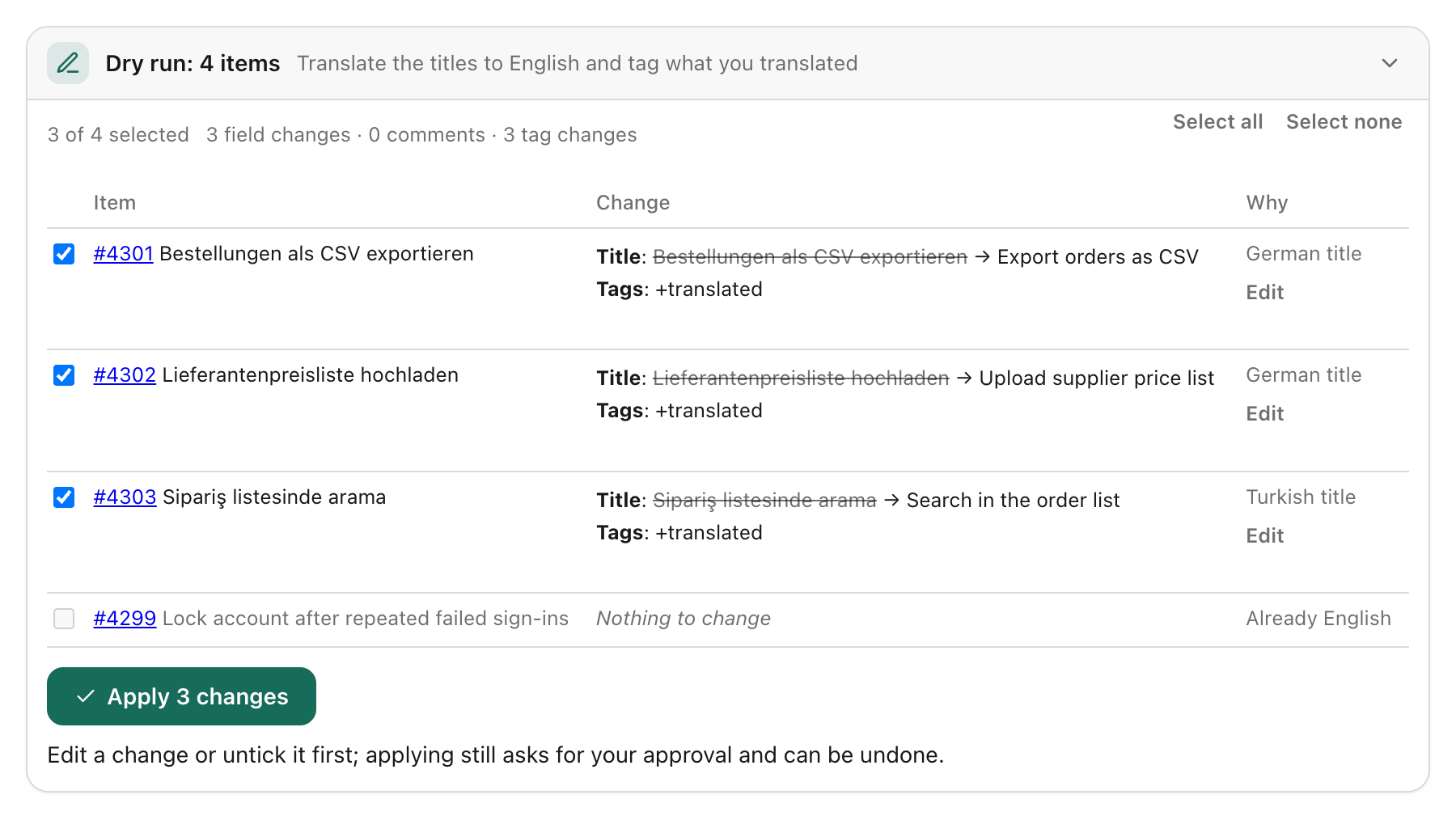
Ask "Translate the titles of all sprint stories to English and tag what you changed" or "Add acceptance criteria to every story that has none". StrideAI says which fields the run may touch, works out a change per item, and shows a dry run: before → after per field, comments, tags, and a one-line reason each. Untick what you don't want, edit a value, then apply everything with one approval; the run can be undone like any other change, and items that need nothing are left alone.

A Bulk Run dry run: three titles translated with before and after, one item skipped, Apply 3 changes

Explore a topic before you build it

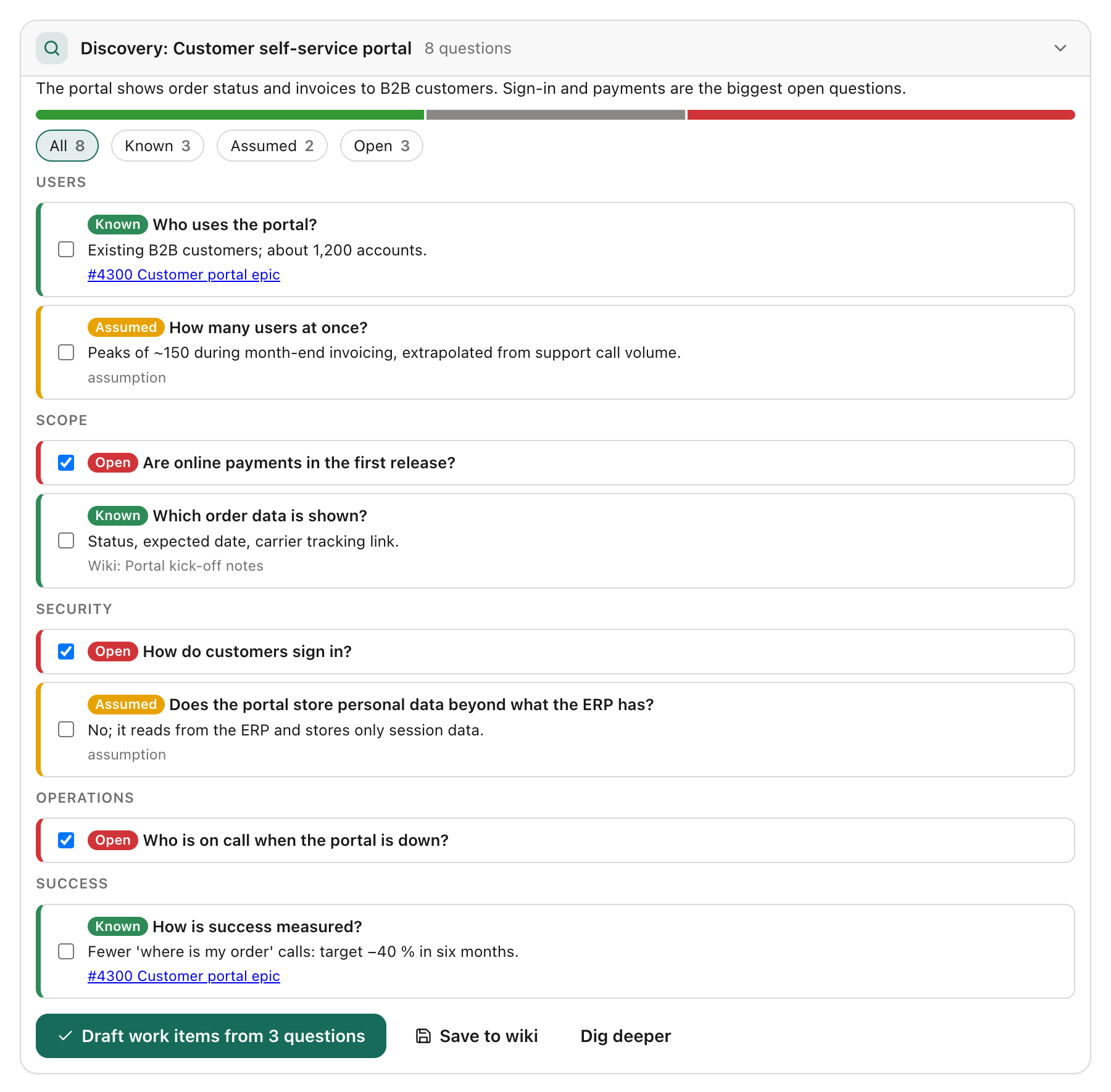
Ask "What do we know about the customer portal?". StrideAI searches the work items, wiki, and code and answers as a list of questions grouped by area, each marked known with its source, assumed when it inferred the answer, or open. Pick the open ones and send them to Intake as spikes and tasks, or save the whole list to the wiki as the starting point for the discovery.

A Discovery card: questions grouped by Users, Scope, Security, Operations, and Success, marked known, assumed, or open

What does this change touch?

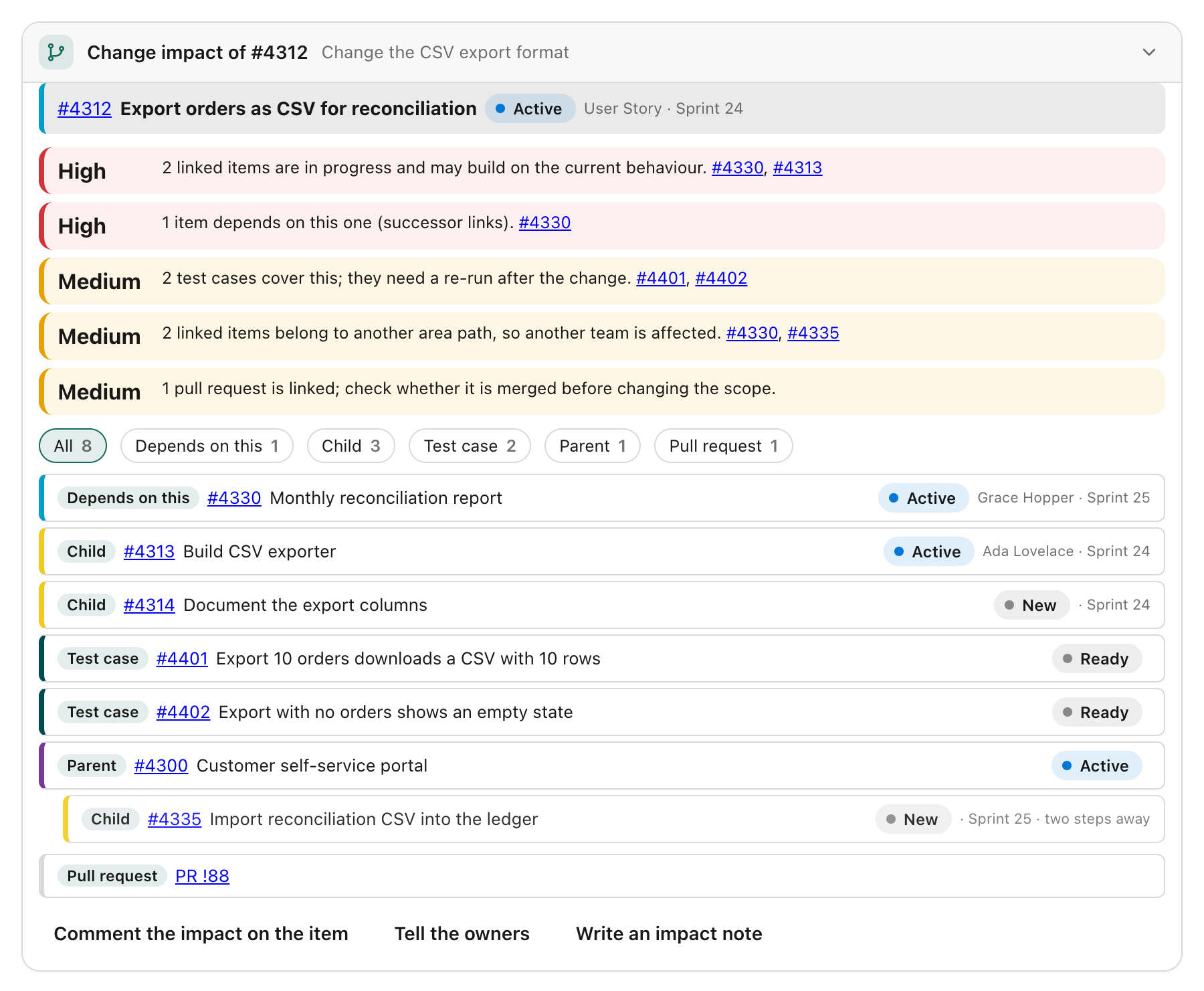
Before you move, re-scope, or remove an item, ask "What does changing #4312 affect?". StrideAI follows the item's links two steps out, parents, children, related items, predecessors and successors, test cases, pull requests, commits, and builds, and shows them by kind with the risks that follow: items in progress that build on the current behaviour, items that depend on it, test cases to re-run, other teams' areas, other sprints, linked pull requests. From the card, comment the impact on the item, tell the owners of the affected items, or write an impact note to the wiki.

A Change impact card: the changed story, risks ranked high to medium, and the linked items by kind

Tick the risks that need an owner and press Create mitigation tasks: one task per risk, under the item, with the risk and the items involved in its description, waiting for your approval.

Backlog health: grade stories through a lens

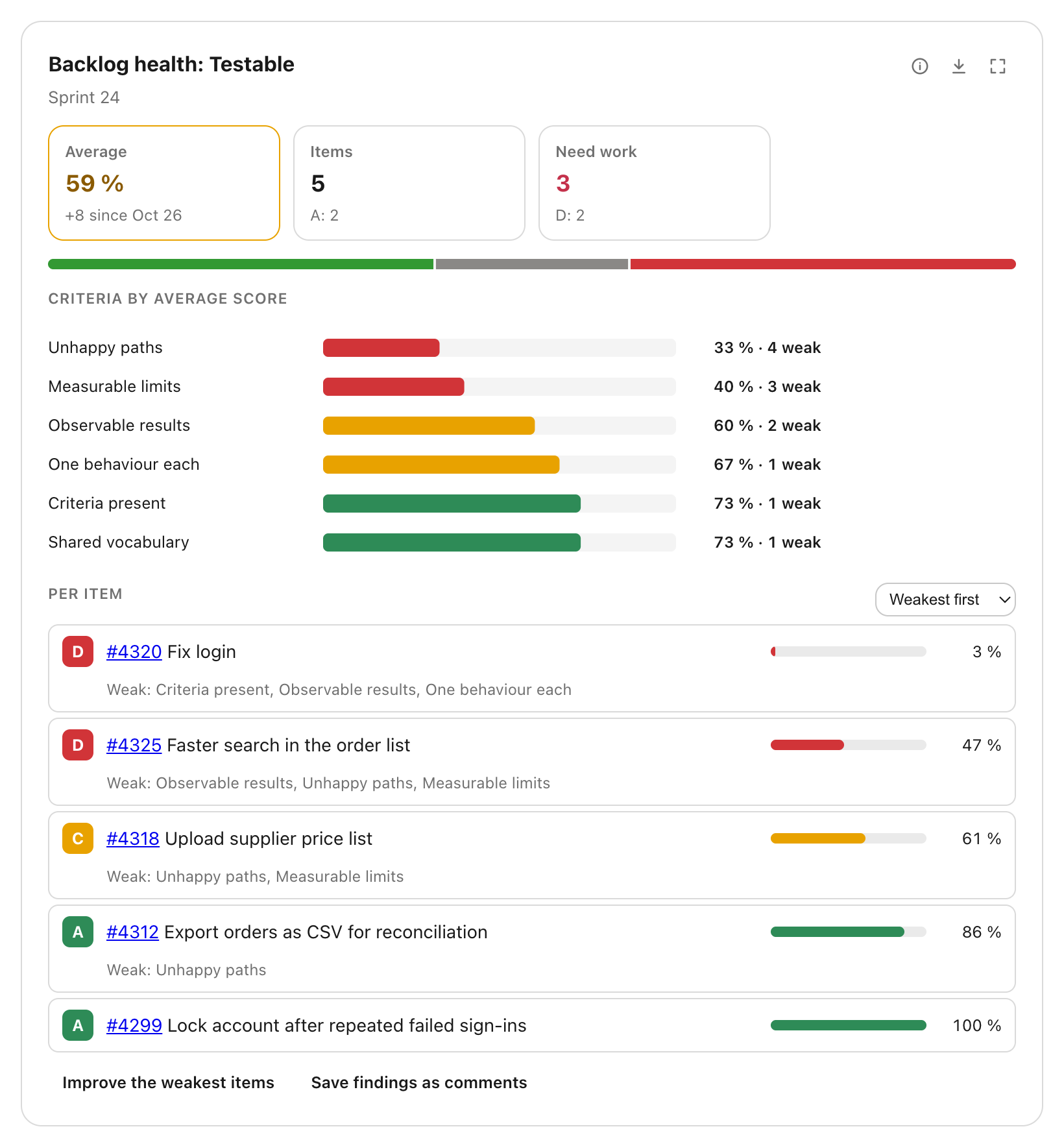
Ask "How ready are the sprint stories?" or "Score #123 for testability". StrideAI reads the items and judges each one against a lens, a set of criteria with weights: Clear story (who, outcome, scope, size, independence, verifiable), Testable (acceptance criteria a tester can decide on), Worth doing now, Risk-aware, Six Cs (clear, concise, complete, consistent, correct, concrete), MoSCoW fit, and Ready for a sprint. Every criterion gets a score from 0 to 3 with a sentence of evidence from the item, and the scorecard shows a grade from A to D per item, the weakest criteria across the whole set, and how the average moved since the last check of the same sprint or backlog. From the card, improve an item, ask why it scored as it did, or save the findings as comments, all with your approval.

Backlog health scorecard for a sprint through the Testable lens: average 59 %, criteria by average score, grades A to D per item

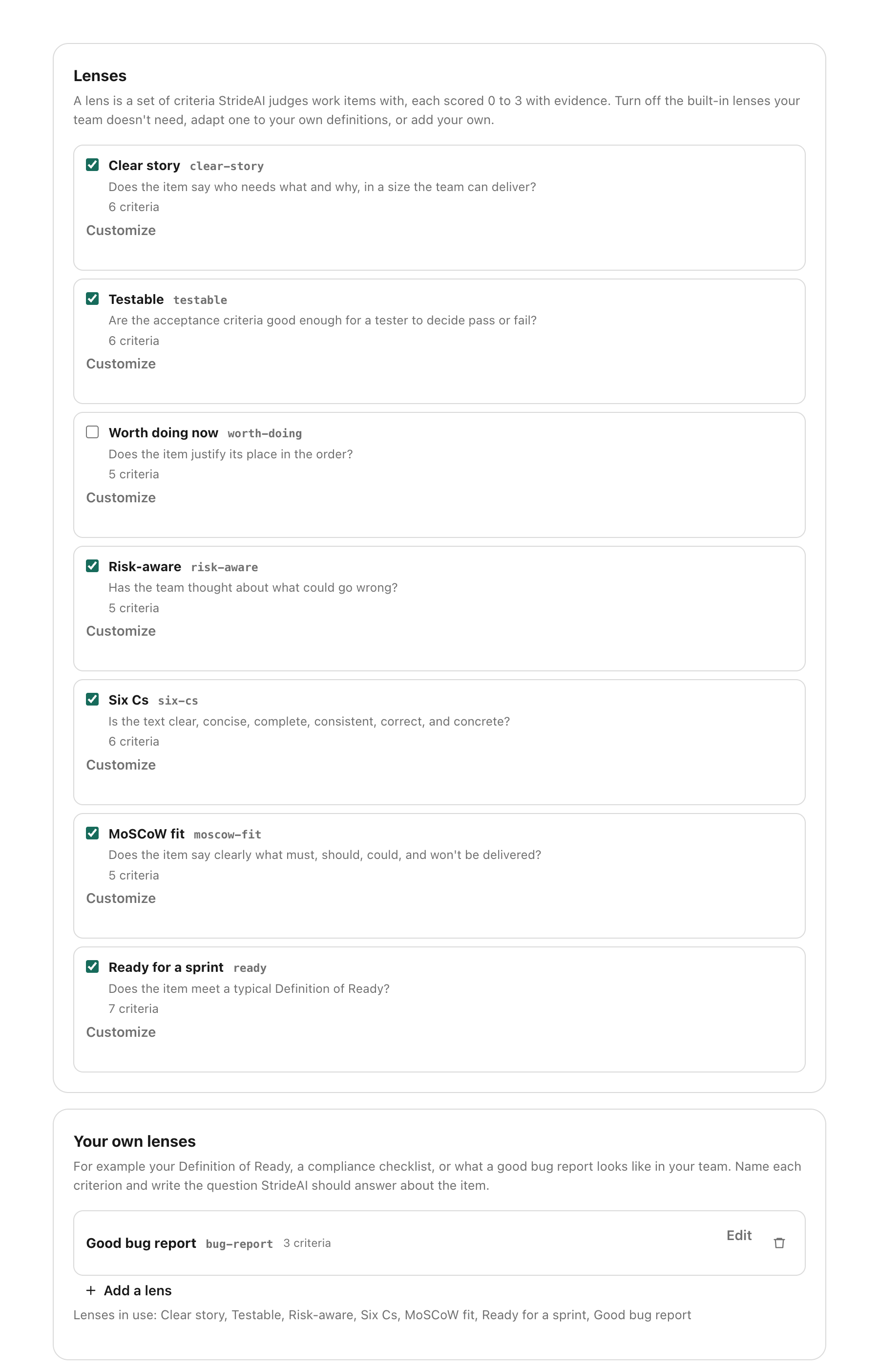
In Settings → Backlog health, turn off the lenses your team doesn't need, adapt one, or write your own: a Definition of Ready, a compliance checklist, or what a good bug report looks like for you. Each criterion is a question StrideAI answers about the item.

Lenses in Settings: built-in lenses with a checkbox each and a team's own "Good bug report" lens

Planning poker and confidence votes

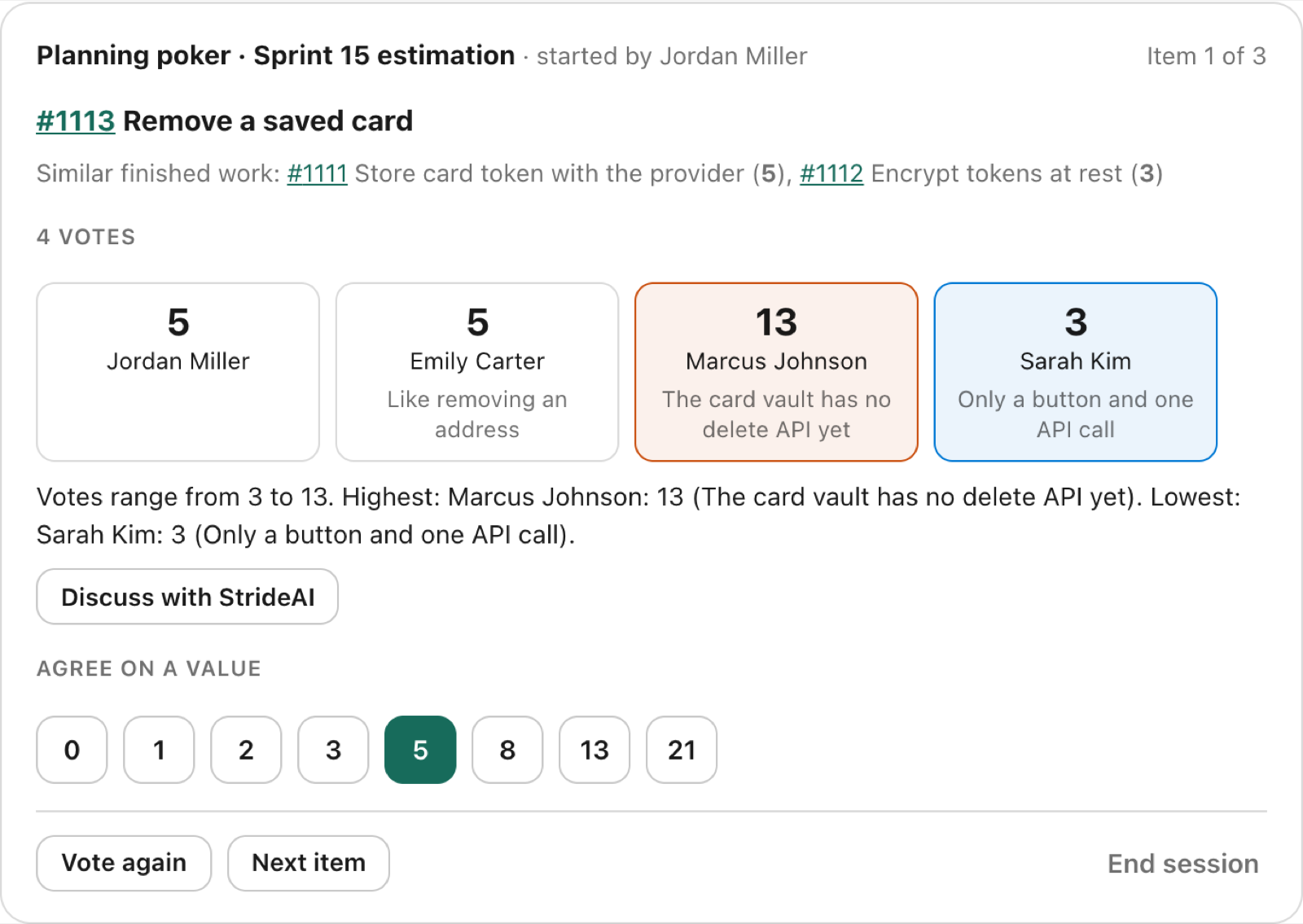
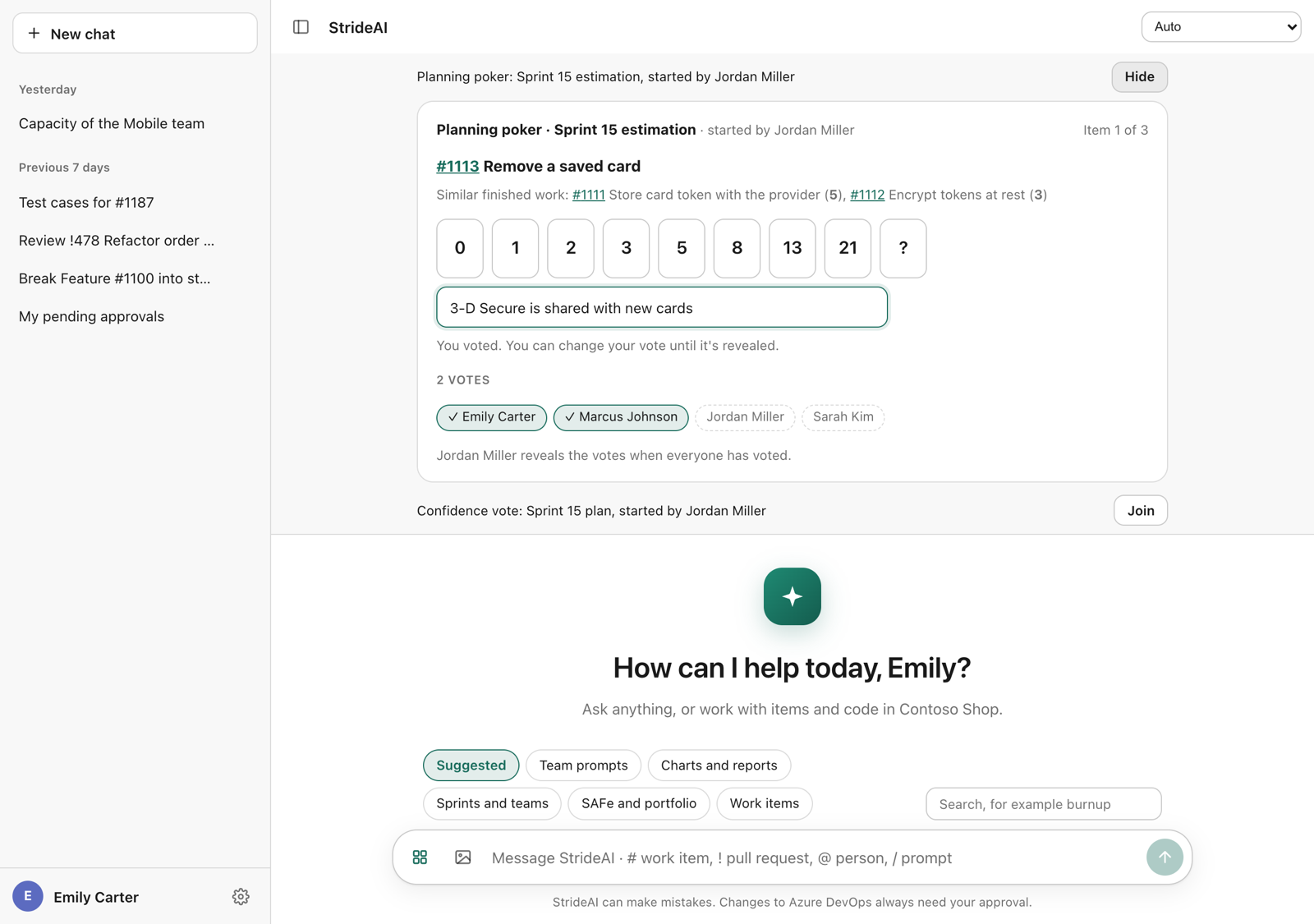
Ask "Let's estimate the Sprint 15 candidates with the Web Team". StrideAI starts a planning poker session, flags items that aren't ready (no description or acceptance criteria, too big, or a vague title), and shows similar finished stories with their estimates as a reference. Everyone in the project sees the session at the top of their StrideAI page and joins with one click, so it works for live meetings and for people who vote later.

  • Sealed votes. Each vote and its optional note is encrypted in the voter's browser. Nobody, StrideAI included, sees them until the person who started the session selects Reveal votes.
  • Talk about the difference. After the reveal, StrideAI names the highest and lowest voters with their notes and suggests the most common value. Discuss with StrideAI asks what each side may see differently.
  • Agree and save. Pick the agreed value and select Save to #id; the estimate is written to the work item after your approval. Vote again, or move to the next item.
  • Decks: Fibonacci, T-shirt sizes, and powers of two. When you name a team, the card shows who hasn't voted yet.

Revealed planning poker votes with notes, the highest and lowest voters, and the suggested value

A teammate joins the session from the top of the StrideAI page and votes

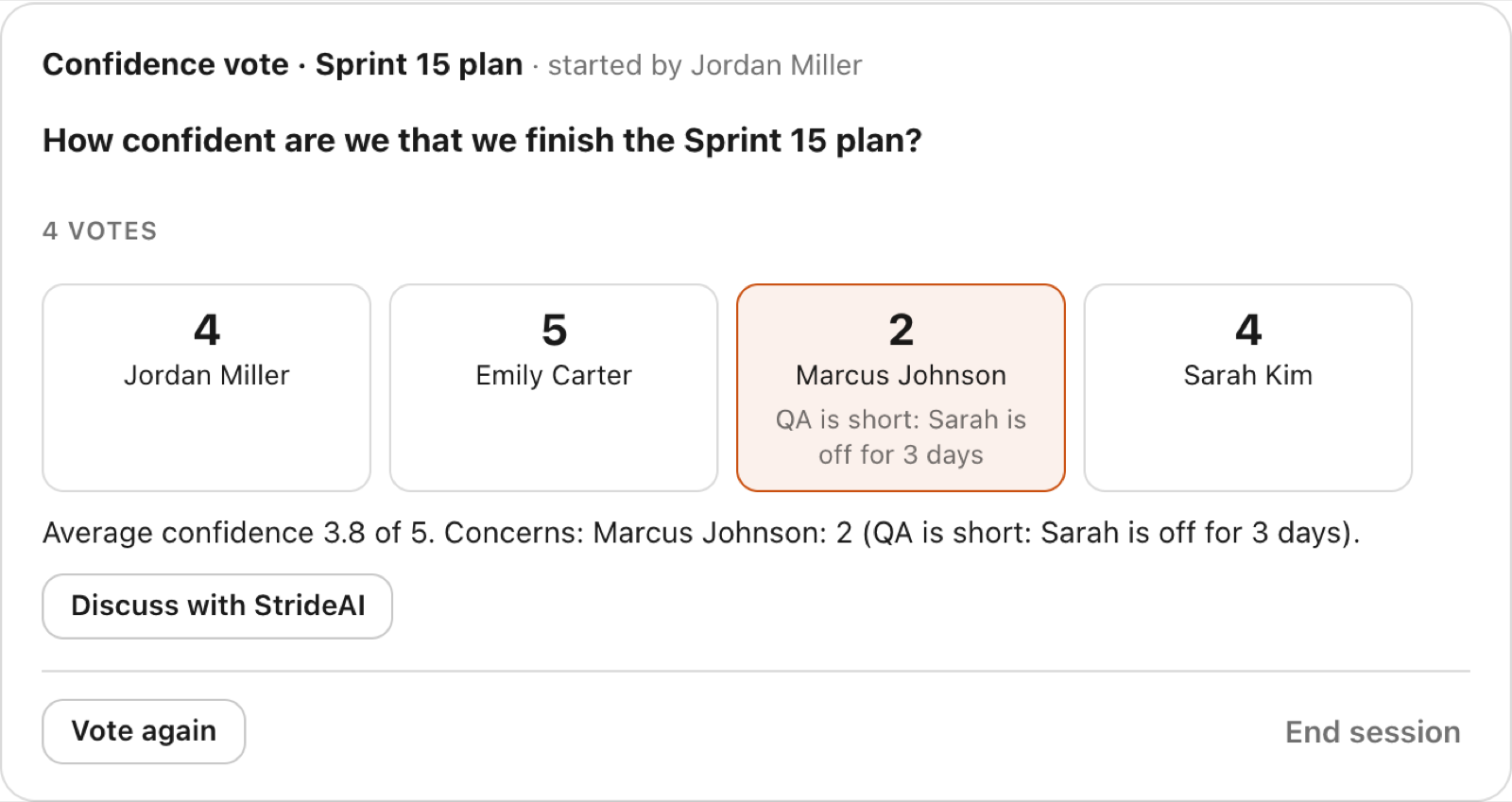
Ask "Run a fist of five on the Sprint 15 plan" for a confidence vote from 1 to 5. After the reveal you see the average and the concerns behind every 1 or 2.

A confidence vote with the average and one concern

SAFe: will we make the PI?

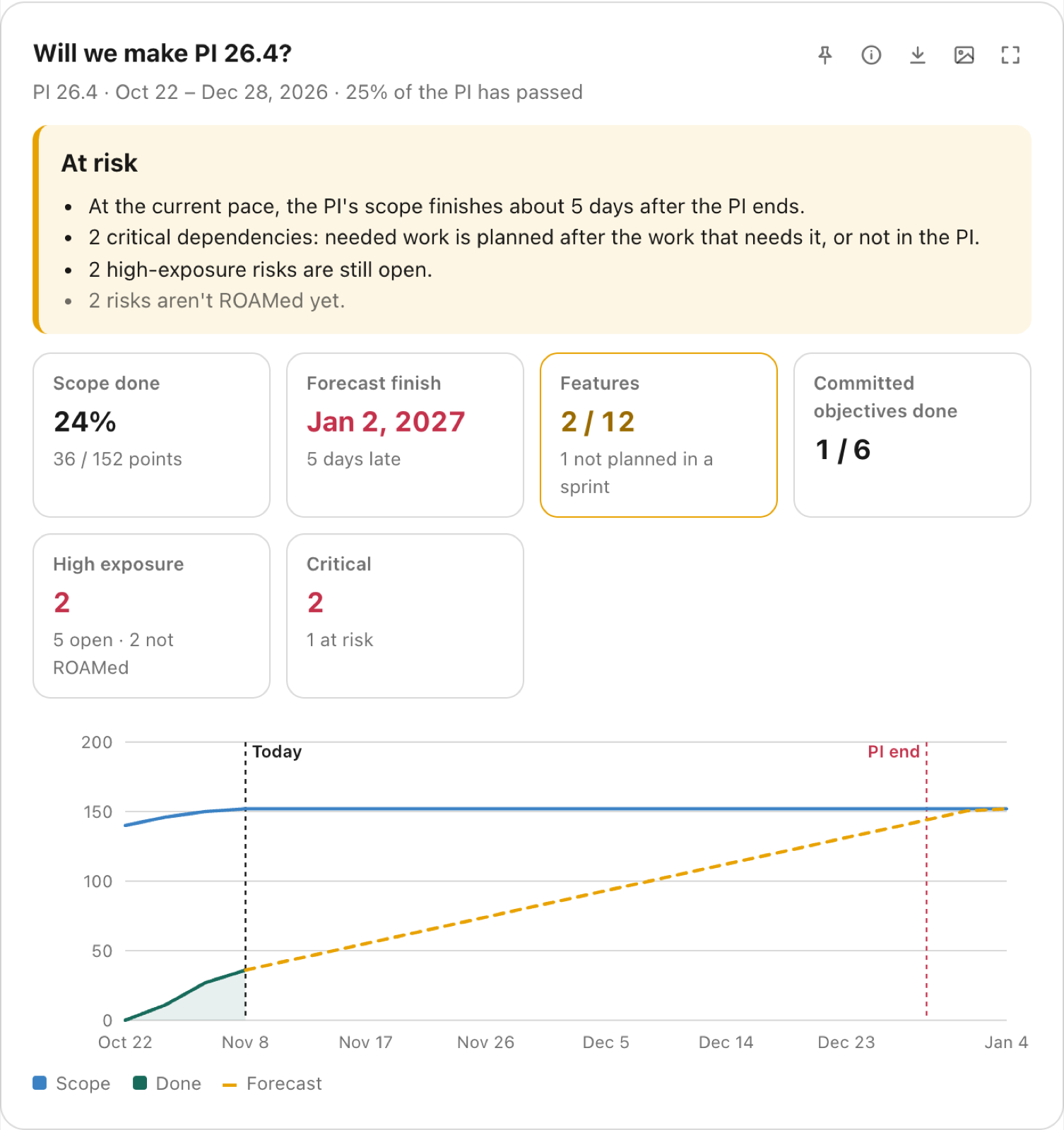
Ask "Will we make PI 26.4?". StrideAI answers On track, At risk, or Off track with the reasons: the PI's burnup and forecast against its end date, features done, committed objectives, high-exposure risks, and critical dependencies. A Planning Interval (PI) is a parent iteration with its sprints below it; the teams of the train are the teams that follow those sprints, and each team's work comes from its area paths, so there is nothing extra to set up.

Will we make the PI: at risk, with the reasons, key figures, and the burnup forecast against the PI end

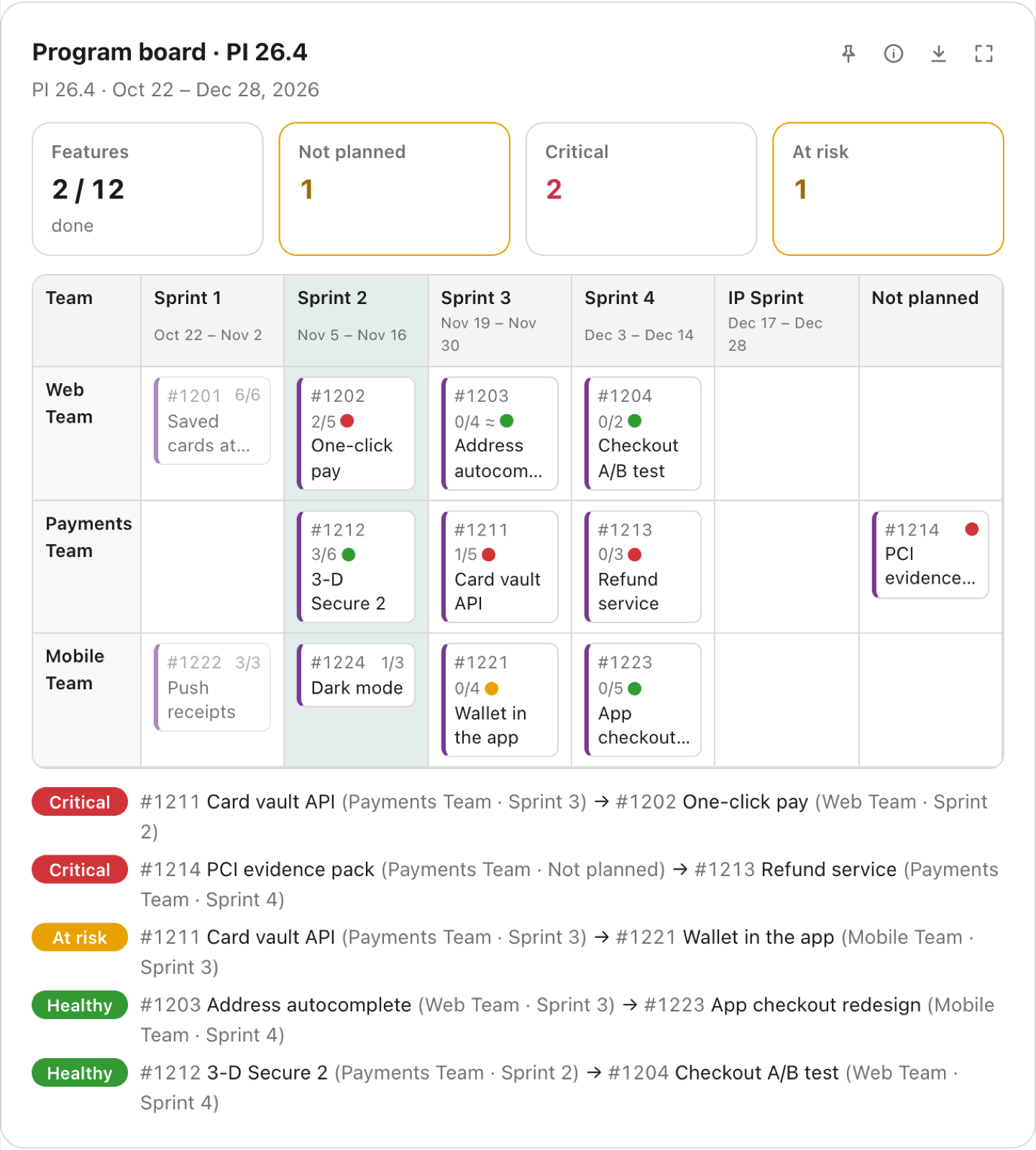
  • Program board. Each team's features by sprint, with the dependencies between them: healthy when the work that's needed comes in an earlier sprint, at risk in the same sprint, and critical when it comes later or isn't planned. Point at a feature to see what it depends on.
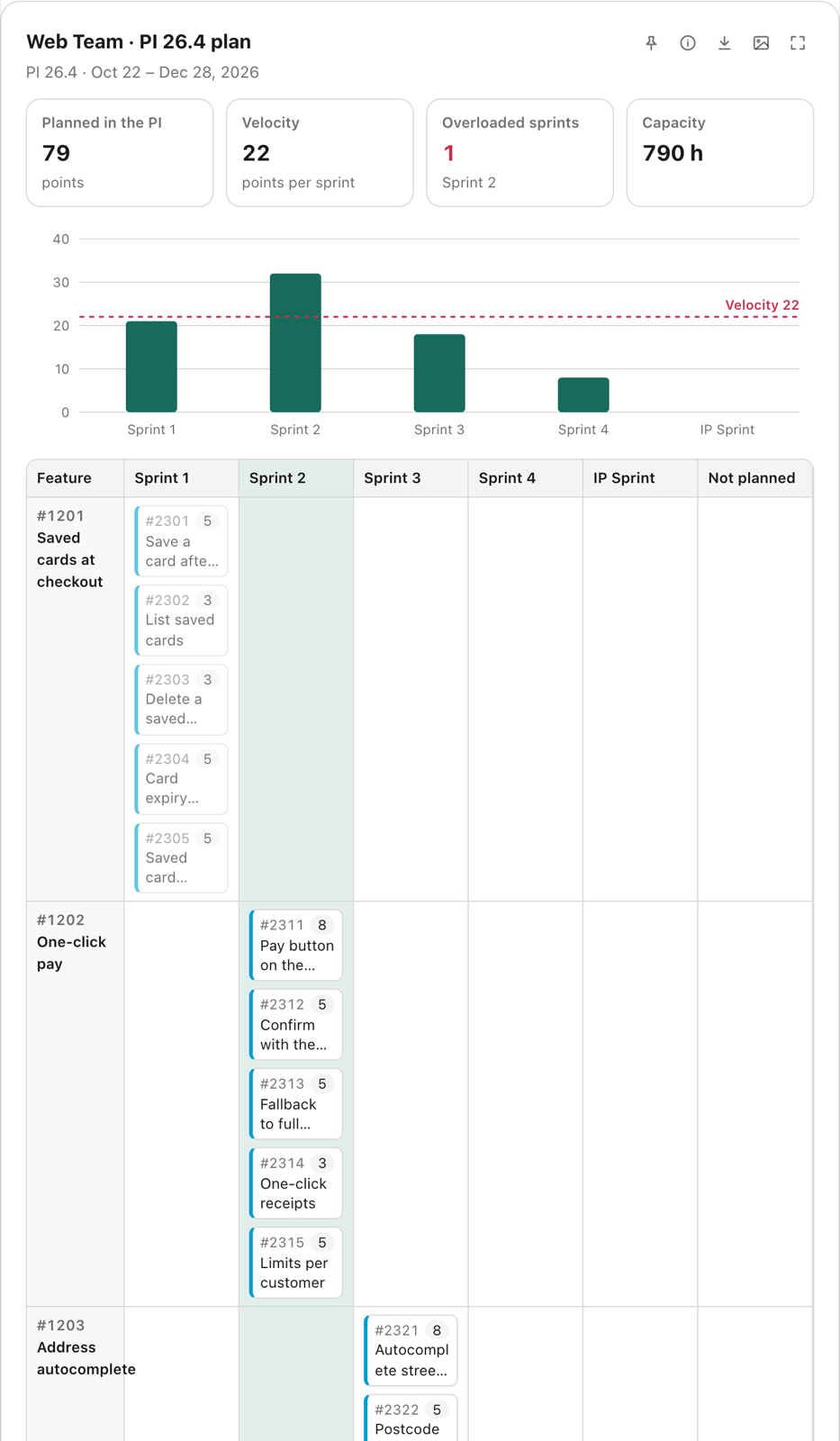
  • Team plan. A team's features and stories in each sprint, with the load against the team's recent velocity and its capacity in Azure Boards, so you see an overloaded sprint before the PI starts.
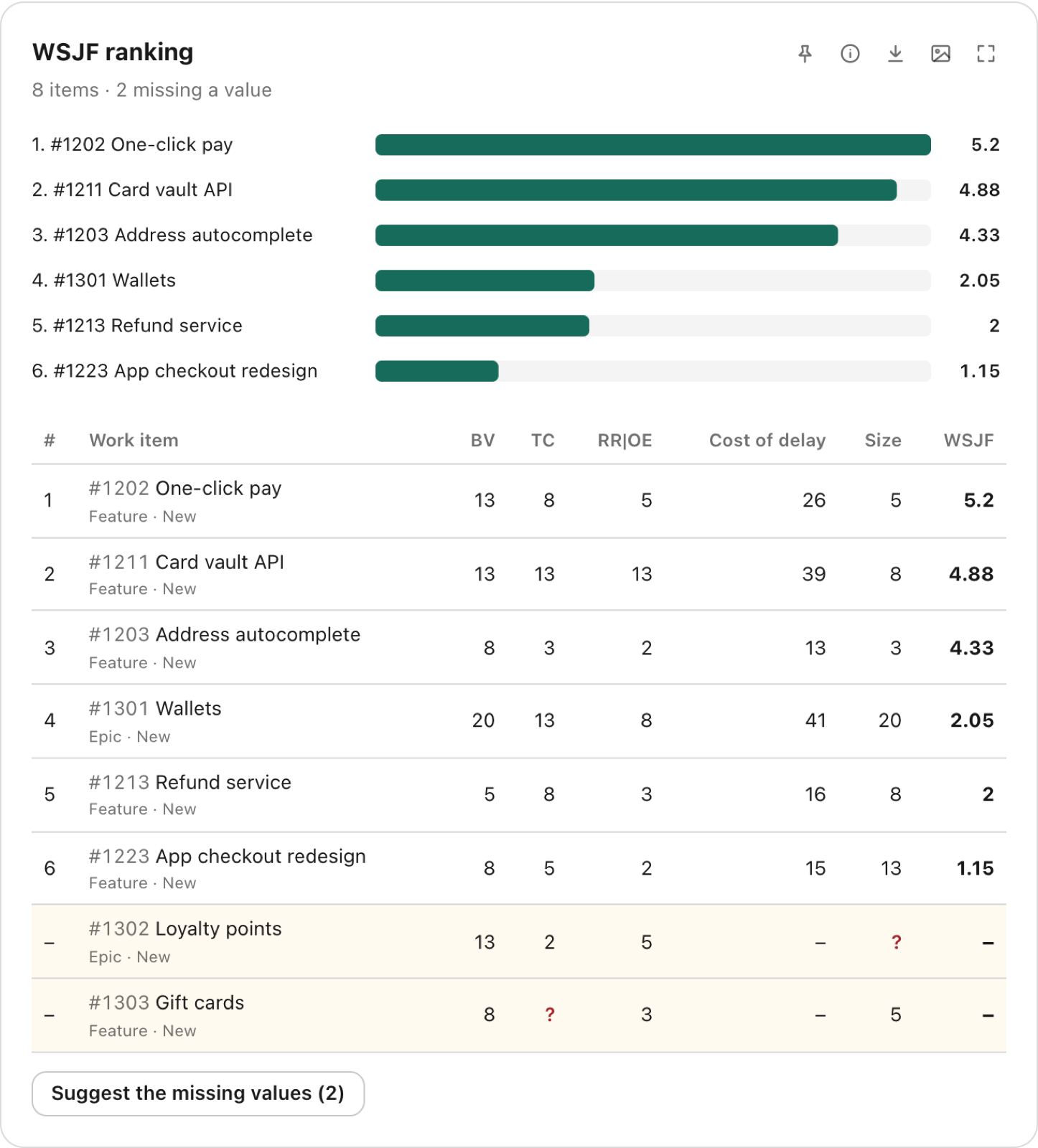
  • WSJF. Epics and features ranked by Weighted Shortest Job First from your business value, time criticality, risk reduction, and job size fields. Items that miss a value are marked; Suggest the missing values lets StrideAI propose them with reasons, and saves them after your approval.
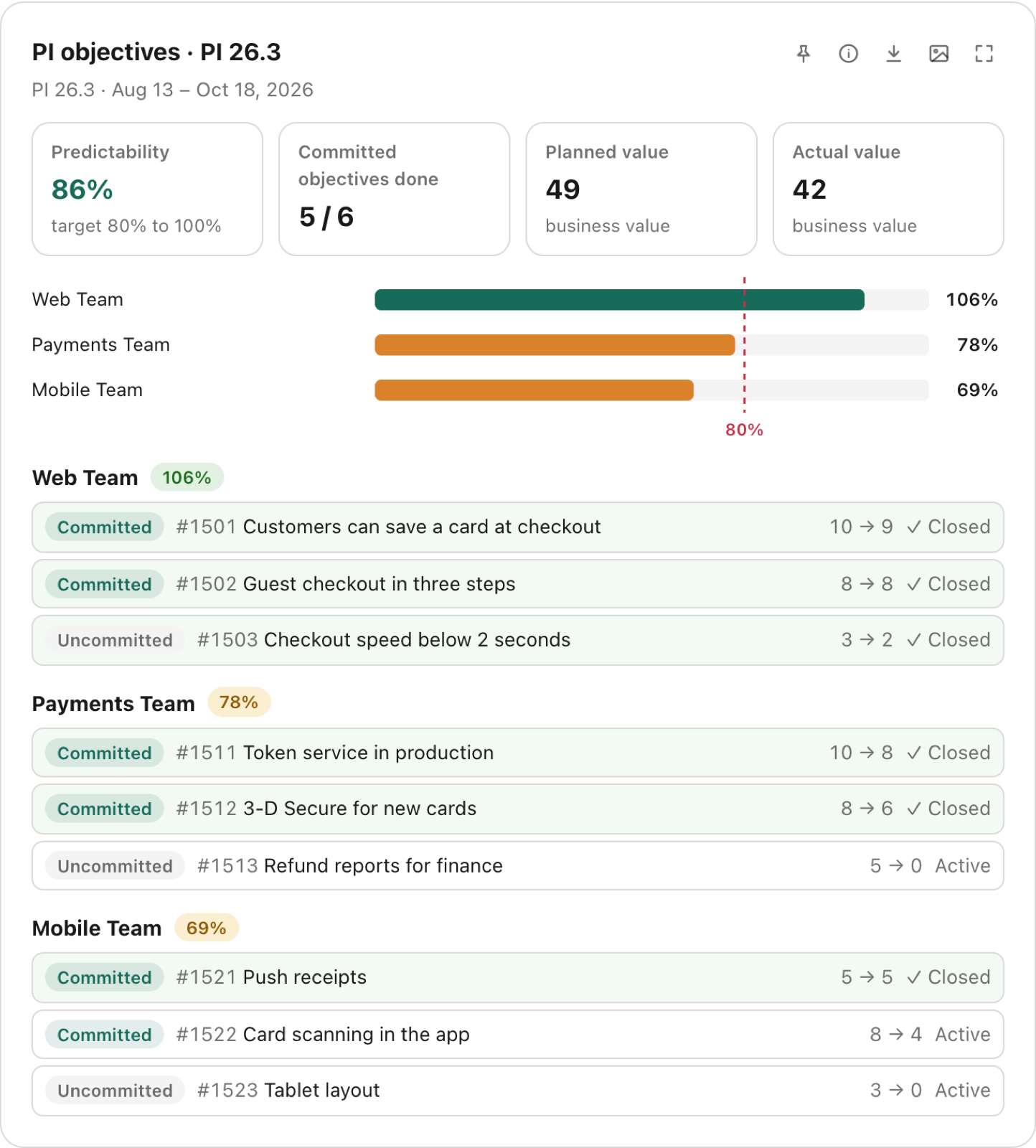
  • PI objectives and predictability. Committed and uncommitted objectives per team, planned against actual business value, and predictability for each team and the train. Objectives are work items of an Objective type, or tagged PI Objective; tag uncommitted ones Uncommitted.
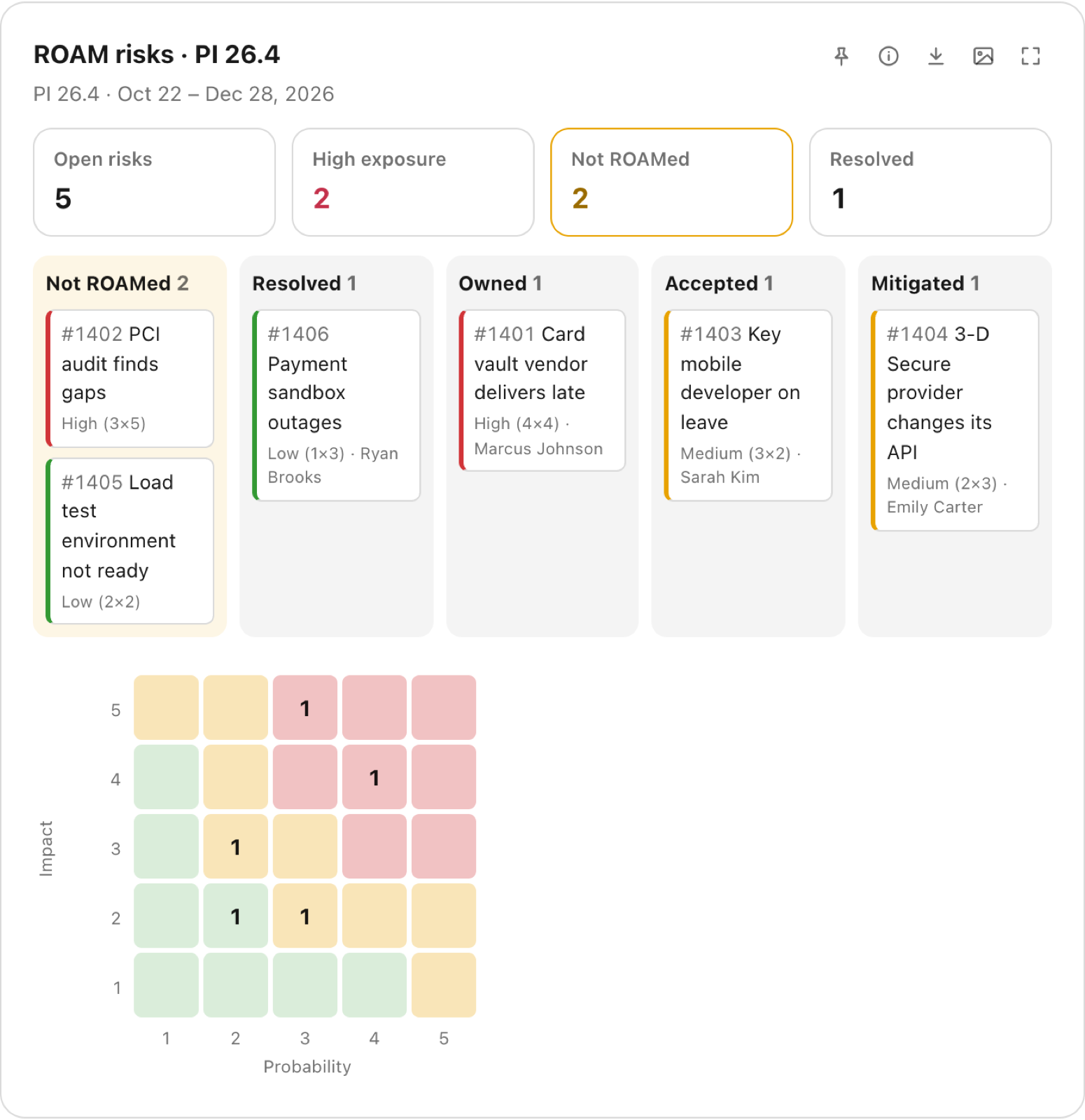
  • ROAM risks. Risks by Resolved, Owned, Accepted, and Mitigated, the ones not ROAMed yet, and an exposure matrix of probability and impact. Risks are Risk or Impediment work items, or items tagged Risk.
  • Set up a PI. Ask "Set up PI 27.1 starting January 4 with four two-week sprints and an IP sprint for all three teams"; the approval card shows every sprint's dates before anything is created.

Program board with features by team and sprint, and critical, at-risk, and healthy dependencies

A team's PI plan with stories per sprint and the load against velocity and capacity

WSJF ranking with cost of delay, job size, and two items missing a value

PI objectives with predictability per team against the 80% target

ROAM risk board with an exposure matrix

All of these can be pinned to Boards and shown on dashboards with the StrideAI Visual widget, so the train sees the latest state without asking.

Security radar

Works with or without GitHub Advanced Security: the StrideAI checks task's built-in scan finds vulnerable dependencies (npm, NuGet, PyPI, Go) through the open OSV database and exposed secrets or risky patterns in your code, and the radar shows them like any other alert.

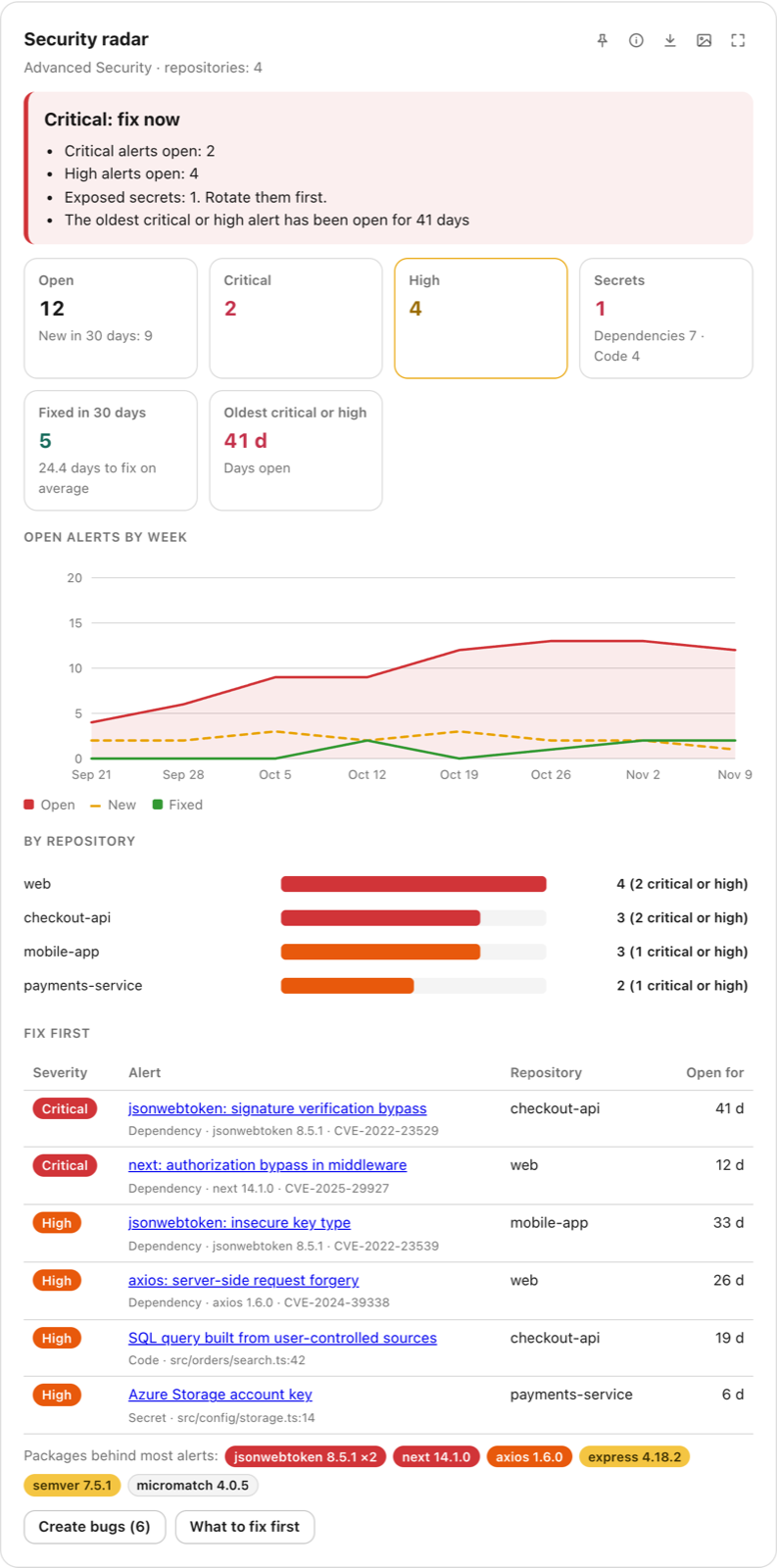
Ask "Show our security alerts: what's critical and what should we fix first?". StrideAI reads the open alerts your pipelines report across your repositories and answers All clear, Needs attention, or Critical: fix now, with the reasons. You see the open alerts by severity, exposed secrets, how many were fixed in the last 30 days and how fast, a weekly trend, the repositories with the most critical alerts, the alerts to fix first with links to each one, and the packages behind most alerts.

Security radar: critical, with open alerts by severity, a weekly trend, alerts by repository, and the alerts to fix first

The radar reads the newest pipeline run that published security results:

  • GitHub Advanced Security for Azure DevOps: add the StrideAI security and backlog checks task to a scheduled pipeline. It reads the alerts with the pipeline's own permission and publishes them for the radar, so StrideAI itself never needs access to Advanced Security.
  • Any scanner, also on Azure DevOps Server: the SARIF results your pipelines publish, for example the CodeAnalysisLogs artifact of the Microsoft Security DevOps task, CodeQL, or any scanner that writes SARIF.

Without either, the radar says what to add instead of failing. The radar can be pinned to a board and shown on a dashboard.

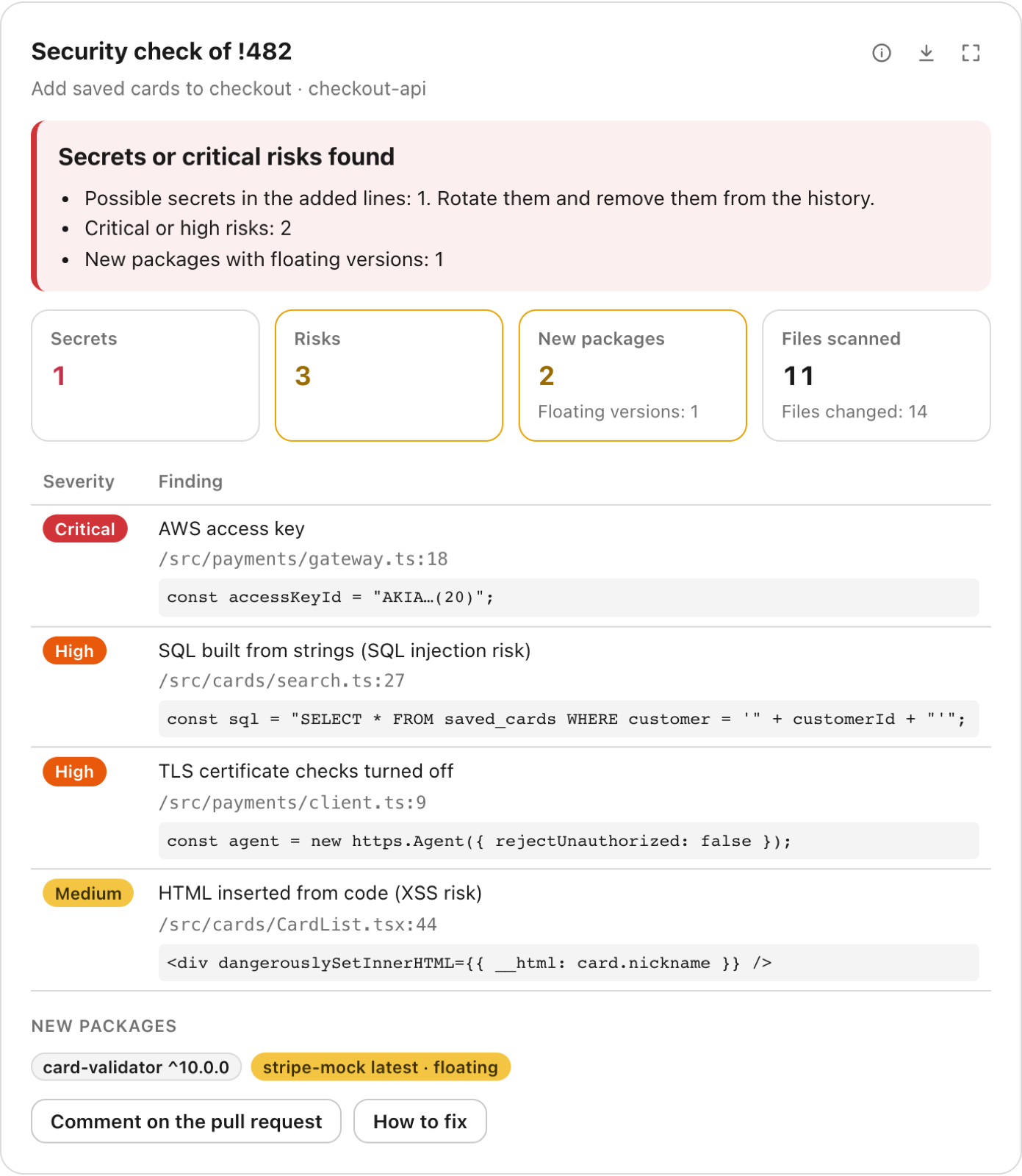
  • Security check of a pull request. Select Security check on a pull request's StrideAI tab. StrideAI checks only the lines the pull request adds for exposed secrets (keys, tokens, passwords, private keys), risky code (SQL built from strings, eval, HTML from code, shell commands, TLS checks turned off, weak hashes, open CORS, plain HTTP), and new packages with floating versions. It uses fixed rules, not a model, so it's fast and free, and secrets are masked everywhere, including what the model sees.
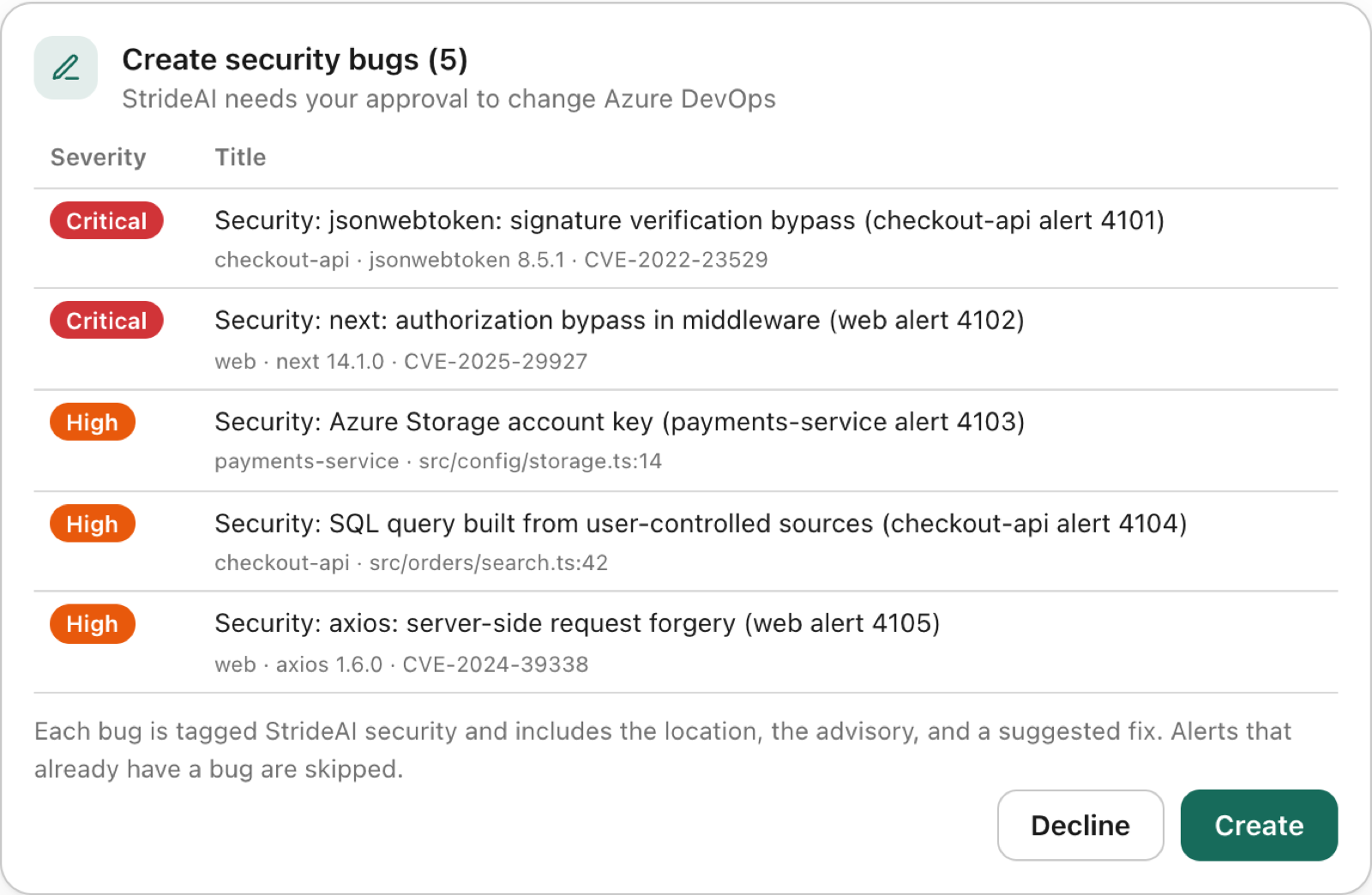
  • Bugs for the alerts that matter. Select Create bugs and approve: one bug per alert with the severity, location, advisory, and a suggested fix, tagged StrideAI security. Alerts that already have a bug are skipped, so you can run it every sprint.

Security check of a pull request with a masked AWS key, risky code, and a new package with a floating version

Creating bugs for the critical and high alerts, waiting for approval

Automate it in your pipelines

StrideAI adds five tasks to Azure Pipelines. They run on your agents with the pipeline's own identity and, when you want AI, with your own model.

  • StrideAI pull request review. Add it to the pipeline your branch policy runs for pull requests. It checks the lines each pull request adds for exposed secrets, risky code, and floating package versions, reviews the change with your model, and comments on the pull request: one summary, and one comment per finding on the line it's about. Each finding is commented once, however often the pipeline runs, and possible secrets can fail the check.
  • StrideAI release notes. Lists the features, improvements, and fixes, pull requests, and commits since the last successful run, with highlights for business readers from your model, as a Markdown file, on the run's summary page, and in the wiki.
  • StrideAI Watch. Run it on a schedule and it looks for what changed for the worse: pipelines that suddenly fail or slow down compared with the two weeks before, a spike of new bugs, and one person changing or closing an unusual number of work items, which is often a script or a bulk edit that went too far. It only reads, and everyone in the project finds the findings as a new StrideAI Watch chat, where they can ask StrideAI to dig in. Give the task a model (optional) and every finding arrives with a proposed next step: the likely cause and what to open or whom to ask.
  • StrideAI test steward. Run it on a schedule or after each release build and it keeps one test plan for the project, organised the way a business signs off: a suite per layer (E2E business logic for business and QA, API and integration for developers, regression; or your own layers) and, under each, a suite per feature. For every story delivered since the last run it reads the acceptance criteria, writes the missing test cases for each layer with your model, links them to the story, files them in the right suite, and tags them needs-review. The report shows coverage by layer and a sign-off table per feature, and lists the questions for the product owner where criteria are missing, so nothing in scope is forgotten and fewer bugs reach a release. Without a model it still keeps the structure and the coverage report. Set qualityReports: true to also publish a read-only quality report (JSON and Markdown) with QualityGate, NeedsReview, and FlakyCandidates outputs, or qualityOnly: true for a step that writes nothing at all; missing, stale, or incomplete evidence can never pass the gate.
  • StrideAI security and backlog checks. Run it on a schedule for a report of open security alerts and of backlog items without acceptance criteria or estimates, without an owner, or stuck. No security licence needed: the built-in scan reads your repositories with the pipeline's identity, checks dependencies against the open OSV vulnerability database (only package names and versions leave Azure DevOps), and scans source files for exposed secrets and risky patterns. It also reads GitHub Advanced Security alerts where you have them and the SARIF files your own scanners write. It can fail the run when critical alerts are open, and it publishes the alerts for the security radar in the chat.
# Pull request validation
- task: StrideAIReview@0
  inputs:
    provider: azure
    endpoint: https://contoso.openai.azure.com
    model: gpt-4.1
    apiKey: $(StrideAIKey)   # a secret variable
    failOn: secrets

# After a release build
- task: StrideAIReleaseNotes@0
  inputs:
    wikiPath: Release notes/$(Build.BuildNumber)

# Every morning
- task: StrideAIWatch@0
  inputs:
    windowHours: 24
    ignorePeople: Project Collection Build Service

# After each release build
- task: StrideAITestPlan@0
  inputs:
    planName: Shop Test Pool
    layers: E2E Business Logic | API and Integration | Regression
    wikiPath: QA/Test pool
    provider: azure
    endpoint: https://contoso.openai.azure.com
    model: gpt-4.1
    apiKey: $(StrideAIKey)

# On a schedule
- task: StrideAIChecks@0
  inputs:
    team: Web Team
    failOn: critical
    wikiPath: StrideAI/Checks/Latest

The model is optional for every task: without one, the review uses its fixed rules and the release notes and reports are written without AI. Secrets found in a pull request are masked before anything is sent to the model or posted. A ready-made pipeline that runs all four tasks against a project, for a demo or a smoke test after installing, is in the repository as azure-pipelines-strideai-demo.yml. Create the project wiki once and reference it in the pipeline's resources.repositories (the demo YAML shows how): with "Protect access to repositories in YAML pipelines" on, the job's token reaches only the repositories the YAML names, and the wiki is one. If the agent reaches the internet through a proxy that re-signs TLS, configure the agent with --sslcacert so the OSV check is trusted.

Log a bug from a screenshot

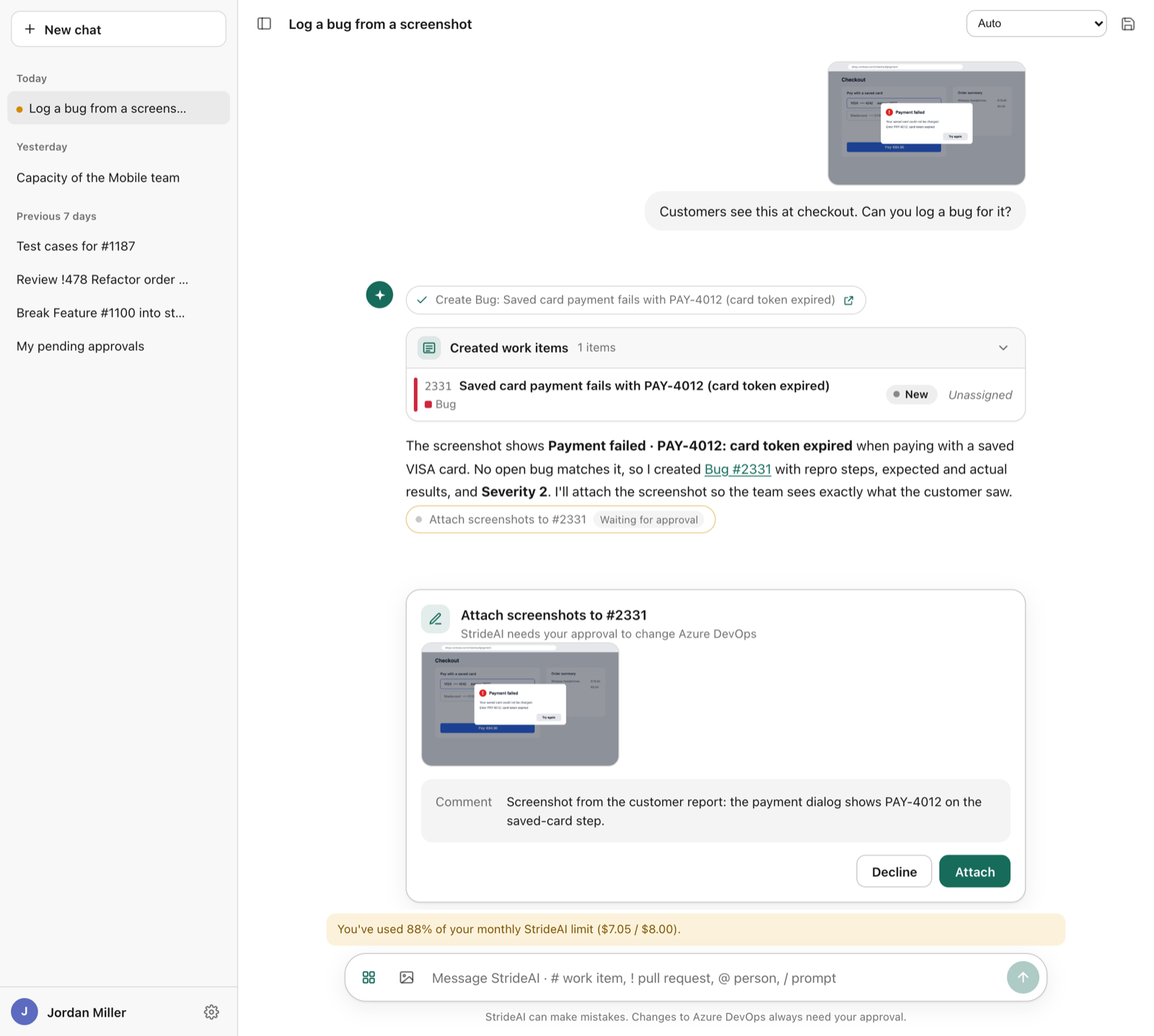
Paste a screenshot of the problem and ask "Log a bug for this". StrideAI reads the error on the screen, checks for duplicates, writes the bug with repro steps, and, after your approval, attaches the screenshot to it.

A pasted screenshot turned into a bug, with the screenshot waiting to be attached

Explore what it can do, and click to continue

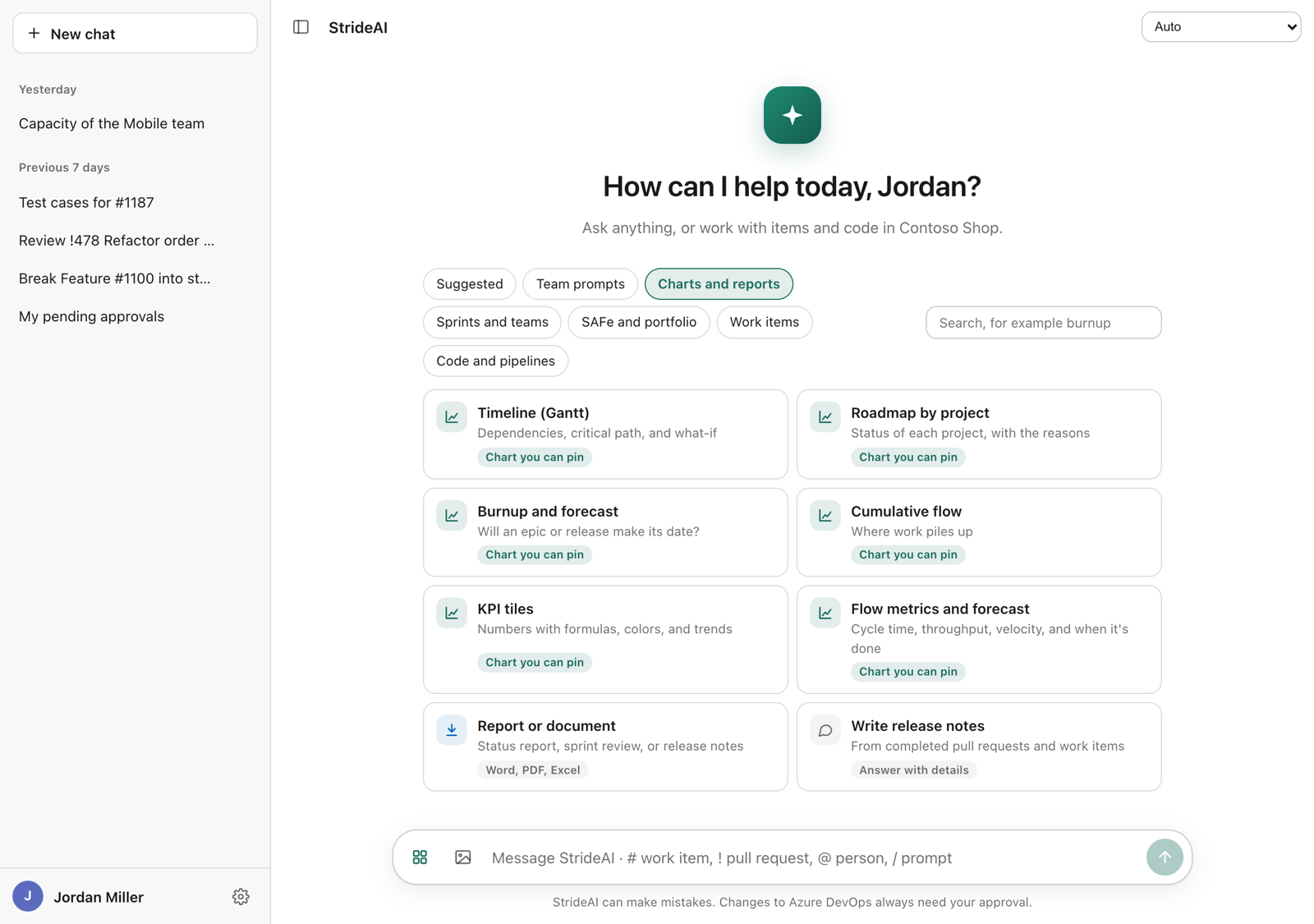
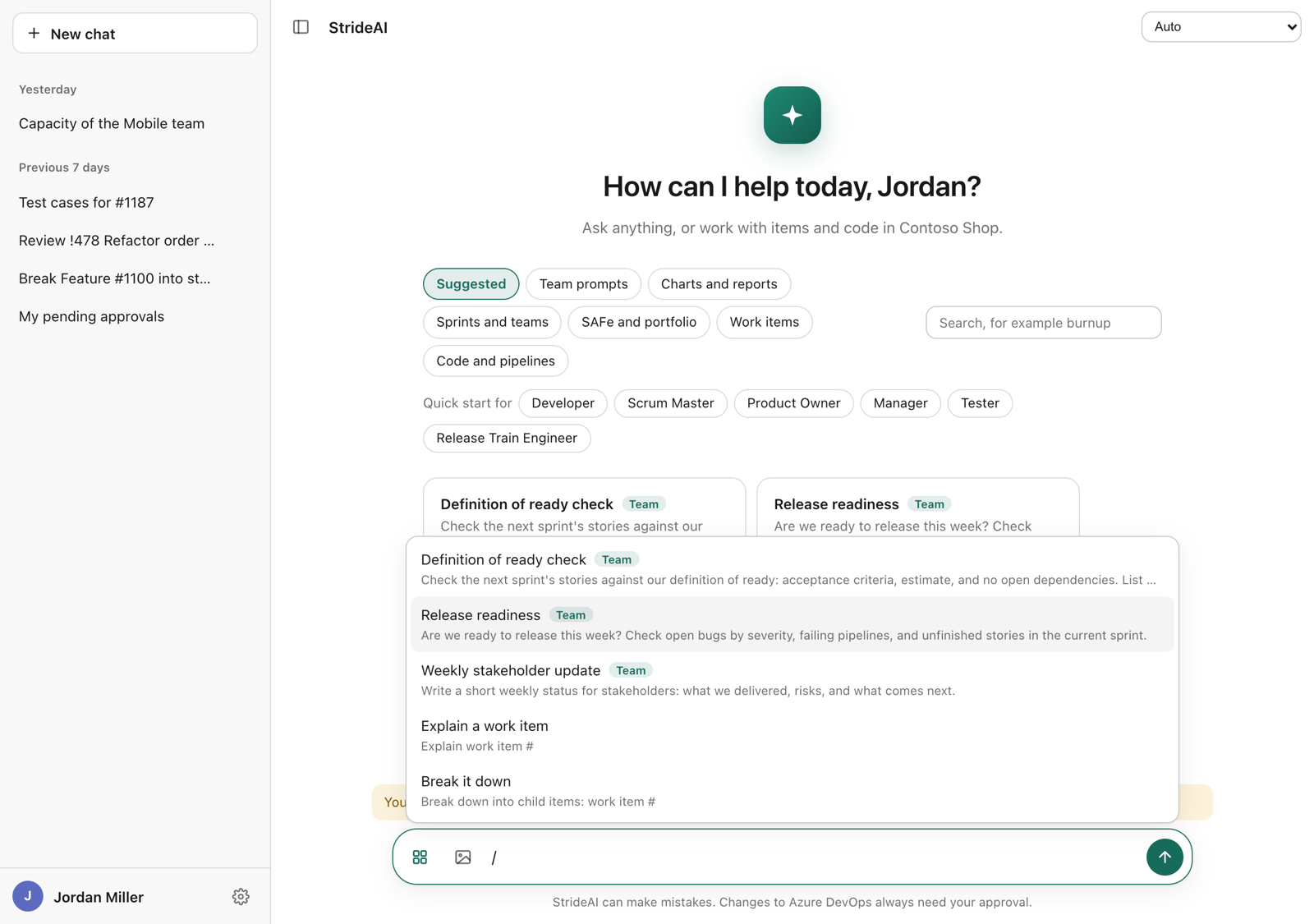
A new chat shows Suggested prompts and everything StrideAI can do, grouped into Charts and reports, Sprints and teams, SAFe and portfolio, Work items, and Code and pipelines. Each one says what you get back: a chart or board you can pin, a document for Word, PDF, and Excel, a session live with your team such as planning poker, changes after you approve, or an answer with details. Search for a word such as burnup, or select the grid button next to the message box to open the same list in any chat. Prompts you need to finish, such as with a work item number or a date, go to the message box; the rest are asked right away.

Everything StrideAI can do, grouped, with what each one gives back

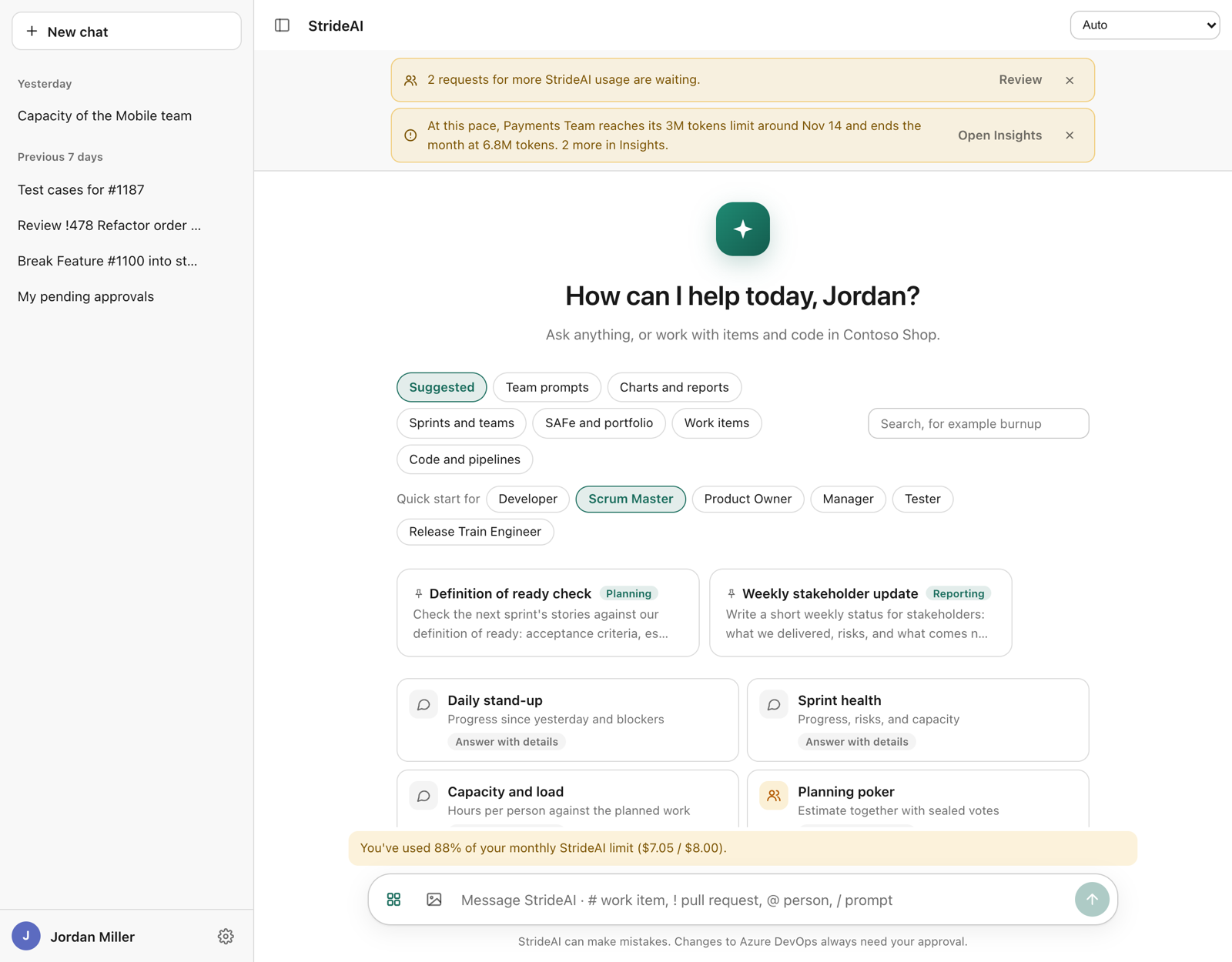
Pick your role, Developer, Scrum Master, Product Owner, Manager, Tester, or Release Train Engineer, to see the six things people in that role ask most, with your team's pinned prompts first. StrideAI remembers your role; select it again to go back to the suggestions.

Quick starts for a Scrum Master with the team's pinned prompts, and what a StrideAI manager should know above the chat

When StrideAI offers options, such as "Want me to list the 7 P1 bugs?", they appear as buttons under the answer, so you continue with one click. After a chart or board, useful next questions appear the same way, such as what is late on a timeline or the risks of a PI.

Want a different answer? Point at it and select Answer again. To change your last question, point at it, select the pencil, edit it, and send; the new answer replaces the old one.

KPI tiles with the options to continue as buttons under the answer

Team prompt library and quick references

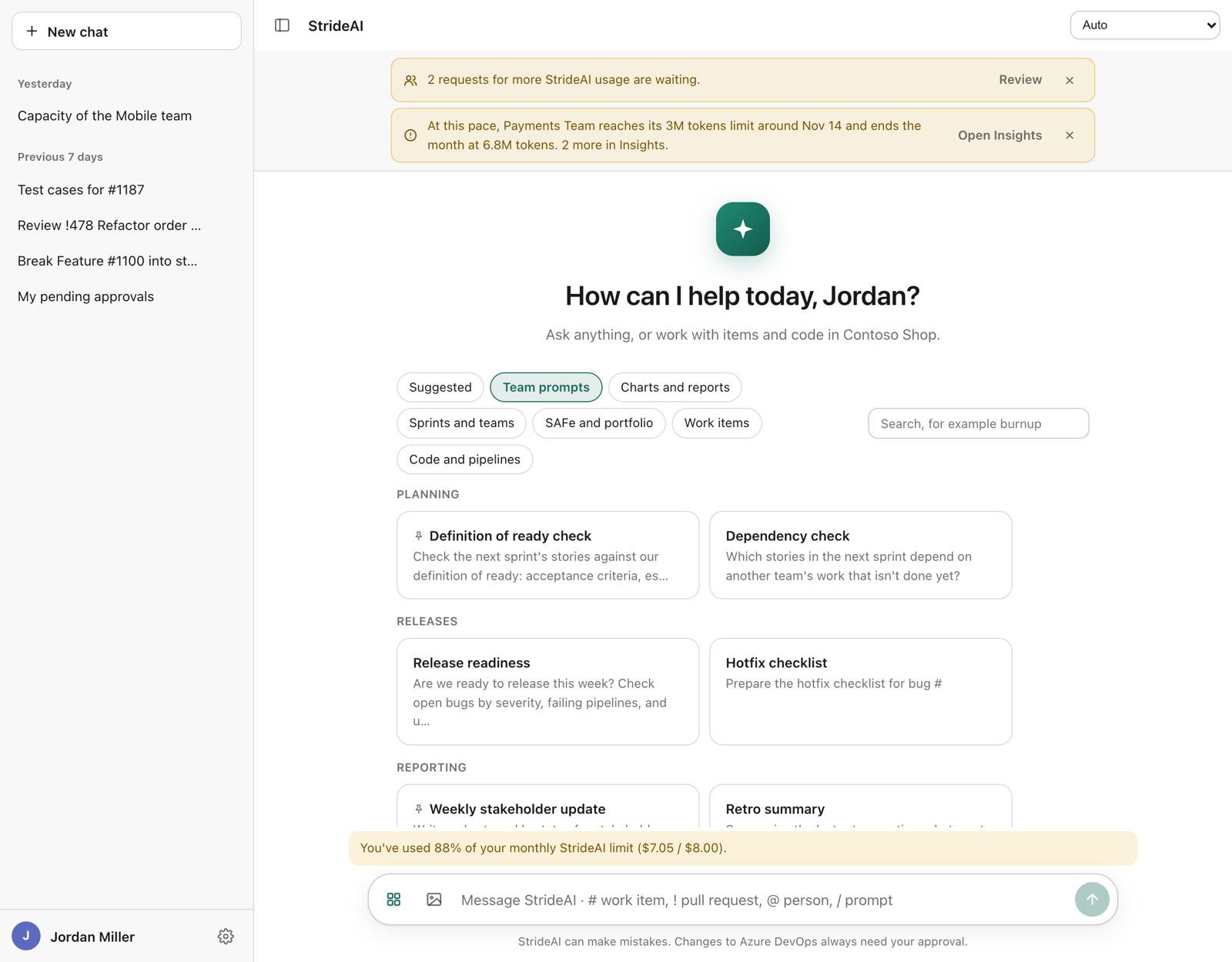
Your StrideAI managers can add ready-made prompts, such as a definition of ready check or a weekly stakeholder update, group them in categories such as Planning or Releases, and pin the most important ones to the top. Everyone sees the pinned prompts first in a new chat and the whole library under Team prompts, and typing / opens them in the message box with their category, together with everything from Explore. Settings shows how often each prompt was used this month and by how many people. Type #, !, or @ to pick a work item, pull request, or person without leaving the chat.

The team prompt library by category, with pinned prompts

Team prompts in a new chat and in the / picker

Teammates your team defines

Three places, in the order that wins on duplicates: the Settings library (administrators), the project wiki under /StrideAI/Teammates and /StrideAI/Playbooks (anyone with wiki access, including from the Team page), and .strideai folders in the code repositories you choose (for teams that keep their agreements in Git). The repositories are the project's code repositories, not where the extension is installed.

Give StrideAI a role written by your own team. A teammate has a name, a description, the instructions it follows, and optionally the tools it may use (read-only for a reviewer that never changes anything) and the skills it always has. A playbook is a how-to StrideAI loads when a question needs it, for example whenever someone writes "split". Both are short Markdown files with a front matter block.

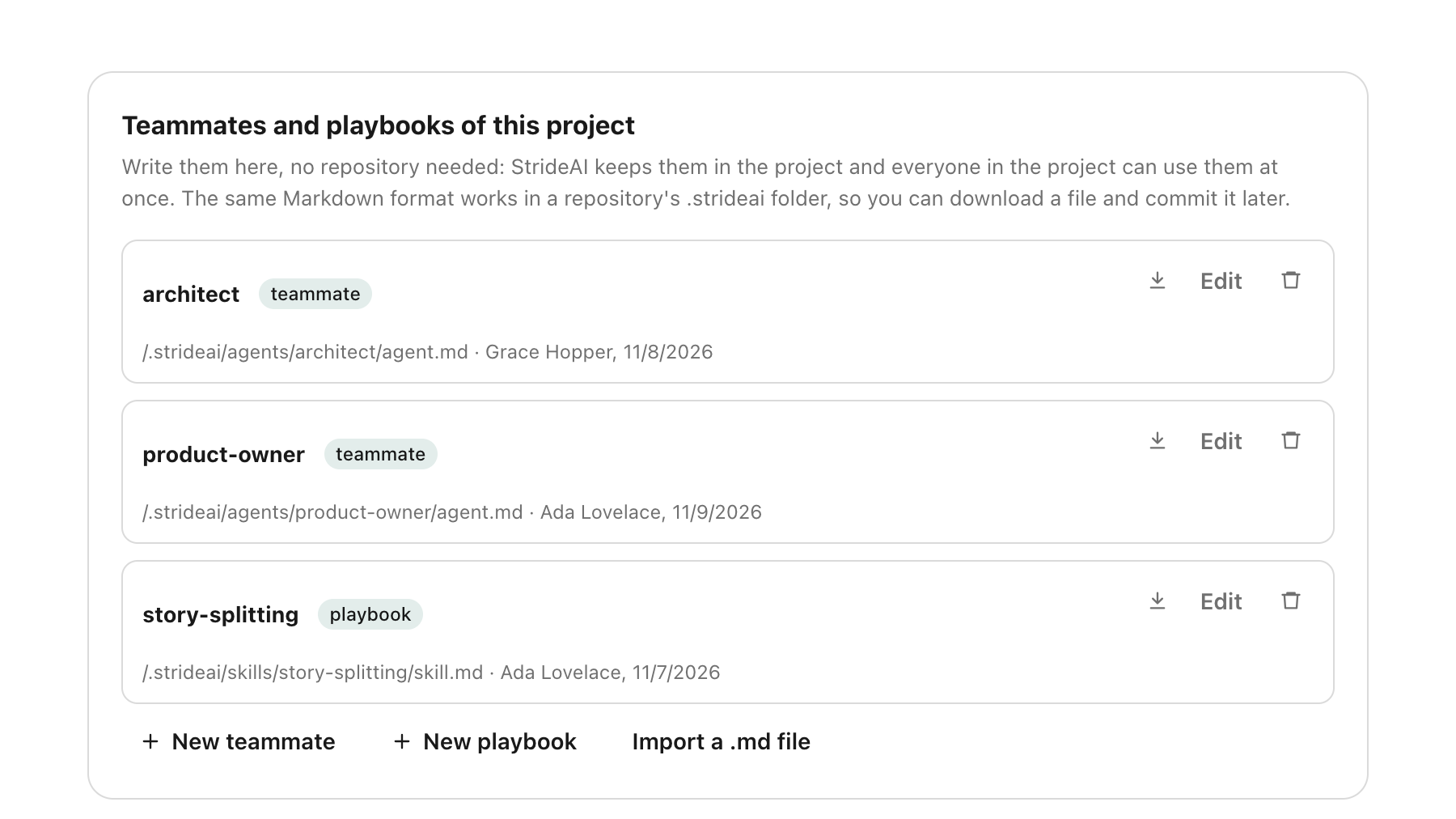
Write them in Settings → Teammates: a project administrator adds a teammate or playbook, sees the same checks the chat applies while typing (unknown tool names, missing instructions), saves, and everyone in the project can use it right away. No repository needed, and it works the same in Azure DevOps Services and on Azure DevOps Server. Teams that prefer Git keep the files in a repository's .strideai folder instead, reviewed in pull requests; StrideAI reads both, and a file written in Settings can be downloaded and committed later. A starter pack with five teammates and three playbooks is included.

Teammates and playbooks written in Settings, with download, edit, and import

Pick a teammate on the chips above the message box; the chat remembers it and each answer shows who answered. A teammate can also take on StrideAI Watch findings: give it on: [pipelineFailures] and new Watch chats about failing pipelines start with that teammate. StrideAI's own rules stay in place: approvals, Safety settings, and secret redaction apply to every teammate, and a teammate can only narrow the tools, never widen them.

Chips above the message box: StrideAI, Product Owner, Architect (2 tools), QA Lead, Release Manager

The Team page: your AI teammates in one place

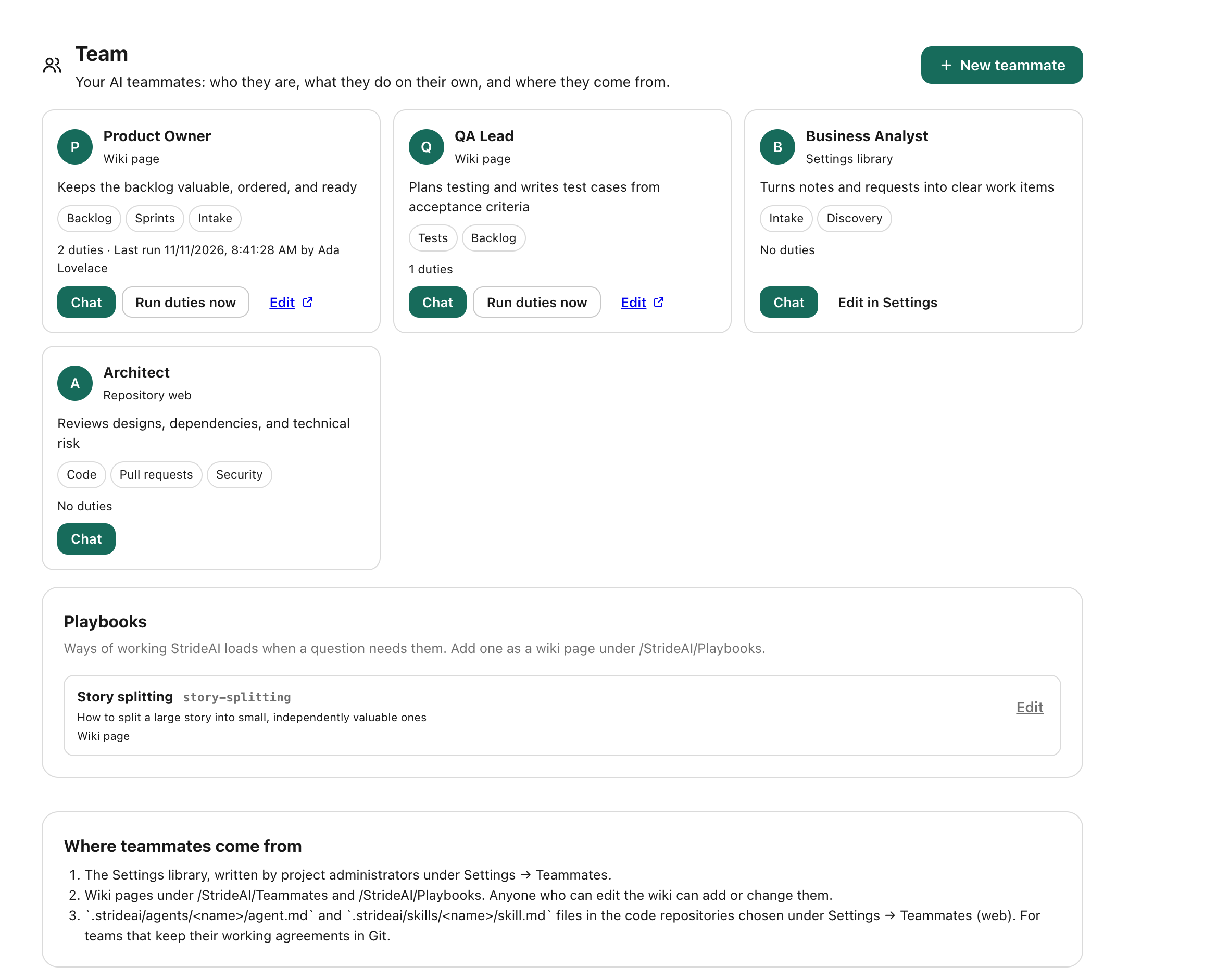
The Team tab in the StrideAI hub shows every teammate as a card: who it is, which areas it has, what it does on its own, and where it comes from. Chat starts a conversation with it, Run duties now runs its jobs, Edit opens its page. New teammate creates one from a role (Product Owner, Scrum Master, QA Lead, Business Analyst, Release Manager, or blank) and saves it as a page in the project wiki, so anyone who can edit the wiki can add or change teammates; no repository, no administrator. Teams that keep their working agreements in Git still can: .strideai folders in the code repositories you choose are read too.

Team page: cards for Product Owner, QA Lead, Business Analyst, and Architect with source, skills, duties, Chat, Run duties now, and Edit; a Playbooks list; and where teammates come from

Teammates that do jobs for you

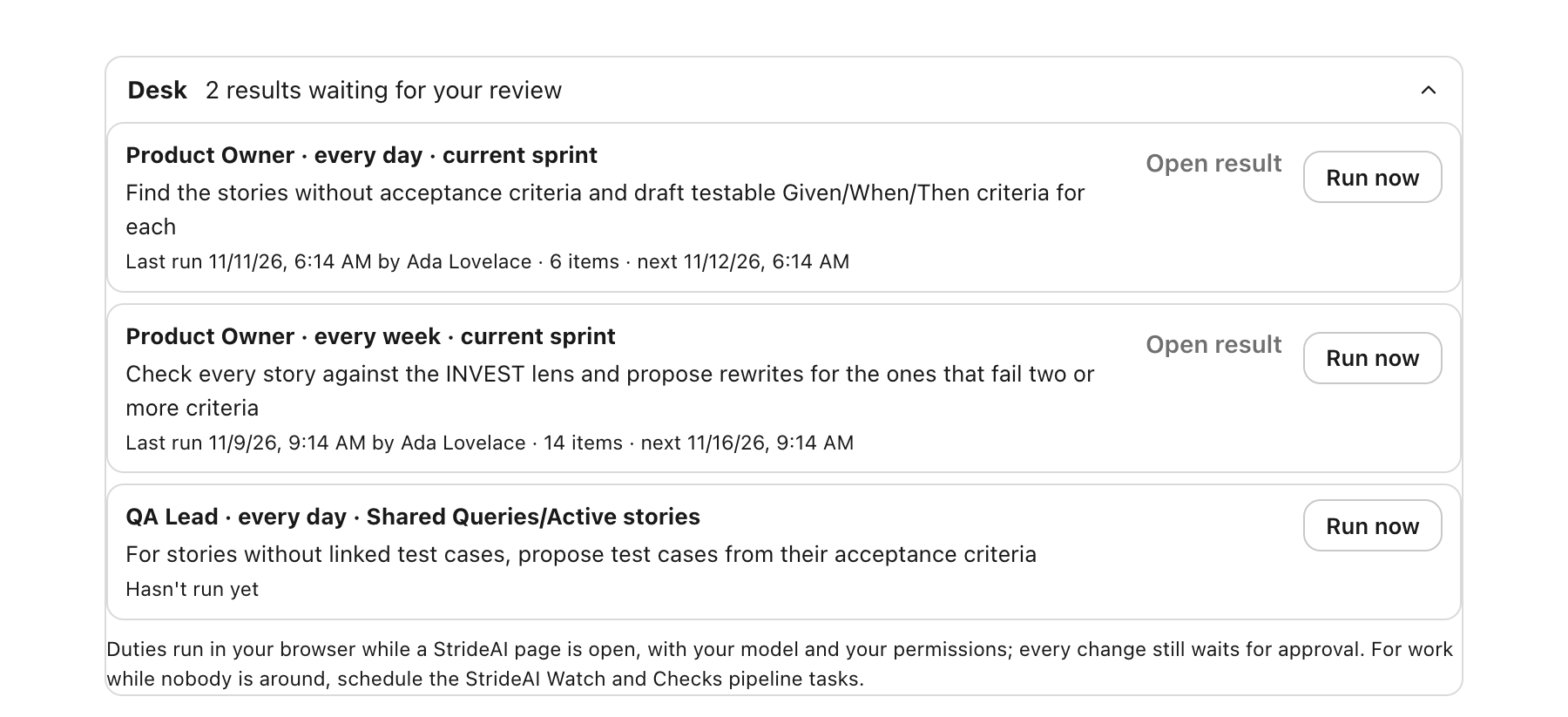
Give a teammate duties and it works while you do something else: every day, in the current sprint, find the stories without acceptance criteria and draft them; every week, check every story against INVEST and propose rewrites; every day, propose test cases for stories without any. The Desk panel in the hub shows each duty, when it last ran, what it found, and Run now. Results arrive as chats with changes waiting for your approval; nothing is applied on its own. Duties run in the browser of whoever has StrideAI open, with that person's model and permissions.

Desk panel: three duties of the Product Owner and QA Lead teammates with schedule, scope, last run, Open result, and Run now

Share a chat with your team

Select the people button in the chat header and choose who to share the chat with. They see the whole chat, including the answers and what StrideAI found with your access, and can ask their own questions in it, with their own model and limits. Each question shows who asked it, and new questions appear for everyone within a few seconds. People who are added see a notice the next time they open StrideAI.

Everything in a shared chat, including its title, is encrypted in your browser before it is saved in Azure DevOps, so only the people in the chat can read it, not project administrators or StrideAI. There is no server: the chat is kept in the project's extension data and each browser keeps it in sync.

The person who shared the chat can add people, or select End sharing to end it for everyone: the shared messages are deleted, and members keep a copy they can read but not continue. Members can select Leave at any time. Questions in a shared chat can't be edited or answered again. You can share with up to 24 people who have opened StrideAI in the project at least once, because that creates their keys.


Everything it can do

Area Ask it to
Work items Explain an item, find items, create items and whole hierarchies (Feature > Stories > Tasks), write acceptance criteria and test cases with steps linked to their item, rewrite, convert, or translate an item with the differences marked side by side, update fields including your custom fields, add comments, update up to 200 items at once, show an item's history, find duplicates, and log bugs from screenshots, with one-click actions on every work item
Backlog and planning Turn notes, documents, and wiki pages into a reviewed hierarchy of work items (Intake), apply one instruction to many items as a reviewed dry run (Bulk Run), explore what is known, assumed, and open about a topic (Discovery), see what a change touches and the risks that follow (Change impact), answer from the team's own wiki pages and repository documents with quotes and links (Knowledge), draw flowcharts, sequence, state, ER, and Gantt diagrams from items and save them to the wiki, sketch low-fidelity wireframes of screens and attach them to items, check backlog quality, grade items through quality lenses with evidence (Backlog health), run planning poker with sealed votes and confidence votes, find risky dependencies across teams, measure cycle time, lead time, throughput, and velocity with charts, forecast when work will be done, show burnups with a forecast and cumulative flow, draw timelines and roadmaps by project with the critical path, see what happens if an item slips, and change dates by dragging, with your approval
SAFe Check whether a PI is on track, show the program board with dependency health, a team's PI load against velocity and capacity, WSJF rankings, PI objectives with predictability, and ROAM risks with an exposure matrix, and set up a PI with its sprints, with your approval
Queries and reports Run WIQL or saved queries, build reports with totals and insights, show KPIs as tiles with formulas across queries, color rules, and trends, and save queries for the team
Sprints and teams Prepare stand-ups, check sprint health, show capacity and days off, move unfinished work to the next sprint, and create sprints
Code Search and read code, show commit history, compare branches, plan an implementation, generate test scripts, code, or pseudocode as files you can copy, download, or commit, and with your approval create a branch, commit the changes, and open a linked pull request
Pull requests List and review pull requests, see each one's risk level and the reasons, check the added lines for secrets, risky code, and new packages, post inline comments, and vote
Security See open vulnerabilities, exposed secrets, and code scanning alerts from GitHub Advanced Security for Azure DevOps (through the StrideAI checks task) or your pipelines' SARIF results, with a verdict, a weekly trend, what to fix first, and the packages behind most alerts, and file bugs for the alerts that matter, with your approval
Pipelines and releases Explain failures, explain and fix YAML pipelines, show success rates and flaky tests, run, cancel, or retry pipelines and stages, and approve or reject YAML and classic release approvals; add StrideAI tasks for automatic pull request reviews, release notes, and scheduled security and backlog checks
Wiki and release notes Answer from your wiki, write release notes from pull requests and work items, and save pages to the wiki
Test plans Show test progress and pass rates, create plans and suites, add test cases, record manual results, and read automated test results
Models Use Azure OpenAI, Microsoft Foundry, OpenAI, Claude, and OpenAI-compatible models side by side, route each question to a Fast or Advanced model automatically, or pick a model yourself; fall back to another approved model automatically, and track usage and cost with monthly limits per person and per team
Governance Let people ask for more when they reach a limit and approve it for this month only, warn StrideAI managers before a team or the project goes over budget, keep an activity log of every approved change with CSV export, and let a StrideAI managers group run StrideAI without Project Administrator rights
Insights See spend over time with a forecast, budget alerts, and your budget, teams against their limits, top users, adoption, the changes StrideAI made and the hours they saved, the model mix, and when people use it; download any chart as CSV or an image, and publish a monthly report to the wiki
Boards and dashboards Pin charts to shared boards that stay up to date, and add the StrideAI Visual, AI budget, Sprint health, and StrideAI impact widgets to dashboards
Reports and documents Write status reports, sprint reviews, retrospective summaries, release notes, requirements, traceability, and test reports with live tables and charts; download Word (also in your own template), PDF, or Excel, or save to the wiki
Chat Explore everything it can do with what each one gives back, start from quick starts for your role, continue with one click on the options and next steps under an answer, get another answer, edit your last question, paste screenshots, pick items with #, !, and @, use the team prompt library with /, share a chat with your team with end-to-end encryption, and save a chat as a work item comment or wiki page

A model on your own machine

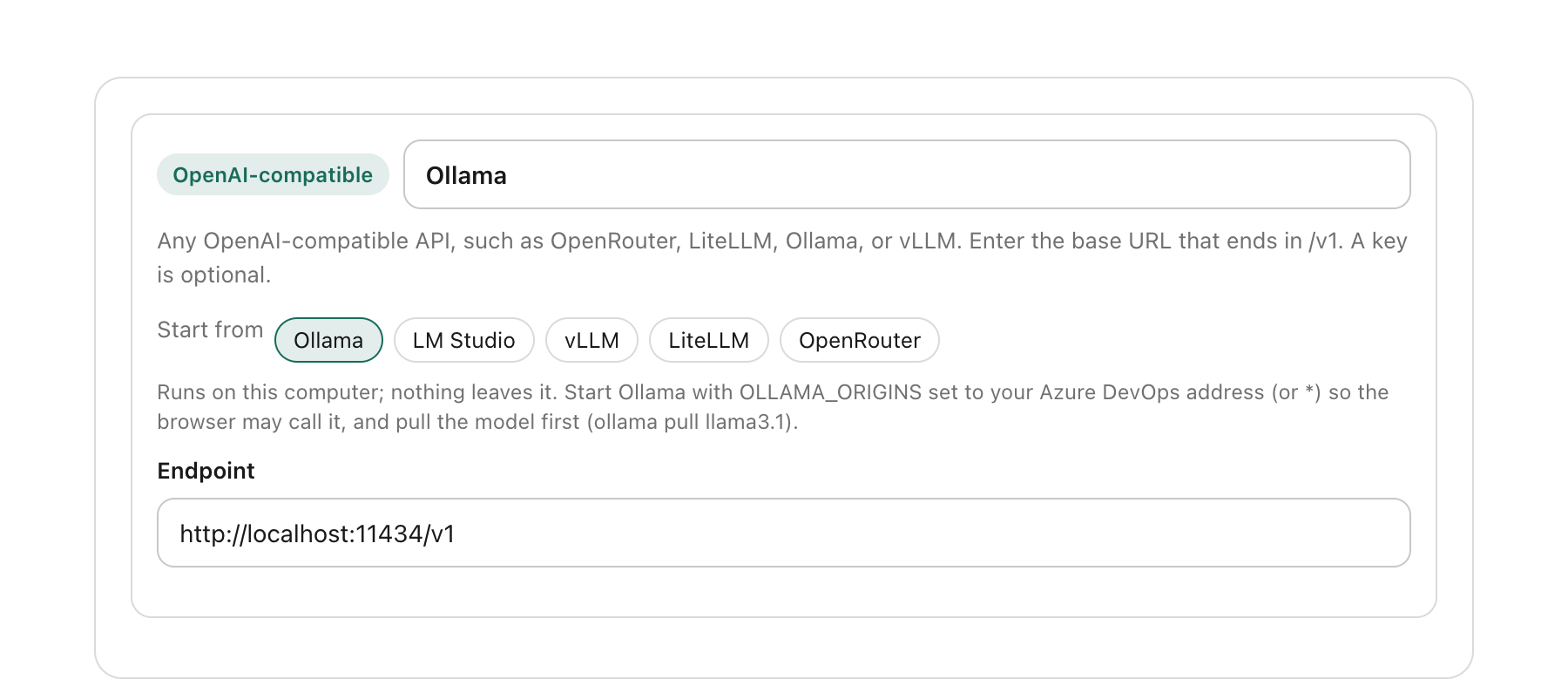
Pick OpenAI-compatible API and press Ollama, LM Studio, vLLM, or LiteLLM: the endpoint and a starter model are filled in, and the note tells you the one switch each runtime needs so the browser may call it. Nothing leaves your computer but the Azure DevOps calls you already make, and the Why this answer panel says so under every answer. Details in docs/local-models.md.

Connection card with Start from chips: Ollama selected, LM Studio, vLLM, LiteLLM, OpenRouter, and the Ollama note about OLLAMA_ORIGINS

Answers grounded in your own documentation

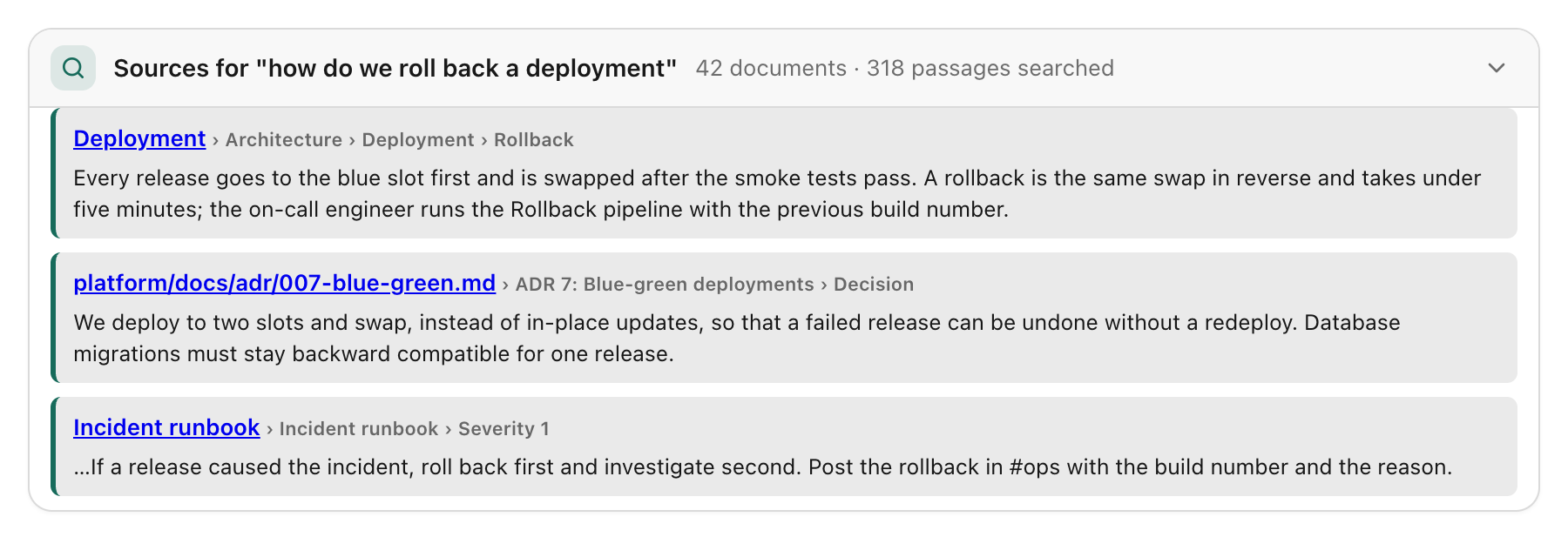
Tell StrideAI which wiki pages and repository folders are the team's reference, your architecture pages, process guides, decision records, runbooks, under Settings → Knowledge. For questions about how the team works, its standards, or what was decided, StrideAI searches those sources first, right in the browser, and answers with quoted passages and links to the pages. Nothing is sent anywhere to be indexed, it works with every model connection, and when the sources don't cover a question StrideAI says so instead of guessing. For documents whose content isn't in the project yet, such as an SOP or runbook, it interviews you first and then writes the document from your answers and the sources. Wiki search reads every page of the project wiki by content, not just by title: the wiki is read from its Git repository once, kept in the browser, and only changed pages are read again, so a search takes milliseconds. Pick an embedding model under Settings → Knowledge (any OpenAI-compatible connection) and passages are ranked by meaning as well as keywords, so a paraphrase still finds the page; nothing is sent anywhere but your own model.

Passages from the wiki and a decision record that answer "how do we roll back a deployment", with links

Turn off what your project doesn't use

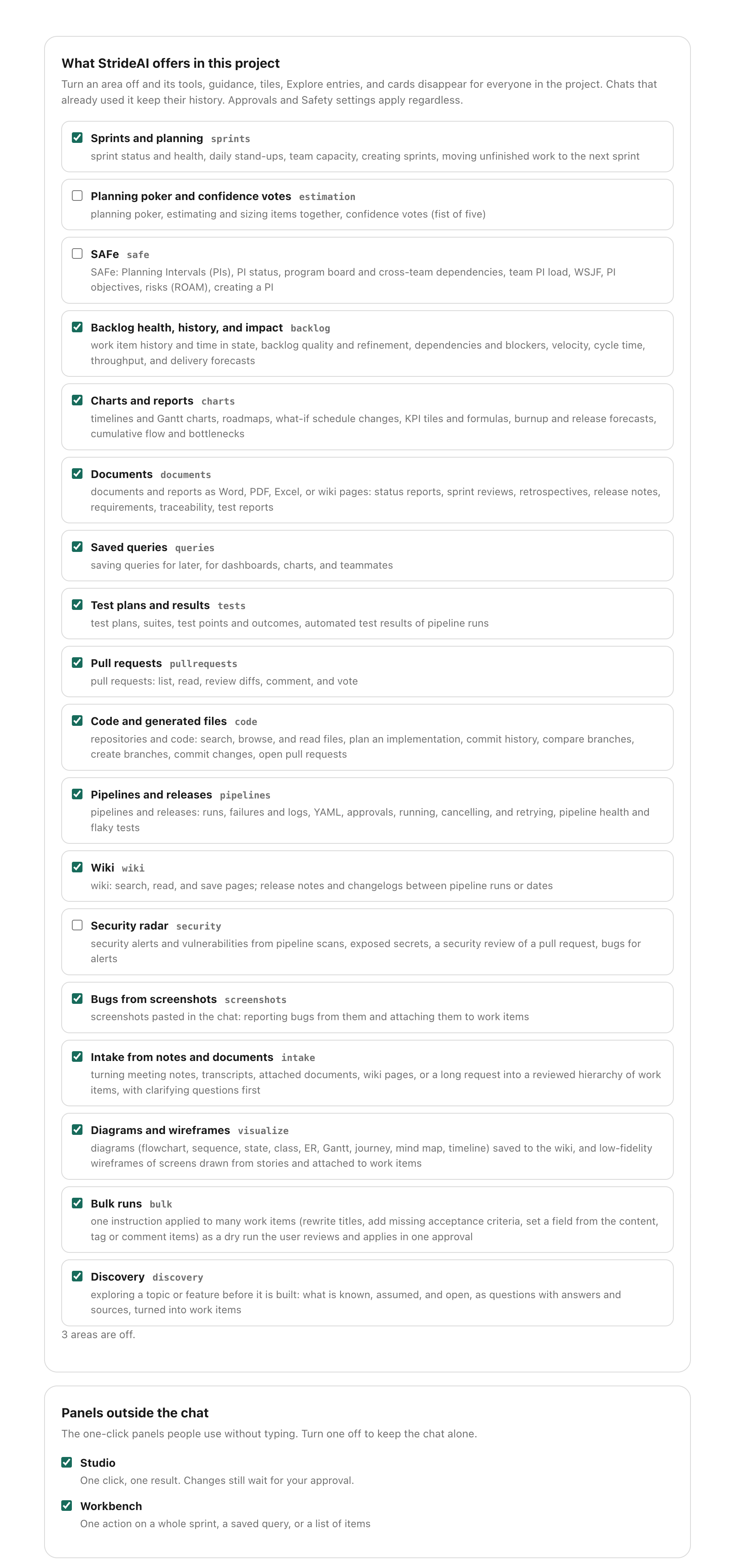
Too many features? Settings → Features lists every area with a switch. Turn SAFe, planning poker, or the security radar off and their tools, tiles, Explore entries, and cards disappear for everyone in the project; the Studio and Workbench panels have switches too. Chats that already used an area keep their history.

Settings → Features: every area with a checkbox and a one-line description; Planning poker, SAFe, and Security radar are off

Documents keep their versions

Every generated document is kept as a version in the project. Ask for this week's status report and the card says Version 4 · 3 earlier; open last week's or see what changed with the differences marked. Nothing to save first, nothing to find later.

Your favourites

Star anything in Explore and it moves to Mine, together with the questions you asked recently. One click brings it back.

Set it up once for the whole project

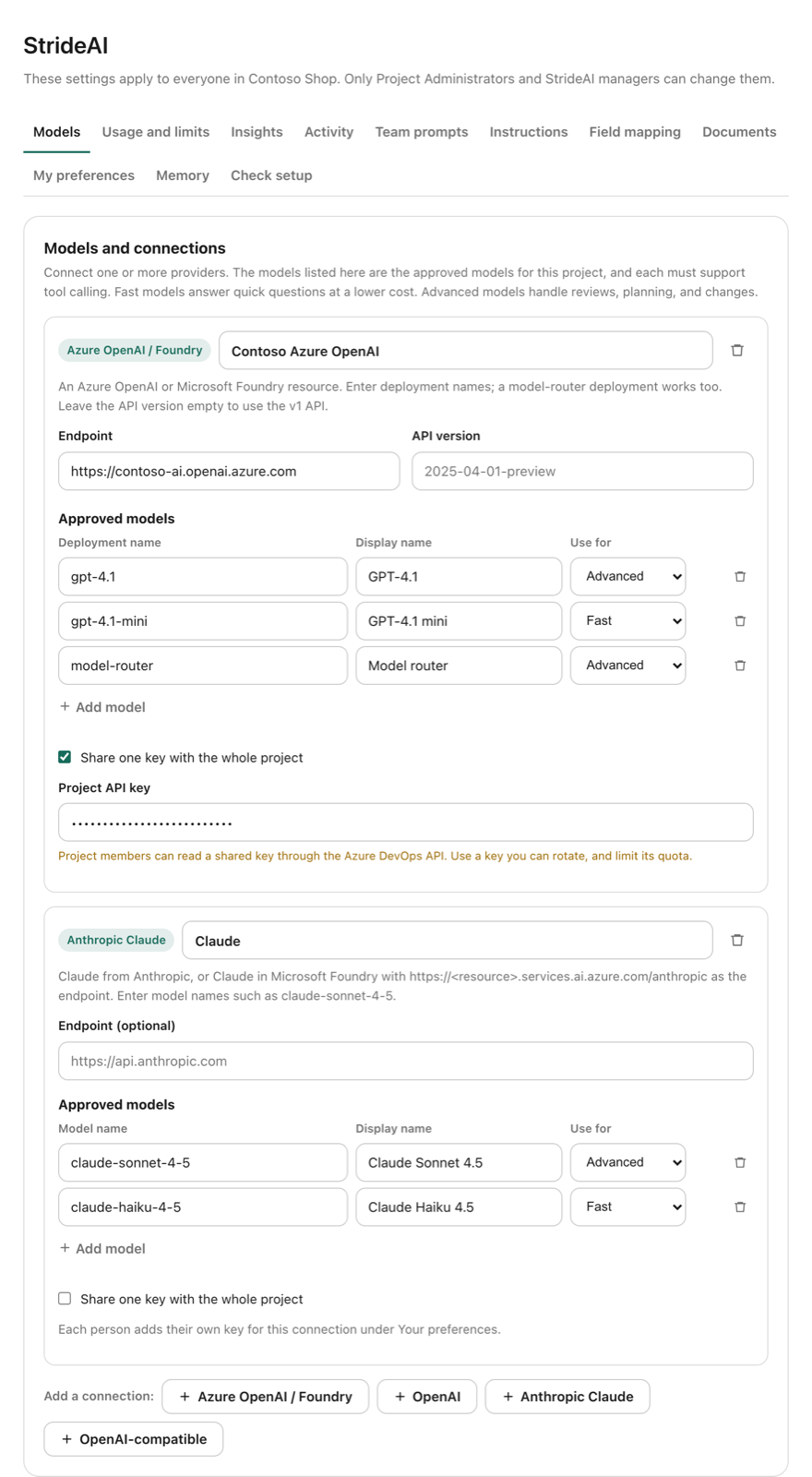
A Project Administrator or StrideAI manager connects the models in Project settings > StrideAI:

  • Add one or more connections: Azure OpenAI or Microsoft Foundry, OpenAI, Anthropic Claude (directly or in Foundry), or any OpenAI-compatible API such as OpenRouter, LiteLLM, or Ollama.
  • Approve the models for each connection and mark each one Fast or Advanced.
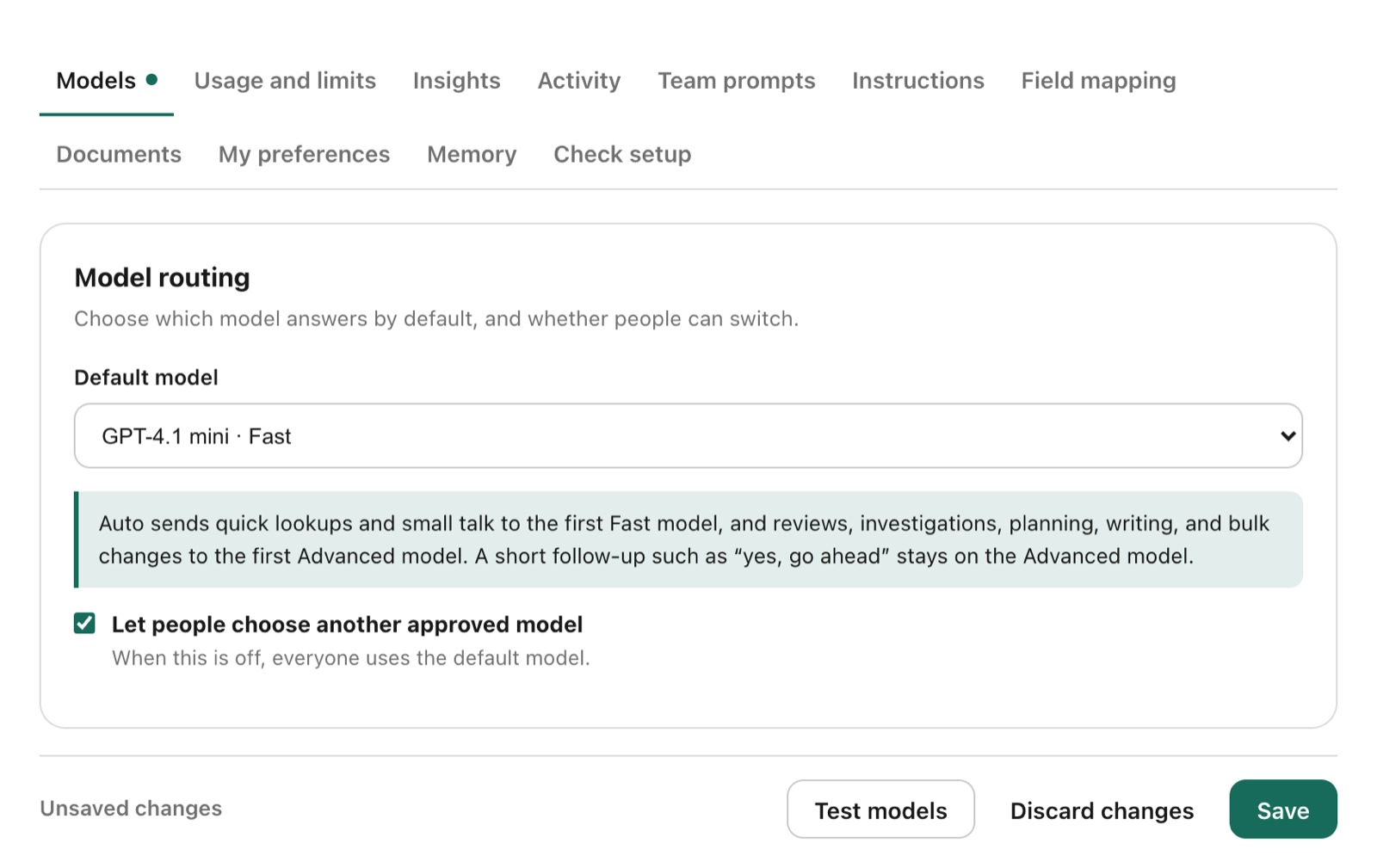
  • Choose the default: a fixed model, or Auto, which picks a Fast model for quick lookups and an Advanced model for reviews, investigations, planning, writing, and bulk changes. Each answer shows which model wrote it. Reasoning models such as GPT-5 and o4-mini think briefly for lookups and short questions and take their full time for reviews, plans, and writing, so everyday answers come back fast.
  • Decide who pays: share one key per connection with the project, or let each person add their own.
  • Allow people to switch to another approved model from the chat header, or keep everyone on the default.

Connections with approved Fast and Advanced models

Settings are organized in tabs: Models, Usage and limits, Insights, Activity, Team prompts, Instructions, Field mapping, Documents, My preferences, Memory, and Check setup. Each tab saves on its own, so a change in one tab never overwrites another, even when two administrators edit at the same time. A dot shows which tabs have unsaved changes.

Model routing with an unsaved change, saved from its own tab

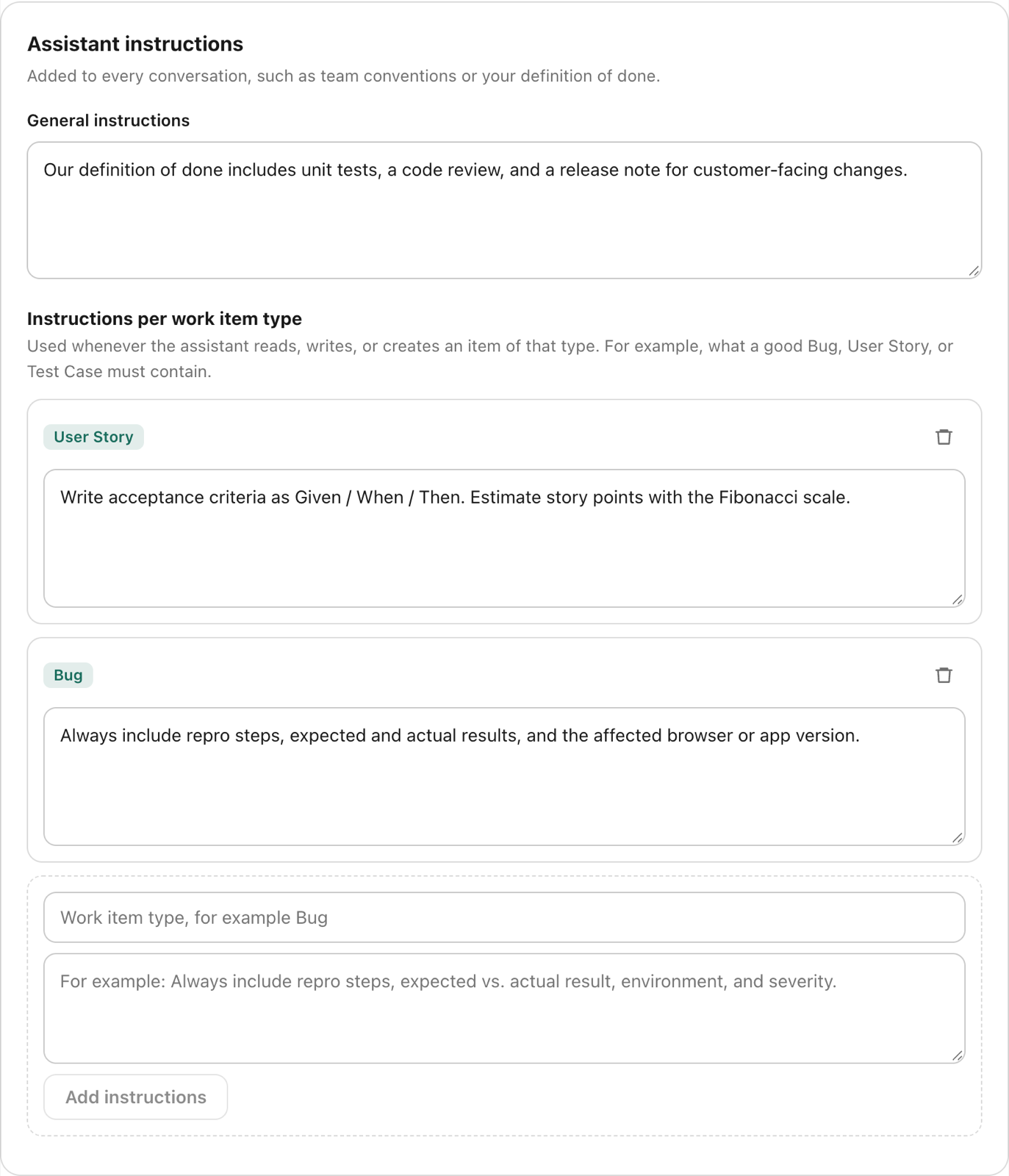
Teach it how your team works: add general instructions, such as your definition of done, and instructions for each work item type. They apply to every conversation.

Assistant instructions per work item type

Add team prompts that everyone can start from, such as your definition of ready check or a weekly stakeholder update, in categories, and pin the important ones to the top.

StrideAI managers run StrideAI without being Project Administrators. Anyone with the Manage project properties permission can change StrideAI's settings, and that permission covers only project properties. Create a group such as StrideAI managers in Project settings > Permissions, set its Manage project properties permission to Allow, and add the people who manage models, limits, requests, and prompts. Check setup shows whether you can change the settings and explains this too.

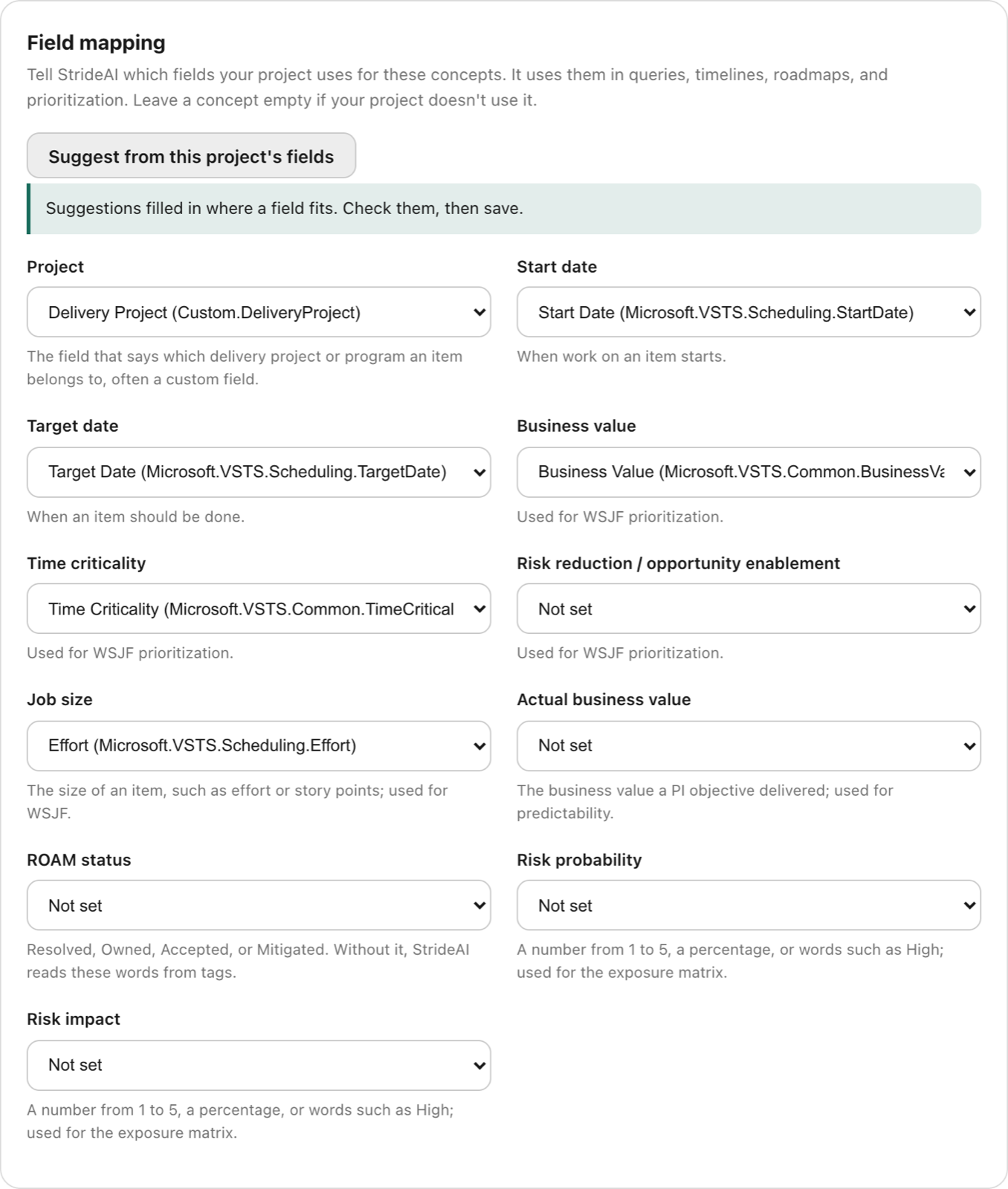
Use Field mapping to tell StrideAI which fields your project uses for the delivery project, start and target dates, prioritization (business value, time criticality, risk reduction, job size), the actual business value of PI objectives, and the ROAM status, probability, and impact of risks, including your own custom fields. Suggest from this project's fields fills them in for you to check. StrideAI then uses your fields when it writes queries, creates or updates items, and draws timelines and roadmaps.

Field mapping with suggested fields for the project, dates, and prioritization

Track usage, cost, and limits

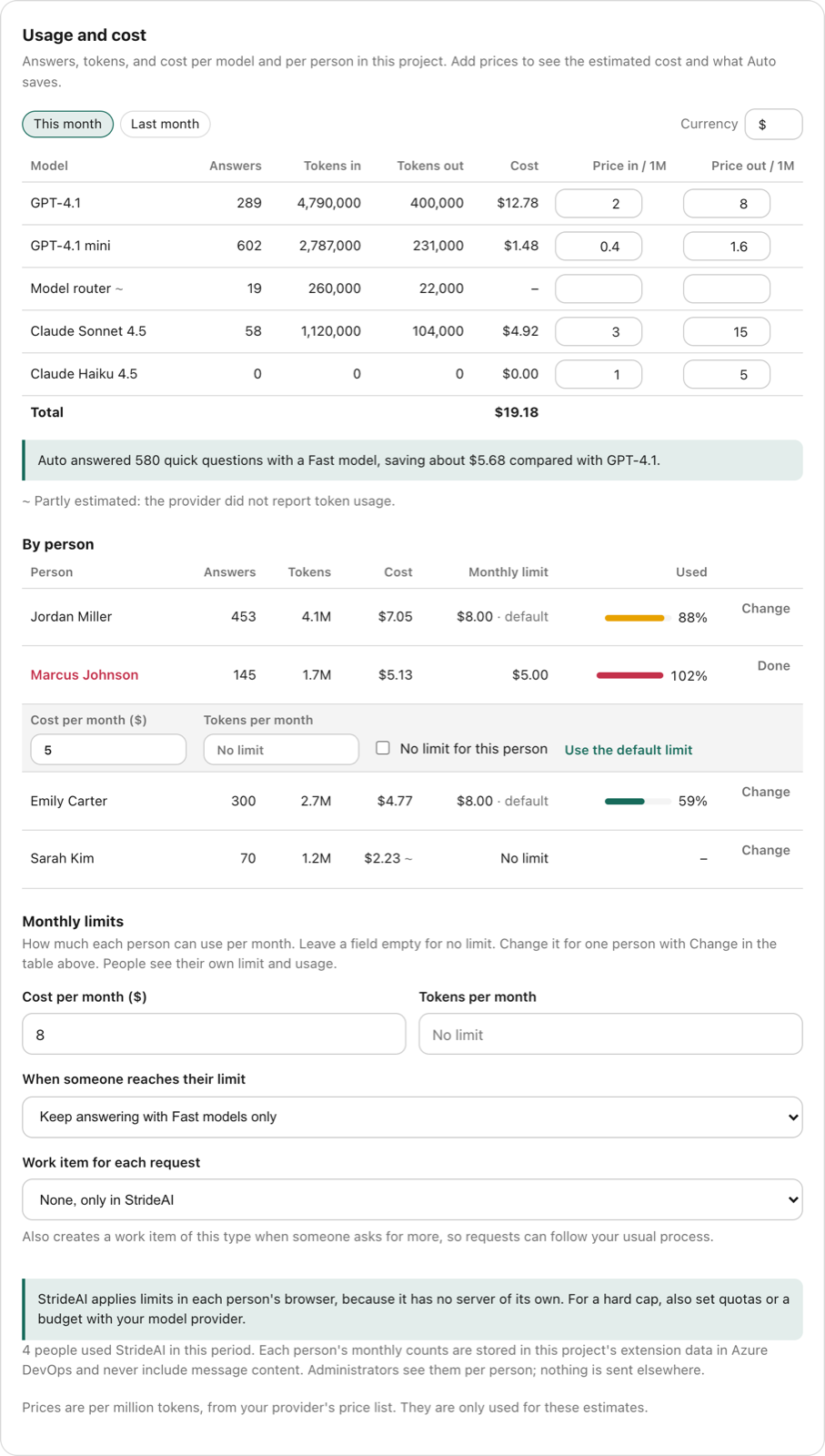
See how many answers and tokens each approved model used, and what each person used and cost, this month and last month. Add the prices from your provider's price list to estimate the cost and see how much Auto saved by sending quick questions to a Fast model.

Set a monthly limit in cost, tokens, or both: one default for everyone, a different limit for some people, or no limit for others. When someone reaches their limit, StrideAI either keeps answering with Fast models only or stops until next month, as you choose. Everyone sees their own usage and limit, and gets a notice at 80%.

Usage and cost per model and per person, with monthly limits

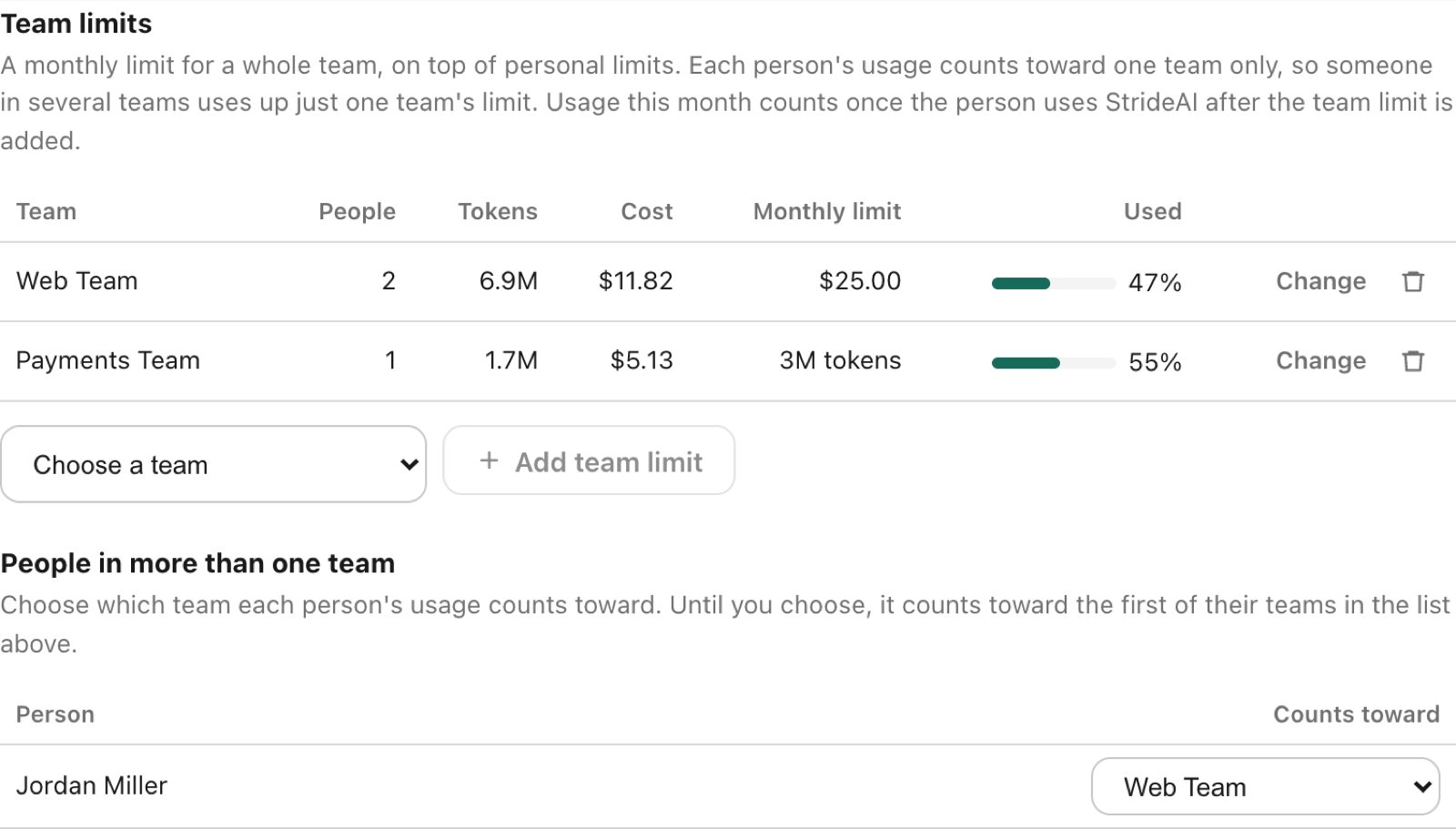
Add team limits for a monthly budget per Azure DevOps team, on top of personal limits. Each person's usage counts toward one team only, so someone in several teams never uses up more than one team's budget. You choose the team for people in more than one. When a team reaches its limit, everyone in it gets Fast models only or a pause until next month, the same as with a personal limit, and sees a notice from 80%.

Monthly limits per team, and the team that counts for people in more than one

StrideAI has no server of its own, so it applies limits in each person's browser. For a hard cap, also set quotas or a budget with your model provider.

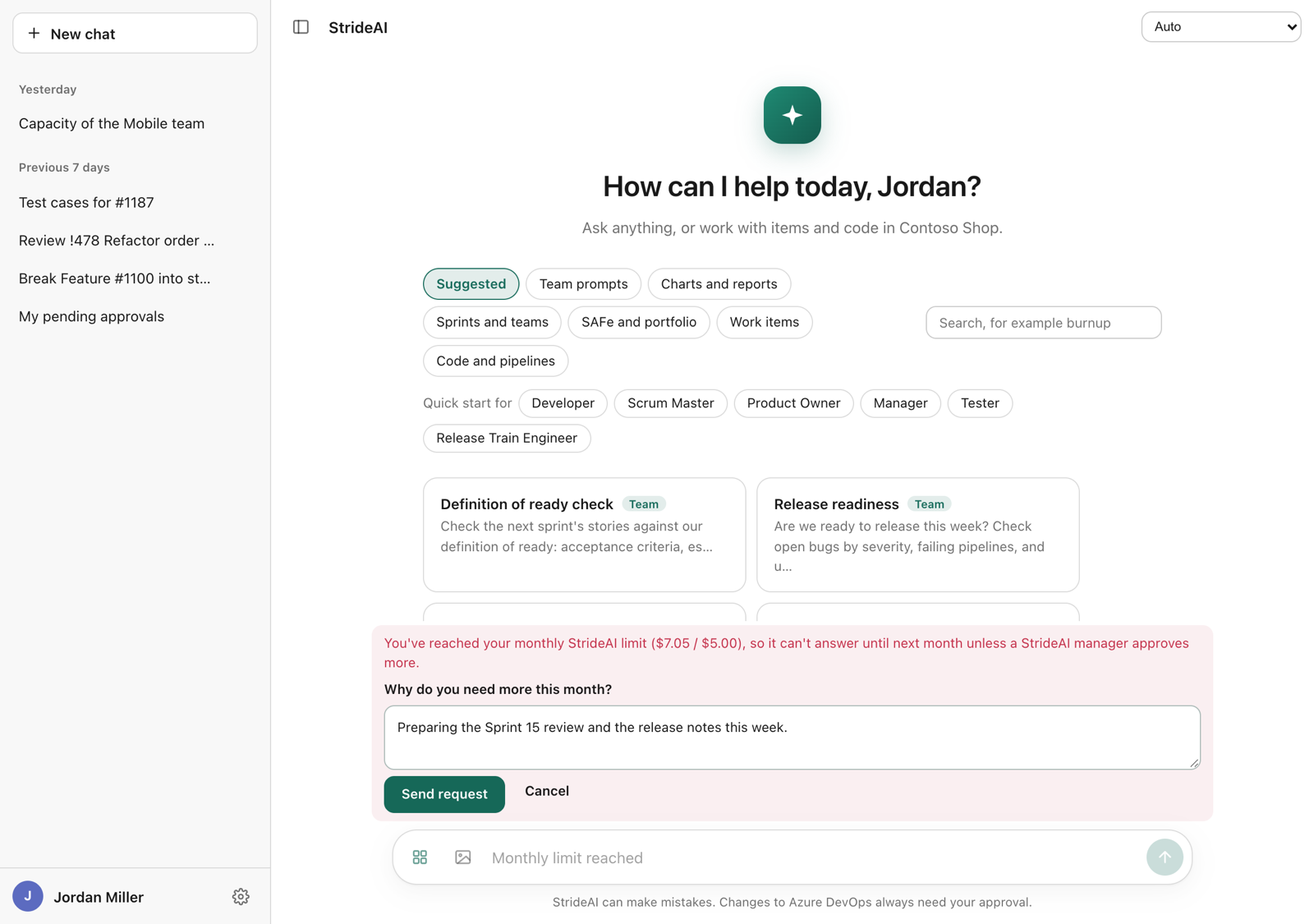
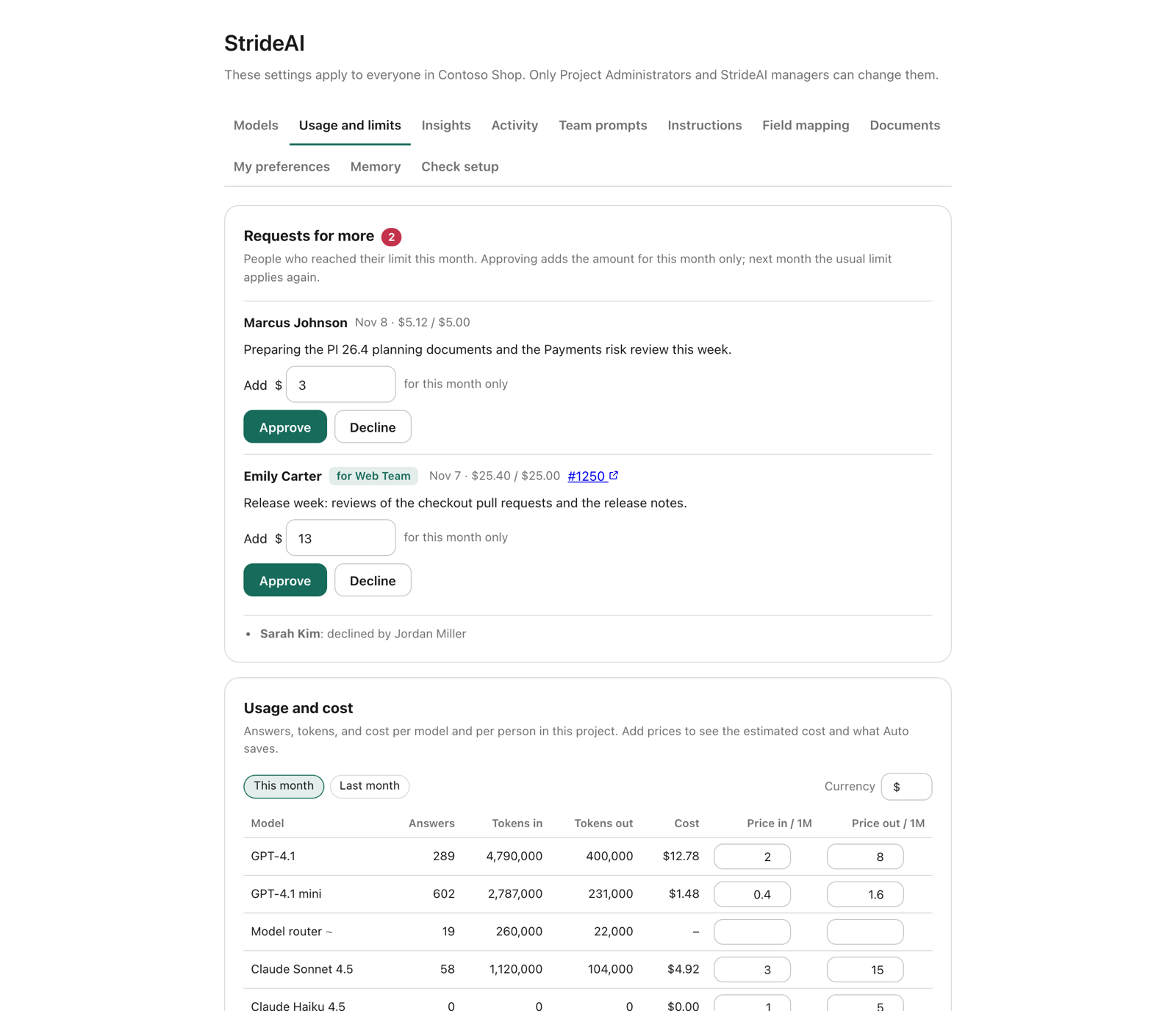
Ask for more: when someone reaches their limit, or their team's, they select Ask for more and say why. StrideAI managers see the waiting requests above the chat and in Usage and limits, and approve an amount for this month only or decline. The answer shows in the requester's chat, the higher limit applies right away, and next month the usual limit is back. If you like, each request also creates a work item of a type you choose, so it follows your usual process.

Asking for more after reaching the monthly limit

Requests for more with the reason, the usage, and an amount for this month

Budget alerts: from the 5th of the month, StrideAI continues the last seven days' pace to the end of the month. When the project's budget or a team's limit will run out before then, StrideAI managers see when it will happen above the chat and in Insights.

See the value in Insights

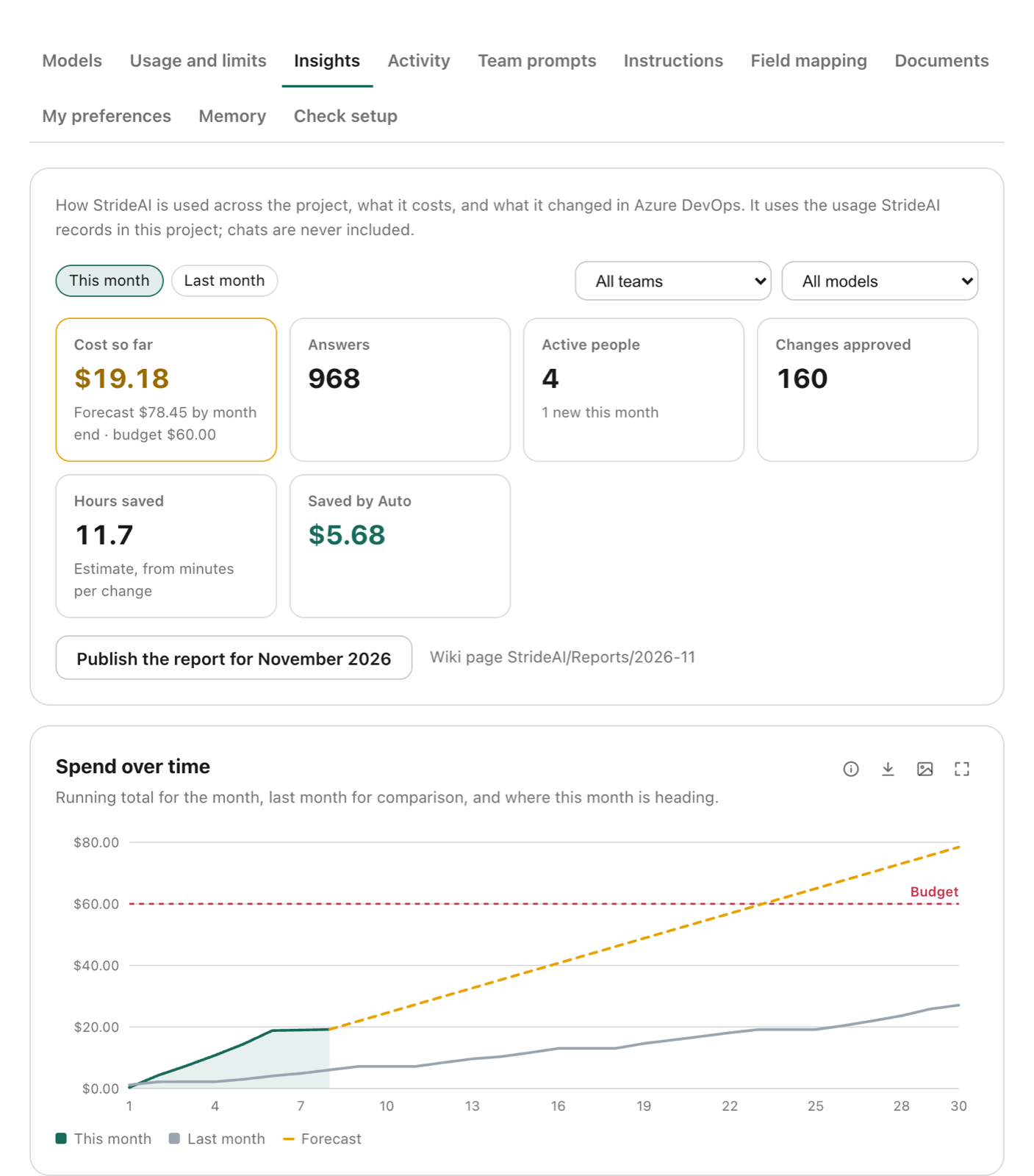
The Insights tab turns your usage into charts, for this month or last month, for all teams or one team, and for all models or one model:

  • Spend over time: the running total against last month, a forecast to month end, and your monthly budget or the team's limit.
  • Budget alerts: the project and every team that will pass its budget or limit this month at the current pace, and when.
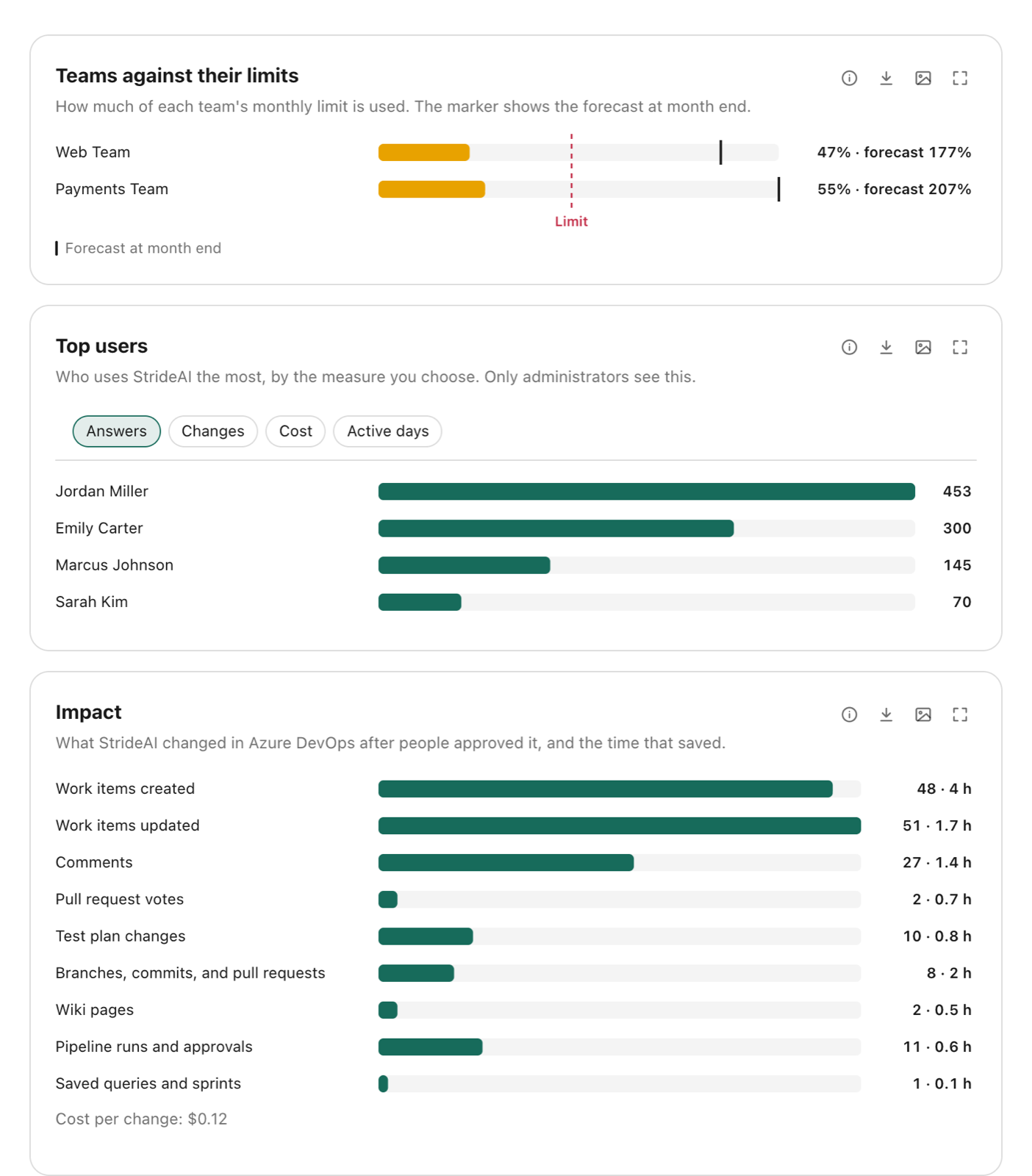
  • Teams against their limits: how much of each team's limit is used and where it will be at month end.
  • Top users: ranked by answers, changes, cost, or active days. Switch on Hide names to show people as Person 1, Person 2, and so on.
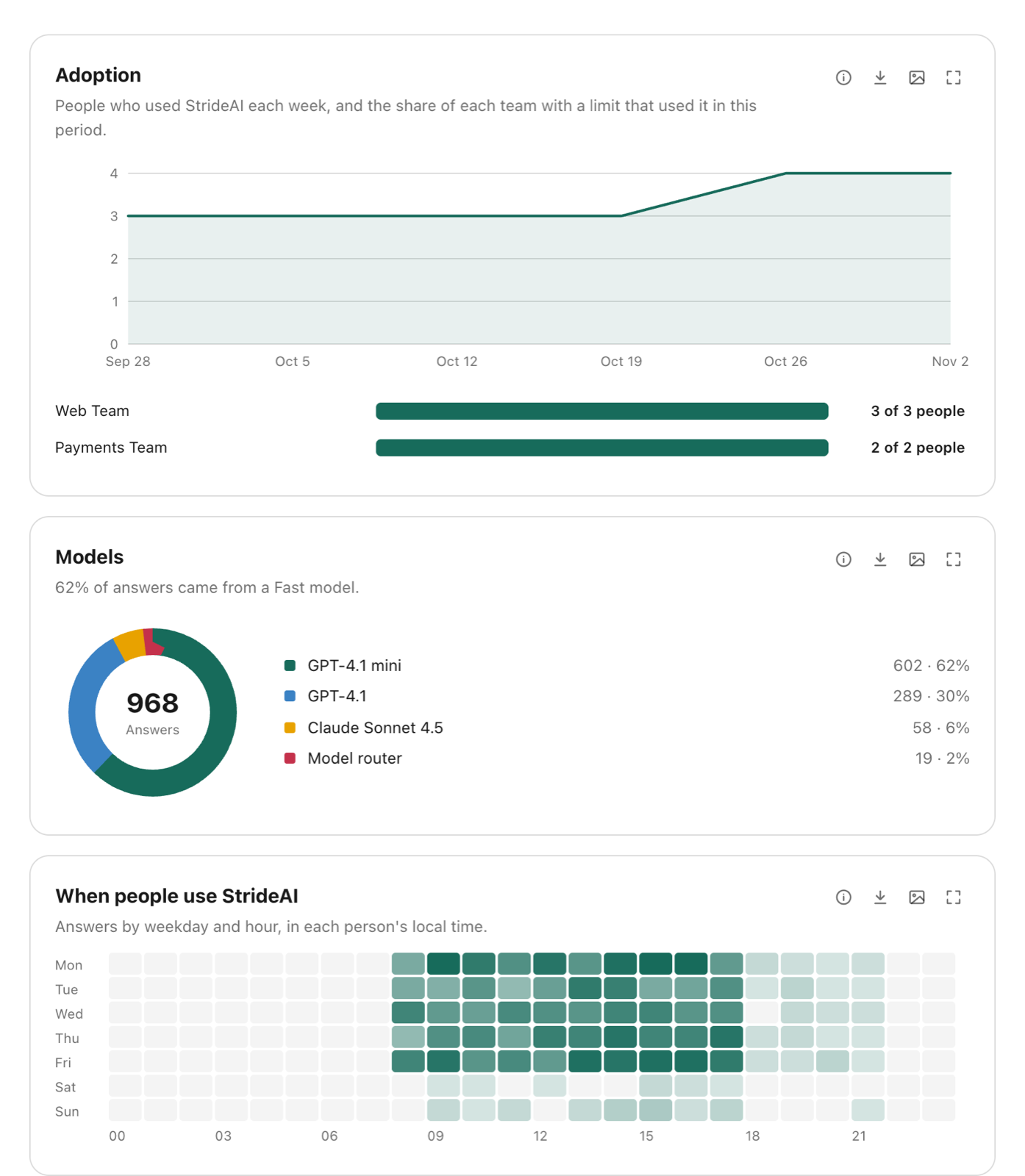
  • Adoption: people active each week and the share of each team that uses StrideAI.
  • Impact: every change StrideAI made after approval, such as work items created, comments, pull request votes, and wiki pages, with the hours saved based on the minutes per change you set.
  • Models and when people use StrideAI, by weekday and hour.

Every chart explains how it's calculated, opens full screen, and downloads as CSV or an image for your reports. Only Project Administrators and StrideAI managers see Insights.

Monthly report: publish a month's usage, cost, adoption, and impact to the project wiki, for example as StrideAI/Reports/2026-11, with the data as CSV. After a month ends, Insights offers last month's report to the first administrator who opens it. When Hide names is on, the report shows people as Person 1, Person 2, and so on.

Insights with cost so far, forecast, budget, and spend over time

Teams against their limits, top users, and the impact of approved changes

Adoption per week and per team, the model mix, and usage by weekday and hour

Activity log for auditors

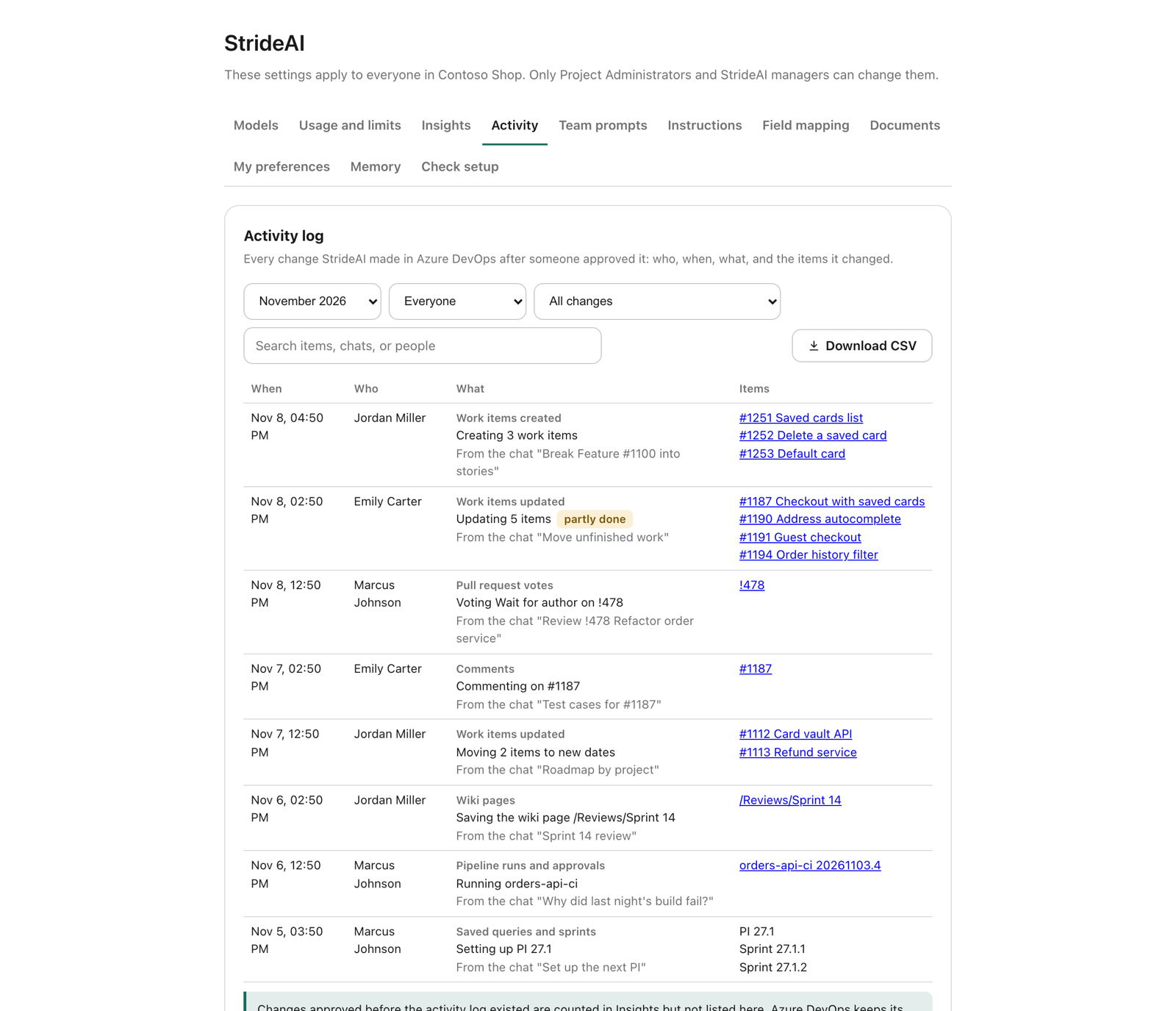
Settings > Activity lists every change StrideAI made in Azure DevOps after someone approved it: when, who, what, the chat it came from, and links to the items it changed. Changes that only partly succeeded are marked. Filter by month, person, or kind of change, search, and download the list as CSV. StrideAI managers see everyone's changes; everyone else sees their own. The log is kept in the project's extension data; Azure DevOps also keeps its own history of every item, and each link opens it.

The activity log with who approved what, when, and links to the changed items

It learns your project

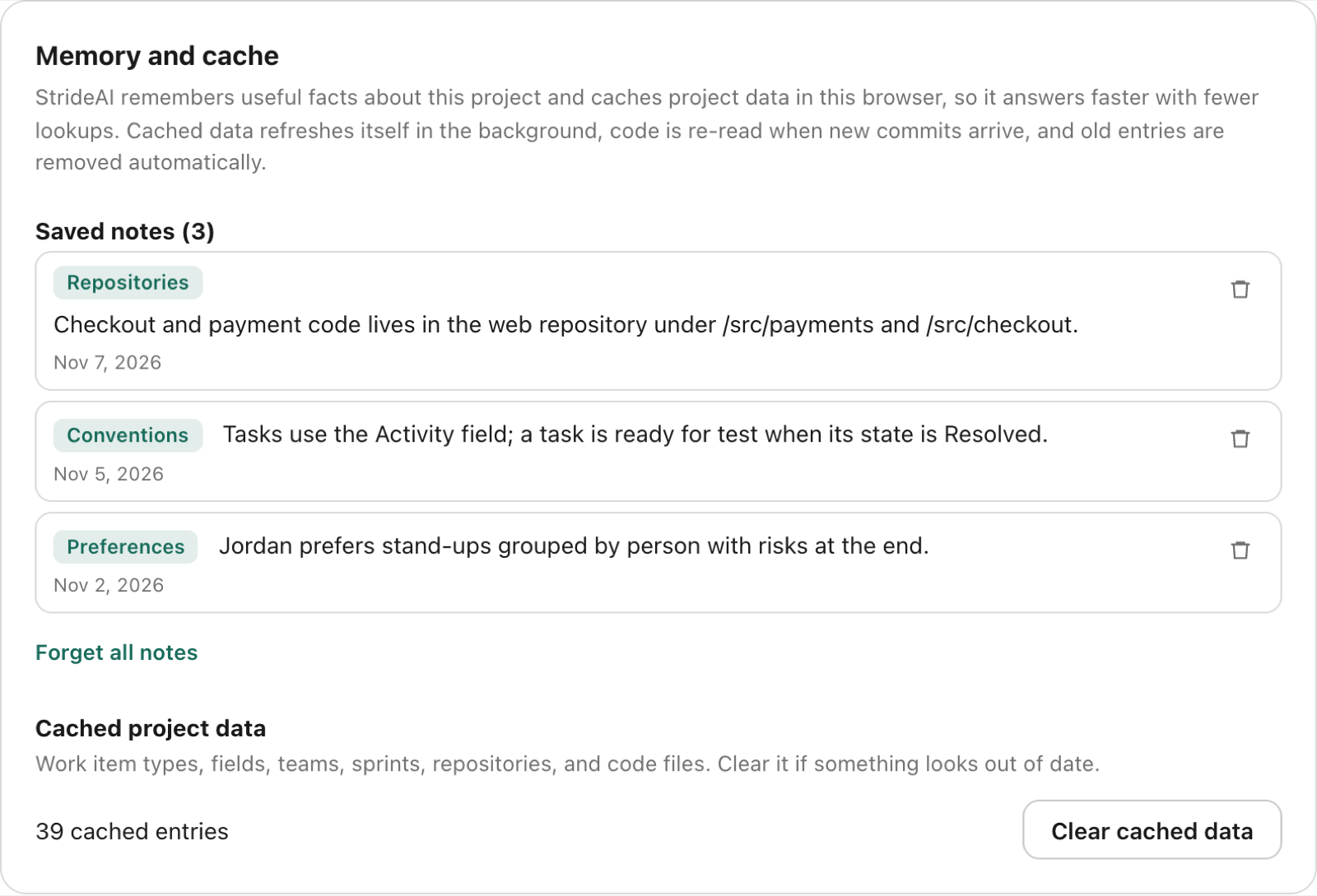
StrideAI keeps a small, self-refreshing cache of your process (types, states, fields), teams, sprints, and repositories in your browser, so answers are fast and need fewer lookups. It also saves short notes about how your team works, such as which repository holds which feature. You can see and delete every note.

Saved notes and cached project data


Get started

  1. Install the extension in your organization or collection.

  2. A Project Administrator or StrideAI manager opens Project settings > StrideAI and adds a connection:

    • the provider and, for Azure, OpenAI-compatible APIs, or Claude in Foundry, the endpoint,
    • one or more models that support tool calling, for example gpt-4.1 and gpt-4.1-mini, or claude-sonnet-4-5 and claude-haiku-4-5,
    • an API key for the project, or let each person add their own.

    Click Test models, then Save.

  3. Open StrideAI > Chat in the project menu, or the StrideAI tab on any work item or pull request, and start asking.

Install on Azure DevOps Server (on-premises)

StrideAI runs on Azure DevOps Server 2020, 2022, and later. The server hosts the extension itself, so nothing is downloaded from the internet when people use it.

  1. Download the .vsix package: on this page select Get it free, choose Azure DevOps Server, and select Download. Your administrator can also give you the package.
  2. As a Project Collection Administrator, open the server's extension manager at https://{server}/{virtual-directory}/_gallery/manage, for example https://devops.contoso.com/tfs/_gallery/manage.
  3. Select Upload extension and choose the .vsix file.
  4. Select StrideAI, then Install, and choose the collections that should use it.
  5. Set it up in Project settings > StrideAI as described above.

To update, upload the newer .vsix on the same page. Settings, keys, and chats are kept.

For a fully on-premises setup, point StrideAI at a model your users' browsers can reach inside your network: Azure OpenAI or Microsoft Foundry through a private endpoint, or a self-hosted OpenAI-compatible model. Model endpoints must use HTTPS.

If something doesn't work

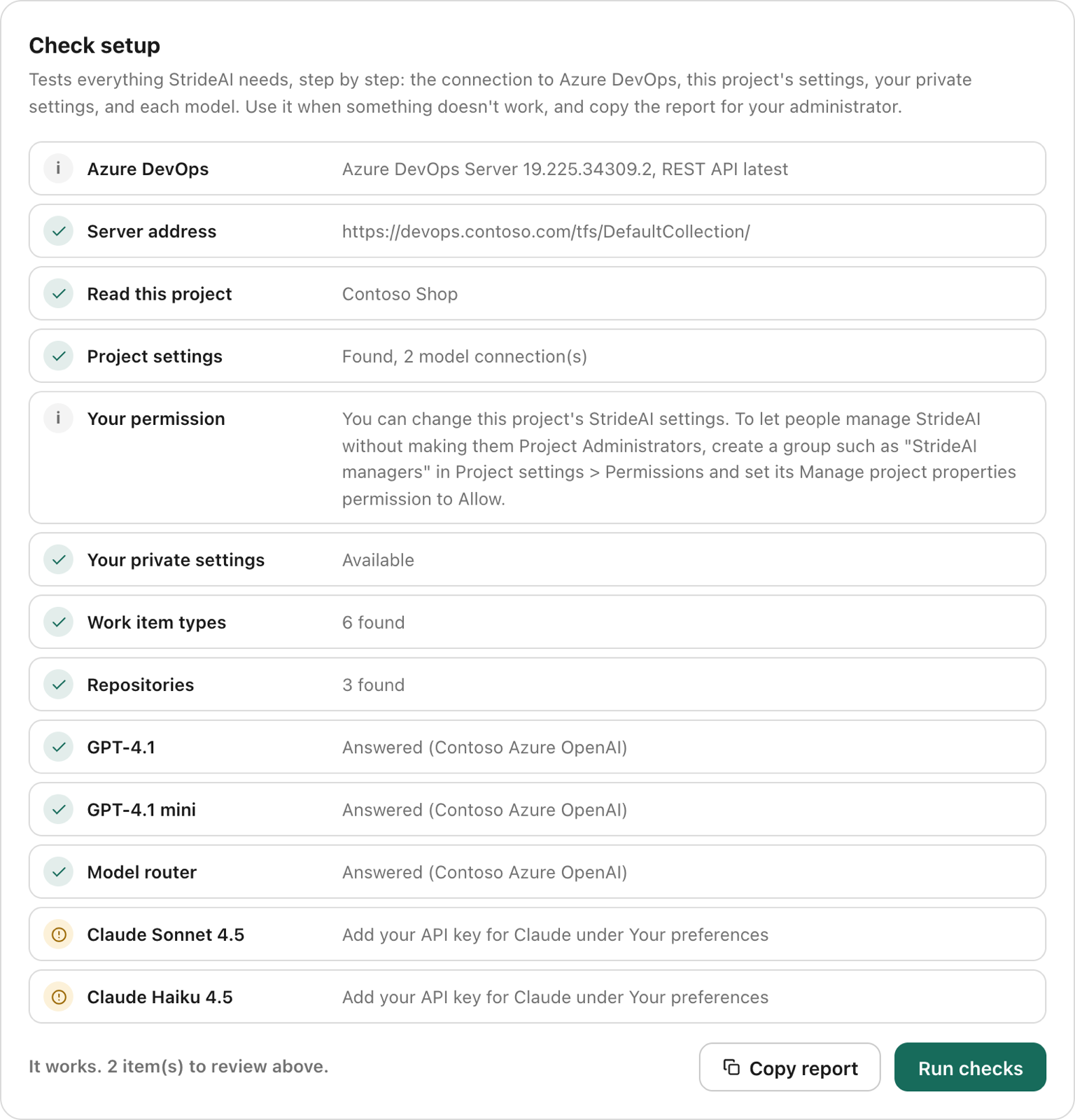
Open Settings in StrideAI, go to the Check setup tab, and select Run checks. It tests each step and shows exactly where it stops. Select Copy report to send the result to your administrator.

Check setup testing the server, the project settings, and each model

  • "Connect a model" on a new server or project: settings are saved per project and per server, so set up the model connections again in Project settings > StrideAI.
  • StrideAI isn't in the menu: make sure it is installed in this collection. On collections with the on-premises XML process, add the StrideAI page to work item forms with witadmin.
  • Models don't answer: people's browsers must reach the model endpoint over HTTPS with a certificate they trust, and the endpoint must accept browser requests (CORS).

Requirements

  • Azure DevOps Services, or Azure DevOps Server 2020, 2022, or later. StrideAI detects the server version and adapts automatically. YAML pipeline approvals and stage retry need a server version that supports them, and code search uses the Search extension when it is installed.
  • At least one model with tool (function) calling from Azure OpenAI, Microsoft Foundry, OpenAI, Anthropic, or an OpenAI-compatible API, reachable from your users' browsers. The service must accept browser requests (CORS); Azure OpenAI, Foundry, OpenAI, and Anthropic do.
  • On Azure DevOps Server collections that use the on-premises XML process, add the StrideAI page to each work item type's form with witadmin. Inherited processes show it automatically.
  • The pipeline tasks need an Azure Pipelines agent 2.206.1 or later. They use the pipeline's identity: give the build service Contribute to pull requests for reviews, Contribute on the wiki to save pages, and View alerts in Advanced Security to read alerts. Pass model keys as secret variables.

You stay in control

  • Every change needs your approval. Creating or updating work items, comments, votes, pipeline runs, and approvals all show an approval card first. You can review, edit comments, or decline. StrideAI can't delete work items, pages, branches, or pipelines.
  • Risk you can see. Each card says how risky the change is and why: a deployment, a pipeline run, a push to a shared branch, or a bulk change of many items is high risk, and what can't be undone says so. When the proposal came after reading project content, such as a wiki page or a work item, the card says that too, because content can contain instructions.
  • Guardrails your administrators set. In Settings > Safety, Project Administrators decide for each kind of change whether everyone, only StrideAI managers, or nobody may approve it. Turned-off changes aren't even offered to the model. High-risk changes can require typing a confirmation word, and a limit caps how many changes a person approves per hour.
  • Secrets never reach the AI. Personal access tokens, JSON Web Tokens, GitHub and cloud keys, private keys, passwords in connection strings and URLs, and more are replaced with a placeholder such as [hidden: JSON Web Token] in everything sent to the model: what people type and what StrideAI reads from work items, code, wikis, and logs. Project Administrators add rules for their own token formats, choose whether a typed secret is hidden or the message is blocked, see how many secrets were kept from the AI each month, and can try any text to see exactly what the AI would receive.
  • Undo. Work item changes and replaced wiki pages get an Undo button in the chat. It puts back only what the change set, and leaves anything someone changed again since as it is.
  • A record of every change. The activity log shows what StrideAI changed after approval, who approved it, and when, with links to the items.
  • Your permissions, nothing more. Every Azure DevOps call uses the signed-in user's own permissions.
  • No middleman. The browser talks directly to Azure DevOps and to your approved model endpoints. StrideAI has no server and sends no data to anyone else.

Privacy and data

Where everything is stored

What Where it is stored Who can see it
Model connections, approved models and prices, routing, team instructions, team prompts, limits, and amounts approved for a month A property of your Azure DevOps project Project members can read it; only Project Administrators and StrideAI managers can change it
Shared project API keys (optional) The same project property Project members, through the Azure DevOps API
Personal API keys, model choice, interface language, and role The person's private extension data in Azure DevOps Only that person
Usage: answers and tokens per model and day for each person, the hour of the week, the number of changes they approved, how often they used each team prompt, and the team it counts toward, never message content The project's extension data in Azure DevOps Project members, through the Azure DevOps API; administrators see each person's usage and cost in settings
Requests for more: who asked, why, their usage at the time, and the decision The project's extension data in Azure DevOps, one list per month Project members, through the Azure DevOps API; a request never raises a limit by itself, only an amount a StrideAI manager approves
Activity log: each approved change, who approved it and when, the chat's title, and links to the items it changed The project's extension data in Azure DevOps, one list per person and month Project members, through the Azure DevOps API; StrideAI managers see everyone's in settings, others their own
Conversations (the last 100 per project) The person's own browser (its private database for StrideAI), kept apart for each person who signs in on it Only that person, on that device
Shared chats: the title and every question and answer The project's extension data in Azure DevOps, encrypted in the browser; deleted when the person who shared the chat ends it Only the people in the chat can read it. Project members can see, through the Azure DevOps API, that a shared chat exists, who is in it, and when each person asked
Keys for shared chats Public keys in the project's extension data; private keys in the person's private extension data Public keys: project members. Private keys: only that person
Screenshots attached to a message Only the open page's memory; chat history keeps just their names Only that person, until the page is closed
Saved notes (up to 60 per project) The person's own browser Only that person, on that device
Cached project data: work item types, fields, teams, sprints, repositories, and code files The person's own browser Only that person; it refreshes itself and old entries are removed after 14 days
Boards: each pinned chart's name, the question behind it (such as its query), and who pinned it, never the chart's data The project's extension data in Azure DevOps Project members, who can view and change the boards
Monthly reports A page in the project wiki, published by an administrator Everyone who can read the wiki
Word templates The project's extension data in Azure DevOps Project members, who use them for documents; only administrators see the upload page
Documents Built in your browser; nothing is stored unless you download a file or save it to the wiki You, and whoever can read the wiki page you save
Planning poker and confidence votes: the items, readiness, who voted, encrypted votes until the reveal, then the votes, notes, and agreed values The project's extension data in Azure DevOps; votes are removed when the session ends Project members, through the Azure DevOps API; nobody can read a vote before the reveal
The key that opens a session's votes The private extension data of the person who started it Only that person; it is deleted when the session ends

You can delete chats from the chat history, and clear notes and cached data any time in Settings > Memory.

What is sent to the model, and only when you send a message

  • Your question and the conversation so far, and the screenshots you attach to your latest message. In a shared chat, that includes the other people's questions, the answers, and their names.
  • The Azure DevOps data StrideAI reads to answer it, such as work item fields, code files, wiki pages, or pipeline logs.
  • Your name, the project name, a short summary of the project's process, teams, and repositories, the team's instructions, and saved notes, so answers fit your team.

Secrets found by the security check of a pull request are masked before anything is shown or sent: only the first four characters and the length remain.

The pipeline tasks run on your agents, not in a browser. They send the lines a pull request adds (secrets masked), work item and pull request titles, or the report to the model endpoint you configure in the task, and nothing to anyone else.

It goes only to the approved model endpoints, and your provider's data terms apply. Azure OpenAI does not use prompts and completions to train models.

  • A shared project key can be read by project members through the Azure DevOps API. Use a key you can rotate and set a quota on it, or let each person use their own key.

Permissions

Scope Why
Work items (read and write) Read, create, and update work items, queries, and comments
Code (read and write) Read code and history, review pull requests, comment, and vote; with your approval, create branches, commit changes, and open pull requests
Project and team (read and write) Teams, sprints, capacity, and the project's StrideAI settings
Build (read and execute) Read pipeline runs, logs, and the security results they publish (SARIF and the StrideAI checks task's alerts); run, cancel, and retry pipelines; check YAML changes without running them
Release (read, write, execute, and manage) Read releases and approve or reject deployments
Test management (read and write) Read test plans and results; create suites and record outcomes
Wiki (read and write) Search and read wiki pages; save pages you approve, documents you save, and the monthly reports administrators publish

StrideAI doesn't ask for the Advanced Security permission, so it installs and updates the same way on Azure DevOps Services and every supported Azure DevOps Server version.

The pipeline tasks don't use these permissions: they run with the pipeline's own identity and its permissions in your project.


Good to know

  • Languages: the whole interface is in English, German, French, Spanish, and Turkish. Each person gets replies in the language they write in. Administrators can choose one language for all work item content. Code, identifiers, and code comments are always written in English.
  • Light and dark themes: StrideAI follows the Azure DevOps theme each person chooses. Printed documents and downloaded chart images are always light.
  • Azure DevOps Server over http://: everything works except planning poker and shared chats, which need the encryption browsers only allow on https:// pages; StrideAI says so instead of failing.
  • AI can make mistakes. Check important answers. StrideAI shows which tools it used and links every item it mentions, so you can verify quickly.
  • Open source: StrideAI is free and open source under the MIT licence. The Privacy Policy and Security overview are on aistride.dev. Your data is never used to train models.
  • Contact us
  • Jobs
  • Privacy
  • Manage cookies
  • Terms of use
  • Trademarks
  • Your Privacy Choices
  • Consumer Health Privacy
© 2026 Microsoft