Claude Code Extend
Drive Claude Code from a native Visual Studio panel, with no embedded terminal.
The extension runs the Claude Code CLI as a child process and renders the whole
conversation as real UI inside a WebView2 tool window: streaming replies, colored diffs,
command completion, collapsible tool calls. Everything is selectable, searchable, and
follows your Visual Studio theme, instead of being a wall of ANSI escapes you cannot
click.
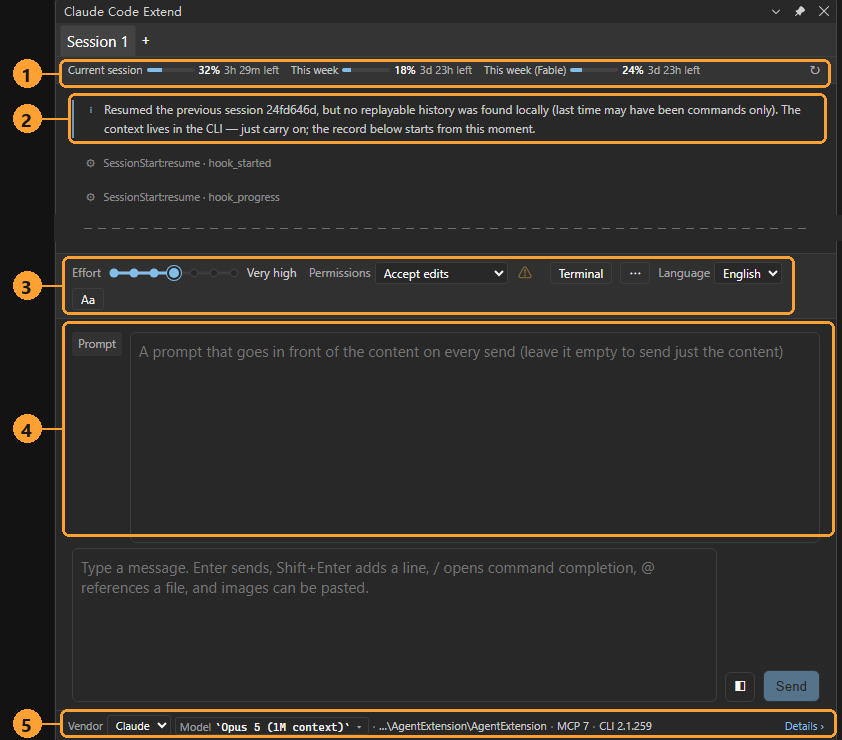
- Usage windows. Your session and weekly limits with the time left on each, updated
as you work.
- Your last session, picked up automatically. Reopening Visual Studio resumes the
conversation and replays the local transcript above this line.
- Toolbar. Thinking effort, permission mode, the terminal button, and the panel
language: English or Chinese, switched right here.
- A standing prompt that goes in front of every message you send, so project rules do
not have to be retyped.
- Status bar. The model, the working directory, the number of MCP servers, and the
exact CLI version the panel is driving.
(The empty stretch in the middle of the transcript is cut from this screenshot.)
What you get
Conversations that survive your day
- Several sessions side by side. Each tab on the strip is its own
claude process with
its own context, so a long task in one tab never blocks another. Closing the last tab
always leaves you one, so the panel is never empty.
- Sessions live where the CLI keeps them (
~/.claude/projects/), so everything you do
here is visible from the command line, and vice versa.
Your code goes in without copy-paste
- Right-click a selection in the editor to send it with its file and line context.
- Send the current build errors from the Error List in one click.
@ references a file, paths the agent mentions open in the editor at the right line,
and images can be pasted straight into the message box.
Native panels instead of TUI screens
Commands like /resume, /help and /memory open as real panels you click through,
no full-screen terminal takeover to read your own session list.
A real terminal when the pipe is not enough
Some things a piped session simply cannot do. One button opens a full TUI claude, forked
from the conversation above so it starts with the same context, and hands you back to the
chat when you are done.
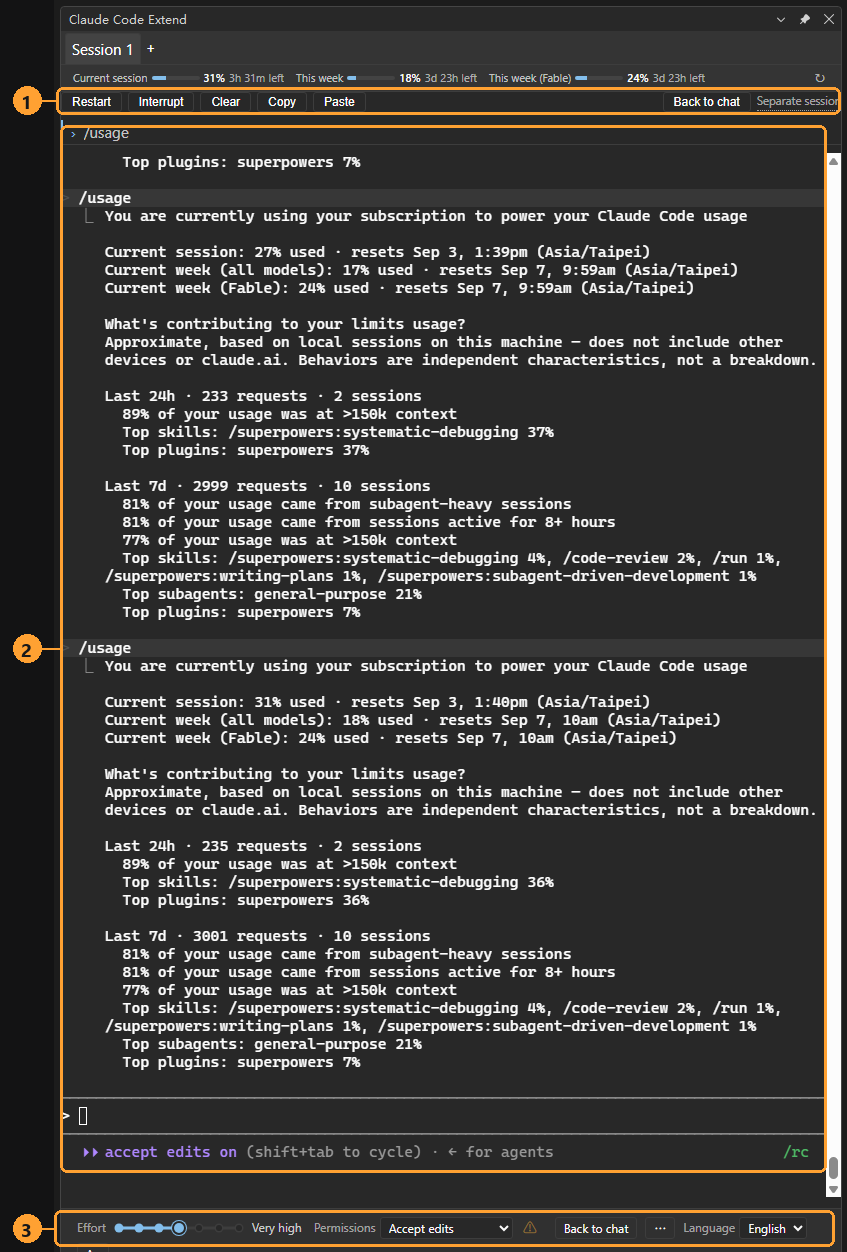
- Terminal controls: restart, interrupt, clear, copy, paste, and Back to chat. The
Separate session label is your reminder that this terminal is a fork with a life of
its own; leaving it does not stop it.
- A genuine TUI, keys and all:
shift+tab cycles permission modes exactly as it does
in your own terminal.
- The same toolbar as the chat view, so effort, permissions and language stay where
you expect them.
Requirements
|
|
| Visual Studio |
2022 (17.x) or 2026 (18.x): Community, Professional or Enterprise |
| Claude Code CLI |
Installed and signed in. The extension searches your PATH and the usual install locations for claude. |
| WebView2 runtime |
Ships with Visual Studio |
You need your own Claude account. This extension is a front end for the CLI you already
have; it does not bundle a model, a key, or a subscription.
Getting started
Install the extension, restart Visual Studio, and open the panel from
View > Claude Code Extend:
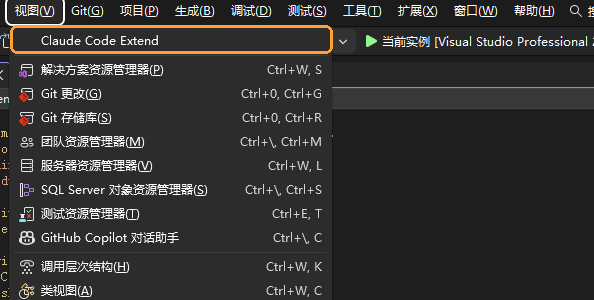
Dock it wherever you like; the panel remembers where it was and reopens there.
The session starts in your current solution's directory, so the agent works where your code
is. Opening a different solution gives you a different session.
In the message box: Enter sends, Shift+Enter adds a line, / opens command
completion, @ references a file.
Troubleshooting
"Claude not found." The panel lists every location it searched. Install the CLI, sign in,
and check that claude runs from a plain terminal. An npm install puts a claude.cmd on
PATH; that works too.
The agent is working in the wrong directory. The working directory is taken from the
solution when the session starts, and a running session cannot change it. Open the right
solution and start a new session.
Source and license
Source, issues and releases: github.com/shinescy/AI-agent-Claude-for-VS
Licensed under the Apache License 2.0.
Not affiliated with or endorsed by Anthropic.

