File Watch
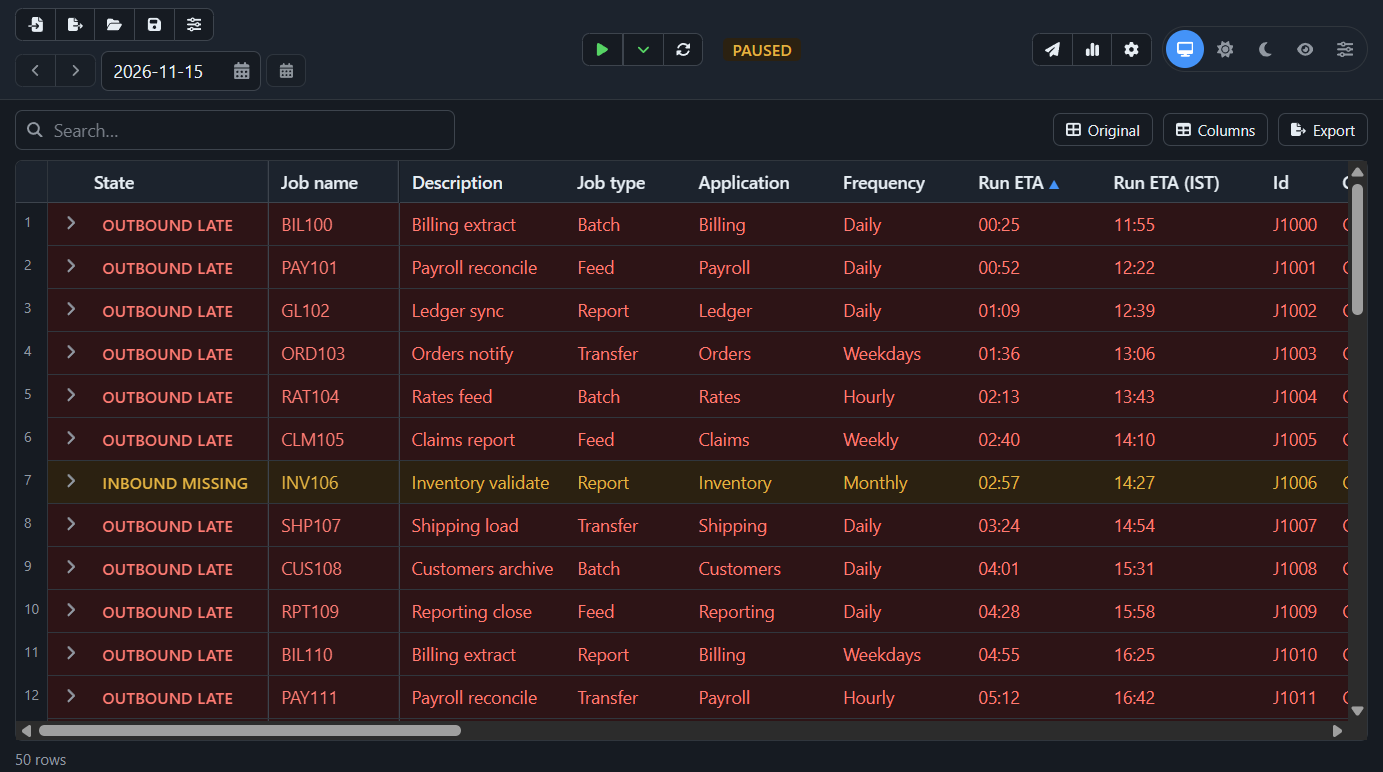
File Watch follows a day's batch jobs and their files from a Visual Studio tool window. Load the job list from Excel,
CSV, JSON or XML, and it looks for each job's inbound file before the job runs and its outbound file after, reads the
jobs' statuses from one SQL query, and colours the rows that are due, late, failed or done. It keeps every day, so
you can look back, see what keeps failing, and write a hand-over in a minute.
Open it from View → Other Windows → File Watch. It takes Visual Studio's theme, colours and font.
What it does
- Inbound files. Looks in each job's inbound folder for its file pattern (with date tokens such as
{yyyyMMdd}
and {yyyy-MM-dd-1} for the day before) before the job's run time. A row turns to a warning when the run is near or
due and the file has not come.
- Outbound files. Looks for the job's output from its run time until the job ends, plus a grace period.
- Job statuses. One SQL query for every job, matched by a key column; statuses, start and end times are filled
in. You say which statuses mean running, done, failed or not applicable.
- History. Every business date is kept for a month or more (you choose), with each change of a status, time or
comment, when it changed and who changed it. Earlier days open read-only, with an Edit switch.
- Past midnight. A job belongs to the day it started. Yesterday's unfinished jobs are still watched until a cutoff
you set.
- Analytics. For the last 7, 14 or 30 days, a month, or dates you choose: success and failures, files on time,
late or missing, run times, the jobs that fail or run late most, failures by hour. Saved to Excel with every run
underneath.
- Hand-over and end of day. A report of what failed (with each comment), what was done and what is due next, for
the hours you choose, or a whole day. Copy it, or save it as Excel or HTML. Nothing is sent or scheduled.
- Two clocks. Times are US Central by default, with a second zone alongside (India's by default), marked +1 when
that is the next day there.
- A full grid. Sort, filter, search, group, pin and reorder columns, save layouts, and export to Excel, CSV,
JSON, XML or HTML with the columns, headers and rows you choose.
- Your own rules and columns. Conditional formatting and computed columns are written as Excel-style formulas over
the columns, such as
ISBLANK([Job status]) and [Run ETA] < TIMEOF(NOW()). More than 250 functions: logic, text,
dates and time zones, lookup, statistics, financial and unit conversion, with suggestions and help as you type.
Getting started
- Install the extension and restart Visual Studio.
- View → Other Windows → File Watch. Dock the window where you like.
- Select Load, give the path of your job sheet and select Read. Match its columns to File Watch's fields
once; the mapping is kept.
- Open Settings for the file patterns, the status query and its connection, then start the monitors.
Your data stays on your PC
File Watch keeps its settings, job list and history in %LOCALAPPDATA%\FileWatch (a SQLite file). It has no
telemetry and sends nothing anywhere. It reads the folders and runs the query you set up, as you. The connection
string is kept encrypted for your Windows login, or you can enter it as {env:FILEWATCH_CONNECTION} so that only
the name of an environment variable is saved.
How it runs
The tool window shows a screen served on this PC only by the File Watch app, which the extension carries and starts
for you. The app keeps watching from its tray icon when Visual Studio closes; Exit in the tray menu stops it.
The same app is available on its own, without Visual Studio, as a .zip download.
Requirements
- Windows 10 or 11, x64.
- Visual Studio 2022 (17.14 or later) or Visual Studio 2026, any edition.
- The .NET 10 Desktop and ASP.NET Core runtimes, x64, which Visual Studio installs with its .NET workloads. File Watch
says so if they are missing.
- SQL Server access is needed only for job statuses; files are watched without it.
Licence
Free to use. See the licence shown when you install, and THIRD-PARTY-NOTICES.txt in the extension's folder.
| |

