Effort Tracker
Track time and effort spent on work items with activity-based logging, live timers, and reporting.
Features
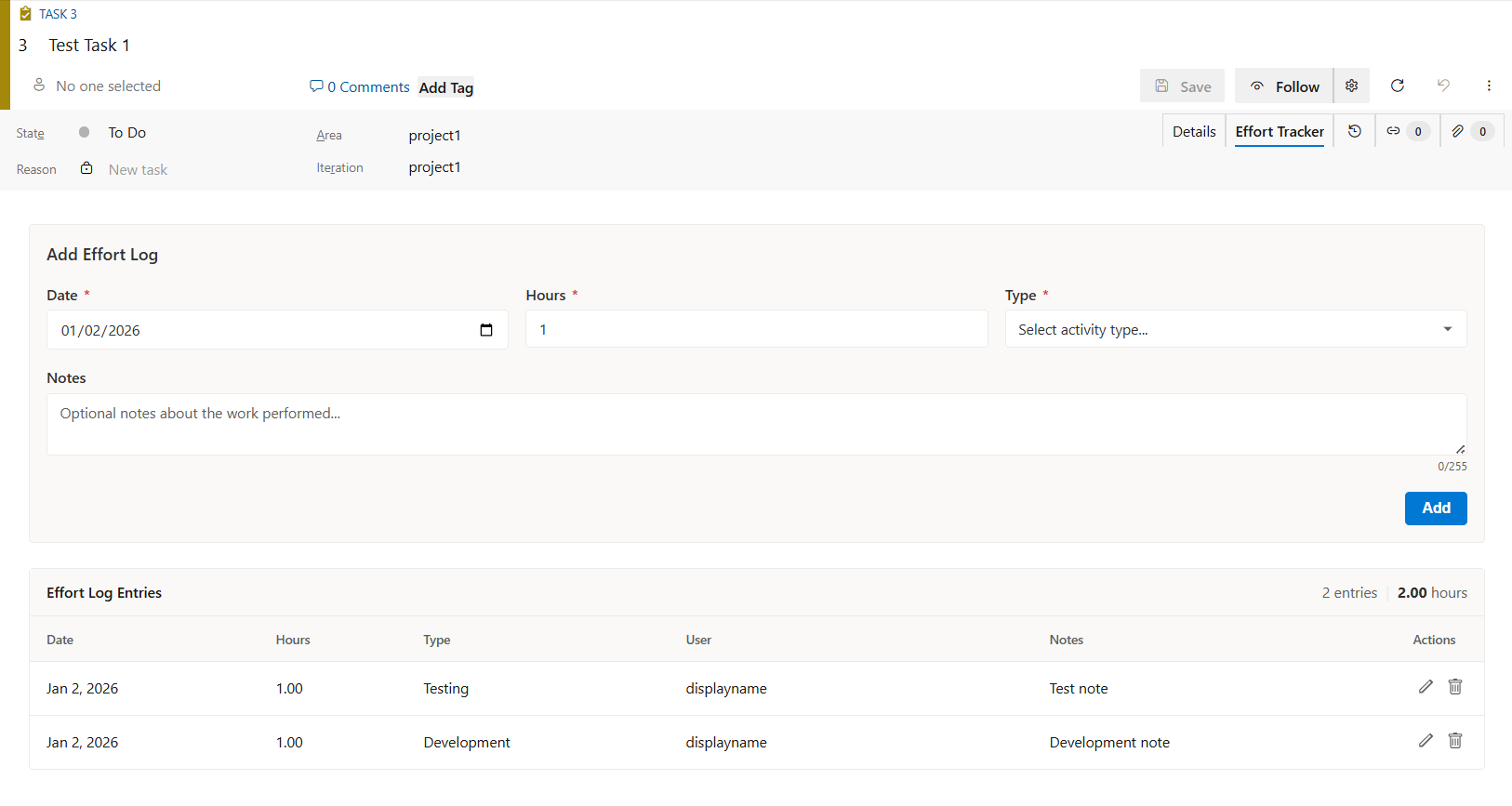
Effort Logging (Work Item > Effort Tracker)
- Log Hours: Record time in H:MM format (1:30 = 1 hour 30 minutes)
- Activity Types: Categorize by Development, Testing, Code Review, or your own list
- Notes: Describe the work performed
- Billable: Optional per-project flag on each entry
- Grid View: All entries with pagination, edit and delete
- Auto-Update: Keeps the work item's "Completed Work" field in step
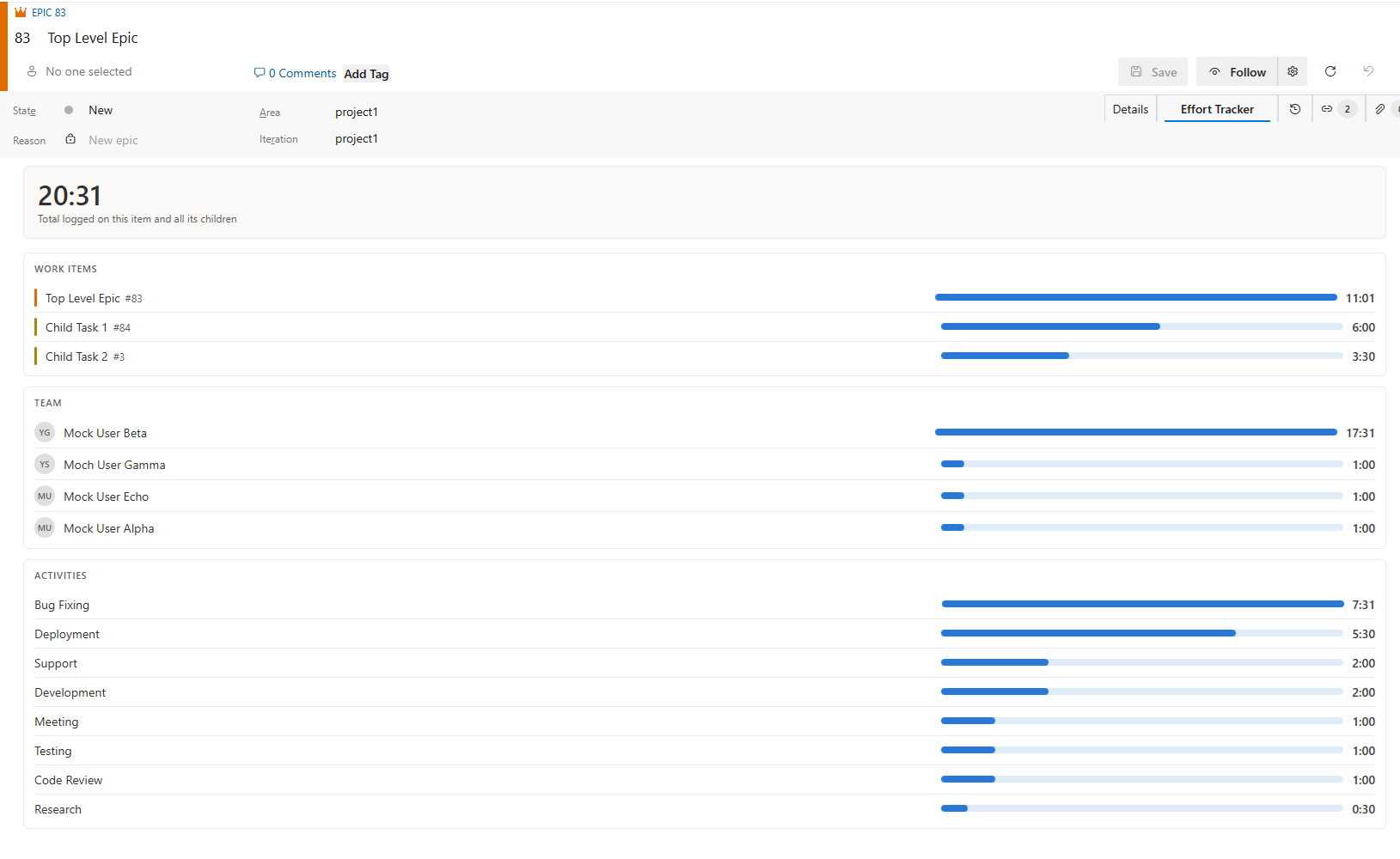
Summary View
See where the time went on an item and everything beneath it:
- Rollup Total: Hours logged on the work item and all of its children
- By Work Item: Parent and each child, with a share bar
- By Team Member: Who spent the time
- By Activity: Which activities consumed it
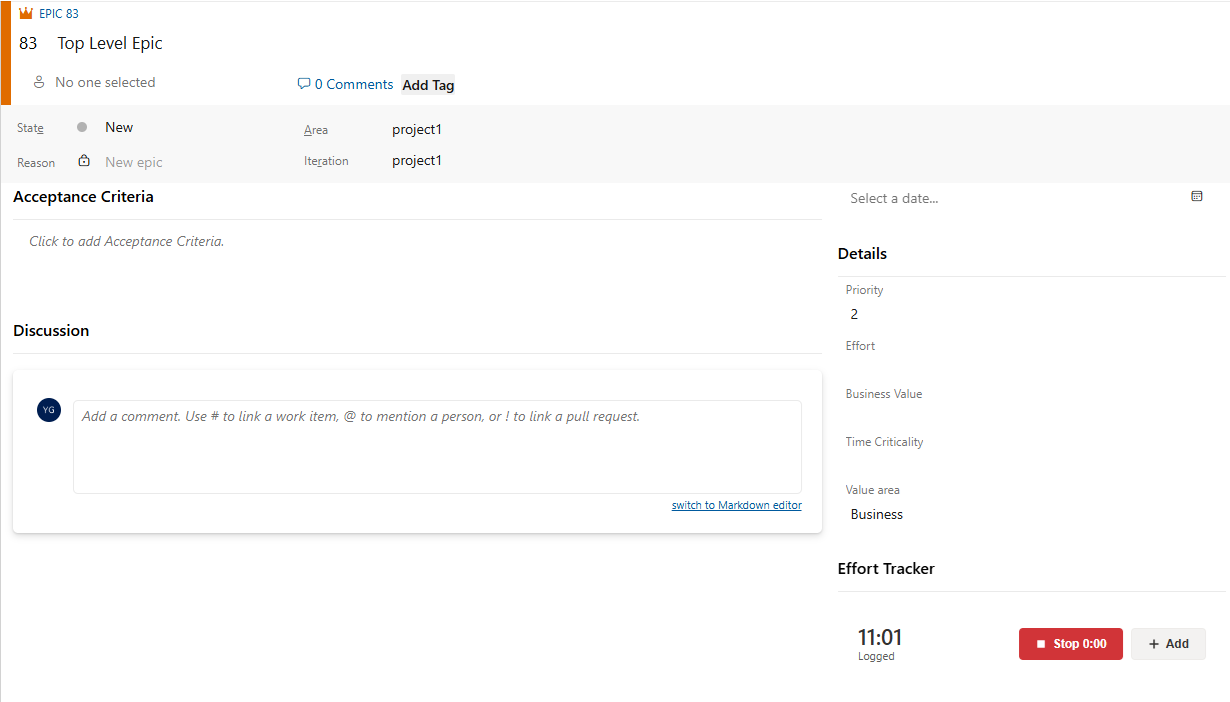
Track time without leaving the Details tab:
- Logged Total: Hours already recorded on the item
- Start/Stop Timer: Run a live timer and log the elapsed time on stop
- Quick Add: Add an entry inline
- Auto-Close: Forgotten timers are closed automatically after a configurable number of hours
This is a custom control: an organization administrator adds it to the work item form under
Process > Layout > Add custom control, on the work item types that should have it. Organizations
that do not add it carry no cost for it at all. Everything above is also available on the Effort
Tracker tab, which needs no setup.
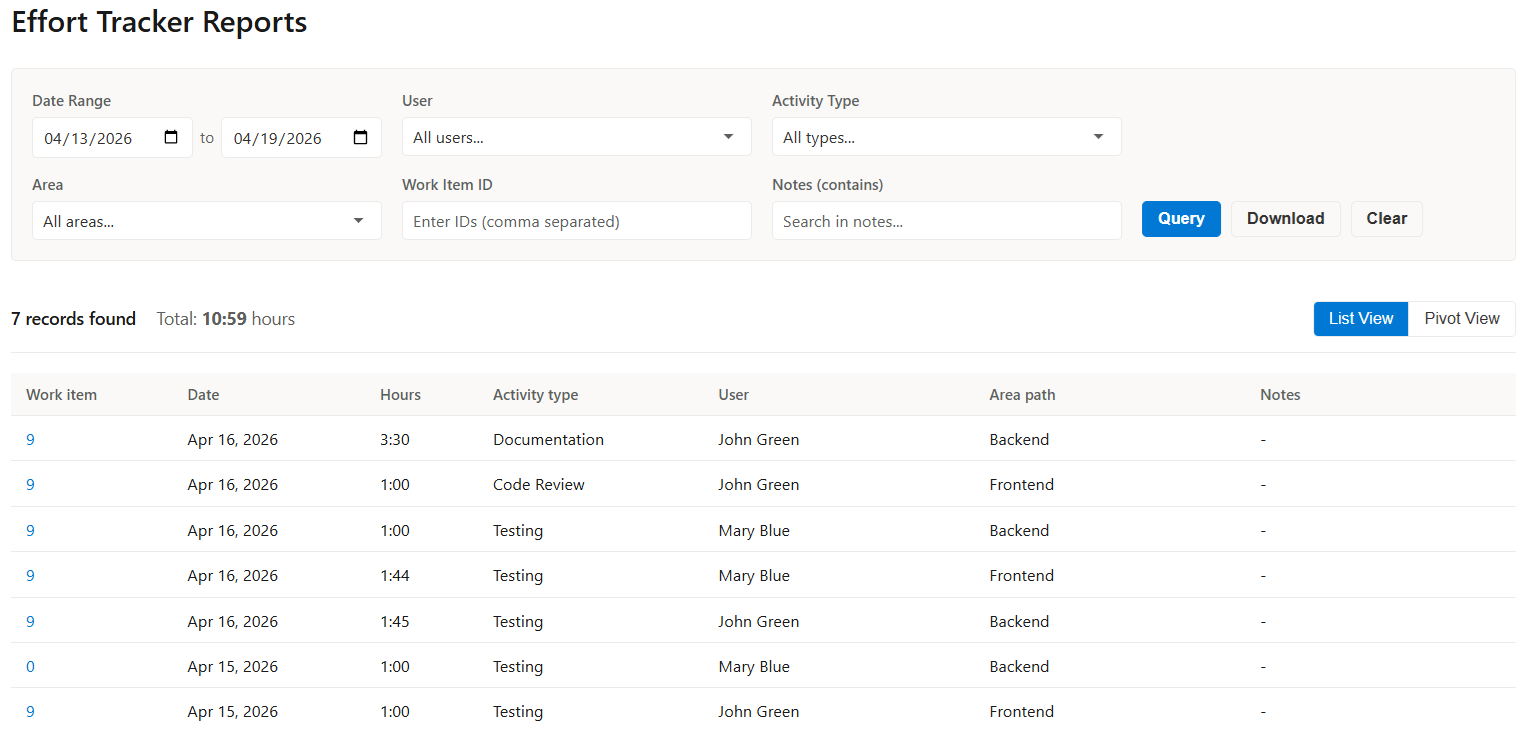
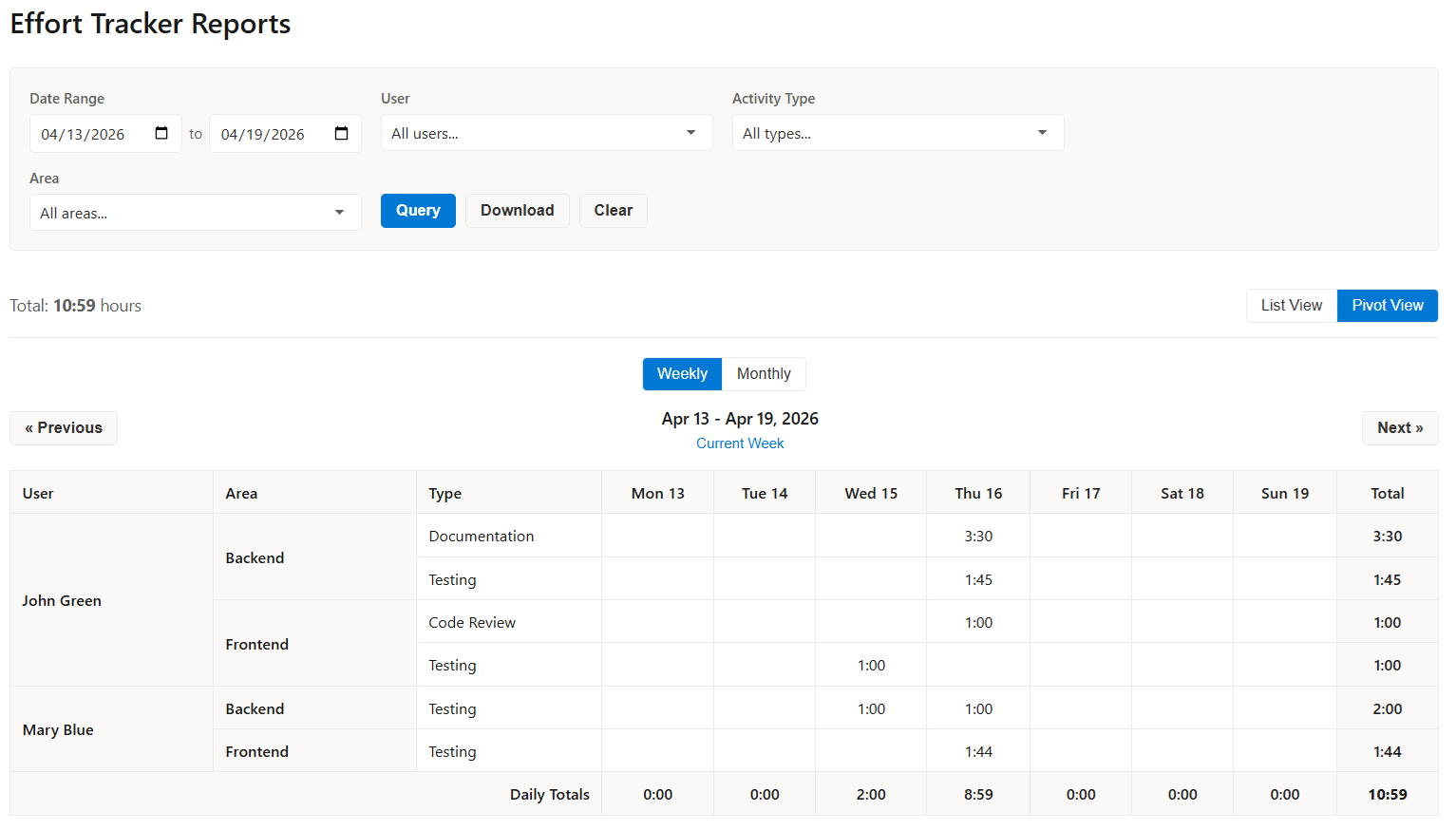
Reports Hub (Boards > Effort Reports)
- List View: One row per entry, sortable
- Pivot View: Timesheet grid by day or week, grouped by User → Area → Activity Type
- Weekly/Monthly Toggle and period navigation
- Filters: Date range, user, user status, activity type, area, work item IDs, billable
- Text Search: Search within notes
- CSV Export: Download the filtered result
- Total Hours: Aggregate for the current query
Project Settings (Project Settings > Effort Tracker)
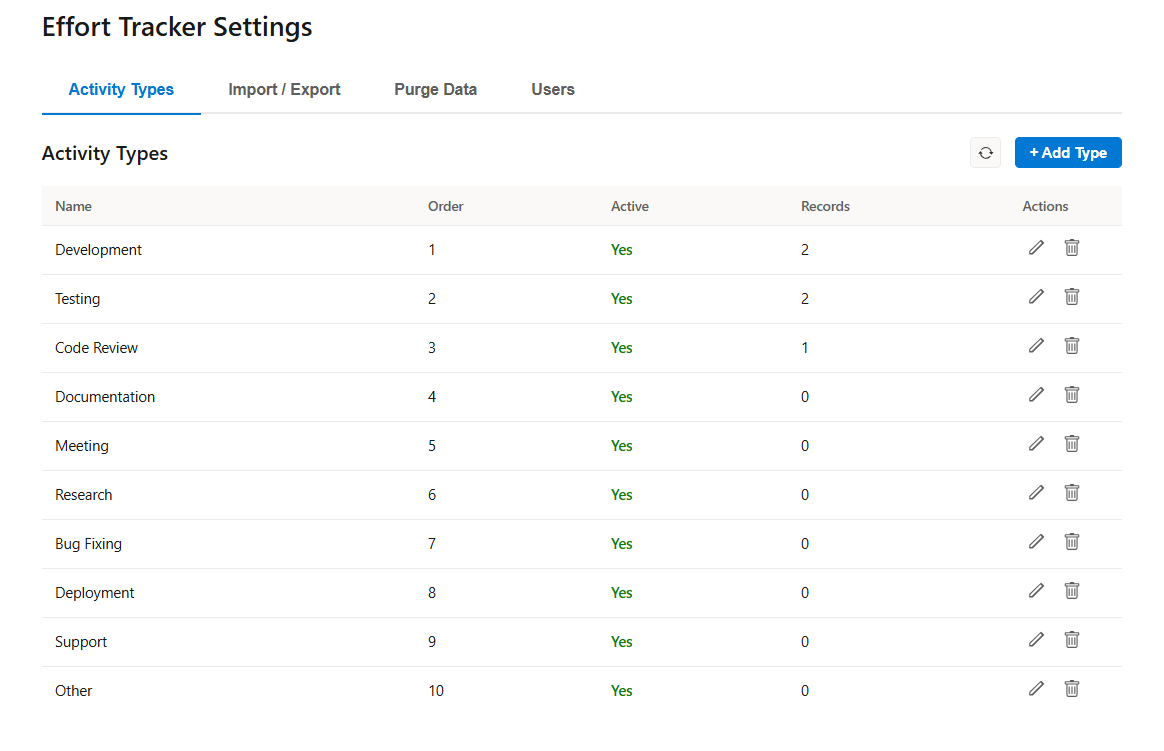
- Activity Types: Create, edit, reorder, delete, with usage counts
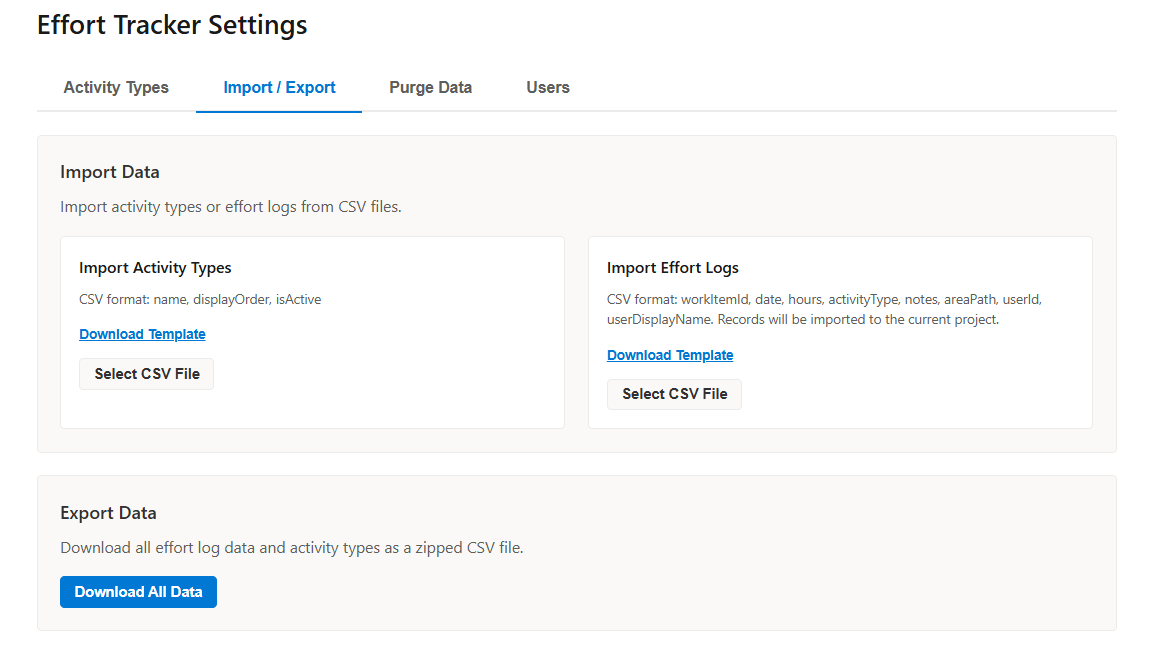
- Import/Export: Bulk CSV import, export all project data
- Purge: Delete by user, area, activity type, work item, or billable flag
- Users: See who logged effort; deactivate or reactivate accounts
- Options:
- Performance — how long settings and activity types are reused
- Data Visibility — restrict non-admins to their own records
- Billable — enable the billable field for this project, and choose whether it starts on Yes or
No for a new entry
- Additional Project Administrators — grant admin rights to an Azure DevOps permission group
- Tracking Control — lock entries older than N days, block future dates, lock entries on
closed work items after N hours, auto-close running timers after N hours
Organization Settings (Organization Settings > Effort Tracker)
- Cross-Project Export/Import: All projects at once
- Organization Statistics: Records, projects, hours
- License Management: Seats, usage, subscription
- Purge: Filter across projects by project, user, area, activity type or billable
- Settings: Tune how long administrator checks and Azure DevOps identifiers are cached,
with an independent reset for each
Quick Start
Logging Effort
- Open a work item in Azure Boards
- Open the Effort Tracker tab
- Enter date, hours, and activity type
- Click Add — or start a timer from the Details tab and stop it when you're done
Viewing Reports
- Go to Boards > Effort Reports
- Set your filters and click Query
- Switch to Pivot View for a timesheet layout, or Download for CSV
Requirements
- Azure DevOps Services (cloud)
- Azure DevOps Server 2019+ (on-premises)
Public REST API
Read your effort data programmatically, authenticating with an Azure DevOps Personal Access Token.
Base URL: https://efforttrackerapi.sinaware.com/api/v1/
Endpoints:
GET /effortlogs — entries for a work itemPOST /effortlogs/query — advanced filtersGET /effortlogs/export — CSV or JSON exportGET /activitytypes — activity typesGET /stats/summary — organization totalsGET /stats/user-counts — entries per userGET /health — service status and build
Results follow the same visibility rules as the extension: administrators read the whole
organization, everyone else reads their own entries.
Interactive Documentation: Swagger UI
Full API Documentation
Documentation
Full Documentation
Troubleshooting Guide
Pricing
- Free tier: Up to 5 users, unlimited projects and entries
- Paid plans: $1/seat/month, minimum 6 seats
Support
Report an Issue
| |

