Integrating the Sec1 Security plugin as Azure DevOps Extension allows developers and teams to enhance the security of their software projects by scanning Source Code Management (SCM) repositories for open-source vulnerabilities (SCA), running Static Application Security Testing (SAST) on source code, and triggering Dynamic Application Security Testing (DAST) scans against deployed applications — all against the Sec1 Security Database. This documentation provides a step-by-step guide on integrating the Sec1 Security Extension into your Azure CI/CD pipelines.
Search for "Sec1 Security" and click on the search result to visit the plugin page.
Click on "Get it free", select the "Azure DevOps organization" where you would like to install and click "Install".
Once installation is complete then "Proceed to organisation"
2. Configure API Token
You need to configure API Token as Generic Service Connection
Go to your "Project" > "Project Settings"
Click "Service Connections" under Pipelines section
Click "New service connection"
Search for "Generic" and click "Next"
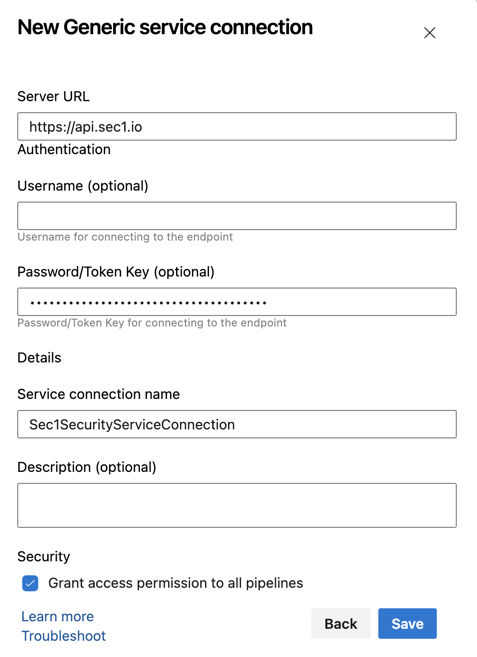
Enter below configuration
Server URL - Default value of Server URL will be https://api.sec1.io. If you are using SaaS service then leave it blank otherwise provide the appropriate value
Username is optional as Sec1 Security uses API Token for authentication purpose.
Password/Token Key - Provide SecAPI Security API Token.
Service connection name - Provide appropriate service connection name (e.g. Sec1SecurityServiceConnection).
Description - It is option field but you can provide appropriate description.
Grant access permission to all pipelines - Select checkbox in case you want to grant the permission to all pipeline otherwise you need to grant the permission to individual pipeline during execution.
Note : To get SecAPI Security API Token navigate to Scopy > "Login with GitHub" > "Settings"
In the "API key" section, click on "Generate API key" and copy it for use.
📷 Show Preview
3. Configure Sec1 Security Extension as a Build Step
Navigate to "Pipelines" section in your project.
Click on "Edit".
Search "Sec1 Security" in the tasks search box and select the result.
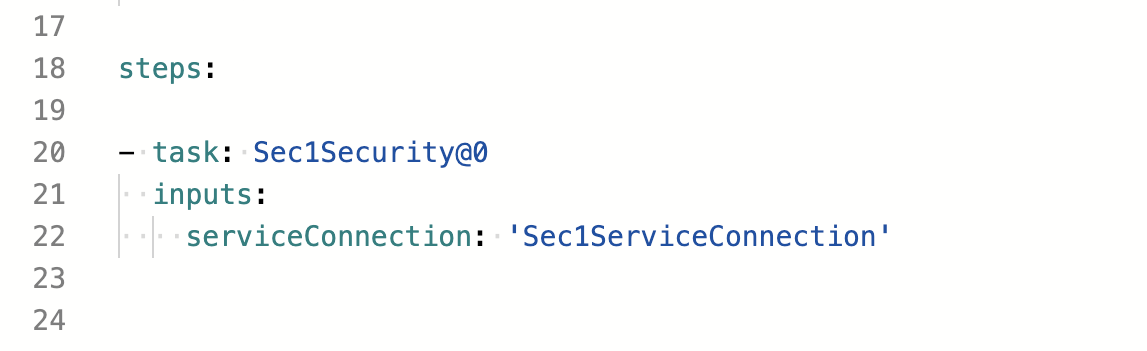
Select Service Connection which you have added as Generic Service Connection in dropdown.
Choose the scans to run (SCA, SAST and/or DAST). SCA scans the repository directly on Sec1 infrastructure, so no package file or path needs to be configured.
Click "Add"
📷 Show Preview
You can also copy below code snippet to directly copy in pipeline yaml file.
Configure the following parameters in the "Sec1 Security Settings" while adding extention to build step:
Enable SCA Scan — Run Software Composition Analysis against your repository. The repository is scanned directly on Sec1 infrastructure (resolved from the SCM URL), so no dependency manifest needs to be uploaded and there is no package-manager restriction.
Enable SAST Scan — Run Static Application Security Testing against your source code.
Enable DAST Scan — Trigger a Dynamic Application Security Testing scan against a deployed application. When enabled the task fires the Sec1 DAST API and prints the dashboard URL so you can monitor scan progress. The DAST scan continues to run on Sec1 infrastructure after the pipeline step completes.
DAST Target URL (required when DAST is enabled) — The fully-qualified URL of the deployed application to scan, e.g. https://staging.example.com. Must start with http:// or https://.
DAST Scan Type — Choose Quick (faster, lighter coverage) or Deep (slower, more thorough). Defaults to Quick.
Run scans asynchronously (optional) — When enabled, the SCA scan is triggered fire-and-forget: the task submits the scan, prints the report URL, and the pipeline continues without waiting for results. Defaults to off (the task waits for SCA results). This option is ignored when Threshold Check is enabled, because evaluating a threshold requires the scan results.
Tag (optional) — A label to identify this scan. Defaults to the branch name, or default if unavailable.
Enable the Threshold Check (optional) If selected, define your vulnerability threshold levels by "Severity". Leave a severity blank to ignore it.
If you set the critical vulnerability threshold to 10, your build will fail if the scan reports 10 or more critical vulnerabilities.
Note: the threshold check applies to SCA and SAST results. DAST scans run asynchronously on Sec1 infrastructure — review results in the dashboard URL printed by the build step.