Skip to content
| Marketplace
Sign in
Azure DevOps>Azure Boards>Fulcrum Work Item State Progression
Fulcrum Work Item State Progression

Fulcrum Work Item State Progression

Scott Rupke

|
1 install
| (0) | Free
Analyze work item bottlenecks by visualizing time spent in each state per sprint and team.
Get it free

Work Item State Progression

Adds a State Progression hub to the Azure Boards section. Select a project, team, and sprint to instantly see how long every work item has spent in each workflow state — so leadership can pinpoint exactly where work is getting stuck.

State Duration Table

Choose a project, team, and sprint from the dropdowns, then click Load. A sortable table appears with one row per work item and one column per workflow state. Each cell shows the hours the item spent in that state, calculated from its full revision history.

  • New column — shows a bullet (●) if the item is currently in a New state; hours are not calculated for the initial state.
  • Middle state columns — show hours spent, color-coded by configurable thresholds.
  • Done column — shows a checkmark (✔) when the item has reached a Done state.
  • Totals row — sums the hours for every middle-state column across all visible rows.

All columns except New and Done are sortable.

State Progression table showing work items with color-coded state duration cells

Color Coding

Each middle-state cell is color-coded to make bottlenecks visible at a glance:

Color Meaning
Green Below the yellow threshold
Yellow At or above the yellow threshold
Red At or above the red threshold — likely a bottleneck

Zero-hour cells (state never entered) have no color.

Both thresholds are configurable per installation via the ⚙ Settings panel.

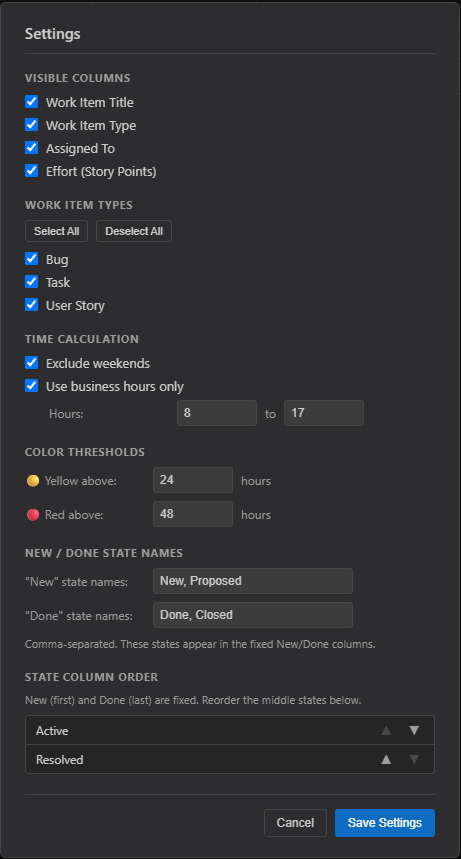
Settings

Click ⚙ Settings in the toolbar to tailor the view to your team's process:

  • Visible Columns — show or hide Title, Work Item Type, Assigned To, and Effort.
  • Work Item Types — filter the table to specific types (Story, Bug, Task, etc.) using checkboxes, with Select All / Deselect All shortcuts.
  • Time Calculation — exclude weekends and/or restrict counting to business hours with a configurable daily start and end time.
  • Color Thresholds — set the yellow and red hour thresholds independently.
  • New / Done State Names — configure which state names map to the fixed New and Done columns to match any process template (Agile, Scrum, CMMI, or custom).
  • State Column Order — reorder the middle state columns with ▲ / ▼ buttons; New and Done always remain at the first and last positions.

All settings are persisted via the Azure DevOps Extension Data Service and survive page refreshes.

Settings panel showing visible column toggles, work item type checkboxes, time calculation options, color thresholds, New/Done state name configuration, and state column ordering

  • Contact us
  • Jobs
  • Privacy
  • Manage cookies
  • Terms of use
  • Trademarks
© 2026 Microsoft