AI Engineering Fluency — Visual Studio Extension

Tracks your GitHub Copilot token usage directly inside Visual Studio 2022+. Reads local Copilot Chat session files and displays usage statistics in a dedicated tool window.
Status: Early access / active development. Core tracking is functional; some features available in the VS Code extension are still in progress.
Install
The extension will be published to the Visual Studio Marketplace. Until then, build from source (see Contributing).
Features
- Token usage tracking from Visual Studio Copilot Chat session files
- Today's and monthly token counts displayed in a tool window
- Per-model usage breakdown
Note on token counts: Visual Studio Copilot Chat session files store prompts and responses as plain text but do not include the actual LLM token counts used by the API. All numbers shown are estimated from prompt and response text length using model-specific character-to-token ratios.
Screenshots
Features:
- Toolbar with found token counts in the format
X | Y
Which is today: X tokens | last 30-days: Y tokens

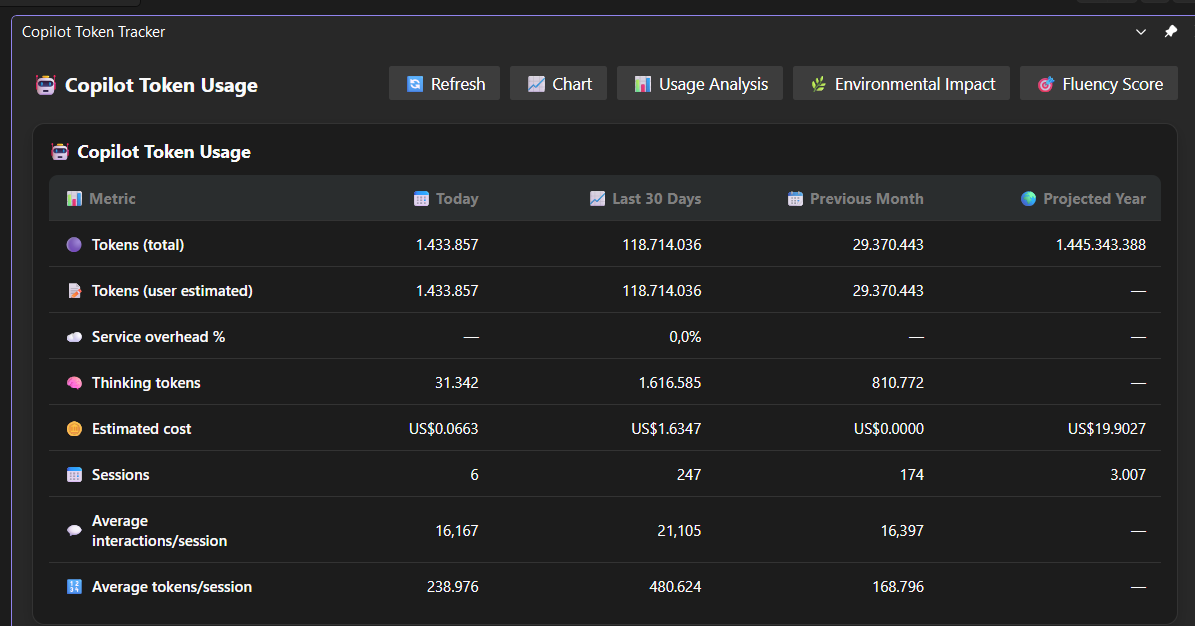
- Detailed usage breakdown in the tool window, showing estimated tokens by model and date.
Supported VS Versions
- Visual Studio 2022 (v17.x and later)
Session File Location
Visual Studio Copilot Chat stores session files in:
<solution folder>\.vs\<solution name>.<ext>\copilot-chat\<hash>\sessions\<uuid>
Chats started without a solution open have no .vs folder to live in, so Visual Studio
keeps them in its own AppData folder instead:
%LOCALAPPDATA%\Microsoft\VisualStudio\<version>\VSGitHubCopilot\copilot-chat\<hash>\sessions\<uuid>
Both use the same MessagePack format. The extension automatically discovers sessions under
the .vs folder for each open solution and under the VSGitHubCopilot AppData folder.
Known Limitations
Token counts are estimated, not actual LLM API counts. See the note above.
Features available in the VS Code extension that are not yet available here:
- Cloud backend (Azure Storage sync). The extension has no backend or sign-in
path of its own —
backendConfigured is only relayed from the CLI payload, so
anything that needs GitHub auth or synced team data is unavailable.
- Views not shipped by this host: Team Dashboard, Efficiency Trends,
Log Viewer and What's New. (Show Team Dashboard falls back to the details
view.)
- Diagnostic reporting panel. The toolbar button is hidden and the
diagnostics command redirects to the details view.
- Export dropdown (image / PDF / PPTX) and Share to Issue on the Fluency
Score view. Social sharing itself is supported — the LinkedIn, Bluesky and
Mastodon buttons are handled by the Visual Studio host.
- Sections and tabs that have no data in Visual Studio are hidden on the views
that do ship: the Usage Analysis Dashboard hides the Workspace Health,
Repository PRs, Cloud Agent, Insights and Recent Sessions tabs plus the
Copilot Customization Files, Missed Potential and Repository Hygiene sections;
the chart hides the By Repository toggle; the Fluency Score view hides the
VS Code Marketplace MCP discovery button.
- Some controls render but do nothing. Unlike the surfaces above these are
not hidden, and the host has no handler for the commands they post:
- The Efficiency Trends button in the toolbar of every view. It posts
showEfficiency, which the host does not handle. (The Team Dashboard
button beside it does not have this problem — the toolbar drops it when no
backend is configured, which is always the case here.)
- The Worktrees tab on the Usage Analysis Dashboard.
scanWorktrees,
pickWorktreeRoot, deleteWorktree and the cleanup commands are all
unhandled, so scanning, picking a root and deleting are no-ops.
- On the Tool Output tab, the Tool Curation section's "open" links and
the suppress-tool control (
openFile, openFileFromList,
manageExtension, openAgentPlugins, suppressUnknownTool). Suppressing
a tool updates the view but is not persisted.
The Usage Analysis Dashboard, the AI Engineering Fluency Score and its Scoring
Guide are available in Visual Studio, along with the details, chart and
environmental impact views.
Feedback
Please open an issue on GitHub for bugs or feature requests specific to the Visual Studio extension.