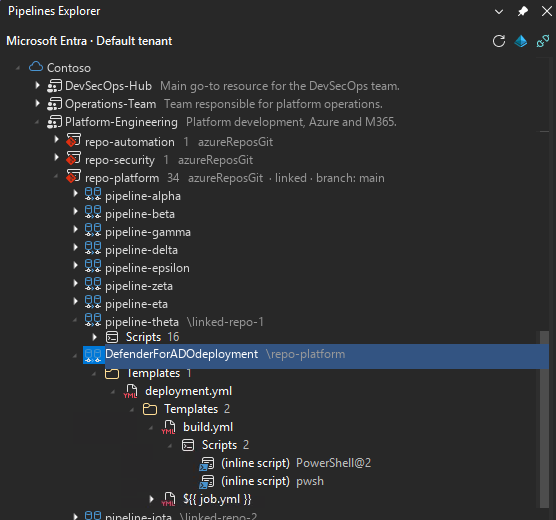
Browse Azure DevOps pipelines, drill into referenced YAML templates and scripts (PowerShell, Bash, Cmd, Python, Azure CLI), and jump to the local files in your solution.
Browse Azure DevOps pipelines without leaving Visual Studio. Drill into the YAML graph, jump to referenced templates and scripts (PowerShell, Bash, Cmd, Python, Azure CLI), and open the matching files inside your loaded solution — all from a dedicated tool window.
Features
Pipelines tree grouped by Microsoft Entra tenant, Azure DevOps organization, project, and repository.
Multi-tenant sign-in with Microsoft Entra (interactive + silent token cache); switch tenant from the toolbar.
PAT fallback for Azure DevOps organizations that don't accept Entra tokens.
Per-repository branch override (vertical scrollable picker) when you need to inspect a non-default branch.
Workspace ↔ pipeline linking: bind a project/repo node to a folder under your loaded solution and open referenced YAML / script files with a single click.
Filter by name: type in the filter box at the top of the tool window to shrink the tree to pipelines, templates and scripts whose name contains a substring; the scan covers every organization / project / repository the signed-in identity can see and recurses into same-repo templates.
Localized UI in English (default), Italian, French, German, Spanish, and Swedish — follows the Visual Studio display language.
Accessible by design: keyboard-only navigation, screen reader names, theme-aware brushes (light / dark / high-contrast).
Getting started
Install the extension and restart Visual Studio 2026.
View → Other Windows → Pipelines Explorer.
Click Sign in with Microsoft (or paste a PAT).
Pick a tenant, then expand orgs / projects / pipelines.
(Optional) Right-click a project / repository → Link to workspace folder to enable jump-to-file.
Requirements
Visual Studio 2026 (any SKU).
An Azure DevOps account with read access to the pipelines you want to browse.