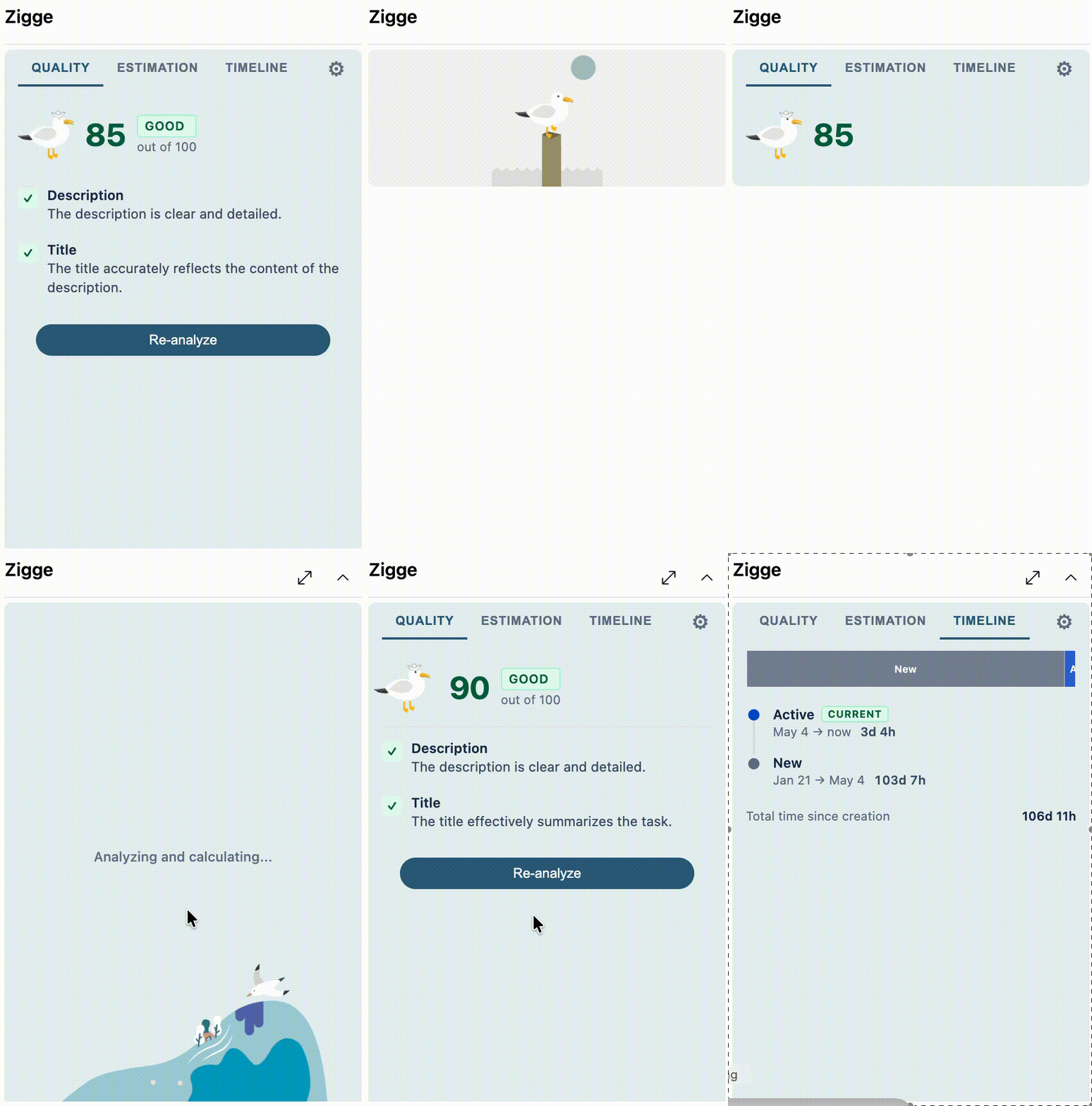
AI-powered work item quality analysis, estimation suggestions, and timeline visualization -- right inside your work item form.
Features
Quality Analysis -- AI reviews your work item fields and scores completeness, clarity, and actionability.
Estimation Suggestions -- Compares the current work item against similar completed items to suggest an estimation value.
Timeline Visualization -- See how long the work item has spent in each status, displayed as a visual timeline.
Getting Started
Install the extension from the marketplace.
Open any work item -- the Zigge panel appears as a form group.
Open Settings (gear icon) to add your OpenAI or Claude API key and configure the proxy URL (optional).
Select which fields to analyze and which field to use for estimation.
Click Analyze ticket to run the analysis.
Configuration
Proxy URL -- The URL of your Azure Function proxy that forwards requests to the AI provider.
API Key -- Your OpenAI or Anthropic API key, stored securely in the Azure DevOps Extension Data Service.
Analysis Fields -- The work item fields to include in the AI quality review.
Estimation Field -- The numeric field your team uses for estimation (e.g., Story Points, Effort).
Data & Privacy
All extension data -- your API keys, proxy URL, analysis field selections, and estimation settings -- is stored using Azure DevOps' Extension Data Service within your organization context. Nothing is stored on Zigge-hosted servers or third-party storage.
The only data that leaves Azure DevOps is the work item content you choose to analyze, which is sent through a proxy URL to the AI provider you selected (OpenAI or Anthropic).