VersionInfo Editor
Visual Studio 2022 Extension for Easy Version & Release Notes Management
Overview
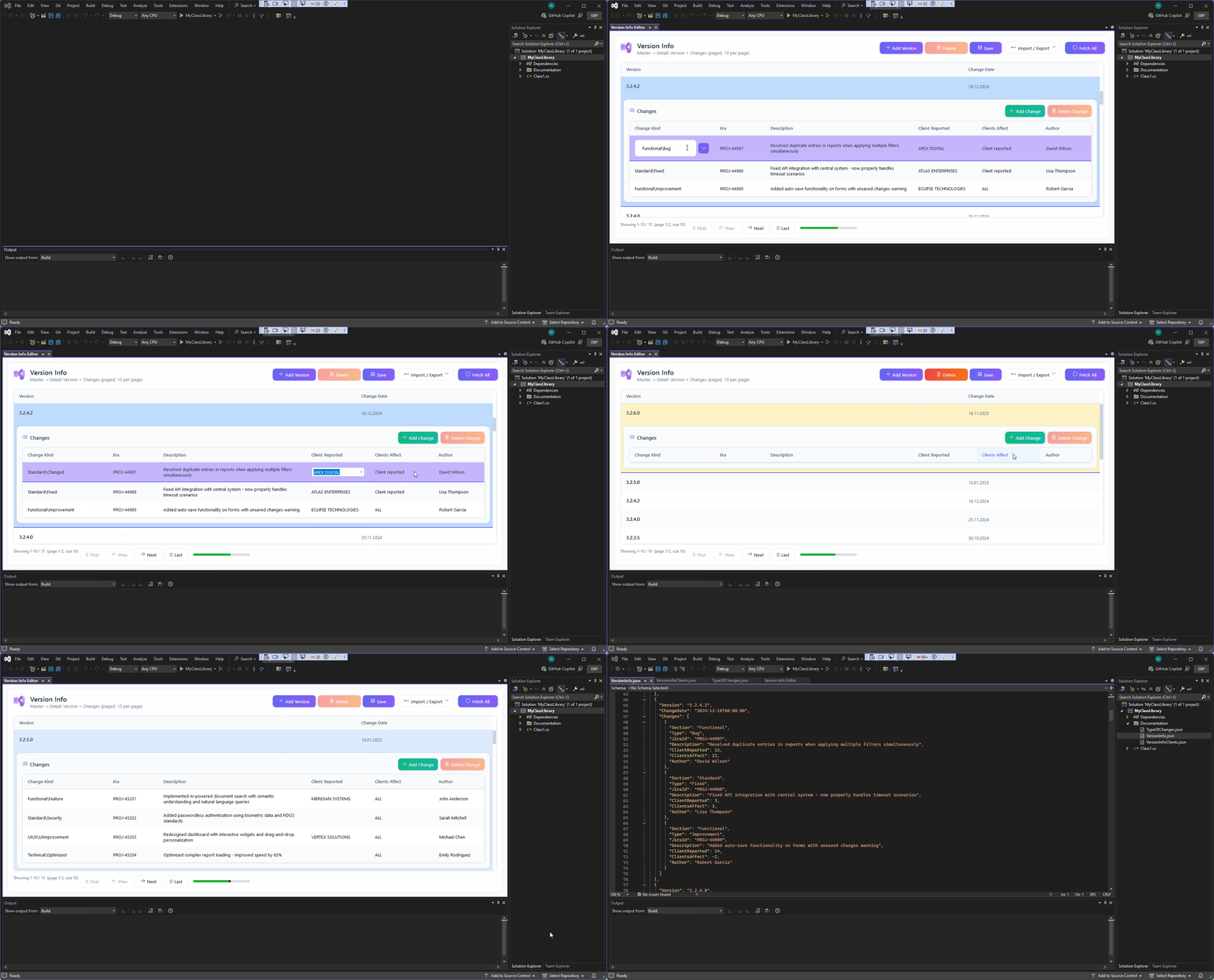
VersionInfo Editor lets you maintain a clean, structured VersionInfo.json for your project or solution. Instead of hand‑editing text changelogs, you add versions and changes through an intuitive UI and export professional HTML release notes or compact summaries.
This README is user‑focused (how to use the extension).
Key Features
- Central place to edit versions and their changes (versions list + change list).
- Automatic suggestion of the next version number.
- Fast Change Kind picker (searchable Section → Type tree).
- Client selection with two concepts: reporter and who is affected (options include ALL and Restricted).
- Import legacy TXT changelog files and interactively map old codes & client tokens.
- Two HTML exports: Full release notes & Summary statistics.
- Required field validation before saving.
- Ready‑to‑use default JSON helper files if they are missing.
- Highlighting of newly added items until saved.
Quick Start
- Install the VSIX in Visual Studio 2022.
- Open or create a
VersionInfo.json in your solution (the extension can create one if absent).
- Open the editor from the menu:
Edit > Version Info Editor.
- Add a version, then add changes under it.
- Fill in Section & Type (use the picker), Jira ID, description, author, clients.
- Press Save when validation passes.
- Import TXT if migrating older history (optional).
- Export HTML (full or summary) for sharing.
VersionInfo.json contains an array of version objects:
[
  {
    "Version": "1.0.0.0",
    "ChangeDate": "2025-11-10T00:00:00",
    "Changes": [
      {
        "Section": "Functional",
        "Type": "Feature",
        "JiraId": "ABC-123",
        "Description": "Initial feature set.",
        "ClientReported": 0,
        "ClientsAffect": "Restricted",
        "Author": "Alice"
      }
    ]
  }
]
Each change requires: Section, Type, JiraId, Description, Author, ClientReported, ClientsAffect.
Change Kind Catalog
Defined in TypeOfChanges.json (can be customized):
{
  "Standard": ["Added", "Changed", "Deprecated", "Removed", "Fixed", "Security"],
  "Functional": ["Feature", "Improvement", "Bug", "RegressionFix"],
  "Technical": ["Refactored", "Optimized", "Cleaned", "Renamed", "Reorganized"],
  "DevOps": ["Build", "Infrastructure", "Dependencies", "VersionBump"],
  "UIUX": ["UIImprovement", "UXChange", "ContentUpdate"],
  "Other": ["Documentation", "Tests", "Experimental"]
}
Clients
VersionInfoClients.json lists your real clients starting at 0 upward. Example:
[
  { "Id": 0, "Name": "Client Alpha" },
  { "Id": 1, "Name": "Client Beta" },
  { "Id": 2, "Name": "Client Gamma" }
]
In the editor, the affected dropdown also shows three built‑in options: ALL, Restricted and Client Reported (you do not need to define them manually). Choose the reporting client and select who is affected (a real client, ALL, or Restricted).
Adding Versions & Changes
- Click “Add Version” – a new version row appears (auto date set to today).
- Click “Add Change” inside that version.
- Open the Change Kind picker to choose Section → Type.
- Enter Jira ID (or tracking code), description, author (auto prefilled), and clients.
- Repeat for additional changes.
- Press Save once all required fields are filled.
Tips:
- Use the search box in the Change Kind tree to filter results quickly.
- Leave the version number pattern consistent (e.g.
MAJOR.MINOR.BUILD.REVISION).
Importing a Legacy TXT File
- Click “Import TXT”.
- Select a legacy changelog file formatted with lines such as:
- Date + version headers:
dd.MM.yyyy [x.y.z.w]
- Change lines:
- [CODE, TASK, CLIENT] Description
- Map unknown change codes (e.g.
FIX, NEW) to Section/Type pairs in the mapping dialog.
- Map client tokens to your client list (or ALL / Restricted).
- Review the generated versions and changes.
- Save to write the structured JSON file.
The extension remembers previous mappings to reduce future manual work.
HTML Export
Full Release Notes
Generates a visually rich page with navigation, grouped sections, badges for types, Jira links, client info, and authors. Ideal for sharing with stakeholders.
Summary Report
Produces aggregated counts by Change Kind and by client (reported vs affected) for quick analytics.
Both exports are pure static HTML files you can attach to documentation portals or share internally.
Validation
You cannot save if any required field is empty or if a valid client selection is missing. A dialog lists all issues so you can correct them quickly.
GIF Demo
FAQ
Q: Do I need to manually add ALL / Restricted to the clients file?
No. They appear automatically as affect options.
Q: Can I customize Section and Type lists?
Yes, edit TypeOfChanges.json and reopen the editor.
Q: How is the next version suggested?
It increments the build segment of the highest existing version; you can edit it manually.
Q: What happens if Jira IDs are unknown?
During import they may be set to UNKNOWN; you can update them later before saving.
Q: Does the extension modify other project files?
Only creates helper JSON files if they are missing (with your confirmation).
Contributing
If you have suggestions, open an issue or propose enhancements (feature ideas, UI improvements, export templates). Development details are intentionally kept out of this README to stay user oriented.
Short Tagline
"Structured release notes & clean version history for Visual Studio projects."

