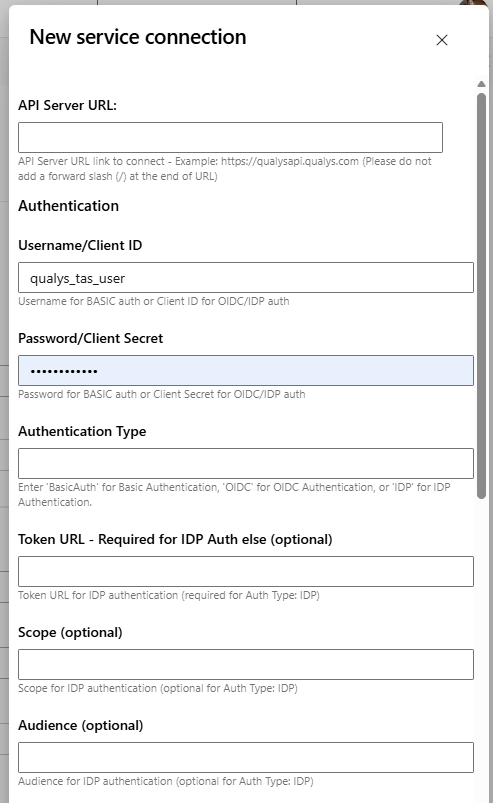
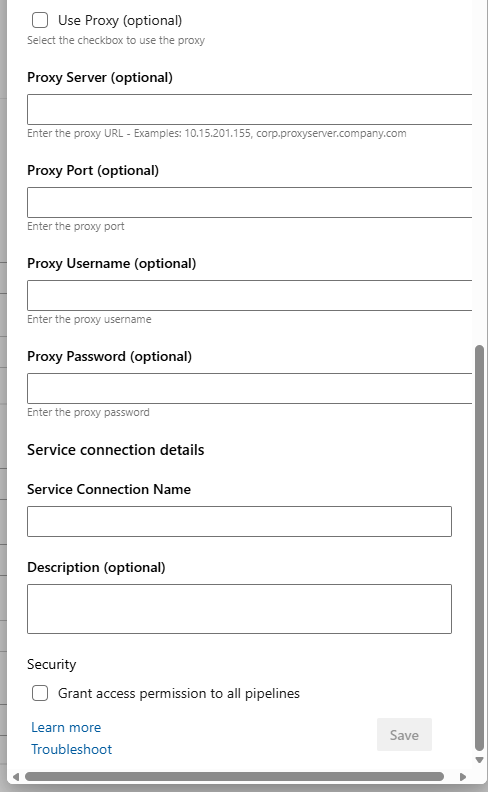
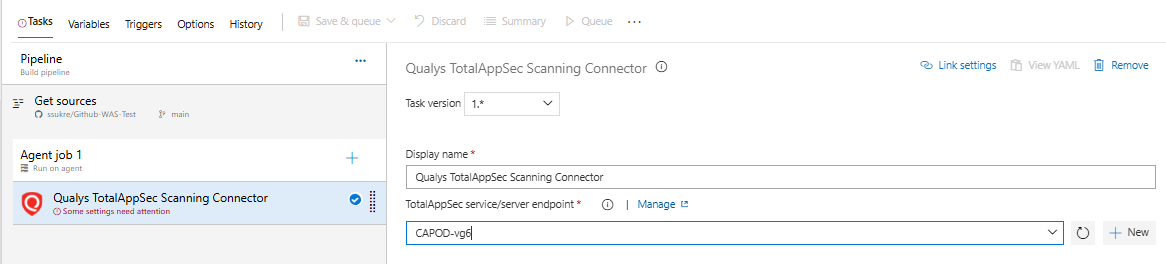
Working & BehaviourThe Qualys TotalAppSec Scanning Connector integrates Azure Pipelines CI/CD with the Qualys TotalAppSec (TAS) module. This extension enables vulnerability scanning for both Web Applications and API Type Applications. It empowers DevOps teams to incorporate application vulnerability scans into their existing Azure Pipeline workflows. By integrating security scans into the CI/CD process, application security testing can be performed earlier in the Software Development Life Cycle (SDLC) to catch and eliminate security flaws. The extension can be configured to pass or fail builds based on the vulnerabilities detected during the scan. Additionally, it generates scan reports in both JSON and PDF formats for the scan in the build. Add 'Qualys TotalAppSec Scanning Connector' task to pipelineInstall the Qualys TotalAppSec Scanning Connector extension into your Visual Studio Team Services account and search for the task in the available tasks. The task will also appear in the Utility section of the task list. Add it to your build/release pipeline. Task ConfigurationQualys Configuration using Service Connection Create a new service connection to connect to the Qualys API server. You need to provide the API Server URL, API user, and password. If your Azure DevOps instance does not have direct Internet access and a proxy is required, click the "Use Proxy Settings" check box, and enter the required information. We support both Basic and OIDC authentication.
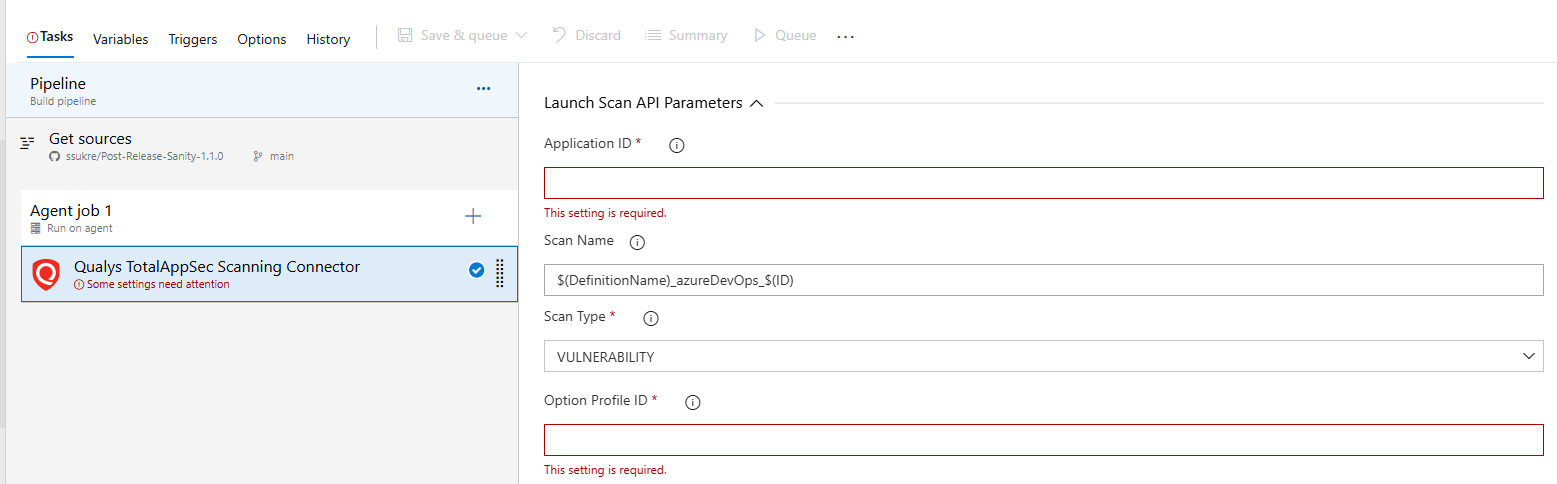
API authentication is supported via Qualys-managed tokens using a user-level client. For more details, refer to Qualys Token-based Authentication Technical Brief. Launch Scan API Parameters These are the parameters that the Launch Scan API requires to launch the scan:
Optional Parameters
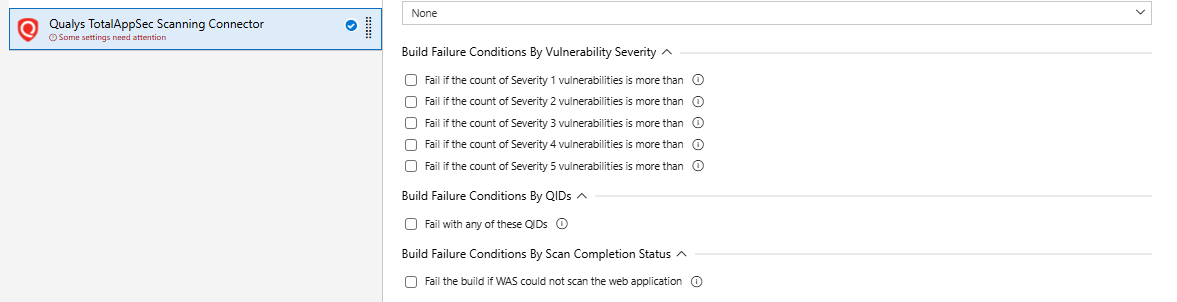
Build Failure Conditions The build will fail when ANY of the selected conditions are met
Timeout Settings This involves the polling interval and the timeout period
Report Configuration Do not wait for scan results This checkbox parameter allow you to control how the integration behaves after triggering a Qualys TAS scan.
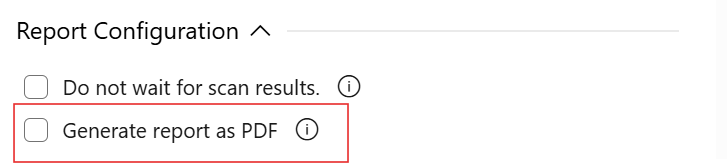
Generate Report as PDF
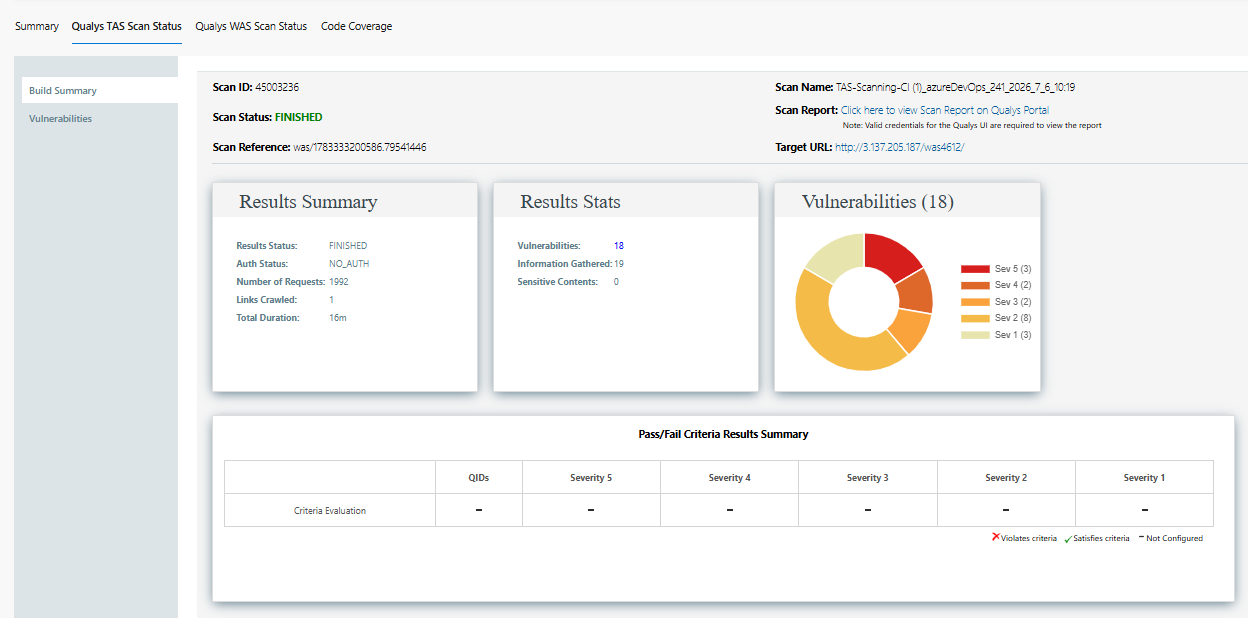
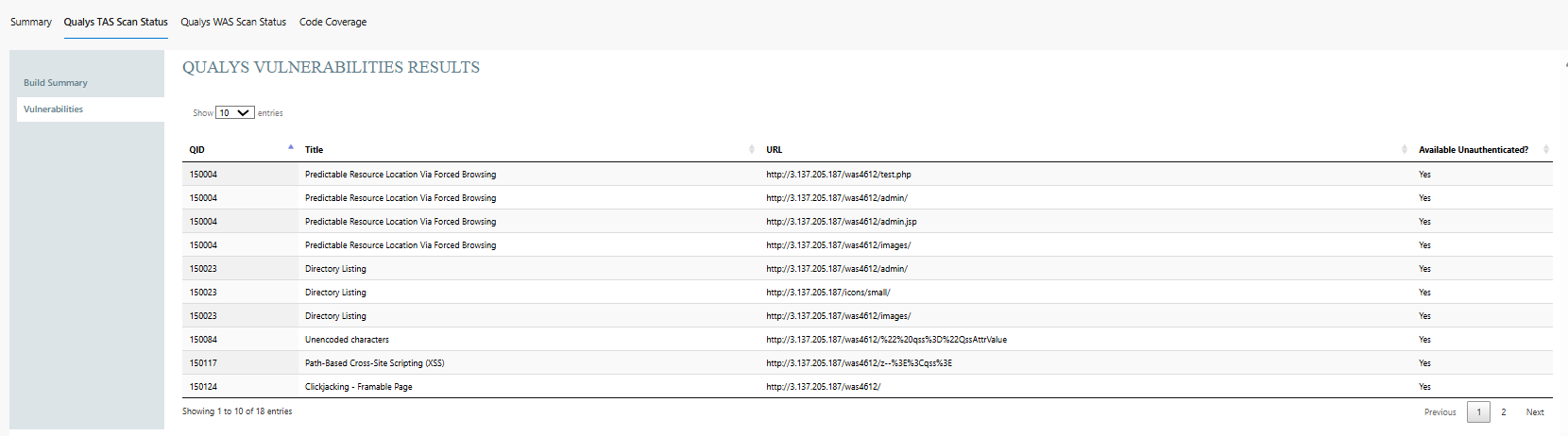
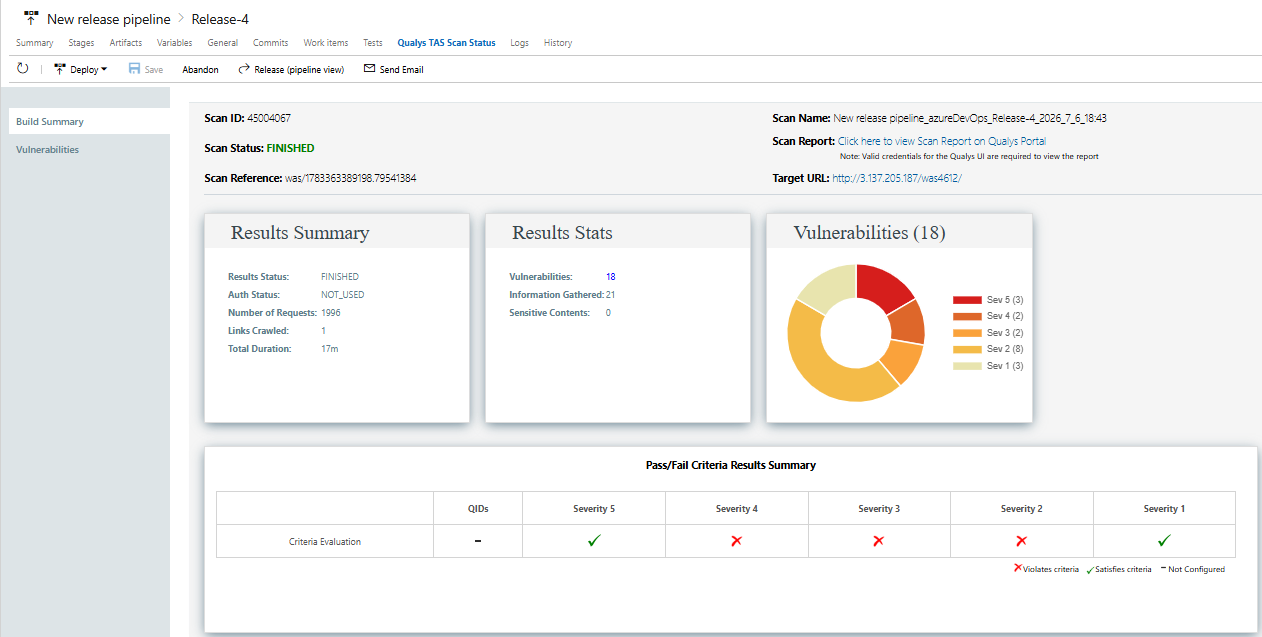
ReportThe Report that we render on the "Qualys TAS Scan Result" tab is produced using some artifacts that we generate during the extension execution. The artifacts involve the complete API output result for the web application, results summary, and pass/fail criteria summary along with the Vulnerabilities Doughnut chart. We show the criteria evaluation table as a summary of all the build failure criteria which were configured or not configured and their respective result as pass/fail. The report will only be generated once the scan is finished regardless of the build failure conditions. For release workflow, the report will be generated in the old view section of Release. Download PDF ArtifactsTo Download the Scan report in PDF and json format in Build pipeline--In the Build Summary page, look for the "Published" artifact section. -Click on 'Published' to view the scan report in PDF and JSON format, where you can also download the files. To Download the scan report in PDF and JSON format in Release pipeline- Unlike Build pipeline, release pipeline, these is not direct way to store Qualys artifacts generated after web app scan i.e PDF and JSON files. Therefore, to retrieve the scan report in PDF and JSON formats, you need to download all the logs, as these files are included with them. Release Notesv1.0.0 -First version of the extension. v1.1.0
Optional Parameters for IDP Authentication
|