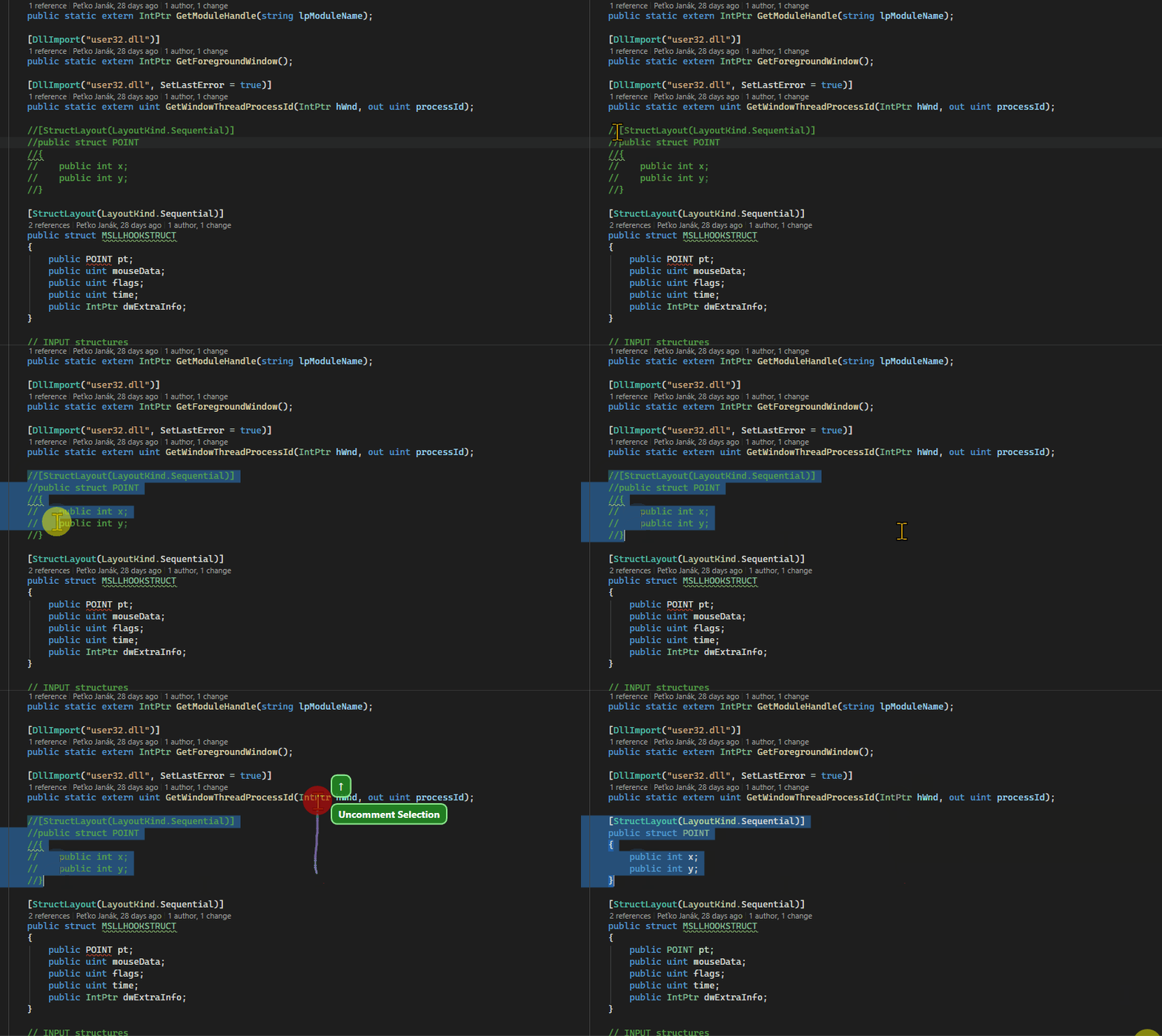
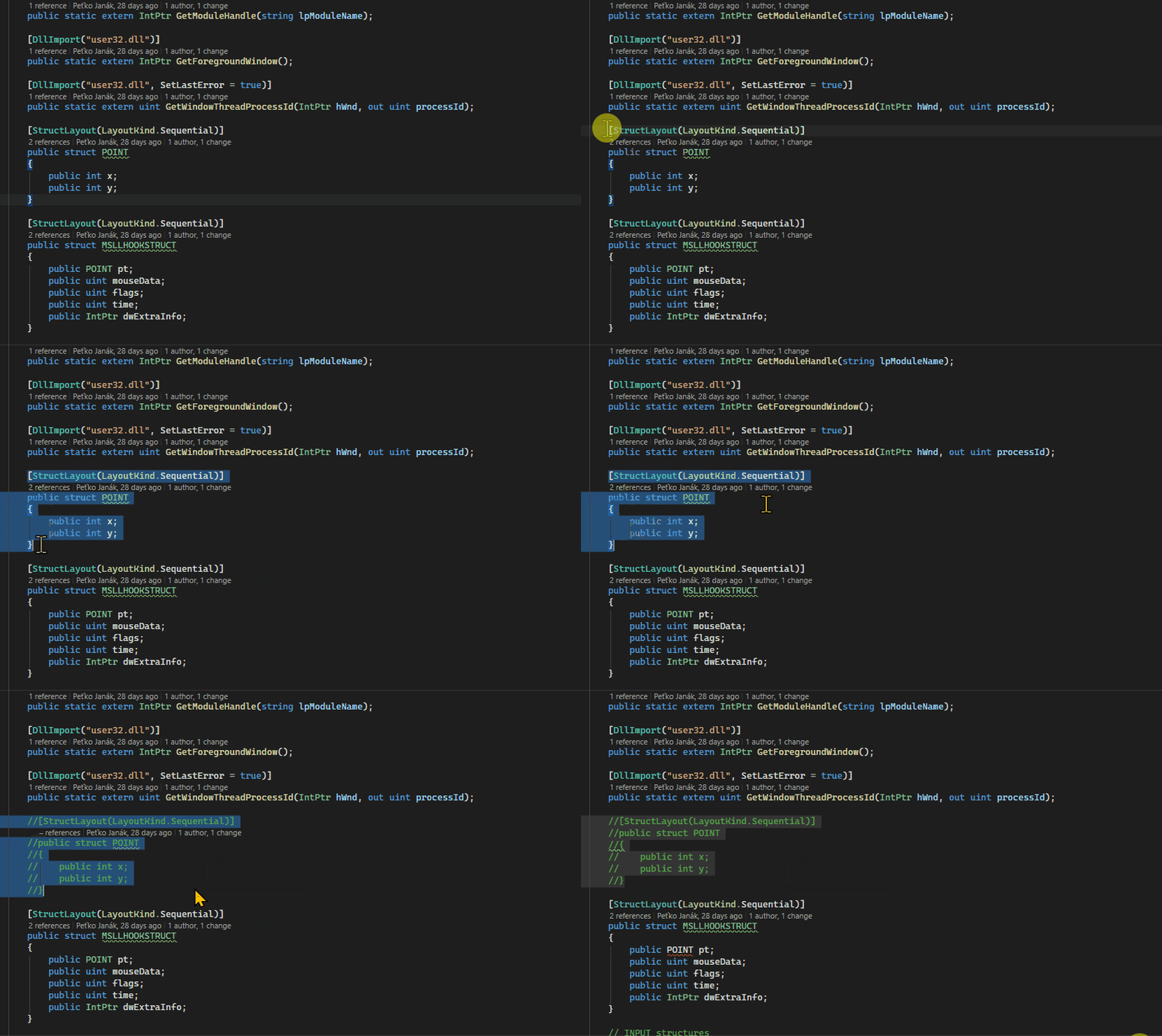
Execute Visual Studio commands using mouse gestures. Hold right mouse button and draw patterns to trigger various VS functions. Navigate backward with left gesture, forward with right, and much more!
Boost your productivity with intuitive mouse gestures! Execute Visual Studio commands instantly by drawing simple patterns with your mouse - no need to remember complex keyboard shortcuts or navigate through menus.
Features
Quick Command Execution
Hold right mouse button and draw a pattern to trigger commands
Real-time visual feedback - see your gesture trail and matched commands as you draw
Instant action - commands execute immediately when you release the mouse button
Default Gestures
Get started immediately with pre-configured gestures:
← Left: Navigate Backward
→ Right: Navigate Forward
↑ Up: Uncomment Selection
↓ Down: Comment Selection
↓→ Down-Right: Close Document
Fully Customizable
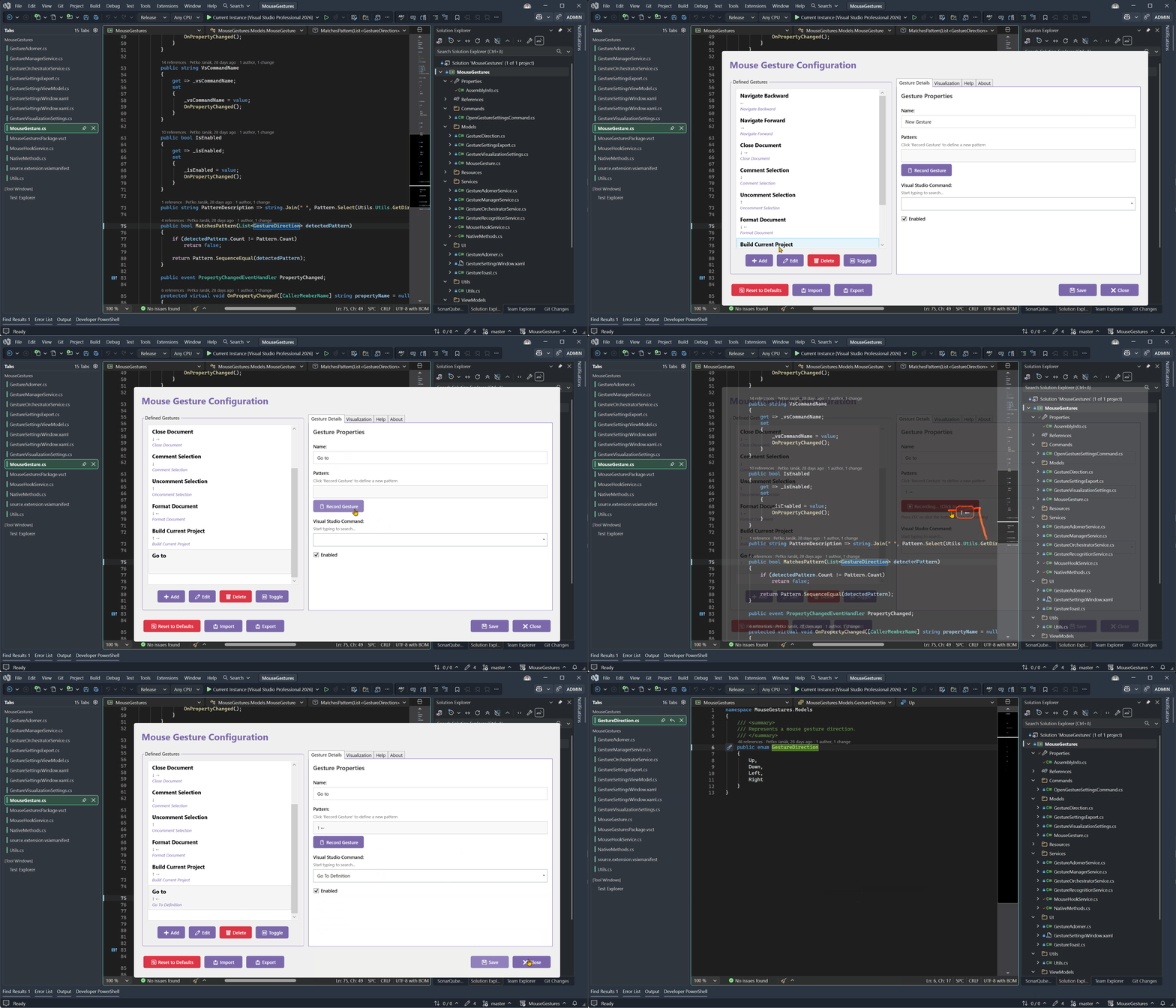
Create your own gestures - map any mouse pattern to any VS command
Record mode - simply draw your desired pattern and assign a command
Edit existing gestures - modify patterns or reassign commands
Enable/disable gestures individually without deleting them
Search and filter through hundreds of available Visual Studio commands
Visual Feedback
Trail visualization - see where your mouse has been with a smooth colored line
Direction indicators - arrow symbols show the recognized gesture pattern (↑ ↓ ← →)
Command preview - matched command names appear in real-time as you draw
Toast notifications - subtle confirmations when gestures are executed
Smart Recognition
Cardinal directions only - simple up, down, left, right movements (no complex diagonals)
Gesture matching - intelligently recognizes your patterns even if they're not perfect
Conflict detection - warns you if a pattern is already assigned to another command
How to Use
Execute a Gesture
Hold the right mouse button
Draw a pattern (e.g., move left for "Navigate Backward")
Release - the command executes immediately!
Customize Gestures
Go to Tools → Mouse Gesture Settings...
Select a gesture or create a new one
Click Record button
Draw your desired pattern with right mouse button
Assign a Visual Studio command
Click Save
Create New Gesture
Open settings window
Click Add Gesture
Click Record and draw your pattern
Search for and select a command
Give it a name and Save
Use Cases
Navigate code faster than keyboard shortcuts
Build and debug with simple mouse movements
Format and refactor code without lifting your hands from the mouse
Manage windows and views with intuitive gestures
Perfect for presentations - show code navigation in a visual way
Requirements
Visual Studio 2022 (version 17.0 or later)
Windows operating system
.NET Framework 4.8 or later
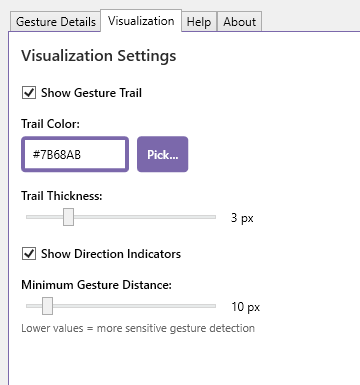
Customization Options
The settings window offers full control:
Trail color - customize the visual feedback color
Trail thickness - adjust line width to your preference
Show/hide trail - disable visual feedback if desired
Show/hide direction indicators - toggle arrow display
Recording mode - special orange trail for gesture recording
Technical Details
Low overhead - minimal impact on Visual Studio performance
Global mouse hook - works across all VS windows and editors
Configurable - settings stored in your AppData folder
No conflicts - gestures only activate on right-button drag
Regular right-click preserved - normal context menu still works with simple clicks