Skip to content
| Marketplace
Sign in
Azure DevOps>Azure Boards>PR Health
PR Health

PR Health

Nwaoga

| (0) | Free
See if a user story is ready to complete — live PR status on the work item, without editable board fields.
Get it free

PR Health

Know whether a user story is actually ready to complete — without opening every pull request.

PR Health reads linked Azure Repos pull requests and shows a clear readiness status on the work item, in a dedicated work item tab, and in a Repos hub. It stays read-only: it never writes board card fields, so people cannot accidentally type over status.

What you see at a glance

  • NOT READY when a linked PR still needs approval, comments, or attention
  • READY TO COMPLETE when checks passed and the PR is approved
  • BLOCKED when a build failed, a reviewer rejected, or merge conflicts exist
  • MERGED when the latest linked PR has landed, with the merge date beside the status

Each status includes a short reason, such as “At least 1 approval is required,” so the next action is obvious.

See it in action

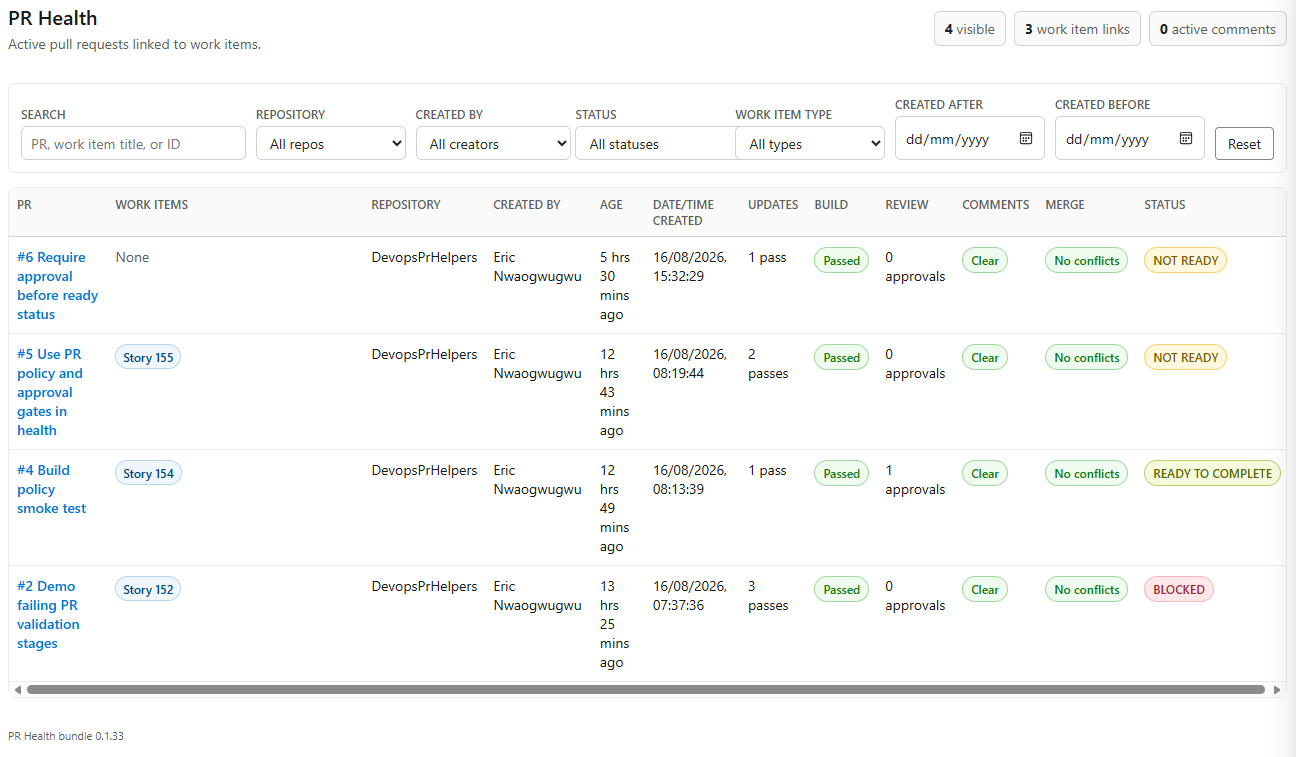
Repos PR Health hub with status chips and linked work items

The Repos hub lists active pull requests, linked stories, build and review signals, and an overall status.

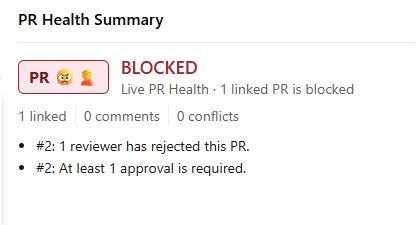
PR Health Summary showing a blocked pull request

On the work item, a compact summary shows BLOCKED, NOT READY, READY TO COMPLETE, or MERGED, plus the reason.

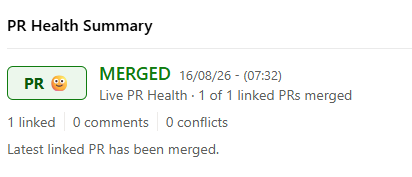
PR Health Summary after the latest linked pull request merged

When the latest linked PR lands, the summary switches to MERGED and shows when it happened.

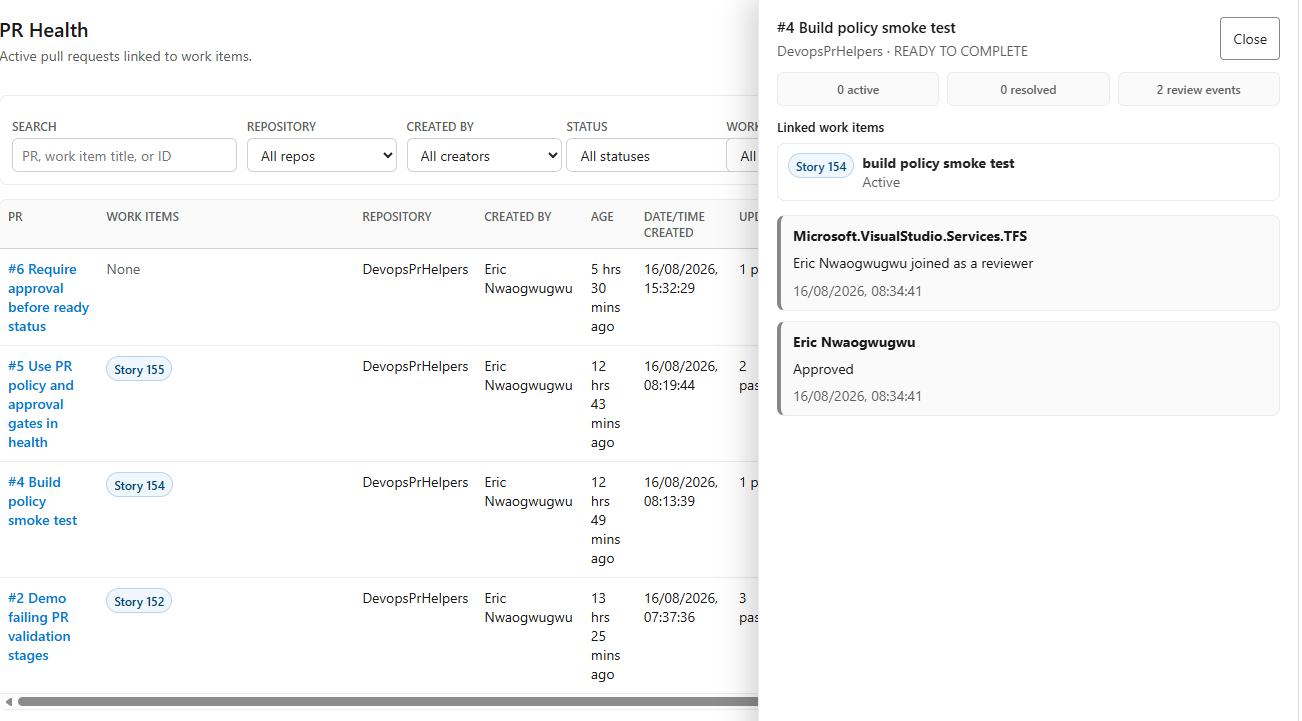
PR Health hub drawer with linked work item and review activity

Open a row to see the linked work item and review activity without leaving the hub.

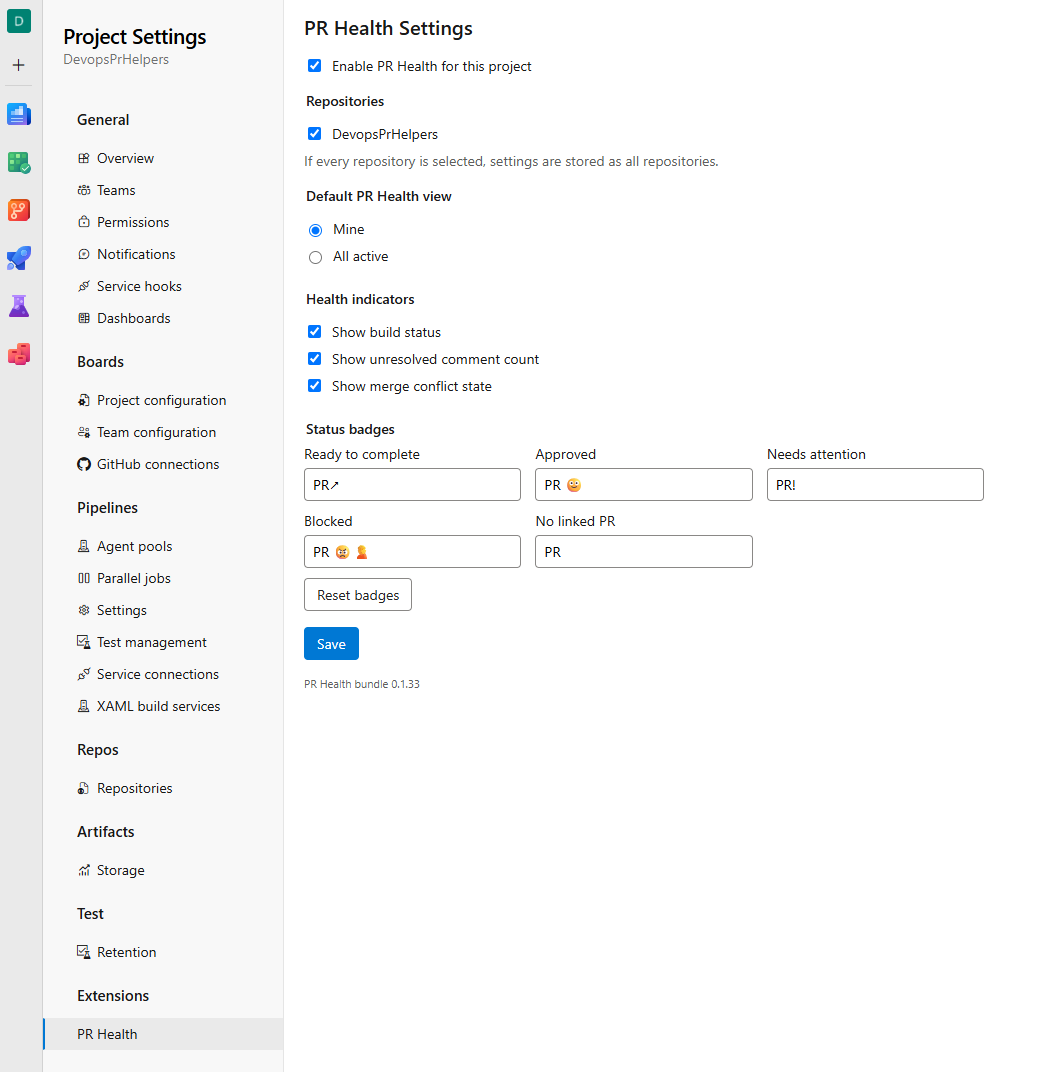
Project Settings for PR Health

Enable the extension per project, choose repositories, and customize badge labels.

Where it lives

Place What you get
Work item details Compact PR Health Summary with badge, status, and why
Work item tab Full linked-PR table: build, review, comments, merge, and status
Repos > PR Health Project-wide list of active PRs, filters, and work item chips that open the story
Project Settings > PR Health Per-project on/off, repository filter, and badge labels

Get started

  1. Install the extension for your Azure DevOps organization.
  2. Open Project Settings > PR Health.
  3. Enable it for the project (projects stay off until you do).
  4. Open a user story that has a linked pull request.

Work item chips such as Story 155 in the Repos hub open the work item. Pull request titles open the PR.

Built for review, not for guessing

PR Health uses Azure DevOps build policy status and reviewer votes:

  • Passed build + no approval → NOT READY
  • Passed build + approval + no blockers → READY TO COMPLETE
  • Rejected vote, failed build, or conflicts → BLOCKED
  • Completed PR → MERGED
  • Contact us
  • Jobs
  • Privacy
  • Manage cookies
  • Terms of use
  • Trademarks
© 2026 Microsoft