Dependency Tree Viewer
See the full dependency chain behind any Test Case, Bug, or Change Request — as a collapsible tree or an interactive graph, right inside the work item form and in a dedicated Boards hub.
Screenshots
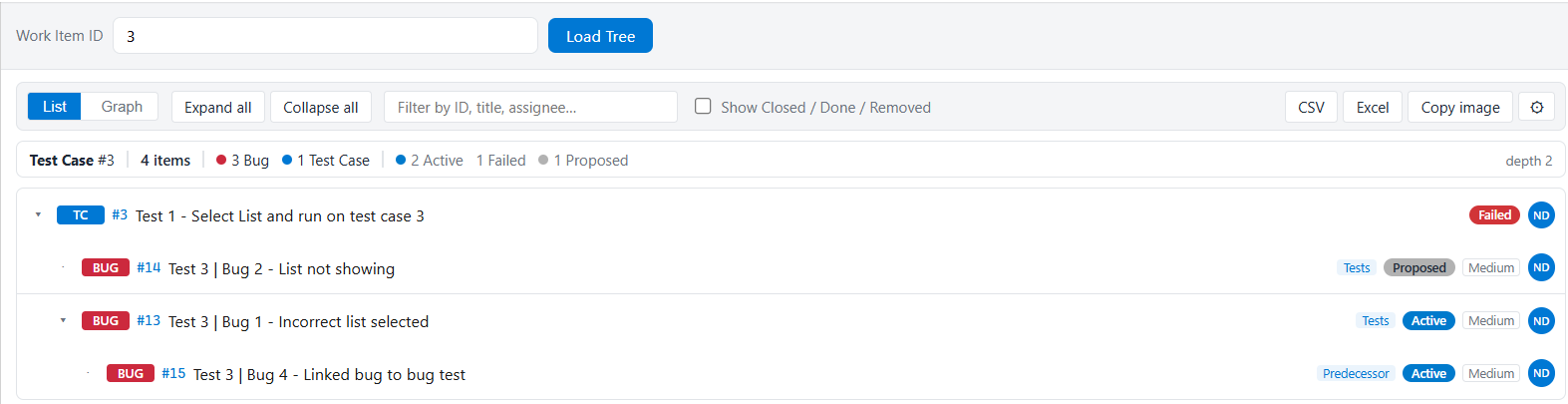
List view — the dependency chain as an indented, collapsible tree. Each row shows the type badge, ID, title, link type, status pill (here the test case shows its latest run outcome, Failed), severity, and assignee.
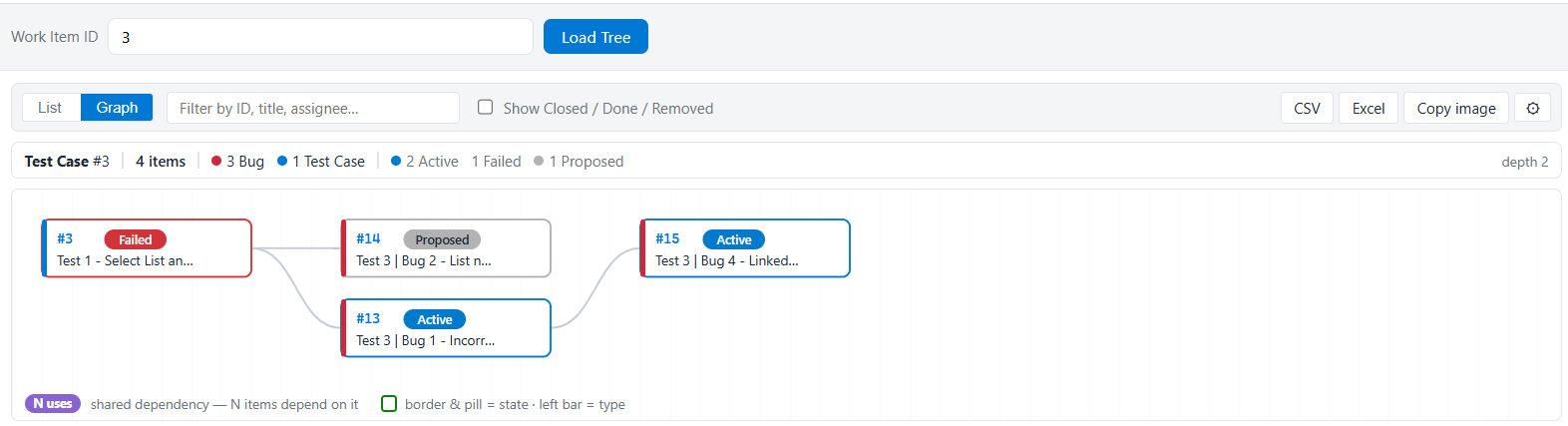
Graph view — the same chain as a layered graph, so shared blockers stand out. Border and pill colours follow the item's state or run outcome; the left bar follows its type.
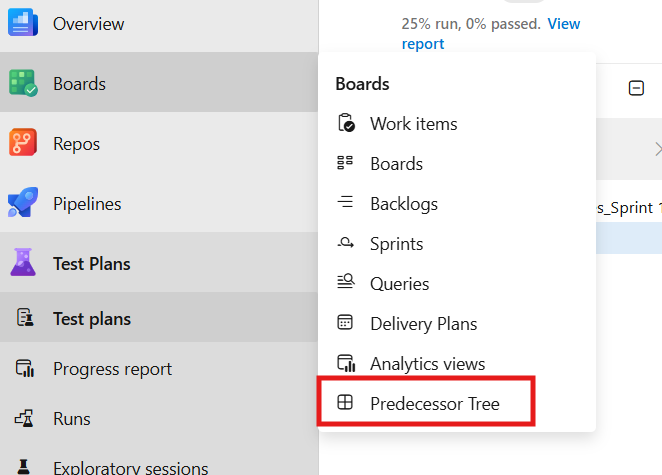
Find it under Boards → Predecessor Tree.
Why
When a test is blocked, you need to answer "what is this waiting on, and what is that waiting on?" — fast. This extension walks the Predecessor chain for you and lays it out so the blockers, their states, and their owners are visible at a glance.
Features
Two views
- Indented list with expand/collapse, search, and inline state, severity, and assignee.
- Graph view that collapses repeated items so shared blockers (the things many items depend on) stand out.
Built for navigating dependencies
- Follows Predecessor links recursively; a Test Case root also follows Tests / Tested By.
- Search and filter within the tree by ID, title, assignee, type, or state.
- Expand all / collapse all.
- Cycle-safe: loops are detected and flagged, never expanded forever.
Show only what matters
- Closed (or any configured state) items are hidden by default, with a one-click toggle to reveal them and a live hidden-count.
- Summary bar with counts by type and state, and the chain's maximum depth.
- Test cases can show their latest test run outcome (Passed / Failed / Blocked…, or
Active when never run) instead of the work item state — switchable in Settings.
Get the data out
- Export to Excel (.xlsx) — a filterable table with a frozen header row and
auto-filter, with IDs and levels as real numbers so sorting just works.
- Export to CSV (opens straight into columns in Excel) or copy the tree as an
indented text outline for tickets and chat.
- Copy the whole view as an image for slides and docs.
Open items in one click
- Click a work item ID in the list, or any node in the graph, to open that item's
editable form in place — no hunting through Boards.
Configurable for any organisation
- Set which work item types count, which states are hidden, which relations to follow, the severity field, and any extra columns.
- Save your own preferences, or (as an admin) save org-wide defaults for everyone.
How to use
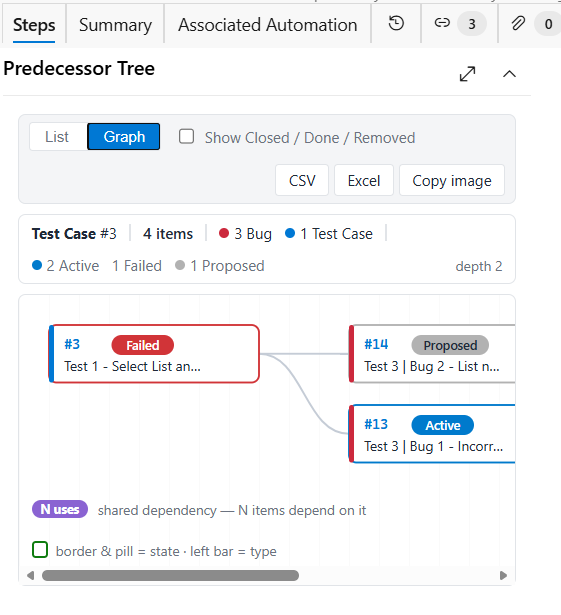
Open any work item — the Predecessor Tree panel appears on the form and loads
that item's chain automatically, refreshing whenever the work item is saved or
refreshed. The form panel is a compact version of the full experience: view toggle,
show-hidden toggle, and exports, without the search box or settings (configure from
the Boards hub instead — settings apply everywhere).
In the Boards hub
Go to Boards → Predecessor Tree, type a work item ID, and press Load Tree.
The hub has the full toolbar:
- List / Graph — switch between the indented tree and the layered graph.
- Expand all / Collapse all (list view) — open or fold the whole tree.
- Filter box — type an ID, title fragment, or assignee name; the tree narrows
to matching items and their ancestors, with matches highlighted.
- Show Closed / Done / Removed — items in hidden states stay in the data and
can be revealed with one click; the count shows how many are hidden.
- CSV / Excel / Copy image — export the visible tree as a spreadsheet, or copy
the whole view as an image for slides and docs.
- ⚙ Settings — configure the tree (see below).
Click any work item ID in the list — or anywhere on a node in the graph —
to open that item's editable form right there. Ctrl/Cmd-click opens it in a new tab.
The Settings panel (⚙)
Everything about how the tree is built is configurable. Pickers are populated from
your project's real work item types, states, and fields — and every picker has a
Type manually escape hatch for values that aren't listed.
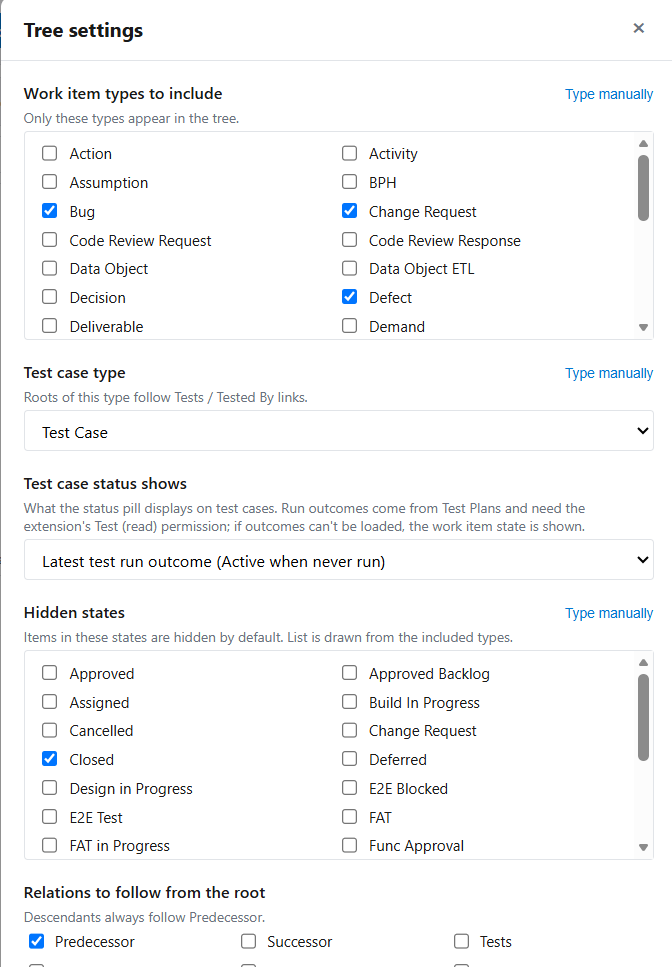
- Work item types to include — only these types appear in the tree; everything
else is filtered out. Defaults: Bug, Defect, Change Request.
- Test case type — the type treated as a "test case". A root of this type also
follows its Tests / Tested By links (a test case has no predecessors of its
own — its defects hang off those links instead).
- Test case status shows — what the status pill displays on test cases:
- Latest test run outcome (default): Passed / Failed / Blocked / …, taken from
the most recent run across the test case's test points, or Active if it has
never been run — the same status you see in Test Plans.
- Work item state: the plain state field (Design, Ready, Closed…).
- Hidden states — items in these states are hidden by default (the toolbar
toggle reveals them). Defaults: Closed, Done, Removed. The list is drawn from the
states of the types you included.
- Relations to follow from the root — which link types are walked from the root
item (Predecessor by default; add Successor, Related, Child, etc. if your process
links defects differently). Below the root, the tree always follows Predecessor
links so the chain keeps its meaning.
- Severity field — the field shown as the severity pill. Change it if your
organisation stores severity in a custom field.
- Extra columns — add any work item field (pick from a list or type a reference
name) as an inline pill and an export column.
- Maximum depth — safety cap on how deep the chain is walked (default 20).
Two ways to save:
- Apply for me — uses the settings for your session/preferences only.
- Save as org default — makes them the default for everyone in the
organisation (requires admin permission on the extension's data).
FAQ
A test case shows "Active" — what does that mean?
The test case has no completed run against it (it has never been executed, or was
reset to active). This matches what the ADO Test Plans "Test points" view shows.
Once a run completes, the pill shows the latest outcome (Passed, Failed, Blocked…).
I see a warning: "Could not load test run outcomes…"
Run outcomes need the extension's Test (read) permission. If your organisation
updated from an older version, an admin may need to re-authorise the extension
(Organization settings → Extensions). Until then, test cases simply show their
work item state instead — nothing else is affected. You can also switch test cases
to always show the work item state in ⚙ Settings.
My organisation uses different work item types or states.
Open ⚙ Settings in the Boards hub: choose which types appear in the tree, which
states are hidden by default, which relations are followed from the root, the
severity field, and any extra columns. Admins can save these as the org default.
Why is a node marked "↩ dup"?
The same item appears higher up the chain (a cycle or shared dependency). It is
shown once more for context but not expanded again, so loops never run forever.
Permissions and privacy
Read-only access to work items (vso.work) and test management data (vso.test, used only to read test run outcomes). It never writes, modifies, or deletes anything. Settings are stored privately per user (and, for org defaults, per organisation) via the extension's own storage.
No telemetry, no tracking, no external services — the extension only ever
talks to your own organisation's Azure DevOps APIs. Full details in the
privacy policy.
Support
Bugs and feature requests: open an issue on GitHub — templates guide you through what to include.
Response expectations and supported environments are in the
support policy.

