Test ChartsUse the Test Charts widget to see if your test plan is going, well, according to plan. View a burnup of tests executed and tests passed over time in relation to the total tests in a test plan... This extension is now unpublished from Marketplace. You can choose to uninstall it. |


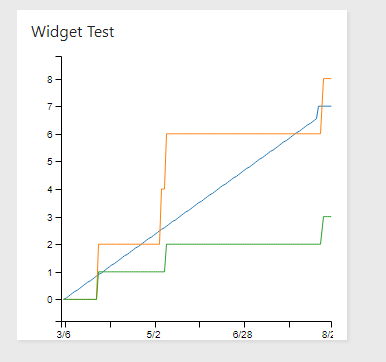
Test Charts allows you go get insight to how your test plan is being executed over time. Get a simple visualization of how many tests have been executed on a day-to-day basis, how many total tests are passing over time, and whether you are on track to get all those tests passing by the end of your test plan. FeaturesThe widget allows you to see:
Getting StartedTo get started, you'll want to configure the widget with the Test Plan that you'd like to chart. You can optionally include an Initial Planned End Date if you have extended a test plan past the initial date. This can be helpful if you'd like to see where you originally planned to stop testing in relation to an extended test plan deadline.
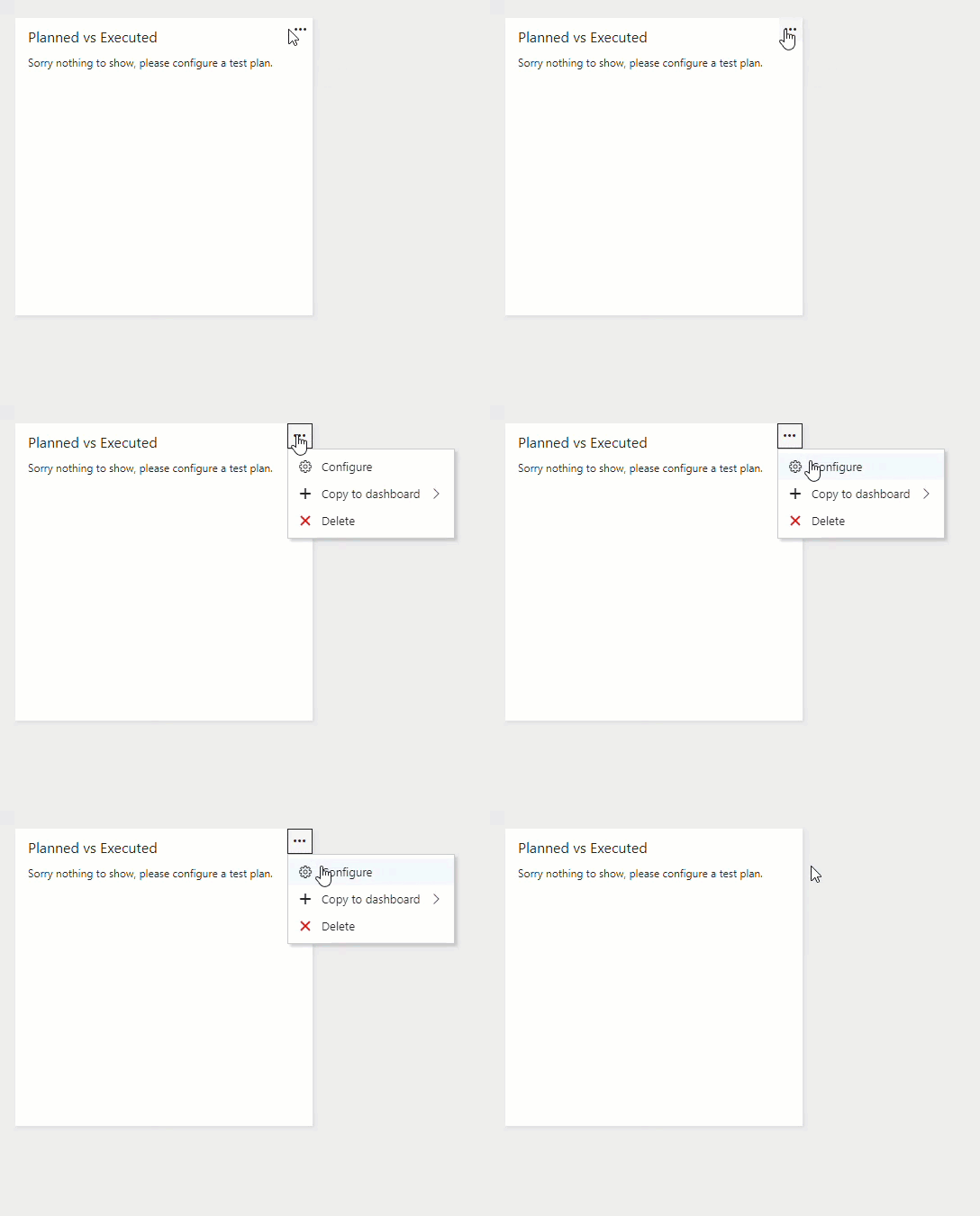
The first step to configure the widget is to, after adding the widget to your dashboard, hitting the ellipses in the upper right-hand corner and selecting "Configure."
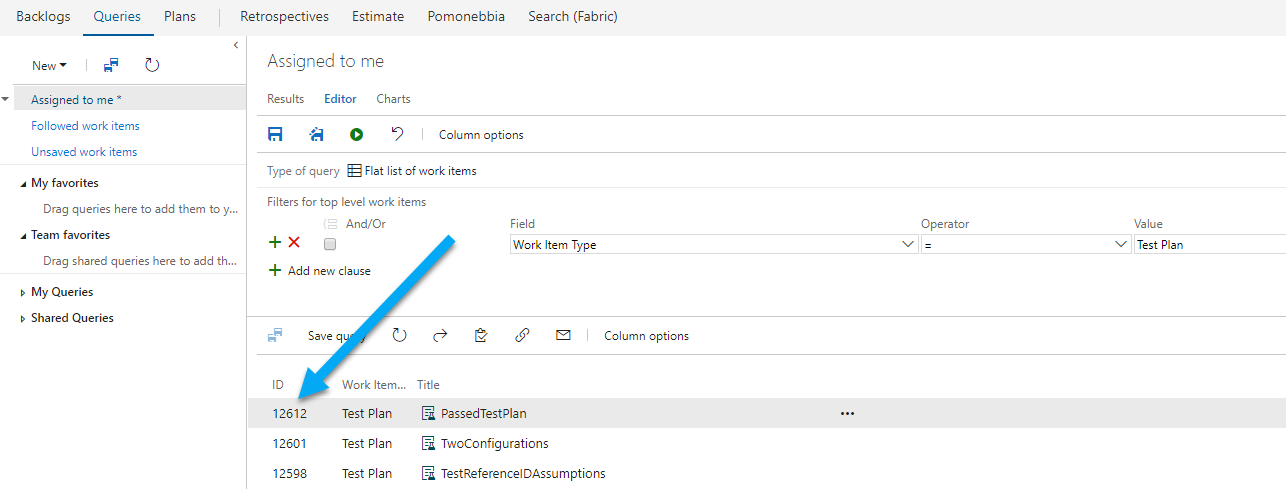
For the next part, you'll want to grab the Test Plan ID that you'd like to see charted. For this, you can do a query to find the Test Plan and then grab the Test Plan ID from the results.
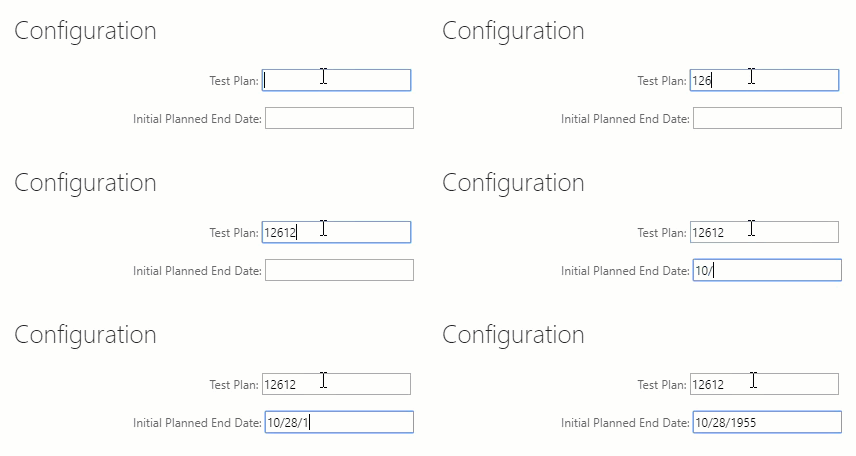
Then, add the configuration, which includes the Test Plan ID and the optional initial planned end date.
Hit save and wait a bit and your chart will appear! |