NuGet Manager Slim for Visual Studio



A faster, lighter NuGet Package Manager for Visual Studio. One dockable tool window, one filterable list, no blocking dialogs.
Download from the Visual Studio Marketplace or get the latest CI build.
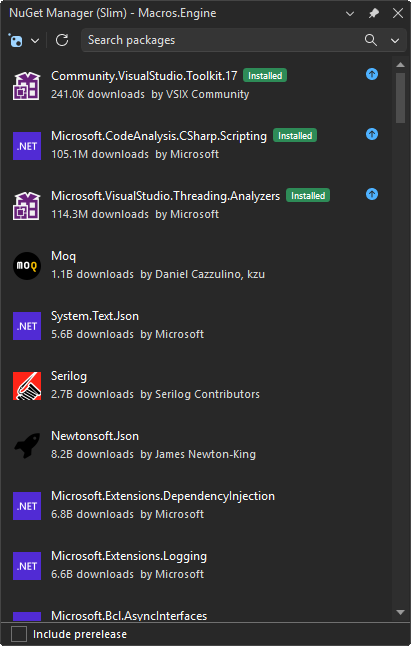
Why another NuGet manager?
The in-box Package Manager opens a large and somewhat heavy window, makes you flip between Browse / Installed / Updates tabs, and blocks the UI while it talks to the feed. NuGet Manager Slim replaces that flow with a single dockable tool window where every search, install, update, and uninstall runs asynchronously - the UI stays responsive the whole time.
It coexists with the built-in NuGet Package Manager. Both can be open at the same time and write to the same project files without conflict.
How it compares
| Feature |
Built-in Package Manager |
NuGet Manager Slim |
| Browse / Installed / Updates |
Three separate tabs |
One unified, filterable list |
| Installed packages while browsing |
Hidden behind a tab |
Pinned at the top of the list |
| Multiple operations |
Often serialized behind dialogs |
Run independently per row |
| Search |
Blocks while loading |
Async, non-blocking, debounced |
| Source filter |
Dropdown at the top only |
Inline source:"..." filter chips |
| Transitive packages |
Buried in dependency tree |
First-class section with "required by" |
| Deprecated / vulnerable packages |
Surfaced only in dedicated tabs |
Badged inline plus dedicated views |
| UI surface |
Modal-style document window |
Dockable tool window |
What Can You Do?
One unified list
Installed packages pin to the top of the Browse list with a clear "Installed" badge, so you never have to flip tabs to see what's already there. Update arrows stay visible at rest, so outdated packages are obvious at a glance.

Switch scope in a click
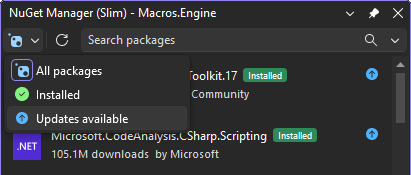
Toggle the view between All packages, Installed, Updates available, Vulnerable, and Deprecated from the toolbar. The list re-renders instantly without re-querying the feed.
Search that keeps up with you
As-you-type local filtering on already-loaded results, with debounced remote feed queries running in the background. The search box also doubles as a filter builder: pick a source from the dropdown to scope results to a specific feed without leaving the keyboard.
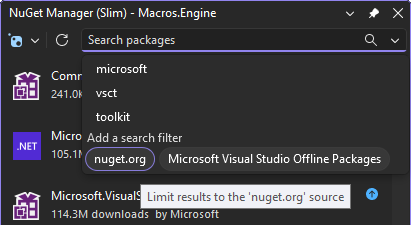
Useful filters:
source:"nuget.org" - limit to a single feedid:Newtonsoft - match against the package id only- Combine free text and filters:
serializer source:"nuget.org"
Inline actions
Install, update, and uninstall directly from the row. No dialog, no confirmation modal in the way - operations stream their progress in the status area while the rest of the list stays interactive.
Framework-aware updates
For runtime-coupled package families (System.*, Microsoft.Extensions.*, Microsoft.AspNetCore.*, Microsoft.EntityFrameworkCore*, Microsoft.Data.Sqlite*, Microsoft.Bcl.*, Microsoft.JSInterop*, Microsoft.Windows.Compatibility), the suggested update stays within the target-framework major of the project(s) that reference the package. A package used only by a net8.0 project is offered the newest 8.x instead of jumping to 9.0.0, so the inline update icon and bulk update never push a runtime mismatch - even in a solution that also has net48 projects. A package referenced by a net48 (or .NET Standard) project stays uncapped, since that target needs to keep working. A few packages that share the System. prefix but version independently of the runtime (such as System.Reactive, System.IO.Abstractions, and System.CommandLine) are excluded so their real updates are never held back. When a newer major is held back, an info icon next to the version explains why - and you can still pick any version from the detail pane's version dropdown to update past the cap on purpose.
Spot deprecated and vulnerable packages
Packages the feed reports as deprecated or vulnerable are badged inline in every list view - not just in a dedicated tab - so risky dependencies stand out at a glance. The detail pane explains the deprecation reason and flags affected versions, and the version dropdown marks individual versions as deprecated or vulnerable so you can pick a safe one. Dedicated Vulnerable and Deprecated views let you scope the list to just the packages that need attention.
See your transitive dependencies
Indirect (transitive) packages appear under their own "Transitive packages" header in the Installed view, with a required by label so you know exactly which direct dependency pulled them in. They are read-only; to change a transitive version, update the direct dependency that requires it.
Detail pane on demand
Click any package to reveal description, license, download count, authors, version history, project membership, dependencies, and a README preview - all without leaving the tool window.
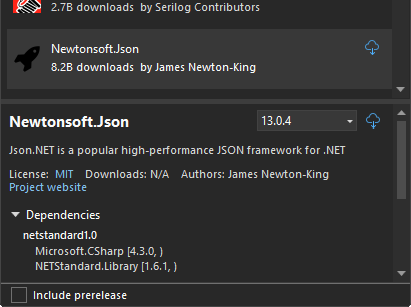
The version dropdown lists every published version (stable by default, prerelease when toggled), and the dependency tree expands to show the full graph for the selected version.
Get Started in 30 Seconds
- Install from the Visual Studio Marketplace
- Right-click a project in Solution Explorer and pick Manage NuGet Packages...
- Search, browse, install - the tool window stays interactive throughout
Tips
| Action |
How |
| Filter to a specific feed |
Type source:"nuget.org" in the search box, or pick from the filter dropdown |
| Match only the package id |
Type id: followed by the partial id, e.g. id:Serilog |
| Toggle prerelease versions |
The Include prerelease checkbox at the bottom |
| Switch between All / Installed / Updates / Vulnerable / Deprecated |
The scope dropdown at the top of the tool window |
| See which package pulled in a transitive dependency |
Look for the required by label under the package id |
| Update a runtime package past the framework cap |
Open the package and pick the version from the detail pane's version dropdown |
| Clear cached feed results |
Use the Refresh button in the toolbar |
| Reopen the window after closing it |
View > Other Windows > NuGet Manager (Slim) |
FAQ
Q: Does this replace the built-in NuGet Package Manager?
A: No. It runs alongside the in-box manager and uses the same NuGet client libraries under the hood, so package operations produce identical results. You can use either one (or both) on the same solution.
Q: Where do my package sources come from?
A: From your existing NuGet configuration (NuGet.config). No separate setup. Authenticated and private feeds work the same way they do in the built-in manager.
Q: Are packages.config projects supported?
A: Yes - both PackageReference (SDK-style) and packages.config projects are recognized for the installed list.
Q: What do the deprecated and vulnerable badges mean?
A: They reflect the status the NuGet feed reports for the version you have (or the latest version when browsing). Deprecated means the author has marked the package as no longer maintained or superseded; vulnerable means a known security advisory applies. Badges appear inline in every list view, and the Vulnerable and Deprecated scopes filter the list down to just those packages. Open the package to see the reason and to pick a safer version from the version dropdown.
Q: Why are some packages marked as transitive?
A: Transitive packages were pulled in by one of your direct dependencies, not added by you. They're shown for visibility (read-only) under the "Transitive packages" header. To change one, update the direct dependency that requires it.
Q: A package shows no icon - is that a bug?
A: Some packages publish an iconUrl that resolves to nothing or to a non-image. The default placeholder is shown in those cases. Cached icons live in %LocalAppData%\NuGetManagerSlim\IconCache.
Q: Does it work with multi-targeted projects?
A: Yes. The installed list reflects the union of packages across target frameworks, and version operations write to the project file the same way the built-in manager does.
Q: Why is it offering an older major than the latest version?
A: For runtime-coupled families (System.*, Microsoft.Extensions.*, Microsoft.AspNetCore.*, Microsoft.EntityFrameworkCore*, Microsoft.Data.Sqlite*, Microsoft.Bcl.*, Microsoft.JSInterop*, Microsoft.Windows.Compatibility), the suggested update is capped to the target-framework major of the project(s) that reference the package - a package used only by a net8.0 project gets the latest 8.x rather than 9.0.0, which avoids pulling in a runtime newer than the framework you target. The cap is resolved per package, so in a mixed solution a net8.0-only package is still capped while a package referenced by a net48 project is left alone. A few packages that merely share the System. prefix but version independently (such as System.Reactive and System.IO.Abstractions) are excluded. An info icon next to the version flags when this is happening. To update past the cap, open the package and choose the version you want from the detail pane's version dropdown.
Q: Can I use it without a solution open?
A: The tool window opens, but most operations require an active project or solution to install or update against.
Contributing
This is a passion project, and contributions are welcome.
If NuGet Manager Slim saves you time, consider:

