Visual Studio Modes


Stop wrestling with Visual Studio settings. This extension gives you one-click access to optimized configurations for common scenarios - whether you're presenting code, working on battery, need maximum performance, or want distraction-free focus time.
The Problem
Visual Studio has hundreds of settings that affect performance, battery life, and the coding experience. Finding and tweaking them for different situations is tedious:
- On battery? You need to disable CodeLens, background analysis, animations, and more to extend battery life
- Presenting or screen sharing? Fonts are too small and the audience can't read your code
- VS feeling slow? Figuring out which features to disable requires deep knowledge of the IDE
- Need to focus? Tool windows and UI elements constantly compete for attention
Manually toggling these settings every time your context changes is frustrating - and remembering to restore them afterward is even worse.
The Solution
Modes provides four carefully curated configurations that instantly transform Visual Studio for specific scenarios. Enable a mode with one click, and your original settings are automatically backed up. Disable it, and everything is restored exactly as it was.
This extension addresses several popular feature requests from the Visual Studio Developer Community:
Modes
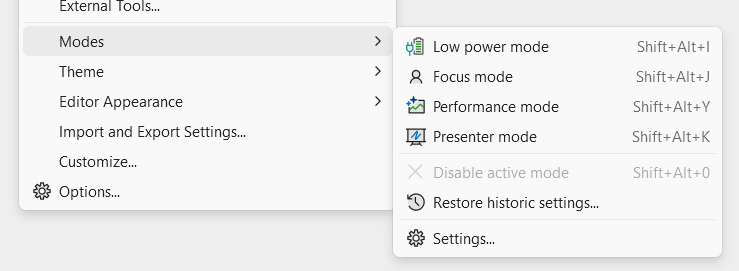
- 🪫 Low Power - Maximize battery life on laptops
- 👤 Focus - Distraction-free coding environment
- 📈 Performance - Eliminate UI lag and typing delays
- 🖥️ Presenter - Large fonts for demos and screen sharing
Features
- One-click toggle from Tools > Modes menu
- Keyboard shortcuts - Quick access to all modes
- Status bar indicator - see active mode at a glance, click to disable
- Automatic baseline backup - your settings are always safe
- Auto Low Power mode - activates when Windows enters Energy Saver or on battery
- Settings backup service - periodic backups of your VS settings
Usage
- Open Tools > Modes
- Click a mode to enable it
- Click again (or the status bar icon) to disable and restore your settings
Keyboard Shortcuts
| Shortcut |
Command |
Shift+Alt+I |
Low Power mode |
Shift+Alt+J |
Focus mode |
Shift+Alt+Y |
Performance mode |
Shift+Alt+K |
Presenter mode |
Shift+Alt+0 |
Disable active mode |

Options
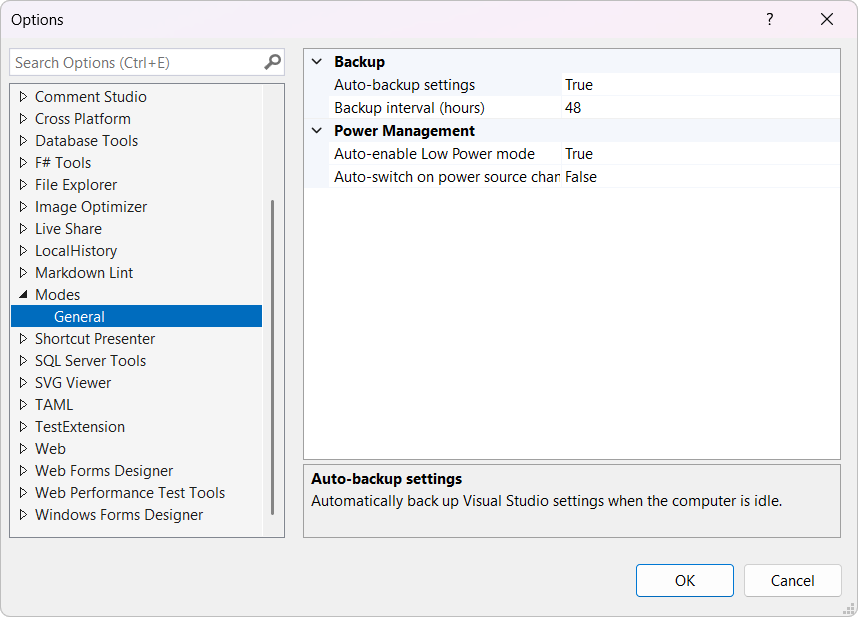
Configure behavior via Tools > Options > Modes > General:
| Option |
Default |
Description |
| Auto-backup settings |
true |
Automatically back up Visual Studio settings when idle |
| Auto-enable Low Power mode |
true |
Enable Low Power mode when Windows enters Energy Saver |
| Auto-switch on power source change |
false |
Enable Low Power mode when unplugging from AC power |
| Backup interval (hours) |
48 |
Minimum time between automatic backups |
Restore Settings
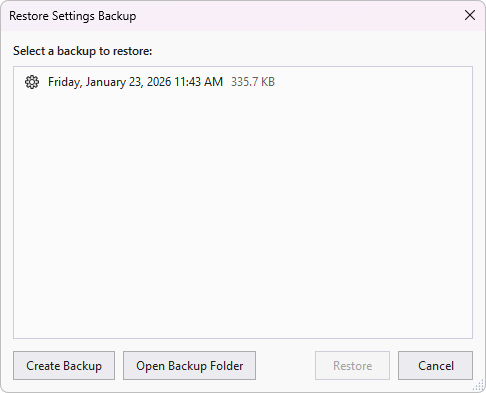
Accidentally changed something? Use Tools > Modes > Restore Settings... to restore from any previous backup or create a new backup on demand.
Mode Details
🔋 Low Power Mode
Perfect for: Working on battery, large solutions, limited hardware
Dramatically reduces CPU, GPU, and disk usage by disabling background work and visual effects. Automatically activates when Windows enters Energy Saver mode (configurable).
| Setting |
Value |
Why |
| Animations |
Disabled |
Eliminates unnecessary rendering |
| Auto-downloads |
Disabled |
No background network activity |
| Background Analysis Scope |
Open documents |
Stop analyzing files you're not editing |
| C# Closed File Diagnostics |
Disabled |
No CPU spent on closed files |
| CodeLens |
Disabled |
Removes constant background queries |
| Concurrent Builds |
1 |
Reduces CPU/thermal load |
| Document Restore |
Disabled |
Faster solution open |
| Extension Auto-Update Check |
Disabled |
No background network/CPU usage |
| File Change Detection |
Disabled |
Reduces disk I/O polling |
| Git Avatar Downloads |
Disabled |
No background network activity |
| Hardware Acceleration |
Disabled |
Reduces GPU power draw |
| Highlight References |
Disabled |
Reduces typing delay |
| Inline Hints |
Disabled |
Reduces rendering overhead |
| Live Unit Testing |
Stopped |
Eliminates continuous test execution |
| NuGet Package Suggestions |
Disabled |
No background network/CPU usage |
| Scrollbar Annotations |
Disabled |
Reduces rendering overhead |
| Solution Explorer State |
Not restored |
Faster solution open |
| Track Active Item |
Disabled |
Reduces UI thread work |
🔍 Focus Mode
Perfect for: Deep work, flow state, distraction-free coding
Creates a minimal, distraction-free environment by hiding UI clutter and reducing visual noise.
| Setting |
Value |
Why |
| Animations |
Disabled |
Reduces visual noise |
| Code Fading |
Disabled |
No distracting dimming effects |
| CodeLens |
Disabled |
Cleaner editor |
| Current Line Highlight |
Disabled |
Cleaner editor appearance |
| Inline Hints |
Disabled |
Less visual noise |
| Line Separators |
Disabled |
Cleaner code appearance |
| Navigation Bar |
Hidden |
More vertical space |
| Output Window on Build |
Disabled |
No window popping up |
| Scrollbar Annotations |
Disabled |
Cleaner scrollbar |
| Selection Matches |
Disabled |
No distracting highlights |
| Sticky Scroll |
Disabled |
Reduces visual clutter |
| Task List After Build |
Disabled |
No interruptions |
| Tool Windows |
Auto-hidden |
Maximum code visibility |
| Warning Messages |
Disabled |
Fewer interruptions |
Perfect for: Large solutions, slow machines, eliminating typing lag
Disables features known to cause UI hangs, typing delays, and slow solution loads.
| Setting |
Value |
Why |
| Animations |
Disabled |
Reduces UI overhead |
| Closed File Diagnostics |
Disabled |
Major performance impact |
| Concurrent Builds |
22 |
Maximum parallel compilation |
| Document Restore |
Disabled |
Faster solution open |
| Inline Hints |
Disabled |
Reduces typing delay |
| NuGet Package Suggestions |
Disabled |
Reduces network/CPU overhead |
| Output Window on Build |
Disabled |
No UI thread blocking |
| Scrollbar Annotations |
Disabled |
Reduces rendering overhead |
| Skip Analyzers (implicit builds) |
Enabled |
Faster hot reload and background builds |
| Solution Explorer State |
Not restored |
Faster solution open |
| Track Active Item |
Disabled |
Reduces UI thread work |
🎤 Presenter Mode
Perfect for: Presentations, demos, pair programming, screen sharing
Increases all font sizes so your audience can actually read your code, and disables hover tooltips that can obscure code during demos.
| Setting |
Value |
Why |
| Current Line Highlight |
Enabled |
Easy to track cursor position |
| Text Editor Font |
Cascadia Code 16pt |
Large, readable code |
| Environment Font |
Segoe UI 11pt |
Larger UI elements |
| Printer Font |
Cascadia Code 16pt |
Match editor for printing |
| Quick Info Tooltips |
Disabled |
No tooltips obscuring code |
| IntelliSense/Completion |
Cascadia Code 14pt |
Readable autocomplete |
| Output Window |
Cascadia Code 14pt |
Readable build output |
| Command Window |
Cascadia Code 14pt |
Readable command input |
| Immediate Window |
Cascadia Code 14pt |
Readable debugger input |
| Watch/Locals Windows |
Cascadia Code 14pt |
Readable variable inspection |
How It Works
- Enable a mode → Your current settings are exported as a baseline backup
- Mode settings applied → The mode's optimized
.vssettings file is imported
- Disable the mode → Your baseline settings are restored exactly as they were
Modes are mutually exclusive—enabling one automatically disables any other active mode. Your active mode persists across Visual Studio restarts.
Contributing
Found a bug or have a feature request? Please open an issue on GitHub.

