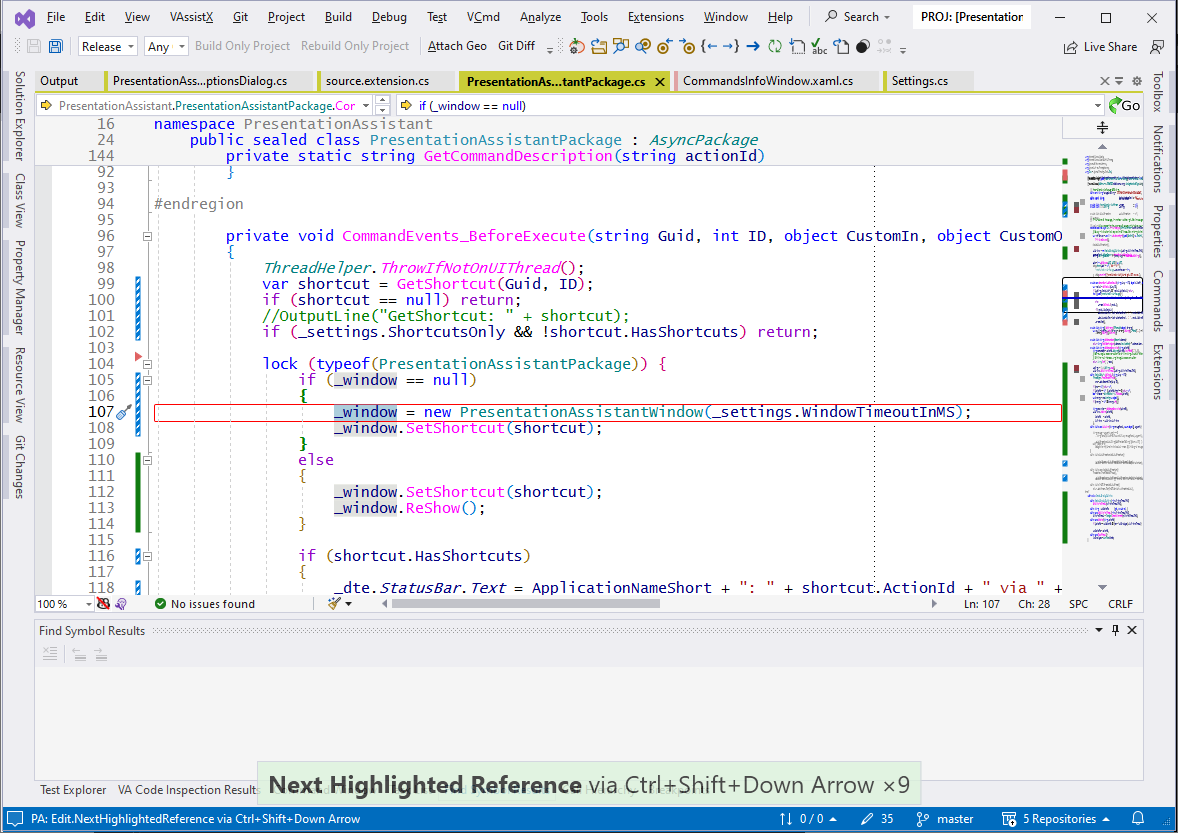
Announces the command you just ran, and the keyboard shortcut that runs it, in a small overlay just above the status bar.
Useful when you are screen sharing, recording a demo, pairing, teaching - or just trying to learn your own key bindings.
What you see

- The command name, in bold. The full command id also goes to the status bar, as
PA: Edit.ScrollLineDown via Ctrl+Down Arrow - which is the form to use in Excluded Commands.
- Every key binding for that command. If there is more than one they are joined with
or.
- A repeat count. Holding a key down, or pressing the same shortcut repeatedly, shows a single line with
x9 rather than flashing nine times. A run ends when you invoke a different command, or after the repeat window passes.
The overlay never takes focus, never appears in Alt+Tab or the taskbar, is transparent to the mouse so it never swallows a click, and hides itself after a few seconds.
Themes, including dark
The default theme, VisualStudio, builds the overlay from the running IDE's own colours - tinted towards your accent so it still reads as a callout instead of disappearing into the chrome - and re-resolves itself whenever you switch theme. It also checks contrast and substitutes black or white text if a theme would otherwise render the overlay unreadable.
Auto follows the IDE more loosely: Classic under the Blue and Light themes, ClassicDark under Dark. Neither depends on a theme identifier, so custom and third-party themes are handled correctly too.
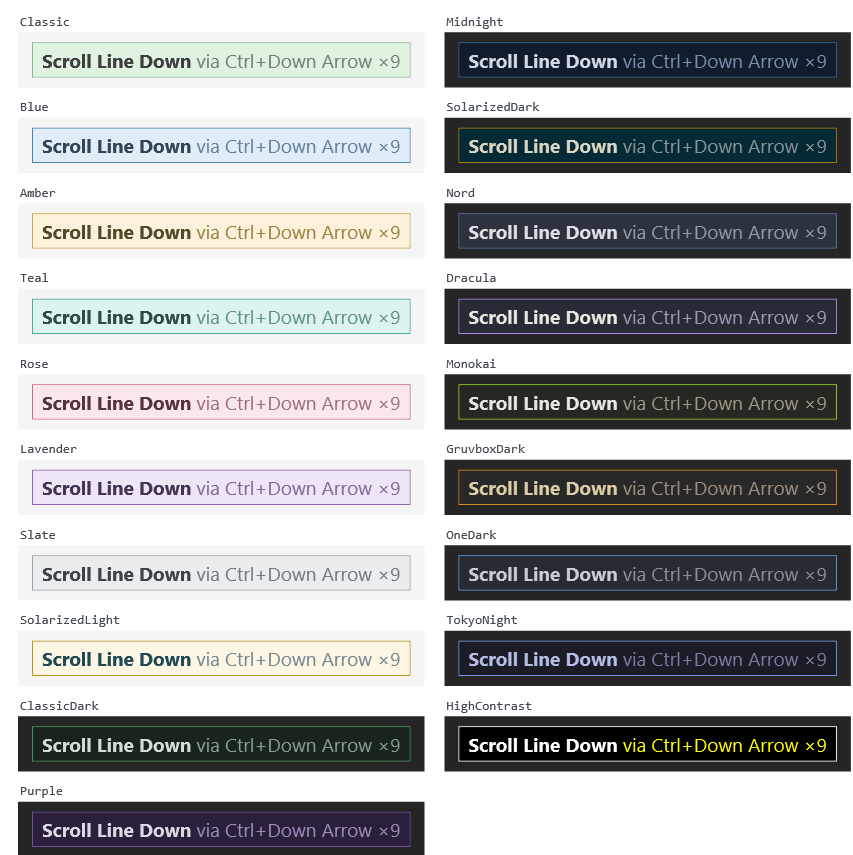
Then nineteen fixed palettes - eight for light shells, eleven for dark:
Classic, Blue, Amber, Teal, Rose, Lavender, Slate, SolarizedLight, ClassicDark, Purple, Midnight, SolarizedDark, Nord, Dracula, Monokai, GruvboxDark, OneDark, TokyoNight, HighContrast
Classic is the original pale green overlay, and ClassicDark its counterpart.
Your own colours
The options page has a Colours section: click a swatch for a colour picker, or type a value such as #DCF2DC, and watch the preview update as you go. It edits whichever theme is selected, and Reset to built-in puts it back. The built-in itself is never modified - your version is stored as an entry in themes.json. That works for Auto and VisualStudio too, even though those are computed from the running IDE.
themes.json is equally editable by hand. An entry adds a theme, or overrides a built-in one when the name matches, and every field except Name is optional:
[
  { "Name": "My Talk", "Background": "#101820", "Border": "#2E86AB", "IsDark": true },
  { "Name": "Amber", "Opacity": 1.0 }
]
Leave out SecondaryForeground and it is derived from the other two. A generated themes.reference.json sits beside the file listing every built-in in full, so starting from one is copy, paste, tweak. Changes apply on the next keystroke, with no restart, and a malformed file or an unparseable colour falls back to the built-ins rather than breaking the overlay.
Settings
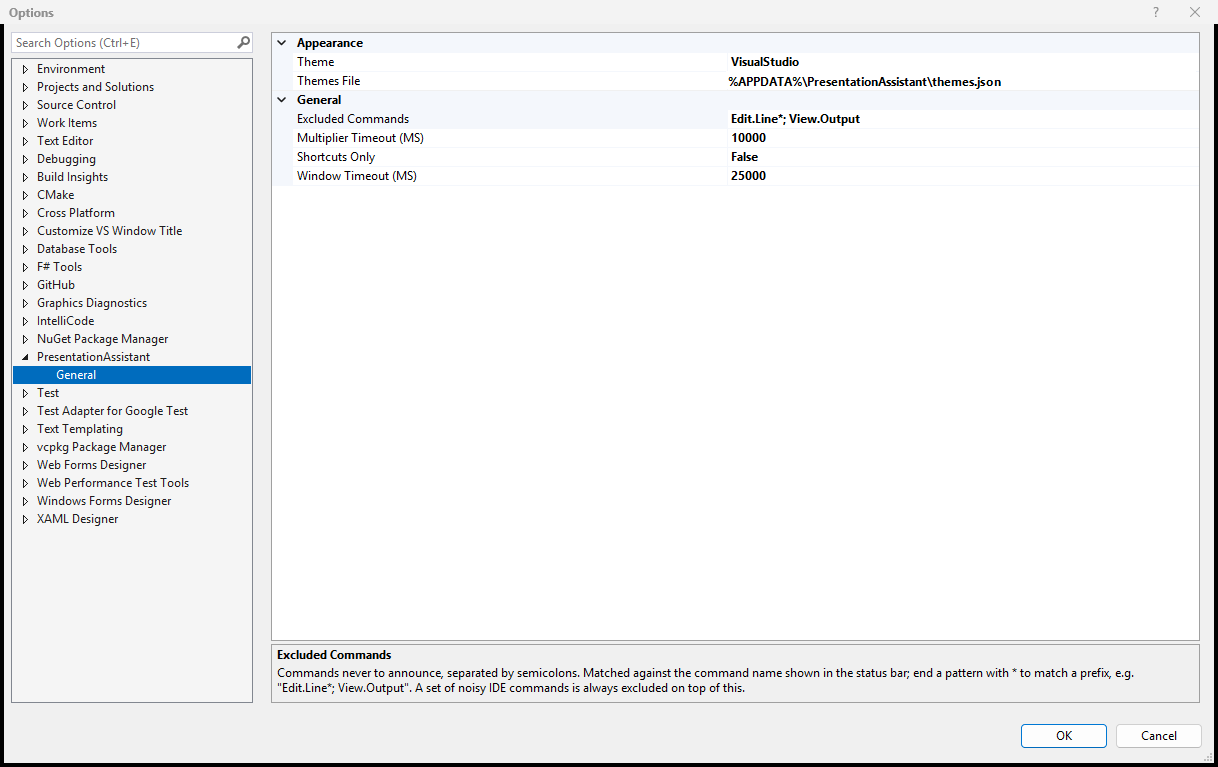
Under Tools > Options > PresentationAssistant > General, which previews the overlay live as you change it:
- Enabled - turn the overlay off without uninstalling the extension.
- Only announce commands that have a keyboard shortcut.
- Hide the overlay after - how long it stays on screen. Default 5000 ms.
- Count repeats within - the largest gap between two presses that still counts as a repeat. Default 10000 ms.
- Theme - any of the twenty-one above, or one of your own.
- Font size - 8 to 96. The default is 24.
- Layout - one line, or the shortcut stacked under the command name.
- Colours - the four colours and the opacity of the selected theme.
- Excluded Commands - commands never to announce.
- Diagnostics - log what the extension is doing to a PresentationAssistant pane in the Output window, for when something needs reporting.
Settings are stored as JSON in %APPDATA%\PresentationAssistant, so they survive Visual Studio upgrades and can be copied between machines. Values are clamped to sensible ranges, so a stray number cannot leave the overlay stuck on screen.
Excluding commands
Some commands are just noise. List them in Excluded Commands, one per line or separated by semicolons, with a trailing * to match a prefix:
Edit.Line*; View.Output; File.SaveAll
Patterns match the command id shown in the status bar, and matching is case-insensitive. A bare * is ignored rather than silencing everything.
Commands the IDE fires constantly on its own are always excluded on top of your list: cursor and page movement, Backspace and Delete, the debugger's location toolbar, and the build configuration and platform dropdowns.
Requirements
Visual Studio 2022 or 2026, 64-bit.
Links



