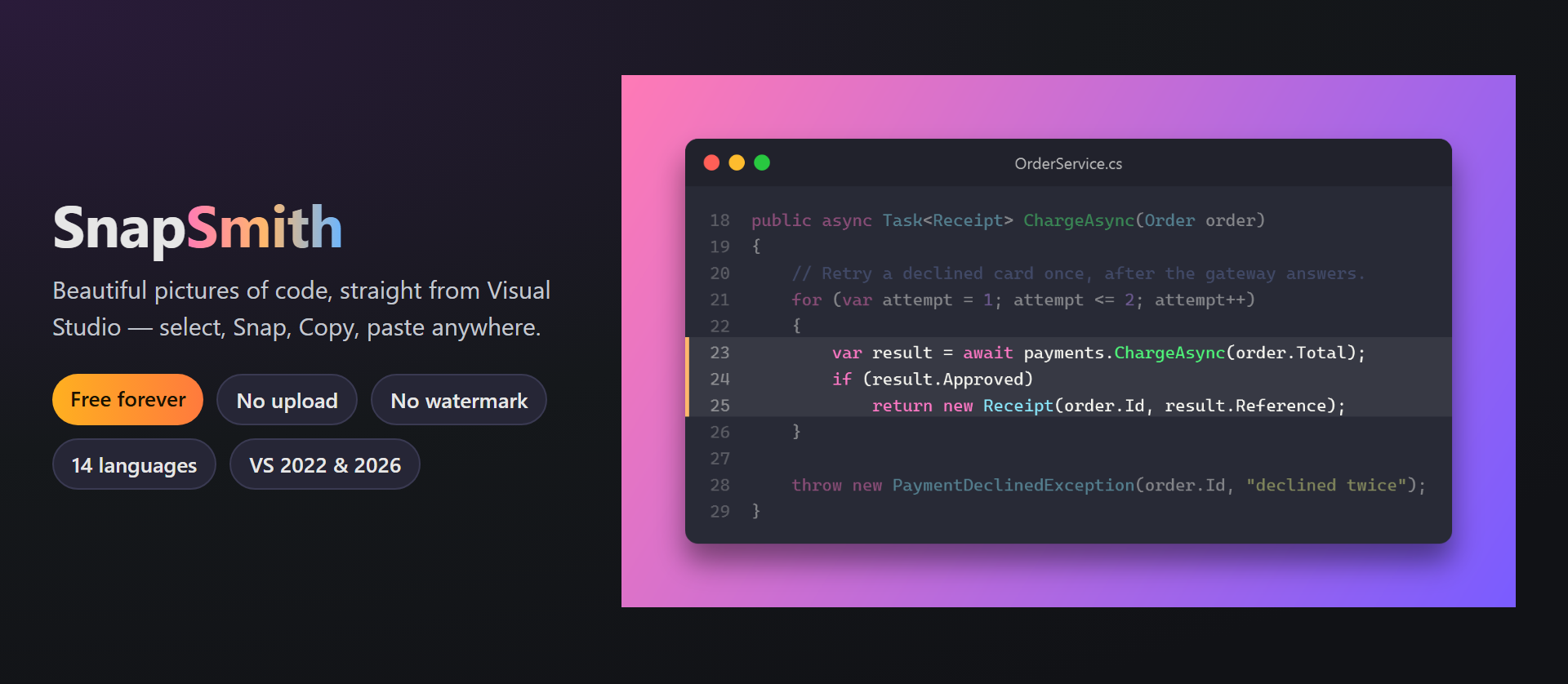
SnapSmithBeautiful pictures of code, straight from Visual Studio: select the code, click Snap on the SmithWorks toolbar (or right-click), Copy — and paste into Teams, Slack, a slide or a blog post. Your editor |

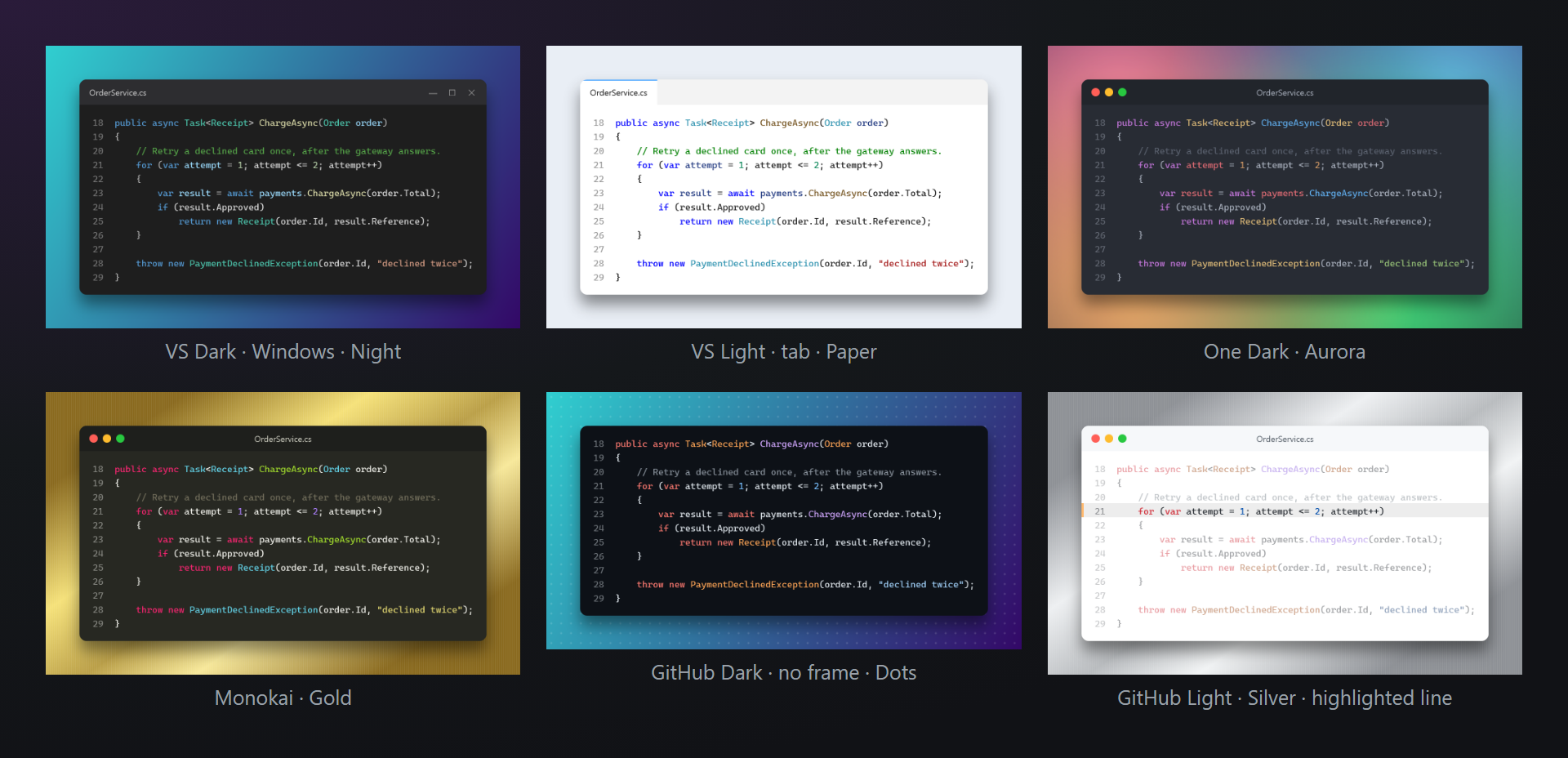
SnapSmith — beautiful pictures of code, straight from Visual StudioSelect the lines, click Snap…, then Copy — and paste into Teams, Slack, a slide or a blog post. SnapSmith draws the code with your own editor colors (or one of 12 themes), in a window frame, on a background you like, crisp at 2x. No website, no copying code back and forth. Free. Forever. No subscriptions, no trial, no "pro" version, no watermark, no data collection, no messages at startup. Nothing is uploaded — the picture is drawn inside Visual Studio. 📖 Documentation · Visual Studio 2022 and 2026 · x64 and ARM64 · UI in 14 languages One picture, many looksEditor colors exactly as on your screen — or VS Dark, VS Light, VS Blue, Dracula, Monokai, One Dark, Nord, GitHub Dark and Light, Solarized Dark and Light, High contrast. Window frames: macOS, Windows, a tab or none, with padding, rounded corners and a shadow.
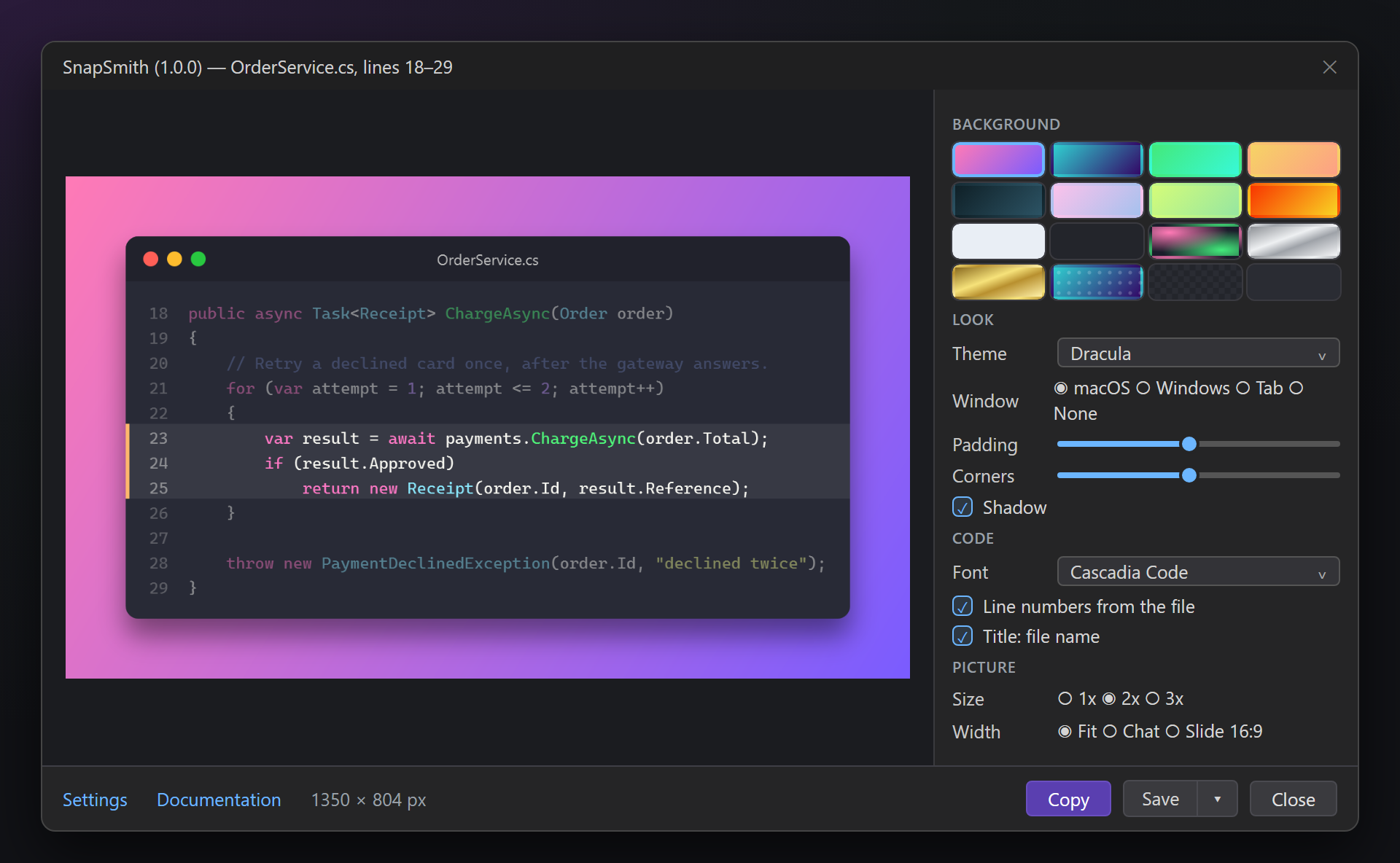
The studioSnap… — on the SmithWorks toolbar, in Edit › SnapSmith or in the right-click menu of the editor — opens the studio: the picture exactly as it will be copied, and the settings next to it. Click a line number to highlight that line; the others are dimmed. Size 1x, 2x or 3x; width of the code, of a chat or of a 16:9 slide. Copy puts a PNG on the clipboard; Save writes PNG or SVG with real text. In C# you do not even need a selection: the method, property or class at the caret is taken whole, with the common indent removed.
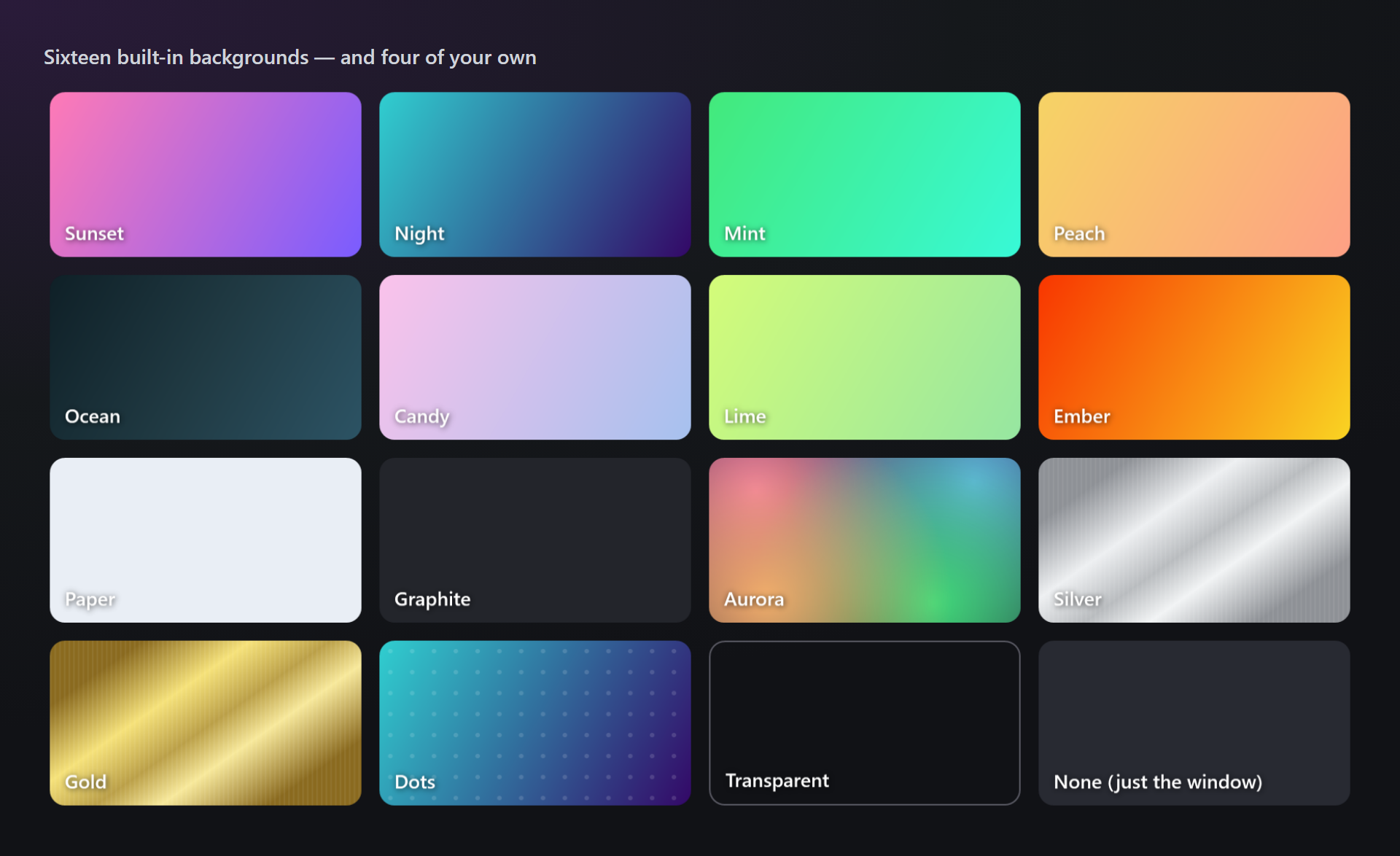
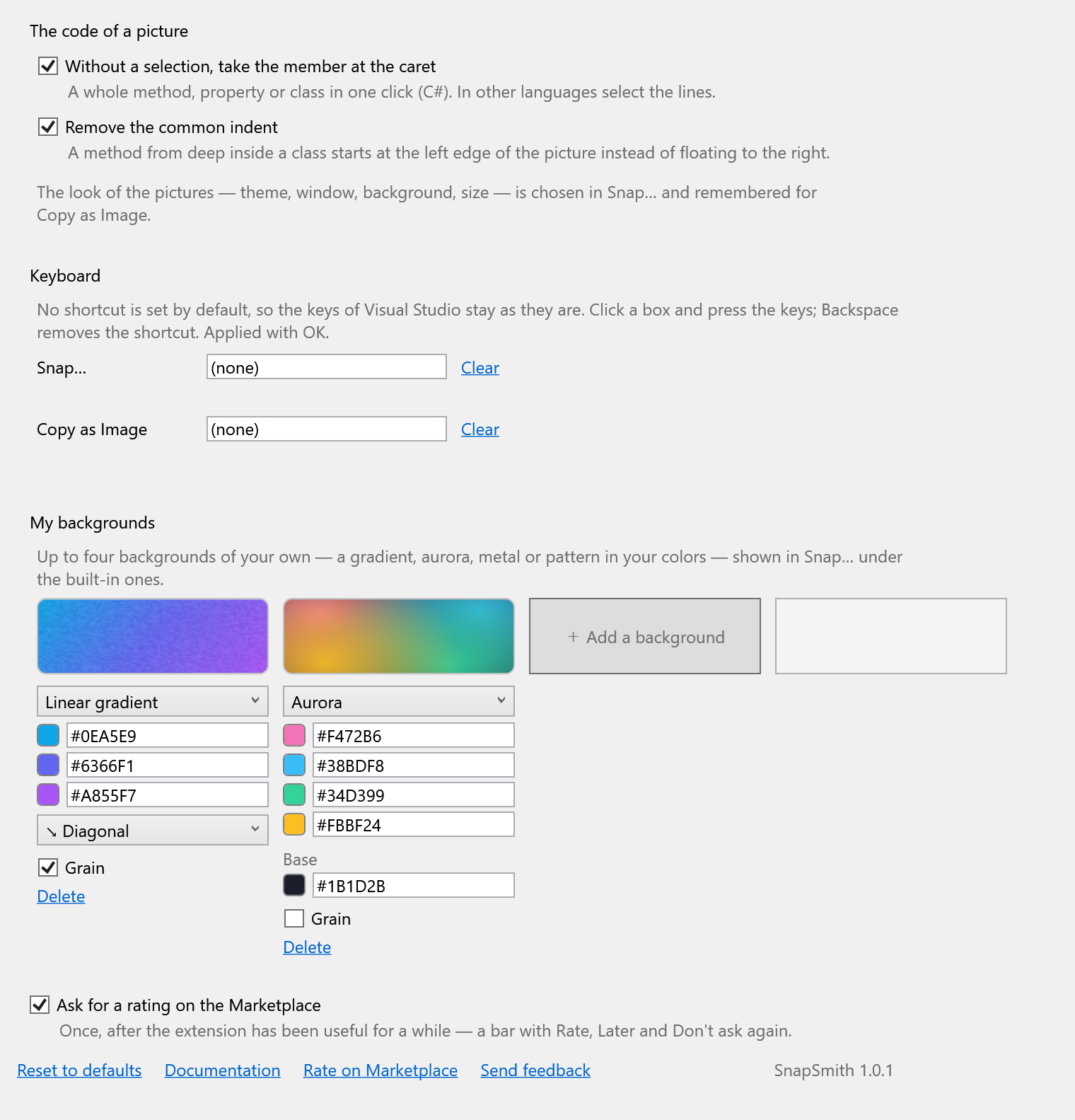
16 backgrounds — and four of your ownGradients, a glowing aurora, brushed silver and gold, dots, paper, graphite, a transparent background. In the settings, make up to four of your own — linear or radial gradient, aurora, metal or pattern, with grain — in your company colors, with a color picker and a pipette.
Copy as Image — one keyCopy as Image copies the selection with the last look, without opening any window. No shortcut is taken by default: set one under Keyboard in the settings, for example Ctrl+Alt+S. SettingsTools → Options → SmithWorks → SnapSmith. Every option has a description; the look of the pictures is chosen in the studio and simply remembered.
Questions or ideas? Use the Q & A tab on this page or the Feedback repository. Full documentation: lazowskianton.github.io/VSExtensions/snapsmith. |