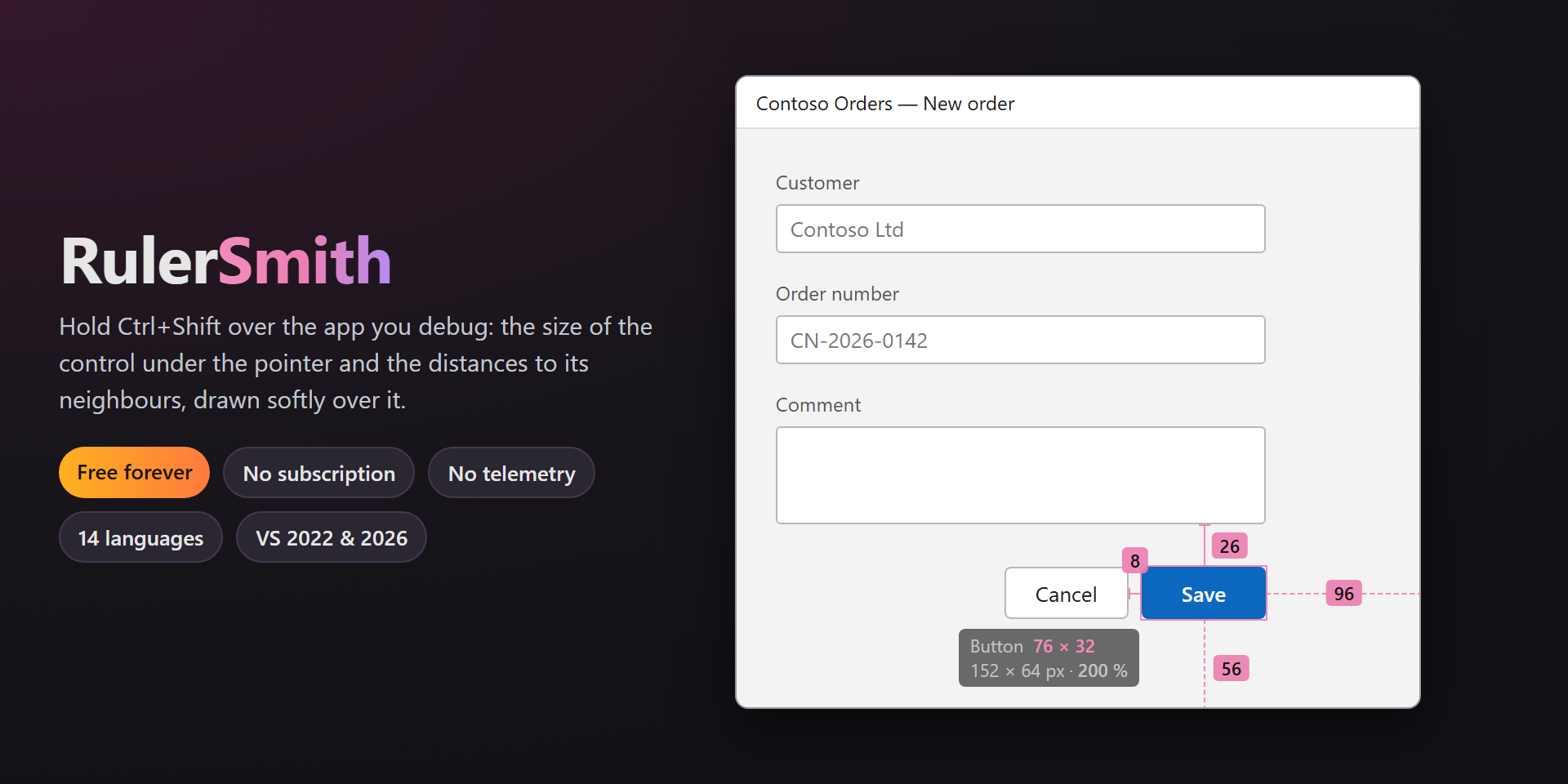
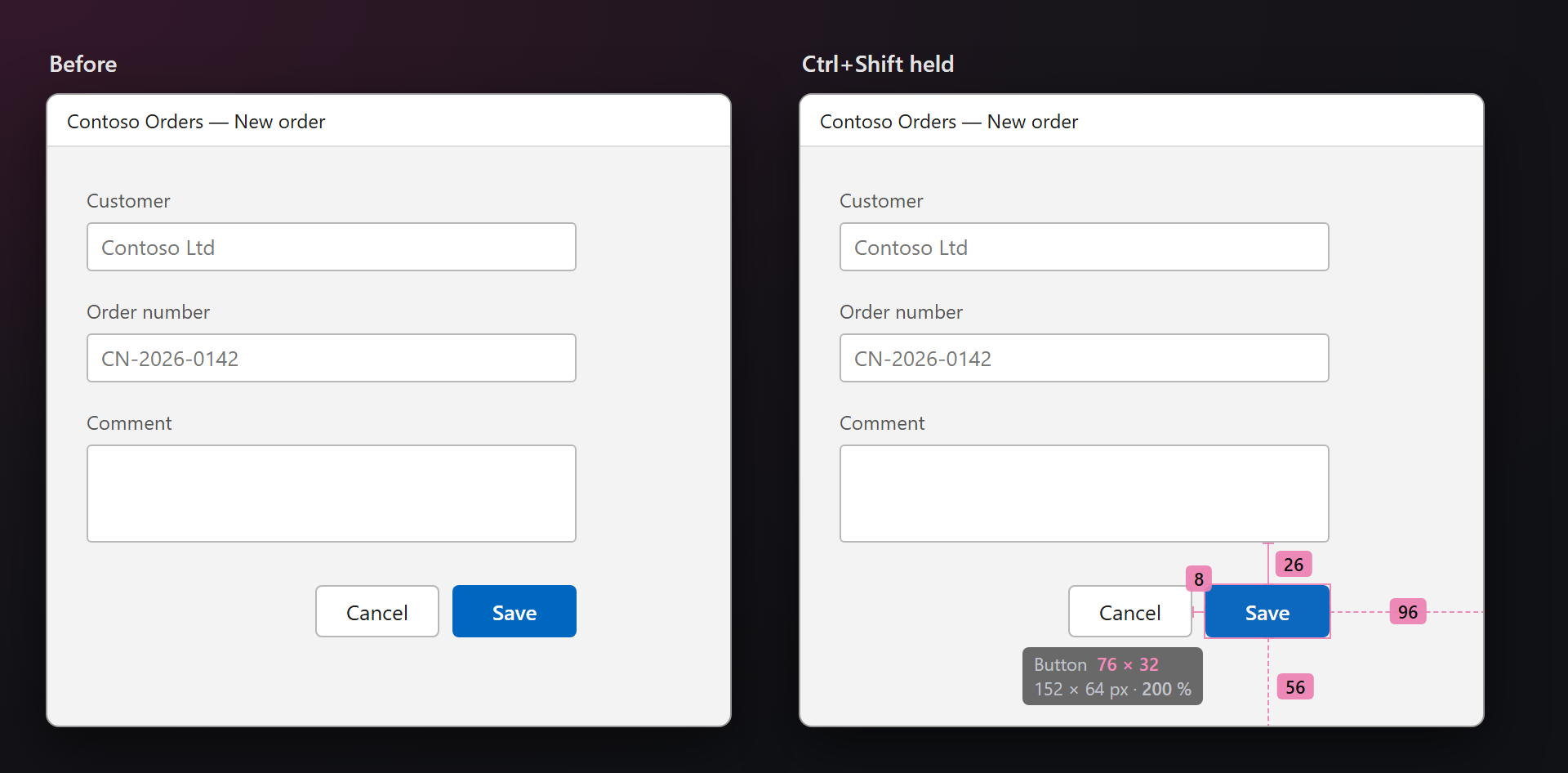
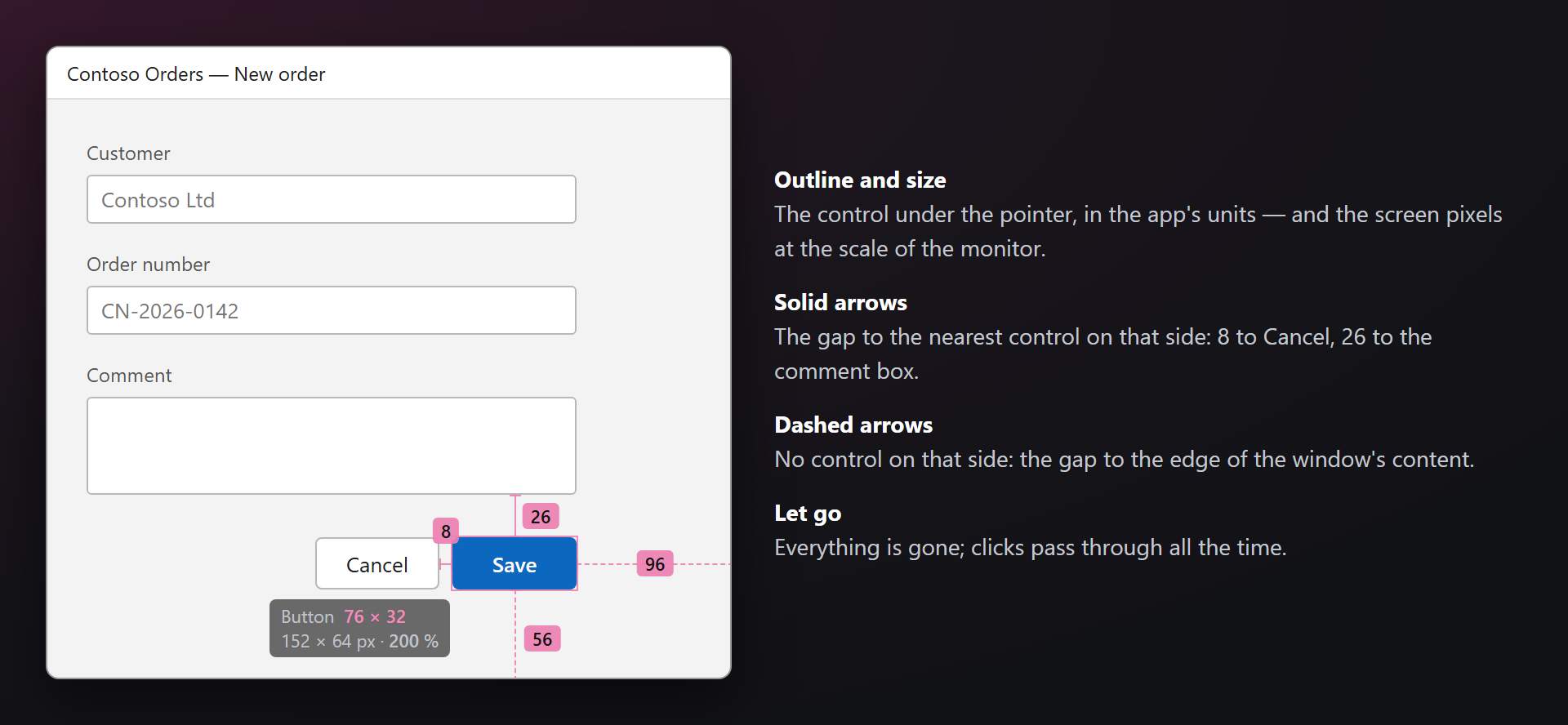
RulerSmithHold Ctrl+Shift over your app while it runs under the debugger: the size of the control under the pointer and the distances to the controls around it, drawn softly over the app — in WPF, WinForms, Win32 and web pages. Real control bounds from UI Automation, units and screen pi... |

RulerSmith — sizes and distances of controls while you debugRulerSmith measures the app you are debugging: hold Ctrl+Shift over it, and the control under the pointer shows its size while soft arrows show the distances to the controls around it. Let go, and it is gone. Free. Forever. No subscriptions, no trial, no "pro" version, no nag screens, no data collection, no messages at startup. 📖 Documentation · Visual Studio 2022 and 2026 · x64 and ARM64 · UI in 14 languages Real bounds, not a guessSizes come from UI Automation — the tree screen readers use — so shadows and gradients do not fool it. WPF, Windows Forms, Win32 and web pages in Edge, Chrome or Firefox.
The units you writeWPF and web pages are measured in device-independent units — what you put in XAML or CSS — with the screen pixels and the scale of the monitor on a second line. WinForms and Win32 apps are measured in their own pixels, DPI-aware or not.
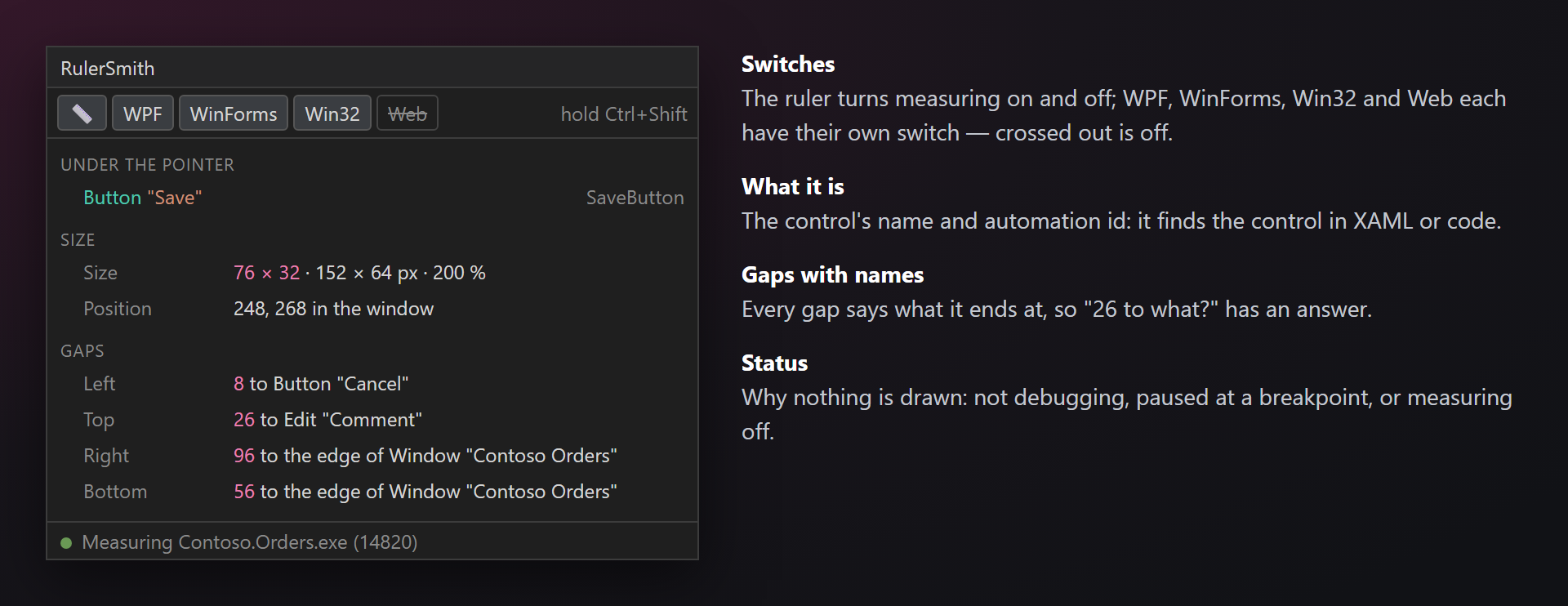
Only while the key is heldNothing is computed or drawn until you hold the key; the overlay never takes a click or the focus. It starts with the debug session, measures only the debugged app (and what it opens: WebView2, the browser of a web project) and rests at breakpoints. The RulerSmith panelDebug → RulerSmith Panel: the control's name and automation id, its size, its position and every gap with the control it ends at — and switches to turn measuring off, whole or for one kind of app.
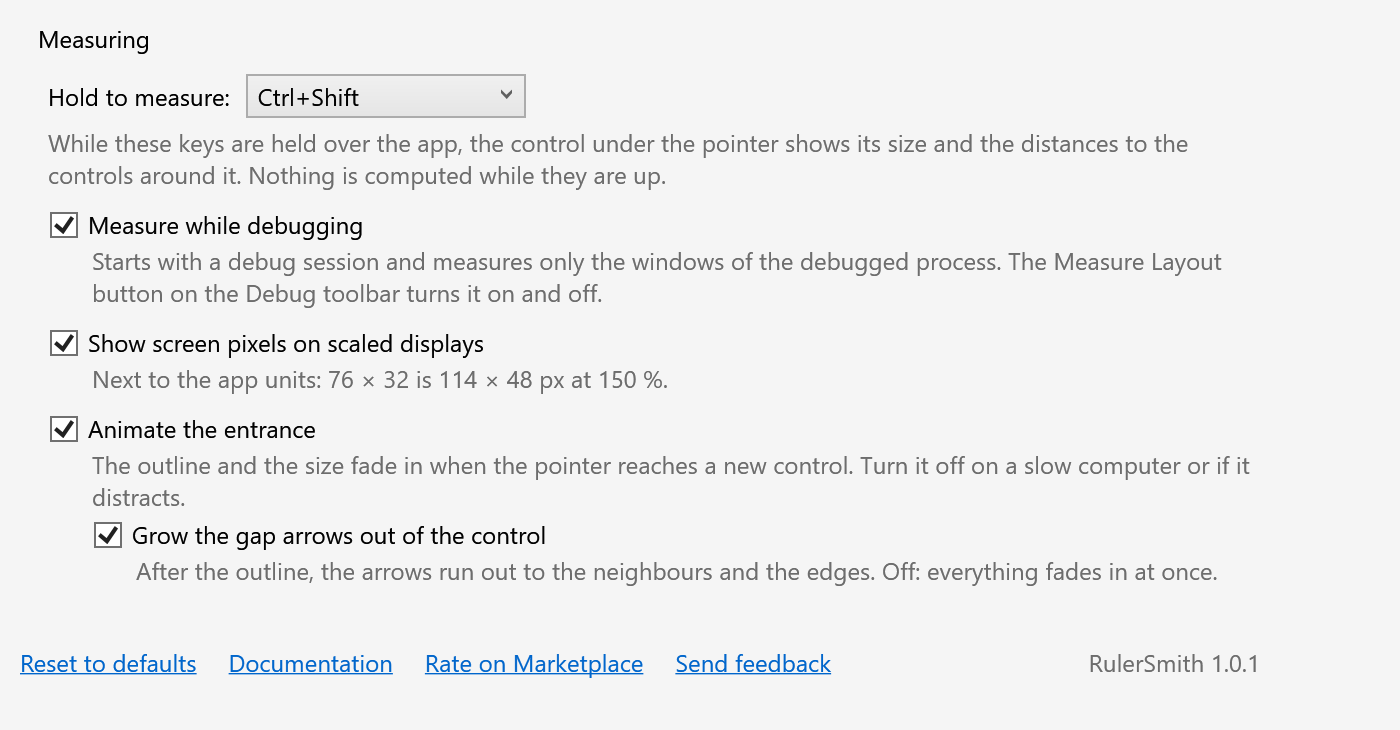
SettingsTools → Options → SmithWorks → RulerSmith: the key combination, screen pixels, the entrance animation. Every option has a description.
WinUI, UWP and MAUI are not supported for now. Questions or ideas? Use the Q & A tab on this page or the Feedback repository. Full documentation: lazowskianton.github.io/VSExtensions/rulersmith. |