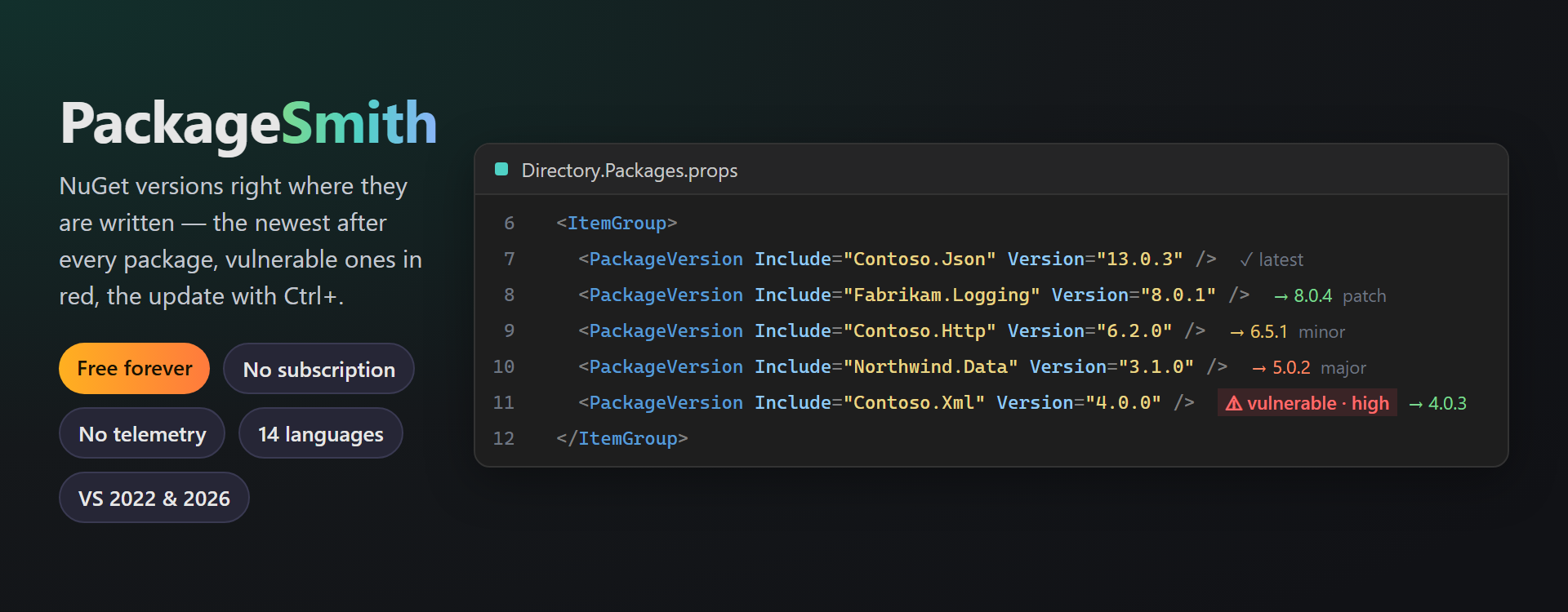
PackageSmithNuGet package versions right where they are written: the newest version after every package in .csproj, Directory.Packages.props and packages.config, colored by the size of the step; vulnerable and de |

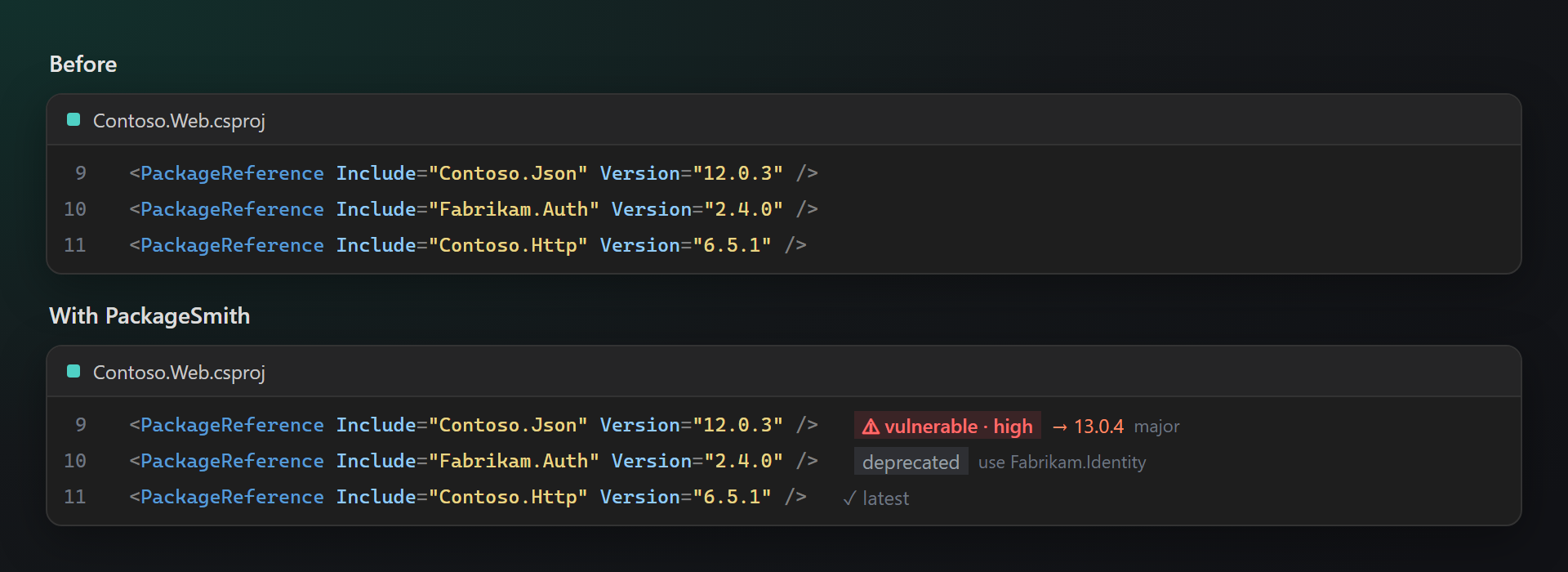
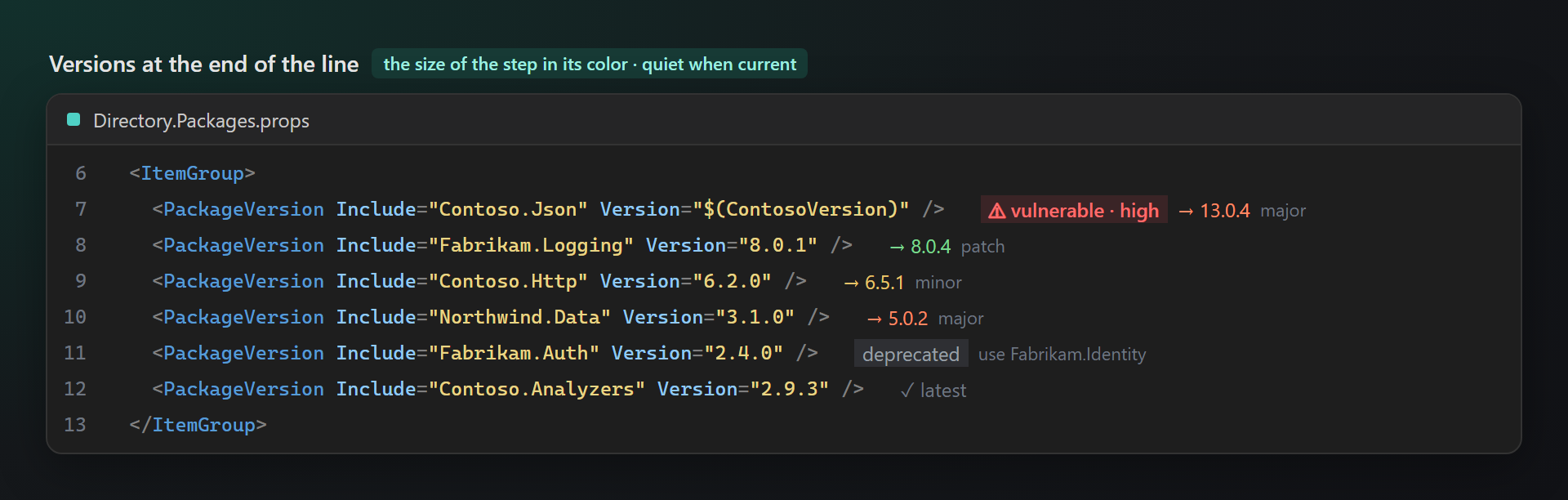
PackageSmith — NuGet versions right where they are writtenPackageSmith shows the newest version after every package in your project files, flags vulnerable and deprecated packages before the build does, lists the newer versions with their dates on hover, and updates a package — or the whole file — with Ctrl+. Free. Forever. No subscriptions, no trial, no "pro" version, no nag screens, no data collection, no messages at startup. 📖 Documentation · Visual Studio 2022 and 2026 · x64 and ARM64 · UI in 14 languages Outdated at a glanceNo need to open the NuGet window to learn what is old: the newest version stands after each package — green for a patch, yellow for a minor, orange for a major — and a dim "✓ latest" when the package is current.
Works in
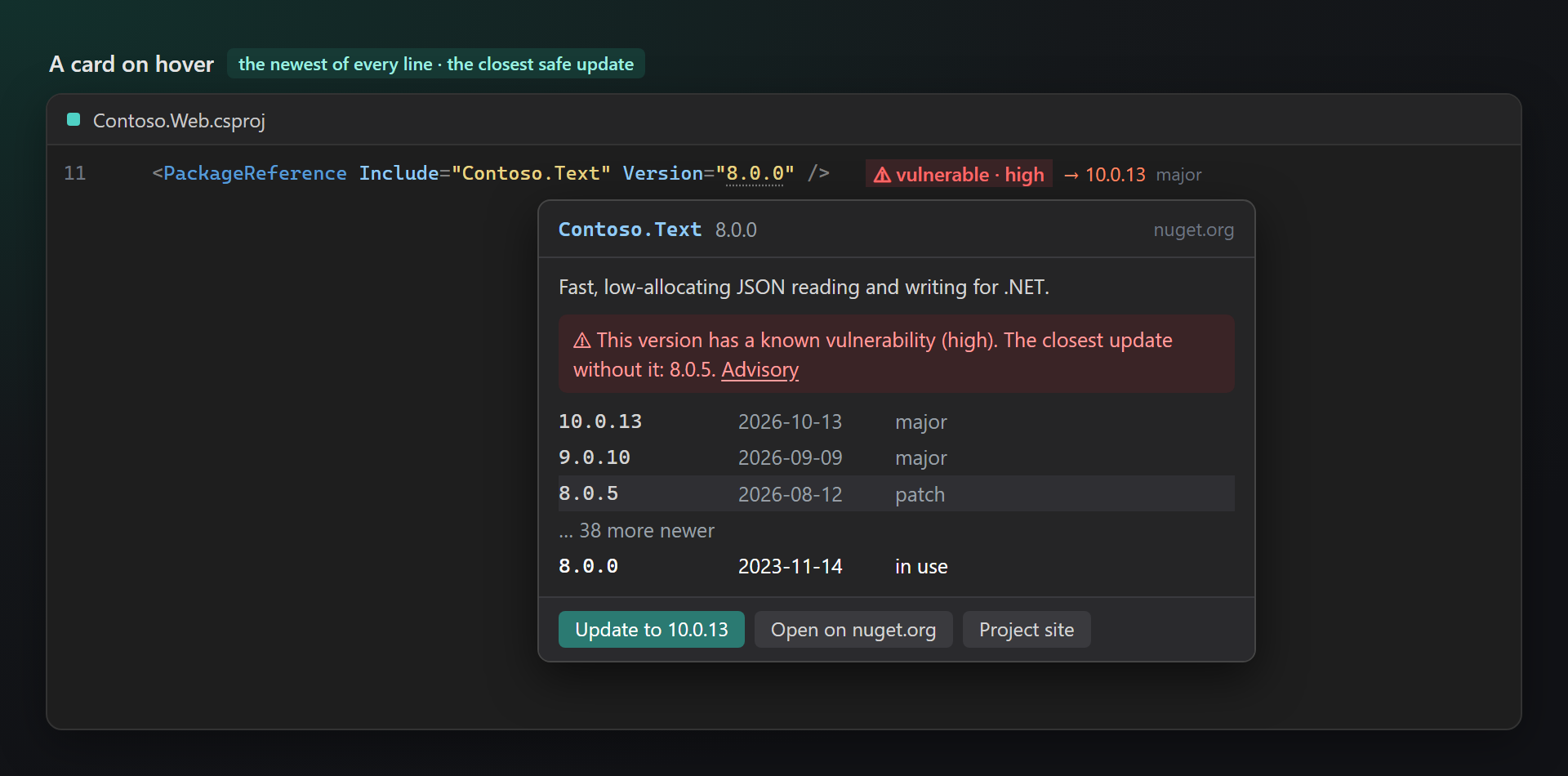
Safe updates firstA known vulnerability is red right on the line, with its severity; a deprecated package names the one to use instead. A card on hoverRest the pointer on a version: the description, the newest version of every newer line with its date, the closest update without a vulnerability, and Update to …, Open on nuget.org, Project site. A click on any version sets it.
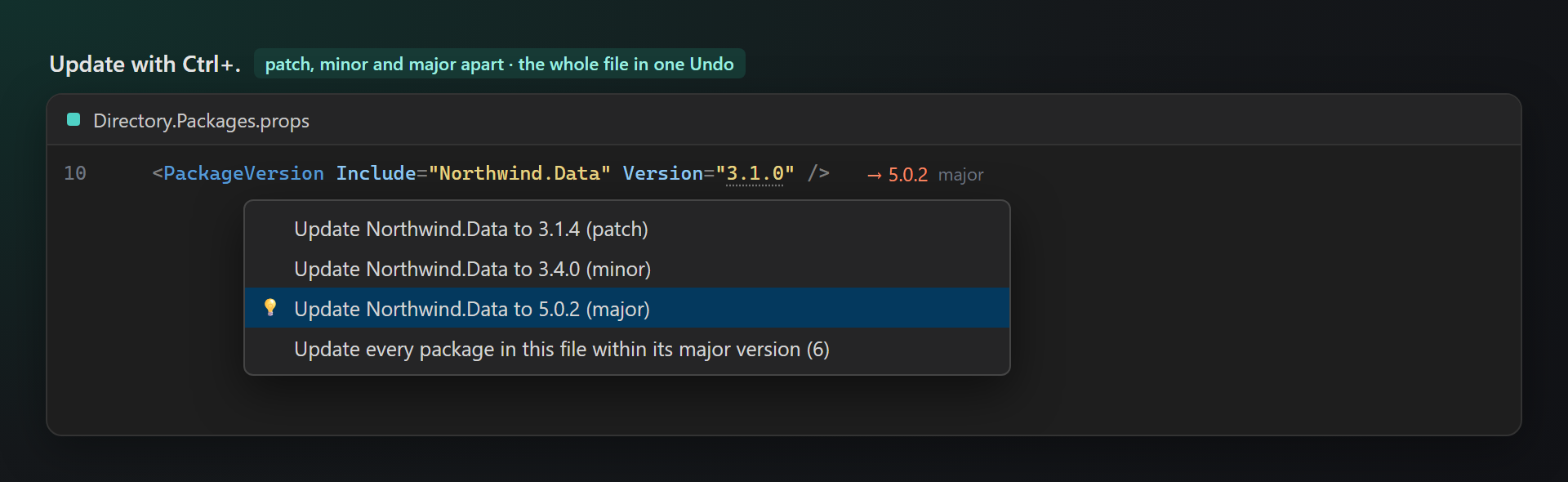
Update with Ctrl+.The newest patch, minor and major are offered separately, so the safe update is always one key away; Update every package in this file within its major version keeps majors a decision of their own. One edit, one Undo.
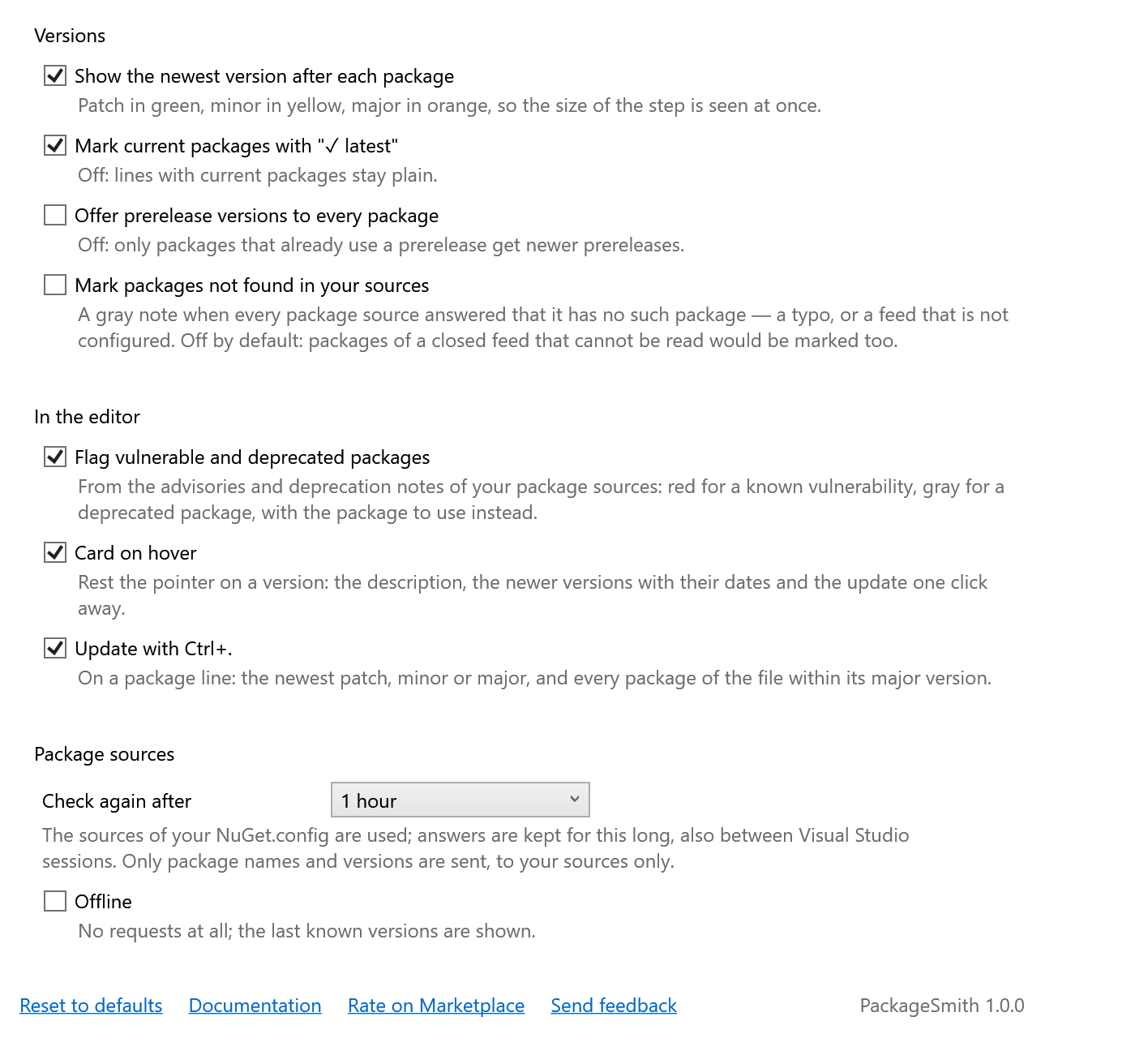
Your sources onlyVersions come from the package sources of your NuGet.config — nuget.org or a company feed. Only package names and versions are asked for, the same requests Visual Studio makes when it restores; answers are cached between sessions, and an Offline switch stops all requests. SettingsTools → Options → SmithWorks → PackageSmith. Every feature can be turned off, every option has a description.
Questions or ideas? Use the Q & A tab on this page or the Feedback repository. Full documentation: lazowskianton.github.io/VSExtensions/packagesmith. |