BuildSmithWhat your build did and why it took that long: the build time and the change in the status bar, a timeline of the projects with the critical path, projects that are never up to date, a history of buil |

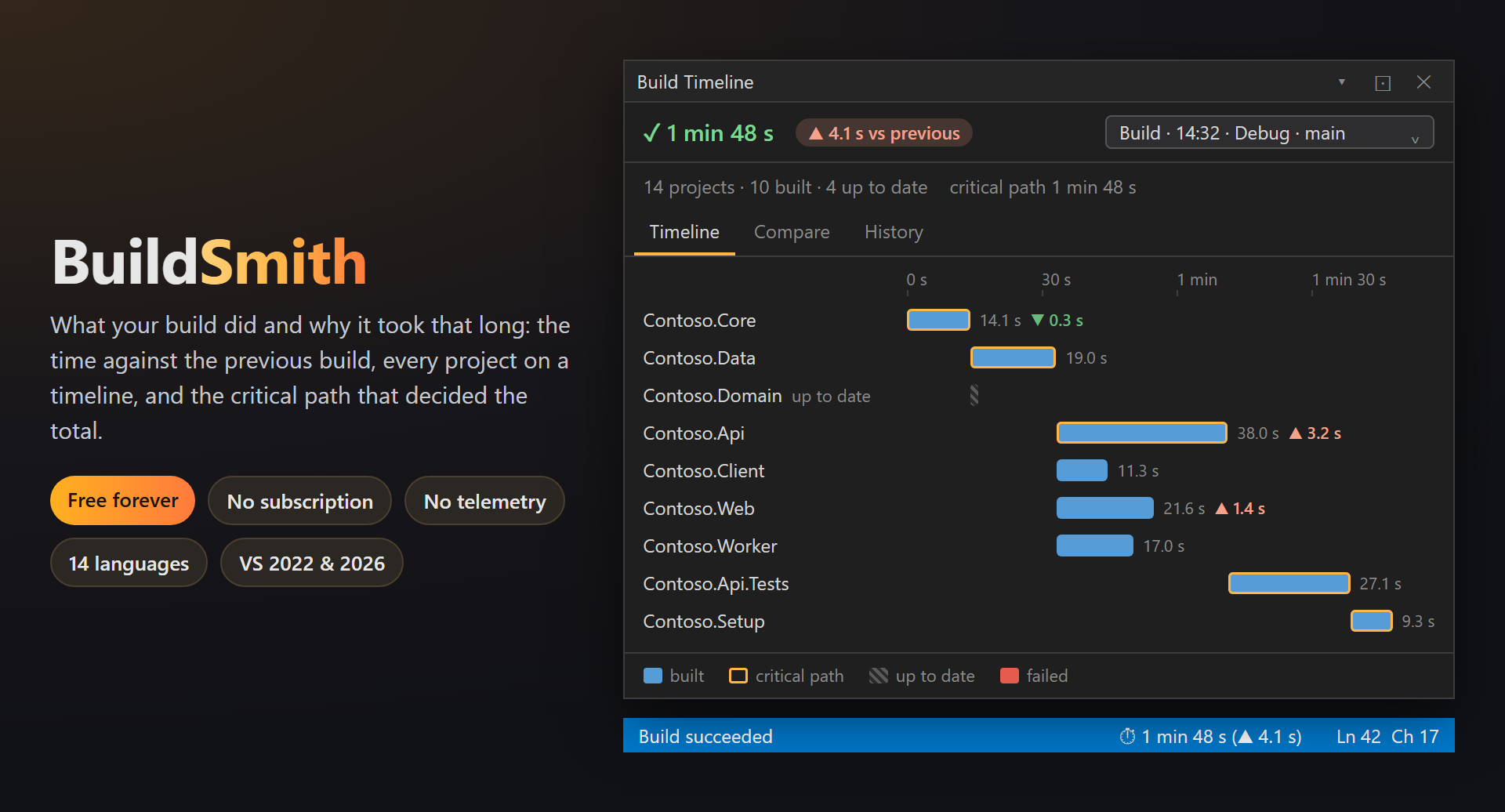
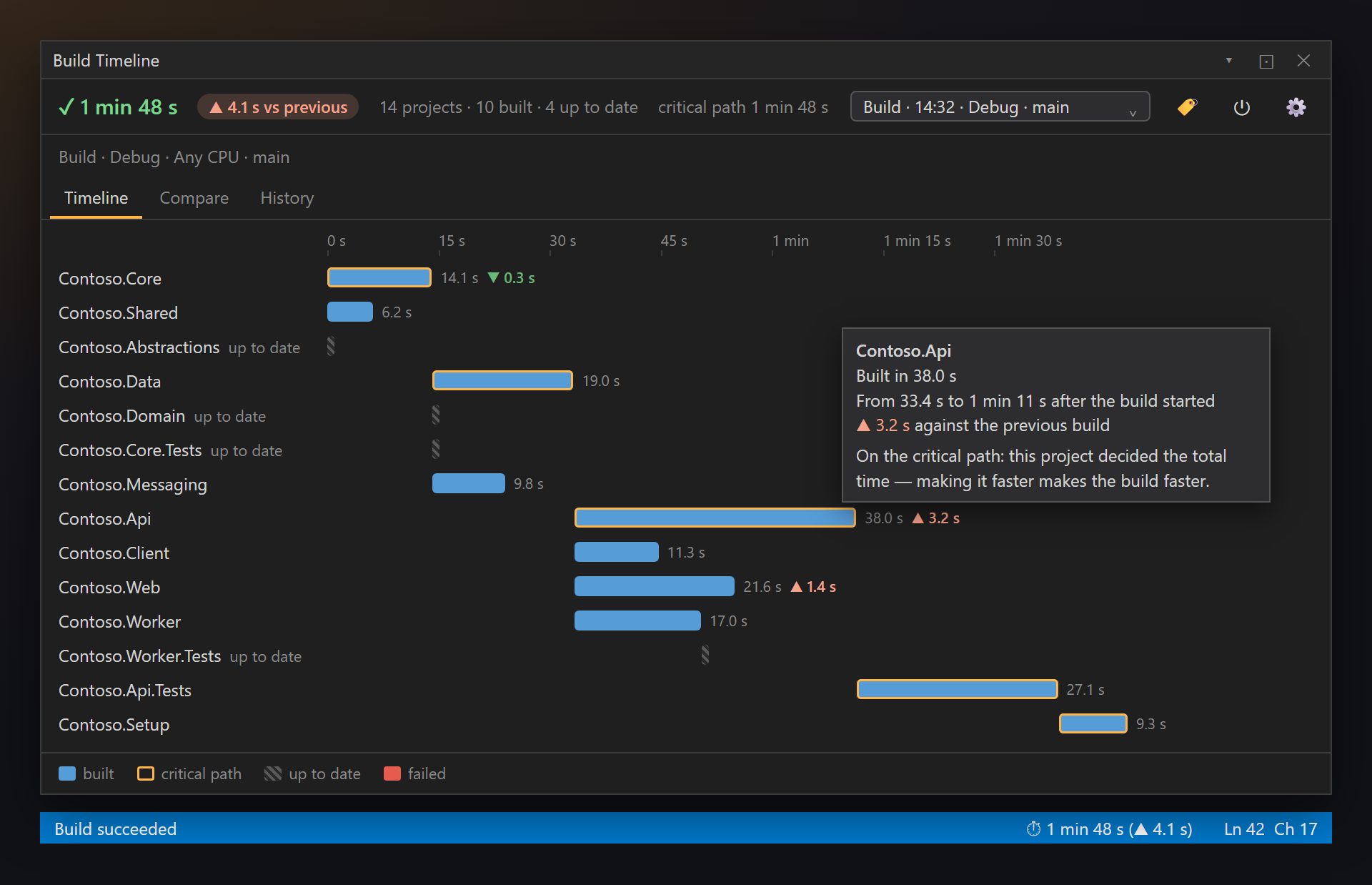
BuildSmith — what your build did and why it took that longAfter every build, BuildSmith puts its time and the change against the previous build in the status bar — Free. Forever. No subscriptions, no trial, no "pro" version, no nag screens, no telemetry, no messages in the Output window or at startup. The history stays on your computer. The only thing we will ever ask — after you have used it for a while — is to rate it on the Marketplace. 📖 Documentation · Visual Studio 2022 and 2026 · x64 and ARM64 · UI in 14 languages The build at a glanceBuild › Build Timeline (also in View › Other Windows and on the SmithWorks toolbar). At the top: the result, the time and the change against the previous build; how many projects were built, up to date or failed; the critical path, the configuration, the platform and the branch. Below: a bar per project where it really ran. The critical path is outlined in orange — make one of those projects faster and the whole build gets faster. Up-to-date projects are hatched, failed ones red, and each bar shows its change against the previous build.
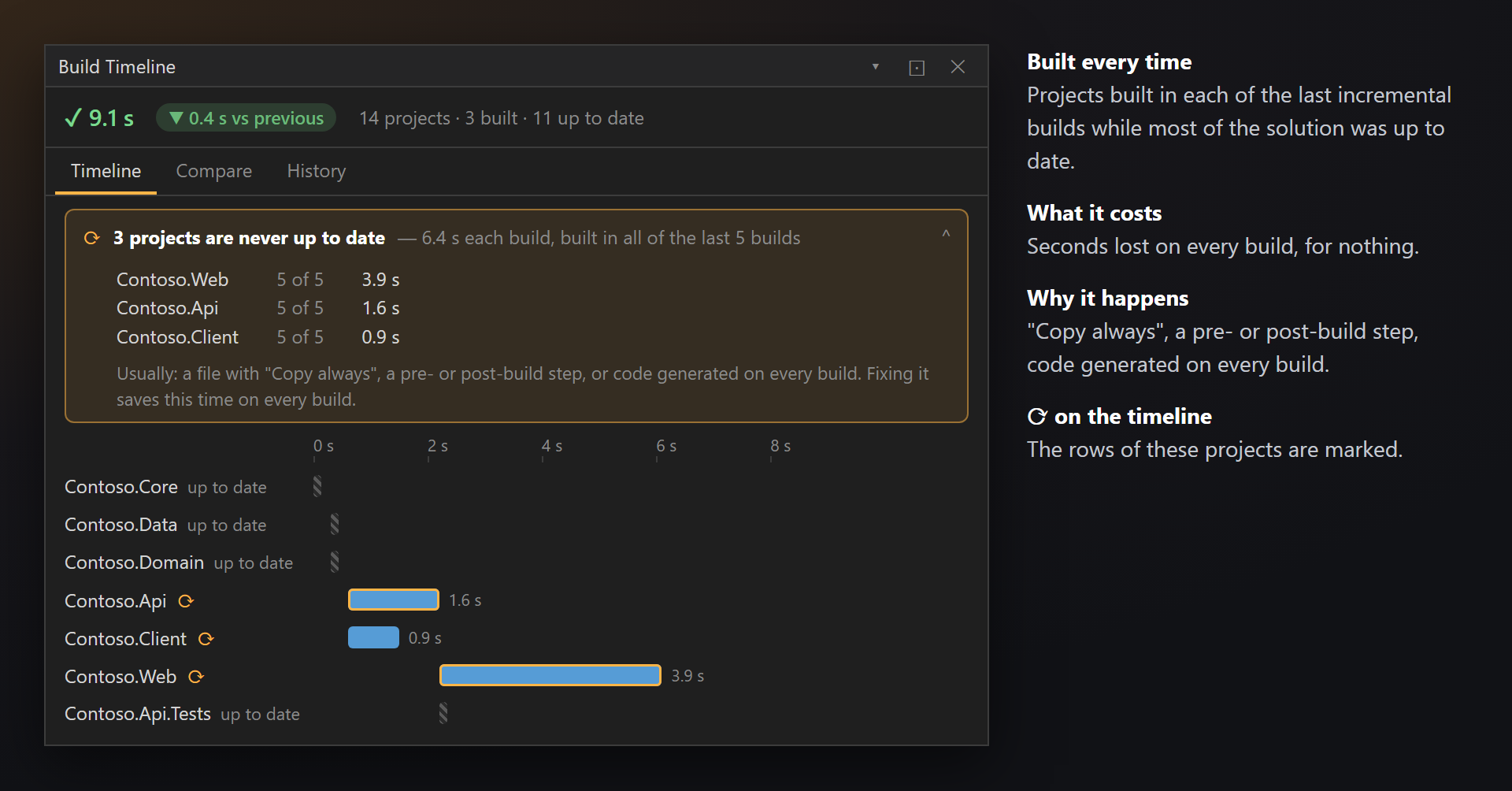
A fair comparison: a Debug build on Never up to dateProjects that are built on every incremental build although nothing in them changed cost seconds on every build. BuildSmith points them out above the timeline — how many, what they cost per build, and the usual causes: Copy always, a pre- or post-build step, code generated on every build.
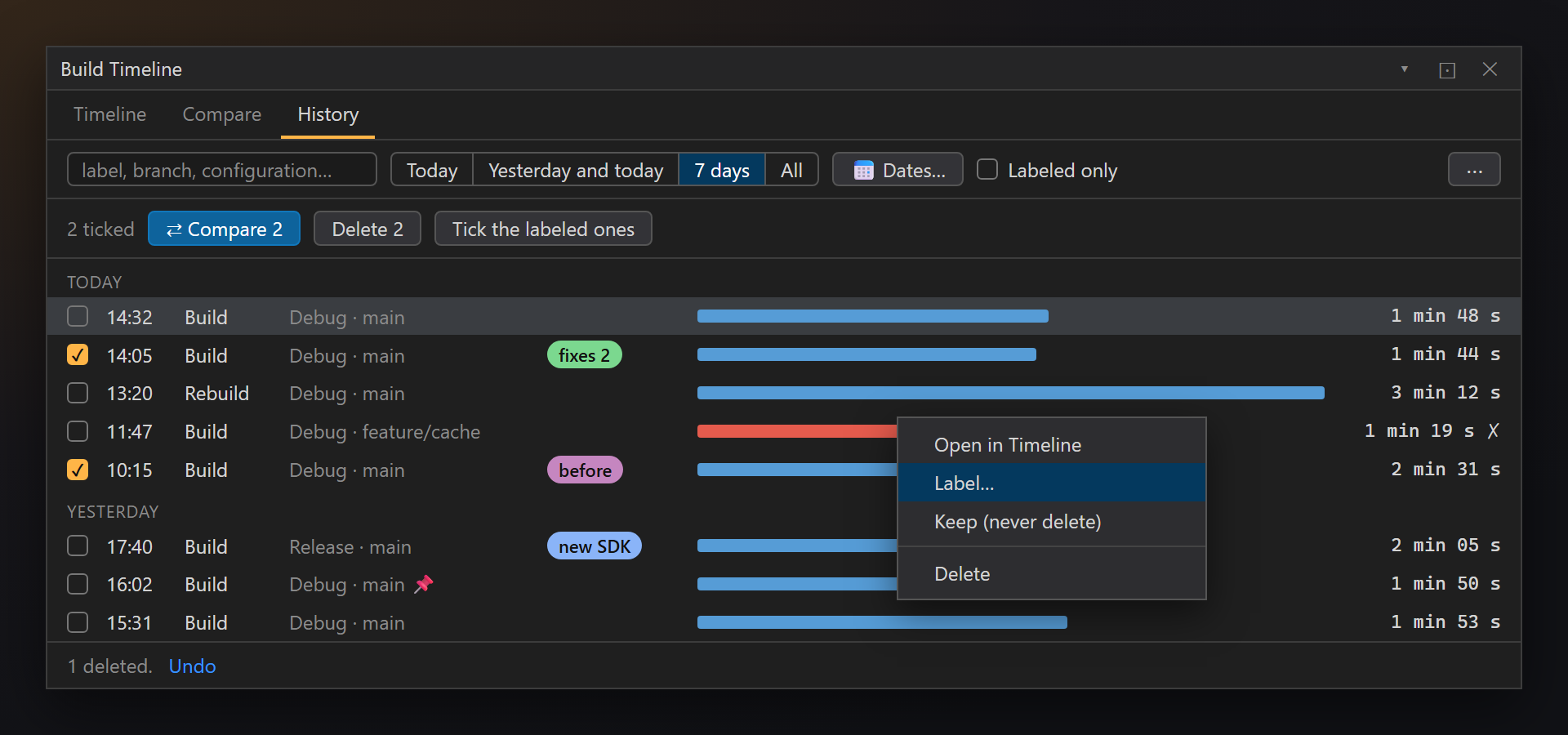
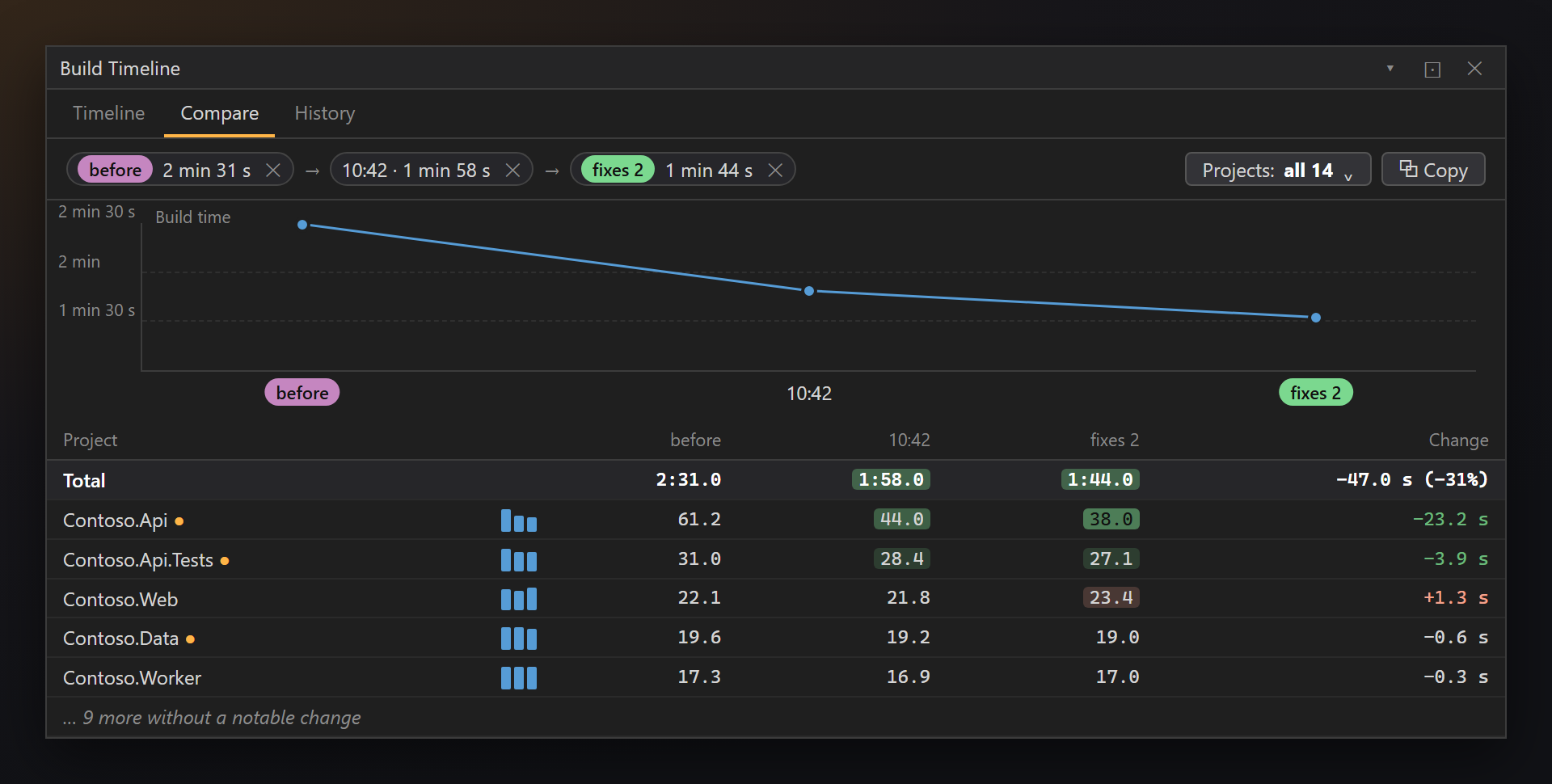
History and labelsEvery build of the solution is kept on your computer for a week (1 day to 1 month): search, Today / Yesterday and today / 7 days / All, a calendar, and bars that show at a glance which build was slow. Give a build a label — "before", "fixes 2", "new SDK" — in one of five colors or your own; labeled and kept builds are never deleted by age. Right-click to open, label, keep or delete; Delete has Undo.
Compare up to 10 buildsTick builds in History and press ⇄ Compare: the trend of the totals and a table of projects × builds, each cell colored by its change, with sparklines and ● for the critical path. Filter to the projects that changed, the ones on the critical path or the ones you work on — the trend then sums just those. ⧉ Copy puts the table on the clipboard as Markdown, ready for a pull request.
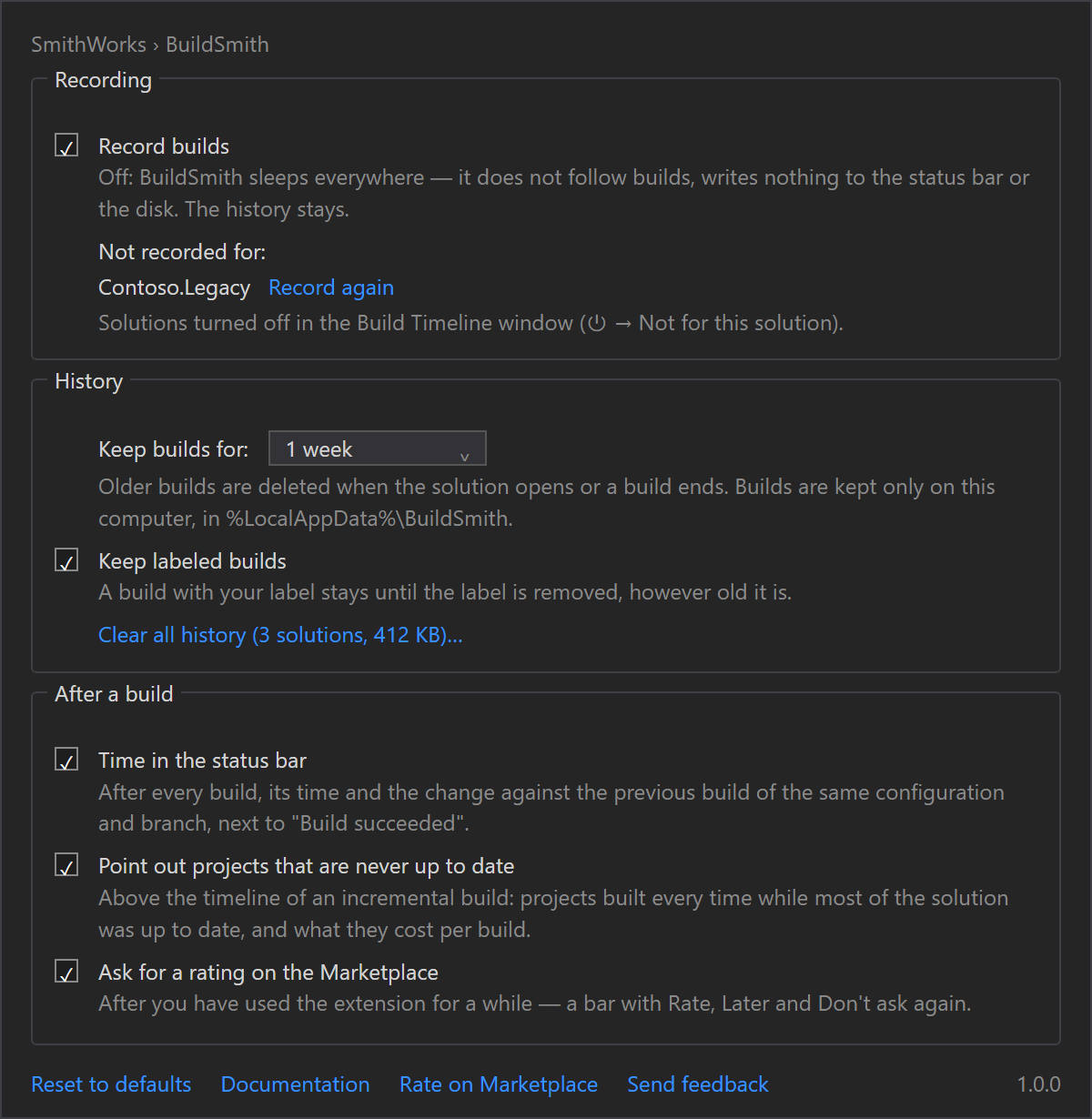
Off when you want it off⏻ in the window turns recording off for one solution or everywhere. Then BuildSmith truly sleeps: it does not even listen to build events. The history stays. SettingsTools → Options → SmithWorks → BuildSmith: recording, how long builds are kept, the status bar time, never-up-to-date projects. Every option has a description.
Questions or ideas? Use the Q & A tab on this page or the Feedback repository. Full documentation: lazowskianton.github.io/VSExtensions/buildsmith. |