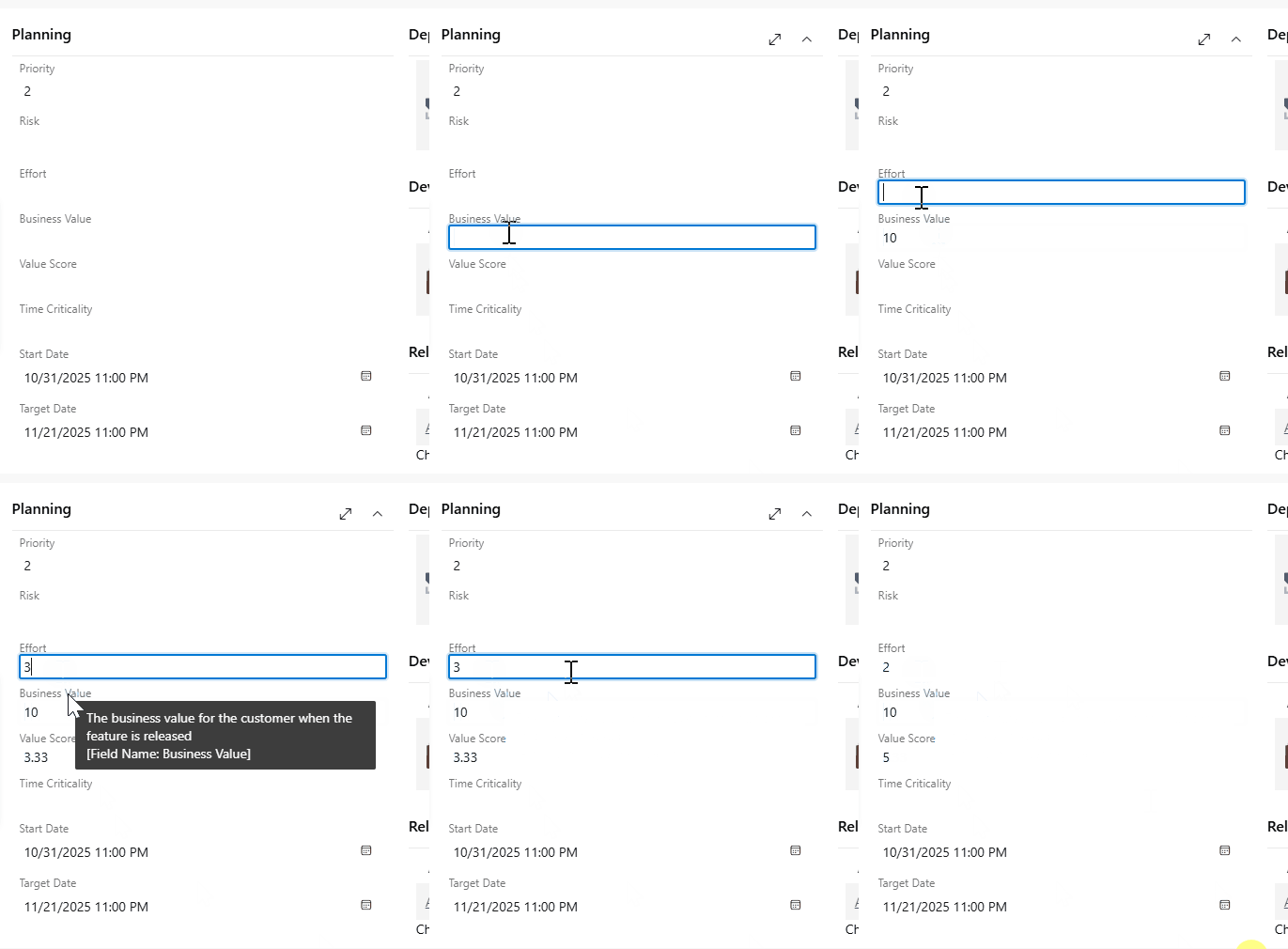
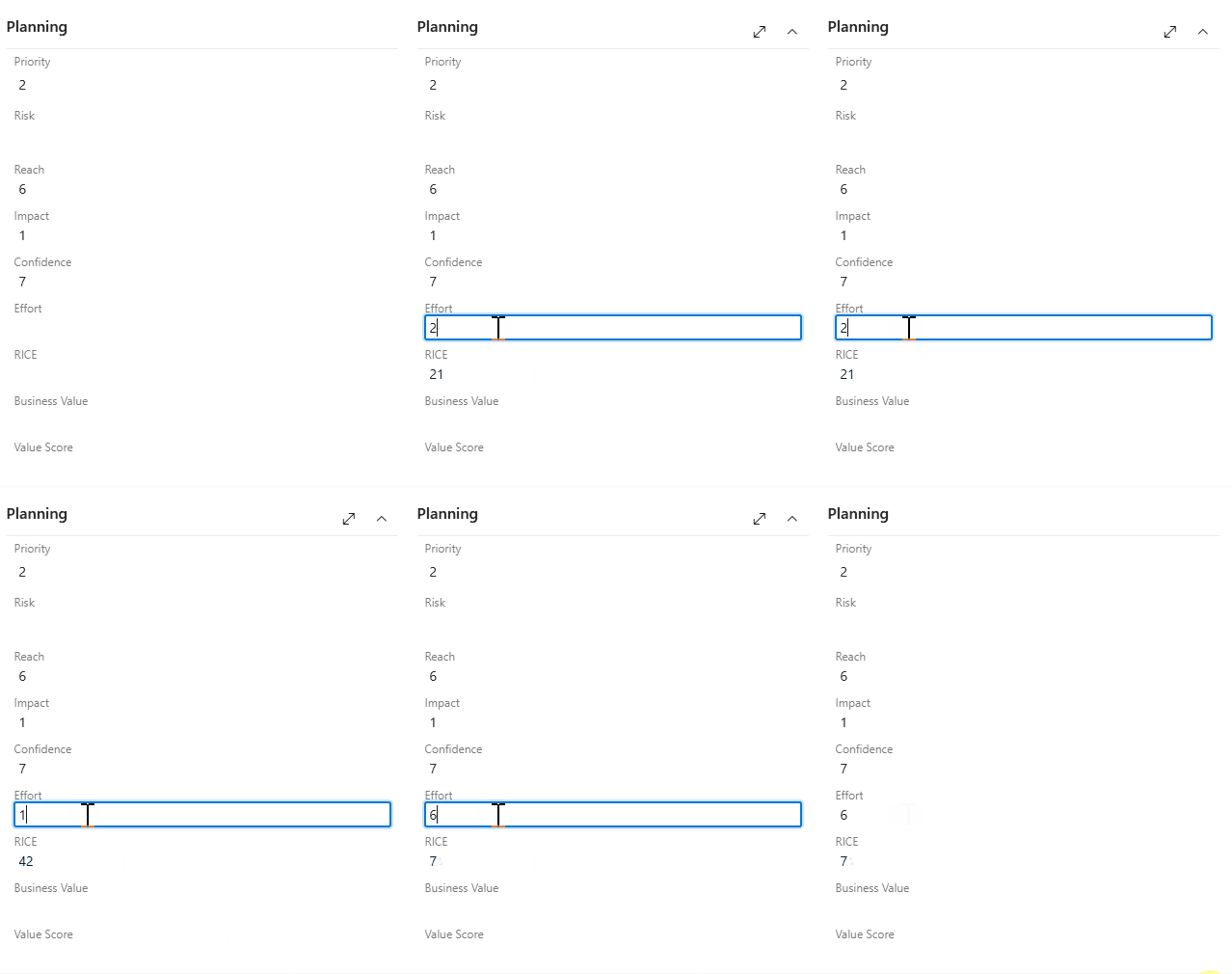
Configurable value score calculator for Azure DevOps work items. Define a custom formula using any numeric fields and automatically calculate scores on the work item form.
Automatically calculate a score on your Azure DevOps work items using any numeric fields you choose.
How it works
Pick the fields you want, choose whether to add or multiply them, pick a field to divide by, and choose where to save the result. FieldScore does the rest — every time you open or edit a work item, the score updates automatically.
Examples
Formula
Operator
Use case
Business Value / Effort
Add
Value Score — prioritize high-value, low-effort items
(Reach × Impact × Confidence) / Effort
Multiply
RICE Score — data-driven prioritization
(Business Value + Time Criticality + Risk Reduction) / Effort
Add
WSJF — SAFe Weighted Shortest Job First
Any numeric fields in your process template can be used — FieldScore is not limited to these examples.
Setup
1. Create a score field
Before using FieldScore, create a custom field in your process template to store the score:
Go to Organization Settings > Process
Select your inherited process template
Open a work item type (e.g. Feature) and click New field
Set Name to something like Value Score, Type to Decimal
Add the field to the form layout
Repeat for each work item type you want to score
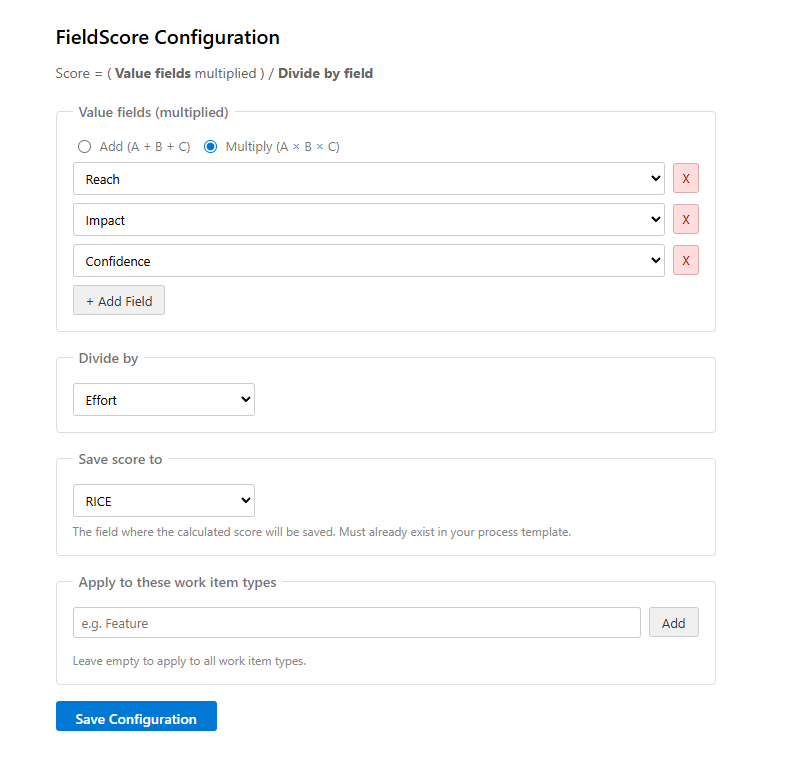
2. Configure FieldScore
Go to Organization Settings > FieldScore (under Extensions)
Operator — choose Add (A + B + C) or Multiply (A × B × C)
Value fields — select one or more numeric fields
Divide by — select the field to divide by
Save score to — select the custom field you created
Work item types — optionally limit which types get scored
Click Save Configuration
3. Use it
Open any work item of a configured type. The score calculates automatically when you change any of the configured fields.
Edge cases
If the "divide by" field is 0 or empty, the score is not updated
If a value field is empty, it's treated as 0
If no configuration is saved, nothing happens
If the score field doesn't exist on the form, an error is logged to the console but nothing breaks
Requirements
Azure DevOps Services (cloud)
Inherited process template (not XML-based)
Admin access to install extensions and edit process templates