
Zipadee
Zipadee adds a Zipadee Archive Project type to Visual Studio: a project whose "build output" is an archive file (zip, 7z, tar, cab, or a self-extracting .exe) assembled from the files, linked files, and other projects' build outputs you add to it.
Think of it as a lightweight, in-solution alternative to a separate packaging script - add a Zipadee project alongside the rest of your solution, add the files and project references you want bundled, and every build produces an up-to-date archive.
Features
- Files, links, and project outputs — add existing files directly, link to files elsewhere on disk, or reference another project in the solution and pull in its build output (with correct build ordering, for free, via standard MSBuild project references).
- Multiple archive formats — Zip, 7-Zip (.7z), Tar, gzip-compressed tar (.tar.gz), Windows Cabinet (.cab), and RAR (.rar). None of the underlying tools are bundled with Zipadee itself - see Getting started below for what each format needs installed.
- Configurable compression — from Store (no compression) through Ultra.
- Password protection — AES-256 encryption for the Zip, 7-Zip, and RAR formats, with header encryption (hides filenames too) applied automatically. The password lives in your local
.user file, never in the shared project file.
- Self-extracting archives — produce a self-extracting
.exe (7-Zip format) that needs no archive tool to open.
- Incremental builds — the archive is only rebuilt when its contents actually change, not on every build. Can be turned off per-project to force a fresh archive every time.
- Multi-volume archives — split the output into multiple numbered files of a set maximum size, for the Zip, 7-Zip, RAR, and Cab formats.
- Filter project reference output — exclude files (by wildcard pattern or exact name) from a referenced project's output, with an override to force specific files back in.
- Customizable archive file name — compose the output file name from
{ProjectName}/{Version}/{Date}/{Time} tokens.
- Works with
dotnet build / dotnet restore on the command line and in CI, not just inside Visual Studio.
Getting started
- Install whatever external tool your chosen format needs - none of them are bundled, and both are expected on
PATH (neither installer adds itself there automatically - a manual step after installing):
Zip, SevenZip, Tar, GZip — 7-Zip's command-line tool (7z).Rar — WinRAR's command-line tool (rar).Cab — nothing extra; uses makecab.exe, built into every Windows install.
- Install this extension.
- In Visual Studio, choose File > New > Project and search for Zipadee Archive Project.
- Add files via Add > Existing Item (or Add as Link for files outside the project folder), or add a Project Reference to another project in your solution to pull in its build output.
- Build. The archive appears alongside the project's other build output.
Archive settings (format, compression level, password, self-extracting) are set as MSBuild properties in the project file - see Project file reference below for a quick summary, or the full reference for every property.
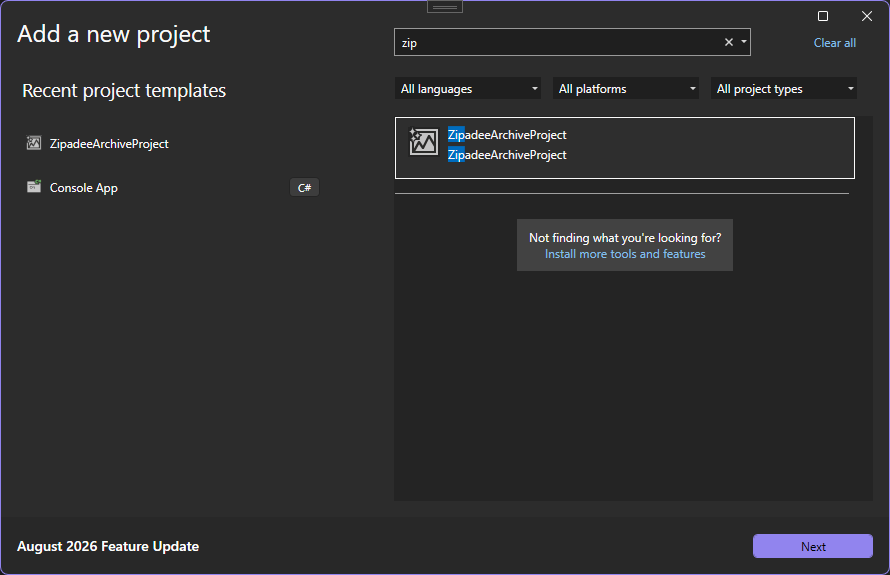
Start from File > New > Project and search for "Zip" or "Zipadee" - the Zipadee Archive Project template shows up alongside any other installed template. Give it a name and location like any other project; it's added to the solution as its own project, not a folder inside an existing one.
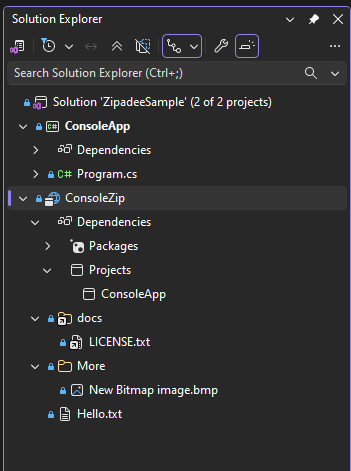
Once created, the archive project sits in Solution Explorer next to the projects it packages. Add a Project Reference to pull in another project's build output - here ConsoleZip references ConsoleApp, shown under Dependencies > Projects - and it's rebuilt first, with its output added to the archive automatically. Existing files (Hello.txt) and linked files from elsewhere on disk (docs\LICENSE.txt) show up as ordinary content alongside it.
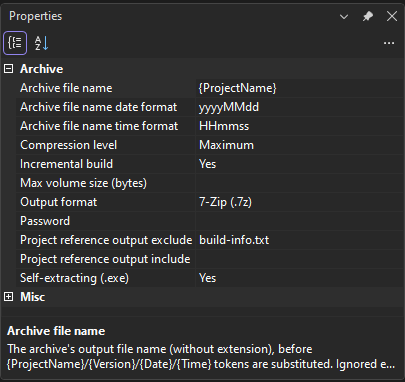
Select the project node and open the Properties window (F4, or View > Properties Window) to configure the archive itself - format, compression level, password, self-extracting output, and volume size all live under the Archive category shown here. The same settings are also available on the project's General property page; either way, changes are written straight to the .zparchproj file (or its .user file, for the password).
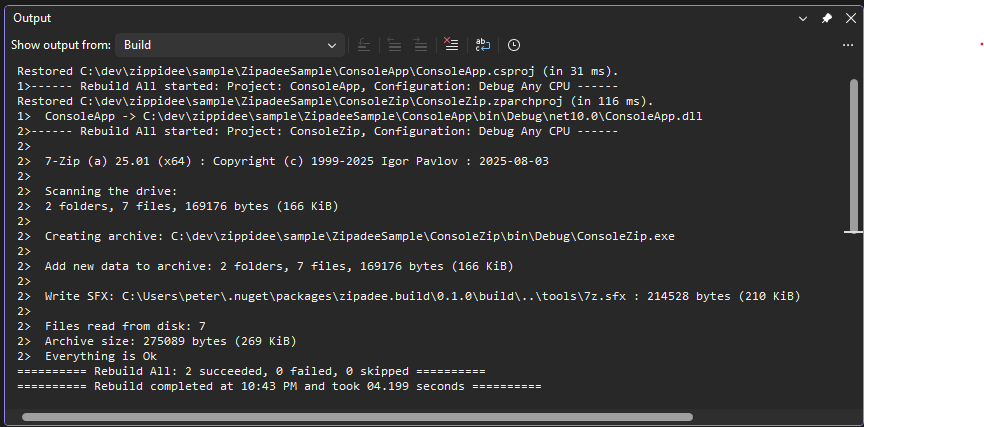
Build the solution as usual - Build > Build Solution, or dotnet build - and the archive project builds like any other: referenced projects first, then the archive tool itself, visible in the Output window. The finished archive lands alongside the project's other build output (bin\Debug\, here), ready to ship.
Project file reference
All archive settings are plain MSBuild properties, set either from Visual Studio's Properties window (F4) or General property page, or by editing the .zparchproj file directly. The most-used ones:
| Property |
Values |
Default |
ZipadeeOutputFormat |
Zip, SevenZip, Tar, GZip, Cab, Rar |
Zip |
ZipadeeCompressionLevel |
Store, Fastest, Fast, Normal, Maximum, Ultra |
Normal |
ZipadeeCreateSfx |
true, false |
false |
ZipadeePassword |
any string |
(none) |
ZipadeeIncrementalBuild |
true, false |
true |
Plus multi-volume splitting, filtering a referenced project's output, and composing the archive's file name from tokens - see the full project file reference for every property, per-format notes, and worked examples.
License
Zipadee is licensed under GPL-3.0. It shells out to 7-Zip (LGPL / BSD 3-clause / BSD 2-clause) to perform the actual archiving - not bundled, see Getting started above.

Feedback
Found a bug or have a feature request? Open an issue on GitHub.

