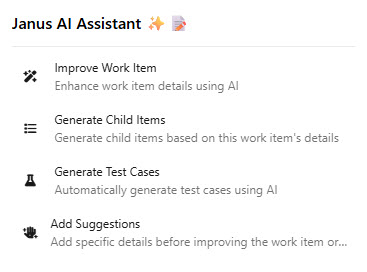
Janus AI Assistant ✨Improve work items, generate children & test cases, and convert BRDs into full backlogs — powered by 8 AI providers, with PII protection and no vendor lock-in. |

JANUS — YOUR AI BACKLOG ENGINEER FOR AZURE DEVOPSMost AI tools make you leave Azure DevOps to get things done. Janus works the other way around — it lives inside ADO, connects to 8 different AI providers, and handles everything from polishing a single work item to converting a full Business Requirements Document into a production-ready backlog. No tab switching, no copy-pasting, no vendor lock-in.
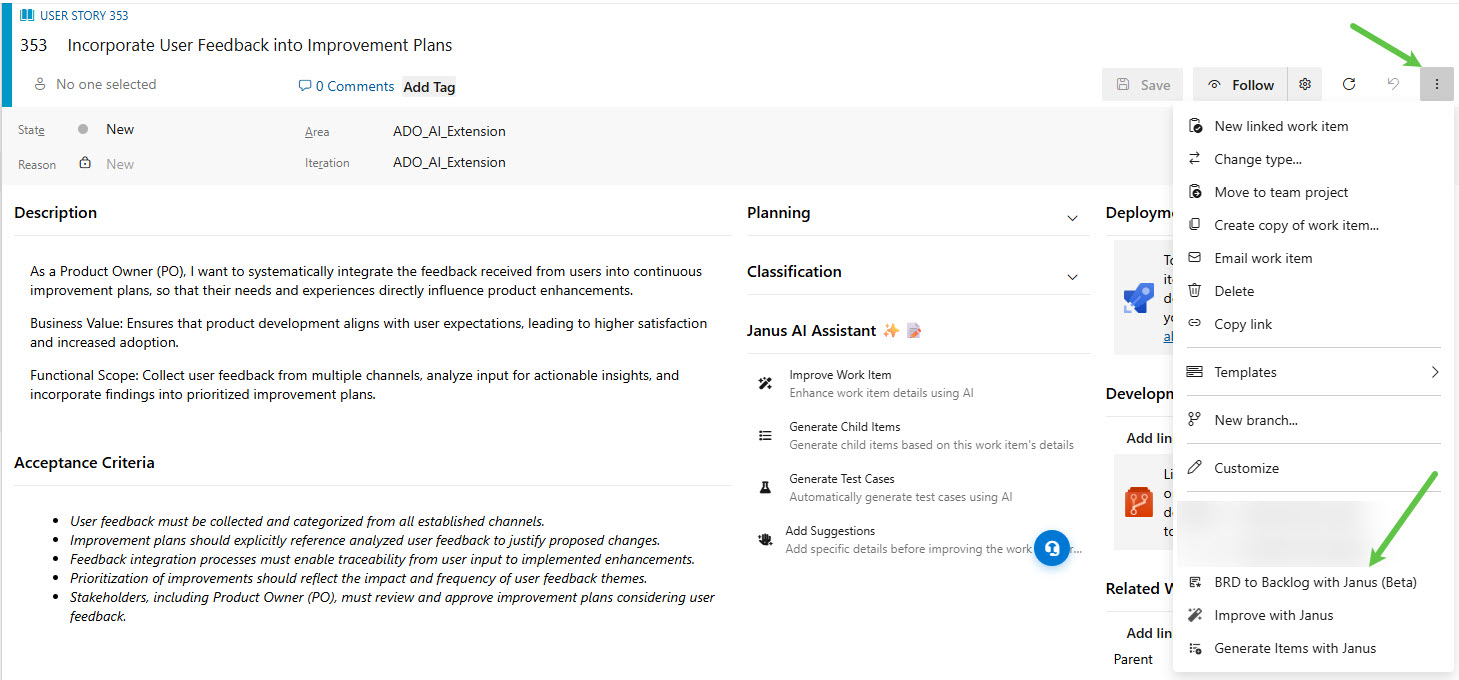
Janus supports all native ADO work item types across all four process templates (Scrum, Agile, CMMI, Basic) — plus custom work item types. Your API keys are stored in ADO user storage and never transmitted without PII sanitization. Reach us anytime through the Support panel built directly into Janus — accessible via the floating button in the bottom-right corner of every work item. It's enabled by default and can be hidden from Settings → General if you prefer a cleaner interface. QUICK START
That's it. No agents to deploy, no external dashboards to configure.
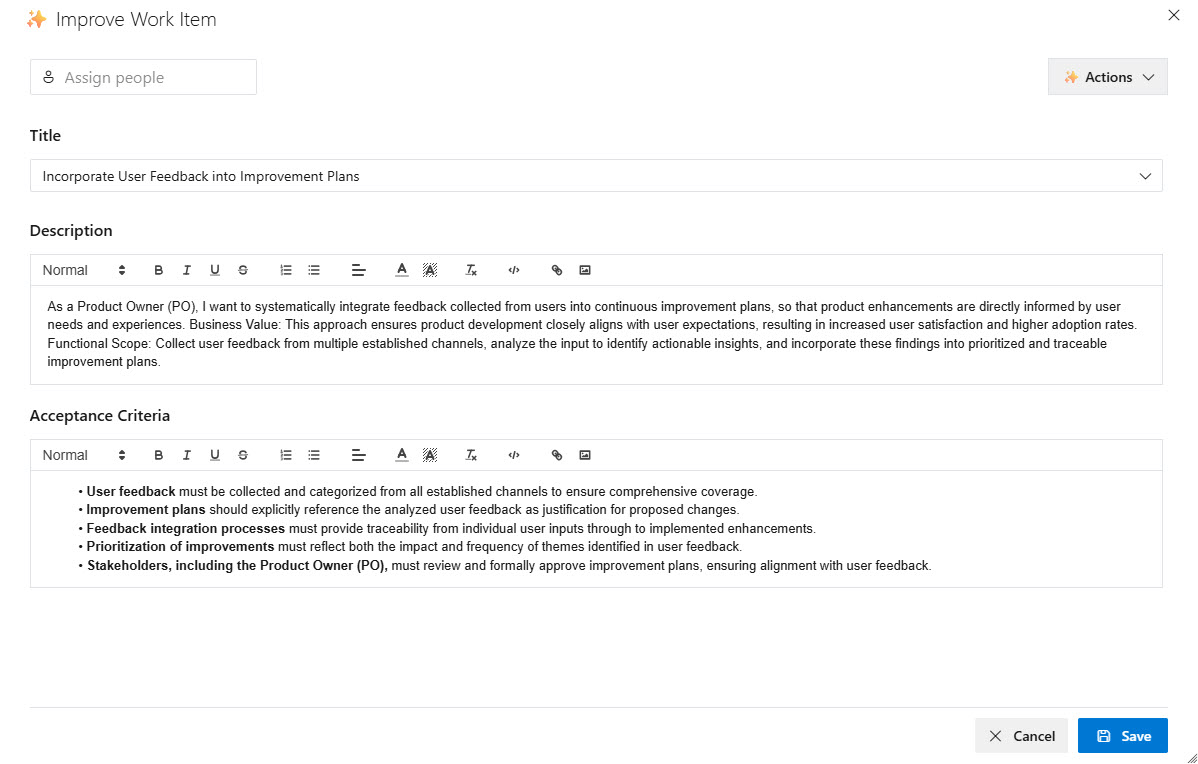
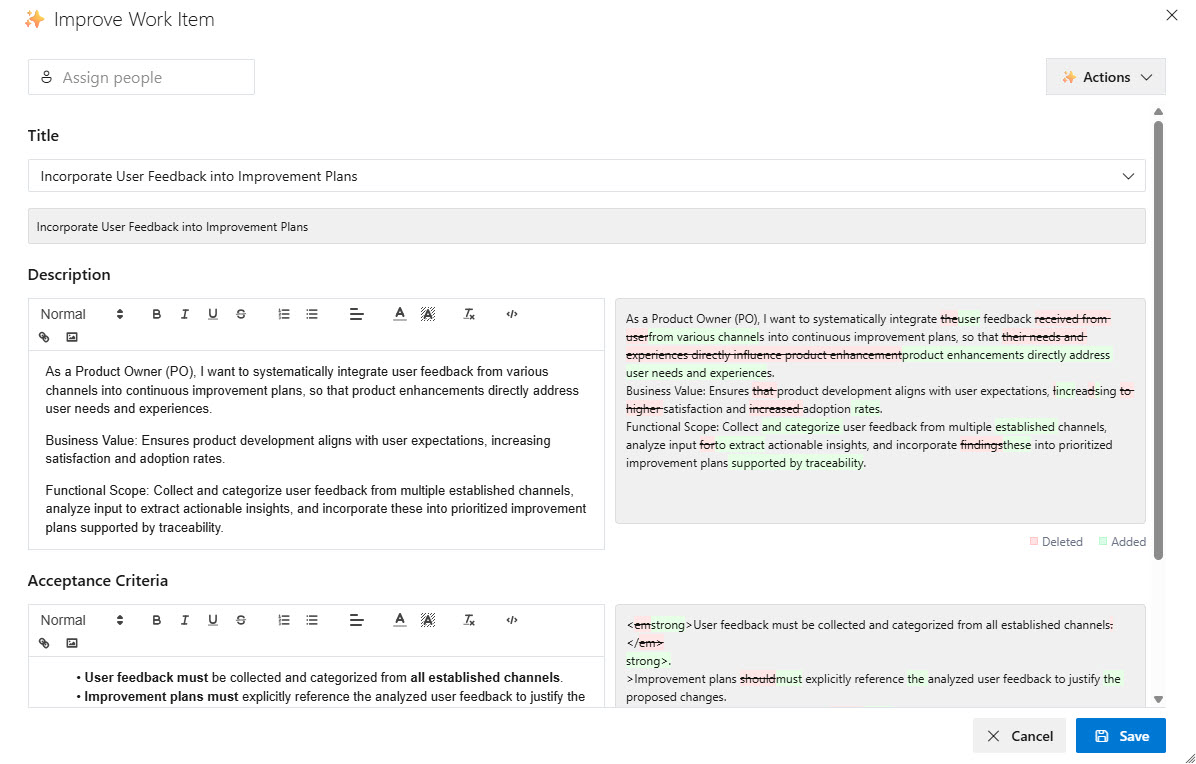
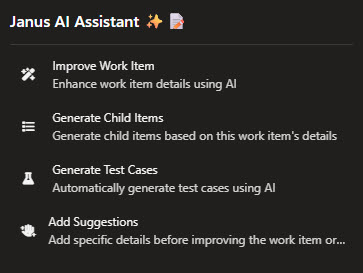
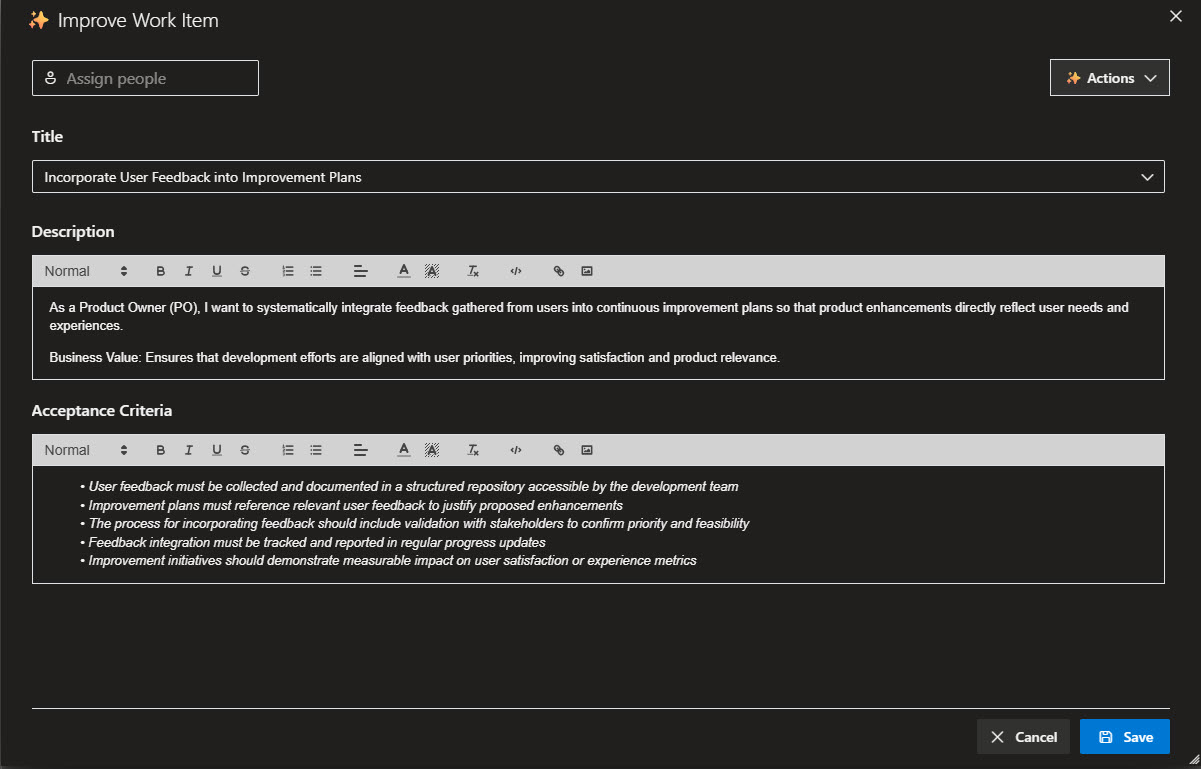
FOUR CAPABILITIES. ONE EXTENSION.① IMPROVE WORK ITEMSJanus reads your existing work item and rewrites it — title, description, and acceptance criteria — using the AI model of your choice. Before anything is saved, you review every change through a word-level visual diff. You decide what stays.
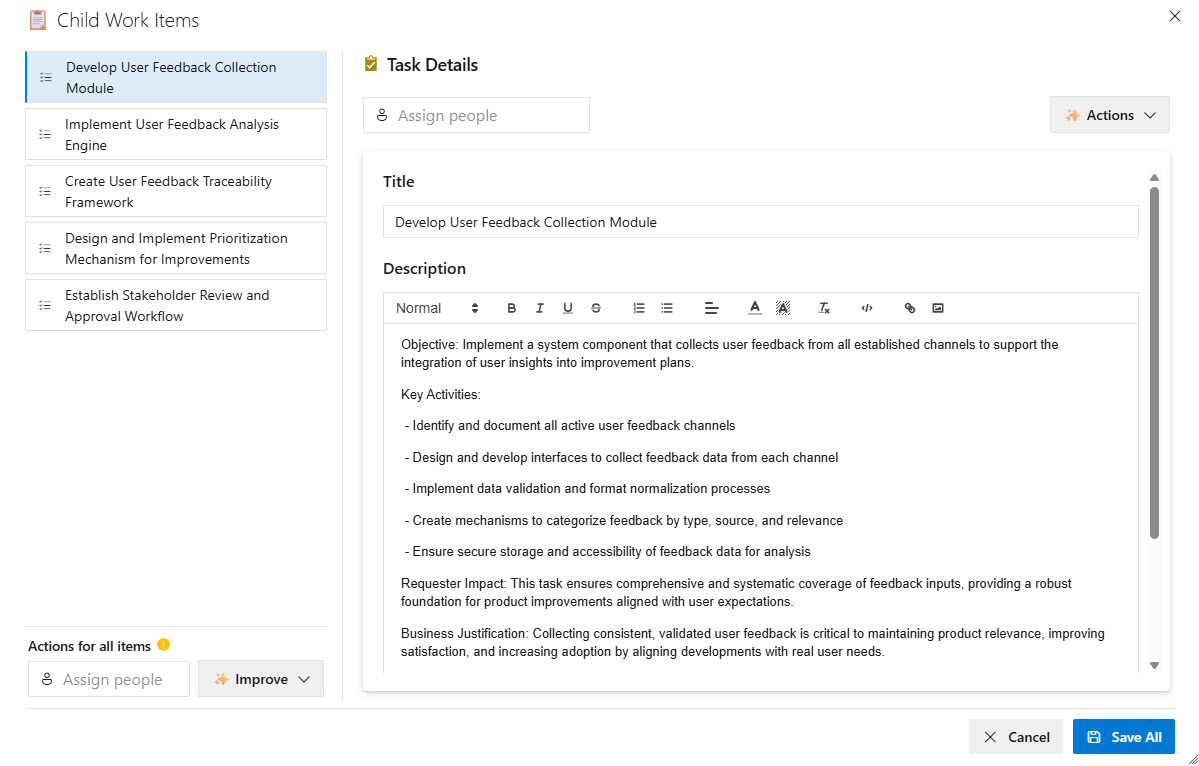
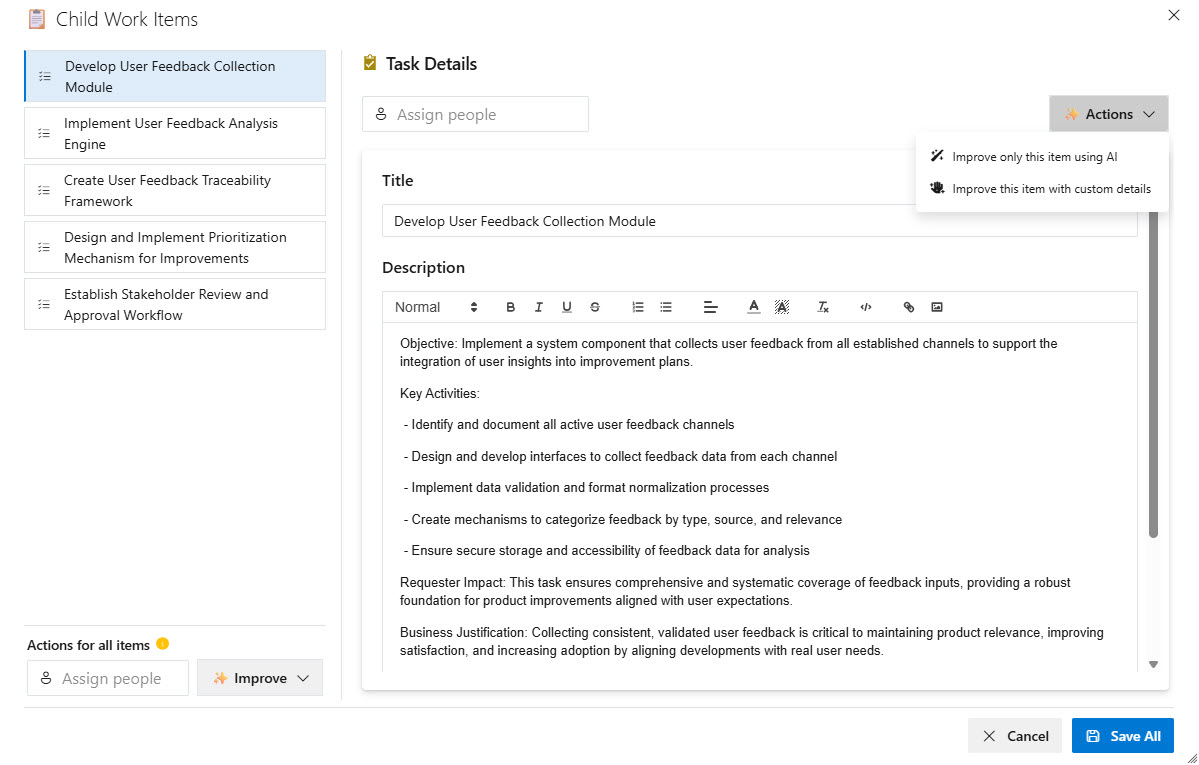
② DECOMPOSE WORK ITEMS INTO CHILDRENGive Janus a high-level Epic or Feature and it produces a fully typed, properly linked child hierarchy — automatically adapted to your project's process. It checks what already exists so it never generates duplicates.
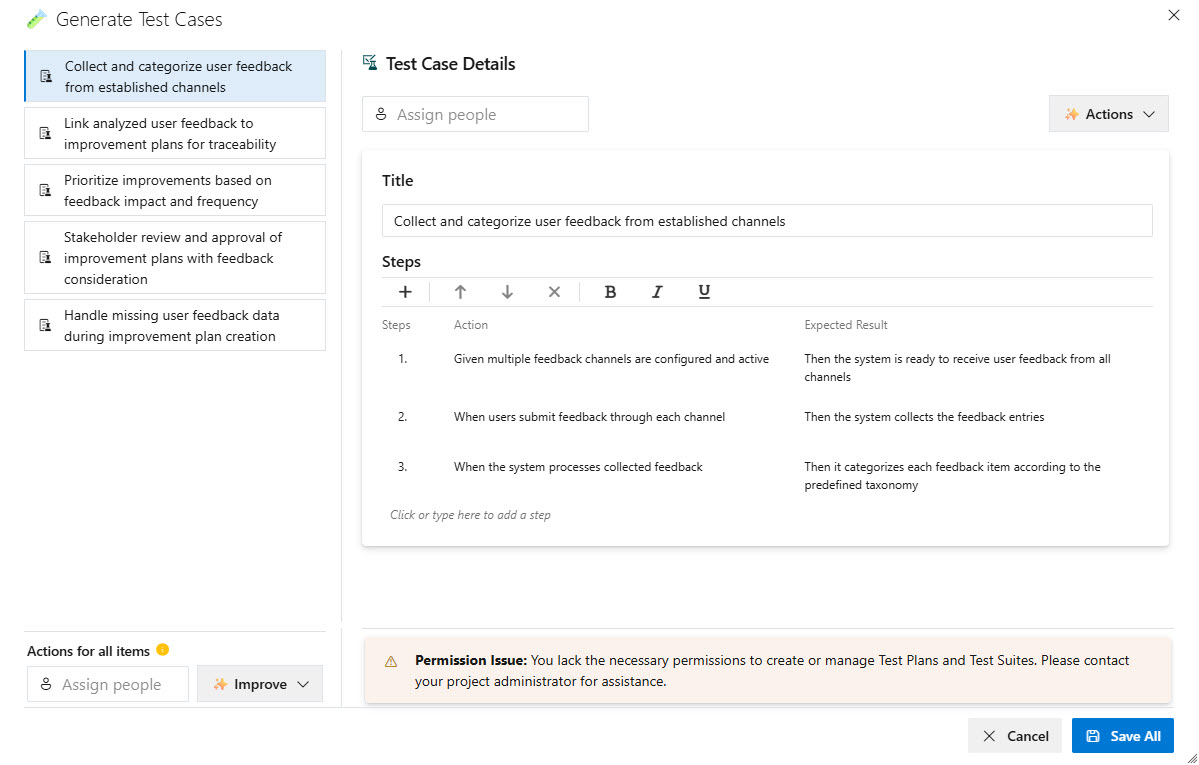
③ GENERATE TEST CASES — IN YOUR FORMATJanus generates complete, step-by-step test cases from a work item's title and description. Pick the format that matches how your team tests — and save straight into any Test Plan and Test Suite in ADO.
Three formats built in:
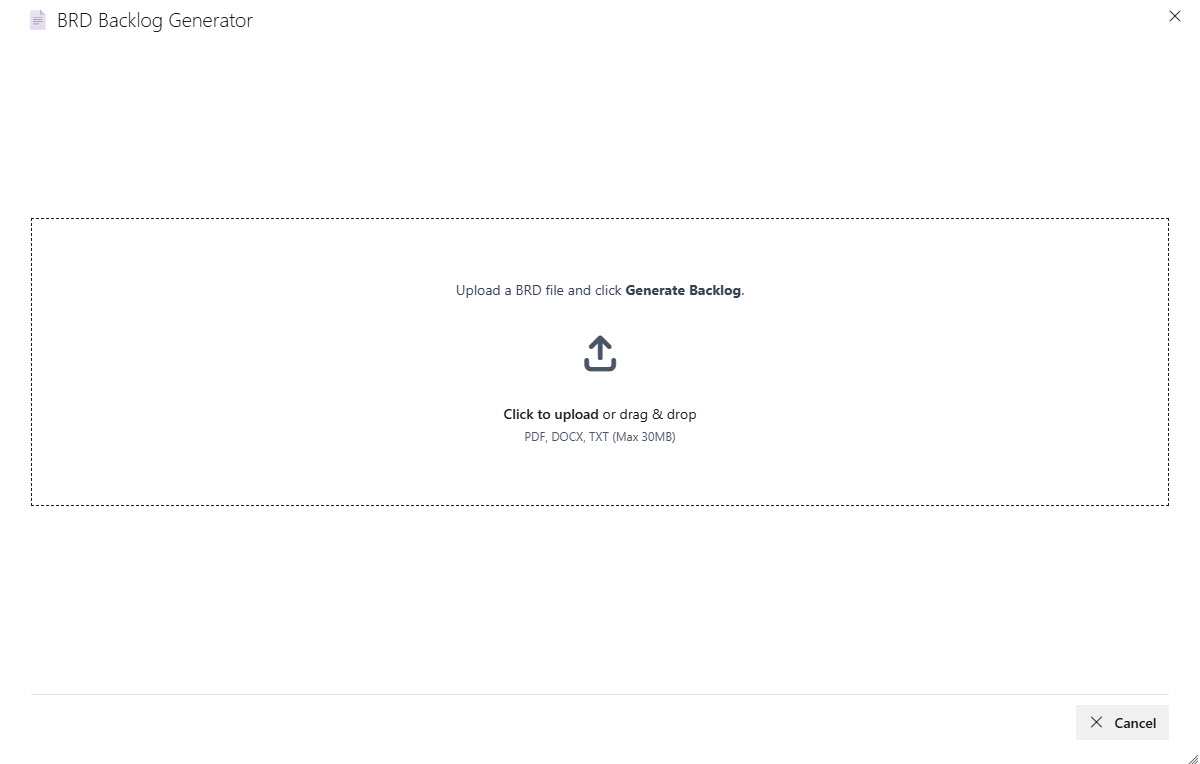
④ BRD → BACKLOG (Beta)This is Janus's most distinctive capability. Drop in a PDF, DOCX, or TXT business requirements document and Janus runs a six-stage pipeline that classifies sections, extracts requirements, and assembles a complete, linked work item hierarchy — ready to land directly in Azure DevOps.
What gets generated: Epics · Features · User Stories · Tasks · Test Cases · Business Rules The pipeline:
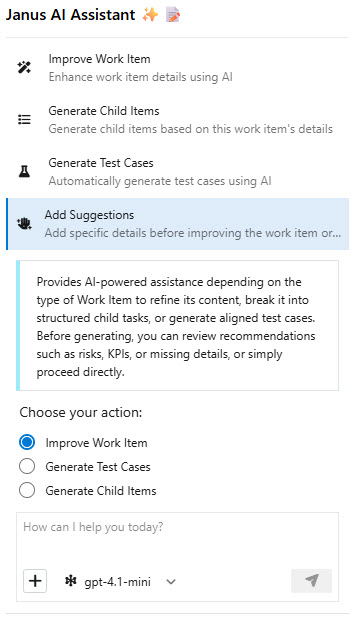
ADD SUGGESTIONS — GUIDE THE AI BEFORE IT ACTSBefore running any generation — improving a work item, decomposing into children, or generating test cases — you can open the Add Suggestions panel to give the AI additional context. This is optional, but powerful.
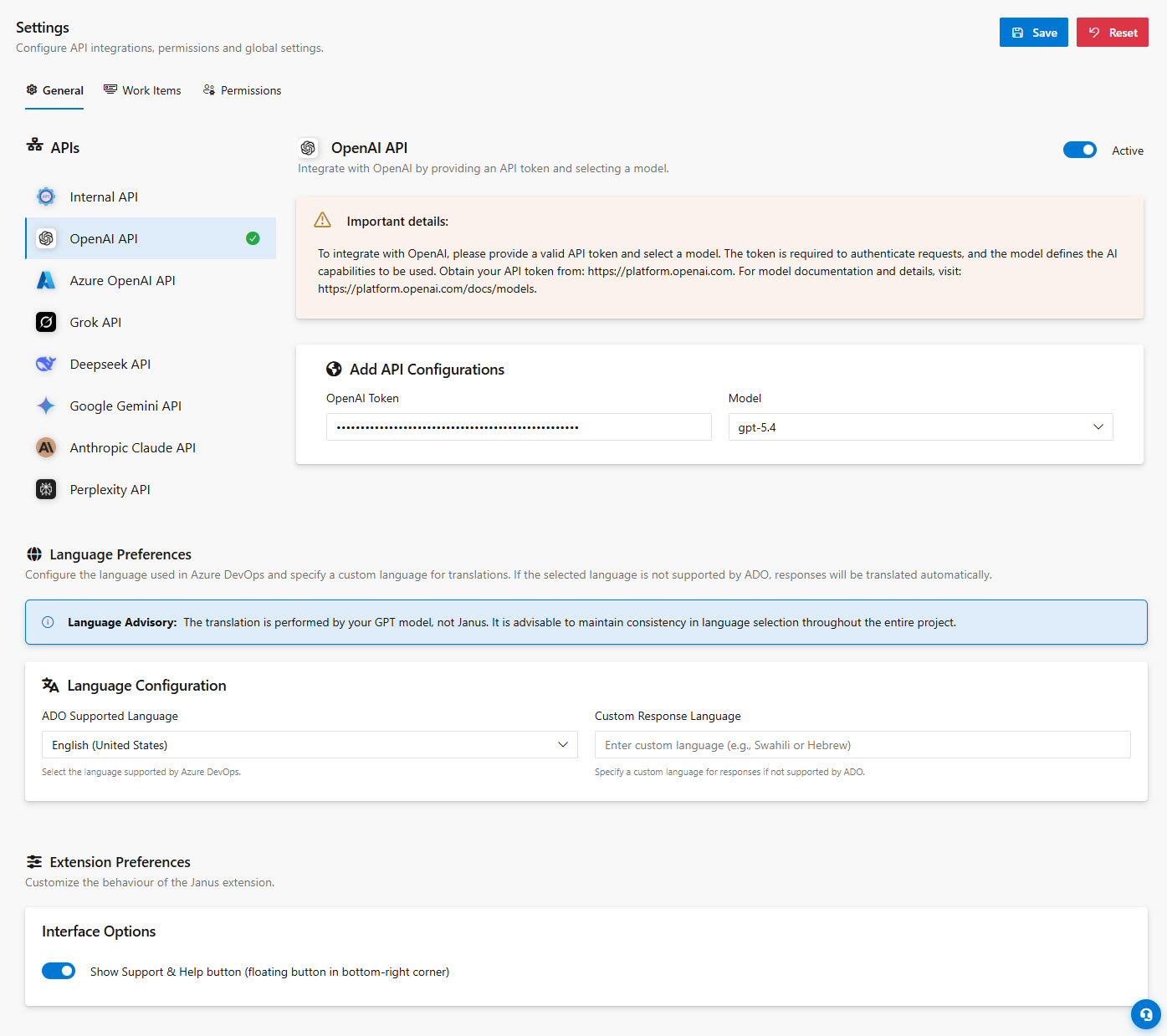
This panel is the difference between "AI does its best guess" and "AI does what you actually need." BRING YOUR OWN AI — 8 PROVIDERS SUPPORTEDJanus does not tie you to a single AI vendor. Connect the provider your organization already uses, or switch models at any time without reinstalling anything.
SETUP IN THREE TABSOpen the Janus Settings Hub from your Azure DevOps project settings. General — Connect your AI provider
Enter your API key, pick a provider, and select a model. Azure OpenAI users add the deployment name and endpoint URL. This is where you activate Janus — without a configured provider, no generation will run. The General tab also includes Extension Preferences where you can configure your preferred AI response language and toggle the floating support button that appears in the bottom-right corner of work items (enabled by default). Work Item Types — Control what Janus touches
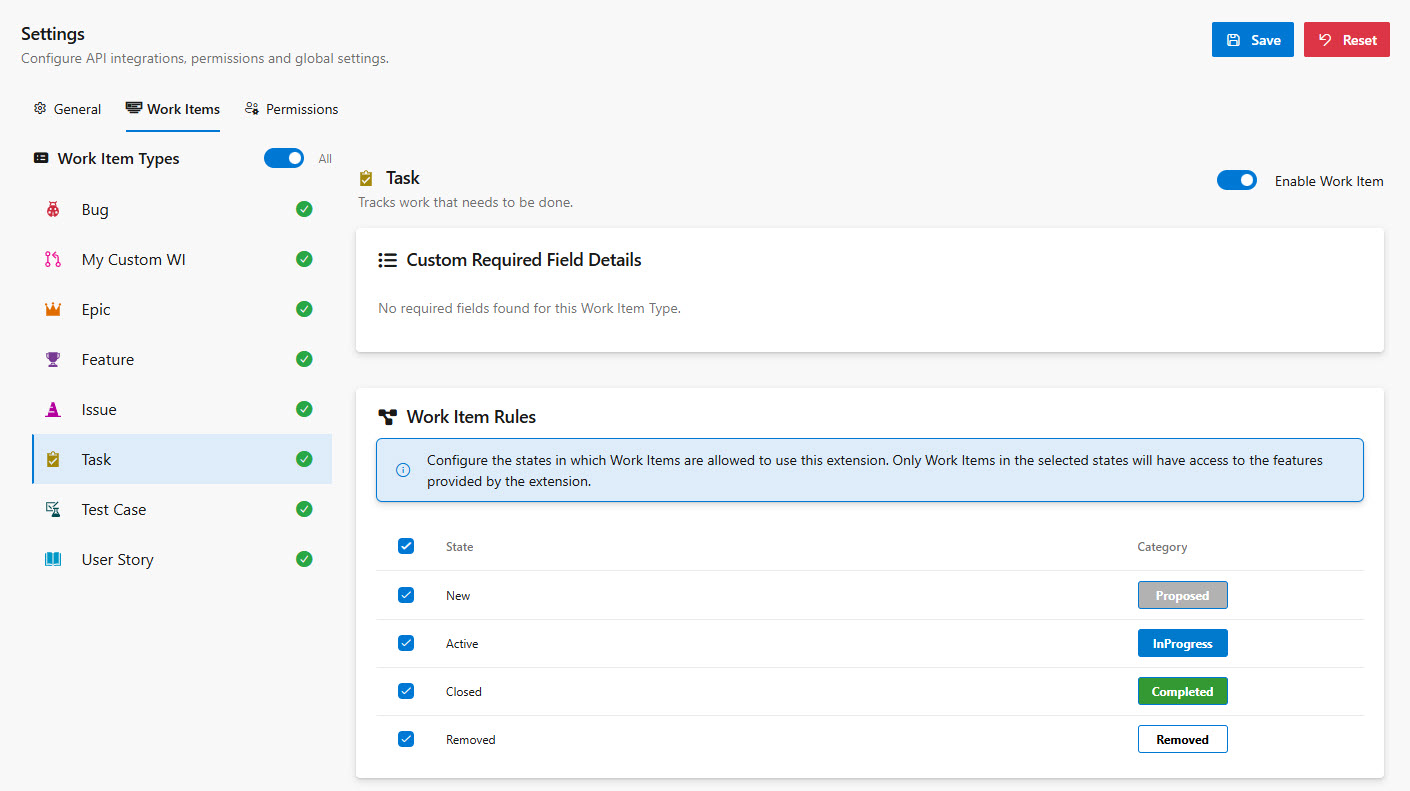
Enable Janus per work item type. Configure field mappings and default values for custom templates so Janus always writes to the right fields. Supported for all native types (Epic, Feature, User Story, PBI, Task, Bug, Issue, Test Case, Requirement) and any custom type in your organization. Permissions — Decide who can use Janus
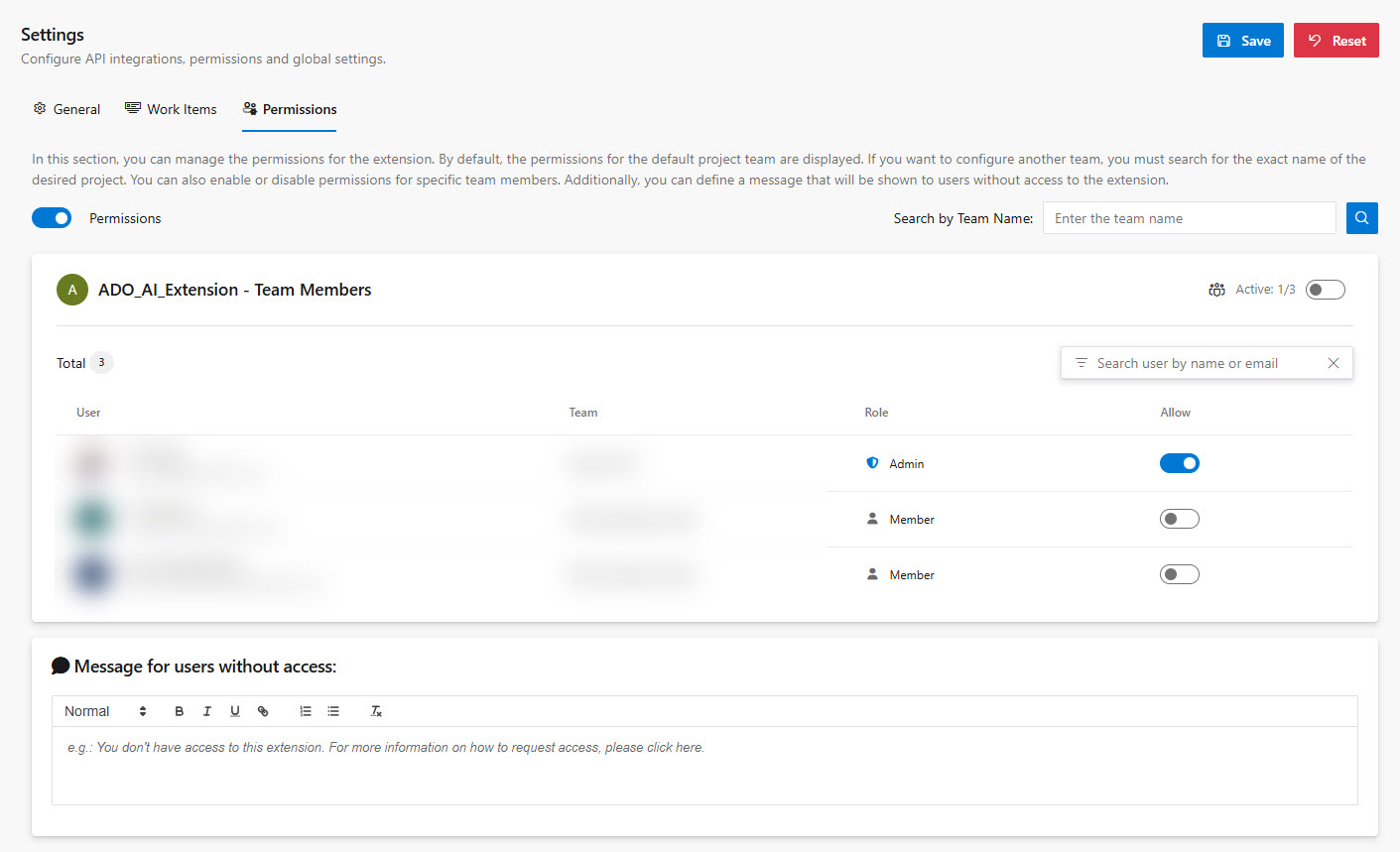
Grant or revoke access per team member. Use the toggle-all switch for fast rollout or lockdown. The member list stays in sync with your ADO team automatically. WHAT SETS JANUS APART
SUPPORTED WORK ITEM TYPESAll native ADO work item types are supported: Epic · Feature · User Story · Product Backlog Item (PBI) · Task · Bug · Issue · Requirement · Test Case · Change Request · Risk · Review · Impediment · any custom type All four ADO process templates supported:
DARK MODE SUPPORTJanus works seamlessly in both Azure DevOps light and dark themes.
PRIVATE NETWORK / CORS ERRORS (AZURE OPENAI WITH PRIVATE ENDPOINTS)If your organization uses Azure OpenAI with Private Endpoints, users may encounter browser errors such as:
Or a "Forbidden" error appearing in the Janus panel. Root Cause: Starting with Chrome and Edge 131+ (December 2024), browsers enforce Private Network Access (PNA) security. Extensions hosted on public origins (like the Azure DevOps Marketplace) are blocked from making requests directly to private IP addresses, even if those requests are authorized by the user. This is a browser-level security change — not a Janus bug. Three solutions — no changes to Janus required: Option 1 — Enterprise Browser Policy (fastest to deploy)Deploy the Option 2 — Azure API Management Proxy (best long-term)Place an Azure API Management instance with a public endpoint in front of your private Azure OpenAI resource. Configure Janus to point to the APIM gateway URL instead of the private endpoint. APIM handles auth forwarding and routing internally, and the browser only sees the public APIM URL. Option 3 — Firewall Allow ListIn the Azure Portal, navigate to your Azure OpenAI resource → Networking → Selected Networks and Private Endpoints. Add your organization's public IP address ranges to the allow list. This lets browsers connect to the resource without hitting the PNA restriction.
A NOTE ON AI-GENERATED CONTENTJanus uses AI to generate suggestions — titles, descriptions, acceptance criteria, test cases, children, and backlogs. AI results should always be reviewed by a human before being accepted. The generated content is a starting point, not a final decision. Janus makes it easy to review, edit, and reject anything before it touches your work items. ONE LAST THINGJanus was built because backlog grooming was eating too much of the sprint. Every feature in it exists to give that time back to the people actually building things. If something doesn't work the way you expect — or works better than you hoped — tell us. |