Skip to content
| Marketplace
Sign in
Visual Studio>Tools>NexusHighlight
NexusHighlight

NexusHighlight

Ghost-Girls

|
5 installs
| (0) | Free
NexusHighlight is a Visual Studio extension that gives you complete control over how comments look in the editor. Customize font, size, opacity, foreground colors, background styles — all independentl
Download

NexusHighlight

中文: 中文


NexusHighlight is a Visual Studio extension that gives you complete control over how comments look in the editor. Customize font, size, opacity, foreground colors, background styles — all independently of the editor's default settings. This project is developed based on BetterComments and Highlighter.


Overview

NexusHighlight lets you transform plain code comments into visually meaningful annotations. Whether you want to highlight important notes, mark tasks, distinguish questions, or simply make comments more readable, NexusHighlight gives you the tools to do it.

Screenshots

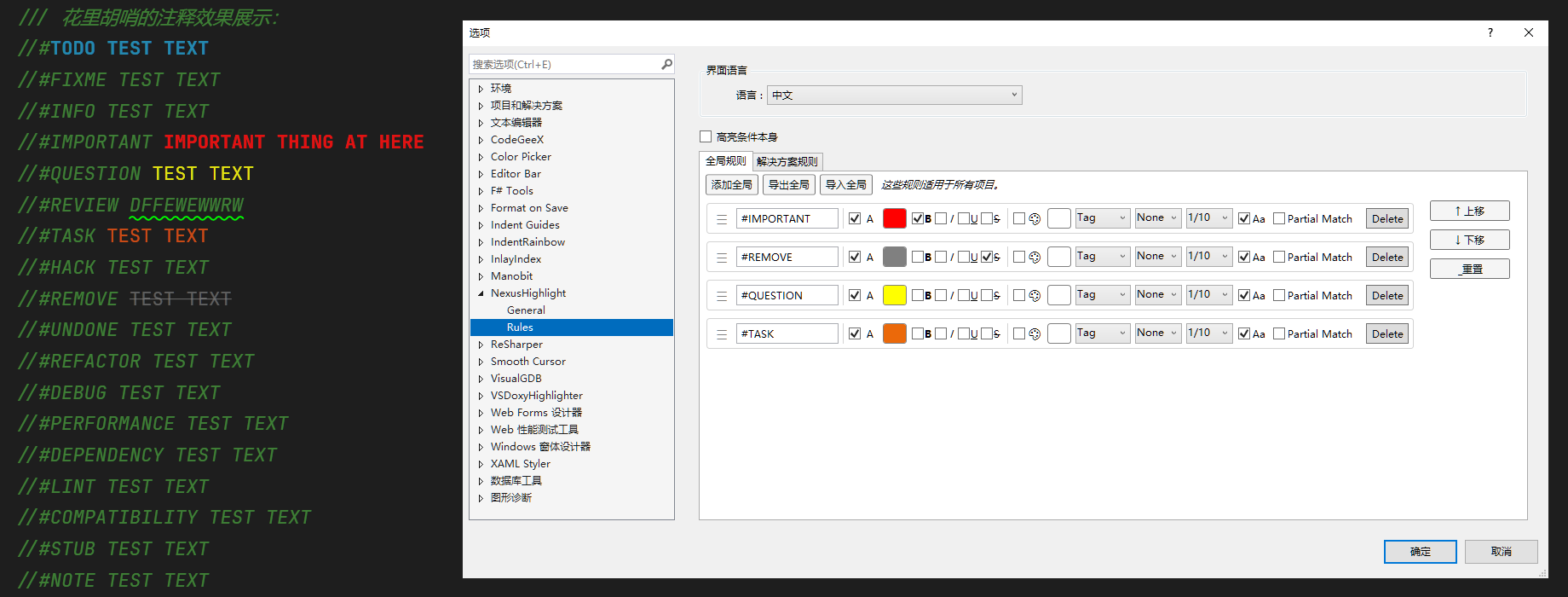
Actual Effect
Actual Effect

General Options

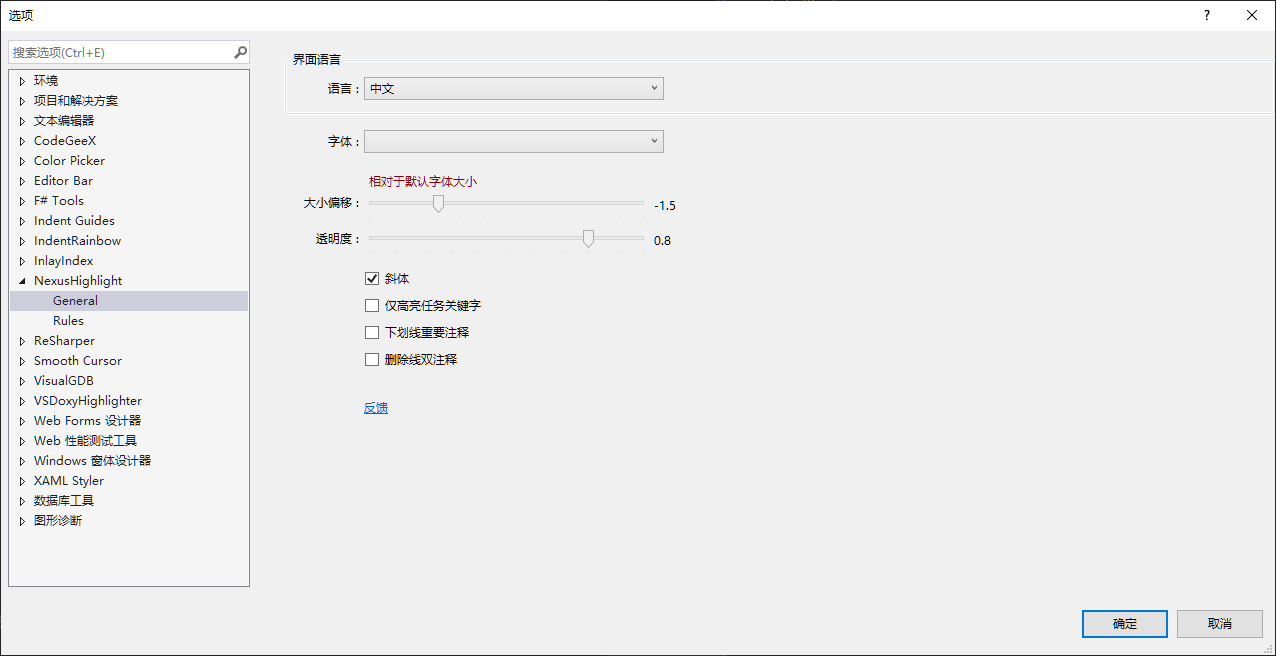
The General page provides global settings that affect all comments in the editor.

General Page
General Page

UI Language

NexusHighlight supports both Chinese and English UI. Switch between them at any time from the General page.

Font & Size

  • Font — Choose any font installed on your system. Comments will use this font regardless of the editor's font setting.
  • Size Offset — Adjust comment font size relative to the default editor font size. The slider ranges from -3 (smaller) to +3 (larger), with 0.5 increments.

Opacity

Control comment transparency with a slider from 0% (fully transparent) to 100% (fully opaque). This is useful for reducing visual noise while keeping comments readable.

Style Toggles

  • Italic — Toggle italic style for all comments globally
  • Color only the 'Todo' keyword — When enabled, only the word "Todo" (case-insensitive) in task comments gets colored, rather than the entire comment line
  • Underline important comments — Automatically underline comments that start with !
  • Strikethrough double comments — Apply strikethrough to double-comment lines (e.g., // // text in C#)

Custom Rules

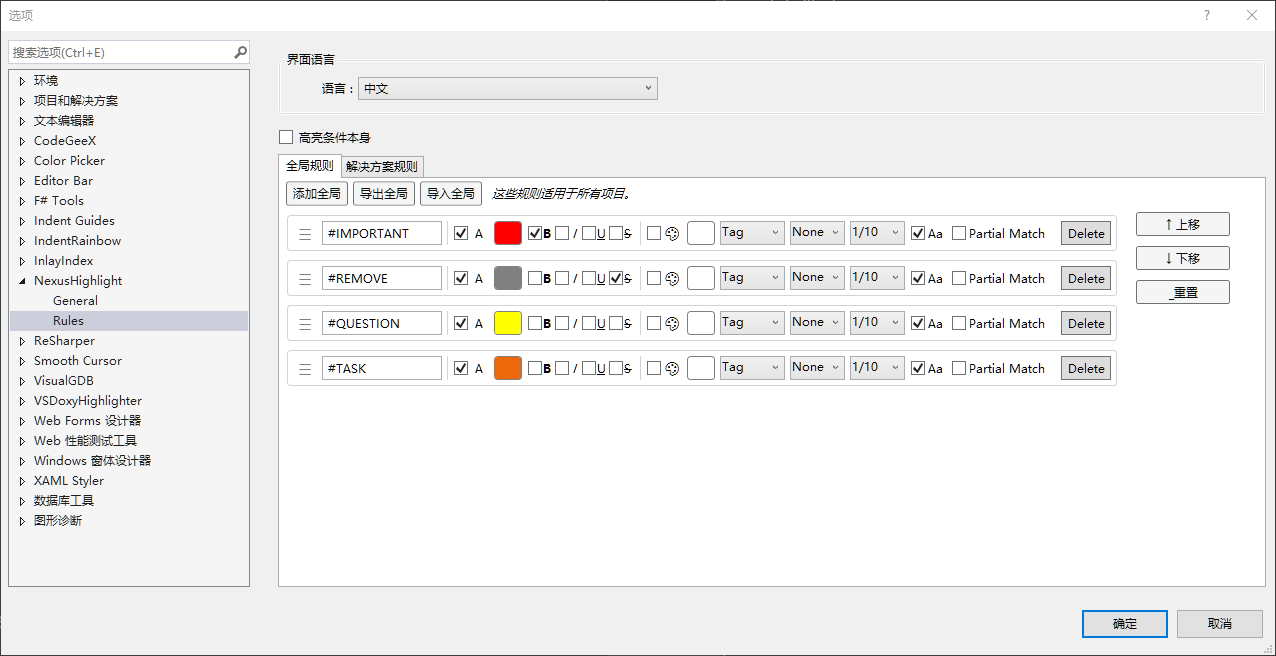
The Rules page is where NexusHighlight truly shines. You can create unlimited rules, each with its own matching criteria and visual style.

Rules Page
Rules Page

Each rule consists of a Criteria (the text pattern to match) and a set of Foreground and Background style options.

Styles

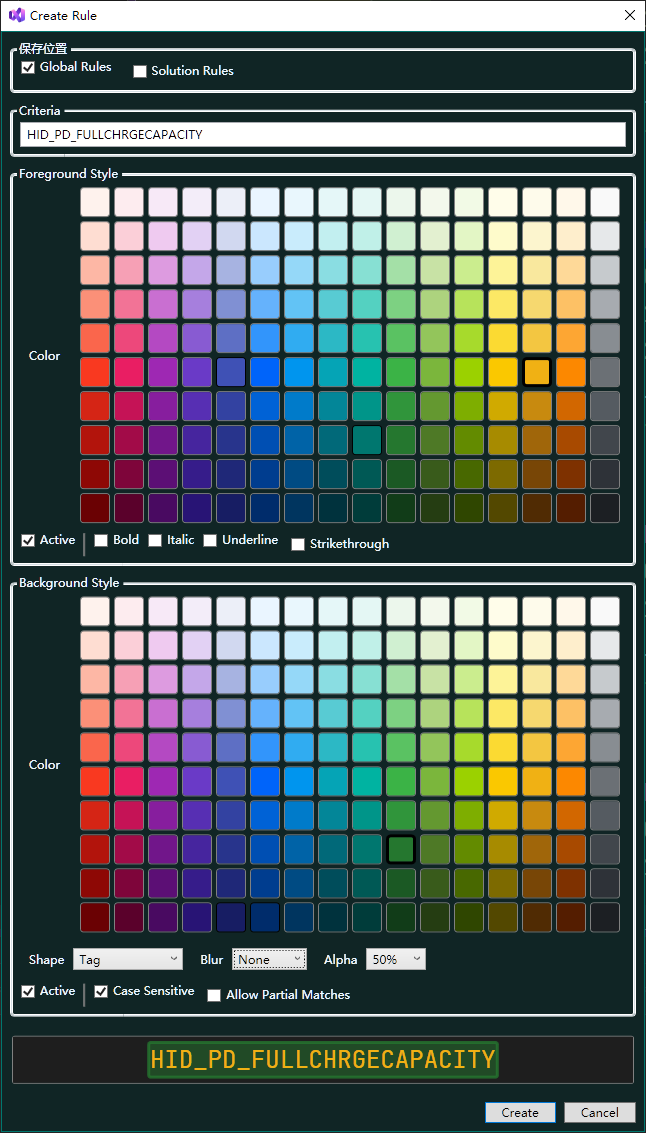
Create Rule
Create Rule Styles

Foreground Styles

Control how the matched text looks:

Option Description
Color Pick from a rich color palette or enter a custom hex value
Bold Make matched text bold
Italic Make matched text italic
Underline Add underline to matched text
Strikethrough Add strikethrough to matched text

Each rule has an Enable Foreground toggle, so you can turn the foreground styling on or off independently.

Background Styles

Add background highlights to make comments stand out even more.

Background Shapes

Shape Visual Effect
Tag A rounded rectangle behind the matched text, like a label
Tag Under Same as Tag, but with an additional underline
Line Highlights the entire line containing the match
Line Under Same as Line, but with an additional underline

Background Blur

Control how sharp or soft the background edge looks:

Level Effect
None Sharp, solid background
Low Slightly soft edges
Medium Noticeable blur
High Strong blur effect
Ultra Maximum blur, almost glow-like

Background Transparency

10 levels of transparency from 0/10 (fully transparent / invisible) to 10/10 (fully opaque / solid).

Matching Options

Fine-tune how rules match text in comments:

  • Case Sensitive — When enabled, the match is case-sensitive (e.g., "Todo" will not match "todo")
  • Partial Match — When enabled, the rule matches text anywhere within a comment (e.g., criteria "note" will match "important notes")

Rule Management

Global Rules vs Solution Rules

NexusHighlight supports two levels of rule scoping:

Scope Description
Global Rules Apply to all projects you open in Visual Studio
Solution Rules Apply only to the currently open solution

This is useful when you want different teams or projects to have different comment conventions.

Solution Rule Operations

Operation Description
Add Solution Add a new rule to the solution scope
Copy from Global Copy all global rules into solution rules (overwrites existing)
Import from Global Selectively choose which global rules to import into solution rules
Clear Remove all solution rules
Export Export solution rules to a JSON file
Import Import solution rules from a JSON file

Drag & Drop Reordering

Rules are evaluated from top to bottom — the first matching rule wins. Drag the ☰ handle to reorder rules and control priority.

Import & Export

Share your rule configurations with your team or across machines:

  • Export rules as JSON files
  • Import with two modes:
    • Overwrite — Replace existing rules with the imported ones
    • Merge — Add imported rules alongside existing ones

Supported Languages

NexusHighlight works with the following languages:

Language File Extensions
C# .cs
F# .fs
VB.NET .vb
C/C++ .c, .cpp, .h, .hpp
JavaScript / TypeScript .js, .jsx, .ts, .tsx
Python .py
HTML / XAML .html, .xaml, .xml

License

Apache 2.0

Publisher: Ghost-Girls

  • Contact us
  • Jobs
  • Privacy
  • Manage cookies
  • Terms of use
  • Trademarks
© 2026 Microsoft