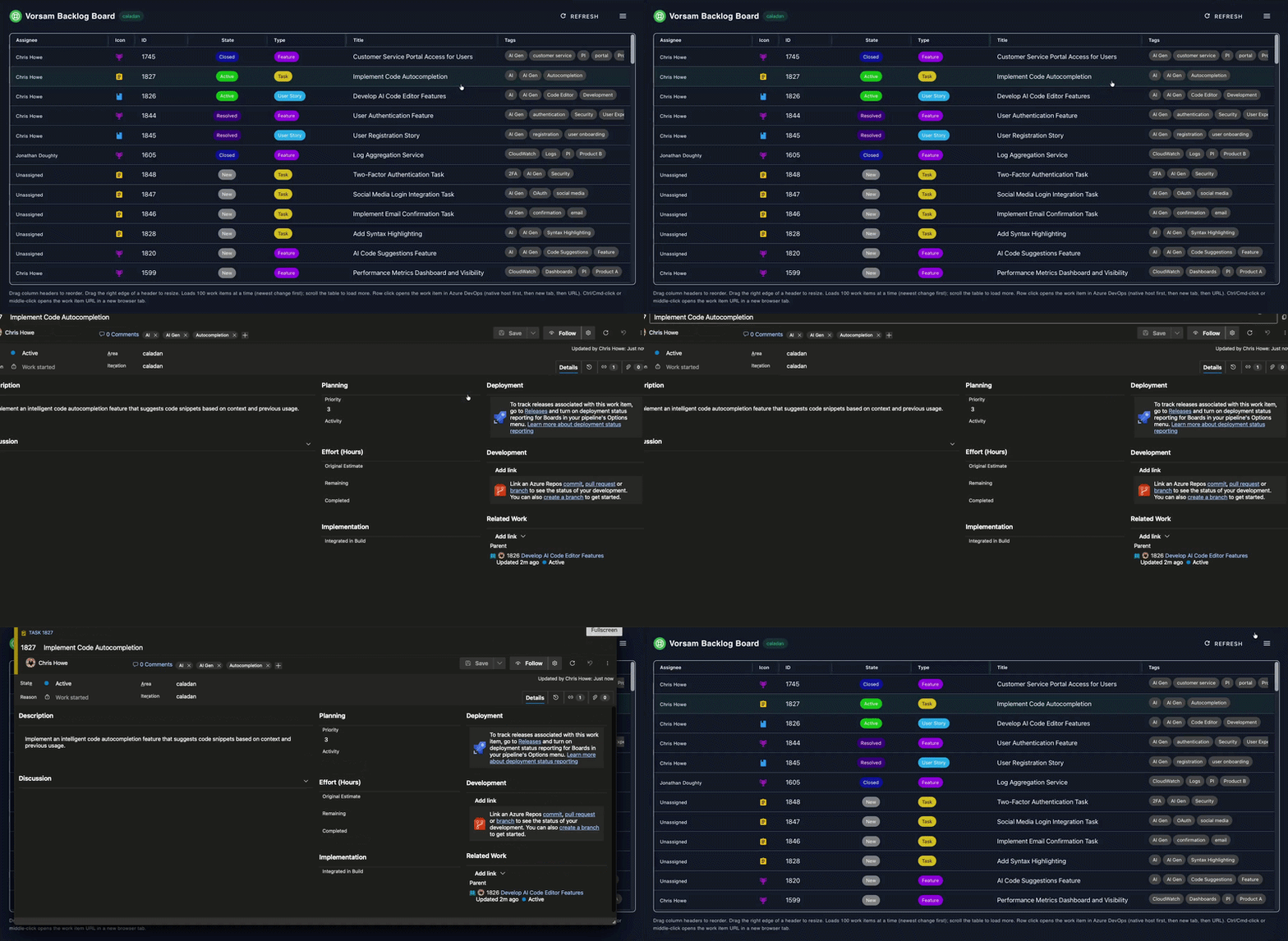
Vorsam Backlog BoardVorsam Backlog Board: project-scoped WIQL table, columns and filters, open work items in Azure DevOps. |

See the whole slice in one table. A Boards hub built around WIQL, filters, and your columns.Vorsam Backlog Board is an Azure Boards hub that loads work items for the current project with a flat WIQL query, then lets you filter client-side, show or hide columns, reorder and resize the table, and tune chip colors for work item type, state, priority, and tags—without leaving Boards. Click any row to open that work item in native Azure DevOps (typically a new browser tab). The hub is read-only: it does not create or edit work items; it helps you scan, slice, and jump into the items you care about. Like this extension? Visit vorsam.com for the full Vorsam product—roadmap planning, deeper delivery tooling, the AI Work Item Generator, and more. It is designed for teams that already live in Azure Boards and want a dense, configurable backlog view on top of the same REST data you trust—no separate backend, no surprise writes. Stop re-triaging the same backlog in five different viewsGrooming and triage mean the same fields over and over: who owns it, where it sits in the sprint, what changed last week. This hub gives you a single wide table with fast filters (title, IDs, assignee, creator, type, state, priority, sprint, story points, remaining work, tags, and relative date windows), plus column visibility and persisted layout in the browser so the board matches your ritual—not a fixed grid. What you get
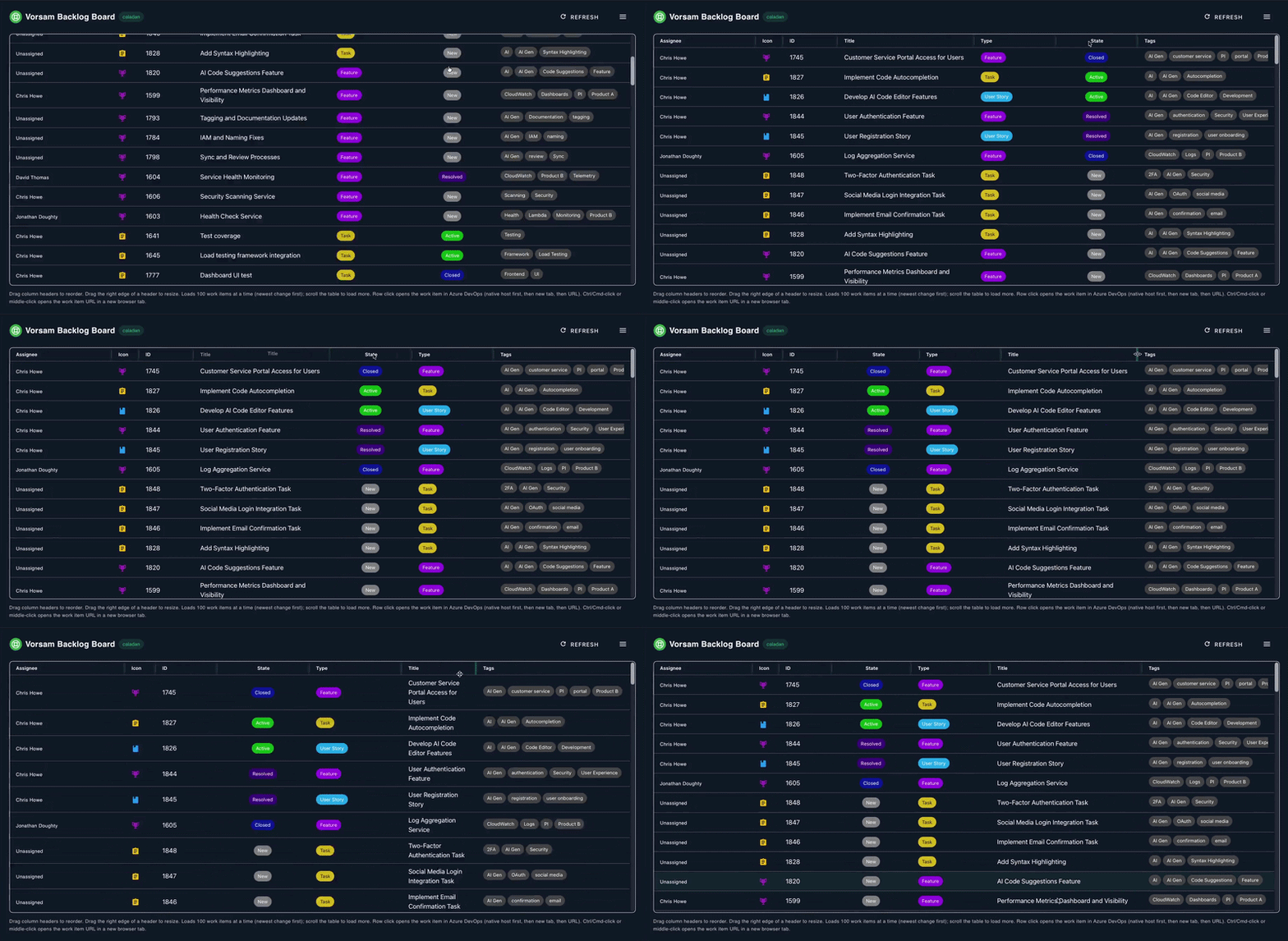
See the hub—five stepsThe walkthrough below mirrors the real hub: scroll to load more → tune columns → show filters and fields → color chips → use the board menu. All five steps use animated GIFs. 1 — Scroll the table, load more work itemsThe hub loads work items in pages (newest change first). Scroll toward the bottom of the table and the next slice appears automatically—so you can keep walking the backlog without leaving the hub.
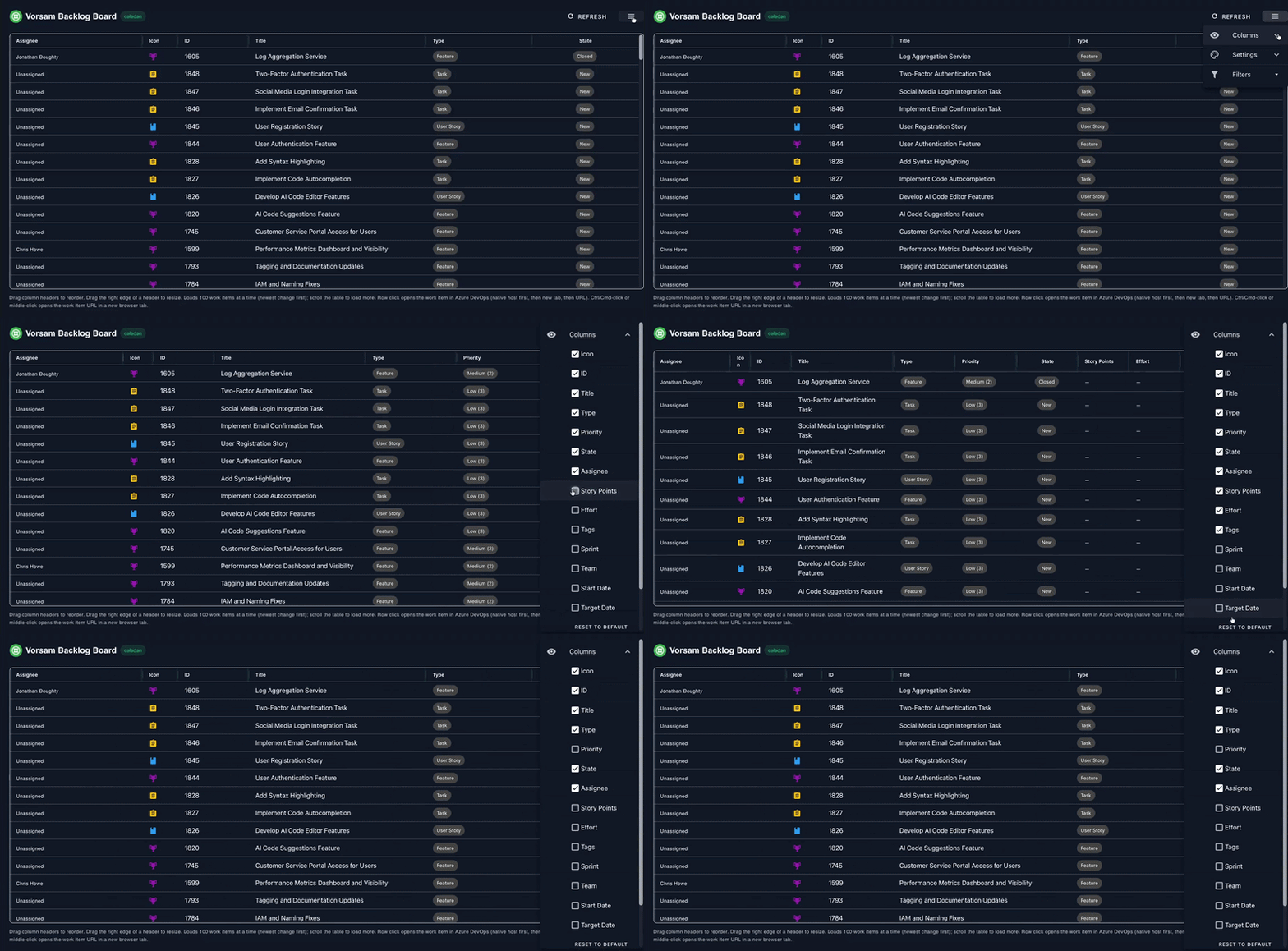
2 — Columns: show, reorder, resizeOpen Columns from the board menu to toggle which fields you see. Drag headers to reorder columns and drag the right edge of a header to resize—layout preferences can stay in this browser for the next visit.
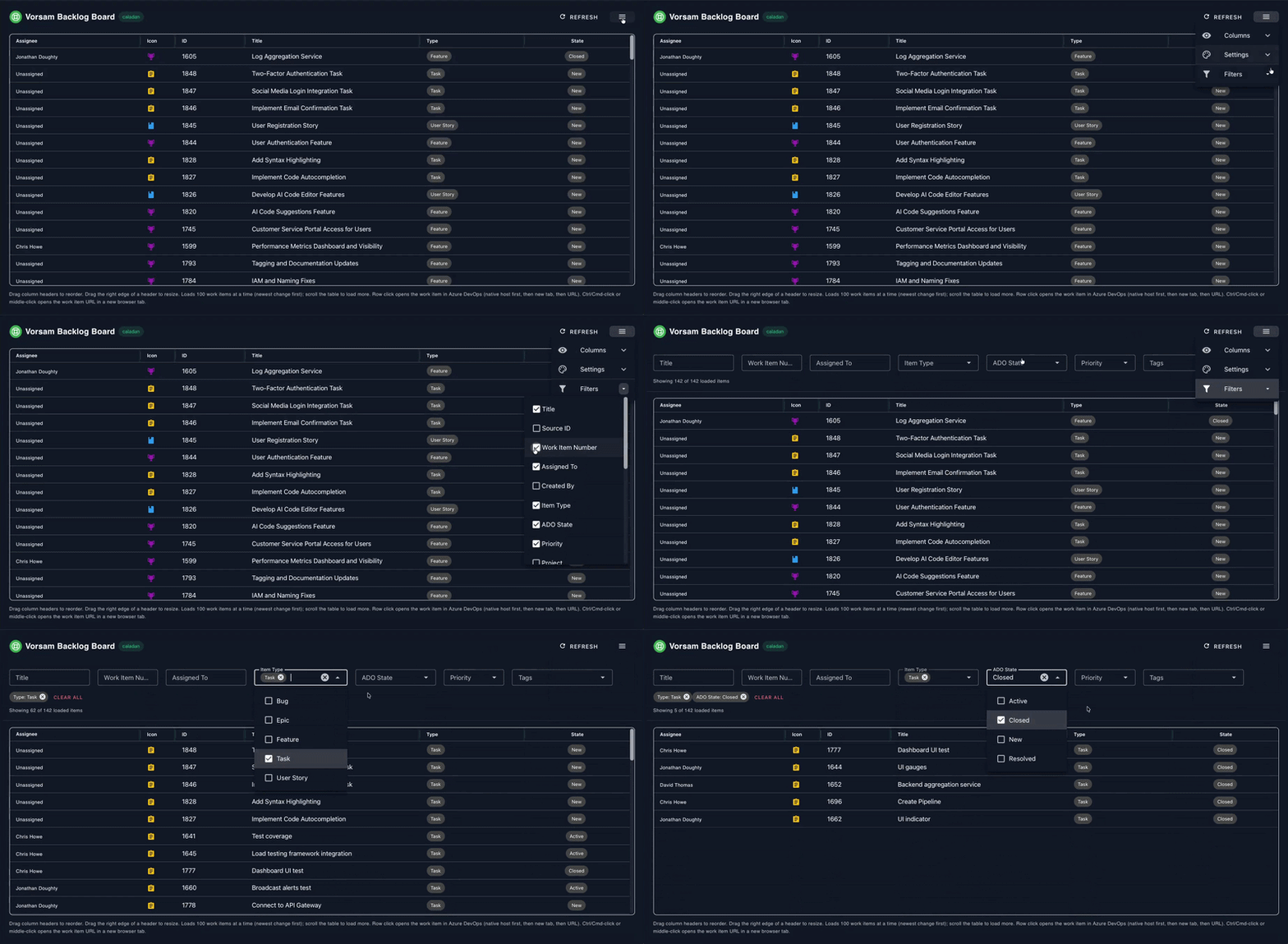
3 — Filters: show the strip, pick fields, narrow rowsUse Show filters / Hide filters to open the filter strip. Use the chevron beside that row to choose which filter inputs appear. Stack text, pickers, ranges, and date windows—then read the “showing X of Y” line to see how much of the loaded set still matches.
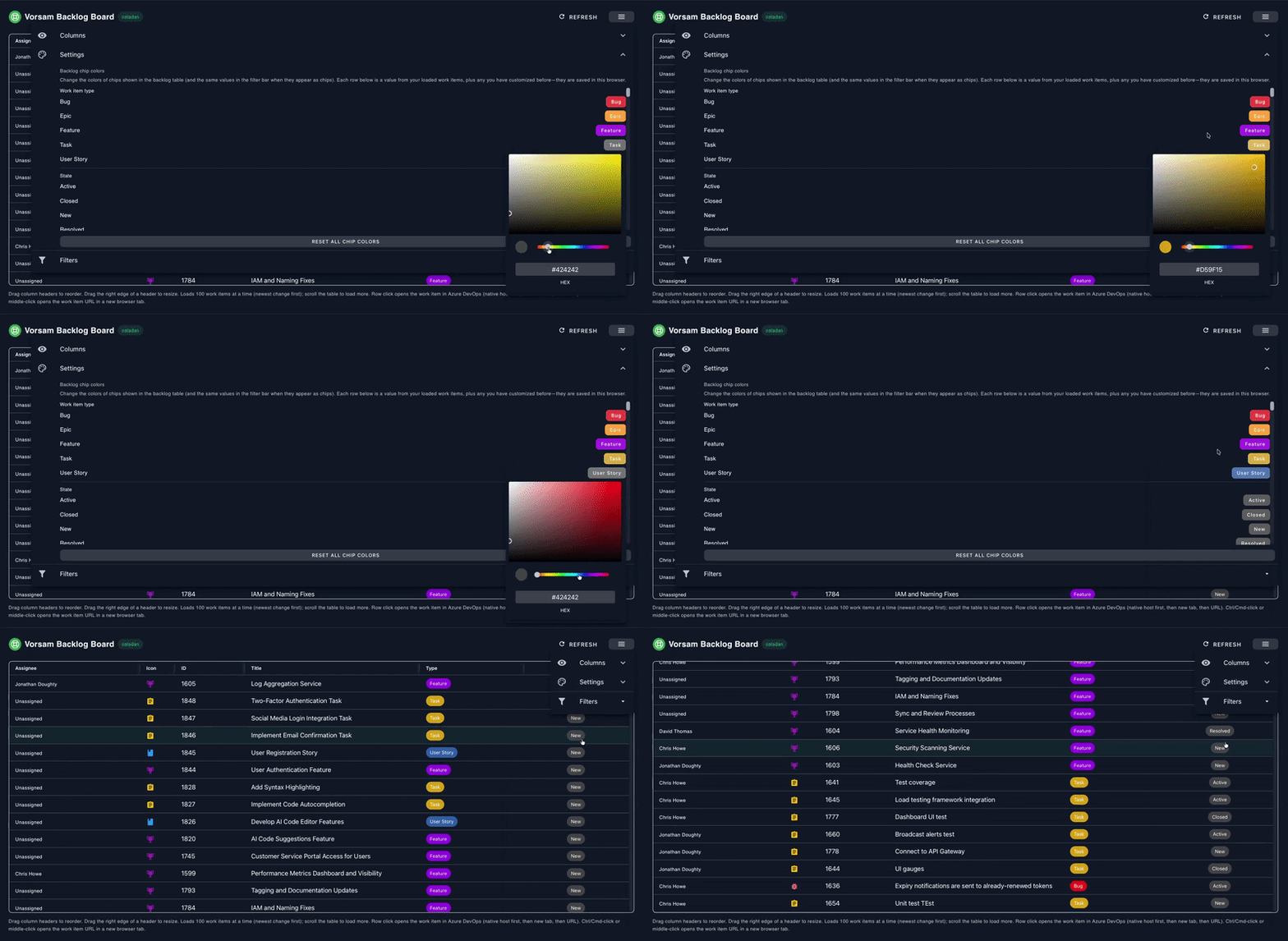
4 — Settings: backlog chip colorsOpen Settings to assign colors to work item type, state, priority, and tag chips (and matching chips in the filter bar). Values you have customized stay listed even when a type or tag is not in the current page—Reset all chip colors clears only those choices.
5 — Board menu: refresh, columns, settings, filtersThe ⋮ menu keeps Refresh, Columns, Settings, and Show filters / Hide filters in one place—compact for narrow Boards iframes while still exposing the full workflow.
How you’ll use it—four moves
Developers can try the layout with sample rows using Built for the people who live in Boards
Get started in three steps
Questions? Use the publisher support link on this listing, or visit vorsam.com for product details. Technical note (admins)Scopes: project and work items (read). No separate application backend; the hub is a static bundle that calls Azure DevOps REST from the browser. Filter and layout preferences (including chip colors) are stored in browser local storage on each client, not in Extension Data. |