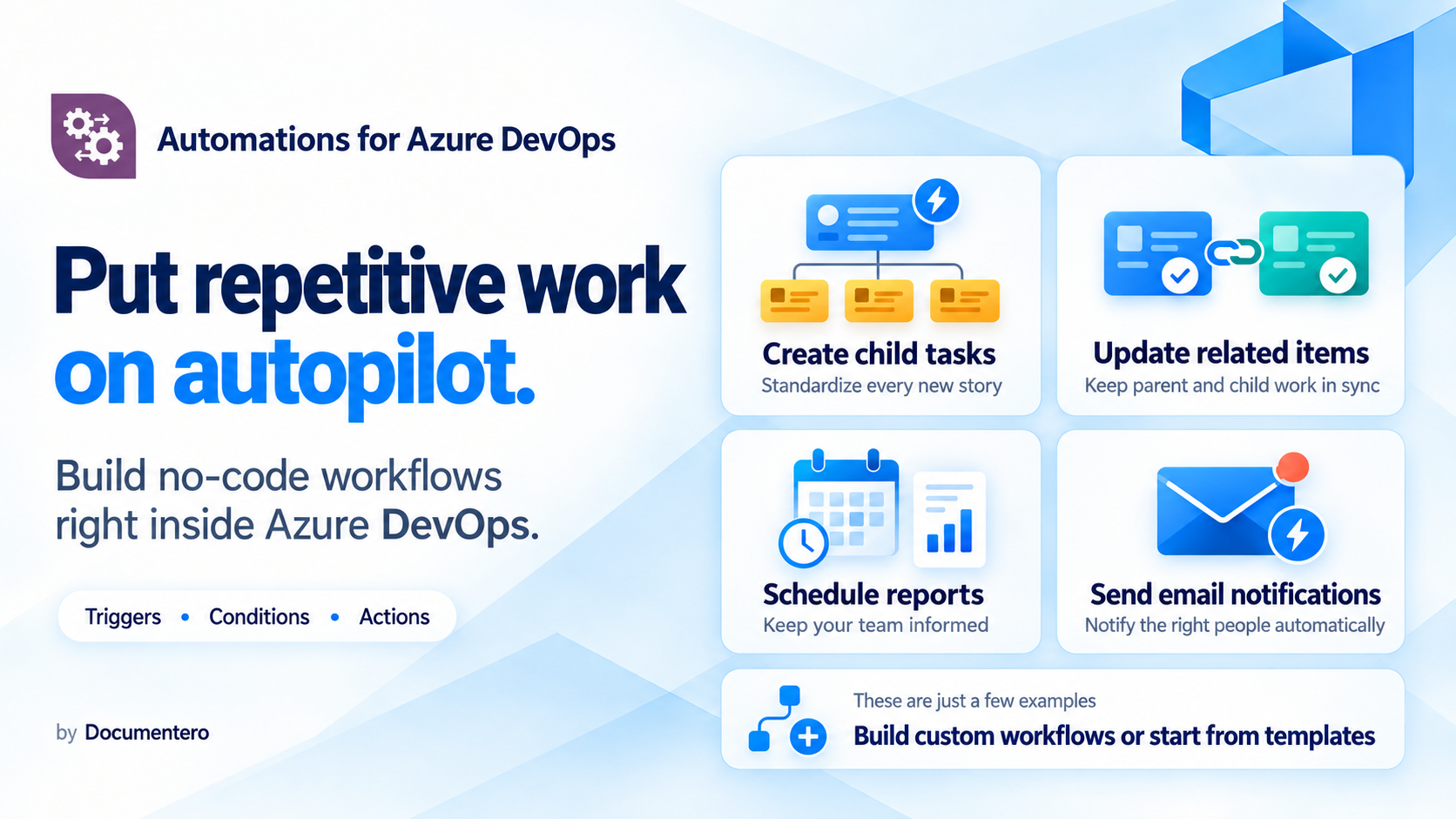
Automations for Azure DevOpsAzure DevOps automation rules with triggers, conditions and actions. |

Azure DevOps Workflow AutomationBuild powerful Azure DevOps automation rules with triggers, conditions and actions. Take the repetitive work off your Azure Boards. Customize automation rules around your process: triggers from work items (created, updated, commented, and more), a pipeline run or stage (YAML and classic), or a schedule you set. Define the conditions and the chain of actions that should run when they are met.
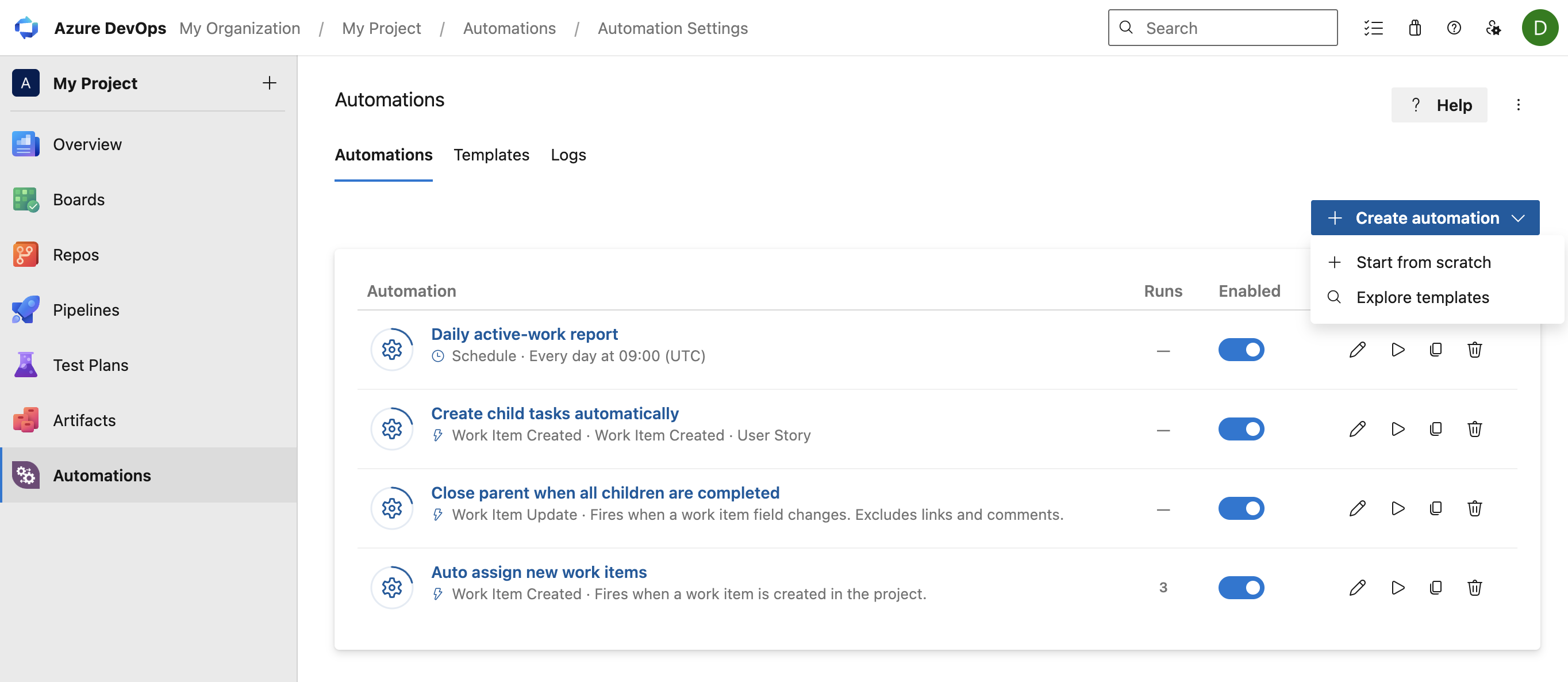
AutomationsAll of your automations in one place: create, enable, run, and review results.
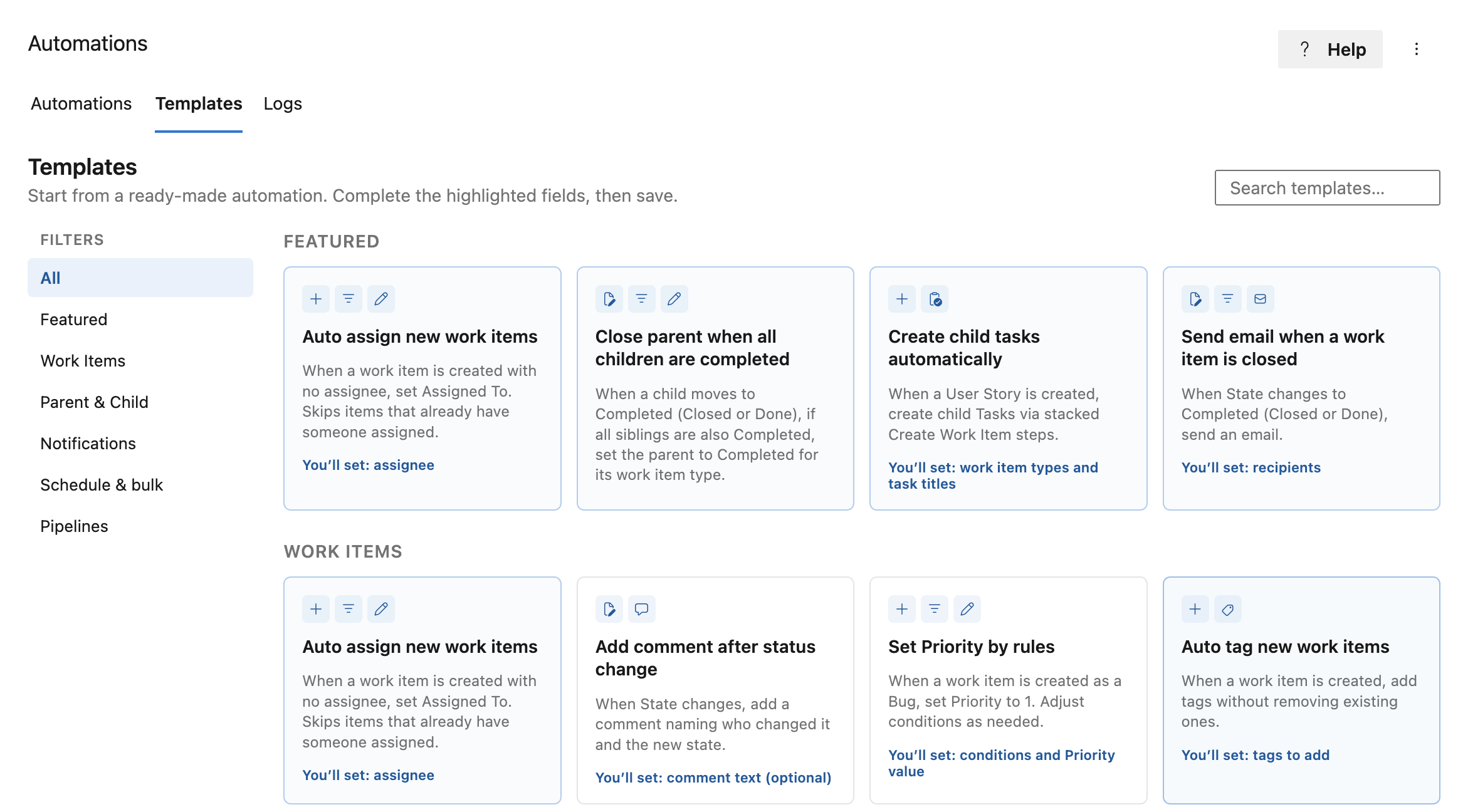
TemplatesJump in with starters for the jobs teams do every day. Adjust names, owners, and recipients — then save. Guides for each starter: all templates.
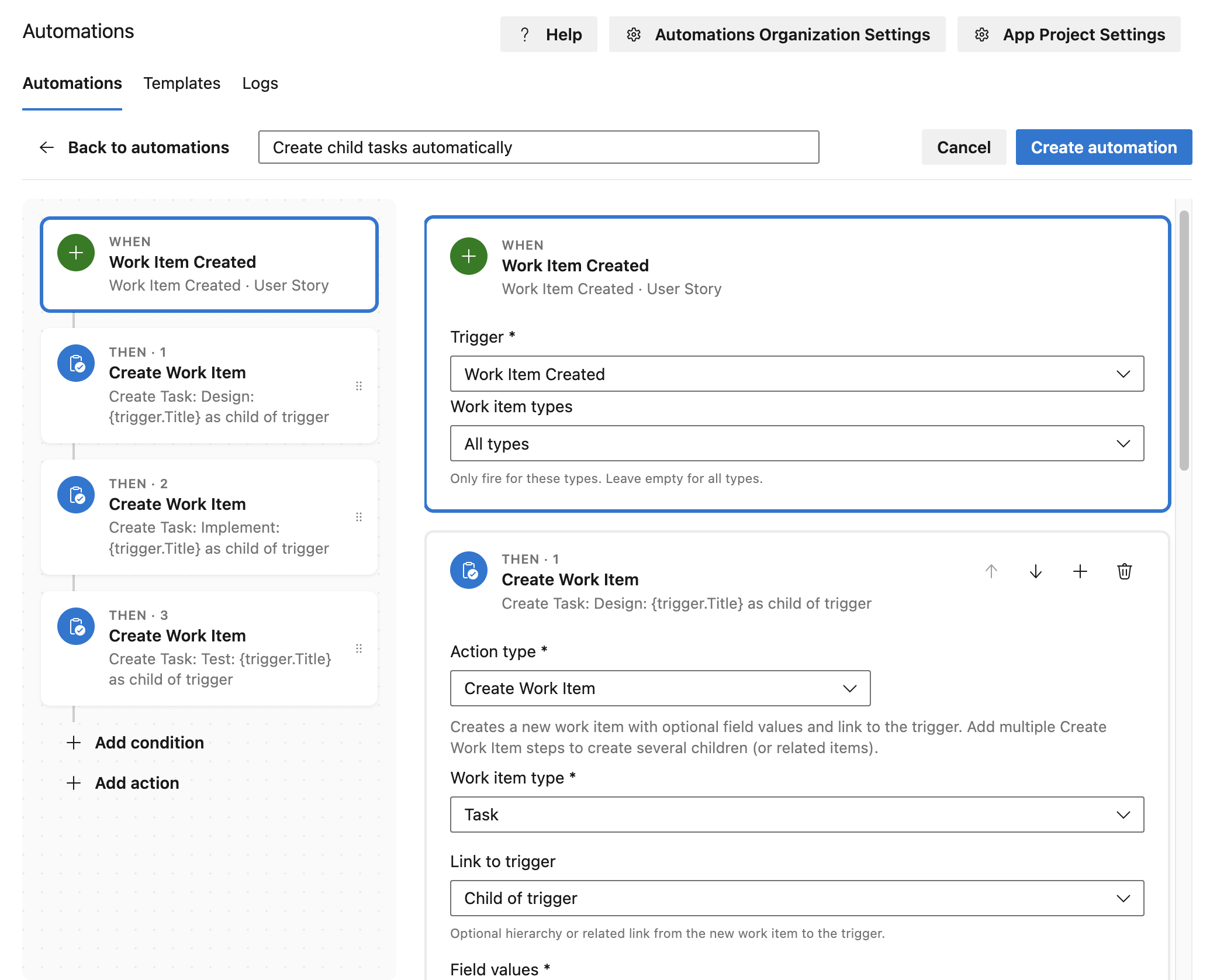
Ready-made templates for common work-item, pipeline, and schedule flows. Build your ownChoose a trigger — a work item, a schedule, or a pipeline run or stage — add conditions if it should run only in certain cases, then stack the actions: create or update work items, add comments, send an email, queue a pipeline, or load the work items related to that run. Insert fields from the work item into titles, comments, and messages. Apply the actions to the item that started the automation, its parent or children, or a list of items you search for.
Create child Tasks automatically when a User Story is added.
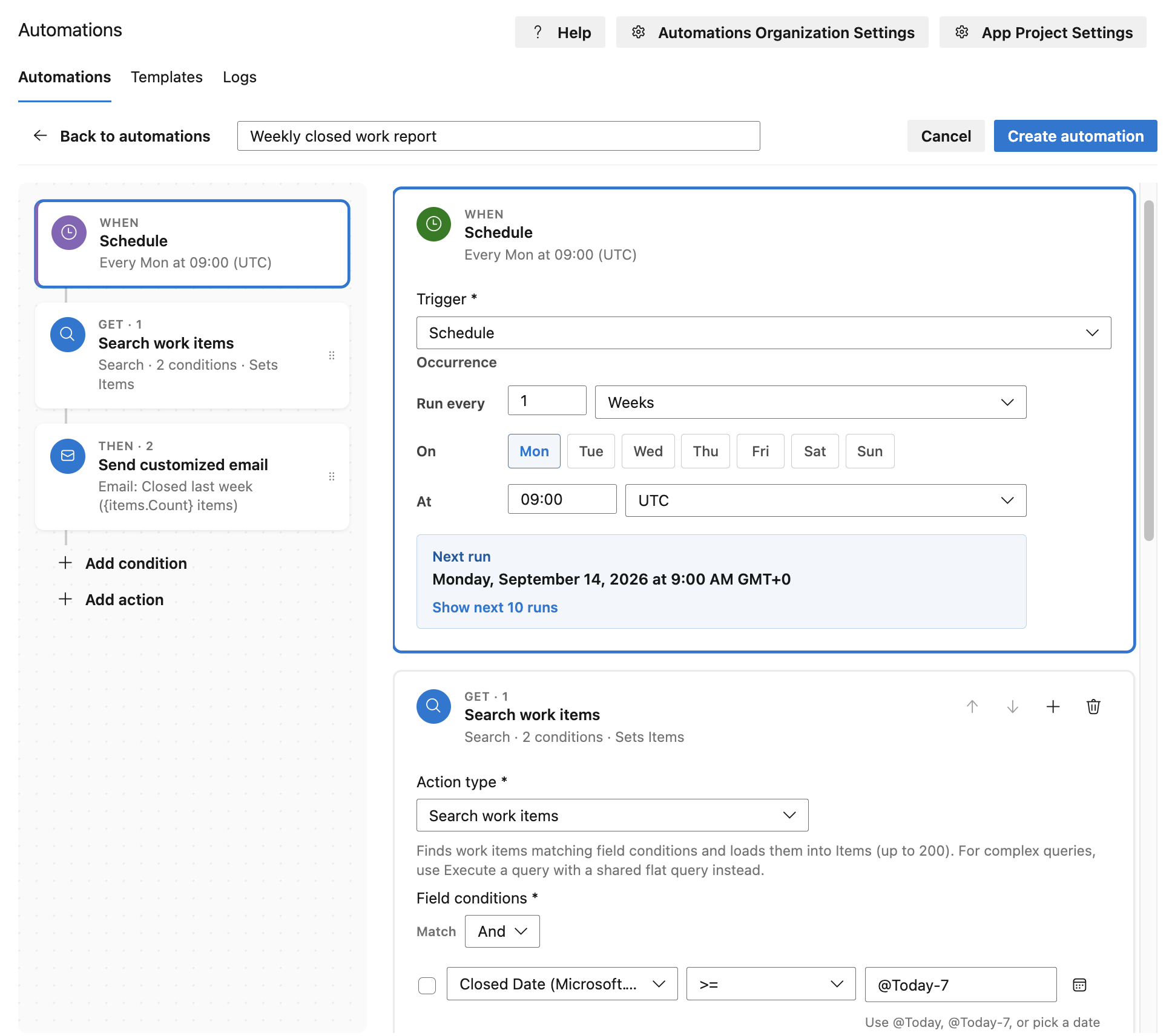
Send a weekly closed-work report by email.
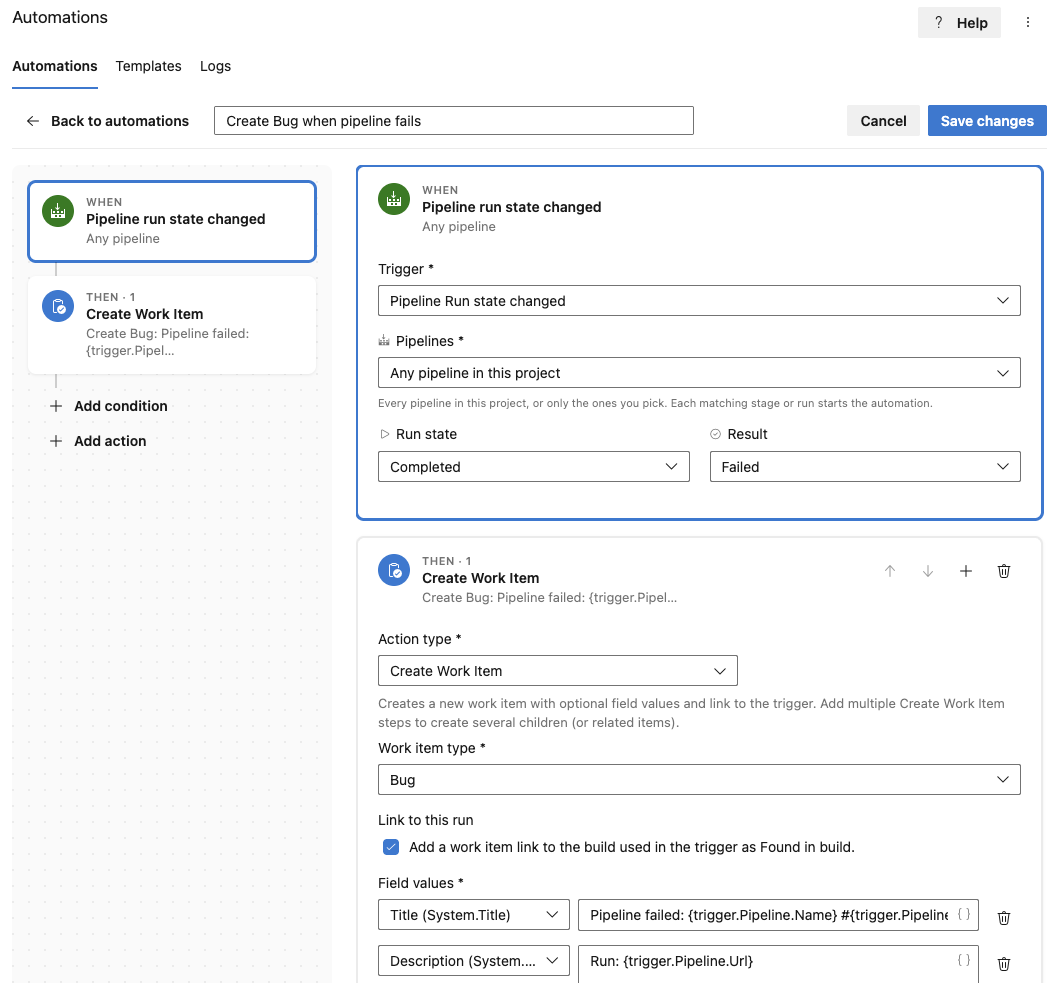
Create a Bug when a pipeline fails. Triggers, conditions, and actionsCombine any trigger with conditions and one or more actions — mix and match to fit your process.
Looking for more triggers and actions? Contact us. Automation templates and common use-casesBrowse all templates or pick a starter below.
Requirements and security
Privacy Policy · Security · License Get startedFree while the extension is in Preview.
Step-by-step: Set up Automations. |