Devart MCP Server for SQLite: connect GitHub Copilot in Visual Studio and other AI clients to your SQLite data

Get started | Documentation
Free to use • Self-hosted • STDIO and HTTP
Devart MCP Server for SQLite is a self-hosted Model Context Protocol (MCP) server that connects AI clients—GitHub Copilot in Visual Studio, Claude Desktop, Cursor, Visual Studio Code, and others—to your SQLite databases. It runs on your Windows machine and works with SQLite files through Devart ODBC Driver for SQLite.
The server gives the AI client the database schema and a set of tools. The AI client writes the SQL and calls the tools; the server runs the statements through the driver and returns structured results. The AI client never opens the database file itself. The server is free to use—no license key, no activation, no expiry. Devart ODBC Driver for SQLite is a commercial product with a free 30-day trial.
Key features
- Schema-aware: tables, columns, primary and foreign keys, and indexes for the AI client to work from
- Read and write tools: queries, data changes, and DDL
- Read-only option: open the database with the driver's
ConnectMode=ReadOnly
- Multiple databases: add several named connections, for example production and test files. Each shows up in your AI client as a separate server with its own tools, such as
my_prod_get_tables
- Two transports: STDIO and HTTP
- Simple setup: one installer adds the server, Devart ODBC Driver for SQLite, and .NET 8; create connections in the connection manager or with the
config command line
- Works with your AI tools: GitHub Copilot in Visual Studio, Claude Desktop, Cline, Codex, Cursor, Windsurf, Visual Studio Code, and Zed (setup guides)
Installation
- Download Devart MCP Server for SQLite from the official website (x64 or x86) and run the installer. It installs the server together with Devart ODBC Driver for SQLite and .NET 8 (installation guide).
- Start right away: the driver's free 30-day trial begins automatically after installation, with no key required.
- To keep using the driver after the trial, buy a license and activate the driver with your key. See Licensing for license options.
The server itself is free to use and needs no license key or activation.
Usage
1. Create a connection. In the MCP Server connection manager, click New, select a DSN or enter a connection string, click Test Connection, keep STDIO on the MCP Settings tab, and click Save. Details: Configure a connection.
Or from the command line:
"C:\Program Files\Devart\MCP Server for SQLite\Devart.AI.McpServer.Odbc.Sqlite.exe" config add my_sqlite -c "Driver={Devart ODBC Driver for SQLite};Database=C:\data\your_database.db"
Visual Studio
2. Add the server to Visual Studio. Create %USERPROFILE%\.mcp.json to use the server in every solution, or .mcp.json in your solution folder:
{
  "servers": {
    "devart-sqlite": {
      "type": "stdio",
      "command": "C:\\Program Files\\Devart\\MCP Server for SQLite\\Devart.AI.McpServer.Odbc.Sqlite.exe",
      "args": ["run", "my_sqlite"]
    }
  }
}
devart-sqlite is the name you'll see in Visual Studio; my_sqlite is the connection from step 1. Visual Studio loads the server when you save the file.
3. Turn on the tools. In GitHub Copilot Chat, switch to Agent mode, click Tools (the wrench icon), and select devart-sqlite. New MCP tools are off by default. When Copilot wants to call a tool, Visual Studio asks you to allow it.
4. Ask about your data. For example:
- "Describe the schema of this database and how the tables are related."
- "How many events per day are in the telemetry table?"
- "Why is this query slow, and which index would help?"
HTTP instead of STDIO. Select HTTP on the MCP Settings tab, set a port, and start the connection. From the command line, create the connection with -p http -hp 8080 and run Devart.AI.McpServer.Odbc.Sqlite.exe run my_sqlite. In .mcp.json, use "type": "http", "url": "http://localhost:8080/sse" with your port.
Other AI clients
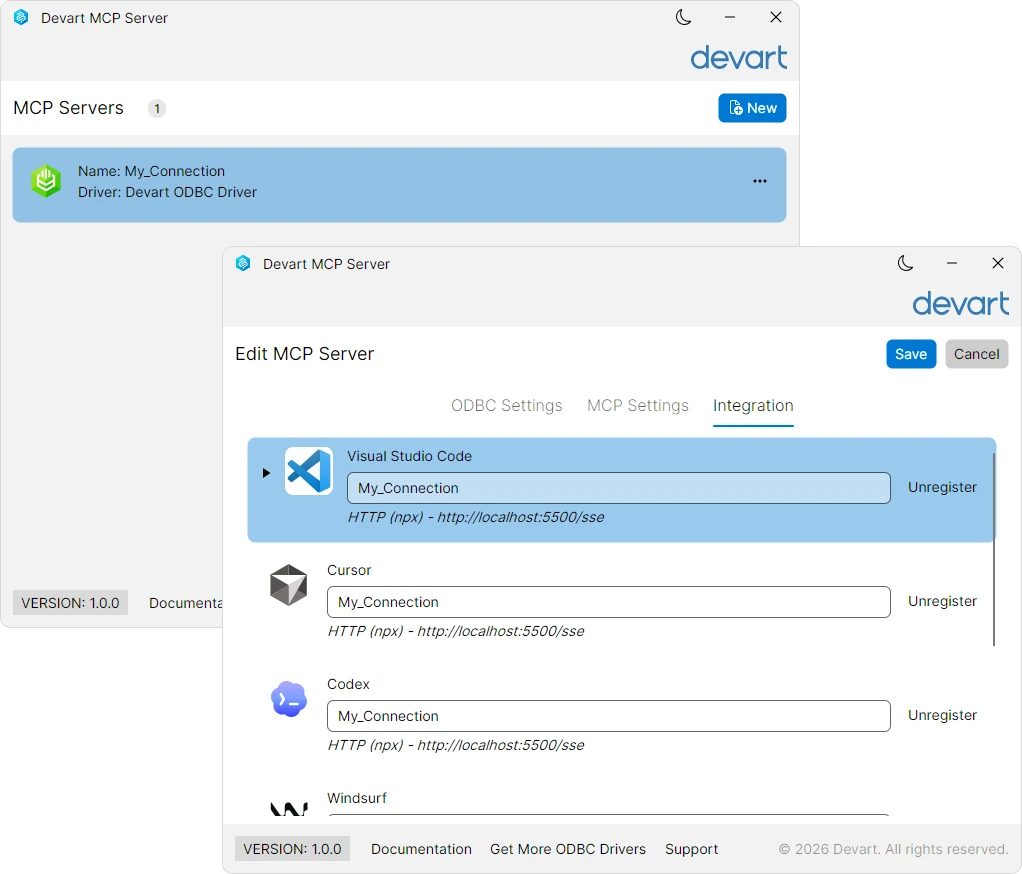
Register the connection on the Integration tab of the connection manager, or add it to the client's configuration file. Step-by-step guides: Claude Desktop, Cline, Codex, Cursor, Visual Studio Code, Windsurf, Zed.
Tool names start with the connection name, for example my_sqlite_get_tables.
| Category |
Tools |
| Schema |
get_tables, get_columns, get_primary_keys, get_foreign_keys, get_indexes, get_routines |
| Read |
execute_reader, count_rows |
| Write |
execute_nonquery, add_row, execute_routine |
| Server |
server_version, instructions, config |
execute_reader runs SELECT statements and returns the results as Markdown. execute_nonquery runs INSERT, UPDATE, DELETE, and DDL statements in one transaction.
Compatibility
| Component |
Supported |
| Visual Studio |
Visual Studio 2026; Visual Studio 2022 version 17.14 or later. GitHub Copilot in Agent mode |
| Other AI clients |
Claude Desktop, Cline, Codex, Cursor, Windsurf, Visual Studio Code, Zed |
| Operating system |
Windows 10 and later, supported Windows Server editions; x64 and x86 installers |
| Runtime |
.NET 8, installed with the server |
| Transports |
STDIO; HTTP with SSE at http://localhost:<port>/sse |
| Data source |
SQLite database files, through Devart ODBC Driver for SQLite |
Security and access
- The server has read and write tools. It can change anything in the connected database file that the driver allows. To let the AI client only read, add
ConnectMode=ReadOnly to the connection string: the driver then blocks INSERT, UPDATE, and DELETE (ReadOnly mode). Or point the connection at a copy of the file.
- Visual Studio asks you to confirm each tool call unless you allow the tool for the session, the solution, or always. Keep confirmation on for the write tools.
- Query results go to GitHub Copilot and its model provider. Connect only data you're allowed to share with them.
- Over HTTP the server has no authentication. Keep it bound to localhost (the default).
Troubleshooting
- The server isn't in Tools. Make sure Copilot Chat is in Agent mode. Then check the
.mcp.json syntax and location; create and save the file in Visual Studio so it isn't saved as .mcp.json.txt.
- The server doesn't start. Use double backslashes in the JSON path, and make sure the name after
run matches a connection. Devart.AI.McpServer.Odbc.Sqlite.exe config list shows them.
- License errors. If the driver's 30-day trial has ended, activate the driver with a license key; check the license status in the ODBC Data Source Administrator. The server itself needs no activation.
- Several connections. Add one
.mcp.json entry per connection, each with a unique name, for example devart-sqlite_prod and devart-sqlite_dev.
ADO.NET edition on NuGet
The same server is also available as a .NET tool: Devart.Mcp.SQLite. It uses dotConnect for SQLite, included in the package, instead of the ODBC driver, and needs a dotConnect for SQLite license key (a free 30-day trial key works). Requires Windows x64 and .NET 8 or later; dnx needs .NET 10.
dnx Devart.Mcp.SQLite@1.1.0 config add my_sqlite --connection-string "Data Source=C:\data\your_database.db;License Key=your_license_key;" --protocol-type stdio
{
  "servers": {
    "devart-sqlite": {
      "type": "stdio",
      "command": "dnx",
      "args": ["Devart.Mcp.SQLite@1.1.0", "run", "my_sqlite"]
    }
  }
}
On .NET 8 or 9, see the package README.
Other Devart connectivity solutions
Support

