Martian Tool's — C++ Code Highlighting and Code Folding Labels for Visual StudioMartian Tool's is a Visual Studio editor extension for code highlighting, brace and block shading, indentation highlighting, and readable C++ code folding labels. Follow nested scopes, distinguish function arguments and initializer-list items, highlight TODO comments, and identify collapsed blocks without expanding them. Customise your editor with RGB colour palettes and transparent code-shading layers. Closed Block Comment adds bordered, colour-coded labels to folded blocks in Code readability features
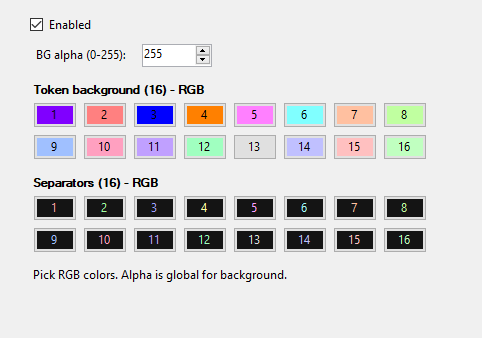
Open Tools > Options > Martian Tool's to configure each feature. Save and share your colour settings with INI import/export. TableColor — Initializer List and Column HighlightingTableColor detects brace-based, comma-separated patterns like { ... , ... } and highlights each “column” (each comma-separated item) with a predefined background colour. Pattern recognition: Works on {, , } style lists, e.g. {1,2,{a,b,c,{Q,W,E},d},3} Nested structures: Supports multiple levels of nesting (braces inside braces) Visual linking: {} and separators , use configurable separator (foreground) colours Customisation: Enable/disable, 16 token background colours (RGB), 16 separator colours (RGB), global alpha (0–255)
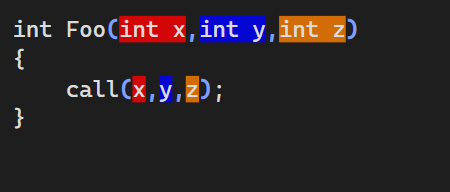
ParameterColor — Function Parameter and Argument HighlightingParameterColor works like TableColor, but targets parenthesis-based, comma-separated parameter lists: ( ... , ... ). Each argument slot gets its own background colour. Pattern recognition: Detects (, , ) lists, e.g. Foo(int x, int y, int z) and call(x, y, z)
Nested parentheses: Supports multiple levels of nesting (calls inside calls)
Visual linking: ( ) and , use configurable separator (foreground) colours
Customisation: Enable/disable, 16 token background colours (RGB), 16 separator colours (RGB), global alpha (0–255)
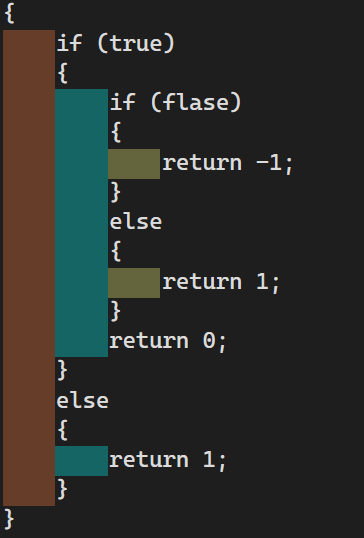
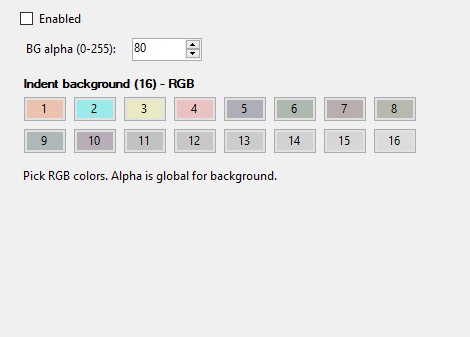
IndentColor — Indentation Level HighlightingIndentColor highlights indentation levels by drawing subtle, coloured background bands behind each indent step. This makes deeply nested scopes readable without counting spaces. Indent level shading: Each indentation level gets its own background colour
Helps with structure: Great for if/else, loops, early returns, and deep nesting
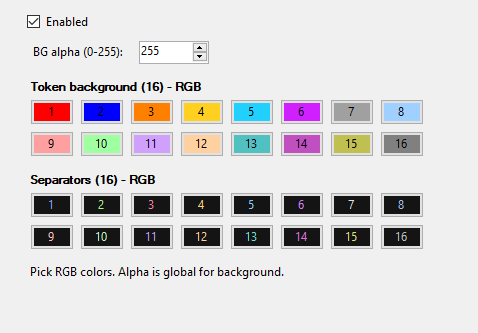
Customisation: Enable/disable, 16 indent background colours (RGB), global alpha (0–255)
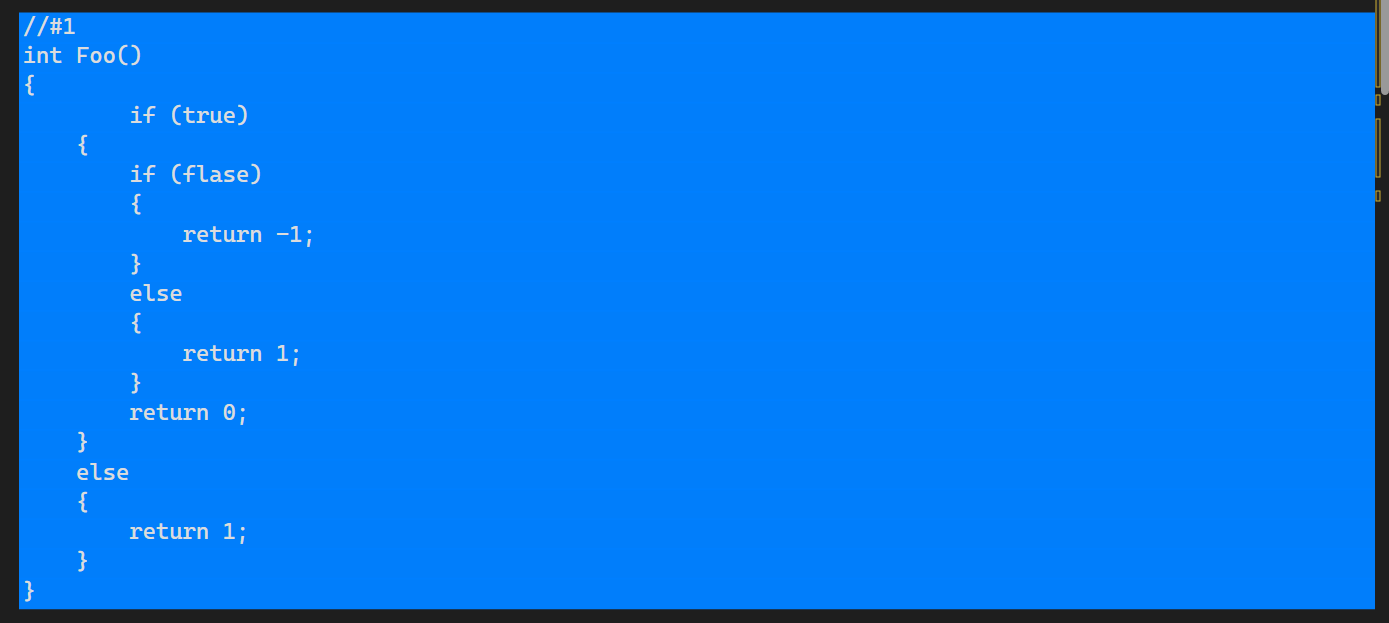
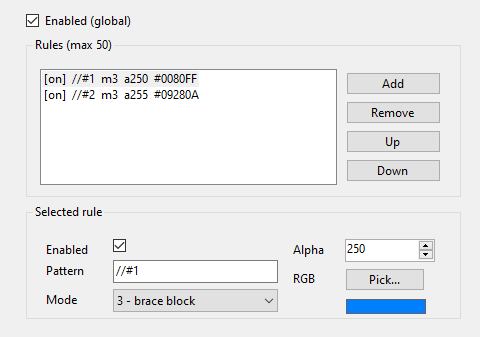
PatternColor — TODO, Comment and Custom Text HighlightingPatternColor searches for user-defined string patterns and applies configurable highlighting. Ideal for marking tags like TODOs, section headers, debug markers, or custom “landmarks”. Up to 50 rules with per-rule enable/disable Global enable plus per-rule settings Per-rule styling: mode, alpha, RGB colour Modes: 0 – Match only: only the matched text is highlighted 1 – Match → end of visible line: from match start to the end of the visible line 2 – Full line: highlights the entire line containing the match 3 – Brace block mode: pairs {} and highlights from the match until the end of the corresponding closing brace block (supports nesting). If an empty line appears immediately after the matched line, only the matched line is highlighted.
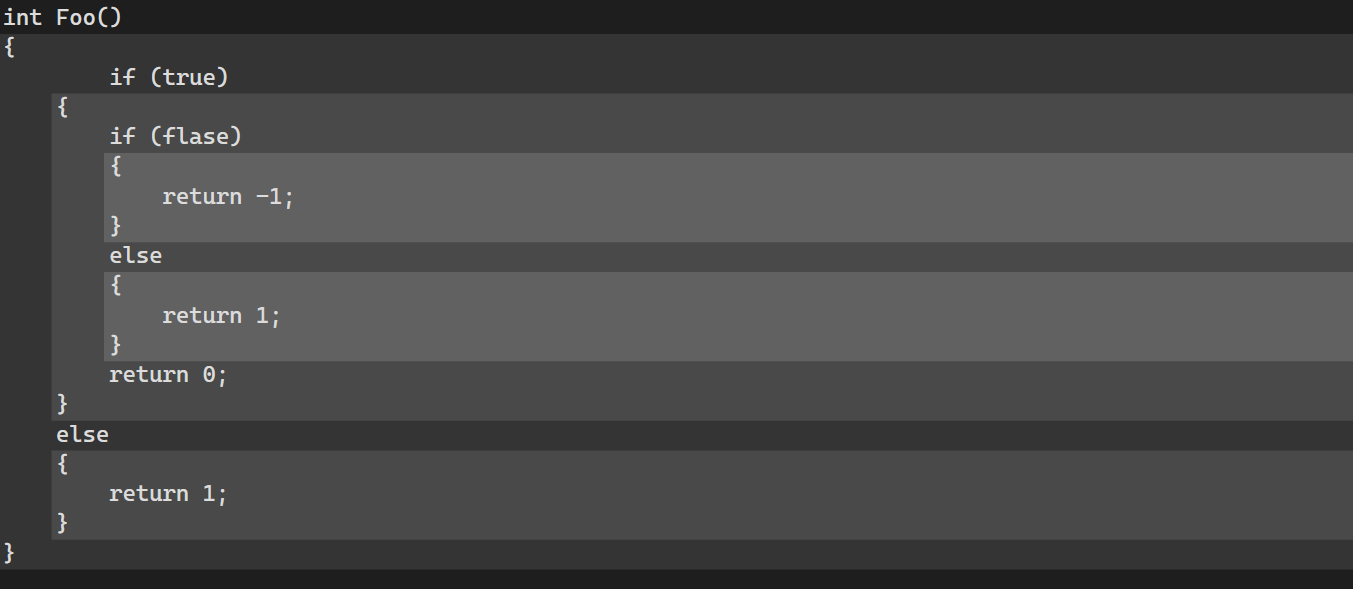
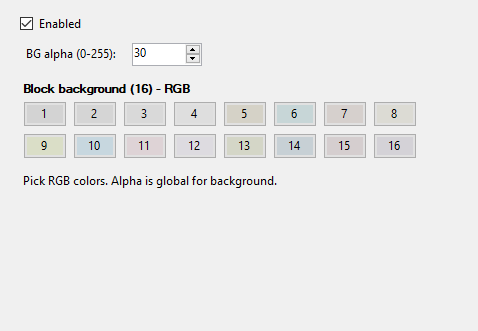
BlockColor — Brace Highlighting and Nested Scope ShadingBlockColor highlights {} brace pairs by drawing a subtle rectangular background that spans the entire block, making scope boundaries obvious without hunting for the matching brace. Brace pair detection: Finds matching { and } and highlights the block between them. Column-anchored layout: The opening { defines the column (this becomes the rectangle’s top-left alignment), and the rectangle extends down to the corresponding closing }. Nested blocks supported: Correctly handles nested {} pairs, so inner scopes are highlighted within outer scopes. Customisation: Enable/disable Global alpha (transparency) 16 configurable block colours (RGB) It’s basically “show me the real shape of the code” — perfect for dense if/else, loops, and deeply nested scopes.
Closed Block Comment — C++ Code Folding LabelsClosed Block Comment enhances Visual Studio code folding (outlining) with a meaningful label taken from the comment beside the opening brace. Keep a short description visible while the block's code is folded away. Supported files: .cpp, .h and .ixx Pattern recognition: Accepts both {// comment and { // comment on the opening line For example: When collapsed, the block displays Cyclic backgrounds: Four configurable RGB background colours repeat in file order: 1, 2, 3, 4, then back to 1. Colours stay consistent when scrolling or collapsing blocks in a different order. Readable labels: Each label has a border and contrasting text, with default colours selected for dark themes. Customisation: A dedicated Enable switch and four colour pickers under Tools > Options > Martian Tool's > Closed Block Comment. Apply changes to update open editors without restarting Visual Studio. Normal folding behaviour: Keep using the usual collapse/expand controls and hover preview. Settings backup: The Enable setting and all four colours are included in INI import/export. Layered Code Shading for Visual StudioCombine compatible highlighting features to make code structure easier to follow. The code-shading layers support alpha transparency, so you can stack effects and still keep the code readable — the result is more like shading than loud highlighting.
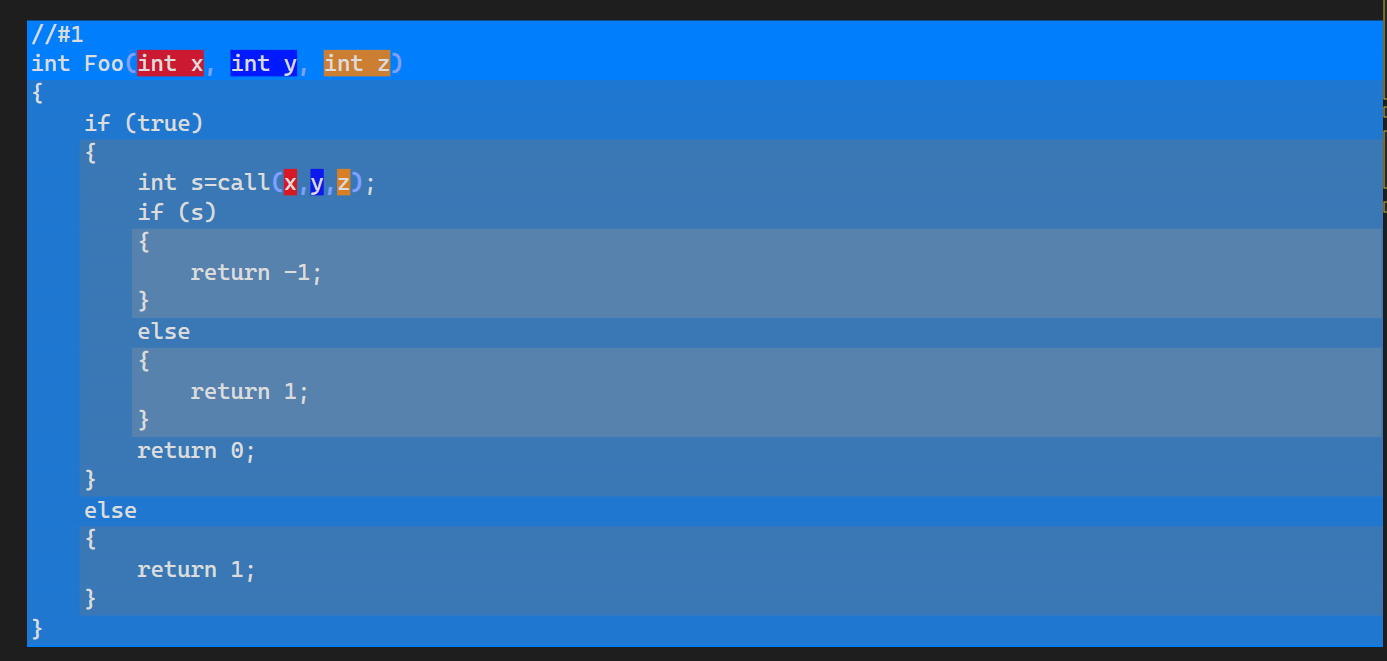
In the example above, the //#1 PatternColor rule is used to apply a base highlight to the whole function region. On top of that, BlockColor (with a lower alpha) adds soft block shading for each {} scope. This creates a clean, “layered depth” effect where the structure pops out automatically: PatternColor defines the area, and BlockColor gently reveals the nested blocks and indentation inside it. Colour Settings and INI Import/ExportAll configured colours and rules can be saved to and restored from a plain-text INI file. This makes it easy to back up your setup, share colour presets with others, or keep multiple profiles for different themes. Export INI: Writes the current configuration to a text-based INI file Import INI: Loads a previously saved configuration back into the extension
|