Paste, drop, and annotate screenshots right inside your code — without breaking it for anyone who doesn't have the extension.
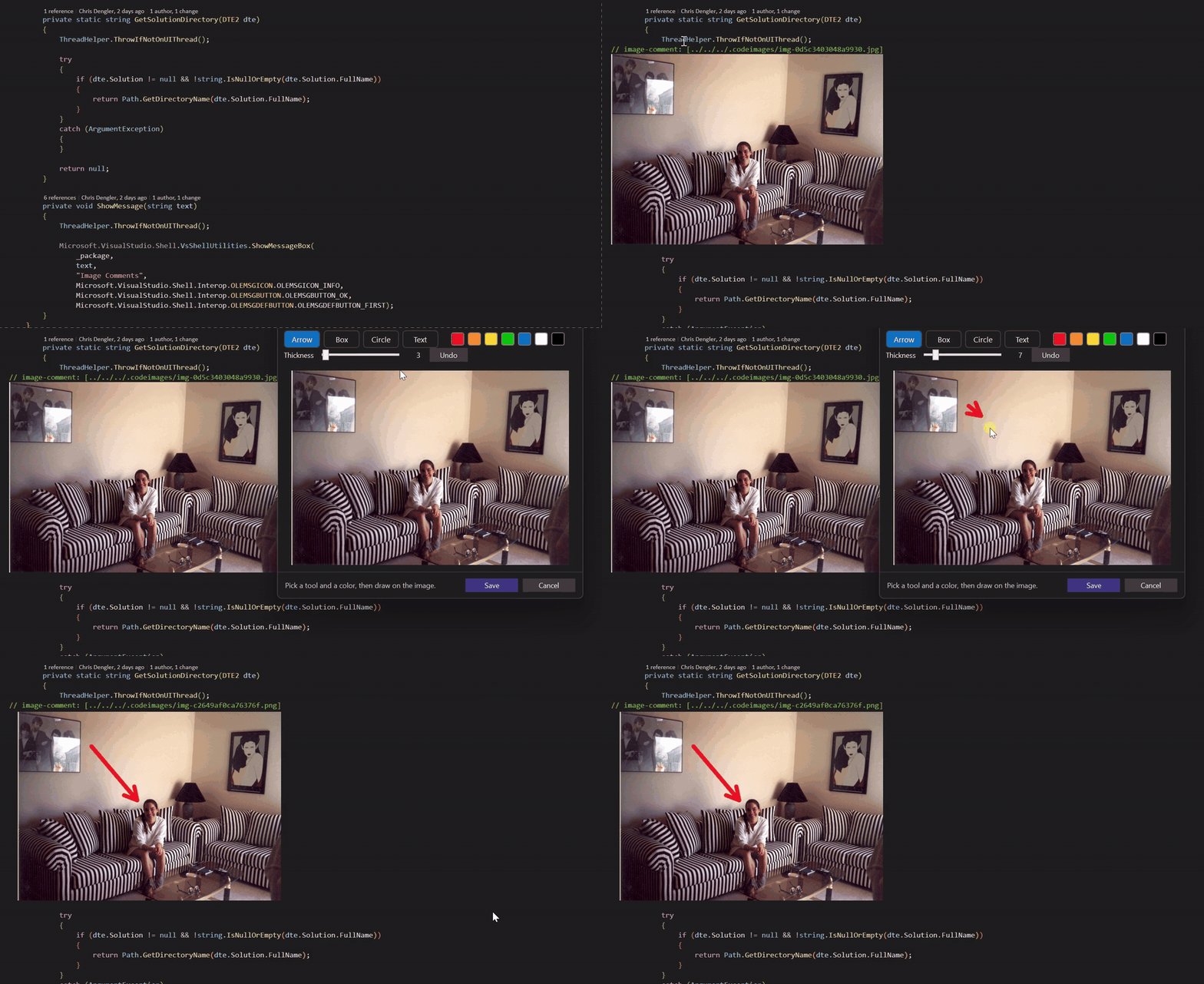
Ever tried to explain a tricky piece of code, a UI bug, or a design decision in a plain text comment? Image Comments lets you drop a screenshot directly into the editor. The image renders inline; the file is stored in your solution and committed with your code; and teammates without the extension simply see an ordinary comment.
// image-comment: [.codeimages/img-3f9a1c.png] scale=0.5 "Login flow before refactor"
That single line is all that's stored in your source file. With the extension, it shows the image. Without it, it's just a comment — nothing breaks, nothing fails to compile.
Add an image three ways
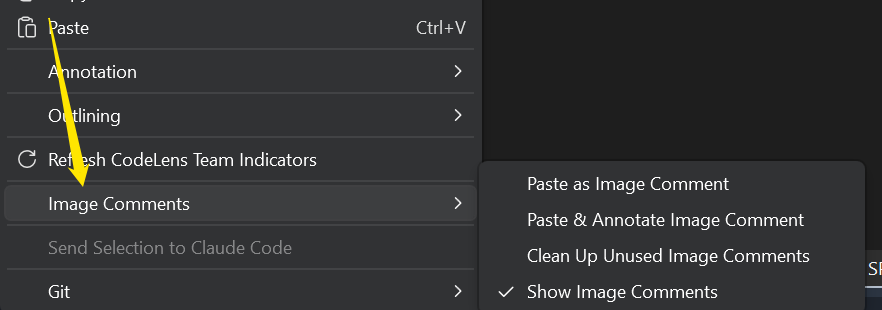
- Paste a screenshot from the clipboard (
Win + Shift + S, then right-click → Paste as Image Comment).
- Drag and drop an image file from Explorer straight onto the editor.
- Paste & Annotate to mark it up before it lands.
Resize, caption, and view
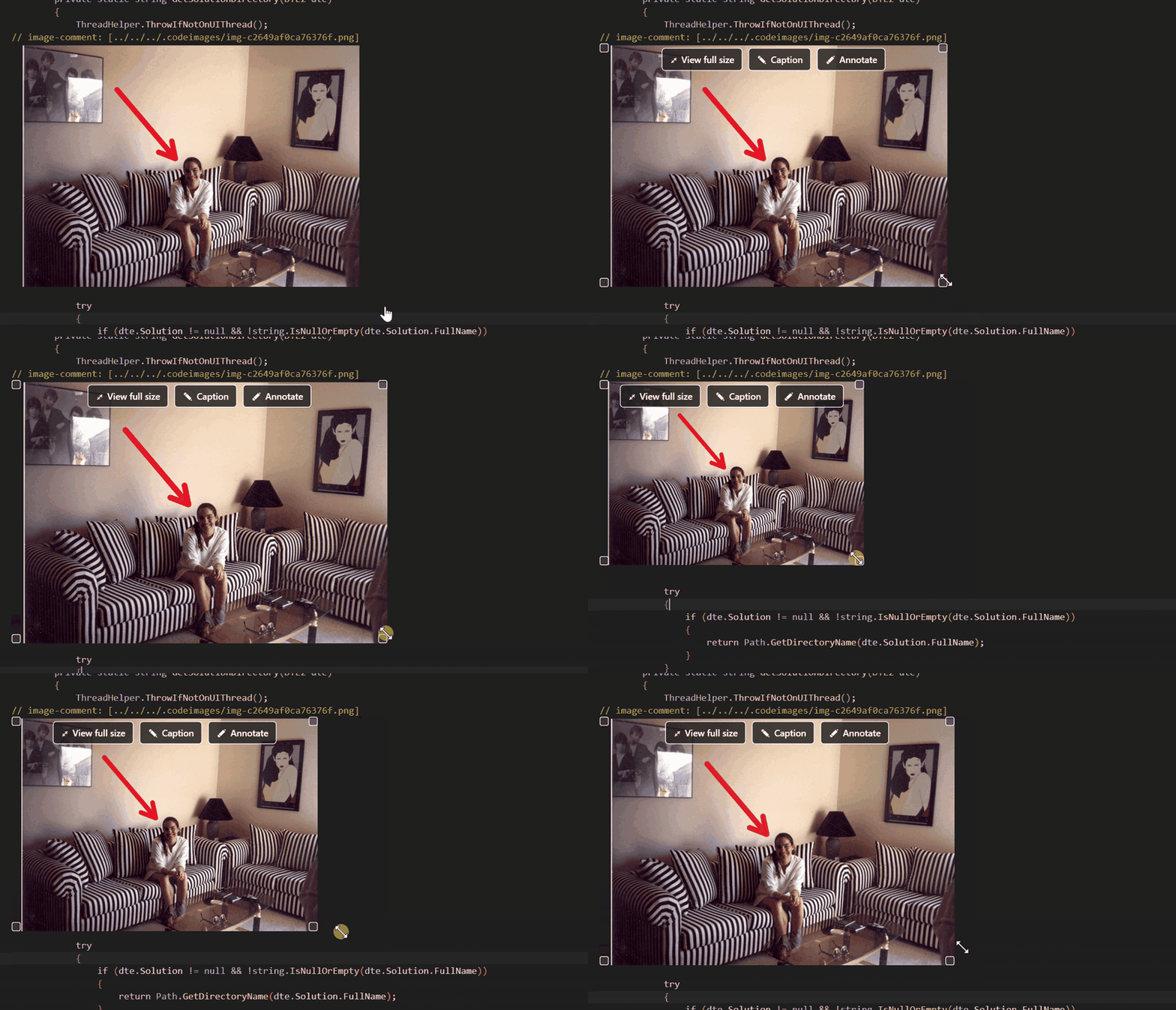
Hover an image for its controls. Drag any corner to resize (aspect ratio locked, size saved into the comment so it's identical for the whole team). Add a caption that doubles as alt-text for teammates without the extension. Open any image at full size.
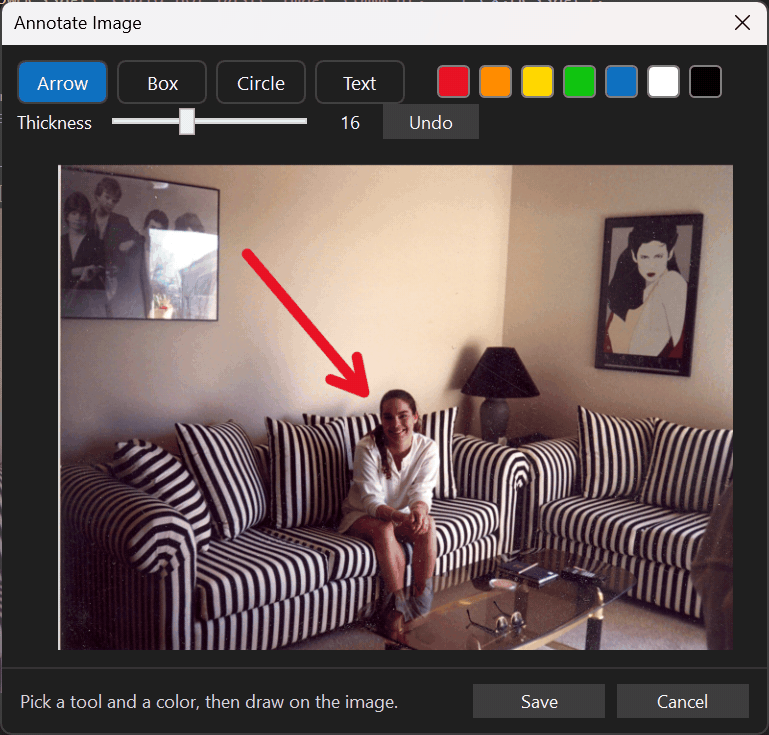
Annotate with arrows, boxes, circles, and text
Mark up a screenshot in the built-in editor — adjustable color and thickness — to point straight at what matters. Works on brand-new pastes and on images already in your code.
Works in your whole stack, not just C#
The marker only needs a comment to live in, so Image Comments uses the right comment style for each file's language automatically:
| Language |
Comment used |
| C#, C/C++, JavaScript, TypeScript, and most C-family |
// … |
| HTML, XML, XAML, Vue |
<!-- … --> |
Razor / Blazor (.razor, .cshtml) |
@* … *@ |
| CSS, SCSS, LESS |
/* … */ |
| Python, YAML, PowerShell, Ruby, R, shell |
# … |
| SQL |
-- … |
| Visual Basic |
' … |
Drop a screenshot into a .razor component or an .html file and you get a valid block comment — not a stray // that breaks the markup. (Strict .json is the one exception: JSON has no comment syntax, so insertion is declined with a short note instead of corrupting the file — .jsonc / .json5 work fine.)
Built for real codebases
- No duplicates — images are content-addressed in a solution-relative
.codeimages folder, so the same screenshot is never stored twice.
- Source-control friendly — the files are committed with your code by Git like any other asset; exclude
.codeimages/** from publish output if you don't want them shipped.
- Stays out of your way — toggle all image comments off to read plain code, then back on. Clean up unused image files to the Recycle Bin in one command.
Configurable
Tools → Options → Image Comments lets you set:
- The default show/hide state and the maximum width for newly inserted images.
- Caption font size, padding, and colors.
- Review prompt — after you've created a handful of image comments, a one-time, theme-aware prompt asks if you'd like to leave a review. You can change how many uses trigger it, edit the review URL, or reset it to test again. (It only ever appears once.)
Requirements
- Visual Studio 2022 or 2026 (any edition, including Community).
- Installs on both x64 and Arm64.
Quick start
- Open a code file in a saved solution.
- Copy a screenshot.
- Right-click in the editor → Image Comments ▸ Paste as Image Comment.
- Hover the image for resize grips, ✎ Caption, ✐ Annotate, and ⤢ View full size.
| |

