Migration Generator Extension
This Visual Studio extension provides commands to manage Entity Framework migrations. The extension includes the following commands:
- Create Migration
- Remove Migration
- Generate Migration SQL Script
- Generate Rollback Migration SQL Script
- Generate Migration Bundle
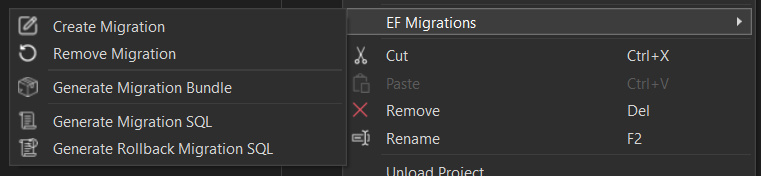
The extension uses the dontnet ef tool to create and remove migrations, and to generate SQL scripts for migrations.
Commands
1. Create Migration
This command creates a new Entity Framework migration for the selected project. The migration name is generated based on the current Git branch name and a timestamp.
2. Remove Migration
This command removes the last created Entity Framework migration for the selected project. The migration will be deleted, and the ModelSnapshot will be reverted to the previous version.
3. Generate Migration SQL Script
This command generates a SQL script for the last created Entity Framework migration for the selected project. The script is saved to the EFMigrationScripts folder.
How Deployed Migrations are Considered:
- The command checks the "Deployed" sub-folder within the "Migrations" folder to find the last deployed migration.
- If a deployed migration is found, the script is generated from that migration to the latest migration.
- If no deployed migration is found, the script is generated from the initial migration (0) to the latest migration.
4. Generate Rollback Migration SQL Script
This command generates a SQL script to rollback the last created Entity Framework migration for the selected project. The script is saved to the EFMigrationScripts folder.
How Deployed Migrations are Considered:
- The command checks the "Deployed" sub-folder within the "Migrations" folder to find the last deployed migration.
- If a deployed migration is found, the script is generated to rollback from the latest migration to the last deployed migration.
- If no deployed migration is found, the script is generated to rollback from the latest migration to the initial migration (0).
5. Generate Migration Bundle
This command generates a migration bundle for the selected project. The bundle is saved to the EFMigrationScripts folder.
The Output window contains the details of the bundle generation, with instructions for applying the migration, as well as downgrade to previous migration and previous deployed migration (if any).
Installation
To install the Migration Generator Extension, follow these steps:
- Download and Install the dotnet ef tool cli.
- Download the extension from the Visual Studio Marketplace.
- Open Visual Studio and go to
Extensions > Manage Extensions.
- Click on
Install and follow the prompts to complete the installation.
Pre-requisites
This extension assumes that a separate Project is used for the Entity Framework Migrations (see: Using a Separate Migrations Project), this will be the Target project for the migrations.
- Create a new .NET Core Console Application project for your EF Migrations. The EF Migraion Project MUST be an executable project, referencing your other Project containing the Db Context, with necessary Microsoft.EntityFrameworkCore.Design package for EF Migrations.
<Project Sdk="Microsoft.NET.Sdk">

    <PropertyGroup>
        <OutputType>Exe</OutputType>
        <TargetFramework>net8.0</TargetFramework>
    </PropertyGroup>

    <ItemGroup>
        <PackageReference Include="Microsoft.EntityFrameworkCore" Version="8.0.11" />
        <PackageReference Include="Microsoft.EntityFrameworkCore.Design" Version="8.0.11">
            <PrivateAssets>all</PrivateAssets>
            <IncludeAssets>runtime; build; native; contentfiles; analyzers; buildtransitive</IncludeAssets>
        </PackageReference>
        <PackageReference Include="Microsoft.EntityFrameworkCore.SqlServer" Version="8.0.11" />
        <PackageReference Include="Microsoft.Extensions.Hosting" Version="8.0.1" />
    </ItemGroup>

	<ItemGroup>
		<ProjectReference Include="..\MyDbContextProject.csproj" />
	</ItemGroup>
</Project>
- Create appsettings.json with Db Connection String, where the property name EXACTLY matches the Db Context Type name to create migrations for. This is necessary for creating the intial migration.
    {
      "ConnectionStrings": {
        "MyDbContext": "Server=.;Database=MyDb;Trusted_Connection=True;MultipleActiveResultSets=true"
      }
    }
- Modify the Program.cs to add service dependencies for the DbContext, and set the Migrations Assembly to the current executing assembly. This is necessary for EF Migrations to work correctly.
Note: services.AddDbContext<MyDbContext> uses the connection string property of same name cfg.GetConnectionString(nameof(MyDbContext)) from the appsettings.json file. This is necessary for generating the initial migration.
    /// <summary>
    /// Startup project purely for EF Migration generation
    /// </summary>
    internal class Program
    {
        static async Task Main(string[] args)
        {
            var host = BuildHost();
            using (host)
            {
                var logger = host.Services.GetService<ILogger<Program>>();

                try
                {
                    await host.StartAsync();
                }
                catch (Exception ex)
                {
                    if (logger != null) logger.LogError(ex, ex.Message);
                }
                finally
                {
                    await host.StopAsync();
                }
            }
        }

        private static IHost BuildHost()
        {
            var builder = new HostBuilder();

            builder.ConfigureAppConfiguration((ctx, bldr) =>
            {
                bldr.SetBasePath(Directory.GetCurrentDirectory());
                bldr.AddEnvironmentVariables();
                bldr.AddJsonFile("appsettings.json", true, true);
            });

            builder.ConfigureLogging((ctx, bldr) =>
            {
                bldr.AddConsole();
            });

            builder.ConfigureServices((ctx, services) =>
            {
                var cfg = ctx.Configuration;

                // Configure SQL Server Db Context, set Migrations Assembly required for EF Migrations
                services.AddDbContext<MyDbContext>(options =>
                        options.UseSqlServer(
                            cfg.GetConnectionString(nameof(MyDbContext)),
                            sqlServerOptions => sqlServerOptions
                                .CommandTimeout(360)
                                .MigrationsAssembly(Assembly.GetExecutingAssembly().FullName)
                            ));
            });

            // Build Host
            return builder.Build();
        }
    }
Usage
To use the Migration Generator Extension, follow these steps:
- Right-click on your EF Migration project in the Solution Explorer.
- Select the desired command from EF Migrations menu (e.g.,
Create Migration, Remove Migration, Generate Migration SQL Script, or Generate Rollback Migration SQL Script).
- The command will be executed, and the output will be displayed in the Output window.
If the EF Migrations menu is not visible, when right-clicking on the project in the Solution Explorer window, this is because it could not be determined that the project is a EF MIgration project. See the Pre-requisites section for required setup.
License
This project is licensed under the MIT License. See the LICENSE file for details.
Image attribution
The following images have been used:

