Deploy Microsoft Fabric Items with fabric-cicd
Deploy Microsoft Fabric workspace items seamlessly to Fabric workspaces with your Azure DevOps CI/CD pipelines using the powerful fabric-cicd Python library.
Overview
The Deploy Microsoft Fabric Items with fabric-cicd extension provides an easy-to-use pipeline task that automates the deployment of Microsoft Fabric workspace items directly from your source control repository. Whether you're managing Notebooks, Lakehouses, Data Pipelines, Semantic Models, or other Fabric artifacts, this extension streamlines your deployment process with enterprise-grade authentication and flexible configuration options.
Previously, using the fabric-cicd Python library in Azure DevOps pipelines required creating and maintaining custom Python scripts to orchestrate the deployment process. This extension eliminates that complexity by providing a ready-to-use pipeline task that handles dependency installation, authentication, and execution automatically.
Key Features
- Automated Deployment: Deploy all workspace items or selectively deploy specific item types
- No Custom Scripting Required: Use the fabric-cicd library directly in your pipeline without writing Python orchestration scripts
- Service Principal Authentication: Secure authentication using Azure Service Principal credentials to the tenant of your choice
- Version Control Integration: Deploy items directly from your repository structure
- Orphan Item Management: Automatically unpublish items that no longer exist in your repository through the unpublishItems flag.
- Flexible Configuration: Specify fabric-cicd library versions, target environments, and repository paths
- Build & Release Support: Works seamlessly in both Build and Release pipelines
- Fail-Fast Error Handling: Clear error messages and logging for quick troubleshooting
How It Works
The extension leverages the fabric-cicd Python library to publish Microsoft Fabric items to your target workspace. It handles authentication via Azure Service Principal, installs the required dependencies, and executes the deployment based on your configuration.
Deployment Modes
- Deploy All Items: When no specific items are scoped, all supported items in your repository directory will be deployed to the target workspace
- Selective Deployment: Specify comma-separated item types (e.g., "Notebook,Lakehouse,DataPipeline") to deploy only those artifact types
Quick Start
Prerequisites
- Python 3.9 or higher (up to Python 3.13) installed on your pipeline agent.
- Python 3.9 or higher (up to Python 3.13) specified in your pipeline with the "Use Python version" task.
- Azure Service Principal with appropriate permissions to your Microsoft Fabric workspace
- Microsoft Fabric workspace items stored in your repository (typically in a
./workspace directory)
Configuration
Add the Deploy Microsoft Fabric Items task to your pipeline and configure the following parameters:
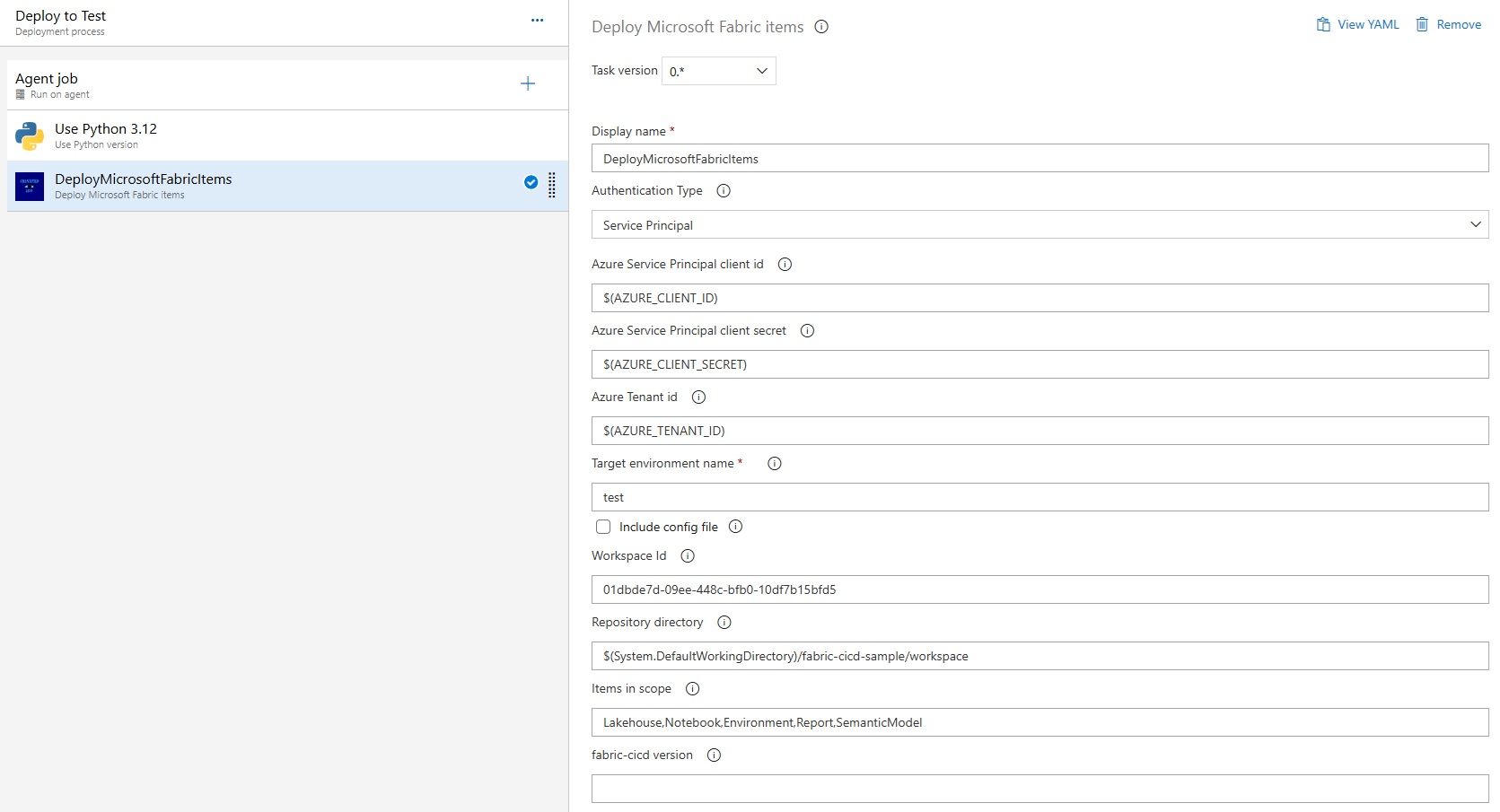
Core Parameters
- Authentication Type: Choose how to authenticate (default: "Service Connection")
- Service Connection: Use an Azure DevOps service connection (supports Workload Identity Federation)
- Service Principal: Manually enter Service Principal credentials
- Target Environment Name: Environment name for deployment tracking (default: "test")
- Include config file: Enable to use a configuration file for deployment settings (default: false)
Using Service Connection
If you select "Service Connection" as the authentication type:
- Azure subscription (service connection): Name of service connection configured in your Azure DevOps project
The task now understands Workload Identity Federation service connections: if your AzureRM service connection is set to "Workload identity federation", the task will automatically pick up the issued OIDC token, log in using az login --federated-token, and obtain a Fabric API bearer token via Get-AzAccessToken without needing a client secret.
WIF prerequisites:
Brief how-to: Richard Mintz wrote a post on how to create an Azure DevOps Service Connection for your Azure subscription.
Using Service Principal Credentials
If you select "Service Principal" as the authentication type:
- Azure Service Principal Client ID: The client ID of your Azure Service Principal
- Azure Service Principal Client Secret: The client secret (recommended to use Azure DevOps secret variables)
- Azure Tenant ID: Your Azure Active Directory tenant ID
Deployment Configuration
Choose one of two deployment methods:
Option 1: Configuration File (includeConfig = true)
- Config file path: Path to your configuration file in the source repository, relative to the repository directory (example:
./workspace/config.yml)
Option 2: Direct Configuration (includeConfig = false)
- Workspace ID: The GUID of your target Microsoft Fabric workspace
- Repository Directory: Path to your Fabric items in the repository (default:
$(Build.SourcesDirectory)/workspace which represents a subfolder called workspace in your Git repository)
- Items in Scope: Comma-separated list of item types to deploy (default: all items). Example:
dataflows,dashboards. If empty, all items will be deployed.
Optional Parameters
- fabric-cicd Version: Specific version of the fabric-cicd library to use (default: latest, which recommend to take advantage of latest settings)
Example YAML Pipeline
Example 1: Service Connection with Direct Configuration
steps:
# Required for WIF: Enable OAuth token access
- checkout: self
  persistCredentials: true

# Mandatory task to specify Python version
- task: UsePythonVersion@0
  displayName: 'Use Python 3.12'
  inputs:
    versionSpec: 3.12

# Deploy Fabric items task with service connection
- task: DeployMicrosoftFabricItems@0
  displayName: 'Deploy Fabric Items to Test Workspace'
  inputs:
    authType: 'serviceConnection'
    azureSubscription: 'My-WIF-Connection'  # Your WIF-enabled service connection
    environmentName: 'Test'
    workspaceId: '12345678-1234-1234-1234-123456789abc'
    repositoryDirectory: './workspace'
    itemsInScope: 'Notebook,Lakehouse,DataPipeline'
Example 2: Service Principal with Config File
steps:
# Mandatory task to specify Python version
- task: UsePythonVersion@0
  displayName: 'Use Python 3.12'
  inputs:
    versionSpec: 3.12

# Deploy Fabric items task with service principal and config file
- task: DeployMicrosoftFabricItems@0
  displayName: 'Deploy Fabric Items using Config'
  inputs:
    authType: 'servicePrincipal'
    azureClientId: '$(AzureClientId)'
    azureClientSecret: '$(AzureClientSecret)'
    azureTenantId: '$(AzureTenantId)'
    environmentName: 'Production'
    includeConfig: true
    configFilePath: './workspace/config.yml'
Example 3: Service Principal with Direct Configuration
steps:
# Mandatory task to specify Python version
- task: UsePythonVersion@0
  displayName: 'Use Python 3.12'
  inputs:
    versionSpec: 3.12

# Deploy Fabric items task with service principal credentials
- task: DeployMicrosoftFabricItems@0
  displayName: 'Deploy Fabric Items to Development Workspace'
  inputs:
    authType: 'servicePrincipal'
    azureClientId: '$(AzureClientId)'
    azureClientSecret: '$(AzureClientSecret)'
    azureTenantId: '$(AzureTenantId)'
    environmentName: 'Development'
    workspaceId: '87654321-4321-4321-4321-abcdef123456'
    repositoryDirectory: './fabric-workspace'
    itemsInScope: 'Notebook,DataPipeline'
Example 4: Classic Pipeline with Service Principal
For Classic pipelines in Azure DevOps (Build or Release):
- Add the Deploy Microsoft Fabric Items task to your pipeline
- Configure the following:
- Set Authentication Type to "Service Principal"
- Enter your Azure Service Principal Client ID (use a secret variable like
$(AzureClientId))
- Enter your Azure Service Principal Client Secret (use a secret variable like
$(AzureClientSecret))
- Enter your Azure Tenant ID (use a secret variable like
$(AzureTenantId))
- Set Target Environment Name (e.g., "Production")
- Disable Include config file (leave unchecked)
- Specify your Workspace ID (the GUID of your target workspace)
- Optionally configure Repository Directory and Items in Scope as needed
- Make sure the UsePythonVersion task is configured to use Python 3.9 or higher before this task
- Save and run your pipeline
Note: Classic pipelines use the default system working directory. Ensure your Fabric items are in the correct directory structure or adjust the Repository Directory path accordingly.
Example 5: Classic Pipeline with Service Connection
For Classic pipelines using an Azure service connection:
- Add the Deploy Microsoft Fabric Items task to your pipeline
- Configure the following:
- Set Authentication Type to "Service Connection"
- Select your Azure subscription (service connection) from the dropdown (this can be a standard AzureRM connection or one configured with Workload Identity Federation)
- Set Target Environment Name (e.g., "Staging")
- Disable Include config file (leave unchecked)
- Specify your Workspace ID (the GUID of your target workspace)
- Optionally configure Repository Directory and Items in Scope as needed
- Make sure the UsePythonVersion task is configured to use Python 3.9 or higher before this task
- If using Workload Identity Federation, ensure your service connection has the necessary permissions within the pipeline and you ensure your Agent has the option "Allow scripts to access the OAuth token" selected.
- Save and run your pipeline
Advantages: Using a service connection simplifies credential management, as credentials are stored securely in Azure DevOps and not exposed in pipeline definitions.
Use Cases
- Continuous Deployment: Automatically deploy Fabric items when code is merged to main branch
- Environment Promotion: Deploy to Test, Staging, and Production workspaces with different configurations
- Multi-Workspace Management: Deploy the same artifacts to multiple workspaces across different environments
- Selective Deployments: Deploy only specific item types in different stages of your pipeline
- Cleanup Operations: Automatically remove orphaned items that have been deleted from source control
Security Best Practices
- Store Service Principal credentials in Azure DevOps secret variables or variable groups
- Use separate Service Principals for different environments
- Grant minimum required permissions to Service Principals
- Regularly rotate Service Principal secrets
- Use Azure Key Vault integration for enhanced secret management
Logging and Troubleshooting
The task provides detailed logging with timestamps for each operation:
- Python version validation
- Azure authentication status
- fabric-cicd installation progress
- Deployment operation details
- Success/failure status with clear error messages
Resources
Explore additional learning materials to get the most out of this extension:
Privacy
This extension does not collect or transmit any personal data. All credentials are handled securely through Azure DevOps service connections and are not stored or logged by the extension. For full details, see our Privacy Policy.
Support and Feedback
For issues, feature requests, or questions, please visit our GitHub repository.
About Microsoft Fabric
Microsoft Fabric is an all-in-one analytics solution that brings together data movement, data science, Real-Time Analytics, and business intelligence. This extension helps teams implement robust CI/CD practices for their Fabric workspaces, enabling version control, automated testing, and consistent deployments across environments.
Publisher: Chantified Lens
Category: Azure Pipelines
Tags: Microsoft Fabric, Azure DevOps, CI/CD, Deployment, Data Engineering, Analytics

